
1. ആമുഖം
വാങ്ങിയതിന് നന്ദി.asing the KTC 24-inch WQHD 100Hz IPS Monitor. This manual provides essential information for the safe and efficient use of your new monitor. Please read it thoroughly before use and keep it for future reference.
This monitor features a 24-inch IPS panel with WQHD (2560x1440) resolution, offering stunning visual clarity and vibrant colors with 122% sRGB coverage. A 100Hz refresh rate and FreeSync & G-Sync compatibility ensure smooth, tear-free visuals, ideal for both office work and casual gaming. Advanced eye care technologies, including blue light reduction and flicker-free operation, provide a comfortable viewing experience even during extended use. The monitor also supports HDR10 for enhanced dynamic range and features flexible connectivity options with HDMI and DisplayPort.
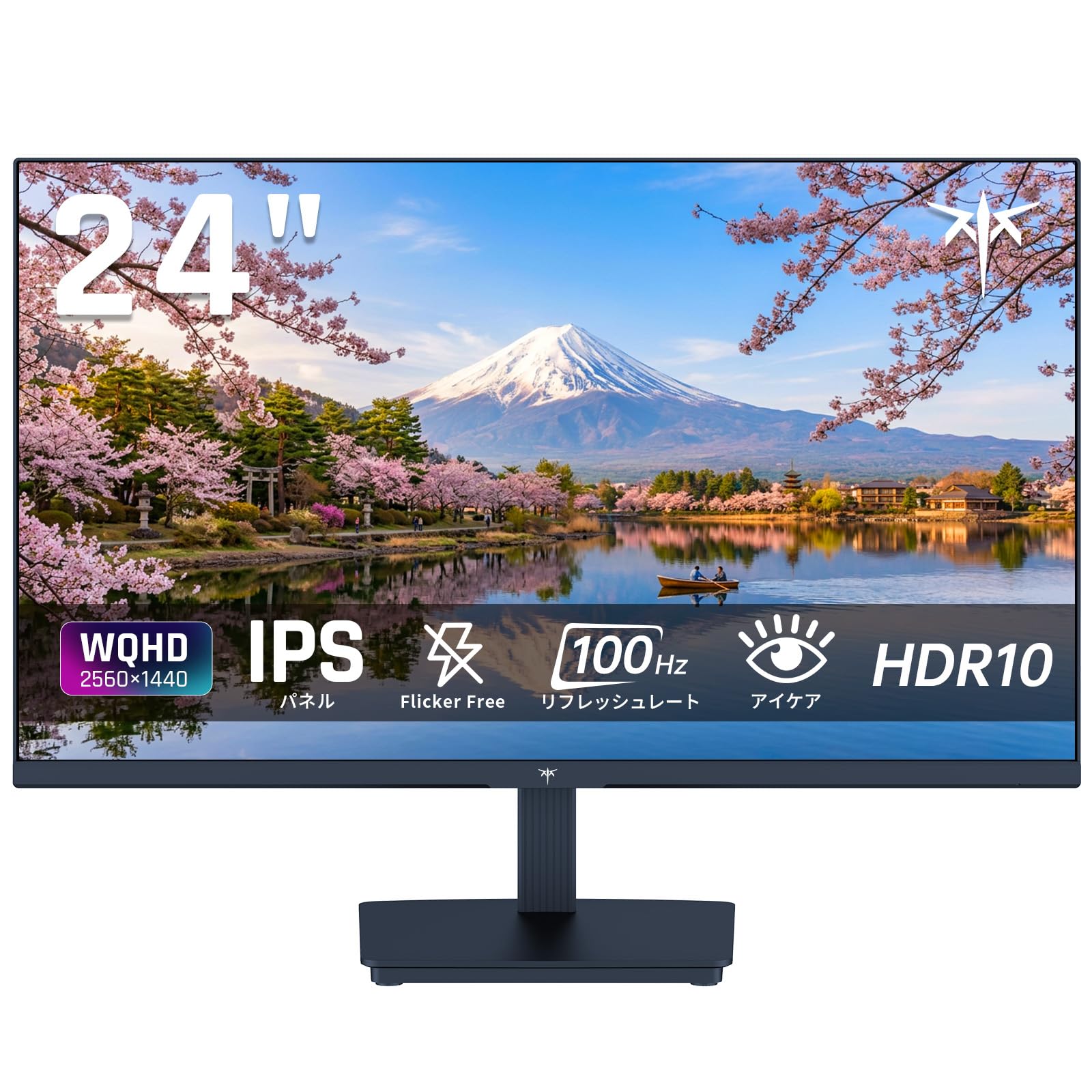
Image: KTC 24-inch WQHD 100Hz IPS Monitor.
2 സുരക്ഷാ വിവരങ്ങൾ
Please observe the following safety precautions to prevent damage to the monitor or injury to yourself or others:
- മഴ, ഈർപ്പം അല്ലെങ്കിൽ തീവ്രമായ താപനിലകൾ മോണിറ്ററിനെ ഏൽപ്പിക്കരുത്.
- അമിതമായി ചൂടാകുന്നത് തടയാൻ മോണിറ്ററിന് ചുറ്റും ശരിയായ വായുസഞ്ചാരം ഉറപ്പാക്കുക.
- മോണിറ്ററിനൊപ്പം നൽകിയിരിക്കുന്ന പവർ അഡാപ്റ്റർ മാത്രം ഉപയോഗിക്കുക.
- പവർ കോഡിലോ മോണിറ്ററിലോ ഭാരമുള്ള വസ്തുക്കൾ വയ്ക്കുന്നത് ഒഴിവാക്കുക.
- Do not attempt to disassemble or repair the monitor yourself. Contact qualified service personnel.
- മോണിറ്റർ ശക്തമായ കാന്തികക്ഷേത്രങ്ങളിൽ നിന്ന് അകറ്റി നിർത്തുക.
3. പാക്കേജ് ഉള്ളടക്കം
പാക്കേജിൽ എല്ലാ ഇനങ്ങളും ഉണ്ടെന്ന് ഉറപ്പാക്കുക:
- KTC 24-inch WQHD 100Hz IPS Monitor (H24T27)
- മോണിറ്റർ ബേസ്
- HDMI കേബിൾ
- പവർ അഡാപ്റ്റർ
- ഉപയോക്തൃ മാനുവൽ
4. സജ്ജീകരണം
4.1 സ്റ്റാൻഡ് കൂട്ടിച്ചേർക്കൽ
- പാക്കേജിംഗിൽ നിന്ന് മോണിറ്ററും ബേസും ശ്രദ്ധാപൂർവ്വം നീക്കം ചെയ്യുക.
- മോണിറ്റർ പാനലിലേക്ക് സ്റ്റാൻഡ് നെക്ക് ഘടിപ്പിക്കുക.
- Secure the base to the stand neck using the provided screws.
4.2 മോണിറ്റർ ബന്ധിപ്പിക്കുന്നു
ഉചിതമായ കേബിളുകൾ ഉപയോഗിച്ച് നിങ്ങളുടെ കമ്പ്യൂട്ടറിലേക്കോ മറ്റ് ഉപകരണങ്ങളിലേക്കോ മോണിറ്റർ ബന്ധിപ്പിക്കുക.
- പവർ കണക്ഷൻ: Connect the power adapter to the monitor's DC input and then plug it into a power outlet.
- വീഡിയോ കണക്ഷൻ: Use the supplied HDMI cable or a DisplayPort cable to connect your computer's video output to the corresponding port on the monitor.
- ഓഡിയോ ഔട്ട്പുട്ട്: If desired, connect headphones or external speakers to the 3.5mm audio output jack.

Image: Close-up of the KTC monitor's rear ports, including DC power, HDMI, DisplayPort, and audio out.
5. പ്രവർത്തന നിർദ്ദേശങ്ങൾ
5.1 പവർ ഓൺ/ഓഫ്
മോണിറ്റർ ഓൺ അല്ലെങ്കിൽ ഓഫ് ചെയ്യുന്നതിന് അതിൽ സ്ഥിതിചെയ്യുന്ന പവർ ബട്ടൺ അമർത്തുക.
5.2 ഓൺ-സ്ക്രീൻ ഡിസ്പ്ലേ (OSD) മെനു
The OSD menu allows you to adjust various monitor settings. Use the control buttons (usually located on the back or bottom of the monitor) to navigate the menu and make selections.
5.3 ഡിസ്പ്ലേ ക്രമീകരണങ്ങൾ
- റെസലൂഷൻ: The monitor supports WQHD (2560x1440) resolution for sharp and detailed images. Ensure your graphics card is set to this resolution for optimal display.
- പുതുക്കൽ നിരക്ക്: Enjoy smooth visuals with a 100Hz refresh rate. This can be configured in your operating system's display settings.
- വർണ്ണ ഗാമറ്റ്: The monitor offers 122% sRGB coverage for rich and accurate colors.

Image: KTC monitor highlighting key features like IPS panel, 100Hz, WQHD, 24-inch, Adaptive Sync, and blue light reduction.

Image: Comparison of WQHD (2560x1440) and FHD (1920x1080) resolutions, demonstrating enhanced detail with WQHD.

Image: Comparison of 100Hz and 60Hz refresh rates, showing smoother motion with 100Hz.
5.4 Adaptive Sync (FreeSync & G-Sync)
The monitor supports both FreeSync and G-Sync technologies to eliminate screen tearing and stuttering, providing a fluid gaming experience. Ensure this feature is enabled in your graphics card settings and the monitor's OSD.

Image: Monitor display showing HDR10 content on one side and standard HDR on the other, along with FreeSync & G-Sync comparison (ON/OFF).
5.5 നേത്ര പരിചരണ സവിശേഷതകൾ
The monitor includes Flicker-Free technology and a Blue Light Reduction mode to minimize eye strain during prolonged use. These settings can be adjusted via the OSD menu.

Image: KTC monitor displaying eye care features: Low Blue Light (ON/OFF) and Flicker-Free (ON/OFF).
5.6 HDR10 പിന്തുണ
This monitor supports HDR10, providing a wider range of colors and contrasts for a more immersive viewing experience. Ensure HDR is enabled in your device's display settings for compatible content.
5.7 ക്രമീകരിക്കാവുന്ന സ്റ്റാൻഡ്
The monitor stand allows for tilt adjustment from -5° to 15°, enabling you to find the most comfortable viewing ആംഗിൾ.

ചിത്രം: വശം view of the KTC monitor demonstrating the tilt-adjustable stand (-5° to 15°).
5.8 വീതി Viewing ആംഗിൾ
The IPS panel provides a wide 178-degree viewing angle, ensuring consistent color and image quality from almost any perspective.

Image: KTC monitor showcasing a wide 178-degree viewing angle with consistent color.
6. പരിപാലനം
6.1 മോണിറ്റർ വൃത്തിയാക്കുന്നു
- വൃത്തിയാക്കുന്നതിന് മുമ്പ് എപ്പോഴും മോണിറ്റർ അൺപ്ലഗ് ചെയ്യുക.
- നനവില്ലാത്തതും ലിനില്ലാത്തതുമായ തുണി ചെറുതായി ഉപയോഗിക്കുകampവെള്ളം അല്ലെങ്കിൽ നേരിയതും, ഉരച്ചിലുകളില്ലാത്തതുമായ സ്ക്രീൻ ക്ലീനർ ഉപയോഗിച്ച് തുടയ്ക്കുക.
- ക്ലീനർ നേരിട്ട് സ്ക്രീനിൽ സ്പ്രേ ചെയ്യരുത്.
- കഠിനമായ രാസവസ്തുക്കളോ ഉരച്ചിലുകളോ ഉപയോഗിക്കുന്നത് ഒഴിവാക്കുക.
6.2 പൊതു പരിചരണം
- Keep the monitor in a clean, dry environment.
- Protect the screen from sharp objects.
- When moving the monitor, handle it carefully and avoid putting pressure on the screen.
7. പ്രശ്നപരിഹാരം
നിങ്ങളുടെ മോണിറ്ററിൽ പ്രശ്നങ്ങൾ നേരിടുകയാണെങ്കിൽ, ഇനിപ്പറയുന്ന പൊതുവായ പ്രശ്നങ്ങളും പരിഹാരങ്ങളും പരിശോധിക്കുക:
| പ്രശ്നം | സാധ്യമായ പരിഹാരം |
|---|---|
| സ്ക്രീനിൽ ചിത്രമൊന്നുമില്ല | Check power connections. Ensure video cable is securely connected to both monitor and computer. Select correct input source via OSD. |
| ചിത്രം മങ്ങിയതോ വളച്ചൊടിച്ചതോ ആണ് | Ensure the display resolution is set to 2560x1440. Check video cable for damage. |
| സ്ക്രീൻ കീറുകയോ ഇടറുകയോ ചെയ്യുന്നു | Verify FreeSync/G-Sync is enabled in both monitor OSD and graphics card settings. |
| No sound from headphones/speakers | Check audio cable connection. Ensure volume is not muted on monitor or computer. |
| മോണിറ്റർ ഓണാക്കുന്നില്ല | Check power outlet and power adapter connection. Try a different power outlet. |
If the problem persists after trying these solutions, please contact KTC customer support.
8 സ്പെസിഫിക്കേഷനുകൾ
Detailed technical specifications for the KTC H24T27 monitor:
| ഫീച്ചർ | സ്പെസിഫിക്കേഷൻ |
|---|---|
| ബ്രാൻഡ് | കെ.ടി.സി. |
| മോഡൽ നമ്പർ | H24T27 |
| സ്ക്രീൻ വലിപ്പം | 24 ഇഞ്ച് |
| റെസലൂഷൻ | WQHD (2560 x 1440 pixels) |
| വീക്ഷണാനുപാതം | 16:9 |
| പാനൽ തരം | ഐ.പി.എസ് |
| സ്ക്രീൻ ഉപരിതലം | നോൺ-ഗ്ലെയർ |
| പുതുക്കിയ നിരക്ക് | 100 Hz |
| പ്രതികരണ സമയം | 7 എം.എസ് |
| കോൺട്രാസ്റ്റ് റേഷ്യോ | 1300:1 |
| തെളിച്ചം | 300 cd/m² |
| വർണ്ണ ഗാമറ്റ് | 122% sRGB |
| Viewing ആംഗിൾ | 178 ഡിഗ്രി |
| HDR ടെക്നോളജി | HDR10 |
| അഡാപ്റ്റീവ് സമന്വയം | FreeSync, G-Sync |
| കണക്റ്റിവിറ്റി | 1x HDMI, 1x DisplayPort, Audio Out |
| വൈദ്യുതി ഉപഭോഗം | 12 വാട്ട്സ് |
| വാല്യംtage | 100 വോൾട്ട് |
| അളവുകൾ (D x W x H) | 18.3 x 54 x 40.5 സെ.മീ |
| അധിക സവിശേഷതകൾ | Adaptive Sync, Eye Care, Flicker-Free, Blue Light Filter, Tilt Adjustment |
| അനുയോജ്യമായ ഉപകരണങ്ങൾ | Game Consoles, Laptops |
| നിറം | കറുപ്പ് |
| ആകൃതി | ഫ്ലാറ്റ് |
| ഉത്ഭവം | ചൈന |
9. വാറൻ്റിയും പിന്തുണയും
9.1 വാറൻ്റി വിവരങ്ങൾ
Your KTC monitor comes with a 3 വർഷത്തെ നിർമ്മാതാവിന്റെ വാറന്റി. In the event of a product defect, a free replacement will be provided. Please note that this warranty does not cover loss or damage caused by customer negligence.

Image: KTC's 3-year free replacement warranty details and contact information.
9.2 ഉപഭോക്തൃ പിന്തുണ
For any inquiries or concerns, please feel free to contact us. We are committed to providing full support to ensure your satisfaction.
ഫോൺ: 050-3606-8990
ഇമെയിൽ: support@ktcplay.com
You can also contact support through Amazon:

Image: Step-by-step guide on how to contact customer support via Amazon.
10. ഉൽപ്പന്നം കഴിഞ്ഞുview വീഡിയോ
ഒരു വിഷ്വൽ ഓവറിനായി ഈ വീഡിയോ കാണുകview of the KTC QHD computer monitor and its features.
Video: This video showcases the KTC QHD computer monitor, highlighting its 2560x1440 (2K) resolution, 100Hz refresh rate, FreeSync and G-Sync compatibility, flicker-free and low blue light features, 8-bit & 116% sRGB color gamut, 3-side frameless design, -5° to 15° tilt adjustable stand, and available sizes (24, 27, 32 inches). It emphasizes its suitability for professional office use.