
1. ആമുഖം
The Sharkoon AK2 Black is an ATX PC case designed for a wide range of computer builds, including gaming, work, and multimedia stations. It offers a discreet aesthetic combined with extensive compatibility for modern hardware and efficient cooling solutions. This manual provides essential information for the proper setup, operation, and maintenance of your AK2 PC case.
പ്രധാന സവിശേഷതകളിൽ ഇവ ഉൾപ്പെടുന്നു:
- Support for Mini-ITX, Micro-ATX, ATX, and BTF motherboards.
- Spacious interior for large graphics cards (up to 41 cm).
- CPU cooler height clearance up to 17 cm.
- Power supply unit (PSU) length up to 23.5 cm.
- Pre-installed 120mm fans (one front, one rear), with support for up to eleven fans total.
- Compatibility with up to two 360mm radiators for liquid cooling.
- Front panel with modern TRRS and USB-C ports.
- Storage options for up to two 3.5" HDDs or four 2.5" SSDs.
2 സുരക്ഷാ വിവരങ്ങൾ
Please read and understand the following safety guidelines before installing components into your PC case:
- Always disconnect the power supply from the wall outlet before opening the PC case or installing/removing components.
- Handle all components with care to avoid damage. Static electricity can harm sensitive electronic parts. Consider using an anti-static wrist strap.
- പിസി കേസിന് ചുറ്റും ശരിയായ വായുസഞ്ചാരം ഉറപ്പാക്കുക, അങ്ങനെ അത് അമിതമായി ചൂടാകുന്നത് തടയാം.
- കുട്ടികളിൽ നിന്ന് ചെറിയ ഭാഗങ്ങളും ഉപകരണങ്ങളും സൂക്ഷിക്കുക.
- Do not attempt to modify the case structure, as this may compromise its integrity and void your warranty.
- Refer to the manuals of your individual components (motherboard, GPU, PSU, etc.) for specific installation instructions.
3. സജ്ജീകരണവും ഘടക ഇൻസ്റ്റാളേഷനും
This section outlines the general steps for installing your computer components into the Sharkoon AK2 Black PC case.
3.1. കേസ് തയ്യാറാക്കൽ
Carefully remove the side panels of the case. The AK2 features a spacious interior designed for ease of access during component installation.

ചിത്രം 1: ആന്തരിക view of the main compartment, ready for component installation.
3.2. മദർബോർഡ് ഇൻസ്റ്റാളേഷൻ
The AK2 supports Mini-ITX, Micro-ATX, ATX, and BTF motherboards. Install the necessary standoffs for your motherboard form factor. Carefully place your motherboard onto the standoffs and secure it with screws.

Figure 2: Motherboard tray cutout for easy CPU cooler installation/removal.
3.3. പവർ സപ്ലൈ യൂണിറ്റ് (പിഎസ്യു) ഇൻസ്റ്റാളേഷൻ
Install your PSU into the dedicated compartment at the bottom of the case. The AK2 accommodates PSUs up to 23.5 cm in length. Secure the PSU with screws from the rear of the case.
3.4. സ്റ്റോറേജ് ഡ്രൈവ് ഇൻസ്റ്റാളേഷൻ
The case provides bays for up to two 3.5" HDDs or four 2.5" SSDs. Locate the drive cages and mounting points, typically behind the motherboard tray or within the PSU shroud area. Secure your drives using the provided screws or tool-less mechanisms.

ചിത്രം 3: പിൻഭാഗത്തെ ആന്തരികം view showing cable management space and drive mounting options.
3.5. ഗ്രാഫിക്സ് കാർഡ് (GPU) ഉം എക്സ്പാൻഷൻ കാർഡ് ഇൻസ്റ്റലേഷനും
Install your graphics card into the appropriate PCIe slot on your motherboard. The AK2 supports large graphics cards up to 41 cm in length. Remove the necessary expansion slot covers from the rear of the case and secure your card.
3.6. Cooling System Installation (Fans and Radiators)
The AK2 comes with two pre-installed 120mm fans (one in the front, one in the rear). The case supports up to eleven fans in total for optimal airflow. For liquid cooling, it can accommodate up to two 360mm radiators. Install additional fans or radiators in the designated mounting positions (front, top, rear) as needed.

ചിത്രം 4: ആന്തരിക view showing fan and radiator mounting locations.
3.7. ഫ്രണ്ട് പാനൽ I/O ബന്ധിപ്പിക്കുന്നു
Connect the front panel cables (USB-C, TRRS audio, power button, reset button, LED indicators) to the corresponding headers on your motherboard. Refer to your motherboard manual for exact header locations.

ചിത്രം 5: മുൻഭാഗം view of the AK2 case, featuring the front panel I/O.
4. നിങ്ങളുടെ പിസി കേസ് പ്രവർത്തിപ്പിക്കൽ
Once all components are installed and connected, replace the side panels. Connect your peripherals, monitor, and power cable. Press the power button on the front panel to start your computer.
The AK2's design prioritizes airflow to ensure efficient cooling for your components. Ensure that the pre-installed fans are spinning and consider adding more fans if your system generates significant heat, especially during demanding tasks like gaming.
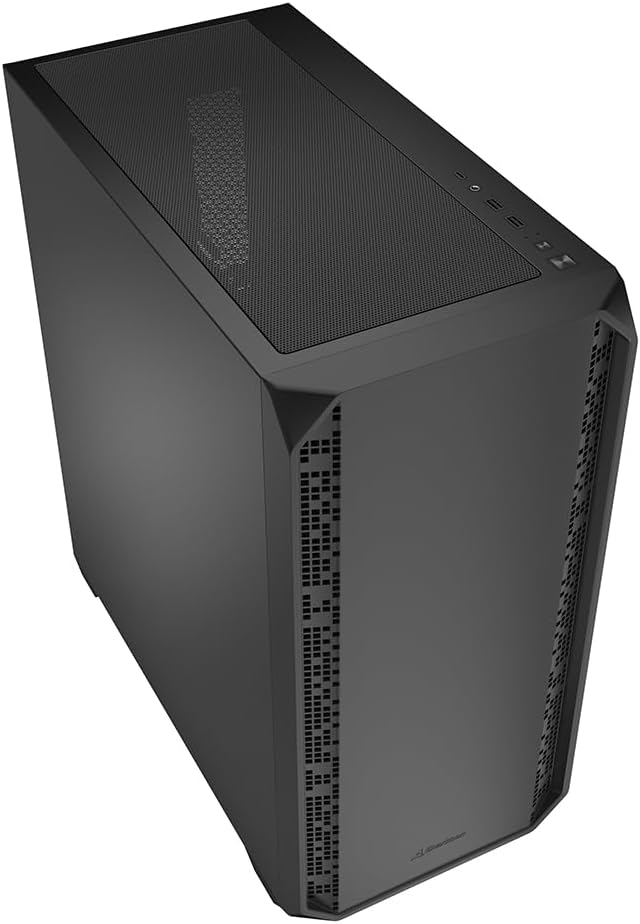
ചിത്രം 6: കോണാകൃതിയിലുള്ളത് view of the AK2 case, showcasing അതിന്റെ മൊത്തത്തിലുള്ള രൂപകൽപ്പന.
5. പരിപാലനം
നിങ്ങളുടെ പിസി ഘടകങ്ങളുടെ ഒപ്റ്റിമൽ പ്രകടനവും ദീർഘായുസ്സും ഉറപ്പാക്കാൻ പതിവ് അറ്റകുറ്റപ്പണികൾ സഹായിക്കുന്നു.
- പൊടി ഫിൽട്ടറുകൾ: The AK2 likely includes removable dust filters (e.g., on the top, front, and/or bottom). Regularly clean these filters by gently brushing or washing them to prevent dust buildup inside the case, which can impede airflow and cause overheating.
- ഇന്റീരിയർ ക്ലീനിംഗ്: Periodically open the case (after disconnecting power) and use compressed air to remove dust from fans, heatsinks, and other components.
- കേബിൾ മാനേജുമെന്റ്: Ensure cables are neatly routed to avoid obstructing airflow. The AK2 offers ample space behind the motherboard tray for effective cable management.
6. പ്രശ്നപരിഹാരം
If you encounter issues during or after building your PC, consider the following common troubleshooting steps:
- ശക്തിയില്ല: Double-check all power connections, including the 24-pin ATX, 8-pin CPU, and PCIe power cables. Ensure the PSU switch is in the 'ON' position.
- ഡിസ്പ്ലേ ഇല്ല: Verify that your monitor is connected to the graphics card (not the motherboard's integrated graphics, unless you are using it) and that the monitor is powered on and set to the correct input. Reseat your graphics card and RAM modules.
- അമിത ചൂടാക്കൽ: Ensure all case fans and CPU cooler fans are spinning correctly. Check for dust buildup on heatsinks and dust filters. Verify proper thermal paste application on the CPU.
- Front Panel I/O Issues: Confirm that all front panel headers (USB, audio, power/reset switches) are correctly connected to the motherboard.
For more complex issues, consult the manuals for your individual components or seek assistance from a qualified technician.
7 സ്പെസിഫിക്കേഷനുകൾ
Below are the technical specifications for the Sharkoon AK2 Black ATX PC Case:
| ബ്രാൻഡ് | ഷാർകൂൺ |
| മോഡലിൻ്റെ പേര് | AK2 കറുപ്പ് |
| കേസ് തരം | ടവർ |
| നിറം | കറുപ്പ് |
| മെറ്റീരിയൽ | അലോയ് സ്റ്റീൽ |
| ഇനത്തിൻ്റെ ഭാരം | 6.46 കിലോഗ്രാം |
| ഉൽപ്പന്ന അളവുകൾ (D x W x H) | 46D x 22.5W x 48.5H സെൻ്റീമീറ്റർ |
| Total Internal Bays | 6 (for 3.5" HDDs or 2.5" SSDs) |
| മദർബോർഡ് പിന്തുണ | Mini-ITX, Micro-ATX, ATX, BTF |
| Max. GPU Length | 41 സെ.മീ |
| പരമാവധി. സിപിയു കൂളർ ഉയരം | 17 സെ.മീ |
| പരമാവധി. PSU ദൈർഘ്യം | 23.5 സെ.മീ |
| ആരാധക പിന്തുണ | Up to 11 (2 x 120mm pre-installed) |
| റേഡിയേറ്റർ പിന്തുണ | Up to two 360mm radiators |
| ഫ്രണ്ട് I/O | TRRS, USB-C |

Figure 7: Product dimensions of the AK2 Black PC case.
8. വാറൻ്റിയും പിന്തുണയും
വാറന്റി വിവരങ്ങൾക്കും സാങ്കേതിക പിന്തുണയ്ക്കും, ദയവായി ഔദ്യോഗിക ഷാർക്കൂൺ പരിശോധിക്കുക. webസൈറ്റിൽ ബന്ധപ്പെടുകയോ അവരുടെ ഉപഭോക്തൃ സേവനവുമായി നേരിട്ട് ബന്ധപ്പെടുകയോ ചെയ്യുക. വാറന്റി ക്ലെയിമുകൾക്കായി നിങ്ങളുടെ വാങ്ങിയതിന്റെ തെളിവ് സൂക്ഷിക്കുക.
കൂടുതൽ സഹായത്തിന്, നിങ്ങൾക്ക് സന്ദർശിക്കാവുന്നതാണ് Sharkoon official webസൈറ്റ്.