
1. ആമുഖം
This manual provides detailed instructions for the setup, operation, and maintenance of your OFFNOVA TSC-2043PB Bluetooth Thermal Label Printer. Please read this manual thoroughly before using the device to ensure proper functionality and to extend the product's lifespan. This printer is designed for various labeling tasks, including address labels, shipping labels, product tags, and more, compatible with both mobile devices and computers.
2. പാക്കേജ് ഉള്ളടക്കം
പാക്കേജിൽ എല്ലാ ഇനങ്ങളും ഉണ്ടെന്ന് ഉറപ്പാക്കുക:
- 1 x OFFNOVA TSC-2043PB Label Maker
- 1 x Roll of 200 Labels (70mm x 40mm)
- 1 x USB-C കേബിൾ
- 1 x ഇൻസ്ട്രക്ഷൻ മാനുവൽ
3. ഉൽപ്പന്നം കഴിഞ്ഞുview
The OFFNOVA TSC-2043PB is a portable thermal label printer featuring Bluetooth and USB connectivity. It offers high-resolution printing at 203 DPI and supports label widths from 0.78 inches to 3.14 inches (20-80mm). The device is equipped with a 2500mAh rechargeable battery for extended use.
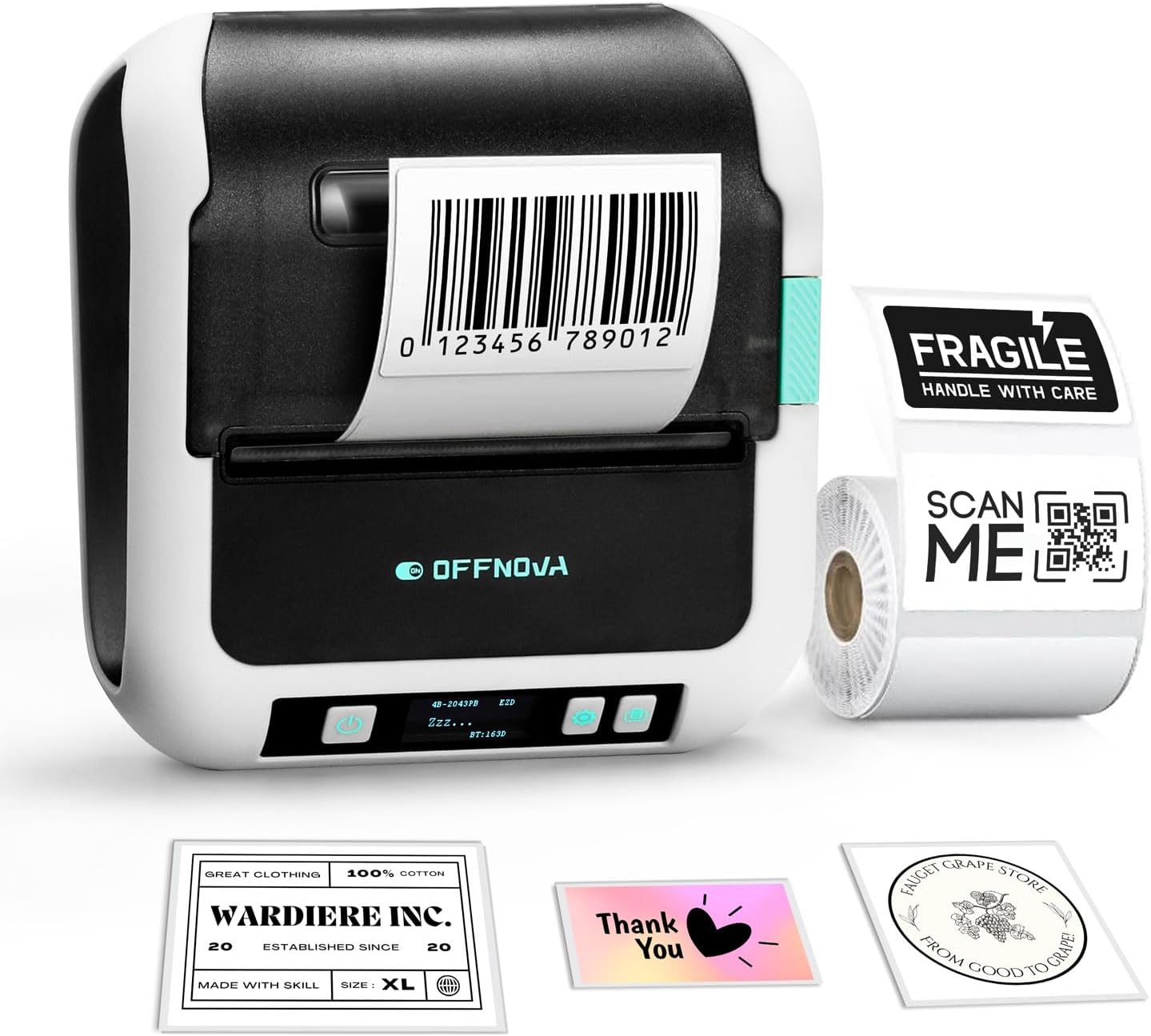
Image 3.1: OFFNOVA TSC-2043PB Label Maker. The printer is shown with a barcode label being printed, alongside various sample labels like 'Fragile', 'Thank You', and 'Wardrobe Inc.'.

Image 3.2: Close-up of the printer's digital display. The display shows '4B-2043PB', 'ZZZ...', 'EZD', and 'BT:163D', indicating model information and Bluetooth status.
പ്രധാന സവിശേഷതകൾ:
- Stable Bluetooth Connectivity: For wireless printing from iOS and Android devices.
- ഹൈ-സ്പീഡ് പ്രിന്റിംഗ്: Up to 70mm/s.
- നീണ്ട ബാറ്ററി ലൈഫ്: 2500mAh റീചാർജ് ചെയ്യാവുന്ന ബാറ്ററി.
- Wide Label Support: Compatible with labels from 0.78" to 3.14" (20-80mm) width.
- ഉയർന്ന മിഴിവ്: 203 DPI for clear text and barcodes.
- ബഹുമുഖ ആപ്ലിക്കേഷൻ: Suitable for home, office, and small business use.
4. സജ്ജീകരണം
4.1 ലേബലുകൾ ലോഡുചെയ്യുന്നു
Follow these steps to properly load label paper into your printer:
- Step 1: Unlock and Adjust Baffle. Unlock and adjust the baffle width to accommodate the label paper's width.
- Step 2: Insert Label Paper. Put the label paper roll into the printer compartment. Ensure the labels face upwards.
- Step 3: Lock Baffle. Lock and secure the baffle to hold the label roll in place.
- Step 4: Close Cover and Power On. Close the printer cover, then turn on the power. The printer will automatically calibrate the label.
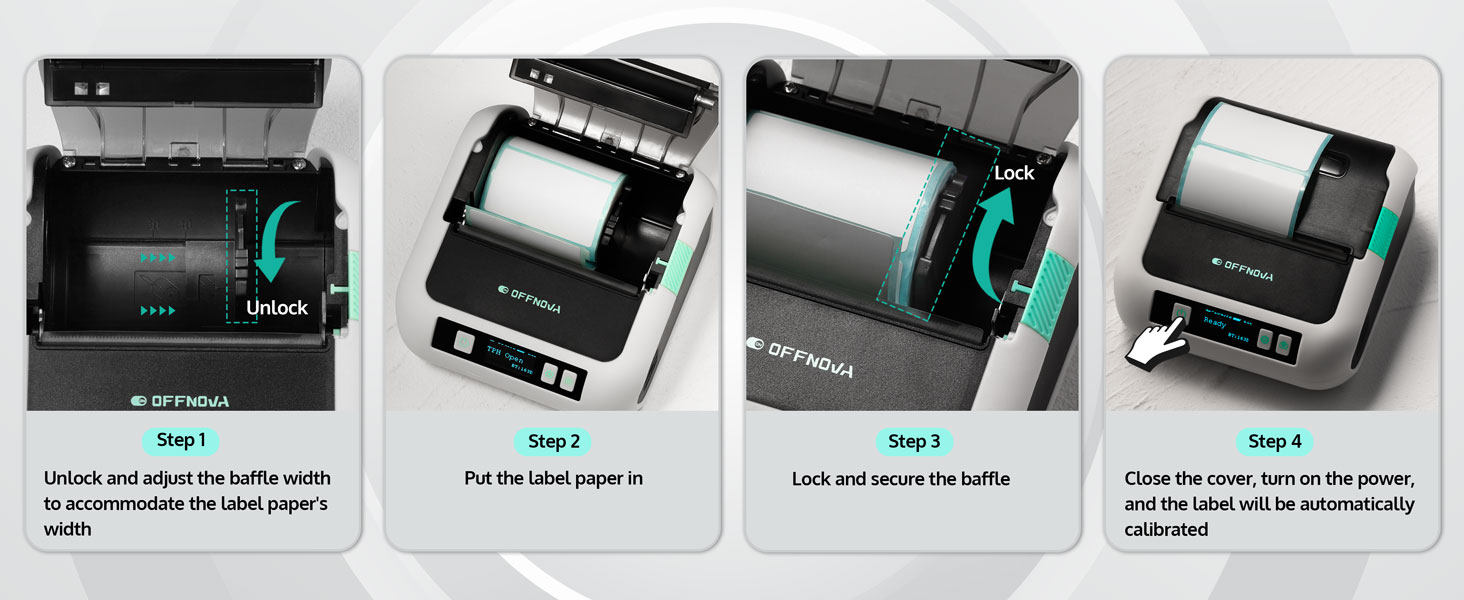
Image 4.1: Visual guide for loading labels. Shows unlocking, inserting, locking, and automatic calibration steps.
4.2 Mobile Device Setup (iOS/Android)
നിങ്ങളുടെ സ്മാർട്ട്ഫോണിൽ നിന്നോ ടാബ്ലെറ്റിൽ നിന്നോ പ്രിന്റ് ചെയ്യാൻ, ഈ ഘട്ടങ്ങൾ പാലിക്കുക:
- ഘട്ടം 1: ആപ്പ് ഡൗൺലോഡ് ചെയ്യുക. Download the "4Barcode" app from your device's app store.
- Step 2: Power On and Enable Bluetooth. Turn on the OFFNOVA label maker and ensure Bluetooth is enabled on your mobile device.
- Step 3: Connect and Print. Open the "4Barcode" app, connect to your printer via Bluetooth, customize your label content, and initiate printing.

Image 4.2: The label maker connected to a smartphone via Bluetooth and a laptop via USB-C, illustrating its compatibility.
4.3 PC/Mac Setup
To print from your computer, follow these steps:
- Step 1: Download Driver. Visit the official OFFNOVA website and download the correct driver for your computer's operating system (Windows or macOS).
- Step 2: Connect via USB. Connect the printer to your computer using the provided USB-C cable.
- Step 3: Select and Print. Customize your label content using your preferred software, select the '2043PB' model as your printer, and begin printing.
5. പ്രവർത്തന നിർദ്ദേശങ്ങൾ
5.1 Using the 4Barcode App
The 4Barcode app provides extensive features for label design and printing:
- Ready-to-Use Templates: Access a variety of pre-designed templates for different label types.
- Barcode/QR Code Generators: Easily create and print barcodes and QR codes.
- Icons and Batch Printing: Add various icons to your labels and print multiple labels efficiently.
- Voice Input and OCR Recognition: Utilize advanced input methods for convenience.

Image 5.1: Screenshot of the 4Barcode app interface, showing various design options and templates for creating labels.
5.2 Label Printing Guidelines
The printer supports a range of label sizes to accommodate various needs:
- ലേബൽ വീതി: From 0.78 inches (20mm) to 3.14 inches (80mm).
- അപേക്ഷകൾ: Suitable for barcode labels, file folder labels, logo labels, address labels, price labels, and asset identification.
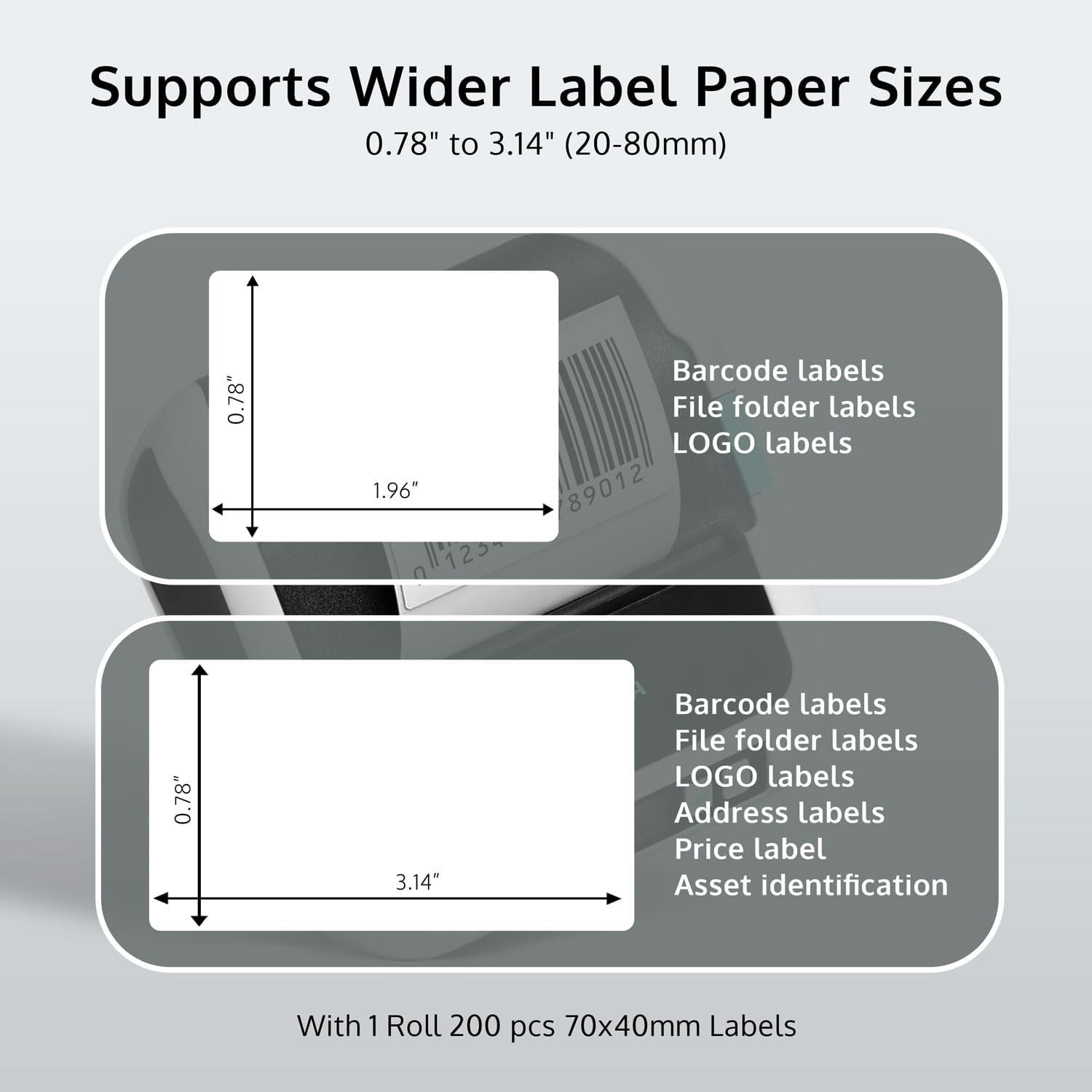
Image 5.2: Diagram illustrating the supported label paper sizes, specifically 0.78" x 1.96" and 0.78" x 3.14", along with examples of their uses.
6. പരിപാലനം
Regular maintenance ensures optimal performance and longevity of your label maker:
- പ്രിൻ്റ് ഹെഡ് വൃത്തിയാക്കുന്നു: നനവില്ലാത്തതും ലിനില്ലാത്തതുമായ തുണി ചെറുതായി ഉപയോഗിക്കുകampened with isopropyl alcohol to gently wipe the print head. Ensure the printer is off and cooled down before cleaning.
- റോളർ വൃത്തിയാക്കൽ: Use a similar cloth to clean the rubber roller to prevent paper jams and ensure smooth feeding.
- പൊടി നീക്കം: Keep the printer free from dust and debris. Use compressed air if necessary.
- സംഭരണം: നേരിട്ടുള്ള സൂര്യപ്രകാശവും കടുത്ത താപനിലയും ഏൽക്കാത്ത തണുത്തതും വരണ്ടതുമായ സ്ഥലത്ത് പ്രിന്റർ സൂക്ഷിക്കുക.
- ബാറ്ററി കെയർ: For optimal battery life, avoid fully discharging the battery frequently. Charge the printer regularly, especially if it will be stored for an extended period.
7. പ്രശ്നപരിഹാരം
If you encounter issues with your OFFNOVA TSC-2043PB, refer to the following common problems and solutions:
| പ്രശ്നം | സാധ്യമായ കാരണം | പരിഹാരം |
|---|---|---|
| പ്രിന്റർ ഓണാക്കുന്നില്ല | ബാറ്ററി ചാർജ് കുറവാണ്; പവർ ബട്ടൺ ശരിയായി അമർത്തിയിട്ടില്ല. | Charge the printer using the USB-C cable; Press and hold the power button for a few seconds. |
| ബ്ലൂടൂത്ത് വഴി ബന്ധിപ്പിക്കാൻ കഴിയില്ല | Bluetooth not enabled; Printer not discoverable; App issue | Ensure Bluetooth is on for both printer and device; Restart both devices; Reinstall the 4Barcode app. |
| മോശം പ്രിന്റ് നിലവാരം | Dirty print head; Low battery; Incorrect label type | Clean the print head (see Maintenance); Charge the printer; Ensure you are using thermal labels. |
| Paper jam / "Paper Out" error | Improper label loading; Debris in paper path; Sensor issue | Re-load labels correctly, ensuring they are aligned; Clean the paper path; Turn the printer off and on again to reset. |
| Printer not recognized by PC/Mac | Driver not installed; USB cable issue | Install the correct driver from the OFFNOVA website; Try a different USB-C cable or port. |
8 സ്പെസിഫിക്കേഷനുകൾ
Detailed technical specifications for the OFFNOVA TSC-2043PB Label Maker:
| ഫീച്ചർ | വിശദാംശങ്ങൾ |
|---|---|
| മോഡൽ നമ്പർ | TSC-2043PB |
| ഉൽപ്പന്ന അളവുകൾ | 4.5"D x 4.5"W x 2"H |
| ഇനത്തിൻ്റെ ഭാരം | 1.25 പൗണ്ട് (0.57 കിലോഗ്രാം) |
| കണക്റ്റിവിറ്റി ടെക്നോളജി | Bluetooth, USB (USB Type C) |
| പ്രിൻ്റിംഗ് ടെക്നോളജി | തെർമൽ |
| പരമാവധി പ്രിന്റ് റെസലൂഷൻ | 203 DPI (ഇഞ്ചിന് ഡോട്ടുകൾ) |
| പരമാവധി പ്രിന്റ് വേഗത | 70mm/s (Monochrome) |
| പരമാവധി മീഡിയ വലുപ്പം | 76 മിമി (3.14 ഇഞ്ച്) |
| Sheet Size (Width) | 25.4-76 മിമി (0.78-3.14 ഇഞ്ച്) |
| പരമാവധി ഇൻപുട്ട് ഷീറ്റ് ശേഷി | 300 |
| അനുയോജ്യമായ ഉപകരണങ്ങൾ | ലാപ്ടോപ്പുകൾ, പിസി, സ്മാർട്ട്ഫോണുകൾ, ടാബ്ലെറ്റുകൾ |
| പ്രത്യേക സവിശേഷതകൾ | Bluetooth, Lightweight, Portable |
| പവർ ഉറവിടം | 2500mAh റീചാർജ് ചെയ്യാവുന്ന ബാറ്ററി |
9. വാറൻ്റിയും പിന്തുണയും
The OFFNOVA TSC-2043PB Label Maker comes with a 1 വർഷത്തെ വാറൻ്റി വാങ്ങിയ തീയതി മുതൽ. സാധാരണ ഉപയോഗത്തിലുള്ള നിർമ്മാണ വൈകല്യങ്ങളും തകരാറുകളും ഈ വാറന്റി ഉൾക്കൊള്ളുന്നു.
For technical support, warranty claims, or any questions regarding your product, please contact OFFNOVA customer service through their official website or the contact information provided in your product packaging. When contacting support, please have your model number (TSC-2043PB) and purchase details ready.