
Two trees TTS 10
Two trees TTS-10 Pro Laser Engraver User Manual
Model: TTS 10
1. ആമുഖം
Thank you for choosing the Two trees TTS-10 Pro Laser Engraver. This device utilizes advanced laser technology for precise engraving and cutting on a variety of materials. This manual provides essential information for safe operation, setup, maintenance, and troubleshooting to ensure optimal performance and longevity of your engraver.

Figure 1.1: Assembled Two trees TTS-10 Pro Laser Engraver.
2 സുരക്ഷാ വിവരങ്ങൾ
Operating a laser engraver involves inherent risks. Adhere to the following safety guidelines to prevent injury and damage to the equipment:
- നേത്ര സംരക്ഷണം: Always wear certified laser safety goggles when the laser is active. The TTS-10 Pro includes a red circular laser shield, but additional eye protection is mandatory.
- വെൻ്റിലേഷൻ: Ensure adequate ventilation in the work area. Laser engraving and cutting can produce fumes and particles that may be harmful if inhaled.
- അഗ്നി അപകടം: Laser processing can ignite flammable materials. Never leave the engraver unattended during operation. Keep a fire extinguisher nearby.
- മെറ്റീരിയൽ അനുയോജ്യത: Only engrave or cut materials specified as safe for laser processing. Avoid materials that produce toxic fumes or are highly reflective.
- കുട്ടികളും വളർത്തുമൃഗങ്ങളും: ഓപ്പറേഷൻ ഏരിയയിൽ നിന്ന് കുട്ടികളെയും വളർത്തുമൃഗങ്ങളെയും അകറ്റി നിർത്തുക.
- ഇലക്ട്രിക്കൽ സുരക്ഷ: Ensure the power supply is stable and correctly grounded. Do not operate with wet hands or in damp പരിസരങ്ങൾ.
- അടിയന്തരമായി നിർത്തുക: Familiarize yourself with the location of the emergency stop button (if present) or the power switch to quickly shut down the machine in an emergency.
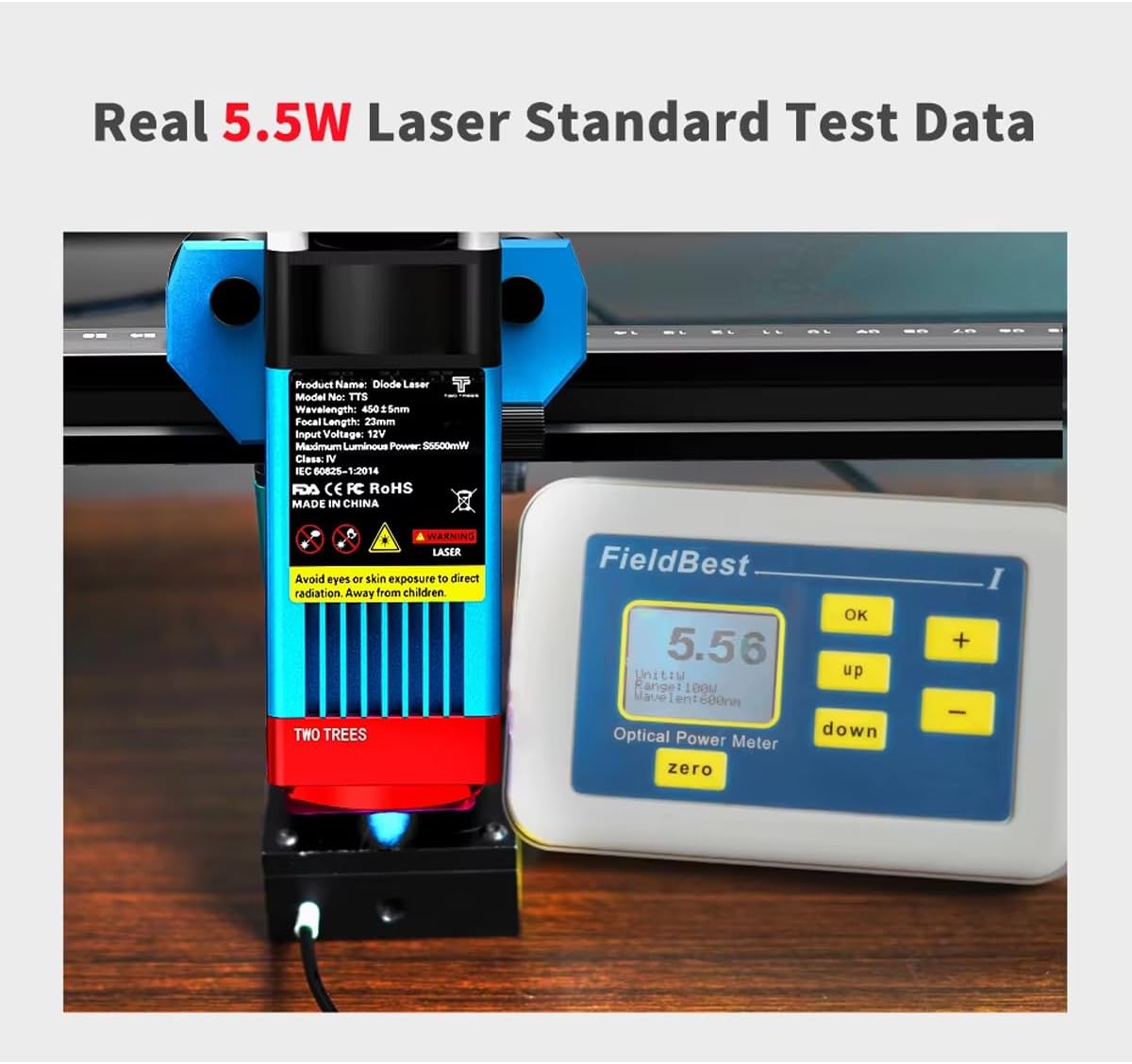
Figure 2.1: Laser module with safety warnings and a power meter indicating 5.5W optical output.
3. ഉൽപ്പന്ന സവിശേഷതകൾ
The TTS-10 Pro Laser Engraver is designed with advanced features for high-precision engraving and efficient cutting:
- Advanced Laser Technology: Utilizes LD+FAC+C-Lens compression spot technology for a fine laser spot as small as 0.08mm, enabling delicate and high-precision engraving.
- Fixed Focus Laser Module: The laser module has a fixed focal length of 23mm, providing superior engraving and cutting capabilities compared to long-focus lasers.
- ശക്തമായ പ്രകടനം: Features an 80W machine power with a 5.5W optical output laser module, capable of cutting materials up to 5mm thick.
- വിശാലമായ മെറ്റീരിയൽ അനുയോജ്യത: Capable of engraving and cutting various materials including wood, plastic, paper, leather, bamboo, sponge paper, alumina, stainless steel, Chevron board, and acrylic.
- എയർ അസിസ്റ്റ് നോസൽ: Includes a metal air assist nozzle for improved cutting performance and cleaner edges.
- Circular Laser Shield: Equipped with a red circular laser shield for enhanced safety during operation.
- ഒന്നിലധികം കണക്റ്റിവിറ്റി ഓപ്ഷനുകൾ: Supports WiFi, USB, and mobile app (MKSLaser) connections for flexible control. Offline use is also supported.
- സോഫ്റ്റ്വെയർ അനുയോജ്യത: Compatible with popular engraving software such as LaserGRBL (Windows), Lightburn (Windows, Mac), and MKSLaser (Android/iOS app).
- നീണ്ടുനിൽക്കുന്ന നിർമ്മാണം: Features an all-aluminum alloy body for stability and longevity.
- 32-bit Motherboard: Ensures fast and efficient processing of engraving tasks.
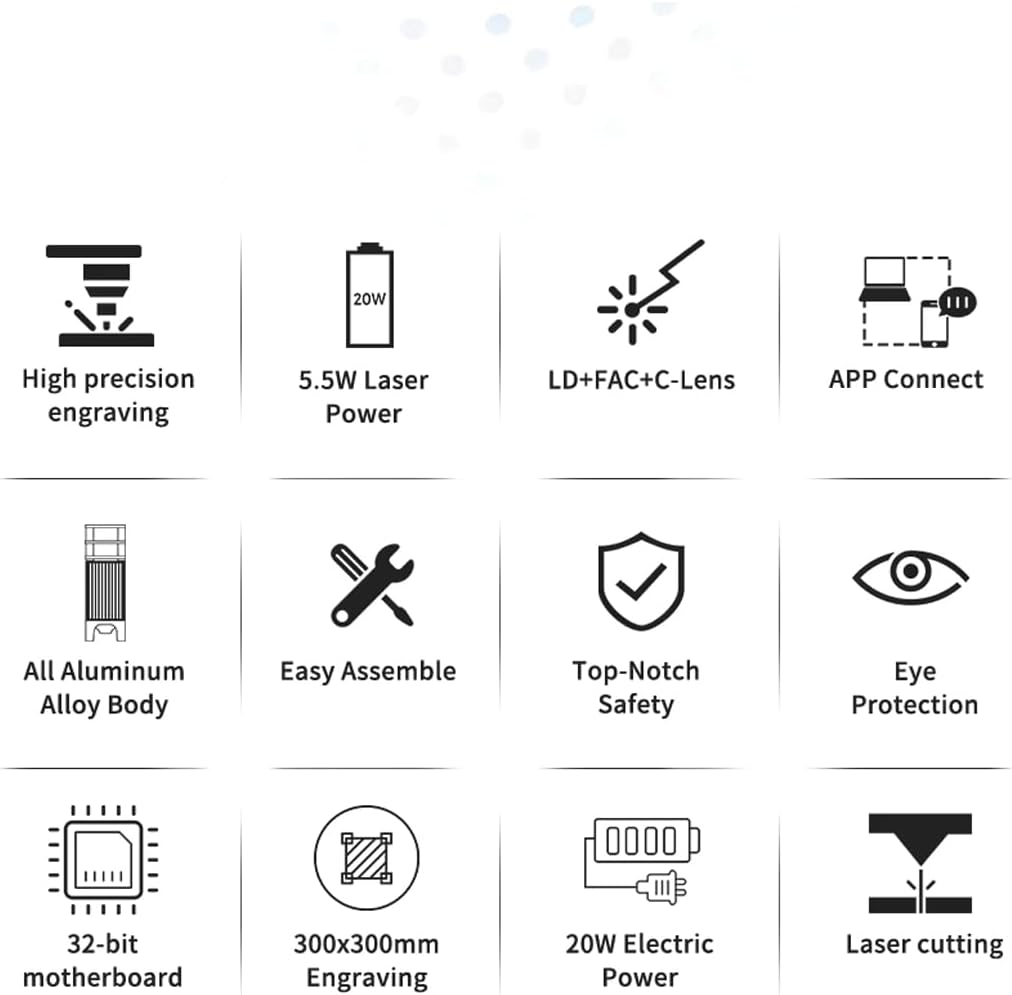
ചിത്രം 3.1: പ്രധാന ഉൽപ്പന്ന സവിശേഷതകളുടെ ദൃശ്യ പ്രാതിനിധ്യം.
4. പാക്കേജ് ഉള്ളടക്കം
Upon unboxing, verify that all components are present. The package typically includes:
- TTS-10 Pro Laser Engraver Frame Assembly
- Laser Module (TTS-55 Pro Diode Laser Module)
- പവർ അഡാപ്റ്ററും കേബിളും
- USB കേബിൾ
- സുരക്ഷാ കണ്ണടകൾ
- Air Assist Nozzle and Tubing
- Small Tool Kit for Assembly
- ഉപയോക്തൃ മാനുവൽ (ഈ പ്രമാണം)
- Test Materials (e.g., small wood piece)
Note: The product description states "NO INCLUYE LA PLACA BASE" (DOES NOT INCLUDE THE BASE PLATE). This refers to an optional base plate for the working area, not the machine's motherboard.
5. സജ്ജീകരണ ഗൈഡ്
5.1 അസംബ്ലി
The TTS-10 Pro is designed for easy assembly. Follow the included quick start guide or assembly video (if provided) for detailed steps. Ensure all screws are tightened securely for stability.
5.2 സോഫ്റ്റ്വെയർ ഇൻസ്റ്റലേഷൻ
Choose your preferred software for operating the engraver:
- ലേസർജിആർബിഎൽ: Free software for Windows. Download from the official LaserGRBL webസൈറ്റ്.
- Lightburn: Paid software compatible with Windows and Mac. Download from the official Lightburn webസൈറ്റ്.
- MKSLaser App: Mobile application for Android and iOS devices. ഇതിനായി തിരയുക "MKSLaser" in your device's app store.
Install the necessary drivers if prompted by the software or operating system.
5.3 കണക്റ്റിവിറ്റി
The engraver offers multiple connection methods:
- USB കണക്ഷൻ: നൽകിയിരിക്കുന്ന USB കേബിൾ ഉപയോഗിച്ച് എൻഗ്രേവറിനെ നിങ്ങളുടെ കമ്പ്യൂട്ടറുമായി ബന്ധിപ്പിക്കുക.
- വൈഫൈ കണക്ഷൻ: Follow the software's instructions to connect the engraver to your local WiFi network. This allows for wireless control.
- ആപ്പ് നിയന്ത്രണം: Use the MKSLaser app on your mobile device to connect and control the engraver via Bluetooth or WiFi.
- ഓഫ്ലൈൻ ഉപയോഗം: The engraver supports offline operation, allowing you to load designs via an SD card (if applicable) and run jobs without a continuous computer connection.

Figure 5.1: Various connectivity options for the TTS-10 Pro.
5.4 ലേസർ ഫോക്കസ് ചെയ്യൽ
The TTS-10 Pro features a fixed-focus laser module with a focal length of 23mm. To adjust the laser height for optimal focus:
- Place your material on the working surface.
- Use the spiral button on the laser module to raise or lower the module until the bottom of the laser module is approximately 23mm from the surface of your material.
- Some models may include a focus gauge or a multi-scale positioning column to assist with precise height adjustment.

Figure 5.2: Spiral button for convenient height adjustment and multi-scale positioning column.
5.5 Air Assist Setup
For enhanced cutting performance and to reduce charring, connect the air assist tubing to the metal nozzle on the laser module and to an external air pump (not included, unless specified in package contents). Ensure the air flow is directed at the laser's focal point.
6. പ്രവർത്തന നിർദ്ദേശങ്ങൾ
6.1 നിങ്ങളുടെ ഡിസൈൻ തയ്യാറാക്കൽ
Create or import your design using your chosen software (LaserGRBL, Lightburn, or MKSLaser). Adjust parameters such as power, speed, and number of passes according to the material and desired effect. Refer to the software's documentation for detailed instructions on design preparation.

ചിത്രം 6.1: ഉദാamples of creative displays and materials suitable for engraving and cutting.
6.2 മെറ്റീരിയൽ ലോഡുചെയ്യുന്നു
Place the material securely on the working surface. Ensure it is flat and does not obstruct the laser's path or the movement of the gantry.
6.3 കൊത്തുപണി/മുറിക്കൽ പ്രക്രിയ ആരംഭിക്കുന്നു
- Ensure all safety precautions are in place, including wearing safety goggles and ensuring proper ventilation.
- Power on the engraver.
- In your software, home the laser (if applicable) and set the origin point for your job.
- സോഫ്റ്റ്വെയറിൽ നിന്ന് കൊത്തുപണി അല്ലെങ്കിൽ മുറിക്കൽ പ്രക്രിയ ആരംഭിക്കുക.
- Monitor the process closely for any issues, such as material ignition or unexpected behavior.
6.4 High-Precision Engraving
The TTS-10 Pro's laser source, guided by LD+FAC+C-Lens technology, produces a spot as small as 0.08mm. This allows for highly detailed and delicate engraving works, capturing intricate designs with precision.
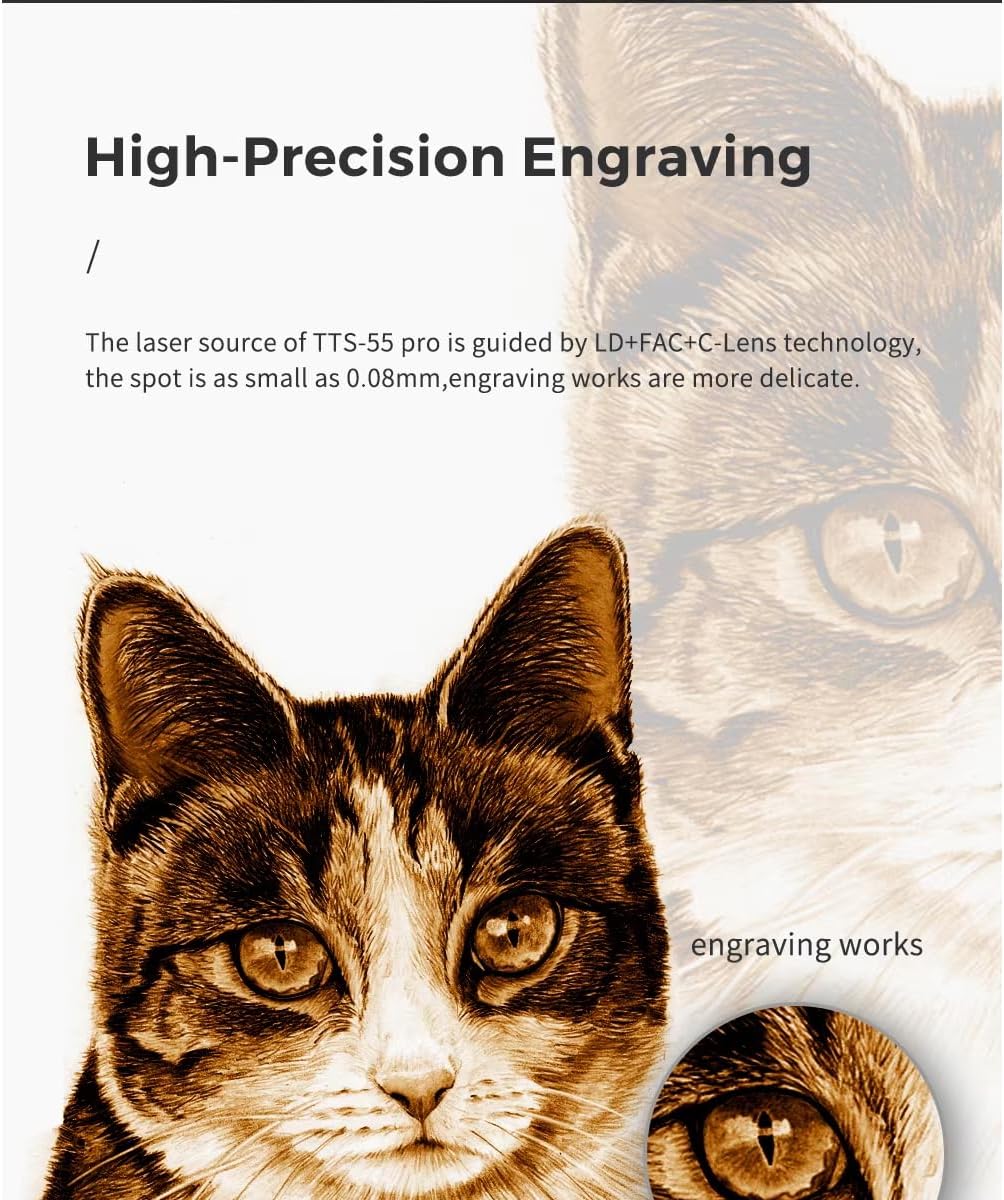
ചിത്രം 6.2: ഉദാample of high-precision engraving detail.
7. പരിപാലനം
പതിവ് അറ്റകുറ്റപ്പണികൾ നിങ്ങളുടെ ലേസർ എൻഗ്രേവറിന്റെ ദീർഘായുസ്സും മികച്ച പ്രകടനവും ഉറപ്പാക്കുന്നു:
- ലേസർ ലെൻസ് വൃത്തിയാക്കുക: Periodically clean the laser lens with a lint-free cloth and lens cleaning solution to maintain laser beam quality.
- ജോലിസ്ഥലം വൃത്തിയാക്കുക: ഓരോ ഉപയോഗത്തിനു ശേഷവും ജോലിസ്ഥലത്ത് നിന്നും മെഷീനിന്റെ ചുറ്റുപാടുമുള്ള അവശിഷ്ടങ്ങളും പൊടിയും നീക്കം ചെയ്യുക.
- ബെൽറ്റുകളും റെയിലുകളും പരിശോധിക്കുക: Check the tension of the timing belts and ensure the linear rails are clean and free of obstructions. Lubricate rails if recommended by the manufacturer.
- ഫേംവെയർ അപ്ഡേറ്റുകൾ: നിർമ്മാതാവ് പരിശോധിക്കുക website for any available firmware updates for the engraver's motherboard.
8. പ്രശ്നപരിഹാരം
നിങ്ങൾ നേരിട്ടേക്കാവുന്ന പൊതുവായ പ്രശ്നങ്ങളെ ഈ വിഭാഗം അഭിസംബോധന ചെയ്യുന്നു:
| പ്രശ്നം | സാധ്യമായ കാരണം | പരിഹാരം |
|---|---|---|
| ലേസർ വെടിവയ്ക്കുന്നില്ല അല്ലെങ്കിൽ ദുർബലമായ ഔട്ട്പുട്ട്. | തെറ്റായ ഫോക്കസ്, വൃത്തികെട്ട ലെൻസ്, കുറഞ്ഞ പവർ സെറ്റിംഗ്, അയഞ്ഞ കണക്ഷൻ. | Adjust focus, clean lens, increase power setting in software, check all cables. |
| Engraving/cutting quality is poor. | Incorrect speed/power, material not flat, loose belts, dirty lens. | Adjust speed/power settings, ensure material is flat, check belt tension, clean lens. |
| മെഷീൻ കമ്പ്യൂട്ടറുമായി/ആപ്പുമായി ബന്ധിപ്പിക്കുന്നില്ല. | Incorrect port selected, driver issues, WiFi/Bluetooth off, firewall blocking. | Verify port in software, reinstall drivers, check network settings, disable firewall temporarily. |
| അസാധാരണമായ ശബ്ദങ്ങൾ ഉണ്ടാക്കുന്ന യന്ത്രം. | Loose components, debris on rails, motor issues. | Inspect for loose parts, clean rails, contact support if motor noise persists. |
9 സ്പെസിഫിക്കേഷനുകൾ
| ഫീച്ചർ | വിശദാംശങ്ങൾ |
|---|---|
| മോഡൽ നമ്പർ | TTS 10 |
| നിർമ്മാതാവ് | Two trees |
| മെഷീൻ പവർ | 80W |
| Optical Laser Output Power | 5.5W |
| ലേസർ ടെക്നോളജി | LD+FAC+C-Lens Compression Spot |
| ലേസർ സ്പോട്ട് വലിപ്പം | 0.08 മി.മീ |
| ഫോക്കൽ ലെങ്ത് | 23mm (Fixed Focus) |
| കൊത്തുപണി ഏരിയ | ഏകദേശം 300 മിമി x 300 മിമി (11.8 ഇഞ്ച് x 11.8 ഇഞ്ച്) |
| മൊത്തത്തിലുള്ള അളവുകൾ | ഏകദേശം 570 മിമി x 510 മിമി (22.4 ഇഞ്ച് x 20.1 ഇഞ്ച്) |
| പവർ ഉറവിടം | ഇലക്ട്രിക് |
| കണക്റ്റിവിറ്റി | USB, WiFi, Mobile App (MKSLaser) |
| പിന്തുണയ്ക്കുന്ന സോഫ്റ്റ്വെയർ | LaserGRBL (Windows), Lightburn (Windows, Mac), MKSLaser (Android/iOS) |
| പരമാവധി കട്ടിംഗ് കനം | 5mm Plywood, 3mm Acrylic, 3mm Cardboard, 0.7mm Leather |
| ഫ്രെയിം മെറ്റീരിയൽ | All Aluminum Alloy |

ചിത്രം 9.1: ഉൽപ്പന്ന അളവുകൾ.
10. വാറൻ്റിയും പിന്തുണയും
For warranty information and technical support, please refer to the documentation provided with your purchase or contact the seller directly. Keep your purchase receipt as proof of purchase.
For general inquiries or further assistance, you may also visit the official Two trees website or relevant online communities for laser engravers.
Ask a question about this manual
Ask about setup, troubleshooting, compatibility, parts, safety, or missing instructions. Manuals+ will review the question and use this page’s manual context to help answer it.