
1. ആമുഖം
The GEWOKLIY Mac mini M4 Dock (MC60) is a versatile aluminum stand and hub designed to enhance the functionality and expand the storage of your Mac mini M4 and M4 Pro (2024 models). This 9-in-1 hub integrates an M.2 NVMe SSD enclosure, multiple USB-A ports, and SD/Micro SD card readers, transforming your Mac mini into a comprehensive workstation while maintaining optimal cooling.
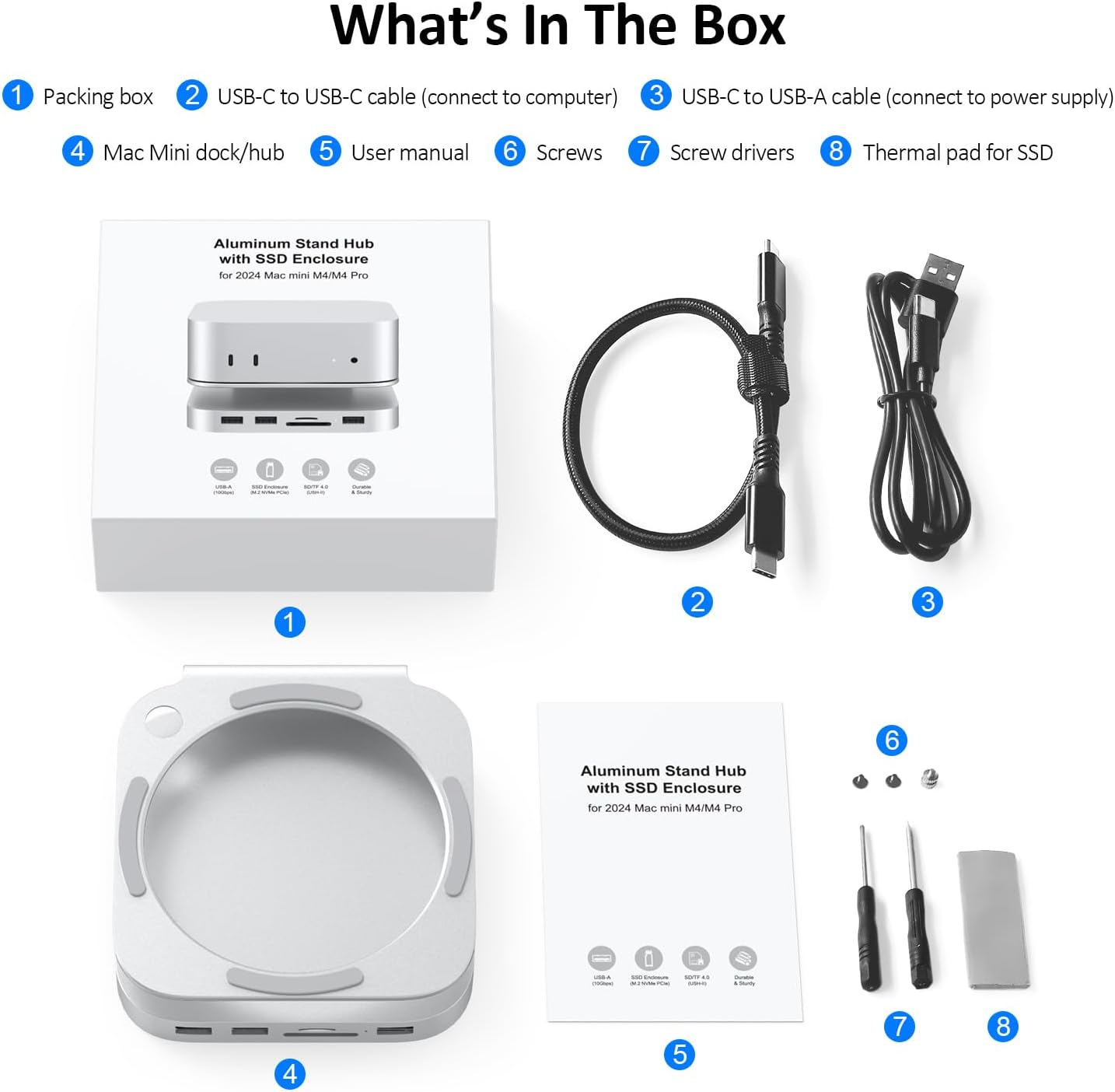
Image: The GEWOKLIY Mac mini M4 Dock (MC60) seamlessly integrated into a typical desk setup, providing expanded connectivity and storage.
2. ഉൽപ്പന്നം കഴിഞ്ഞുview
The MC60 dock combines a stand and a hub, offering a range of expansion ports and an M.2 SSD enclosure. It is specifically designed for the Mac mini M4 and M4 Pro, ensuring a perfect fit and aesthetic integration.
പ്രധാന സവിശേഷതകൾ:
- M.2 NVMe SSD Enclosure: Supports up to 8TB NVMe M.2 SSDs (2230/2242/2260/2280 sizes) for expanded storage.
- High-Speed USB Ports: Two USB-A 3.1 ports (10Gbps) for fast data transfer.
- അധിക USB പോർട്ടുകൾ: One USB 2.0 port for connecting standard peripherals.
- കാർഡ് റീഡറുകൾ: Integrated SD and Micro SD card readers for convenient media access.
- ഒപ്റ്റിമൈസ് ചെയ്ത കൂളിംഗ്: Aluminum construction with heat-dissipating vents to maintain Mac mini performance.
- Easy Power Button Access: Patented design includes a cutout for easy access to the Mac mini's power button.
ബോക്സിൽ എന്താണുള്ളത്:
- GEWOKLIY Mac mini Dock/Hub (MC60)
- USB-C to USB-C Cable (for computer connection)
- USB-C to USB-A Cable (for power supply)
- ഉപയോക്തൃ മാനുവൽ
- Screws and Screwdriver (for SSD installation)
- Thermal Pad for SSD

Image: All components included in the GEWOKLIY Mac mini M4 Dock package, including the dock, cables, tools, and manual.
3. സജ്ജീകരണ നിർദ്ദേശങ്ങൾ
Follow these steps to set up your GEWOKLIY Mac mini M4 Dock.
3.1. M.2 NVMe SSD Installation (Optional)
If you plan to use the M.2 SSD enclosure, install your NVMe SSD before connecting the dock to your Mac mini.
- Carefully open the SSD enclosure compartment on the underside of the dock.
- Insert your M.2 NVMe SSD into the slot. Ensure it is properly seated.
- നൽകിയിരിക്കുന്ന സ്ക്രൂ ഉപയോഗിച്ച് SSD സുരക്ഷിതമാക്കുക.
- ഒപ്റ്റിമൽ താപ വിസർജ്ജനത്തിനായി SSD-യിൽ തെർമൽ പാഡ് ഘടിപ്പിക്കുക.
- Close the enclosure compartment.
കുറിപ്പ്: This enclosure supports NVMe M.2 SSDs only. SATA M.2 SSDs are not compatible. Supported sizes include 2230, 2242, 2260, and 2280.

Image: Visual guide for installing an M.2 NVMe SSD into the dock's enclosure, detailing compatible types and sizes.
3.2. Connecting the Dock to Mac mini
- Place your Mac mini M4 or M4 Pro securely on top of the GEWOKLIY dock. Ensure the Mac mini is aligned with the dock's design.
- Connect the provided USB-C to USB-C cable from the dock's HOST port (USB-C) to an available USB-C/Thunderbolt port on your Mac mini.
- For adequate power supply, especially when using hard drives or multiple power-intensive peripherals, connect the provided USB-C to USB-A cable from the dock's PD port (USB-C) to a power adapter (not included).

Image: The Mac mini M4 positioned on the dock, illustrating the design that allows easy access to the Mac mini's power button.
4. പ്രവർത്തന നിർദ്ദേശങ്ങൾ
Once connected, the GEWOKLIY Mac mini M4 Dock operates plug-and-play, requiring no additional drivers.
4.1. യുഎസ്ബി പോർട്ടുകൾ ഉപയോഗിക്കുന്നു
- USB-A 3.1 (10Gbps) Ports: Use these ports for high-speed data transfer with devices such as external SSDs, flash drives, or other compatible peripherals.
- യുഎസ്ബി 2.0 പോർട്ട്: Connect standard peripherals like a mouse, keyboard, or printer.
4.2. Using Card Readers
The integrated SD and Micro SD card readers allow simultaneous reading and writing of data from both card types. Simply insert your memory card into the appropriate slot.

Image: The front panel of the dock displaying its USB-A ports and SD/Micro SD card slots, with examples of connected devices and memory cards.
4.3. Accessing the M.2 SSD
Once installed and the dock is connected to your Mac mini, the M.2 NVMe SSD will appear as an external drive in macOS. You can use it for additional storage, backups, or running applications.
5. തണുപ്പിക്കൽ സംവിധാനം
The GEWOKLIY Mac mini M4 Dock is designed with an aluminum construction and strategically placed air vents to promote optimal airflow around your Mac mini. This helps in dissipating heat effectively, ensuring your Mac mini M4/M4 Pro runs smoothly even under heavy loads.

Image: A visual representation of the cooling system, showing how air flows through the dock's vents to cool the Mac mini.
6. പരിപാലനം
To ensure the longevity and optimal performance of your GEWOKLIY Mac mini M4 Dock, follow these maintenance guidelines:
- വൃത്തിയാക്കൽ: Use a soft, dry cloth to wipe the exterior of the dock. Avoid using liquid cleaners or abrasive materials.
- വെൻ്റിലേഷൻ: Ensure the air vents on the dock are not obstructed to allow for proper airflow and cooling.
- കേബിൾ മാനേജുമെന്റ്: കേടുപാടുകൾ തടയുന്നതിന് കേബിളുകൾ ക്രമീകരിച്ച് കിങ്കുകൾ അല്ലെങ്കിൽ അമിതമായ വളവുകൾ ഇല്ലാതെ സൂക്ഷിക്കുക.
- സംഭരണം: When not in use for extended periods, store the dock in a cool, dry place away from direct sunlight.
7. പ്രശ്നപരിഹാരം
If you encounter issues with your GEWOKLIY Mac mini M4 Dock, refer to the following common solutions:
- Dock Not Recognized: Ensure the USB-C to USB-C cable is securely connected between the dock's HOST port and your Mac mini. Try connecting to a different USB-C/Thunderbolt port on your Mac mini.
- SSD ദൃശ്യമാകുന്നില്ല: Verify that the M.2 NVMe SSD is correctly installed and secured within the enclosure. Ensure it is an NVMe SSD, as SATA SSDs are not supported. Check Disk Utility in macOS to see if the drive is detected but unformatted.
- Peripherals Disconnecting/Unstable: If you are using power-intensive devices (e.g., external hard drives) and experience disconnections, connect an external power adapter to the dock's PD port using the USB-C to USB-A cable for additional power.
- മന്ദഗതിയിലുള്ള ഡാറ്റ കൈമാറ്റം: Ensure you are using the 10Gbps USB-A 3.1 ports for high-speed devices. Check that your connected devices and cables support 10Gbps speeds.
- WiFi Signal Interference: In rare cases, aluminum enclosures can affect wireless signals. If you experience significant Wi-Fi signal degradation, try repositioning your Mac mini or Wi-Fi router, or consider using a wired Ethernet connection if available.
8 സ്പെസിഫിക്കേഷനുകൾ
| ഫീച്ചർ | സ്പെസിഫിക്കേഷൻ |
|---|---|
| ബ്രാൻഡ് | GEWOKLIY |
| മോഡൽ നമ്പർ | MC60 |
| നിറം | വെള്ളി |
| ഹാർഡ്വെയർ ഇന്റർഫേസ് | യുഎസ്ബി 3.1 ടൈപ്പ് സി |
| അനുയോജ്യമായ ഉപകരണങ്ങൾ | Mac Mini 2024, Mac Mini M4, Mac Mini M4 Pro |
| മൊത്തം USB പോർട്ടുകൾ | 2 (USB-A 3.1 10Gbps) + 1 (USB 2.0) |
| തുറമുഖങ്ങളുടെ എണ്ണം | 5 (2x USB-A 10Gbps, 1x USB 2.0, 1x SD, 1x Micro SD) |
| M.2 SSD എൻക്ലോഷർ | NVMe M.2 (2230/2242/2260/2280), up to 8TB |
| ഇനത്തിൻ്റെ ഭാരം | 0.46 കിലോഗ്രാം |
| വാട്ട്tage | 10W |
9. വാറൻ്റിയും പിന്തുണയും
9.1. വാറൻ്റി വിവരങ്ങൾ
The GEWOKLIY Mac mini M4 Dock (MC60) comes with a ഒരു വർഷത്തെ വാറൻ്റി against manufacturer defects. Please retain your proof of purchase for warranty claims.
9.2. ഉപഭോക്തൃ പിന്തുണ
For technical assistance, troubleshooting, or warranty inquiries, please contact GEWOKLIY customer support through the retailer's platform or visit the official GEWOKLIY store page on Amazon: GEWOKLIY Store.
10. ഉൽപ്പന്ന വീഡിയോ
Watch the official product video for a visual guide on the GEWOKLIY Mac mini M4 Dock.
വീഡിയോ: ഒരു ഉദ്യോഗസ്ഥൻview of the GEWOKLIY Mac mini M4 Dock, demonstrating its features and functionality.