
ആമുഖം
Thank you for choosing the Phomemo M221 Bluetooth Thermal Label Printer. This manual provides essential information for the safe and efficient operation of your device. Please read it thoroughly before use and retain it for future reference. The Phomemo M221 is designed for fast, clear, and smart label printing, supporting various label types and applications for small businesses, home, and school use.
സുരക്ഷാ വിവരങ്ങൾ
സുരക്ഷിതമായ പ്രവർത്തനം ഉറപ്പാക്കുന്നതിനും കേടുപാടുകൾ തടയുന്നതിനും, ഇനിപ്പറയുന്ന മുൻകരുതലുകൾ പാലിക്കുക:
- പ്രിന്റർ ഡിസ്അസംബ്ലിംഗ് ചെയ്യുകയോ നന്നാക്കുകയോ പരിഷ്കരിക്കുകയോ ചെയ്യരുത്.
- പ്രിന്റർ വെള്ളം, ഈർപ്പം, നേരിട്ടുള്ള സൂര്യപ്രകാശം എന്നിവയിൽ നിന്ന് അകറ്റി നിർത്തുക.
- Use only Phomemo-approved power adapters and accessories.
- പ്രിന്റ് ചെയ്ത ഉടനെ പ്രിന്റ് ഹെഡ് തൊടുന്നത് ഒഴിവാക്കുക, കാരണം അത് ചൂടായേക്കാം.
- Store the printer and labels in a cool, dry place.
പാക്കേജ് ഉള്ളടക്കം
നിങ്ങളുടെ പാക്കേജിൽ എല്ലാ ഇനങ്ങളും ഉണ്ടെന്ന് ഉറപ്പാക്കുക:
- Phomemo M221 ലേബൽ പ്രിന്റർ
- യുഎസ്ബി ടൈപ്പ്-സി ചാർജിംഗ് കേബിൾ
- 1 roll of 40 x 30 mm thermal labels
- 1 roll of 50 x 80 mm thermal labels
- 1 roll of 70 x 80 mm thermal labels
- പോർട്ടബിൾ ചുമക്കുന്ന കേസ്
- ഉപയോക്തൃ മാനുവൽ (ഈ പ്രമാണം)
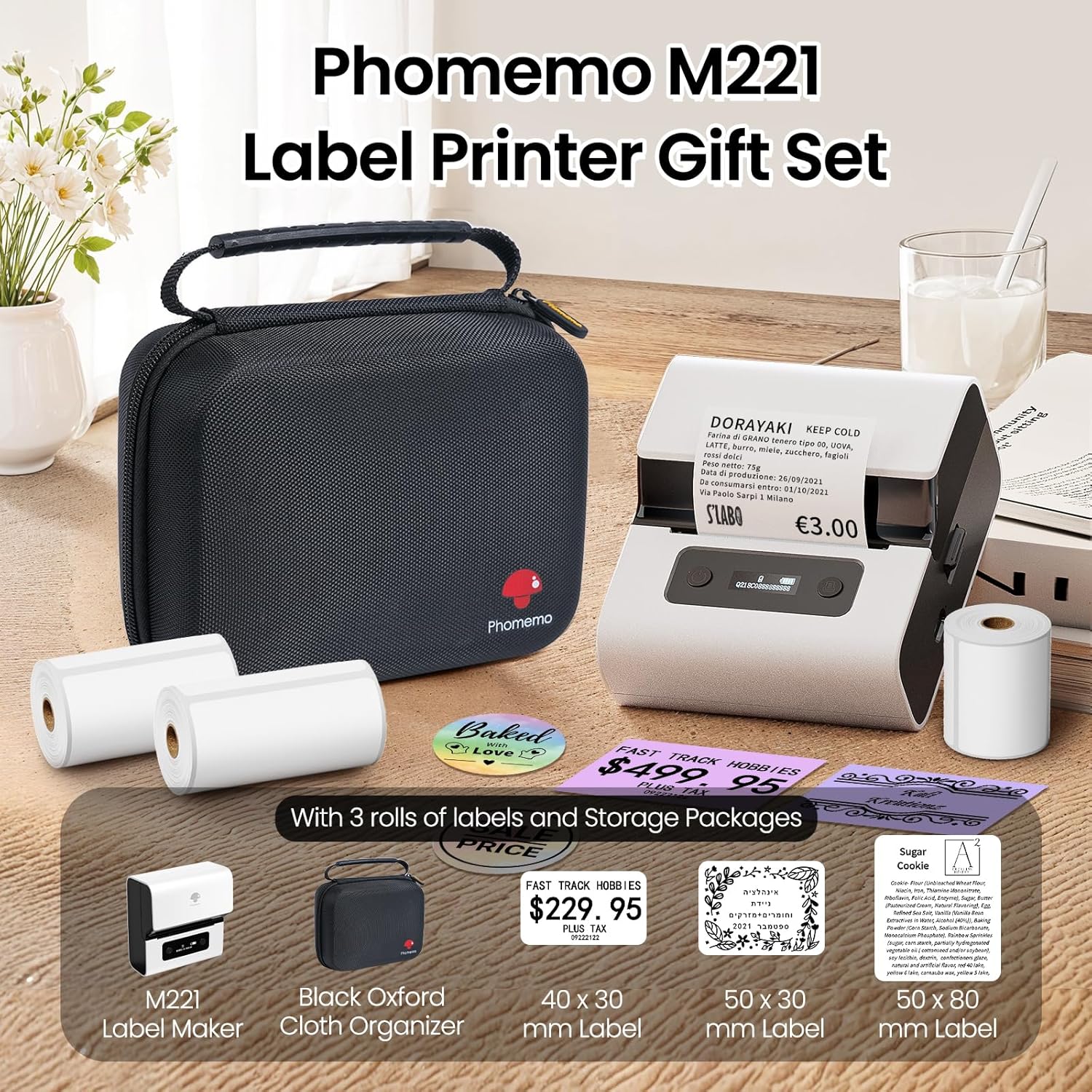
Image: Phomemo M221 Label Printer Gift Set, showing the printer, a black carrying case, and three rolls of white thermal labels.
ഉൽപ്പന്നം കഴിഞ്ഞുview
The Phomemo M221 is a compact and efficient thermal label printer. Key features include:
- തെർമൽ പ്രിന്റിംഗ് ടെക്നോളജി: മഷിയോ ടോണറോ ആവശ്യമില്ല.
- വൈഡ് ലേബൽ അനുയോജ്യത: Supports labels from 20mm to 80mm (0.78" to 3.14") wide, including rectangular, round, transparent, and colored types.
- കണക്റ്റിവിറ്റി: Bluetooth for iOS/Android smartphones and tablets, USB for Windows PCs.
- ഉയർന്ന ശേഷിയുള്ള ബാറ്ററി: 2200 mAh battery with Type-C fast charging.
- വേഗതയേറിയതും നിശബ്ദവുമായ പ്രവർത്തനം: Prints at 50 mm/s with reduced noise.
- ഉപയോക്തൃ-സൗഹൃദ ഡിസൈൻ: Easy label loading and automatic gap detection.

Image: Phomemo M221 Label Maker Set, illustrating its features such as no ink requirement, large battery capacity, Bluetooth wireless printing, and its suitability as a gift.
സജ്ജമാക്കുക
1. പ്രിന്റർ ചാർജ് ചെയ്യുന്നു
Before first use, fully charge the Phomemo M221 printer.
- നൽകിയിരിക്കുന്ന യുഎസ്ബി ടൈപ്പ്-സി കേബിൾ പ്രിന്ററിന്റെ ചാർജിംഗ് പോർട്ടുമായി ബന്ധിപ്പിക്കുക.
- കേബിളിന്റെ മറ്റേ അറ്റം ഒരു 5V USB പവർ അഡാപ്റ്ററുമായി (ഉൾപ്പെടുത്തിയിട്ടില്ല) അല്ലെങ്കിൽ ഒരു കമ്പ്യൂട്ടറിന്റെ USB പോർട്ടുമായി ബന്ധിപ്പിക്കുക.
- The indicator light will show charging status. A full charge typically takes several hours. The 2200 mAh battery supports extended use.
2. ലേബലുകൾ ലോഡുചെയ്യുന്നു
The M221 features an integrated label fixing structure for easy loading.
- പ്രിൻ്റർ കവർ തുറക്കുക.
- Insert the label roll into the compartment, ensuring the printing side faces upwards and the labels feed smoothly.
- Adjust the side guide plates to secure the label roll in place.
- Close the printer cover. The printer will automatically detect and calibrate the label gap.
3. നിങ്ങളുടെ ഉപകരണത്തിലേക്ക് കണക്റ്റുചെയ്യുന്നു
The Phomemo M221 supports both Bluetooth and USB connections.
Bluetooth Connection (Smartphones/Tablets)
- Ensure Bluetooth is enabled on your iOS or Android device.
- Download and install the "Print Master" application from your device's app store.
- Open the "Print Master" app and follow the on-screen instructions to search for and connect to your M221 printer.

Image: Phomemo M221 printer demonstrating Bluetooth wireless connection with a tablet and a smartphone.
USB Connection (Windows PC)
- Connect the USB Type-C cable from the printer to an available USB port on your Windows PC.
- Download and install the "Labelife" software and printer drivers from the official Phomemo webസൈറ്റ്.
- Follow the software installation prompts. Once installed, you can select the M221 as your printer.

Image: Phomemo M221 printer connected to a laptop using a USB cable, indicating wired connectivity.
പ്രവർത്തന നിർദ്ദേശങ്ങൾ
1. Basic Printing with "Print Master" App (Mobile)
- Ensure your M221 printer is connected via Bluetooth to your mobile device.
- Open the "Print Master" app.
- Select a template or create a new label design. The app offers various templates for text, images, barcodes, QR codes, and more.
- Customize your label content.
- Tap the print icon. Confirm print settings such as quantity.
- The printer will begin printing your labels.
2. Printing with "Labelife" Software (PC)
- Ensure your M221 printer is connected via USB to your Windows PC.
- Open the "Labelife" software.
- Design your label using the software's features, including text, images, barcodes, and QR codes.
- "" എന്നതിലേക്ക് പോകുക.File" > "Print" or click the print icon.
- Select the Phomemo M221 from the list of available printers and adjust any necessary print settings.
- Click "Print" to start printing.
3. ബാച്ച് പ്രിന്റിംഗ്
Both "Print Master" and "Labelife" support batch printing for efficiency.
- In the print dialogue, specify the desired number of copies.
- The printer will automatically print multiple labels consecutively.

Image: Phomemo M221 printer demonstrating its versatility with examples of address labels, price tags, ingredient labels, and gift tags.

Image: Phomemo M221 printer showcasing its compatibility with over 50 types of thermal labels, including various shapes and designs.
മെയിൻ്റനൻസ്
1. പ്രിന്റ് ഹെഡ് വൃത്തിയാക്കൽ
Regular cleaning of the print head ensures optimal print quality.
- പ്രിന്റർ ഓഫ് ചെയ്ത് പവർ കേബിൾ വിച്ഛേദിക്കുക.
- പ്രിൻ്റർ കവർ തുറക്കുക.
- പ്രിന്റ് ഹെഡ് ഒരു കോട്ടൺ സ്വാബ് ഉപയോഗിച്ച് മൃദുവായി തുടയ്ക്കുക dampഐസോപ്രോപൈൽ ആൽക്കഹോൾ ഉപയോഗിച്ചാണ് നിർവഹിച്ചത്.
- Allow the print head to dry completely before closing the cover and turning on the printer.
2. സംഭരണം
Store the printer in a clean, dry environment, away from extreme temperatures and direct sunlight. When not in use for extended periods, ensure the printer is fully charged and then powered off.

Image: A man holding the Phomemo M221 printer's carrying case, illustrating its portable design.
ട്രബിൾഷൂട്ടിംഗ്
Printer Does Not Turn On or Charge
- പവർ കണക്ഷൻ പരിശോധിക്കുക: Ensure the USB Type-C cable is securely connected to both the printer and a working power source (5V adapter or PC USB port).
- പവർ അഡാപ്റ്റർ പരിശോധിക്കുക: Use a reliable 5V USB power adapter.
- ചാർജ്ജ് കാലാവധി: Allow sufficient time for charging. The battery indicator should show charging status.
No Printing or Blank Output
- Check Label Orientation: Ensure the thermal labels are loaded correctly with the printing side facing upwards.
- ലേബൽ തരം: Confirm you are using thermal labels. The M221 does not use ink.
- പ്രിന്റ് ഹെഡ് ശുചിത്വം: A dirty print head can cause blank lines or poor print quality. Refer to the Maintenance section for cleaning instructions.
- ലേബൽ വിന്യാസം: Ensure the label roll is properly seated and aligned by the side guide plates to prevent misalignment errors.
ബ്ലൂടൂത്ത് കണക്ഷൻ പ്രശ്നങ്ങൾ
- Printer On: Ensure the printer is powered on and within Bluetooth range of your device.
- ബ്ലൂടൂത്ത് പ്രവർത്തനക്ഷമമാക്കി: Verify Bluetooth is active on your smartphone or tablet.
- ആപ്പ് കണക്ഷൻ: Connect through the "Print Master" app, not directly through your device's Bluetooth settings.
- ഉപകരണങ്ങൾ പുനരാരംഭിക്കുക: Try restarting both the printer and your mobile device.
മോശം പ്രിന്റ് ക്വാളിറ്റി
- പ്രിന്റ് ഹെഡ് ശുചിത്വം: മെയിന്റനൻസ് വിഭാഗത്തിൽ വിവരിച്ചിരിക്കുന്നതുപോലെ പ്രിന്റ് ഹെഡ് വൃത്തിയാക്കുക.
- ലേബൽ ഗുണനിലവാരം: Use high-quality thermal labels.
- Print Density Settings: Adjust print density settings within the "Print Master" app or "Labelife" software if available.
സ്പെസിഫിക്കേഷനുകൾ
| ഫീച്ചർ | വിശദാംശങ്ങൾ |
|---|---|
| മോഡൽ നമ്പർ | M221 |
| ബ്രാൻഡ് | ഫേമോമോ |
| കണക്റ്റിവിറ്റി ടെക്നോളജി | ബ്ലൂടൂത്ത്, യുഎസ്ബി ടൈപ്പ് സി |
| പ്രിൻ്റിംഗ് ടെക്നോളജി | തെർമൽ |
| പ്രിന്റ് ഔട്ട്പുട്ട് | മോണോക്രോം |
| പരമാവധി പ്രിന്റ് വേഗത (മോണോക്രോം) | 15.0 pages per minute (50 mm/s) |
| പരമാവധി പ്രിന്റ് റെസല്യൂഷൻ (മോണോക്രോം) | 203 ഡിപിഐ |
| പിന്തുണയ്ക്കുന്ന ലേബൽ വീതി | 20 മിമി - 80 മിമി (0.78" - 3.14") |
| ബാറ്ററി | 2200 mAh (1 D - included) |
| ഇനത്തിൻ്റെ ഭാരം | 820 ഗ്രാം |
| ഉൽപ്പന്ന അളവുകൾ (L x W x H) | 12.9 x 6.7 x 11.9 സെൻ്റീമീറ്റർ |
| Control Device Type | Smartphone/PC |
| മീഡിയ തരം | ലേബലുകൾ |
വാറൻ്റിയും പിന്തുണയും
For warranty information and technical support, please refer to the official Phomemo webസൈറ്റിൽ ബന്ധപ്പെടുക അല്ലെങ്കിൽ അവരുടെ ഉപഭോക്തൃ സേവനവുമായി നേരിട്ട് ബന്ധപ്പെടുക. വാങ്ങിയതിന്റെ തെളിവായി നിങ്ങളുടെ വാങ്ങൽ രസീത് സൂക്ഷിക്കുക.
ഓൺലൈൻ ഉറവിടങ്ങൾ: സന്ദർശിക്കുക Phomemo Store on Amazon for product updates and FAQs.