
1. ആമുഖവും അനുയോജ്യതയും
This manual provides detailed instructions for the installation, operation, and maintenance of your Surakey Android 13 Car Stereo Radio. Please read this manual thoroughly before installation and use to ensure proper function and safety.
പ്രധാന അനുയോജ്യതാ കുറിപ്പ്: This car stereo is designed for Dodge Ram 1500 and 3500 models from 2013 to 2019. Before purchasing or installing, it is crucial to verify compatibility with your specific vehicle's year and model. We recommend carefully measuring your dashboard and comparing it with the product dimensions. If uncertain, please provide a complete image of the plugs on the back of your center console and the on-board main unit to your supplier for confirmation and to determine if any additional wiring harnesses or adapters are required.

Figure 1.1: Dashboard compatibility examples. Ensure your vehicle's dashboard matches the compatible design for proper fitment.
2. ഉൽപ്പന്നം കഴിഞ്ഞുview ഉൾപ്പെടുത്തിയ ഘടകങ്ങളും
The Surakey Android 13 Car Stereo Radio features a 9.7-inch touch screen, offering advanced navigation, entertainment, and connectivity options for your vehicle.
2.1 പ്രധാന സവിശേഷതകൾ:
- 9.7-inch HD 2.5D Tempered Glass Mirror Touch Screen
- ആൻഡ്രോയിഡ് 13 ഓപ്പറേറ്റിംഗ് സിസ്റ്റം
- Wireless & Wired Apple CarPlay and Android Auto
- ബിൽറ്റ്-ഇൻ ജിപിഎസ് നാവിഗേഷൻ
- Integrated Wi-Fi Connectivity
- Bluetooth with A2DP, Hands-Free Calling, and Phone Book
- FM/RDS റേഡിയോ ട്യൂണർ
- DSP Function for High-Fidelity Audio
- Support for AHD Backup Camera Input
- സ്റ്റിയറിംഗ് വീൽ നിയന്ത്രണ അനുയോജ്യത
- Double USB Interface
- Multi-language Support (up to 40 national languages)
2.2 പാക്കേജ് ഉള്ളടക്കം:
നിങ്ങളുടെ പാക്കേജിൽ ഇനിപ്പറയുന്ന എല്ലാ ഘടകങ്ങളും ഉൾപ്പെടുത്തിയിട്ടുണ്ടോയെന്ന് ദയവായി പരിശോധിക്കുക:
- Surakey Android Car Stereo Unit
- പവർ കേബിൾ
- RCA Input/Output Cables
- യുഎസ്ബി കേബിളുകൾ (x2)
- ക്യാമറ ഇൻപുട്ട് കേബിൾ
- Radio Adapter Cable
- ജിപിഎസ് ആൻ്റിന
- ഇൻസ്ട്രക്ഷൻ മാനുവൽ
- External Microphone ('Wheat head')
- ക്യാൻബസ് ബോക്സ്
- Car Compass

ചിത്രം 2.1: ഉൽപ്പന്ന അളവുകളും ഉൾപ്പെടുത്തിയ ആക്സസറികളും.
3. സജ്ജീകരണവും ഇൻസ്റ്റാളേഷനും
Professional installation is highly recommended for this product. Incorrect wiring or installation can damage the unit or your vehicle's electrical system. Always disconnect the vehicle's battery before beginning installation.
3.1 Pre-Installation Check:
- വാഹനത്തിന്റെ ഇഗ്നിഷൻ ഓഫാണെന്നും ബാറ്ററി വിച്ഛേദിക്കപ്പെട്ടിട്ടുണ്ടെന്നും ഉറപ്പാക്കുക.
- Confirm dashboard compatibility and dimensions.
- Identify all existing wiring harnesses in your vehicle.
3.2 വയറിംഗ് കണക്ഷനുകൾ:
Refer to the wiring diagram provided in the included instruction manual for specific connections. General connections include:
- പവർ കേബിൾ: Connect to vehicle's power, ground, and accessory wires.
- ആർസിഎ ഇൻപുട്ട്/ഔട്ട്പുട്ട്: ബാഹ്യത്തിന് amplifiers, subwoofers, or video output.
- USB കേബിളുകൾ: Connect to the unit for media playback, phone charging, and CarPlay/Android Auto (wired).
- ക്യാമറ ഇൻപുട്ട്: Connect your AHD backup camera here.
- Radio Adapter Cable: Connect to the vehicle's antenna.
- ജിപിഎസ് ആന്റിന: വ്യക്തമായ ഒരു സ്ഥലത്ത് മൌണ്ട് ചെയ്യുക view സിഗ്നൽ ലഭിക്കുന്നതിന് ആകാശത്തിന്റെ ഉയരം.
- ബാഹ്യ മൈക്രോഫോൺ: Plug in for improved hands-free call quality.
- Canbus Box: Connect as per vehicle-specific instructions for steering wheel controls and other vehicle data integration.

ചിത്രം 3.1: പിൻഭാഗം view of the car stereo unit with wiring connections.
3.3 പോസ്റ്റ്-ഇൻസ്റ്റലേഷൻ:
- വാഹനത്തിന്റെ ബാറ്ററി വീണ്ടും ബന്ധിപ്പിക്കുക.
- Turn on the ignition and power on the stereo.
- Perform initial setup and test all functions (radio, Bluetooth, GPS, etc.).
4. പ്രവർത്തന നിർദ്ദേശങ്ങൾ
This section details the primary functions and how to operate your Surakey Android 13 Car Stereo.
4.1 Power On/Off and Basic Interface:
- യൂണിറ്റ് ഓണാക്കാനോ ഓഫാക്കാനോ പവർ ബട്ടൺ അമർത്തുക.
- The 9.7-inch capacitive touch screen allows for easy navigation through the Android interface.
4.2 Apple CarPlay & Android Auto:
The unit supports both wireless and wired Apple CarPlay (for iOS devices) and Android Auto (for Android devices).
- For Apple CarPlay: Connect your iPhone via Bluetooth for wireless connection or via USB for wired connection. Use the ZLINK APP on the stereo. This integrates your iOS device for navigation, calls, messages, and music.
- ആൻഡ്രോയിഡ് ഓട്ടോയ്ക്ക്: Connect your Android phone via Bluetooth for wireless connection or via USB for wired connection. Ensure the Android Auto APP is installed on your phone. This integrates your Android device for navigation, calls, messages, and music.

Figure 4.1: Apple CarPlay connection example.
4.3 GPS Navigation:
The unit comes with built-in offline maps. For online navigation, connect to Wi-Fi to use Google Maps or other navigation applications downloaded from the Play Store.
4.4 Wi-Fi Connectivity:
Connect the stereo to a Wi-Fi hotspot (e.g., from your smartphone) to access online features, download apps, and use online maps.
4.5 Bluetooth Functionality:
Pair your smartphone via Bluetooth for hands-free calling, Bluetooth music streaming (A2DP), and automatic phonebook loading.
4.6 FM/RDS Radio:
Access the FM radio tuner. The RDS function displays station information where available. You can save up to 18 preset stations.
4.7 Steering Wheel Controls:
If properly connected via the Canbus box, you can control various functions of the stereo directly from your vehicle's steering wheel controls for convenience and safety.
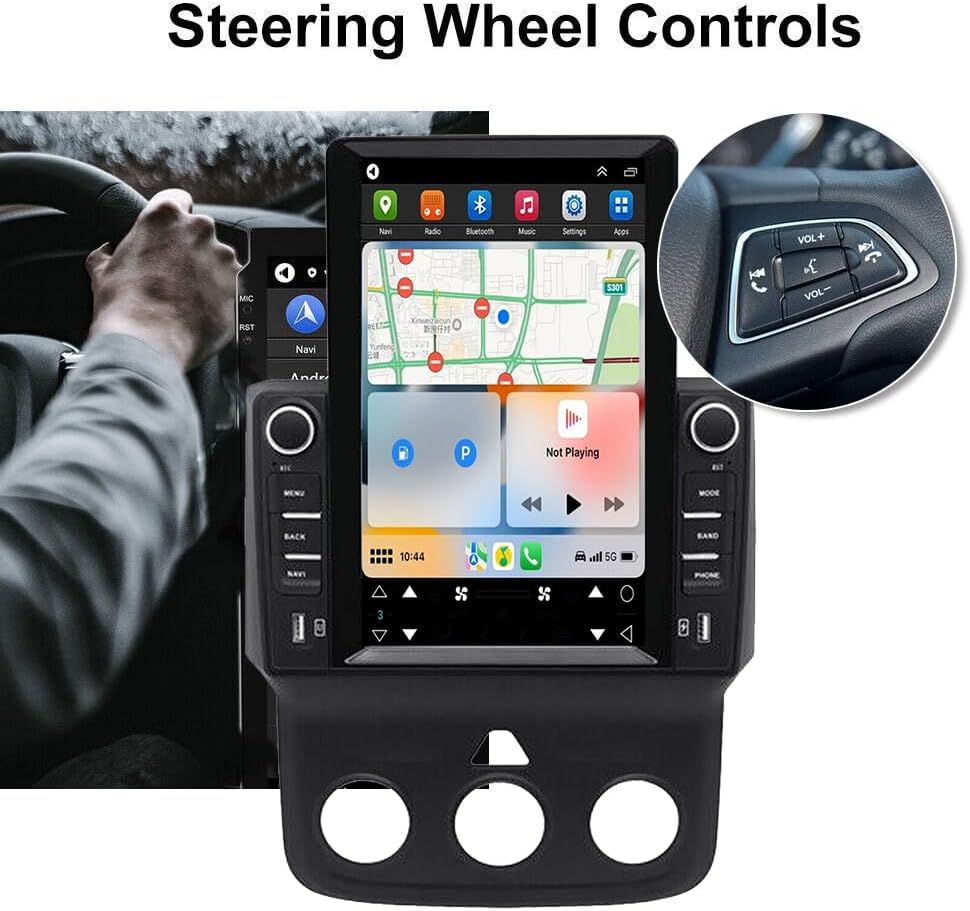
ചിത്രം 4.2: സ്റ്റിയറിംഗ് വീൽ നിയന്ത്രണ സംയോജനം.
4.8 DSP Function:
The Digital Sound Processor (DSP) ensures high-fidelity audio reproduction, closely matching the original sound quality.
4.9 Rear Camera Input:
Connect an AHD backup camera to the CVBS input. The display will automatically switch to the camera view റിവേഴ്സ് ചെയ്യുമ്പോൾ.
4.10 File Manager & Apps:
അന്തർനിർമ്മിത file manager allows you to browse, download, install, and delete Android applications. You can access the Google Play Store (with Wi-Fi connected) to expand the stereo's functionality.
4.11 സമയ ക്രമീകരണം:
The date and time can be set automatically via network or GPS, or adjusted manually through the system settings.
5. പരിപാലനം
ശരിയായ അറ്റകുറ്റപ്പണി നിങ്ങളുടെ കാർ സ്റ്റീരിയോയുടെ ദീർഘായുസ്സും മികച്ച പ്രകടനവും ഉറപ്പാക്കുന്നു.
- സ്ക്രീൻ വൃത്തിയാക്കൽ: ടച്ച് സ്ക്രീൻ മൃദുവായി തുടയ്ക്കാൻ മൃദുവായ, ലിന്റ് രഹിത തുണി ഉപയോഗിക്കുക. കഠിനമായ പാടുകൾക്ക്, ചെറുതായി dampതുണിയിൽ വെള്ളം അല്ലെങ്കിൽ സ്ക്രീൻ-സേഫ് ക്ലീനർ ഉപയോഗിക്കുക. കഠിനമായ രാസവസ്തുക്കളോ ഉരച്ചിലുകളോ ഉള്ള വസ്തുക്കൾ ഒഴിവാക്കുക.
- സോഫ്റ്റ്വെയർ അപ്ഡേറ്റുകൾ: Periodically check for system software updates to ensure optimal performance and access to new features. Updates can usually be found in the system settings menu.
- താപനില: Avoid exposing the unit to extreme temperatures for extended periods. The operating temperature range is -20℃ to 75℃.
- കണക്ഷനുകൾ: Ensure all cables are securely connected. Loose connections can lead to intermittent issues.
6. പ്രശ്നപരിഹാരം
This section addresses common issues you might encounter. If you experience problems not listed here, please contact customer support.
- ശക്തിയില്ല:
- എല്ലാ പവർ കണക്ഷനുകളും ഫ്യൂസുകളും പരിശോധിക്കുക.
- വാഹനത്തിന്റെ ബാറ്ററി ചാർജ്ജ് ചെയ്തിട്ടുണ്ടെന്ന് ഉറപ്പാക്കുക.
- ശബ്ദമില്ല:
- സ്പീക്കർ കണക്ഷനുകൾ പരിശോധിക്കുക.
- വോളിയം ലെവലുകളും മ്യൂട്ട് ക്രമീകരണങ്ങളും പരിശോധിക്കുക.
- ശരിയായ ഓഡിയോ ഉറവിടം തിരഞ്ഞെടുത്തിട്ടുണ്ടെന്ന് ഉറപ്പാക്കുക.
- ജിപിഎസ് സിഗ്നൽ നഷ്ടം:
- ജിപിഎസ് ആന്റിന ശരിയായി ഇൻസ്റ്റാൾ ചെയ്തിട്ടുണ്ടെന്നും വ്യക്തമായ ഒരു ലൈൻ ഉണ്ടെന്നും ഉറപ്പാക്കുക. view ആകാശത്തിൻ്റെ.
- Check antenna cable connection.
- ബ്ലൂടൂത്ത് കണക്ഷൻ പ്രശ്നങ്ങൾ:
- സ്റ്റീരിയോയിലും ഫോണിലും ബ്ലൂടൂത്ത് പ്രവർത്തനക്ഷമമാക്കിയിട്ടുണ്ടെന്ന് ഉറപ്പാക്കുക.
- മുമ്പത്തെ ജോടിയാക്കലുകൾ ഇല്ലാതാക്കി വീണ്ടും ജോടിയാക്കാൻ ശ്രമിക്കുക.
- രണ്ട് ഉപകരണങ്ങളും പുനരാരംഭിക്കുക.
- കാർപ്ലേ/ആൻഡ്രോയിഡ് ഓട്ടോ കണക്റ്റ് ചെയ്യുന്നില്ല:
- For wired connection, try a different USB cable.
- For wireless, ensure Bluetooth and Wi-Fi are enabled on your phone.
- Verify the correct app (ZLINK for CarPlay, Android Auto app for Android Auto) is running.
- Unit Freezes or Responds Slowly:
- Perform a soft reset (refer to the specific reset procedure in the included manual, or hold the power button for 10 seconds).
- ആവശ്യമില്ലാത്ത പശ്ചാത്തല ആപ്ലിക്കേഷനുകൾ അടയ്ക്കുക.
ഫാക്ടറി ക്രമീകരണ കീവേഡ്: If prompted for a factory setting keyword, try 8888 or 3368.
7 സ്പെസിഫിക്കേഷനുകൾ
| ഫീച്ചർ | സ്പെസിഫിക്കേഷൻ |
|---|---|
| സിസ്റ്റം | ആൻഡ്രോയിഡ് 13 |
| ചിപ്സെറ്റ് | 8227L-ഡെമോ |
| സ്ക്രീൻ വലിപ്പം | 9.7 ഇഞ്ച് |
| സ്ക്രീൻ റെസല്യൂഷൻ | 1024x768 |
| മെമ്മറി (റാം+റോം) | 2 ജിബി റാം + 32 ജിബി റോം |
| റേഡിയോ ചിപ്പ് | MT6625 |
| പവർ ഔട്ട്പുട്ട് | 4x45W |
| ജോലിയുടെ താപനില | -20℃ മുതൽ 75℃ വരെ |
| ശക്തി Ampലൈഫയർ ചിപ്പ് | TDA7388 |
| റേഡിയോ ബാൻഡ് | എഫ്എം/ആർഡിഎസ് |
| വീഡിയോ ഔട്ട്പുട്ട് | പിന്തുണച്ചു |
| റിവേഴ്സിംഗ് ഇൻപുട്ട് | സി.വി.ബി.എസ് |
| ബാഹ്യ മൈക്രോഫോൺ | പിന്തുണച്ചു |
| സ്പ്ലിറ്റ് സ്ക്രീൻ | പിന്തുണച്ചു |
| മാപ്പുകൾ | Built-in offline maps (internet required for data download) |
| വൈഫൈ | പിന്തുണച്ചു |
| യുഎസ്ബി ഇൻ്റർഫേസ് | ഇരട്ട യുഎസ്ബി |
| ഓഡിയോ ഫോർമാറ്റുകൾ | APE/FLAC/WAV/MP3/WMA തുടങ്ങിയവ. |
| വീഡിയോ ഫോർമാറ്റുകൾ | MKV/RMVB/AVI/MP4/MDV തുടങ്ങിയവ. |
| ചിത്ര ഫോർമാറ്റ് | PNG/JPEG/JPG/GIF/WBMP/BNP തുടങ്ങിയവ. |
| ഫാക്ടറി സെറ്റിംഗ് കീവേഡ് | 8888 അല്ലെങ്കിൽ 3368 |
| പിന്തുണയ്ക്കുന്ന ഭാഷകൾ | Chinese/English/French/Italian/Korean/Japanese/Arabic/Spanish/Portuguese/Russian/Turkish/Vietnamese/Hebrew/Polish/German (up to 40 national languages) |
| വാഹന സേവന തരം | ട്രക്ക് |
| കണക്റ്റിവിറ്റി ടെക്നോളജി | USB |
| മാപ്പ് തരം | വടക്കേ അമേരിക്ക |
| ഓഡിയോ put ട്ട്പുട്ട് മോഡ് | സ്റ്റീരിയോ |
| ടച്ച് സ്ക്രീൻ തരം | കപ്പാസിറ്റീവ് |
| ഡിസ്പ്ലേ തരം | ടച്ച് സ്ക്രീൻ |
| മനുഷ്യ-ഇൻ്റർഫേസ് ഇൻപുട്ട് | ടച്ച് സ്ക്രീൻ |
| നിയന്ത്രണ രീതി | സ്പർശിക്കുക |
| പിന്തുണയ്ക്കുന്ന സാറ്റലൈറ്റ് നാവിഗേഷൻ സിസ്റ്റം | ജിപിഎസ് |
| ഇനത്തിൻ്റെ ഭാരം | 1875 ഗ്രാം |
| മോഡൽ നമ്പർ | JIAQI-QA1572X-WYQ-2412 |
8. വാറൻ്റിയും പിന്തുണയും
For warranty information and technical support, please refer to the specific warranty card included with your product or contact your retailer. Keep your purchase receipt as proof of purchase.