
റെയ്നിക് CR1026
Raynic Digital Calendar Clock User Manual
മോഡൽ: CR1026
1. ആമുഖം
Welcome to the user manual for your Raynic Digital Calendar Clock. This versatile device combines time-telling with advanced calendar and reminder functions, designed for clear visibility and ease of use. Please read this manual thoroughly to understand all features and ensure optimal performance.

Figure 1: Raynic Digital Calendar Clock (White, 10.1 Inches)
2. സജ്ജീകരണം
2.1 അൺബോക്സിംഗും ഘടകങ്ങളും
പാക്കേജിംഗിൽ നിന്ന് എല്ലാ ഘടകങ്ങളും ശ്രദ്ധാപൂർവ്വം നീക്കം ചെയ്യുക. ഇനിപ്പറയുന്ന ഇനങ്ങൾ നിങ്ങളുടെ പക്കലുണ്ടെന്ന് ഉറപ്പാക്കുക:
- Raynic Digital Calendar Clock (10.1-inch display)
- പവർ അഡാപ്റ്റർ
- USB-C മുതൽ USB-A കേബിൾ വരെ
- ഉപയോക്തൃ മാനുവൽ (ഈ പ്രമാണം)
- വാൾ മൗണ്ടിംഗ് ഹാർഡ്വെയർ (സ്ക്രൂകൾ, ആങ്കറുകൾ)

ചിത്രം 2: പാക്കേജിംഗ് ലിസ്റ്റ്
2.2 പവർ ചെയ്യുന്നു
- Connect the USB-C end of the cable to the clock's power port.
- Connect the USB-A end of the cable to the provided power adapter.
- പവർ അഡാപ്റ്റർ ഒരു സാധാരണ ഇലക്ട്രിക്കൽ ഔട്ട്ലെറ്റിലേക്ക് പ്ലഗ് ചെയ്യുക.
- The clock will automatically power on and display the default time and date.
Note: The clock requires continuous power via the AC adapter. It has an internal battery for settings backup during power outages, but it is not designed for portable use.
2.3 പ്രാരംഭ സമയ, തീയതി ക്രമീകരണം
The clock typically syncs time automatically. If manual adjustment is needed:
- അമർത്തുക മെനു button on the side of the clock to access the main menu.
- നാവിഗേറ്റ് ചെയ്യുക തീയതിയും സമയവും using the Up/Down arrow buttons. Press തിരഞ്ഞെടുക്കുക.
- Adjust the time, date, time format (12/24 hours), date format (Month-Day-Year, Day-Month-Year, Year-Month-Day), and Daylight Saving Time settings using the arrow buttons and തിരഞ്ഞെടുക്കുക.
വീഡിയോ 1: കഴിഞ്ഞുview of the Raynic Digital Calendar Clock's features, including setting time and date, and navigating menus.
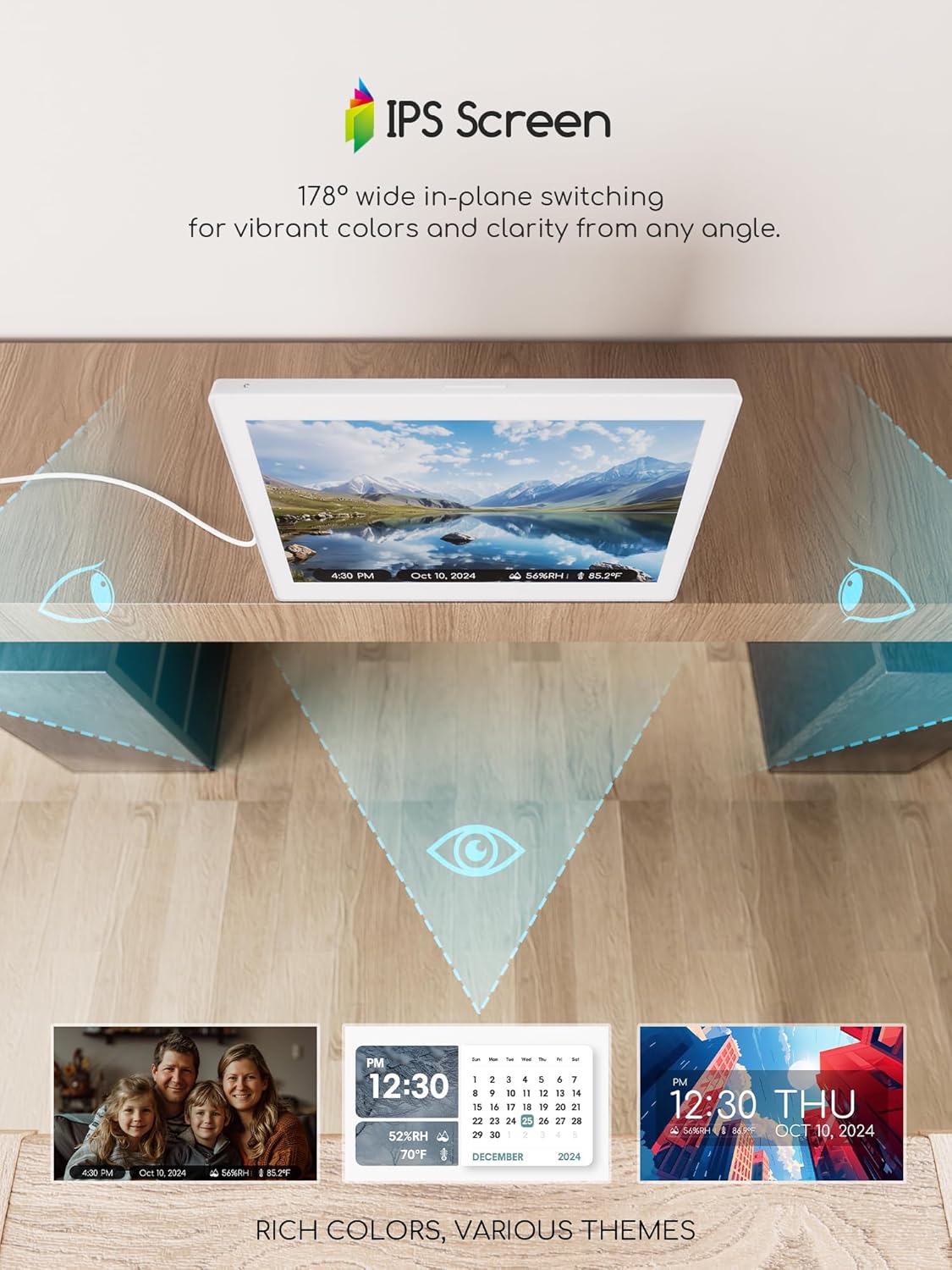
Figure 3: Brightness Settings Menu
3. പ്രവർത്തന നിർദ്ദേശങ്ങൾ
3.1 മെനു നാവിഗേറ്റ് ചെയ്യുന്നു
The clock features intuitive side buttons for navigation:
- മുകളിലേക്കും താഴേക്കുമുള്ള അമ്പടയാളങ്ങൾ: മെനു ഓപ്ഷനുകളിലൂടെ സ്ക്രോൾ ചെയ്യുക അല്ലെങ്കിൽ മൂല്യങ്ങൾ ക്രമീകരിക്കുക.
- ഇടത്/വലത് അമ്പടയാളങ്ങൾ: Change specific settings within an option (e.g., language, theme).
- ബട്ടൺ തിരഞ്ഞെടുക്കുക: Confirm a selection or enter a sub-menu.
- ബാക്ക് ബട്ടൺ: Return to the previous menu or exit a setting.

Figure 4: Main Menu Interface
3.2 Display Themes
The clock offers 12 distinct display themes to suit your preference:
- പ്രധാന മെനുവിൽ നിന്ന്, തിരഞ്ഞെടുക്കുക തീമുകൾ.
- Browse through the 12 available themes using the Left/Right arrow buttons.
- അമർത്തുക തിരഞ്ഞെടുക്കുക to apply your chosen theme.

Figure 5: Available Display Themes
Some themes allow for custom colors and time formats, enhancing personalization.
3.3 അലാറങ്ങളും ഓർമ്മപ്പെടുത്തലുകളും സജ്ജമാക്കൽ
The clock supports up to 20 alarms and 20 reminders for various events:
- പ്രധാന മെനുവിൽ നിന്ന്, തിരഞ്ഞെടുക്കുക അലാറങ്ങൾ or ഷെഡ്യൂൾ.
- To add a new alarm/reminder, select Add new alarm/event.
- Configure the time, repeat frequency (e.g., daily, specific days), label (e.g., Medication, Birthday), ringtone (18 options), and volume.
- For reminders, choose from predefined types (Medication, Daily activity, Visit, Entertainment, Birthday/Holiday) or customize your own.

Figure 6: Reminder Display
3.4 തെളിച്ചം ക്രമീകരിക്കൽ
ഡിസ്പ്ലേ തെളിച്ചം ഒപ്റ്റിമൽ ആയി ക്രമീകരിക്കുക viewing in any environment:
- പ്രധാന മെനുവിൽ നിന്ന്, തിരഞ്ഞെടുക്കുക തെളിച്ചം.
- ഇതിൽ നിന്ന് തിരഞ്ഞെടുക്കുക:
- മാനുവൽ ക്രമീകരണങ്ങൾ: Set a fixed brightness level (10% to 100%).
- യാന്ത്രിക മങ്ങൽ: The clock automatically adjusts brightness based on ambient light.
- Time Period: Set different brightness levels for day and night periods.

Figure 7: Brightness Adjustment Options
3.5 ഭാഷ തിരഞ്ഞെടുക്കൽ
The clock supports multiple languages for its interface:
- പ്രധാന മെനുവിൽ നിന്ന്, തിരഞ്ഞെടുക്കുക ക്രമീകരണങ്ങൾ, പിന്നെ ഭാഷ.
- Use the Left/Right arrow buttons to select your preferred language (e.g., English, French, Italian, German, Spanish, Japanese).
- അമർത്തുക തിരഞ്ഞെടുക്കുക സ്ഥിരീകരിക്കാൻ.

ചിത്രം 8: പിന്തുണയ്ക്കുന്ന ഭാഷകൾ
3.6 Photo Album Functionality
Transform your clock into a digital photo frame:
- Insert a USB flash drive or TF card (up to 64GB, not included) containing your photos into the designated port on the side of the clock.
- പ്രധാന മെനുവിൽ നിന്ന്, ഇതിലേക്ക് നാവിഗേറ്റ് ചെയ്യുക ആൽബം.
- The clock will display your photos in a slideshow.
Figure 9: IPS Screen for Photo Display
4. പരിപാലനം
- വൃത്തിയാക്കൽ: ഡിസ്പ്ലേ വൃത്തിയാക്കാൻ മൃദുവായതും ഉണങ്ങിയതുമായ തുണി ഉപയോഗിക്കുക, സി.asing. അബ്രാസീവ് ക്ലീനറുകളോ ലായകങ്ങളോ ഒഴിവാക്കുക.
- പ്ലേസ്മെൻ്റ്: Place the clock on a stable, flat surface or mount it securely to a wall. Avoid direct sunlight or extreme temperatures.
- ശക്തി: Always use the provided power adapter. Disconnect power during extended periods of non-use.
5. പ്രശ്നപരിഹാരം
| പ്രശ്നം | സാധ്യമായ കാരണം | പരിഹാരം |
|---|---|---|
| ക്ലോക്ക് ഓണാക്കുന്നില്ല. | പവർ കണക്ഷനില്ല അല്ലെങ്കിൽ അഡാപ്റ്റർ തകരാറിലല്ല. | Ensure power adapter is securely plugged into the clock and a working outlet. Try a different outlet. |
| ഡിസ്പ്ലേ വളരെ മങ്ങിയതോ വളരെ തെളിച്ചമുള്ളതോ ആണ്. | Brightness settings are incorrect. | Adjust brightness settings in the menu (Manual, Auto Dimming, or Time Period). |
| സമയം/തീയതി തെറ്റാണ്. | Manual setting error or Daylight Saving Time issue. | Go to Date & Time settings to manually correct or verify Daylight Saving Time region. |
| Alarms/Reminders not sounding. | Alarm/Reminder is off or volume is too low. | Check alarm/reminder settings to ensure they are activated and volume is adequate. |
6 സ്പെസിഫിക്കേഷനുകൾ
- മോഡൽ: CR1026
- സ്ക്രീൻ വലിപ്പം: 10.1 ഇഞ്ച്
- ഡിസ്പ്ലേ തരം: ഐപിഎസ് സ്ക്രീൻ
- ഉൽപ്പന്ന അളവുകൾ: 14.01 x 1.5 x 7.4 ഇഞ്ച്
- ഇനത്തിൻ്റെ ഭാരം: 1.46 പൗണ്ട്
- ഊർജ്ജ സ്രോതസ്സ്: AC Adapter Powered (5V 2A recommended)
- ബാറ്ററി ബാക്കപ്പ്: Internal battery for settings retention (not for portable use)
- സംഭരണ പിന്തുണ: USB Flash Drive, TF Card (up to 64GB)
- ഭാഷകൾ: English, French, Italian, German, Spanish, Japanese
- അലാറങ്ങൾ: Up to 20 settings
- ഓർമ്മപ്പെടുത്തലുകൾ: Up to 20 settings
- തീമുകൾ: 12 customizable display themes
- താപനില/ഈർപ്പം: Built-in sensors for display
- നിർമ്മാതാവ്: Raynic Electronics
- മാതൃരാജ്യം: ചൈന
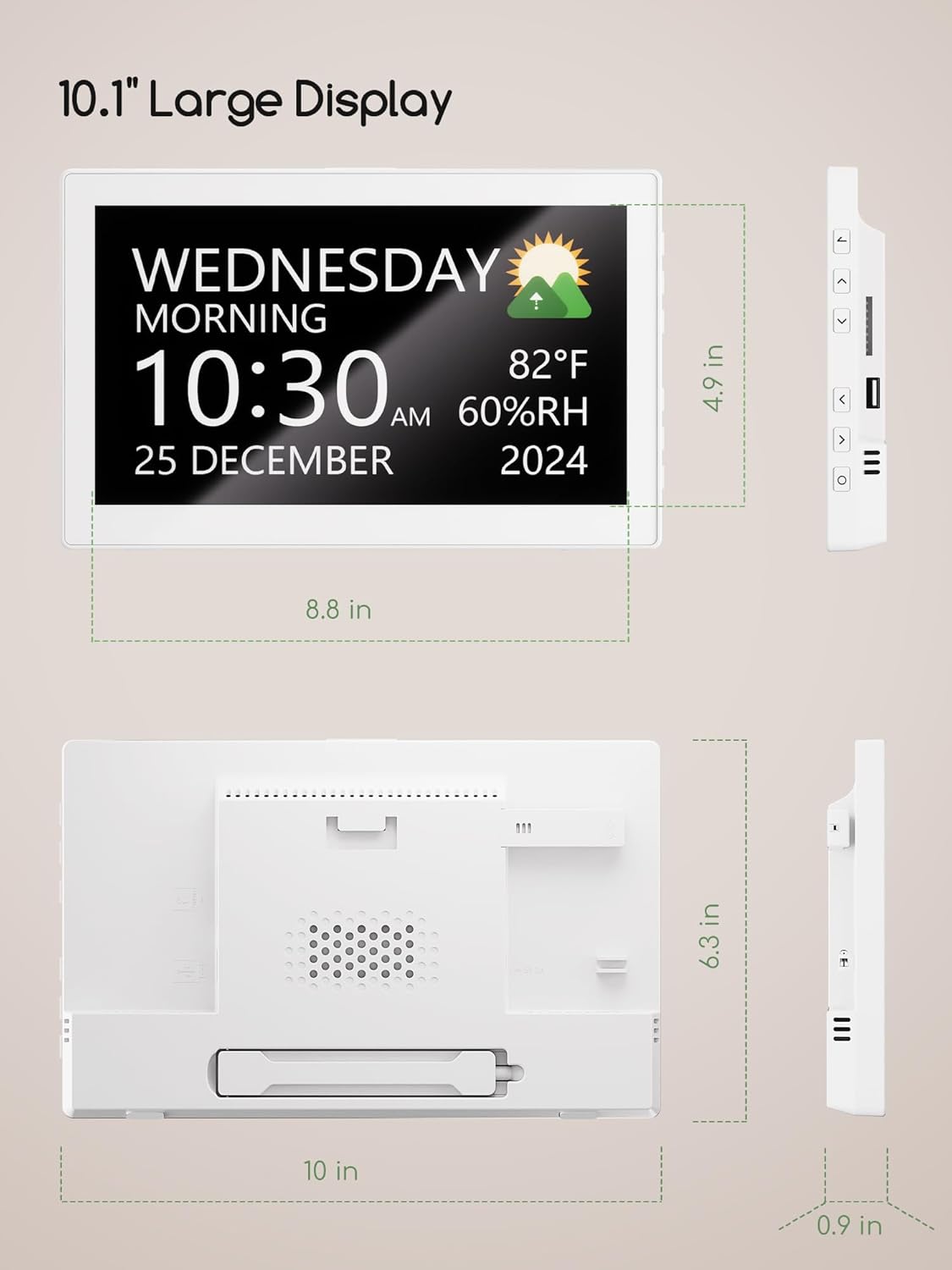
ചിത്രം 10: ഉൽപ്പന്ന അളവുകൾ
7. വാറൻ്റിയും പിന്തുണയും
7.1 റിട്ടേൺ പോളിസി
This product is subject to a 30-day refund/replacement policy from the date of purchase. Please refer to your retailer's specific return guidelines for detailed instructions.
7.2 ഉപഭോക്തൃ പിന്തുണ
For any questions, technical assistance, or warranty claims, please contact Raynic customer support through their official webഉൽപ്പന്നം വാങ്ങിയ സ്ഥലത്തോ റീട്ടെയിലറിലോ. വാങ്ങിയതിന്റെ തെളിവായി നിങ്ങളുടെ വാങ്ങൽ രസീത് സൂക്ഷിക്കുക.
For more information, visit the official Raynic Store: Raynic Store on Amazon
Ask a question about this manual
Ask about setup, troubleshooting, compatibility, parts, safety, or missing instructions. Manuals+ will review the question and use this page’s manual context to help answer it.