
1. ആമുഖം
Thank you for choosing the Auusda T156A 15.6-inch Business Laptop. This manual provides essential information for setting up, operating, and maintaining your new laptop. Please read this manual thoroughly before using the device to ensure proper function and longevity. This laptop is designed for productivity and portability, featuring a 4-core processor, 8GB DDR4 RAM, and a 512GB M.2 PCIe NVMe SSD, all running on Windows 11 Pro.
2. പാക്കേജ് ഉള്ളടക്കം
പാക്കേജിൽ എല്ലാ ഇനങ്ങളും ഉണ്ടെന്ന് ഉറപ്പാക്കുക:
- Auusda T156A Laptop
- പവർ അഡാപ്റ്ററും കേബിളും
- Transparent Keyboard Cover
- Spanish Keyboard Cover
- നിർദ്ദേശ മാനുവൽ (ഈ പ്രമാണം)

Image: The laptop, power adapter, and keyboard covers as included in the package.
3. ഉൽപ്പന്നം കഴിഞ്ഞുview
3.1 പ്രധാന സവിശേഷതകൾ
- ശക്തമായ പ്രകടനം: Equipped with a 4-core N95 processor (1.7-3.4 GHz) and 8GB DDR4 RAM for efficient multitasking.
- Ample സംഭരണം: Features a 512GB M.2 PCIe NVMe SSD for fast data access and sufficient storage.
- Vibrant Full HD Display: A 15.6" Full HD IPS LCD screen offers clear visuals with wide viewകോണുകൾ.
- സൗകര്യപ്രദമായ സവിശേഷതകൾ: Includes a backlit keyboard for low-light use and a fingerprint reader for secure access.
- Connectivity & Versatility: Offers Bluetooth, an SD card reader, and essential ports for various devices.

ചിത്രം: ഒരു ഓവർview of the Auusda T156A laptop with its main features labeled.
3.2 പ്രോസസ്സറും മെമ്മറിയും
The laptop is powered by an Intel N95 4-core processor, capable of speeds up to 3.4 GHz, ensuring smooth operation for business and academic tasks. It comes with 8GB of DDR4 RAM and a 512GB M.2 PCIe NVMe Solid State Drive (SSD) for quick boot times and application loading.

Image: A visual representation of the 4-core N95 processor chip.

Image: The laptop highlighting its 8GB RAM and 512GB SSD configuration.
3.3 ഡിസ്പ്ലേ
Experience clear and vibrant visuals on the 15.6-inch Full HD (1920x1080) IPS LCD display. The screen features a narrow bezel and supports 16 million colors, providing an immersive viewing experience. A privacy shutter is integrated for the webക്യാം

Image: The laptop's 15.6-inch Full HD IPS LCD display and its features.
3.4 കീബോർഡും ടച്ച്പാഡും
The laptop features a full-size backlit keyboard, allowing comfortable typing in various lighting conditions. The integrated touchpad includes a fingerprint sensor for secure and quick login.

Image: The backlit keyboard and the fingerprint ID sensor on the touchpad.
3.5 പോർട്ടുകളും കണക്റ്റിവിറ്റിയും
The Auusda T156A offers a range of connectivity options:
- DC പവർ ഇൻപുട്ട്
- USB-A Ports (multiple)
- HDMI ഔട്ട്പുട്ട്
- മൈക്രോ എസ്ഡി കാർഡ് റീഡർ
- ഹെഡ്ഫോൺ ജാക്ക്
- Bluetooth and Wi-Fi (802.11ac, 802.11ax)
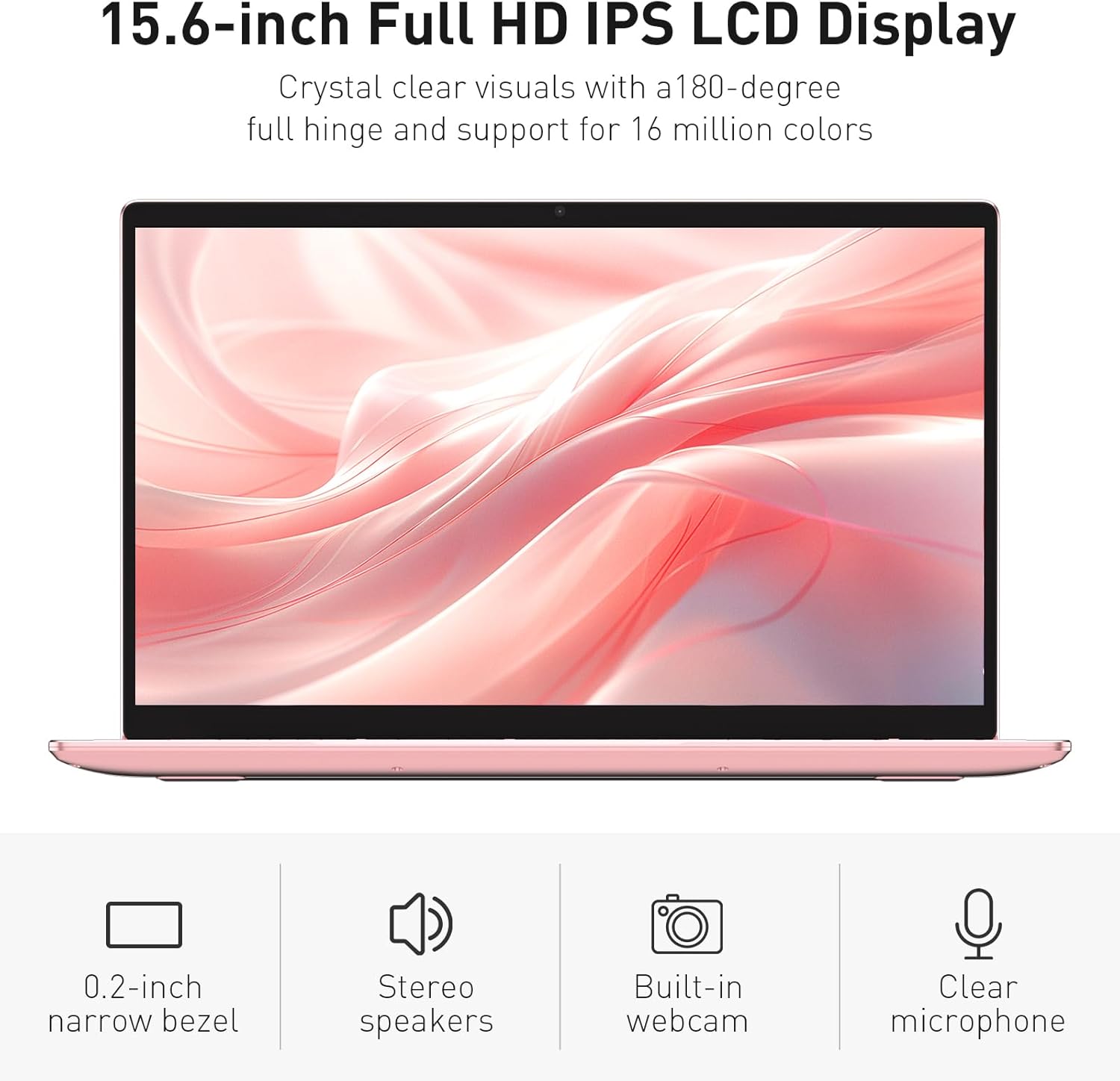
Image: The various ports available on the sides of the laptop.
4. സജ്ജീകരണം
4.1 പ്രാരംഭ പവർ ഓണും ചാർജിംഗും
- ബോക്സിൽ നിന്ന് ലാപ്ടോപ്പും പവർ അഡാപ്റ്ററും അൺപാക്ക് ചെയ്യുക.
- Connect the power adapter to the DC power input port on the laptop and then to a power outlet.
- Allow the laptop to charge for at least 30 minutes before initial use, or until the charging indicator light shows a full charge.
- ലാപ്ടോപ്പ് ഓണാക്കാൻ പവർ ബട്ടൺ അമർത്തുക.
4.2 Windows 11 Pro Setup
Follow the on-screen instructions to complete the initial Windows 11 Pro setup. This will include:
- നിങ്ങളുടെ പ്രദേശവും കീബോർഡ് ലേഔട്ടും തിരഞ്ഞെടുക്കുന്നു.
- ഒരു Wi-Fi നെറ്റ്വർക്കിലേക്ക് കണക്റ്റുചെയ്യുന്നു.
- ലൈസൻസ് കരാർ അംഗീകരിക്കുന്നു.
- ഒരു ഉപയോക്തൃ അക്കൗണ്ട് സൃഷ്ടിക്കൽ അല്ലെങ്കിൽ ഒരു Microsoft അക്കൗണ്ട് ഉപയോഗിച്ച് സൈൻ ഇൻ ചെയ്യൽ.
4.3 ഫിംഗർപ്രിന്റ് സെൻസർ സജ്ജീകരണം
For enhanced security, set up the fingerprint sensor:
- Once Windows is set up, navigate to ക്രമീകരണങ്ങൾ > അക്കൗണ്ടുകൾ > സൈൻ-ഇൻ ഓപ്ഷനുകൾ.
- 'Windows Hello Fingerprint' എന്നതിന് കീഴിൽ, സജ്ജമാക്കുക.
- Follow the on-screen prompts to register your fingerprint. You will be asked to lift and place your finger multiple times on the sensor until it is fully registered.
5. ലാപ്ടോപ്പ് പ്രവർത്തിപ്പിക്കൽ
5.1 അടിസ്ഥാന ഉപയോഗം
- പവർ ഓൺ/ഓഫ്: ലാപ്ടോപ്പ് ഓൺ അല്ലെങ്കിൽ ഓഫ് ചെയ്യുന്നതിന് കീബോർഡിന്റെ മുകളിൽ വലതുവശത്തുള്ള പവർ ബട്ടൺ അമർത്തുക.
- സ്ലീപ്പ് മോഡ്: Close the lid or press the power button briefly to put the laptop into sleep mode.
- Restart/Shut Down: Access these options from the Start Menu in Windows.
5.2 Backlit Keyboard Control
The keyboard backlight can be adjusted or turned off using the function keys. Look for the key with a keyboard icon (often F5 or F6) to cycle through brightness levels or toggle the backlight on/off.
5.3 Webക്യാമറ സ്വകാര്യത ഷട്ടർ
സംയോജിത webcam includes a physical privacy shutter. Slide the small cover located directly above the webcam lens to open or close it, ensuring your privacy when the camera is not in use.
5.4 ബാഹ്യ ഉപകരണങ്ങൾ ബന്ധിപ്പിക്കുന്നു
Use the available ports to connect peripherals:
- USB ഉപകരണങ്ങൾ: Plug USB drives, mice, or keyboards into the USB-A ports.
- ബാഹ്യ പ്രദർശനം: Connect an external monitor or projector using the HDMI port.
- ഓഡിയോ: Use the headphone jack for headphones or external speakers.
- മൈക്രോ എസ്ഡി കാർഡ്: Insert a microSD card into the dedicated slot for additional storage or data transfer.
5.5 ഗെയിമിംഗ് പ്രകടനം
The Auusda T156A is capable of handling light gaming and provides a smooth experience for many popular titles. For optimal performance, ensure your drivers are updated and close unnecessary background applications.
Video: Demonstration of the Auusda T156A laptop's light gaming capabilities.
വീഡിയോ: ഒരു ചെറിയ ക്ലിപ്പ് ഷോasing the laptop's performance during racing games.
6. പരിപാലനം
- വൃത്തിയാക്കൽ: സ്ക്രീനും പുറംഭാഗവും വൃത്തിയാക്കാൻ മൃദുവായ, ലിന്റ് രഹിത തുണി ഉപയോഗിക്കുക. കഠിനമായ കറകൾക്ക്, dampതുണിയിൽ വെള്ളം അല്ലെങ്കിൽ സ്ക്രീൻ-സേഫ് ക്ലീനർ ഉപയോഗിക്കുക. കഠിനമായ രാസവസ്തുക്കൾ ഒഴിവാക്കുക.
- ബാറ്ററി കെയർ: To prolong battery life, avoid fully discharging the battery frequently. It is recommended to keep the battery charged between 20% and 80% when possible. Store the laptop in a cool, dry place.
- സോഫ്റ്റ്വെയർ അപ്ഡേറ്റുകൾ: മികച്ച പ്രകടനവും സുരക്ഷയും ഉറപ്പാക്കാൻ വിൻഡോസ് അപ്ഡേറ്റുകളും ഡ്രൈവർ അപ്ഡേറ്റുകളും പതിവായി പരിശോധിച്ച് ഇൻസ്റ്റാൾ ചെയ്യുക.
- വെൻ്റിലേഷൻ: അമിതമായി ചൂടാകുന്നത് തടയാൻ ലാപ്ടോപ്പിന്റെ വെന്റുകൾ അടഞ്ഞുകിടക്കുന്നില്ലെന്ന് ഉറപ്പാക്കുക. ലാപ്ടോപ്പ് കട്ടിയുള്ളതും പരന്നതുമായ പ്രതലത്തിൽ ഉപയോഗിക്കുക.
- ഡാറ്റ ബാക്കപ്പ്: ഡാറ്റ നഷ്ടപ്പെടുന്നത് തടയാൻ പ്രധാനപ്പെട്ട ഡാറ്റ ഒരു ബാഹ്യ ഡ്രൈവിലേക്കോ ക്ലൗഡ് സ്റ്റോറേജിലേക്കോ പതിവായി ബാക്കപ്പ് ചെയ്യുക.
7. പ്രശ്നപരിഹാരം
This section addresses common issues you might encounter with your Auusda T156A laptop.
| പ്രശ്നം | സാധ്യമായ പരിഹാരം |
|---|---|
| ലാപ്ടോപ്പ് പവർ ഓൺ ആകുന്നില്ല. | Ensure the power adapter is securely connected and the outlet is working. Try charging the laptop for a while before attempting to power it on again. |
| സ്ക്രീൻ ശൂന്യമാണ് അല്ലെങ്കിൽ കറുപ്പാണ്. | Check if the laptop is powered on. Try pressing Fn + F1 (or the display toggle key) to ensure the display is not turned off. Connect to an external monitor to check if the issue is with the laptop's screen. |
| വൈഫൈ കണക്ഷൻ പ്രശ്നങ്ങൾ. | വിൻഡോസ് ക്രമീകരണങ്ങളിൽ വൈ-ഫൈ പ്രവർത്തനക്ഷമമാക്കിയിട്ടുണ്ടെന്ന് ഉറപ്പാക്കുക. നിങ്ങളുടെ റൂട്ടറും ലാപ്ടോപ്പും പുനരാരംഭിക്കുക. അപ്ഡേറ്റ് ചെയ്ത വൈ-ഫൈ ഡ്രൈവറുകൾക്കായി പരിശോധിക്കുക. |
| ഫിംഗർപ്രിന്റ് സെൻസർ പ്രവർത്തിക്കുന്നില്ല. | Ensure your finger is clean and dry. Re-register your fingerprint in Windows settings. Check for driver updates for the fingerprint sensor. |
| കീബോർഡ് ബാക്ക്ലൈറ്റ് പ്രവർത്തിക്കുന്നില്ല. | Press the dedicated backlight function key (e.g., Fn + F5 or F6) to toggle or adjust brightness. |
| ലാപ്ടോപ്പ് മന്ദഗതിയിലാണ് പ്രവർത്തിക്കുന്നത്. | Close unnecessary applications. Check Task Manager for resource-intensive processes. Ensure sufficient free space on the SSD. Run a malware scan. |
8 സ്പെസിഫിക്കേഷനുകൾ
Detailed technical specifications for the Auusda T156A laptop:
| ഫീച്ചർ | വിശദാംശങ്ങൾ |
|---|---|
| ബ്രാൻഡ് | ഔസ്ദ |
| മോഡലിൻ്റെ പേര് | T156A |
| സ്ക്രീൻ വലിപ്പം | 15.6 ഇഞ്ച് |
| ഹാർഡ് ഡിസ്ക് വലിപ്പം | 512 GB (SSD) |
| സിപിയു മോഡൽ | Intel N95 (4-Core, 1.7 GHz base, up to 3.4 GHz turbo) |
| ഇൻസ്റ്റാൾ ചെയ്ത RAM മെമ്മറി വലുപ്പം | 8 GB DDR4 |
| ഓപ്പറേറ്റിംഗ് സിസ്റ്റം | വിൻഡോസ് 11 പ്രോ |
| പ്രത്യേക സവിശേഷതകൾ | ബാക്ക്ലിറ്റ് കീബോർഡ്, ഫിംഗർപ്രിന്റ് റീഡർ |
| ഗ്രാഫിക്സ് കോപ്രൊസസർ | UHD Graphics (Integrated) |
| കണക്റ്റിവിറ്റി ടെക്നോളജി | Bluetooth, Wi-Fi (802.11ac, 802.11ax) |
| തുറമുഖങ്ങളുടെ എണ്ണം | 2 (USB-A, HDMI, microSD, Headphone Jack) |
| ബാറ്ററി സെൽ തരം | ലിഥിയം പോളിമർ (6000 mAh) |
| ഇനത്തിന്റെ അളവുകൾ (L x W x കനം) | 14"L x 9"W x 0.7"Th |
| നേറ്റീവ് റെസല്യൂഷൻ | 1920 x 1080 പിക്സലുകൾ |
| പുതുക്കിയ നിരക്ക് | 60 Hz |
| Webക്യാം ശേഷി | Yes (with privacy shutter) |
9. വാറണ്ടിയും പിന്തുണയും
9.1 ഉൽപ്പന്ന വാറന്റി
The Auusda T156A laptop comes with a 2 വർഷത്തെ നിർമ്മാതാവിൻ്റെ വാറൻ്റി. Please retain your proof of purchase for warranty claims. For detailed warranty terms and conditions, refer to the documentation provided with your product or contact Auusda customer support.
9.2 ഉപഭോക്തൃ പിന്തുണ
For technical assistance, troubleshooting, or service inquiries, please visit the official Auusda Store or contact their customer support channels. You can find more information and support resources at the Auusda Official Store on Amazon.
Video: A short promotional video from the Auusda Official Store, showcasing the laptop's features for college students.