
H155-382
5G CPE 5 റൂട്ടർ H155-382 ഉപയോക്തൃ മാനുവൽ
Your comprehensive guide to setting up and using your 5G CPE 5 Router.
1. ആമുഖം
This user manual provides detailed instructions for the installation, operation, and maintenance of your 5G CPE 5 Router, model H155-382. Please read this manual carefully before using the device to ensure proper functionality and to maximize your internet experience. Keep this manual for future reference.
2. ഉൽപ്പന്നം കഴിഞ്ഞുview
The 5G CPE 5 Router H155-382 is a high-performance wireless router designed to provide fast and reliable internet connectivity using 5G technology. It supports all 5G network frequencies and features a powerful 5G reception antenna with up to 11 dB gain. With download speeds up to 3.6 Gbps and upload speeds up to 500 Mbps, it's ideal for both home and business use. The device incorporates a nano chip and a silent fan for quiet operation, ensuring extended coverage with strong signals, especially optimized for the Zain network.
2.1. പാക്കേജ് ഉള്ളടക്കം
- 5G CPE 5 Router H155-382
- പവർ അഡാപ്റ്റർ/ചാർജർ
- ഉപയോക്തൃ ഗൈഡ് (ഈ പ്രമാണം)
2.2. ഉപകരണ ലേഔട്ട്

ചിത്രം 2.2.1: The 5G CPE 5 Router H155-382 shown in its retail packaging, highlighting the product name and key features like 5G and Wi-Fi 6 3000Mbps.

ചിത്രം 2.2.2: The 5G CPE 5 Router H155-382 device displayed alongside its retail box, providing a clear view of the router's front panel with indicator lights and the WPS button.
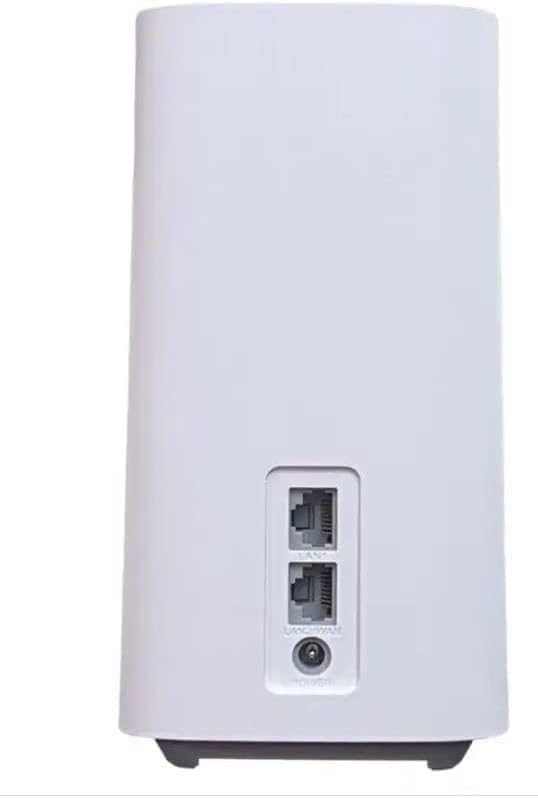
ചിത്രം 2.2.3: പിൻഭാഗം view of the 5G CPE 5 Router H155-382, illustrating the LAN/WAN ports and the power input port for connectivity.

ചിത്രം 2.2.4: The bottom of the 5G CPE 5 Router H155-382 packaging, showing a QR code and text indicating the management portal address: zain.sa/m5ghstart. This section also details key performance metrics like 5G download/upload speeds and Wi-Fi 6 capabilities.
3. സജ്ജീകരണം
3.1. സിം കാർഡ് ഇൻസ്റ്റാളേഷൻ
- റൂട്ടർ ഓഫാണെന്ന് ഉറപ്പാക്കുക.
- Locate the SIM card slot, typically on the bottom or side of the device.
- Insert your Nano SIM card into the slot with the gold contacts facing down and the notched corner aligned correctly. Push gently until it clicks into place.
3.2. പവർ കണക്ഷൻ
- Connect one end of the power adapter to the router's power input port (labeled "POWER" or similar).
- പവർ അഡാപ്റ്ററിന്റെ മറ്റേ അറ്റം ഒരു സാധാരണ ഇലക്ട്രിക്കൽ ഔട്ട്ലെറ്റിലേക്ക് പ്ലഗ് ചെയ്യുക.
- The router will automatically power on and begin its startup sequence.
3.3. പ്രാരംഭ നെറ്റ്വർക്ക് കണക്ഷൻ
3.3.1. വൈഫൈ കണക്ഷൻ
- Wait for the router's indicator lights to stabilize, indicating it has connected to the 5G network.
- On your device (smartphone, laptop, etc.), search for available Wi-Fi networks.
- Select the Wi-Fi network name (SSID) printed on the label at the bottom or back of your router.
- റൂട്ടറിന്റെ ലേബലിൽ കാണുന്ന വൈഫൈ പാസ്വേഡ് (കീ) നൽകുക.
- നിങ്ങളുടെ ഉപകരണം ഇപ്പോൾ ഇന്റർനെറ്റുമായി ബന്ധിപ്പിച്ചിരിക്കണം.
3.3.2. ഇഥർനെറ്റ് കണക്ഷൻ
- Connect one end of an Ethernet cable to a LAN port on the router (refer to Figure 2.2.3).
- നിങ്ങളുടെ കമ്പ്യൂട്ടറിലോ മറ്റ് നെറ്റ്വർക്ക് ഉപകരണത്തിലോ ഉള്ള ഇതർനെറ്റ് പോർട്ടിലേക്ക് ഇതർനെറ്റ് കേബിളിന്റെ മറ്റേ അറ്റം ബന്ധിപ്പിക്കുക.
- The device will automatically establish a wired connection.
3.4. മാനേജ്മെന്റ് ഇന്റർഫേസിലേക്ക് പ്രവേശിക്കുന്നു
To manage your router settings, including Wi-Fi name, password, and advanced network configurations, access the webഅടിസ്ഥാന മാനേജ്മെന്റ് ഇന്റർഫേസ്:
- എ തുറക്കുക web browser on a device connected to the router's network.
- Type the management portal address into the address bar: zain.sa/m5ghstart.
- Follow the on-screen prompts to log in. The default username and password are usually printed on the router's label. It is highly recommended to change the default password for security reasons.
4. പ്രവർത്തന നിർദ്ദേശങ്ങൾ
4.1. ഇൻഡിക്കേറ്റർ ലൈറ്റുകൾ
The router features several indicator lights on its front panel to show its status:
- പവർ സൂചകം: പവർ ഓൺ ചെയ്യുമ്പോൾ കടും പച്ച.
- 5G/Network Indicator: Indicates 5G signal strength and connection status. (e.g., Solid green for strong 5G, blinking for searching, red for no signal).
- Wi-Fi സൂചകം: Solid green when Wi-Fi is active. Blinking during data transmission.
- സ്റ്റാറ്റസ് സൂചകം: Provides general device status. (Refer to the router's specific LED guide for detailed meanings).
4.2. വിപുലമായ സവിശേഷതകൾ
- വൈഫൈ 6 (802.11ax): Supports the latest Wi-Fi standard for faster speeds and improved efficiency, especially in congested network environments.
- ഡ്യുവൽ-ബാൻഡ് ഓപ്പറേഷൻ: The router operates on both 2.4 GHz and 5 GHz frequencies, providing flexibility for various devices and reducing interference.
- ഇൻ്റർനെറ്റ് സുരക്ഷ: Access the management interface to configure firewall settings, parental controls, and other security features.
- സേവനത്തിൻ്റെ ഗുണനിലവാരം (QoS): Prioritize network traffic for specific applications or devices to ensure smooth performance for critical tasks like online gaming or video conferencing.
- Game Turbo Technology: This feature is designed to provide a high-speed, stable Wi-Fi connection, optimizing performance for online gaming.
5. പരിപാലനം
5.1. വൃത്തിയാക്കൽ
To maintain optimal performance, regularly clean the router. Use a soft, dry cloth to wipe the exterior. Do not use liquid cleaners or aerosols.
5.2. ഒപ്റ്റിമൽ പ്ലേസ്മെന്റ്
Place the router in a central location within your home or office, away from obstructions like thick walls, large metal objects, and other electronic devices that may cause interference. Elevating the router can also improve signal coverage.
5.3. ഫേംവെയർ അപ്ഡേറ്റുകൾ
Periodically check the router's management interface for available firmware updates. Keeping your firmware up-to-date ensures you have the latest features, security patches, and performance improvements.
6. പ്രശ്നപരിഹാരം
| പ്രശ്നം | സാധ്യമായ കാരണം | പരിഹാരം |
|---|---|---|
| ഇൻ്റർനെറ്റ് കണക്ഷനില്ല | SIM card not inserted correctly, no 5G signal, network issue from provider. |
|
| കുറഞ്ഞ ഇന്റർനെറ്റ് വേഗത | ദുർബലമായ സിഗ്നൽ, വളരെയധികം കണക്റ്റഡ് ഉപകരണങ്ങൾ, നെറ്റ്വർക്ക് തിരക്ക്. |
|
| Cannot Access Management Interface | Incorrect IP address/URL, device not connected to router. |
|
6.1. ഫാക്ടറി റീസെറ്റ്
If you encounter persistent issues, you may need to perform a factory reset. This will revert all settings to their default values. Locate the reset button (often a small pinhole) on the router. With the router powered on, use a paperclip or similar pointed object to press and hold the reset button for about 5-10 seconds until the indicator lights flash. The router will then restart with default settings.
7 സ്പെസിഫിക്കേഷനുകൾ
| ഫീച്ചർ | വിശദാംശങ്ങൾ |
|---|---|
| മോഡലിൻ്റെ പേര് | H155-382 |
| ബ്രാൻഡ് | ജനറിക് |
| കണക്റ്റിവിറ്റി ടെക്നോളജി | ഇഥർനെറ്റ്, വൈ-ഫൈ |
| വയർലെസ് കമ്മ്യൂണിക്കേഷൻ സ്റ്റാൻഡേർഡ് | 802.11a (Wi-Fi 6 compatible) |
| ഫ്രീക്വൻസി ബാൻഡ് ക്ലാസ് | ഡ്യുവൽ-ബാൻഡ് |
| പ്രത്യേക ഫീച്ചർ | Internet Security, Quality of Service (QoS) |
| അനുയോജ്യമായ ഉപകരണങ്ങൾ | Smartphone, Personal Computer |
| ശുപാർശ ചെയ്യുന്ന ഉപയോഗങ്ങൾ | ബിസിനസ്, വീട് |
| നിറം | വെള്ള |
| 5G Download Speed (Max) | 3.6 ജിബിപിഎസ് |
| 5G Upload Speed (Max) | 500 Mbps |
| ആന്റിന നേട്ടം | 11 ഡിബി വരെ |
| അളവുകൾ | 12.7 x 5.08 x 5.08 സെ.മീ; 294.84 ഗ്രാം |
8. വാറൻ്റിയും പിന്തുണയും
This product comes with a standard manufacturer's warranty. Please refer to the warranty card included in your package for specific terms and conditions. For technical support or further assistance, please contact your product retailer or the Zain network provider directly.
Ask a question about this manual
Ask about setup, troubleshooting, compatibility, parts, safety, or missing instructions. Manuals+ will review the question and use this page’s manual context to help answer it.