
ഉൽപ്പന്നം കഴിഞ്ഞുview
The MacBook Pro A1708 is a high-performance laptop designed for demanding users. Featuring an Intel i7 processor, 16GB of RAM, and a 256GB SSD, it provides a fast and responsive experience for multitasking, content creation, and productivity. Its 13-inch Retina display offers crisp, vibrant visuals with True Tone technology. The device is housed in a lightweight, sleek Space Grey aluminum body, offering both aesthetic appeal and durability. Equipped with Thunderbolt 3 (USB-C) ports and a Force Touch trackpad, it provides versatile connectivity and precise navigation.
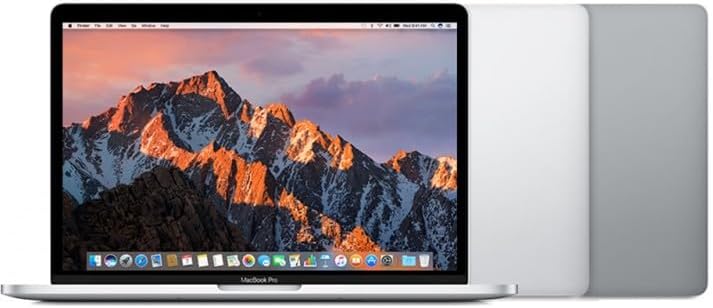
ചിത്രം: മുൻഭാഗം view of the MacBook Pro A1708 with its display open.
പ്രാരംഭ സജ്ജീകരണം
- അൺബോക്സിംഗ്: Carefully remove the MacBook Pro and its accessories from the packaging. Ensure all components are present: the laptop and the USB-C power adapter with charging cable.
- പവർ ബന്ധിപ്പിക്കുക: Plug the USB-C power adapter into a wall outlet and connect the USB-C charging cable to one of the Thunderbolt 3 ports on your MacBook Pro. It is recommended to fully charge the battery before first use.
- പവർ ഓൺ: Open the lid of the MacBook Pro. The computer should automatically power on. If not, press the Touch ID button (power button) located at the top right of the keyboard.
- macOS Setup Assistant: Follow the on-screen instructions to complete the initial macOS setup. This includes selecting your language, region, connecting to Wi-Fi, creating a user account, and setting up Touch ID.
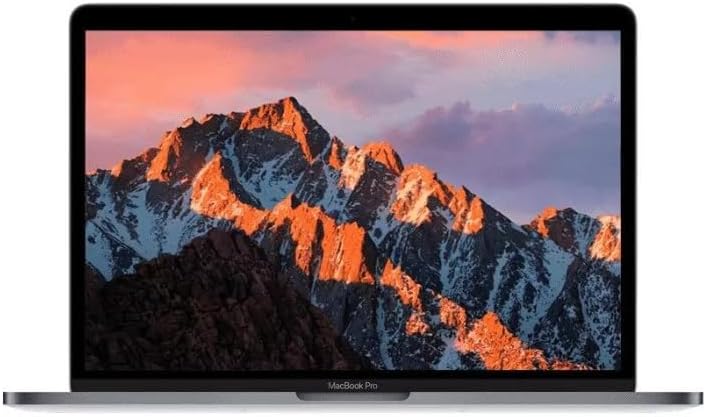
Image: The MacBook Pro A1708 display showing the macOS desktop.
Operating Your MacBook Pro
പവർ ഓൺ/ഓഫ്
- പവർ ഓണാക്കാൻ: Open the lid or press the Touch ID button.
- ഷട്ട് ഡൗൺ ചെയ്യാൻ: Click the Apple menu () in the top-left corner of the screen, then select "Shut Down...".
- പുനരാരംഭിക്കാൻ: Click the Apple menu (), then select "Restart...".
- ഉറങ്ങാൻ: Close the lid, or click the Apple menu (), then select "Sleep".
Using the Force Touch Trackpad
The Force Touch trackpad provides precise cursor control and pressure-sensing capabilities.
- ക്ലിക്ക് ചെയ്യുക: Press down on the trackpad until you feel a click.
- Force Click: Press down firmly on the trackpad until you feel a deeper click. This can perform various actions depending on the app (e.g., look up a word, preview a file).
- മൾട്ടി-ടച്ച് ആംഗ്യങ്ങൾ: Utilize gestures like two-finger scroll, pinch to zoom, and three-finger swipe for navigation. Customize these in System Settings > Trackpad.
കീബോർഡ് പ്രവർത്തനങ്ങൾ
The keyboard includes standard keys and function keys (F1-F12) that control various system features.
- തെളിച്ച നിയന്ത്രണം: ഉപയോഗിക്കുക F1 ഒപ്പം F2 കീകൾ.
- വോളിയം നിയന്ത്രണം: ഉപയോഗിക്കുക F10 (Mute), F11 (Volume Down), and F12 (Volume Up) keys.
- മീഡിയ പ്ലേബാക്ക്: ഉപയോഗിക്കുക F7 (മുമ്പത്തേത്), F8 (Play/Pause), and F9 (Next) keys.
- ടച്ച് ഐഡി: The power button also functions as a Touch ID sensor for secure login and purchases.
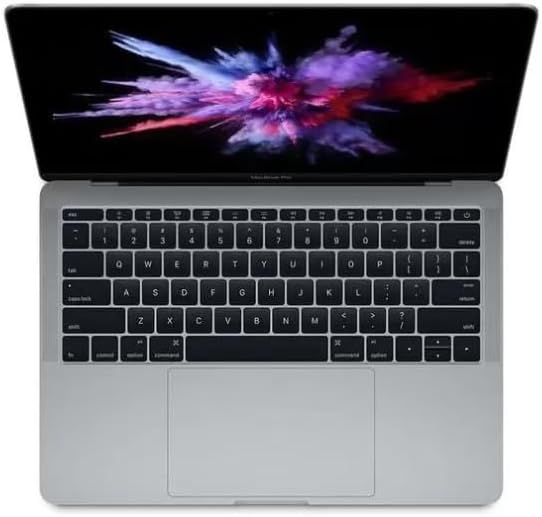
ചിത്രം: മുകളിൽ നിന്ന് താഴേക്ക് view of the MacBook Pro A1708 keyboard and Force Touch trackpad.
പെരിഫറലുകൾ ബന്ധിപ്പിക്കുന്നു
The MacBook Pro A1708 features two Thunderbolt 3 (USB-C) ports.
- USB-C ഉപകരണങ്ങൾ: Connect USB-C compatible devices directly.
- അഡാപ്റ്ററുകൾ: For USB-A, HDMI, Ethernet, or other port types, you will need a compatible USB-C adapter or hub (sold separately).
- ബാഹ്യ ഡിസ്പ്ലേകൾ: Connect external monitors using a USB-C to DisplayPort/HDMI adapter.
പരിചരണവും പരിപാലനവും
- വൃത്തിയാക്കൽ: സ്ക്രീനും പുറംഭാഗവും വൃത്തിയാക്കാൻ മൃദുവായ, ലിന്റ് രഹിത തുണി ഉപയോഗിക്കുക. കഠിനമായ പാടുകൾക്ക്, ചെറുതായി dampതുണിയിൽ വെള്ളം ഒഴിക്കുക. കഠിനമായ രാസവസ്തുക്കളോ ഉരച്ചിലുകളോ ഉള്ള വസ്തുക്കൾ ഒഴിവാക്കുക.
- ബാറ്ററി കെയർ: To prolong battery lifespan, avoid extreme temperatures. It is generally recommended to keep the battery charged between 20% and 80% for daily use. Periodically allow the battery to discharge fully and then recharge.
- സോഫ്റ്റ്വെയർ അപ്ഡേറ്റുകൾ: Regularly update macOS and installed applications to ensure optimal performance, security, and compatibility. Go to System Settings > General > Software Update.
- സ്റ്റോറേജ് മാനേജ്മെന്റ്: ആനുകാലികമായി റീview അനാവശ്യമായത് ഇല്ലാതാക്കുക files to free up storage space. macOS provides tools for this in System Settings > General > Storage.
- ശാരീരിക സംരക്ഷണം: While durable, avoid dropping the laptop or exposing it to liquids. Consider a protective sleeve or case for transport.

ചിത്രം: വശം view of the closed MacBook Pro A1708, showcasing ഇത് സ്ലിം പ്രോ ആണ്file.
പൊതുവായ പ്രശ്നങ്ങൾ പരിഹരിക്കുന്നു
| പ്രശ്നം | സാധ്യമായ പരിഹാരം |
|---|---|
| No Power / Won't Turn On |
|
| Screen Remains Black |
|
| വൈഫൈ കണക്റ്റിവിറ്റി പ്രശ്നങ്ങൾ |
|
| Applications Not Responding |
|
സാങ്കേതിക സവിശേഷതകൾ
| ഫീച്ചർ | വിശദാംശങ്ങൾ |
|---|---|
| മോഡൽ | A1708 (MekBook Pro A1708) |
| ഡിസ്പ്ലേ വലിപ്പം | 13.3 ഇഞ്ച് റെറ്റിന ഡിസ്പ്ലേ |
| പ്രോസസ്സർ | ഇന്റൽ കോർ i7 (2.5 GHz) |
| റാം | 16 GB LPDDR3 |
| സംഭരണം | 256 ജിബി എസ്എസ്ഡി |
| ഗ്രാഫിക്സ് | ഇന്റൽ ഐറിസ് പ്ലസ് ഗ്രാഫിക്സ് 640 |
| ഓപ്പറേറ്റിംഗ് സിസ്റ്റം | macOS Monterey |
| തുറമുഖങ്ങൾ | 2 x Thunderbolt 3 (USB-C) |
| അളവുകൾ (LxWxH) | 11.97 x 8.36 x 0.59 ഇഞ്ച് |
വാറൻ്റിയും പിന്തുണയും
As a refurbished product, the warranty terms may vary. Please refer to the specific warranty information provided at the time of purchase or contact your reseller for details regarding coverage and duration.
For technical support, troubleshooting beyond this manual, or service inquiries, please contact the vendor or reseller from whom you purchased this refurbished MacBook Pro. They will be able to provide assistance or direct you to the appropriate support channels.