
ആമുഖം
This manual provides detailed instructions for the setup, operation, and maintenance of your KINESIS mWave Ergonomic Keyboard for Mac (White). This keyboard features a unique wave layout, low-profile mechanical switches, and versatile connectivity options including Bluetooth and USB. It is designed to enhance comfort and productivity for macOS users.

Figure 1: KINESIS mWave Ergonomic Keyboard for Mac (White)
ബോക്സിൽ എന്താണുള്ളത്
നിങ്ങളുടെ പാക്കേജിൽ എല്ലാ ഇനങ്ങളും ഉണ്ടെന്ന് ദയവായി പരിശോധിക്കുക:
- KINESIS mWave for Mac Keyboard (KB150M-TAC)
- USB-C to USB-A Cable (6 ft)
- 3 Magnetic Feet for Negative Tilting
- 2 AA Batteries (pre-installed or separate)
- ദ്രുത ആരംഭ ഗൈഡ്

Figure 2: Battery Compartment with AA Batteries
സജ്ജീകരണവും കണക്റ്റിവിറ്റിയും
1. ബാറ്ററി ഇൻസ്റ്റാളേഷൻ
The keyboard requires two AA batteries for wireless operation. These are typically included. If not already installed, open the battery compartment on the underside of the keyboard and insert the batteries, ensuring correct polarity.
2. വയർഡ് കണക്ഷൻ (USB)
For a direct and reliable connection, use the provided USB-C to USB-A cable. Connect the USB-C end to the port on the front of the keyboard and the USB-A end to an available USB port on your Mac computer.

Figure 3: USB-C Port Location
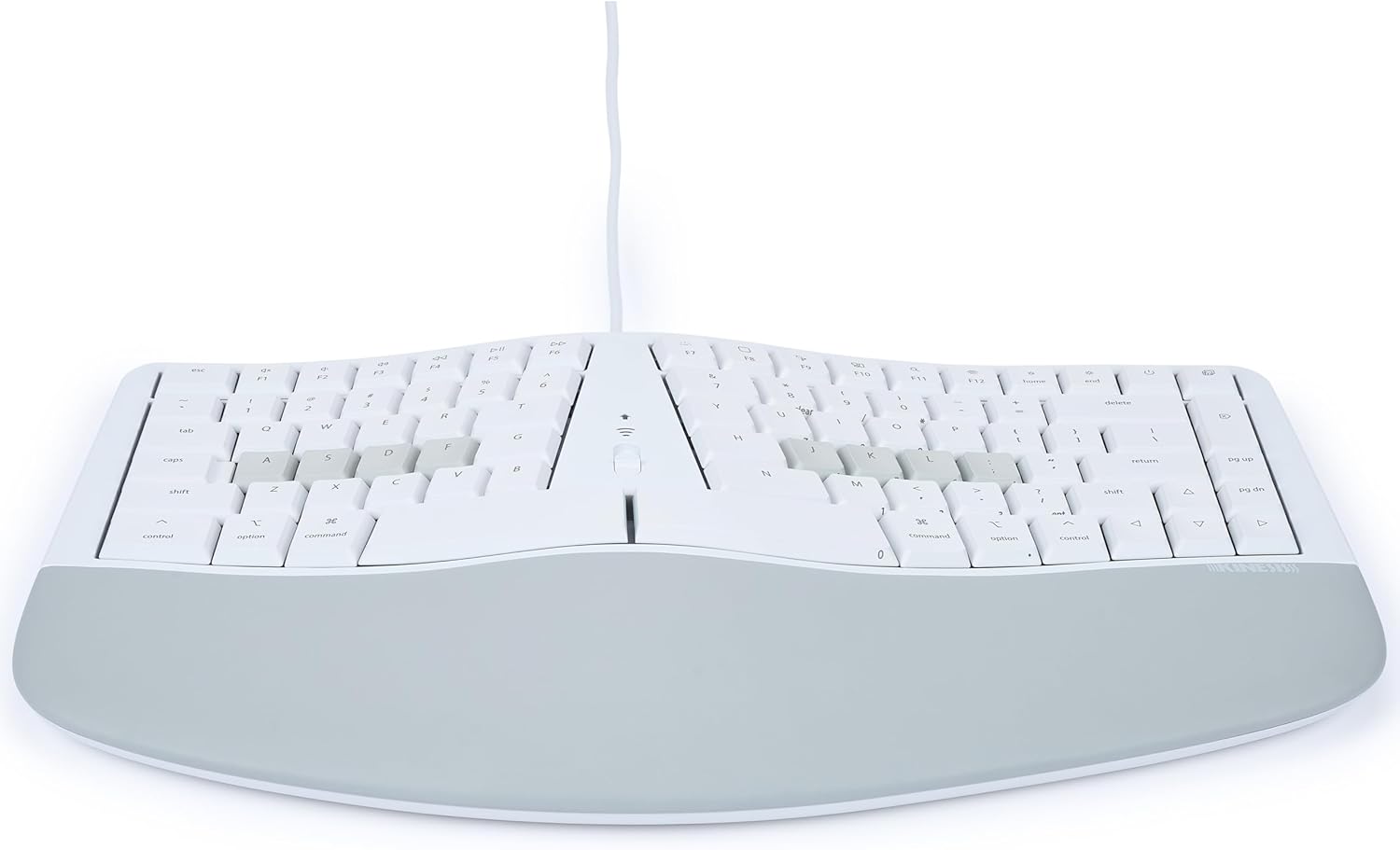
Figure 4: Keyboard Connected via USB Cable
3. വയർലെസ് കണക്ഷൻ (ബ്ലൂടൂത്ത്)
The mWave keyboard can pair with up to two different Bluetooth devices. To connect:
- കീബോർഡ് ഓണാണെന്ന് ഉറപ്പാക്കുക.
- Press and hold the Bluetooth pairing key (usually indicated by a Bluetooth icon) for a few seconds until the indicator light flashes, signifying pairing mode.
- On your Mac, navigate to System Settings > Bluetooth.
- Select the KINESIS mWave keyboard from the list of available devices and follow any on-screen prompts to complete pairing.
- To switch between paired devices, briefly press the corresponding Bluetooth channel key.
ഓപ്പറേഷൻ
Ergonomic Design and Posture
The mWave keyboard features a popular "wave" layout and a thick padded palm support. This design helps position your hands and arms in a neutral posture, reducing strain during extended use. The keyboard also includes three magnetic feet that can be attached to the underside to achieve a negative tilt, further optimizing wrist alignment.
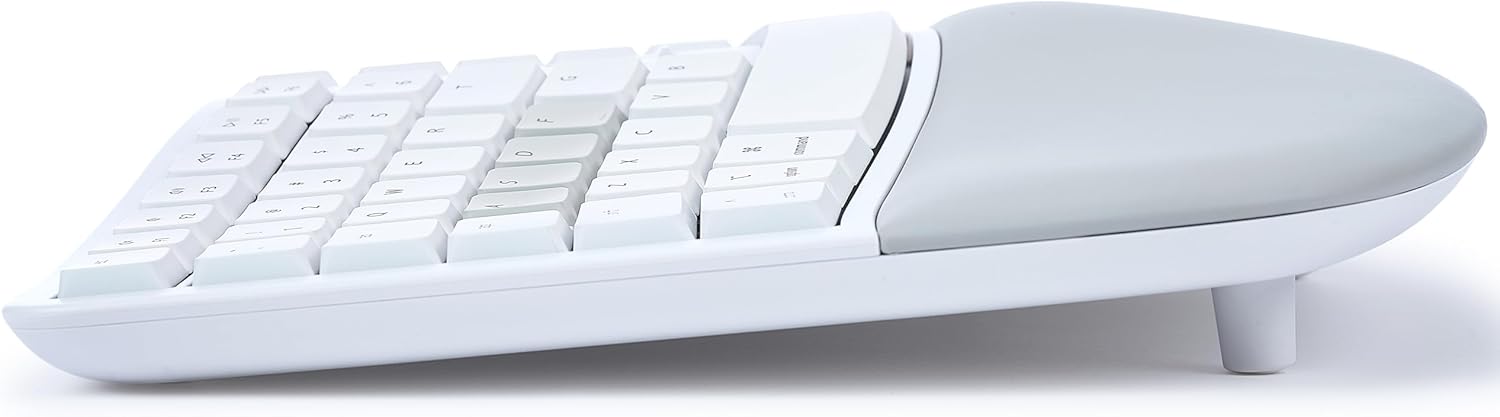
Figure 5: Keyboard with Magnetic Feet for Negative Tilt
Programmability with Kinesis Clique
The keyboard offers powerful programmability. You can re-program any key using the Kinesis Clique software, accessible via a Chrome or Edge browser. This allows for over 350 USB actions, mouse clicks, basic macros, tap-and-hold functions, and up to 8 layers of customization.

Figure 6: Kinesis Clique Software Interface
ബാക്ക്ലൈറ്റിംഗ്
When connected via USB, the keyboard's backlighting illuminates the upper key legends. This feature helps reduce eye strain in low-light environments. Adjust backlighting intensity using the dedicated function keys.
സംയോജിത കീപാഡ്
The keyboard includes an integrated numeric keypad. Tap the Fn key to access standard numeric keypad actions without needing to move your hands from the home row.
മെയിൻ്റനൻസ്
To ensure the longevity and optimal performance of your KINESIS mWave keyboard, follow these maintenance guidelines:
- വൃത്തിയാക്കൽ: മൃദുവായ, ലിൻ്റ് രഹിത തുണി ഉപയോഗിക്കുകampened with water or a mild cleaning solution to wipe down the keycaps and palm rest. Avoid harsh chemicals or abrasive materials.
- പൊടി നീക്കം: കീക്യാപ്പുകൾക്കിടയിൽ നിന്ന് പൊടിയും അവശിഷ്ടങ്ങളും നീക്കം ചെയ്യാൻ കംപ്രസ് ചെയ്ത വായു ഉപയോഗിക്കുക.
- സംഭരണം: ദീർഘനേരം ഉപയോഗിക്കാത്തപ്പോൾ, ഉയർന്ന താപനിലയിൽ നിന്ന് മാറി വൃത്തിയുള്ളതും വരണ്ടതുമായ ഒരു സ്ഥലത്ത് കീബോർഡ് സൂക്ഷിക്കുക.
- ബാറ്ററി മാറ്റിസ്ഥാപിക്കൽ: Replace AA batteries when the low battery indicator appears or when wireless connectivity becomes unreliable.
ട്രബിൾഷൂട്ടിംഗ്
If you encounter issues with your KINESIS mWave keyboard, refer to the following common solutions:
- കീബോർഡ് പ്രതികരിക്കുന്നില്ല:
- വയർ: Ensure the USB cable is securely connected to both the keyboard and your computer. Try a different USB port or cable.
- വയർലെസ്: Check if the keyboard is powered on and batteries are charged. Re-establish the Bluetooth connection by re-pairing the device. Ensure the keyboard is within range of your computer.
- കീകൾ രജിസ്റ്റർ ചെയ്യുന്നില്ല അല്ലെങ്കിൽ ഇരട്ട-ടൈപ്പിംഗ് ഇല്ല:
- Clean around the affected key with compressed air to remove any debris.
- If the issue persists, a factory reset may be necessary (refer to the Quick Start Guide for specific instructions).
- ബാക്ക്ലൈറ്റിംഗ് പ്രവർത്തിക്കുന്നില്ല:
- Ensure the keyboard is connected via USB, as backlighting is primarily supported in wired mode.
- Check backlighting intensity settings using the function keys.
- ബ്ലൂടൂത്ത് ജോടിയാക്കൽ പ്രശ്നങ്ങൾ:
- മറ്റ് ബ്ലൂടൂത്ത് ഉപകരണങ്ങളൊന്നും തടസ്സപ്പെടുത്തുന്നില്ലെന്ന് ഉറപ്പാക്കുക.
- Remove the keyboard from your computer's Bluetooth device list and attempt to pair again.
For further assistance, please visit the official Kinesis support webസൈറ്റ്.
സ്പെസിഫിക്കേഷനുകൾ
| ഉൽപ്പന്ന അളവുകൾ | 15.25 x 9.5 x 1.75 ഇഞ്ച് |
| ഇനത്തിൻ്റെ ഭാരം | 2.75 പൗണ്ട് |
| ഇനം മോഡൽ നമ്പർ | KB150M-TAC ലൈൻ |
| ബാറ്ററികൾ | 2 AA ബാറ്ററികൾ (ഉൾപ്പെട്ടിരിക്കുന്നു) |
| കണക്റ്റിവിറ്റി ടെക്നോളജി | ബ്ലൂടൂത്ത്, USB-C |
| കീബോർഡ് വിവരണം | മെക്കാനിക്കൽ |
| പ്രത്യേക സവിശേഷതകൾ | Backlit, Ergonomic, Hotkeys and Media Keys, Programmable Keys, Wrist Rest |
| കീബോർഡ് ബാക്ക്ലൈറ്റിംഗ് നിറം | ഏക നിറം |
| മെറ്റീരിയൽ | പ്ലാസ്റ്റിക് |
വാറൻ്റിയും പിന്തുണയും
Kinesis products are designed for durability and performance. For information regarding product warranty, returns, or technical support, please refer to the Quick Start Guide included with your product or visit the official Kinesis webസൈറ്റ്. വിപുലീകൃത കവറേജിനുള്ള സംരക്ഷണ പദ്ധതികളും ലഭ്യമായേക്കാം.
ഏറ്റവും പുതിയ പിന്തുണാ ഉറവിടങ്ങൾക്കും ബന്ധപ്പെടാനുള്ള വിവരങ്ങൾക്കും, ദയവായി സന്ദർശിക്കുക: www.kinesis.com/support (www.kinesis.com/support) എന്ന വിലാസത്തിൽ ലഭ്യമാണ്.