
1. ആമുഖം
This manual provides detailed instructions for the setup, operation, and maintenance of your DOOGEE Tab E3 Android 15 Tablet. Please read this manual thoroughly before using your device to ensure proper functionality and to maximize its features.
The DOOGEE Tab E3 is an 11-inch Android 15 tablet featuring a Helio G100 octa-core processor, Gemini AI capabilities, 32GB RAM, 256GB internal storage (expandable up to 2TB), and an 8800mAh battery. It includes support for 4G LTE dual SIM, PC-mode compatibility, and OTG reverse charging.
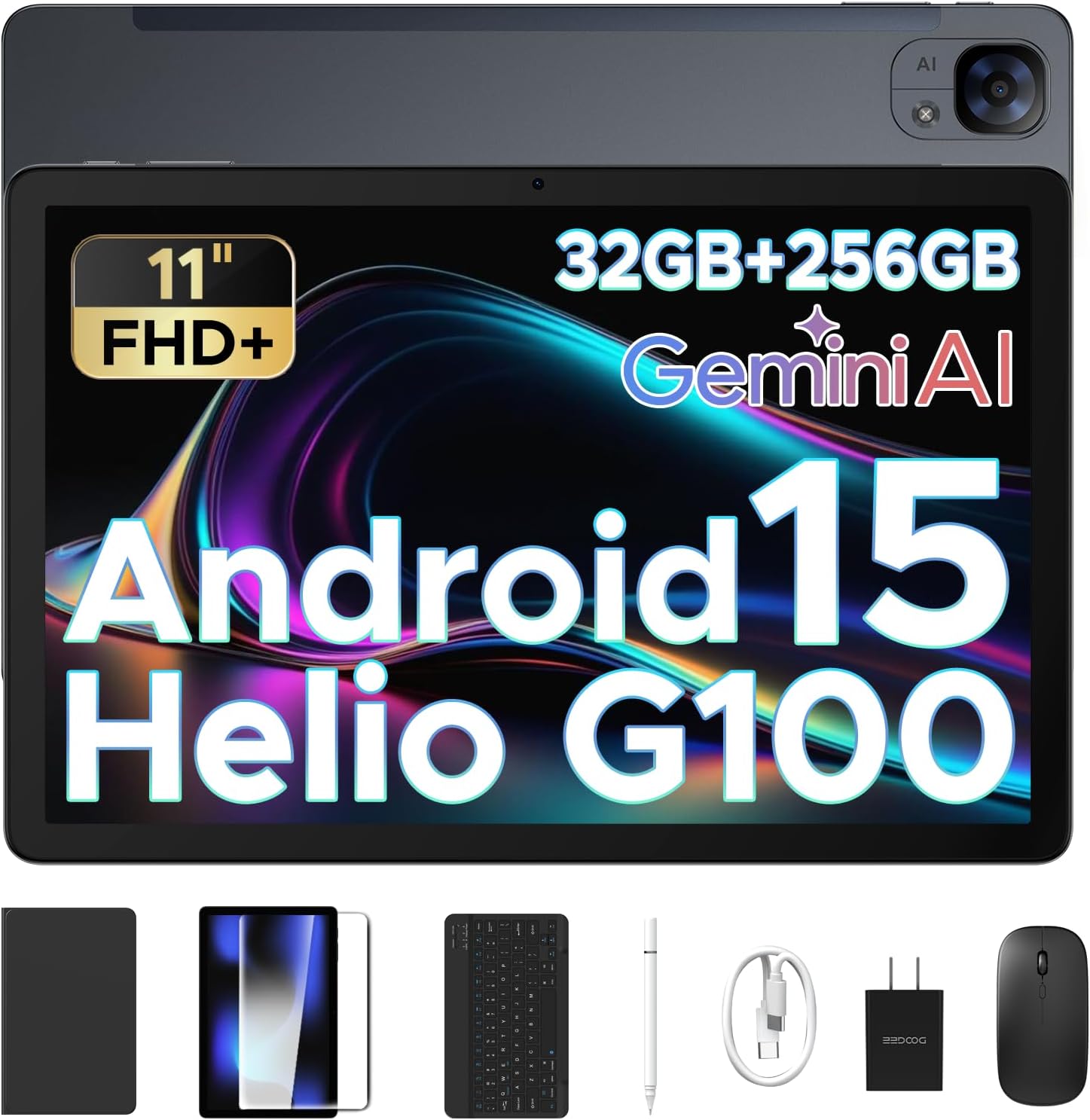
Image 1.1: The DOOGEE Tab E3 tablet shown with its included accessories: keyboard, mouse, and stylus.
2. പാക്കേജ് ഉള്ളടക്കം
താഴെ ലിസ്റ്റ് ചെയ്തിരിക്കുന്ന എല്ലാ ഇനങ്ങളും നിങ്ങളുടെ ഉൽപ്പന്ന പാക്കേജിൽ ഉണ്ടെന്ന് ഉറപ്പാക്കുക:
- 1 x DOOGEE Tab E3 Android 15 Tablet
- 1 x കീബോർഡ്
- 1 x മൗസ്
- 1 x സ്റ്റൈലസ് പേന
- 1 x ചാർജർ
- 1 x ടൈപ്പ്-സി യുഎസ്ബി കേബിൾ
- 1 x ഉപയോക്തൃ മാനുവൽ (ഈ പ്രമാണം)
- 1 x വാറൻ്റി കാർഡ്
3. ഉൽപ്പന്നം കഴിഞ്ഞുview
3.1 ഭൗതിക ഘടകങ്ങൾ
The DOOGEE Tab E3 features a slim metal body with an 11-inch display. Key physical components include:
- ഡിസ്പ്ലേ: 11-inch FHD+ IPS display with 90Hz refresh rate.
- മുൻ ക്യാമറ: Located on the front bezel.
- പിൻ ക്യാമറ: 13MP main camera located on the back.
- പവർ ബട്ടൺ: Typically located on the side or top edge.
- വോളിയം ബട്ടണുകൾ: Adjust audio levels, usually adjacent to the power button.
- യുഎസ്ബി-സി പോർട്ട്: ചാർജിംഗിനും ഡാറ്റ കൈമാറ്റത്തിനും.
- 3.5 എംഎം ഹെഡ്ഫോൺ ജാക്ക്: വയേർഡ് ഓഡിയോ ആക്സസറികൾക്ക്.
- സിം/മൈക്രോഎസ്ഡി കാർഡ് സ്ലോട്ട്: For 4G LTE connectivity and storage expansion.
- സ്പീക്കറുകൾ: Dual HD speakers for audio output.

Image 3.1: Illustration of the 13MP main camera on the rear and 5MP front camera.
4. സജ്ജീകരണം
4.1 പ്രാരംഭ ചാർജിംഗ്
Before first use, fully charge the tablet using the provided charger and Type-C USB cable. Connect the cable to the tablet's USB-C port and the charger to a power outlet. The tablet supports 18W fast charging.
4.2 പവർ ഓൺ/ഓഫ്
- പവർ ഓണാക്കാൻ: Press and hold the Power button until the DOOGEE logo appears on the screen.
- പവർ ഓഫ് ചെയ്യാൻ: Press and hold the Power button, then select "Power off" from the options that appear.
- പുനരാരംഭിക്കാൻ: പവർ ബട്ടൺ അമർത്തിപ്പിടിക്കുക, തുടർന്ന് ഓപ്ഷനുകളിൽ നിന്ന് "പുനരാരംഭിക്കുക" തിരഞ്ഞെടുക്കുക.
4.3 പ്രാരംഭ സജ്ജീകരണ വിസാർഡ്
ആദ്യമായി പവർ-ഓൺ ചെയ്യുമ്പോൾ, ടാബ്ലെറ്റ് ഒരു പ്രാരംഭ സജ്ജീകരണ പ്രക്രിയയിലൂടെ നിങ്ങളെ നയിക്കും. ഓൺ-സ്ക്രീൻ നിർദ്ദേശങ്ങൾ പാലിക്കുക:
- നിങ്ങളുടെ ഭാഷ തിരഞ്ഞെടുക്കുക.
- ഒരു Wi-Fi നെറ്റ്വർക്കിലേക്ക് കണക്റ്റുചെയ്യുക.
- നിങ്ങളുടെ Google അക്കൗണ്ട് ഉപയോഗിച്ച് സൈൻ ഇൻ ചെയ്യുക അല്ലെങ്കിൽ പുതിയൊരെണ്ണം സൃഷ്ടിക്കുക.
- സ്ക്രീൻ ലോക്ക് (പിൻ, പാറ്റേൺ, പാസ്വേഡ് അല്ലെങ്കിൽ ഫെയ്സ് അൺലോക്ക്) സജ്ജീകരിക്കുക.
- Review നിബന്ധനകളും വ്യവസ്ഥകളും അംഗീകരിക്കുക.
4.4 സിമ്മും മൈക്രോ എസ്ഡി കാർഡും ചേർക്കൽ
Locate the SIM/MicroSD card slot on the side of the tablet. Use the provided SIM ejector tool to open the tray. Insert your 4G LTE SIM card(s) and/or a MicroSD card (up to 2TB) into the designated slots, ensuring correct orientation. Close the tray securely.
4.5 കണക്റ്റിംഗ് ആക്സസറികൾ
The DOOGEE Tab E3 supports Bluetooth 5.2 for connecting wireless accessories. To connect the included keyboard, mouse, or stylus:
- Ensure the accessory is powered on and in pairing mode.
- ടാബ്ലെറ്റിൽ, പോകുക ക്രമീകരണങ്ങൾ > കണക്റ്റുചെയ്ത ഉപകരണങ്ങൾ > ബ്ലൂടൂത്ത്.
- Toggle Bluetooth on if it's off.
- Select "Pair new device" and choose your accessory from the list of available devices.
- ജോടിയാക്കൽ പൂർത്തിയാക്കാൻ ഏതെങ്കിലും ഓൺ-സ്ക്രീൻ നിർദ്ദേശങ്ങൾ പാലിക്കുക.
5. പ്രവർത്തന നിർദ്ദേശങ്ങൾ
5.1 ആൻഡ്രോയിഡ് 15 ഇന്റർഫേസ്
Your tablet runs on Android 15, offering an intelligent, seamless, and secure user experience. Familiarize yourself with basic navigation gestures:
- ഹോം സ്ക്രീൻ: Swipe left/right to navigate between screens, tap icons to open apps.
- അറിയിപ്പുകൾ: സ്ക്രീനിന്റെ മുകളിൽ നിന്ന് താഴേക്ക് സ്വൈപ്പ് ചെയ്യുക view അറിയിപ്പുകളും ദ്രുത ക്രമീകരണങ്ങളും.
- ആപ്പ് ഡ്രോയർ: ഇൻസ്റ്റാൾ ചെയ്ത എല്ലാ ആപ്ലിക്കേഷനുകളും ആക്സസ് ചെയ്യാൻ സ്ക്രീനിന്റെ താഴെ നിന്ന് മുകളിലേക്ക് സ്വൈപ്പ് ചെയ്യുക.
- മൾട്ടിടാസ്കിംഗ്: മുകളിലേക്ക് സ്വൈപ്പ് ചെയ്ത് താഴെ നിന്ന് പിടിക്കുക view സമീപകാല ആപ്പുകൾ.

Image 5.1: The Android 15 operating system interface.
5.2 Gemini AI Features
The integrated Gemini AI enhances various tablet functions, providing intelligent assistance for daily tasks:
- തത്സമയ വിവർത്തനം: Utilize AI for instant language translation in supported applications.
- Smart Text Suggestions: Receive intelligent suggestions for text input and content creation.
- AI-enhanced Multitasking: Experience optimized app switching and resource management.
- Information Retrieval & Summarization: Use Gemini AI for quick access to information and content summarization.

ചിത്രം 5.2: കഴിഞ്ഞുview of Gemini AI capabilities.
5.3 കണക്റ്റിവിറ്റി
- വൈഫൈ: വയർലെസ് നെറ്റ്വർക്കുകളിലേക്ക് കണക്റ്റുചെയ്യുക വഴി ക്രമീകരണങ്ങൾ > നെറ്റ്വർക്കും ഇന്റർനെറ്റും > വൈ-ഫൈ.
- 4G LTE: With an inserted SIM card, enable mobile data via ക്രമീകരണം > നെറ്റ്വർക്കും ഇന്റർനെറ്റും > മൊബൈൽ നെറ്റ്വർക്ക്.
- ബ്ലൂടൂത്ത്: Pair with devices like headphones, speakers, or the included keyboard/mouse via ക്രമീകരണങ്ങൾ > കണക്റ്റുചെയ്ത ഉപകരണങ്ങൾ > ബ്ലൂടൂത്ത്.
- ജിപിഎസ്: The tablet includes built-in GPS for navigation and location services.
5.4 Multimedia and Display
The 11-inch FHD+ display with a 90Hz refresh rate provides clear and fluid visuals. Dual HD speakers deliver crisp audio.
- ഡിസ്പ്ലേ ക്രെമീകരണങ്ങൾ: Adjust brightness, dark mode, and eye-care features via ക്രമീകരണങ്ങൾ > ഡിസ്പ്ലേ.
- ഓഡിയോ: Connect headphones to the 3.5mm jack for private listening or use the integrated dual speakers.
- ക്യാമറകൾ: Use the pre-installed camera application to capture photos and videos with the 13MP rear camera and 5MP front camera.

Image 5.3: The 11-inch FHD+ IPS display with 90Hz refresh rate.

Image 5.4: The tablet's premium 1217 BOX dual speakers.
5.5 OTG Reverse Charging
The tablet supports OTG (On-The-Go) reverse charging, allowing it to act as a power bank for other devices. Connect a compatible USB-C to USB-C cable or an OTG adapter to the tablet's USB-C port, then connect your other device to begin charging.
6. പരിപാലനം
6.1 വൃത്തിയാക്കൽ
Use a soft, lint-free cloth to clean the tablet screen and body. Avoid using harsh chemicals or abrasive materials that could damage the device. For stubborn smudges, slightly dampഇലക്ട്രോണിക് ഉപകരണങ്ങൾക്കായി രൂപകൽപ്പന ചെയ്ത വെള്ളമുള്ള തുണി അല്ലെങ്കിൽ സ്ക്രീൻ ക്ലീനർ.
6.2 സോഫ്റ്റ്വെയർ അപ്ഡേറ്റുകൾ
മികച്ച പ്രകടനം, സുരക്ഷ, പുതിയ സവിശേഷതകളിലേക്കുള്ള ആക്സസ് എന്നിവ ഉറപ്പാക്കാൻ സോഫ്റ്റ്വെയർ അപ്ഡേറ്റുകൾ പതിവായി പരിശോധിച്ച് ഇൻസ്റ്റാൾ ചെയ്യുക. പോകുക ക്രമീകരണങ്ങൾ > സിസ്റ്റം > സിസ്റ്റം അപ്ഡേറ്റ് ലഭ്യമായ അപ്ഡേറ്റുകൾ പരിശോധിക്കാൻ.
6.3 ബാറ്ററി കെയർ
ബാറ്ററി ആയുസ്സ് വർദ്ധിപ്പിക്കാൻ:
- ടാബ്ലെറ്റ് കടുത്ത താപനിലയിൽ ഏൽപ്പിക്കുന്നത് ഒഴിവാക്കുക.
- ബാറ്ററി ഇടയ്ക്കിടെ പൂർണ്ണമായും തീർന്നുപോകാൻ അനുവദിക്കരുത്.
- ഒറിജിനൽ ചാർജറും കേബിളും ഉപയോഗിക്കുക.
- സ്ക്രീൻ തെളിച്ചം ക്രമീകരിക്കുകയും വൈദ്യുതി ലാഭിക്കാൻ ഉപയോഗിക്കാത്ത ആപ്പുകൾ അടയ്ക്കുകയും ചെയ്യുക.

Image 6.1: The 8800mAh high-capacity battery of the DOOGEE Tab E3.
7. പ്രശ്നപരിഹാരം
If you encounter issues with your DOOGEE Tab E3, refer to the following common problems and solutions:
| പ്രശ്നം | സാധ്യമായ പരിഹാരം |
|---|---|
| ടാബ്ലെറ്റ് ഓണാക്കുന്നില്ല. | ബാറ്ററി ചാർജ്ജ് ചെയ്തിട്ടുണ്ടെന്ന് ഉറപ്പാക്കുക. ചാർജർ കണക്റ്റ് ചെയ്ത് വീണ്ടും പവർ ചെയ്യാൻ ശ്രമിക്കുന്നതിന് മുമ്പ് കുറച്ച് മിനിറ്റ് കാത്തിരിക്കുക. പ്രതികരിക്കുന്നില്ലെങ്കിൽ, റീസ്റ്റാർട്ട് ചെയ്യാൻ നിർബന്ധിതമാക്കാൻ പവർ ബട്ടൺ 10-15 സെക്കൻഡ് അമർത്തിപ്പിടിക്കുക. |
| വൈഫൈ കണക്ഷൻ പ്രശ്നങ്ങൾ. | Restart the tablet and your Wi-Fi router. Forget the network in ക്രമീകരണങ്ങൾ > നെറ്റ്വർക്കും ഇന്റർനെറ്റും > വൈ-ഫൈ and reconnect. Ensure you are within range of the Wi-Fi signal. |
| മന്ദഗതിയിലുള്ള പ്രകടനം അല്ലെങ്കിൽ ആപ്പുകൾ ക്രാഷാകൽ. | Close unused background applications. Clear app caches (ക്രമീകരണങ്ങൾ > ആപ്പുകൾ > [ആപ്പ് നാമം] > സംഭരണവും കാഷെയും > കാഷെ മായ്ക്കുക). Ensure sufficient storage space is available. Restart the tablet. |
| ആക്സസറികൾ (കീബോർഡ്/മൗസ്) കണക്റ്റ് ചെയ്യുന്നില്ല. | Ensure Bluetooth is enabled on the tablet and the accessory is in pairing mode. Recharge or replace batteries in the accessory if applicable. Try re-pairing the device. |
| ടാബ്ലെറ്റ് ചാർജ് ചെയ്യുന്നില്ല. | Verify the charger and USB-C cable are securely connected and undamaged. Try a different power outlet. Ensure the charging port on the tablet is clean and free of debris. |
If the issue persists, please contact DOOGEE customer support for further assistance.
8 സ്പെസിഫിക്കേഷനുകൾ
| ഫീച്ചർ | വിശദാംശങ്ങൾ |
|---|---|
| മോഡലിൻ്റെ പേര് | Tab E3-V |
| ഓപ്പറേറ്റിംഗ് സിസ്റ്റം | ആൻഡ്രോയിഡ് 15 |
| പ്രോസസ്സർ | Helio G100 Octa-Core (6nm) |
| റാം | 32GB (8GB physical + 24GB expansion) |
| ആന്തരിക സംഭരണം | 256 ജിബി |
| വികസിപ്പിക്കാവുന്ന സംഭരണം | Up to 2TB via MicroSD card (purchased separately) |
| സ്ക്രീൻ വലിപ്പം | 11 ഇഞ്ച് |
| ഡിസ്പ്ലേ റെസല്യൂഷൻ | 1920x1200 Pixels (FHD+) |
| പുതുക്കിയ നിരക്ക് | 90Hz |
| ബാറ്ററി ശേഷി | 8800mAh |
| ചാർജിംഗ് | 18W ഫാസ്റ്റ് ചാർജിംഗ്, OTG റിവേഴ്സ് ചാർജിംഗ് |
| പിൻ ക്യാമറ | 13എംപി |
| മുൻ ക്യാമറ | 5എംപി |
| കണക്റ്റിവിറ്റി | 4G LTE Dual SIM, Wi-Fi, Bluetooth 5.2, GPS |
| ഓഡിയോ | Dual HD Speakers, 3.5mm Headphone Jack |
| അളവുകൾ (LxWxH) | 0.29 x 6.64 x 10.11 ഇഞ്ച് |
| ഇനത്തിൻ്റെ ഭാരം | 3.3 പൗണ്ട് |

Image 8.1: The Helio G100 Octa-Core Processor details.
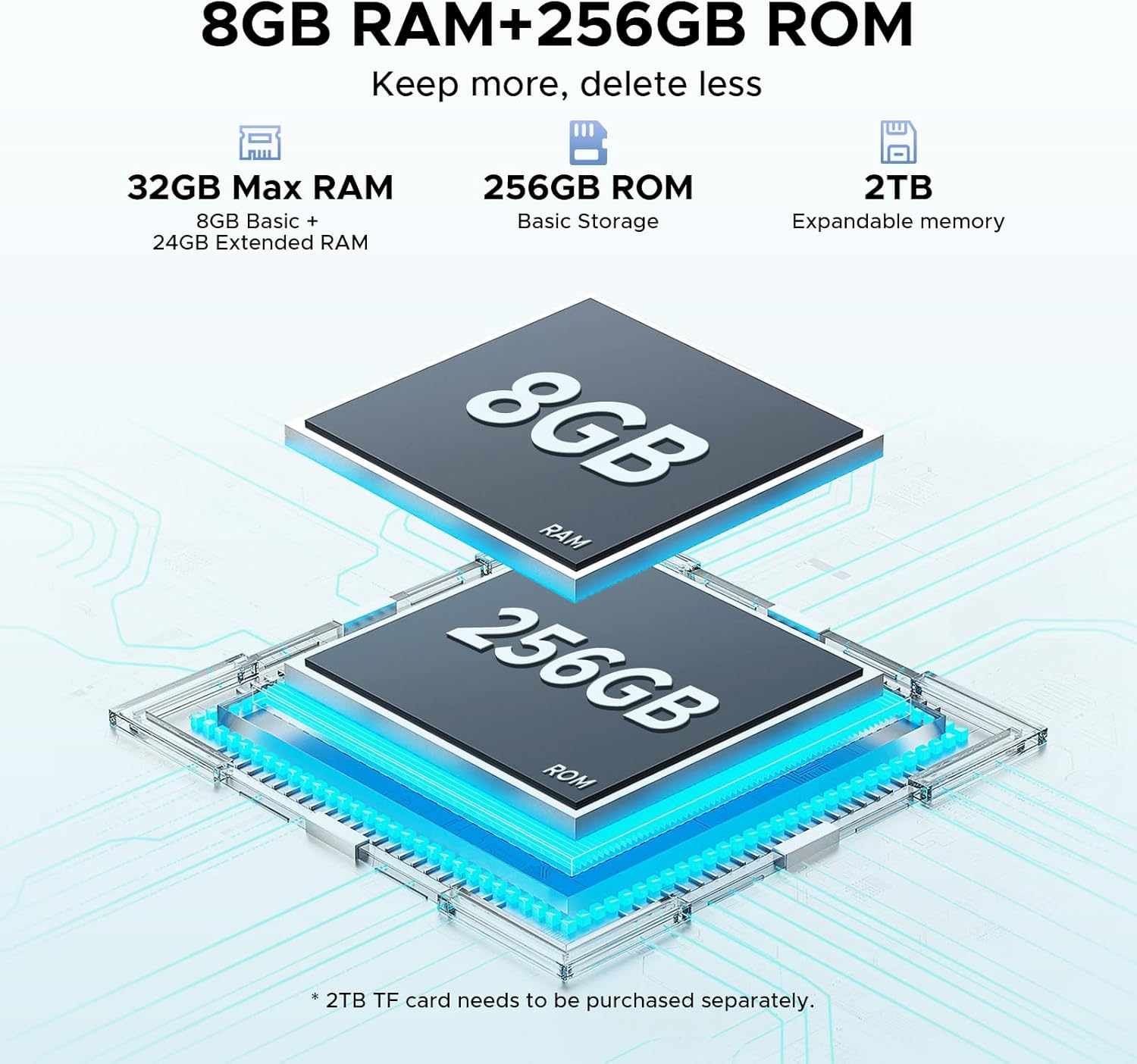
Image 8.2: Memory configuration of 8GB RAM + 256GB ROM, expandable to 2TB.
9. വാറൻ്റിയും പിന്തുണയും
Your DOOGEE Tab E3 tablet comes with a warranty. Please refer to the included വാറൻ്റി കാർഡ് for specific terms, conditions, and duration of the warranty coverage.
For technical support, service, or further inquiries, please contact DOOGEE customer support through their official webസൈറ്റ് അല്ലെങ്കിൽ നിങ്ങളുടെ വാറന്റി കാർഡിൽ നൽകിയിരിക്കുന്ന ബന്ധപ്പെടാനുള്ള വിവരങ്ങൾ.