
ആമുഖം
This manual provides detailed instructions for the ZIOCOM USB-C Bluetooth Adapter (Model DG11). This device is designed to transmit audio wirelessly from your PS5, PC, Mac, or Nintendo Switch to Bluetooth-enabled headphones or earbuds, offering a seamless and low-latency audio experience. Please read this manual thoroughly before using the product to ensure proper setup and operation.

Image: ZIOCOM USB-C Bluetooth Adapter (Model DG11).
പാക്കേജ് ഉള്ളടക്കം
നിങ്ങളുടെ പാക്കേജിൽ എല്ലാ ഇനങ്ങളും ഉണ്ടെന്ന് ഉറപ്പാക്കുക:
- 1 x ZIOCOM USB-C Bluetooth Adapter (Model DG11)
- 1 x ഇൻസ്ട്രക്ഷൻ മാനുവൽ (ഈ ഡോക്യുമെന്റ്)
ഉൽപ്പന്നം കഴിഞ്ഞുview ഫീച്ചറുകളും
The ZIOCOM USB-C Bluetooth Adapter is a compact and efficient device designed for wireless audio transmission. Key features include:
- ബ്ലൂടൂത്ത് 5.3 സാങ്കേതികവിദ്യ: Ensures stable connectivity and strong anti-interference capabilities, reducing audio dropouts.
- aptX Low Latency & aptX-Adaptive: Provides perfectly synchronized audio and visual experiences, ideal for gaming and media consumption, when paired with compatible headphones.
- പ്ലഗ് ആൻഡ് പ്ലേ: മിക്ക അനുയോജ്യമായ ഉപകരണങ്ങൾക്കും ഡ്രൈവറുകൾ ആവശ്യമില്ല.
- വിശാലമായ അനുയോജ്യത: Works with PS5, Mac, laptops, and PCs via USB-C port.
- കോംപാക്റ്റ് ഡിസൈൻ: Small and lightweight for easy portability and minimal obstruction of other ports.
- നീണ്ട ശ്രേണി: Offers a transmission distance of up to 33 feet (10 meters) in open spaces.

Image: The ZIOCOM USB-C Bluetooth Adapter features a mini design, measuring approximately 1.248 inches (31.7mm) in length, 0.630 inches (16mm) in width, and 0.236 inches (6mm) in thickness, making it easy to carry.

Image: The adapter connected to a PS5, highlighting Bluetooth 5.3, 33ft range, music & calls, aptX Low Latency, aptX HD, and Plug & Play features.

Image: Diagram illustrating the adapter's long-range capability of up to 10 meters (33 feet) within a home environment.
അനുയോജ്യത
The ZIOCOM USB-C Bluetooth Adapter is compatible with a variety of devices for audio transmission:
- അനുയോജ്യമായ ഉപകരണങ്ങൾ: PS5, Nintendo Switch, Laptops, PCs, Mac.
- Compatible Audio Devices: Bluetooth Headphones, Bluetooth Speakers, AirPods.
പ്രധാന കുറിപ്പ്:
- This adapter is for AUDIO devices only; it does not support data transmission.
- ഇതുമായി പൊരുത്തപ്പെടുന്നില്ല: PS4, TVs, keyboards, mice, or car systems.
- We do not recommend using it with Sony headphones. It is incompatible with the LDAC protocol used by Sony headphones. Even if a connection is established, it will automatically match the SBC protocol, which may affect the audio quality and overall user experience.

Image: A visual guide showing compatible devices (Laptop, PS5, Nintendo Switch, PC, Bluetooth Headphones, Bluetooth Speaker, AirPods) and incompatible devices (Keyboard, Mouse, TV, Car).
സജ്ജീകരണ നിർദ്ദേശങ്ങൾ
Follow these steps to connect your Bluetooth headphones to your device using the ZIOCOM USB-C Bluetooth Adapter:
- പ്ലഗ് ഇൻ: Insert the ZIOCOM USB-C Bluetooth Adapter into an available USB-C port on your PS5, PC, Mac, or Nintendo Switch. The adapter's indicator light will begin to flash.
- ഹെഡ്ഫോണുകളിൽ ജോടിയാക്കൽ മോഡ് നൽകുക: Put your Bluetooth headphones or earbuds into pairing mode. Refer to your headphone's manual for specific instructions on how to do this. For AirPods, open the case and press and hold the button on the back until the indicator light flashes white.
- Initiate Pairing on Adapter: Double-click the button on the ZIOCOM adapter. The adapter's indicator light will flash rapidly, indicating it is searching for devices.
- ബന്ധിപ്പിക്കുക: Once your headphones are in pairing mode and the adapter is searching, they should automatically connect. The adapter's indicator light will turn solid, indicating a successful connection.
- Adjust Audio Settings (PS5 Exampലെ): On your PS5, navigate to ക്രമീകരണങ്ങൾ > ശബ്ദം. താഴെ ഓഡിയോ ഔട്ട്പുട്ട്, select the DG11 as the Output Device. If your headphones have a microphone, also select DG11 as the Input Device under മൈക്രോഫോൺ.

Image: Step-by-step visual guide on connecting a Bluetooth headset to a PS5 using the ZIOCOM USB-C adapter, including plugging in, turning off other Bluetooth devices, activating pairing mode on AirPods, pairing the dongle, and adjusting PS5 sound settings.
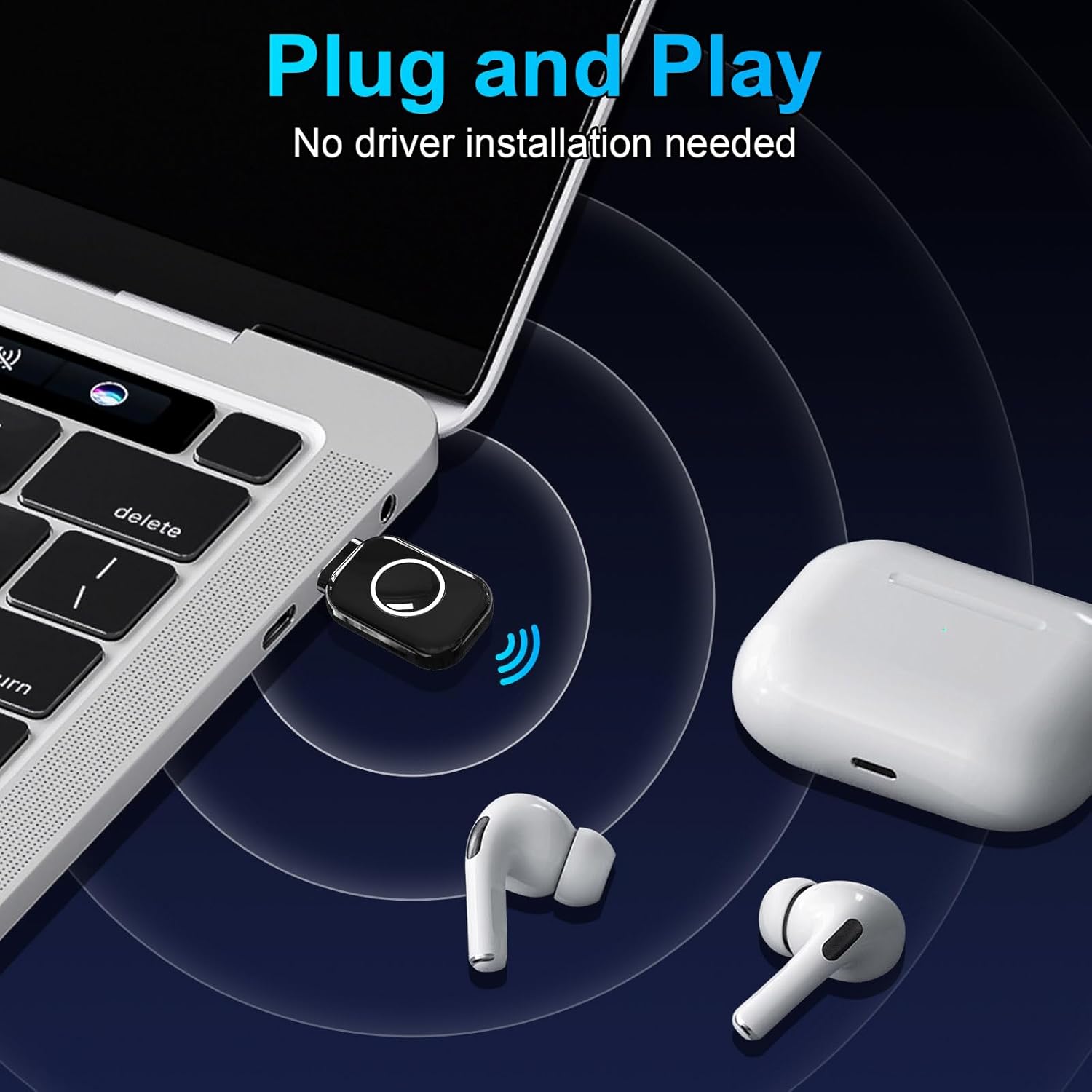
Image: The ZIOCOM USB-C Bluetooth Adapter plugged into a laptop, demonstrating its plug-and-play functionality with no driver installation needed, connecting to AirPods.
പ്രവർത്തന നിർദ്ദേശങ്ങൾ
Once successfully paired, the ZIOCOM USB-C Bluetooth Adapter will automatically connect to your headphones when both devices are powered on and within range. Enjoy your wireless audio experience for gaming, music, or calls.
- യാന്ത്രിക പുനഃസംയോജനം: After the initial pairing, the adapter will automatically recognize and connect to your previously paired headphones when they are turned on and within range.
- വോളിയം നിയന്ത്രണം: Adjust volume directly on your connected headphones or through the audio settings of your connected device (PS5, PC, Mac, Nintendo Switch).
- മാറുന്ന ഉപകരണങ്ങൾ: To pair with a new device, ensure the adapter is in pairing mode (double-click the button) and your new headphones are also in pairing mode.
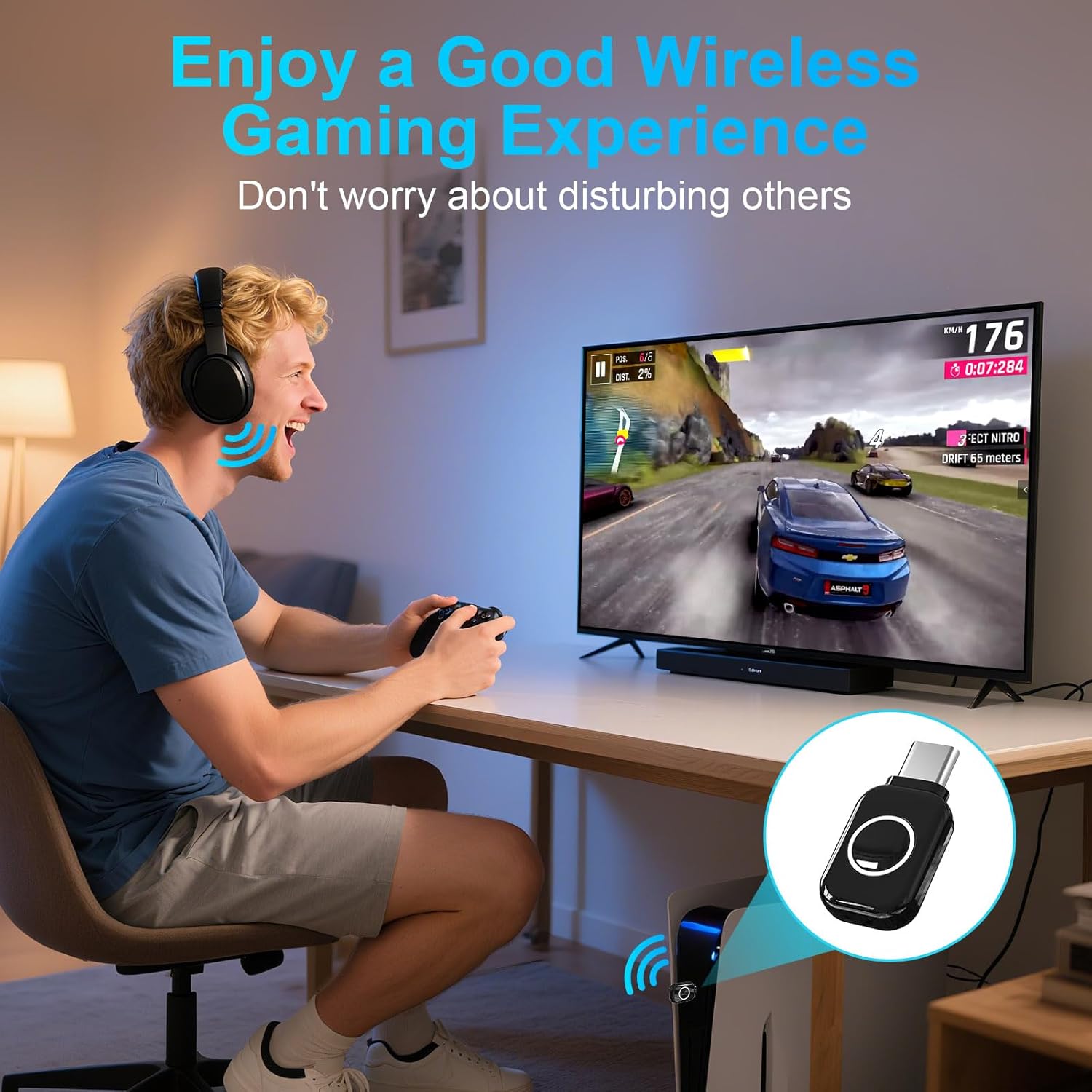
Image: A person enjoying a wireless gaming experience on a PS5 with headphones connected via the ZIOCOM USB-C Bluetooth Adapter, emphasizing undisturbed play.
പരിചരണവും പരിപാലനവും
To ensure the longevity and optimal performance of your ZIOCOM USB-C Bluetooth Adapter, follow these guidelines:
- Keep the adapter dry. Moisture can damage internal circuits.
- Avoid extreme temperatures. High temperatures can shorten the life of electronic devices.
- ഉപകരണം ഉപേക്ഷിക്കുകയോ തട്ടുകയോ കുലുക്കുകയോ ചെയ്യരുത്. പരുക്കൻ കൈകാര്യം ചെയ്യുന്നത് ആന്തരിക സർക്യൂട്ട് ബോർഡുകൾ തകർക്കും.
- Clean the adapter with a soft, dry cloth. Do not use harsh chemicals or detergents.
- Store the adapter in a clean, dust-free environment when not in use.
ട്രബിൾഷൂട്ടിംഗ്
If you encounter issues with your ZIOCOM USB-C Bluetooth Adapter, refer to the following common solutions:
- ഓഡിയോ ഇല്ല / മോശം ഓഡിയോ നിലവാരം:
- Ensure the adapter is securely plugged into the USB-C port.
- Verify your headphones are fully charged and in pairing mode.
- Check the audio output settings on your device (e.g., PS5 Sound Settings) to ensure DG11 is selected.
- If using Sony headphones, be aware that the LDAC protocol is not supported, which may result in lower audio quality (SBC protocol will be used).
- Ensure your headphones support aptX-LL or aptX-Adaptive for optimal low-latency performance.
- ജോടിയാക്കാൻ കഴിയില്ല:
- Make sure the adapter is in pairing mode (rapidly flashing light after double-clicking the button).
- Ensure your headphones are in pairing mode and close to the adapter.
- Turn off Bluetooth on any other nearby devices (e.g., smartphones) to prevent interference.
- Confirm your device (e.g., PS5, PC) is compatible with the adapter (refer to the Compatibility section).
- Intermittent Connection / Short Range:
- Reduce the distance between the adapter and your headphones.
- Remove any obstacles (walls, large electronic devices) that might be blocking the signal.
- Avoid areas with high Wi-Fi or other wireless interference.
സ്പെസിഫിക്കേഷനുകൾ
| ഫീച്ചർ | വിശദാംശങ്ങൾ |
|---|---|
| ബ്രാൻഡ് | ZIOCOM |
| മോഡൽ നമ്പർ | DG11 |
| ബ്ലൂടൂത്ത് പതിപ്പ് | 5.3 |
| ഓഡിയോ കോഡെക്കുകൾ | APTX Low Latency, aptX-Adaptive (and others like SBC) |
| കണക്റ്റർ തരം | യുഎസ്ബി ടൈപ്പ് സി |
| അനുയോജ്യമായ ഉപകരണങ്ങൾ | Headphones, Earbuds (for PS5, MAC, Laptop, PC, Nintendo Switch) |
| ട്രാൻസ്മിഷൻ ദൂരം | തുറസ്സായ സ്ഥലത്ത് 33 അടി (10 മീറ്റർ) വരെ |
| നിറം | കറുപ്പ് |
| ഇനത്തിൻ്റെ ഭാരം | 2.5 ഗ്രാം |

Image: Diagram illustrating the Bluetooth 5.3 chipset, highlighting its faster and more stable connection capabilities.
വാറൻ്റി വിവരങ്ങൾ
The ZIOCOM USB-C Bluetooth Adapter (Model DG11) comes with a 1 വർഷത്തെ വാറൻ്റി വാങ്ങിയ തീയതി മുതൽ. സാധാരണ ഉപയോഗത്തിലുള്ള നിർമ്മാണ വൈകല്യങ്ങളും തകരാറുകളും ഈ വാറന്റി ഉൾക്കൊള്ളുന്നു. വാറന്റി ക്ലെയിമുകൾക്കായി നിങ്ങളുടെ വാങ്ങലിന്റെ തെളിവ് സൂക്ഷിക്കുക. ദുരുപയോഗം, അപകടങ്ങൾ, അനധികൃത പരിഷ്കാരങ്ങൾ അല്ലെങ്കിൽ പ്രകൃതി ദുരന്തങ്ങൾ എന്നിവ മൂലമുണ്ടാകുന്ന നാശനഷ്ടങ്ങൾക്ക് വാറന്റി പരിരക്ഷ നൽകുന്നില്ല.
ഉപഭോക്തൃ പിന്തുണ
If you require further assistance or have questions not covered in this manual, please contact ZIOCOM customer support. Refer to the product packaging or the official ZIOCOM webഏറ്റവും പുതിയ ബന്ധപ്പെടാനുള്ള വിവരങ്ങൾക്കായി സൈറ്റ്.
For online support and FAQs, visit the ZIOCOM store on Amazon: ZIOCOM Store