
1. ആമുഖം
This manual provides essential information for setting up, operating, and maintaining your Dell Alienware AW3425DWM-A 34-inch curved gaming monitor. Please read these instructions carefully to ensure optimal performance and longevity of your device.

ഫ്രണ്ട് view of the Dell Alienware AW3425DWM-A 34-inch curved gaming monitor, showcasing its curved screen and Alienware branding.
2. സജ്ജീകരണ നിർദ്ദേശങ്ങൾ
2.1. അൺപാക്കിംഗും അസംബ്ലിയും
പാക്കേജിംഗിൽ നിന്ന് എല്ലാ ഘടകങ്ങളും ശ്രദ്ധാപൂർവ്വം നീക്കം ചെയ്യുക. അസംബ്ലിയുമായി മുന്നോട്ടുപോകുന്നതിനുമുമ്പ് എല്ലാ ഭാഗങ്ങളും ഉണ്ടെന്ന് ഉറപ്പാക്കുക.
- സ്റ്റാൻഡ് റൈസറിലേക്ക് സ്റ്റാൻഡ് ബേസ് അറ്റാച്ചുചെയ്യുക.
- Attach the assembled stand to the monitor panel. Ensure it clicks securely into place.
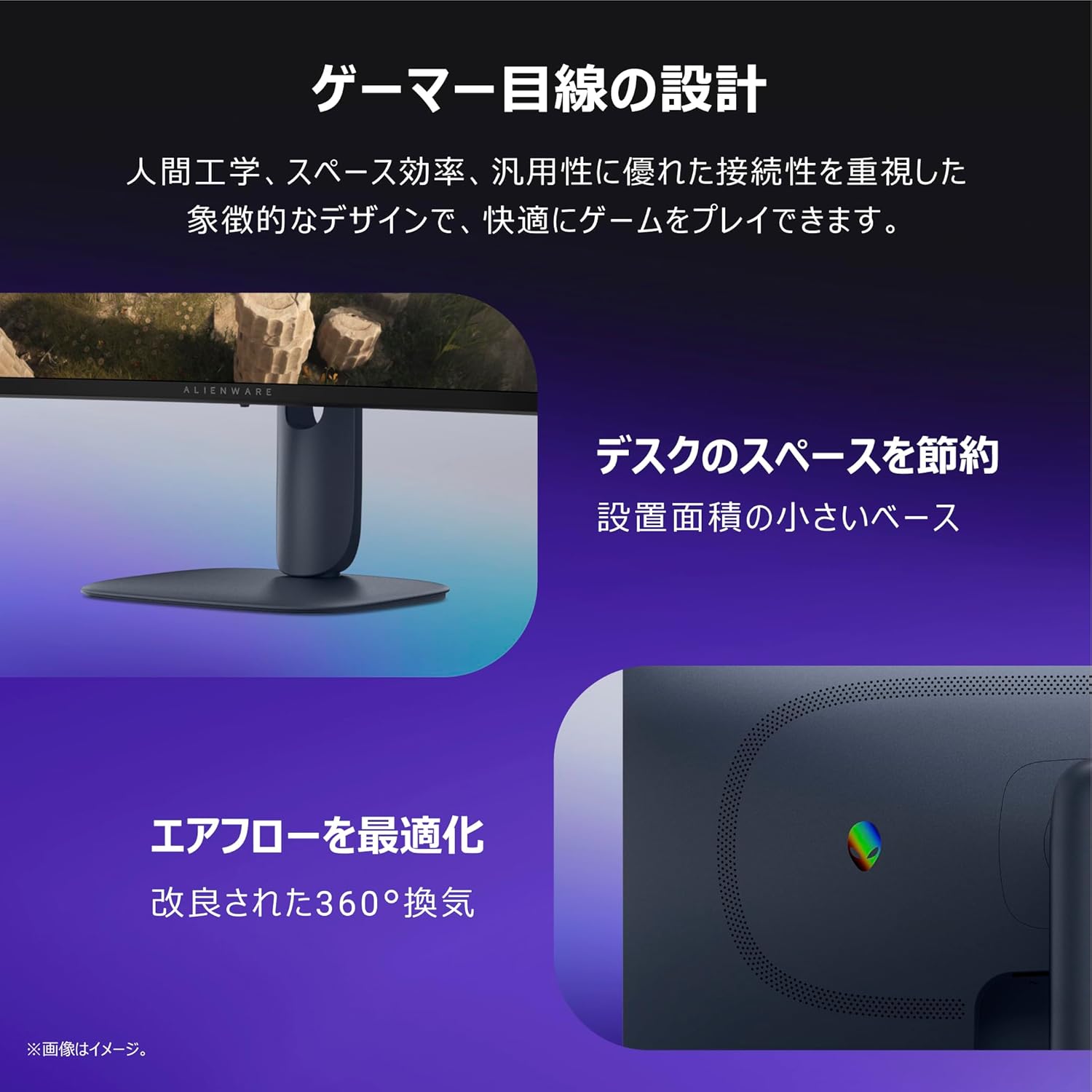
പിൻഭാഗം view of the monitor, illustrating the stand attachment point and the integrated cable management slot for a tidy setup.
2.2. മോണിറ്റർ ബന്ധിപ്പിക്കുന്നു
Connect the necessary cables to your monitor and computer/devices. Refer to the port diagram for correct connections.
- പവർ കേബിൾ: മോണിറ്ററിലേക്കും പവർ ഔട്ട്ലെറ്റിലേക്കും പവർ കേബിൾ ബന്ധിപ്പിക്കുക.
- വീഡിയോ കേബിളുകൾ: Use either a DisplayPort 1.4 cable (1 included) or an HDMI 2.1 cable (2 included) to connect your computer to the monitor.
- യുഎസ്ബി അപ്സ്ട്രീം കേബിൾ: Connect the USB-B (UP) port on the monitor to a USB-A port on your computer to enable the monitor's USB downstream ports.

വിശദമായി view of the monitor's rear ports, including power connector, security lock slot, joystick, HDMI 2.1 (x2), DisplayPort 1.4 (x1), USB 5Gbps Type-B upstream, and USB 5Gbps Type-A downstream ports (one with Battery Charging 1.2 support).
3. പ്രവർത്തന നിർദ്ദേശങ്ങൾ
3.1. പവർ ഓൺ/ഓഫ്
Press the power button, usually located on the bottom or rear of the monitor, to turn it on or off.
3.2. ഓൺ-സ്ക്രീൻ ഡിസ്പ്ലേ (OSD) മെനു
The OSD menu allows you to adjust various monitor settings. Navigate the menu using the joystick located on the rear of the monitor.
- ജോയ്സ്റ്റിക്ക് മുകളിലേക്കും താഴേക്കും: മെനു ഓപ്ഷനുകളിലൂടെ നാവിഗേറ്റ് ചെയ്യുക.
- ജോയ്സ്റ്റിക്ക് ഇടത്/വലത്: മൂല്യങ്ങൾ ക്രമീകരിക്കുക അല്ലെങ്കിൽ ഉപമെനുകൾക്കിടയിൽ നീക്കുക.
- ജോയിസ്റ്റിക് പ്രസ്സ്: ഒരു ഓപ്ഷൻ തിരഞ്ഞെടുക്കുക അല്ലെങ്കിൽ ഒരു ക്രമീകരണം സ്ഥിരീകരിക്കുക.
3.3. Physical Adjustments
മോണിറ്റർ സ്റ്റാൻഡ് സുഖകരമായ ഉപയോഗത്തിനായി എർഗണോമിക് ക്രമീകരണങ്ങൾ വാഗ്ദാനം ചെയ്യുന്നു. viewing.
- ഉയരം ക്രമീകരിക്കൽ: Adjust the monitor height between 444.69mm and 554.69mm.
- ടിൽറ്റ്: Tilt the screen forward or backward for optimal viewing ആംഗിൾ.
- വെസ മൗണ്ട്: The monitor supports VESA 100x100mm mounting for alternative stands or wall mounts.

Illustrations demonstrating the monitor's adjustable features: height adjustment, forward/backward tilt, and swivel.
4 പ്രധാന സവിശേഷതകൾ
- WQHD High-Resolution Display: Experience immersive visuals with a WQHD (3440x1440) resolution on a 34-inch ultrawide 1500R curved VA panel. This resolution ensures detailed and expansive views for gaming and other content.
- സുഗമമായ പ്രകടനം: Enjoy fluid gameplay with a 180Hz refresh rate and a rapid 1ms (GtG) response time. AMD FreeSync Premium and VESA AdaptiveSync technologies minimize screen tearing and stuttering for a seamless experience.
- മൂർച്ചയുള്ള ദൃശ്യങ്ങൾ: Benefit from vibrant and accurate colors with 95% DCI-P3 color gamut coverage and VESA DisplayHDR 400 certification, providing enhanced contrast and brightness.
- Extended Gameplay Comfort: A dedicated console mode and hardware-based blue light reduction (ComfortView Plus) help reduce eye strain during long gaming sessions, maintaining color accuracy.
- Gamer-Centric Design: The monitor features an ergonomic design with a space-saving base and optimized 360-degree ventilation for improved airflow, ensuring comfort and efficiency.

മുന്നിലും പിന്നിലും views of the monitor, highlighting its WQHD resolution and 1500R curvature for an immersive experience.
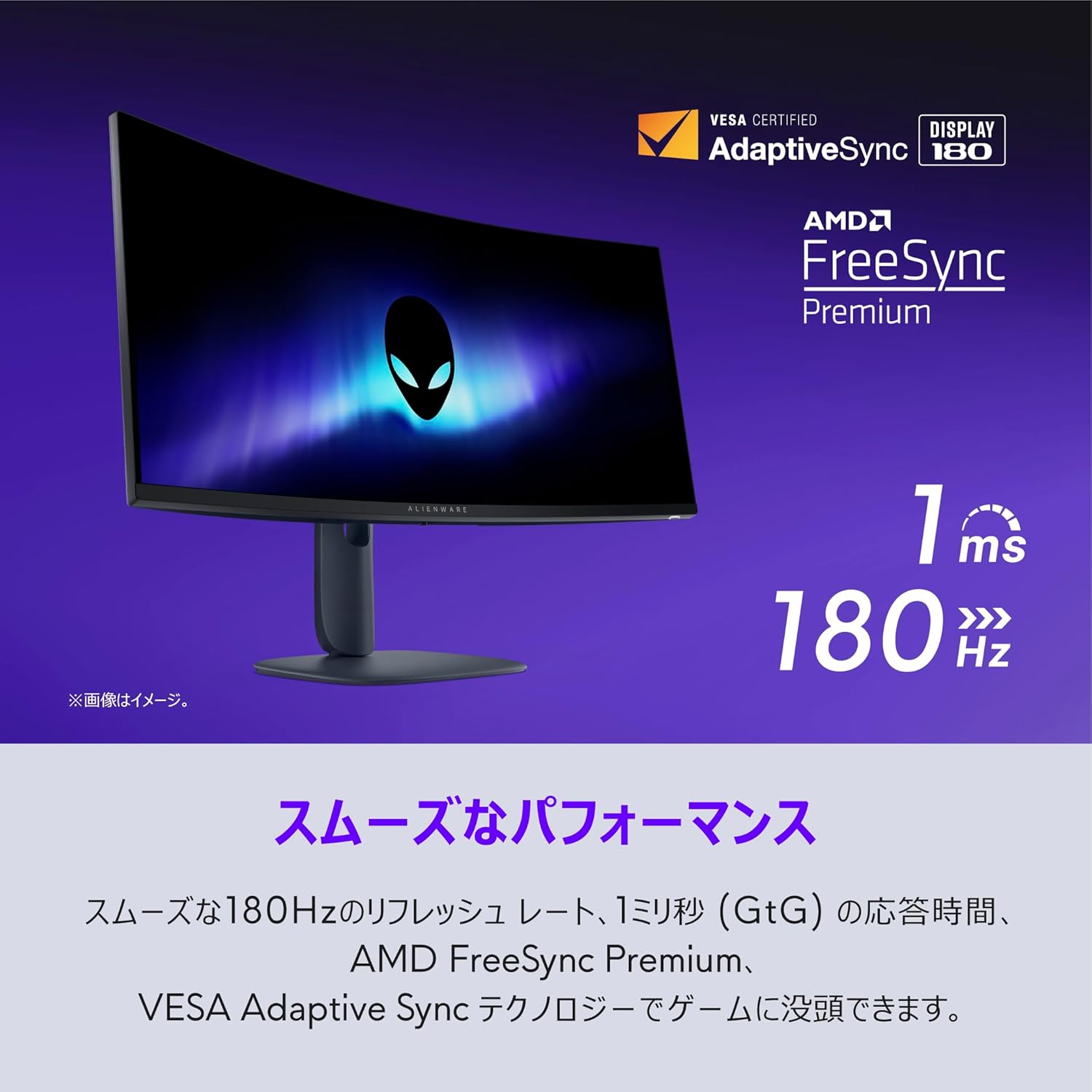
The monitor in action, demonstrating smooth performance with its 180Hz refresh rate and 1ms response time, supported by AMD FreeSync Premium.

The monitor displaying sharp visuals, emphasizing its DCI-P3 95% color coverage and VESA DisplayHDR 400 certification.
5 സ്പെസിഫിക്കേഷനുകൾ
| ഫീച്ചർ | സ്പെസിഫിക്കേഷൻ |
|---|---|
| സ്ക്രീൻ വലിപ്പം | 34 ഇഞ്ച് |
| പാനൽ തരം | VA, Anti-glare, 1500R Curved |
| പരമാവധി മിഴിവ് | 3440 x 1440 (WQHD) |
| വീക്ഷണാനുപാതം | 21:9 |
| കോൺട്രാസ്റ്റ് റേഷ്യോ | 3000:1 |
| തെളിച്ചം | 400 cd/m² |
| വർണ്ണ ആഴം | 1.07 ബില്യൺ നിറങ്ങൾ |
| വർണ്ണ ഗാമറ്റ് | DCI-P3 95% |
| പ്രതികരണ സമയം | 1ms (GtG) |
| പുതുക്കിയ നിരക്ക് | 180Hz |
| വീഡിയോ ഇൻപുട്ട് പോർട്ടുകൾ | DisplayPort 1.4 x1, HDMI 2.1 x2 |
| USB പോർട്ടുകൾ | USB-A (downstream, 1 with BatteryCharge) x2, USB-B (upstream) x1 |
| ക്രമീകരണങ്ങൾ | Height, Tilt, VESA Mount (100x100mm) |
| അളവുകൾ (H x W x D) | 554.69mm-444.69mm x 805.45mm x 232mm |
| ഭാരം (സ്റ്റാൻഡിനൊപ്പം) | 9.51 കി.ഗ്രാം |
| ആക്സസറികൾ ഉൾപ്പെടുത്തിയിട്ടുണ്ട് | Power cable, DP-DP cable (1.8m), HDMI 2.1 cable (1.8m), USB A-to-B cable (1.8m) |
6. പരിപാലനം
6.1. മോണിറ്റർ വൃത്തിയാക്കൽ
To ensure clear display and prevent damage, follow these cleaning guidelines:
- വൃത്തിയാക്കുന്നതിന് മുമ്പ് എല്ലായ്പ്പോഴും പവർ ഔട്ട്ലെറ്റിൽ നിന്ന് മോണിറ്റർ അഴിക്കുക.
- നനവില്ലാത്തതും ലിനില്ലാത്തതുമായ തുണി ചെറുതായി ഉപയോഗിക്കുകampവെള്ളം അല്ലെങ്കിൽ ഉരച്ചിലുകളില്ലാത്ത സ്ക്രീൻ ക്ലീനർ ഉപയോഗിച്ച് നനയ്ക്കുക.
- സ്ക്രീനിലോ മോണിറ്ററിലോ നേരിട്ട് ദ്രാവകം തളിക്കരുത് casing.
- Avoid using benzene, thinner, ammonia-based cleaners, or abrasive materials, as these can damage the surface.
6.2. സംഭരണം
If storing the monitor for an extended period, ensure it is powered off, unplugged, and stored in a cool, dry place away from direct sunlight and extreme temperatures. Use original packaging if available for best protection.
7. പ്രശ്നപരിഹാരം
നിങ്ങളുടെ മോണിറ്ററിൽ പ്രശ്നങ്ങൾ നേരിടുകയാണെങ്കിൽ, ഇനിപ്പറയുന്ന പൊതുവായ പ്രശ്നങ്ങളും പരിഹാരങ്ങളും പരിശോധിക്കുക:
- ശക്തിയില്ല:
- മോണിറ്ററിലേക്കും പവർ ഔട്ട്ലെറ്റിലേക്കും പവർ കേബിൾ സുരക്ഷിതമായി ബന്ധിപ്പിച്ചിട്ടുണ്ടോയെന്ന് പരിശോധിക്കുക.
- മറ്റൊരു ഉപകരണം പ്ലഗ് ഇൻ ചെയ്ത് പവർ ഔട്ട്ലെറ്റ് പ്രവർത്തനക്ഷമമാണെന്ന് ഉറപ്പാക്കുക.
- സിഗ്നലില്ല:
- Ensure the video cable (DisplayPort or HDMI) is firmly connected to both the monitor and your computer's graphics card.
- OSD മെനു ഉപയോഗിച്ച് ശരിയായ ഇൻപുട്ട് ഉറവിടം തിരഞ്ഞെടുക്കുക.
- ലഭ്യമാണെങ്കിൽ മറ്റൊരു വീഡിയോ കേബിളോ പോർട്ടോ പരീക്ഷിച്ചുനോക്കൂ.
- Flickering or Unstable Image (especially with multiple HDMI connections at high refresh rates):
- നിങ്ങളുടെ ഗ്രാഫിക്സ് കാർഡ് ഡ്രൈവറുകൾ കാലികമാണെന്ന് ഉറപ്പാക്കുക.
- If using multiple monitors or devices via HDMI, try reducing the refresh rate for the HDMI connection in your display settings.
- Consider using a DisplayPort to HDMI adapter if connecting a device that primarily uses HDMI but experiences issues with direct HDMI connections at higher refresh rates.
- Check if Dolby Vision is enabled in your system settings; disabling it might resolve some display inconsistencies.
- ചിത്രത്തിന്റെ ഗുണനിലവാര പ്രശ്നങ്ങൾ (മങ്ങൽ, വികലമായത്, തെറ്റായ നിറങ്ങൾ):
- Adjust resolution and refresh rate settings on your computer to match the monitor's native resolution (3440x1440) and supported refresh rates.
- OSD മെനു വഴി ഒരു ഫാക്ടറി റീസെറ്റ് നടത്തുക.
- വീഡിയോ കേബിളിന് കേടുപാടുകൾ സംഭവിച്ചിട്ടില്ലെന്ന് ഉറപ്പാക്കുക.
For persistent issues, please contact Dell Technical Support as detailed in the Warranty and Support section.
8. വാറൻ്റിയും പിന്തുണയും
8.1. 5-Year Exchange Warranty
Your Dell Alienware AW3425DWM-A monitor is covered by a 5-year exchange warranty, which includes the LCD panel and backlight. If a product failure occurs under normal use and environment, and Dell Technical Support determines a fault by 4 PM on a weekday, a replacement unit will be delivered free of charge on the next business day (Monday-Friday, excluding holidays and year-end/New Year period from December 30th to January 3rd).
Customers are required to replace the product unit themselves and return the faulty unit to Dell. Delivery times for replacement products may vary by region.
8.2. Premium Panel Guarantee (Bright Pixel Guarantee)
The Premium Panel Guarantee ensures that if even one 'bright pixel' defect is found on the LCD panel, Dell will replace the product free of charge. The validity period for this guarantee is the same as the monitor's main warranty period.
A 'bright pixel' is defined as a pixel that remains permanently lit in a color (white, red, blue, green, purple, light blue, yellow) against a black background. Dark pixels (permanently black pixels against a white background) are not covered by this guarantee.
If you suspect a bright pixel defect, please contact Dell Technical Support for diagnosis.
8.3. Manufacturer Support Contact
When contacting support, please have the 'Express Service Code' attached to your product ready.
- Chat (LINE) Support: https://page.line.me/391vsisb (LINE Account Name: Dell Technologies / LINE ID: @dell / Hours: 9:00-21:00, Monday-Sunday, including holidays)
- ഫോൺ പിന്തുണ: https://www.dell.com/support/incidents-online/ja-jp/contactus/Dynamic
Note: Manufacturer support is applicable only to products sold and shipped by Amazon.co.jp. For products sold by other sellers, please contact the respective seller for support.