
അറ്റാക്ക് സ്രാവ് X98
അറ്റാക്ക് ഷാർക്ക് X98 വയർലെസ് മെക്കാനിക്കൽ കീബോർഡ് യൂസർ മാനുവൽ
മോഡൽ: X98 | ബ്രാൻഡ്: ATTACK SHARK
ആമുഖം
The ATTACK SHARK X98 is a versatile wireless mechanical keyboard designed for a superior typing and gaming experience. Featuring tri-mode connectivity, hot-swappable switches, PBT keycaps, and vibrant RGB backlighting, this manual provides essential information for setup, operation, and maintenance to ensure optimal performance.
1. സജ്ജീകരണം
1.1 പാക്കേജ് ഉള്ളടക്കം
ആരംഭിക്കുന്നതിന് മുമ്പ്, പാക്കേജിൽ എല്ലാ ഇനങ്ങളും ഉണ്ടെന്ന് ഉറപ്പാക്കുക:
- ATTACK SHARK X98 Wireless Mechanical Keyboard
- യുഎസ്ബി-സി കേബിൾ
- 2.4GHz യുഎസ്ബി റിസീവർ
- കീക്യാപ് പുള്ളർ
- സ്വിച്ച് പുള്ളർ
- Extra Switches (2)
- ഉപയോക്തൃ മാനുവൽ (ഈ പ്രമാണം)

Figure 1: Package Contents of the ATTACK SHARK X98 Keyboard.
1.2 കണക്റ്റിവിറ്റി ഓപ്ഷനുകൾ
The X98 keyboard supports three connection modes:
- USB-C വയേർഡ്: For a stable, direct connection and charging.
- 2.4GHz വയർലെസ്: Utilizes a dedicated USB receiver for low-latency wireless performance.
- ബ്ലൂടൂത്ത് 5.0: Connects to up to three devices simultaneously.

Figure 2: Triple Mode Connection Overview.
1.3 നിങ്ങളുടെ കീബോർഡ് ബന്ധിപ്പിക്കുന്നു
- Locate the mode switch on the back edge of the keyboard.
- Select your desired connection mode:
- വയർ: Connect the USB-C cable to the keyboard and your device.
- 2.4GHz: Remove the 2.4GHz USB receiver from its storage slot on the keyboard and plug it into your device. Switch the keyboard to 2.4G mode.
- ബ്ലൂടൂത്ത്: Switch the keyboard to BT mode. On your device, search for 'ATTACK SHARK X98' in Bluetooth settings and pair. The keyboard can store up to three Bluetooth profile(BT1, BT2, BT3) എന്നിവ.
- Ensure the operating system switch (Win/Mac) is set correctly for your device.

Figure 3: Connectivity Switches.
1.4 പ്രാരംഭ ചാർജ്
For optimal performance, fully charge the keyboard before first use. Connect the USB-C cable to the keyboard and a power source. The battery indicator will show charging status.
Video 1: ATTACK SHARK X98 Wireless Mechanical Keyboard Overview. This video demonstrates the keyboard's features and connectivity options.
2. പ്രവർത്തന നിർദ്ദേശങ്ങൾ
2.1 RGB ബാക്ക്ലൈറ്റിംഗ്
The X98 keyboard features 16.8 million RGB colors and 21 lighting effects. Use the following key combinations to control the lighting:
- എഫ്എൻ + \|: Switch between different lighting effects.
- എഫ്എൻ + എന്റർ: Switch between different lighting colors.
- Brightness and speed can also be adjusted via the dedicated software.

Figure 4: RGB Lighting Customization Software.
2.2 പ്രോഗ്രാം ചെയ്യാവുന്ന മാക്രോ കീകൾ
Customize your workflow or gaming experience with programmable macro keys. Use the dedicated software to assign complex sequences or functions to individual keys.

Figure 5: Programmable Macro Keys Interface.
2.3 Battery Level Check
വയർലെസ് മോഡിൽ ബാറ്ററി ലെവൽ പരിശോധിക്കാൻ, അമർത്തുക Fn + ബാക്ക്സ്പേസ്. The indicator lights will display the current charge:
- Red light: 20% or less
- Yellow light: 50%
- Green light: 60%
- Full green light: 100%

Figure 6: Battery Level Indicators.
2.4 Gasket Mount Design
The X98 features a gasket mount design with 5 layers of foam (PORON Foam, IXPE Switch Pad, PET Noise Cancellation Pad, EPDM Dampening Pad, Silicone Pad). This construction provides a softer, quieter, and more satisfying 'thocky' typing sound, ideal for both office and gaming environments.
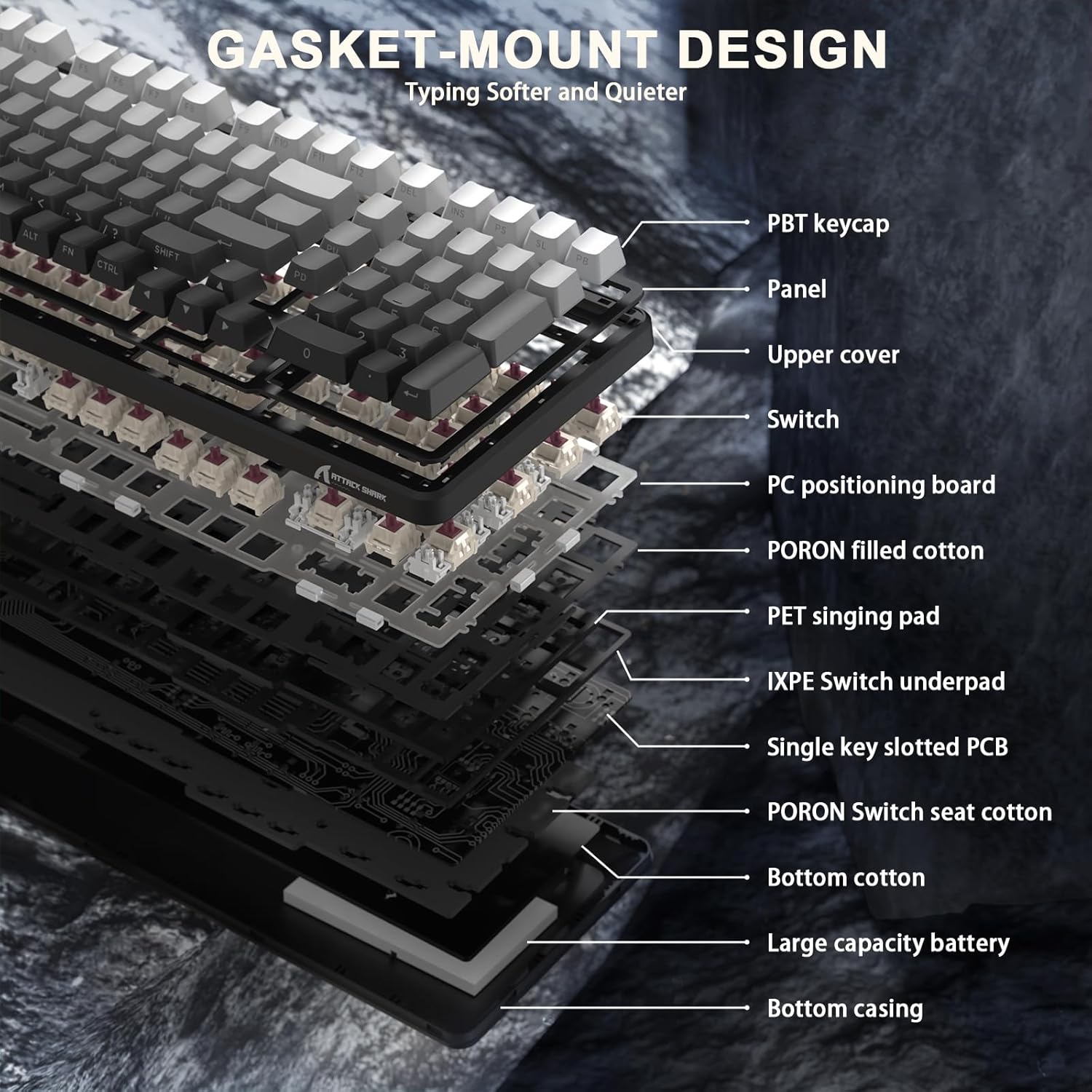
Figure 7: Gasket Mount Design Layers.
2.5 ഹോട്ട്-സ്വാപ്പബിൾ സ്വിച്ചുകൾ
The keyboard is equipped with hot-swappable sockets, allowing you to easily change switches without soldering. This enables customization of your typing feel and sound. The pre-lubed Blueberry linear switches offer a creamy, tactile, yet quiet experience.

ചിത്രം 8: ഹോട്ട്-സ്വാപ്പബിൾ സ്വിച്ചുകൾ.
Video 2: X98PRO 98 Keys Mechanical Keyboard with TFT Display. This video highlights various features of the X98PRO keyboard, including its display and lighting effects.
Video 3: ATTACK SHARK X98PRO Wireless Keyboard. A short demonstration of the X98PRO's wireless capabilities and design.
3. പരിപാലനം
3.1 വൃത്തിയാക്കൽ
- കീബോർഡ് പ്രതലം തുടയ്ക്കാൻ മൃദുവായതും ഉണങ്ങിയതുമായ തുണി ഉപയോഗിക്കുക.
- കൂടുതൽ ആഴത്തിലുള്ള വൃത്തിയാക്കലിനായി, നൽകിയിരിക്കുന്ന കീക്യാപ്പ് പുള്ളർ ഉപയോഗിച്ച് കീക്യാപ്പുകൾ നീക്കം ചെയ്ത് അടിഭാഗം കംപ്രസ് ചെയ്ത വായു അല്ലെങ്കിൽ ഒരു ചെറിയ ബ്രഷ് ഉപയോഗിച്ച് വൃത്തിയാക്കുക.
- കഠിനമായ രാസവസ്തുക്കളോ ഉരച്ചിലുകളോ ഉപയോഗിക്കുന്നത് ഒഴിവാക്കുക.
3.2 കീക്യാപ്പും സ്വിച്ചും മാറ്റിസ്ഥാപിക്കൽ
The X98 features durable PBT keycaps that resist shine and fading. If replacement is needed, use the provided keycap puller to gently remove keycaps. For switches, use the switch puller to carefully extract and insert new compatible 3/5-pin mechanical switches.
4. പ്രശ്നപരിഹാരം
- കീബോർഡ് പ്രതികരിക്കുന്നില്ല: Ensure the keyboard is charged and the correct connection mode (Wired, 2.4GHz, or Bluetooth) is selected. For 2.4GHz, verify the USB receiver is properly inserted. For Bluetooth, ensure it's paired correctly.
- RGB ലൈറ്റുകൾ പ്രവർത്തിക്കുന്നില്ല: Check if the keyboard is powered on. Use Fn + \| and Fn + Enter to cycle through lighting effects and colors. Adjust brightness via software or keyboard shortcuts.
- വയർലെസ് മോഡിൽ ലാഗ് അല്ലെങ്കിൽ വിച്ഛേദിക്കൽ: Ensure the keyboard is within range of the receiver/device. Minimize interference from other wireless devices.
- രജിസ്റ്റർ ചെയ്യാത്ത കീകൾ: If specific keys are not working, try replacing the switch using the provided switch puller and spare switches.
5 സ്പെസിഫിക്കേഷനുകൾ
| ഫീച്ചർ | വിശദാംശങ്ങൾ |
|---|---|
| മോഡൽ നമ്പർ | X98 |
| ഉൽപ്പന്ന അളവുകൾ | 16 x 5.6 x 1.5 ഇഞ്ച് |
| ഇനത്തിൻ്റെ ഭാരം | 2.7 പൗണ്ട് |
| കണക്റ്റിവിറ്റി ടെക്നോളജി | 2.4G വയർലെസ്, ബ്ലൂടൂത്ത് 5.0, യുഎസ്ബി-സി |
| കീബോർഡ് വിവരണം | Gaming/Office/Programming |
| അനുയോജ്യമായ ഉപകരണങ്ങൾ | ഗെയിമിംഗ് കൺസോൾ, ലാപ്ടോപ്പ്, പിസി, സ്മാർട്ട്ഫോൺ, ടാബ്ലെറ്റ് |
| പ്രത്യേക സവിശേഷതകൾ | Backlit, Customized Linear Blueberry Switch, Ergonomic, Hot-Swappable, Web ക്ലൗഡ് ഡ്രൈവർ |
| കീബോർഡ് ബാക്ക്ലൈറ്റിംഗ് | RGB (16.8 million colors, 21 effects) |
| കീകാപ്പുകൾ | Durable PBT Keycaps |
| ബാറ്ററി ശേഷി | 4000mAh |
6. വാറൻ്റിയും പിന്തുണയും
For warranty information and technical support, please refer to the product packaging or contact ATTACK SHARK customer service directly. Keep your purchase receipt for warranty claims.
Ask a question about this manual
Ask about setup, troubleshooting, compatibility, parts, safety, or missing instructions. Manuals+ will review the question and use this page’s manual context to help answer it.