
ATTACK SHARK G6
ATTACK SHARK×Magic-Refiner G6 Wireless Gaming Mouse User Manual
Model: G6 | Brand: ATTACK SHARK
1. ആമുഖം
Thank you for choosing the ATTACK SHARK×Magic-Refiner G6 Wireless Gaming Mouse. This manual provides detailed instructions on how to set up, operate, and maintain your new gaming mouse. The G6 mouse features tri-mode connectivity, a high-precision PixArt PAW3311 sensor, and a lightweight ergonomic design, making it ideal for various computing tasks and gaming scenarios.
2. പാക്കേജ് ഉള്ളടക്കം
താഴെ പറയുന്ന ഇനങ്ങൾക്കായി ബോക്സ് ചെക്ക് ചെയ്യുക:
- ATTACK SHARK×Magic-Refiner G6 Wireless Gaming Mouse
- 2.4G USB റിസീവർ
- USB-C ചാർജിംഗ് കേബിൾ
- Anti-Slip Grip Tape Set

Image: The ATTACK SHARK G6 Wireless Gaming Mouse in white, shown with its accompanying USB receiver.
3. ഉൽപ്പന്നം കഴിഞ്ഞുview
The G6 gaming mouse is designed for versatility and performance. Familiarize yourself with its key components and features.

Image: Detailed diagram of the G6 mouse, highlighting its buttons and features including the Left Button, Scroll Wheel + Middle Button, Right Button, Back Button, Forward Button, Power Toggle Switch (2.4G-OFF-Bluetooth), DPI Cycle Button, Atmosphere Light Switch & Wireless Mode Frequency Binding Button, Battery & DPI Indicator Light, Atmosphere Light, and USB Receiver storage.
3.1 പ്രധാന സവിശേഷതകൾ
- ട്രൈ-മോഡ് കണക്റ്റിവിറ്റി: Seamlessly switch between USB-C wired, 2.4GHz wireless, and Bluetooth 5.0 connections. The 2.4GHz mode offers a polling rate of 125-1000Hz, while Bluetooth operates at 125Hz. This allows for flexible use across various devices and scenarios.
- ഹൈ-പ്രിസിഷൻ സെൻസർ: Equipped with the PixArt PAW3311 optical sensor, offering six adjustable DPI levels from 800 to 24000. Features a 1000Hz polling rate, 1ms response time, 300 IPS tracking, and 35G acceleration for precise control.
- Lightweight Design & Long Battery Life: Weighs approximately 72±3g, minimizing hand fatigue during extended use. The built-in 750mAh battery provides over 150 hours of wireless usage on a single charge.
- Durable Switches & Customization: Features 10M micro switches with a 10 million click lifespan. Includes a 1.5m braided USB-C cable. Customize rear RGB lighting via a bottom button for various effects.
- Anti-Slip Grips: Comes with a set of 6 DIY anti-slip grip tapes for enhanced control and sweat resistance.

Image: The G6 mouse illustrating its 2.4GHz Wireless, USB-C Wired, and Bluetooth connection modes.
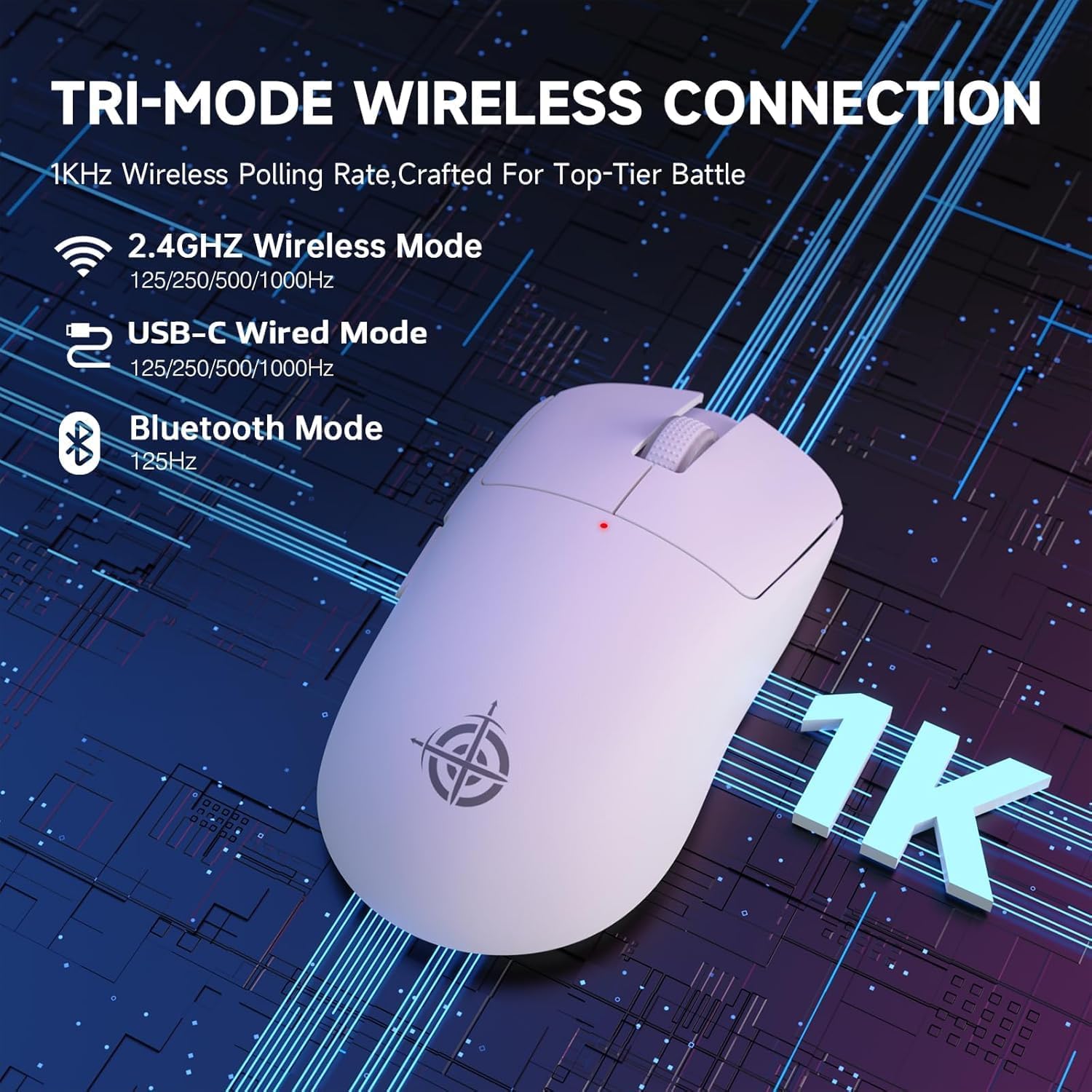
Image: The G6 mouse with an overlay indicating DPI levels (800-24000) and their associated indicator light colors (Red, Green, Blue, Yellow, Cyan, Purple).

Image: The G6 mouse displaying its customizable RGB lighting effects, including rainbow and single color options.

Image: The G6 mouse with its practical non-slip stickers applied, showing the textured surface for improved grip.
4. സജ്ജീകരണ ഗൈഡ്
The G6 mouse offers three connection methods. Choose the one that best suits your needs.
4.1. 2.4GHz വയർലെസ് മോഡ്
- മൗസിന്റെ അടിയിലുള്ള കമ്പാർട്ടുമെന്റിൽ സൂക്ഷിച്ചിരിക്കുന്ന 2.4G യുഎസ്ബി റിസീവർ കണ്ടെത്തുക.
- നിങ്ങളുടെ കമ്പ്യൂട്ടറിൽ ലഭ്യമായ USB പോർട്ടിലേക്ക് USB റിസീവർ പ്ലഗ് ചെയ്യുക.
- Slide the power toggle switch on the bottom of the mouse to the '2.4G' position.
- The mouse should automatically connect. If not, press the 'Atmosphere light switch & wireless mode frequency binding button' on the bottom of the mouse to initiate pairing.
4.2. ബ്ലൂടൂത്ത് മോഡ്
- Slide the power toggle switch on the bottom of the mouse to the 'Bluetooth' position.
- മൗസിന്റെ ഇൻഡിക്കേറ്റർ ലൈറ്റ് മിന്നിത്തുടങ്ങും, ഇത് ജോടിയാക്കൽ മോഡിലാണെന്ന് സൂചിപ്പിക്കുന്നു.
- നിങ്ങളുടെ കമ്പ്യൂട്ടറിലോ ഉപകരണത്തിലോ, Bluetooth ക്രമീകരണങ്ങളിലേക്ക് പോയി പുതിയ ഉപകരണങ്ങൾക്കായി തിരയുക.
- Select 'ATTACK SHARK G6' (or similar name) from the list of available devices to pair.
4.3. USB-C വയേർഡ് മോഡ്
- നൽകിയിരിക്കുന്ന USB-C കേബിൾ മൗസിന്റെ മുൻ പോർട്ടിലേക്ക് ബന്ധിപ്പിക്കുക.
- USB-C കേബിളിന്റെ മറ്റേ അറ്റം നിങ്ങളുടെ കമ്പ്യൂട്ടറിൽ ലഭ്യമായ ഒരു USB പോർട്ടിലേക്ക് ബന്ധിപ്പിക്കുക.
- മൗസ് യാന്ത്രികമായി വയേർഡ് മോഡിലേക്ക് മാറുകയും ചാർജ് ചെയ്യാൻ തുടങ്ങുകയും ചെയ്യും.
5. പ്രവർത്തന നിർദ്ദേശങ്ങൾ
5.1. ഡിപിഐ ക്രമീകരണം
The G6 mouse has a dedicated DPI cycle button on the bottom. Press this button to cycle through the preset DPI levels (800, 1600, 2400, 3200, 6400, 24000). The indicator light will change color to reflect the current DPI setting (Red, Green, Blue, Yellow, Cyan, Purple respectively).
5.2. ബട്ടൺ പ്രവർത്തനങ്ങൾ
The G6 mouse features 5 programmable buttons:
- ഇടത് ബട്ടൺ: സ്റ്റാൻഡേർഡ് ഇടത് ക്ലിക്ക്.
- വലത് ബട്ടൺ: സ്റ്റാൻഡേർഡ് റൈറ്റ് ക്ലിക്ക്.
- Scroll Wheel + Middle Button: മുകളിലേക്കും/താഴേക്കും സ്ക്രോൾ ചെയ്യുക, മധ്യത്തിൽ ക്ലിക്ക് ചെയ്യുക.
- ഫോർവേഡ് ബട്ടൺ: മുന്നോട്ട് നാവിഗേറ്റ് ചെയ്യുന്നു web ബ്രൗസറുകൾ അല്ലെങ്കിൽ file പര്യവേക്ഷകർ.
- ബാക്ക്വേർഡ് ബട്ടൺ: പിന്നിലേക്ക് നാവിഗേറ്റ് ചെയ്യുന്നു web ബ്രൗസറുകൾ അല്ലെങ്കിൽ file പര്യവേക്ഷകർ.
For advanced customization of button functions and macros, please download the official driver software from the ATTACK SHARK webസൈറ്റ്.
5.3. RGB ലൈറ്റിംഗ് നിയന്ത്രണം
The G6 mouse features customizable RGB lighting. Use the 'Atmosphere light switch' button on the bottom of the mouse to cycle through different lighting effects (e.g., Rainbow Lighting, Single Lighting) or to turn the lighting off.
6. പരിപാലനം
To ensure the longevity and optimal performance of your G6 gaming mouse, follow these maintenance guidelines:
- വൃത്തിയാക്കൽ: മൗസിന്റെ പ്രതലം തുടയ്ക്കാൻ മൃദുവായതും ഉണങ്ങിയതുമായ ഒരു തുണി ഉപയോഗിക്കുക. കഠിനമായ അഴുക്കിന്, ചെറുതായി dampതുണിയിൽ വെള്ളം അല്ലെങ്കിൽ നേരിയ ക്ലീനിംഗ് ലായനി ഉപയോഗിക്കുക. കഠിനമായ രാസവസ്തുക്കളോ ഉരച്ചിലുകളോ ഉള്ള വസ്തുക്കൾ ഒഴിവാക്കുക.
- സെൻസർ പരിചരണം: മൗസിന്റെ അടിയിലുള്ള ഒപ്റ്റിക്കൽ സെൻസർ വൃത്തിയായും പൊടിയോ അവശിഷ്ടങ്ങളോ ഇല്ലാതെയും സൂക്ഷിക്കുക. ആവശ്യമെങ്കിൽ ഒരു കോട്ടൺ സ്വാബ് അല്ലെങ്കിൽ കംപ്രസ് ചെയ്ത വായു ഉപയോഗിക്കുക.
- സംഭരണം: ദീർഘനേരം ഉപയോഗിക്കാത്തപ്പോൾ, നേരിട്ടുള്ള സൂര്യപ്രകാശവും കടുത്ത താപനിലയും ഏൽക്കാത്ത തണുത്തതും വരണ്ടതുമായ സ്ഥലത്ത് മൗസ് സൂക്ഷിക്കുക.
- ബാറ്ററി: Avoid fully discharging the battery frequently. Charge the mouse regularly to maintain battery health.
7. പ്രശ്നപരിഹാരം
If you encounter any issues with your G6 gaming mouse, please refer to the following common solutions:
- മൗസ് പ്രതികരിക്കുന്നില്ല:
- Ensure the mouse is charged. Connect it via USB-C cable to charge.
- Check the power toggle switch on the bottom of the mouse is in the correct position (2.4G, BT, or OFF for wired).
- For 2.4GHz mode, ensure the USB receiver is securely plugged into a working USB port. Try a different USB port.
- For Bluetooth mode, ensure Bluetooth is enabled on your device and the mouse is paired. Try unpairing and re-pairing.
- കഴ്സർ ചലനം ക്രമരഹിതമോ കൃത്യതയില്ലാത്തതോ ആണ്:
- മൗസിന്റെ അടിയിലുള്ള ഒപ്റ്റിക്കൽ സെൻസർ വൃത്തിയാക്കുക.
- Ensure you are using the mouse on a suitable surface. Some surfaces (e.g., plain black neoprene pads, highly reflective surfaces) may interfere with optical tracking. Try a different mouse pad or surface.
- Adjust the DPI setting using the DPI cycle button.
- 2.4GHz dongle not working:
- മൗസ് 2.4G മോഡിലേക്ക് മാറിയിട്ടുണ്ടെന്ന് ഉറപ്പാക്കുക.
- Try plugging the dongle into a different USB port on your computer.
- If issues persist, try re-pairing the mouse with the dongle by pressing the binding button on the mouse while the dongle is connected.
- ബ്ലൂടൂത്ത് കണക്ഷൻ പ്രശ്നങ്ങൾ:
- Ensure the mouse is in Bluetooth pairing mode (indicator light blinking).
- നിങ്ങളുടെ ഉപകരണത്തിന്റെ ബ്ലൂടൂത്ത് ലിസ്റ്റിൽ നിന്ന് മൗസ് നീക്കം ചെയ്ത് വീണ്ടും ജോടിയാക്കാൻ ശ്രമിക്കുക.
- നിങ്ങളുടെ ഉപകരണത്തിന്റെ ബ്ലൂടൂത്ത് ഡ്രൈവറുകൾ കാലികമാണെന്ന് ഉറപ്പാക്കുക.
8 സ്പെസിഫിക്കേഷനുകൾ
| ഫീച്ചർ | സ്പെസിഫിക്കേഷൻ |
|---|---|
| മോഡൽ നമ്പർ | G6 |
| കണക്റ്റിവിറ്റി ടെക്നോളജി | 2.4Ghz / Bluetooth / USB-C Wired |
| മൂവ്മെന്റ് ഡിറ്റക്ഷൻ ടെക്നോളജി | ഒപ്റ്റിക്കൽ (പിക്സ്ആർട്ട് PAW3311) |
| ഡിപിഐ ലെവലുകൾ | 800-24000 (6 adjustable levels) |
| പോളിംഗ് നിരക്ക് | 125-1000Hz (2.4Ghz), 125Hz (Bluetooth) |
| ബാറ്ററി ശേഷി | 750mAh |
| ഇനത്തിൻ്റെ ഭാരം | 72±3g (2.54 ounces) |
| അളവുകൾ | 116.2 x 62.2 x 37.3 മിമി (ഏകദേശം) |
| ആയുസ്സ് മാറ്റുക | 10 ദശലക്ഷം ക്ലിക്കുകൾ |
| കേബിൾ നീളം | 1.5m (Braided USB-C) |
| അനുയോജ്യത | Windows, macOS, Linux, Chrome OS, Consoles, Tablets, Smartphones |
9. വാറൻ്റിയും പിന്തുണയും
The ATTACK SHARK×Magic-Refiner G6 Wireless Gaming Mouse comes with a standard manufacturer's warranty. Please refer to the product packaging or the official ATTACK SHARK webനിർദ്ദിഷ്ട വാറന്റി നിബന്ധനകൾക്കും വ്യവസ്ഥകൾക്കും സൈറ്റ്.
For technical support, troubleshooting assistance, or warranty claims, please contact ATTACK SHARK customer service through their official webനിങ്ങൾ ഉൽപ്പന്നം വാങ്ങിയ സൈറ്റ് അല്ലെങ്കിൽ റീട്ടെയിലർ.
കുറിപ്പ്: ഈ മാനുവലിൽ ഉൾപ്പെടുത്തുന്നതിനായി വിൽപ്പനക്കാരന്റെ ഔദ്യോഗിക ഉൽപ്പന്ന വീഡിയോകളൊന്നും ലഭ്യമല്ല.
Ask a question about this manual
Ask about setup, troubleshooting, compatibility, parts, safety, or missing instructions. Manuals+ will review the question and use this page’s manual context to help answer it.