
ആമുഖം
This manual provides essential information for setting up, operating, and maintaining your paitanry 10.1 Inch Android Tablet. Please read this manual thoroughly before using your device to ensure proper function and longevity.
The paitanry 10.1 Inch Android Tablet (Model G80) features the Android 15 operating system, an octa-core MediaTek Helio G80 processor, 12GB RAM, and 128GB internal storage. It is equipped with a 10.1-inch In-Cell IPS display, dual cameras (5MP front, 13MP rear), dual-band Wi-Fi, Bluetooth 5.0, and an 8000mAh battery with 18W fast charging support.
പാക്കേജ് ഉള്ളടക്കം
പാക്കേജിൽ എല്ലാ ഇനങ്ങളും ഉണ്ടെന്ന് ഉറപ്പാക്കുക:
- 1 × paitanry 10.1 Inch Android Tablet
- 1 × Protective Case
- 1 × 9V/2A Fast Charger
- 1 × Dual Type-C Data Cable
- 1 × OTG Adapter
- 1 × ഉപയോക്തൃ മാനുവൽ (ഈ പ്രമാണം)

Image: The paitanry 10.1 Inch Android Tablet shown with its included protective case, charger, and cables.
സജ്ജമാക്കുക
1. ടാബ്ലെറ്റ് ചാർജ് ചെയ്യുന്നു
Before first use, fully charge the tablet. Connect the provided Type-C data cable to the tablet's USB-C port and the 9V/2A fast charger. Plug the charger into a power outlet. The battery icon on the screen will indicate charging status.
The 8000mAh battery supports up to 8 hours of mixed use. 18W PD fast charging allows for efficient recharging.

Image: Visual representation of the tablet's powerful 8000mAh battery and its estimated usage duration for various activities like gaming, online video, web surfing, music, and e-books.
2. പവർ ഓൺ/ഓഫ്
- പവർ ഓണാക്കാൻ: Press and hold the Power button located on the side of the tablet until the paitanry logo appears on the screen.
- പവർ ഓഫ് ചെയ്യാൻ: പവർ മെനു ദൃശ്യമാകുന്നതുവരെ പവർ ബട്ടൺ അമർത്തിപ്പിടിക്കുക. ഓപ്ഷനുകളിൽ നിന്ന് "പവർ ഓഫ്" തിരഞ്ഞെടുക്കുക.
- പുനരാരംഭിക്കാൻ: Press and hold the Power button until a power menu appears. Select "Restart" from the options.
3. പ്രാരംഭ സജ്ജീകരണം
ആദ്യമായി പവർ-ഓൺ ചെയ്യുമ്പോൾ, ടാബ്ലെറ്റ് പ്രാരംഭ സജ്ജീകരണ പ്രക്രിയയിലൂടെ നിങ്ങളെ നയിക്കും. ഓൺ-സ്ക്രീൻ നിർദ്ദേശങ്ങൾ പാലിക്കുക:
- നിങ്ങളുടെ ഭാഷ തിരഞ്ഞെടുക്കുക.
- ഒരു Wi-Fi നെറ്റ്വർക്കിലേക്ക് കണക്റ്റുചെയ്യുക.
- നിങ്ങളുടെ Google അക്കൗണ്ട് ഉപയോഗിച്ച് സൈൻ ഇൻ ചെയ്യുക അല്ലെങ്കിൽ പുതിയൊരെണ്ണം സൃഷ്ടിക്കുക.
- സ്ക്രീൻ ലോക്ക് (പിൻ, പാറ്റേൺ, പാസ്വേഡ്) സജ്ജീകരിക്കുക.
- Review നിബന്ധനകളും വ്യവസ്ഥകളും അംഗീകരിക്കുക.
പ്രവർത്തന നിർദ്ദേശങ്ങൾ
1. അടിസ്ഥാന നാവിഗേഷൻ
- സ്പർശിക്കുക: ഒരു ഐക്കൺ അല്ലെങ്കിൽ ഓപ്ഷൻ തിരഞ്ഞെടുക്കാൻ അതിൽ ടാപ്പ് ചെയ്യുക.
- സ്വൈപ്പ്: സ്ക്രീനുകൾക്കിടയിൽ സ്ക്രോൾ ചെയ്യാനോ നാവിഗേറ്റ് ചെയ്യാനോ സ്ക്രീനിലുടനീളം നിങ്ങളുടെ വിരൽ വലിച്ചിടുക.
- പിഞ്ച്-ടു-സൂം: സ്ക്രീനിൽ രണ്ട് വിരലുകൾ വയ്ക്കുക, സൂം ഇൻ ചെയ്യുകയോ സൂം ഔട്ട് ചെയ്യുകയോ ചെയ്യുന്നതിന് അവയെ അകറ്റി നിർത്തുകയോ ഒരുമിച്ച് നീക്കുകയോ ചെയ്യുക.
- ഹോം ബട്ടണ്: ഹോം സ്ക്രീനിലേക്ക് മടങ്ങുന്നു.
- ബാക്ക് ബട്ടൺ: മുമ്പത്തെ സ്ക്രീനിലേക്ക് മടങ്ങുന്നു.
- സമീപകാല ആപ്പ് ബട്ടൺ: അടുത്തിടെ തുറന്ന ആപ്ലിക്കേഷനുകൾ പ്രദർശിപ്പിക്കുന്നു.
2. വൈഫൈ കണക്ഷൻ
ഒരു Wi-Fi നെറ്റ്വർക്കിലേക്ക് കണക്റ്റുചെയ്യാൻ:
- പോകുക ക്രമീകരണങ്ങൾ > നെറ്റ്വർക്കും ഇൻ്റർനെറ്റും > വൈഫൈ.
- വൈഫൈ ടോഗിൾ ചെയ്യുക On.
- ലിസ്റ്റിൽ നിന്ന് നിങ്ങൾക്ക് ആവശ്യമുള്ള നെറ്റ്വർക്ക് തിരഞ്ഞെടുക്കുക.
- ആവശ്യപ്പെടുകയാണെങ്കിൽ പാസ്വേഡ് നൽകുക, തുടർന്ന് ടാപ്പുചെയ്യുക ബന്ധിപ്പിക്കുക.
The tablet supports dual-band Wi-Fi (802.11ac) for stable and fast internet connectivity.
3. ബ്ലൂടൂത്ത് കണക്ഷൻ
ഒരു ബ്ലൂടൂത്ത് ഉപകരണവുമായി ജോടിയാക്കാൻ:
- പോകുക ക്രമീകരണങ്ങൾ > ബന്ധിപ്പിച്ച ഉപകരണങ്ങൾ > ബ്ലൂടൂത്ത്.
- ബ്ലൂടൂത്ത് ടോഗിൾ ചെയ്യുക On.
- നിങ്ങളുടെ ബ്ലൂടൂത്ത് ഉപകരണം ജോടിയാക്കൽ മോഡിലാണെന്ന് ഉറപ്പാക്കുക.
- Select the device from the "Available devices" list and follow any on-screen prompts to complete pairing.
The tablet features Bluetooth 5.0 for efficient wireless connections.
4. ക്യാമറ ഉപയോഗം
The tablet is equipped with a 5MP front camera and a 13MP rear camera.
- തുറക്കുക ക്യാമറ അപേക്ഷ.
- മുൻ ക്യാമറയും പിൻ ക്യാമറയും തമ്മിൽ മാറാൻ ക്യാമറ ഐക്കണിൽ ടാപ്പ് ചെയ്യുക.
- ഒരു ഫോട്ടോ എടുക്കാൻ ഷട്ടർ ബട്ടൺ ടാപ്പ് ചെയ്യുക അല്ലെങ്കിൽ വീഡിയോ റെക്കോർഡിംഗ് ആരംഭിക്കുക/നിർത്തുക.
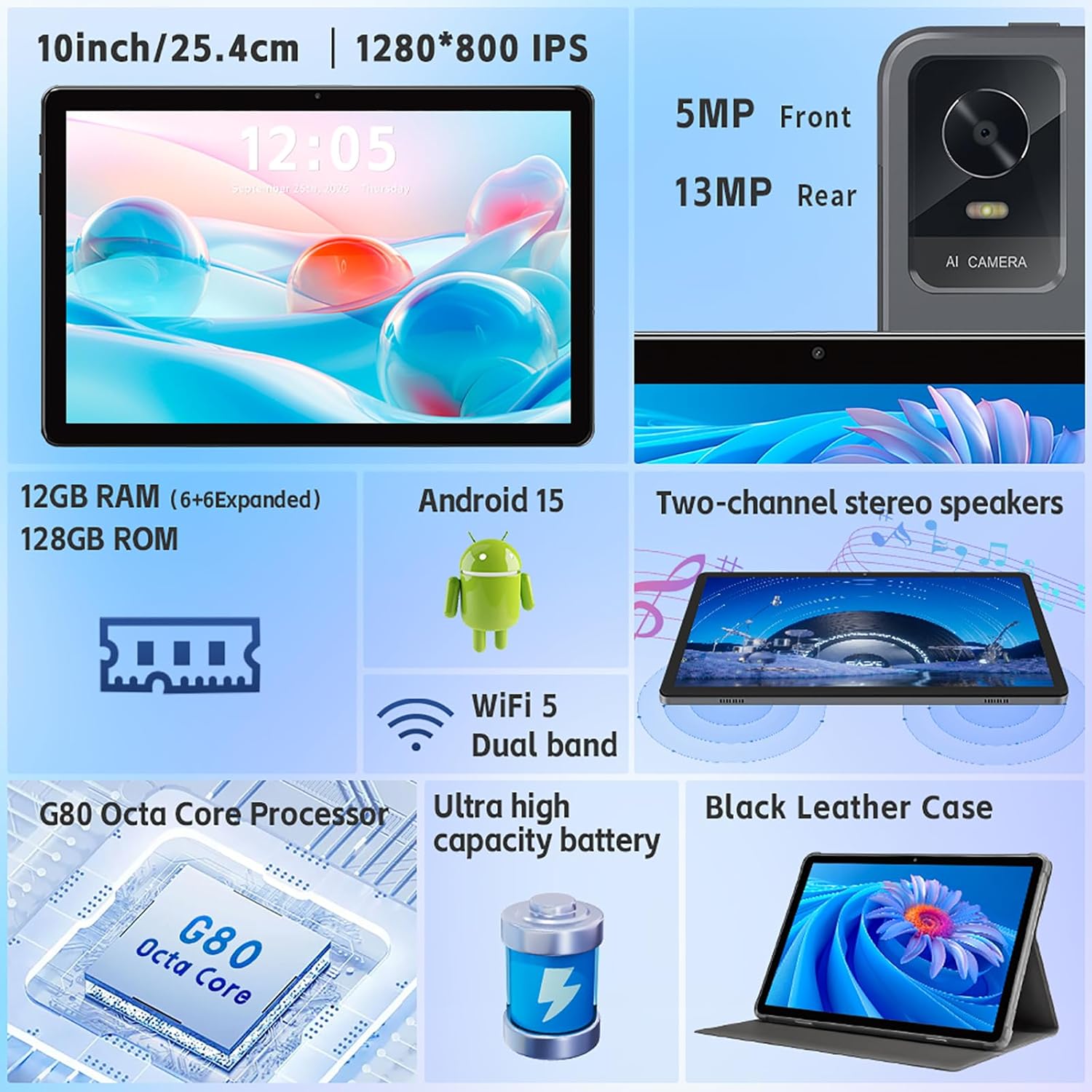
ചിത്രം: ഒരു ഓവർview of the tablet's features, including the 5MP front camera and 13MP rear camera, 12GB RAM, 128GB ROM, Android 15, Wi-Fi 5 Dual band, G80 Octa Core Processor, and ultra-high capacity battery.
5. സ്റ്റോറേജ് മാനേജ്മെൻ്റ്
The tablet has 128GB of internal storage. You can expand storage up to 2TB using a Micro SD card (sold separately).
- To insert a Micro SD card: Locate the card slot on the side of the tablet. Gently insert the Micro SD card until it clicks into place.
- To manage storage: പോകുക ക്രമീകരണങ്ങൾ > സംഭരണം വരെ view സംഭരണ ഉപയോഗവും മാനേജ്മെന്റും files.
6. ഡിസ്പ്ലേ ക്രമീകരണങ്ങൾ
Customize your display experience:
- പോകുക ക്രമീകരണങ്ങൾ > പ്രദർശിപ്പിക്കുക.
- Adjust brightness, dark theme, night light, and font size.
- Set screen timeout duration.
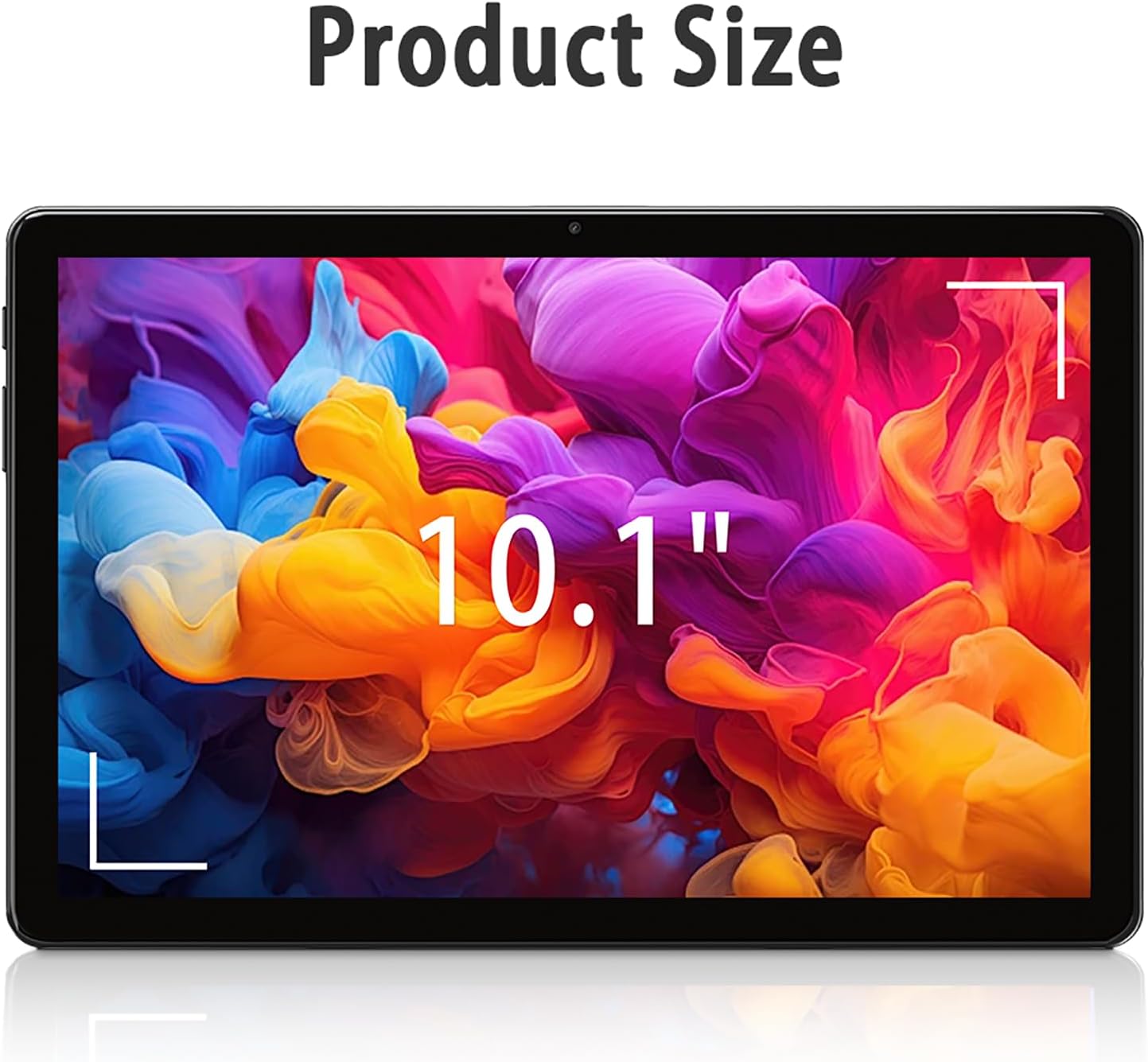
Image: The tablet screen showing "10.1"" to indicate its display size, with colorful abstract art on the screen.
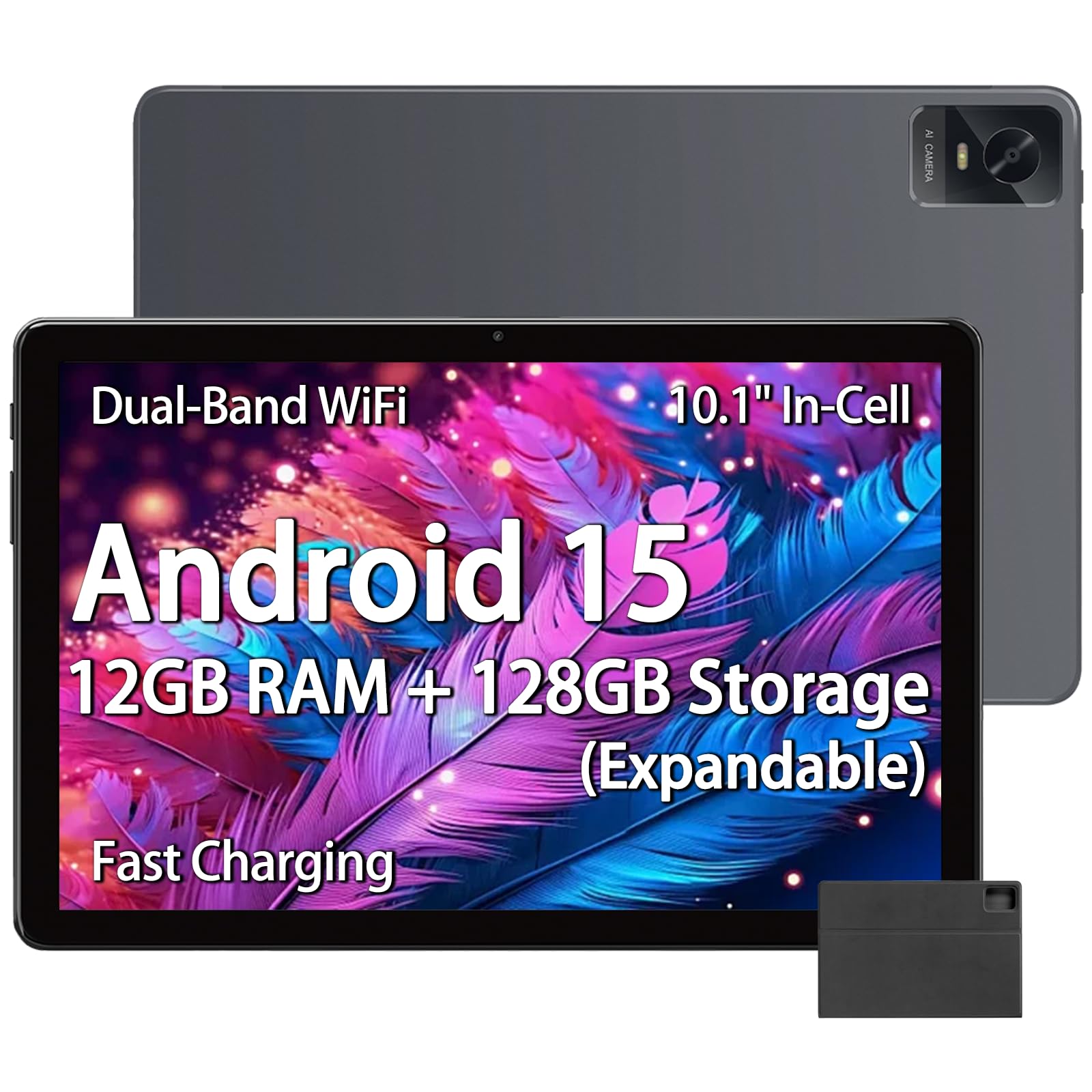
Image: The tablet displaying an image of penguins in an icy landscape, emphasizing its 16:10 aspect ratio and 10.1-inch 1280x800 HD In-Cell full lamination touchscreen for an immersive view.
7. ഓഡിയോ ക്രമീകരണങ്ങൾ
Adjust volume and sound preferences:
- പോകുക ക്രമീകരണങ്ങൾ > ശബ്ദവും വൈബ്രേഷനും.
- Adjust media, call, ring, and alarm volumes.
- Select ringtones and notification sounds.
The tablet includes a 3.5mm headphone jack for wired audio accessories.
മെയിൻ്റനൻസ്
1. ടാബ്ലെറ്റ് വൃത്തിയാക്കൽ
- ടാബ്ലെറ്റിന്റെ സ്ക്രീനും ബോഡിയും വൃത്തിയാക്കാൻ മൃദുവായ, ലിന്റ് രഹിത തുണി ഉപയോഗിക്കുക.
- കഠിനമായ പാടുകൾക്ക്, ചെറുതായി dampഇലക്ട്രോണിക് ഉപകരണങ്ങൾക്കായി രൂപകൽപ്പന ചെയ്ത വെള്ളമുള്ള തുണി അല്ലെങ്കിൽ സ്ക്രീൻ ക്ലീനർ.
- കഠിനമായ രാസവസ്തുക്കൾ, ഉരച്ചിലുകൾ ഉള്ള വസ്തുക്കൾ, അല്ലെങ്കിൽ അമിതമായ ഈർപ്പം എന്നിവ ഉപയോഗിക്കുന്നത് ഒഴിവാക്കുക.
2. സോഫ്റ്റ്വെയർ അപ്ഡേറ്റുകൾ
ഒപ്റ്റിമൽ പ്രകടനം, സുരക്ഷ, പുതിയ സവിശേഷതകളിലേക്കുള്ള ആക്സസ് എന്നിവ ഉറപ്പാക്കാൻ സോഫ്റ്റ്വെയർ അപ്ഡേറ്റുകൾ പതിവായി പരിശോധിച്ച് ഇൻസ്റ്റാൾ ചെയ്യുക.
- പോകുക ക്രമീകരണങ്ങൾ > സിസ്റ്റം > സിസ്റ്റം അപ്ഡേറ്റ്.
- Follow the on-screen instructions to check for and install available updates.
3. ബാറ്ററി പരിചരണം
- ടാബ്ലെറ്റ് ഉയർന്ന താപനിലയിൽ (ചൂടോ തണുപ്പോ) തുറന്നുകാട്ടുന്നത് ഒഴിവാക്കുക.
- Do not allow the battery to fully discharge frequently. Charge it before it drops below 20%.
- Use only the provided charger and cable or certified compatible accessories.
ട്രബിൾഷൂട്ടിംഗ്
Tablet Not Turning On
- ടാബ്ലെറ്റ് ആവശ്യത്തിന് ചാർജ്ജ് ചെയ്തിട്ടുണ്ടെന്ന് ഉറപ്പാക്കുക. കുറഞ്ഞത് 30 മിനിറ്റെങ്കിലും ചാർജറുമായി ബന്ധിപ്പിക്കുക.
- റീസ്റ്റാർട്ട് ചെയ്യാൻ പവർ ബട്ടൺ 10-15 സെക്കൻഡ് അമർത്തിപ്പിടിക്കുക.
Wi-Fi കണക്ഷൻ പ്രശ്നങ്ങൾ
- ക്രമീകരണങ്ങളിൽ വൈഫൈ പ്രവർത്തനക്ഷമമാക്കിയിട്ടുണ്ടോയെന്ന് പരിശോധിക്കുക.
- നിങ്ങളുടെ വൈഫൈ റൂട്ടറും ടാബ്ലെറ്റും പുനരാരംഭിക്കുക.
- ടാബ്ലെറ്റ് ക്രമീകരണങ്ങളിൽ നെറ്റ്വർക്ക് മറന്ന് വീണ്ടും കണക്റ്റുചെയ്യുക.
- നിങ്ങൾ വൈഫൈ സിഗ്നലിന്റെ പരിധിയിലാണെന്ന് ഉറപ്പാക്കുക.
മന്ദഗതിയിലുള്ള പ്രകടനം
- ആവശ്യമില്ലാത്ത പശ്ചാത്തല ആപ്ലിക്കേഷനുകൾ അടയ്ക്കുക.
- പതിവായി ഉപയോഗിക്കുന്ന ആപ്പുകളുടെ കാഷെ ഡാറ്റ മായ്ക്കുക (ക്രമീകരണങ്ങൾ > ആപ്പുകൾ > [ആപ്പ് നാമം] > സംഭരണവും കാഷെയും > കാഷെ മായ്ക്കുക).
- Ensure sufficient free storage space. Delete unused fileകൾ അല്ലെങ്കിൽ ആപ്പുകൾ.
- ടാബ്ലെറ്റ് പുനരാരംഭിക്കുക.
ആപ്പുകൾ ക്രാഷാകുന്നു അല്ലെങ്കിൽ പ്രതികരിക്കുന്നില്ല
- Force close the app (Settings > Apps > [App Name] > Force stop).
- Clear the app's cache (Settings > Apps > [App Name] > Storage & cache > Clear cache).
- ഗൂഗിൾ പ്ലേ സ്റ്റോറിൽ നിന്ന് ആപ്പ് അപ്ഡേറ്റ് ചെയ്യുക.
- പ്രശ്നം നിലനിൽക്കുകയാണെങ്കിൽ, ആപ്പ് അൺഇൻസ്റ്റാൾ ചെയ്ത് വീണ്ടും ഇൻസ്റ്റാൾ ചെയ്യുക.
സ്പെസിഫിക്കേഷനുകൾ
| ബ്രാൻഡ് | paitanry |
| മോഡലിൻ്റെ പേര് | 10.1 ഇഞ്ച് ടാബ്ലെറ്റ് |
| മോഡൽ നമ്പർ | G80 |
| ഓപ്പറേറ്റിംഗ് സിസ്റ്റം | ആൻഡ്രോയിഡ് 15 |
| പ്രോസസ്സർ | MediaTek Helio G80 Octa-Core (Arm Cortex-A75 @ 2GHz, Arm Cortex-A55 @ 1.8GHz) |
| ഗ്രാഫിക്സ് കോപ്രൊസസർ | ആം മാലി-G52 MC2 |
| റാം മെമ്മറി | 12 ജിബി (6 ജിബി ഫിസിക്കൽ + 6 ജിബി വെർച്വൽ) |
| ആന്തരിക സംഭരണം | 128 ജിബി |
| വികസിപ്പിക്കാവുന്ന സംഭരണം | Up to 2 TB (Micro SD card, sold separately) |
| സ്ക്രീൻ വലിപ്പം | 10.1 ഇഞ്ച് |
| ഡിസ്പ്ലേ തരം | In-Cell IPS LCD |
| ഡിസ്പ്ലേ റെസല്യൂഷൻ | 1280 x 800 പിക്സലുകൾ |
| വീക്ഷണാനുപാതം | 16:10 |
| മുൻ ക്യാമറ | 5 എം.പി |
| പിൻ ക്യാമറ | 13 എം.പി |
| ബാറ്ററി ശേഷി | 8000 mAh (ലിഥിയം പോളിമർ) |
| ബാറ്ററി ലൈഫ് (ശരാശരി) | 8 Hours (mixed use) |
| ചാർജിംഗ് | 18W PD Fast Charging (USB Type-C) |
| വൈഫൈ | Dual-band 802.11ac |
| ബ്ലൂടൂത്ത് | ബ്ലൂടൂത്ത് 5.0 |
| കണക്റ്റിവിറ്റി | യുഎസ്ബി ടൈപ്പ്-സി, 3.5 എംഎം ഹെഡ്ഫോൺ ജാക്ക് |
| Dimensions (L x W x Thickness) | 9.45" x 6.26" x 0.28" |
| ഭാരം | 1 പൗണ്ട് |
| പ്രത്യേക സവിശേഷതകൾ | Expandable Storage, Fast Charging, Supports USB OTG |

ചിത്രം: വിശദമായ ഒരു ചിത്രം view of the Helio G80 Octa-Core CPU, highlighting its central role in the tablet's performance.
വാറൻ്റിയും പിന്തുണയും
വാറൻ്റി വിവരങ്ങൾ
Your paitanry 10.1 Inch Android Tablet comes with a 1 വർഷത്തെ നിർമ്മാതാവിൻ്റെ വാറൻ്റി. This warranty covers defects in materials and workmanship under normal use. It does not cover damage caused by misuse, accidents, unauthorized modifications, or external causes.
വാറൻ്റി ക്ലെയിമുകൾക്കായി നിങ്ങളുടെ വാങ്ങിയതിൻ്റെ തെളിവ് സൂക്ഷിക്കുക.
ഉപഭോക്തൃ പിന്തുണ
For technical assistance, warranty claims, or further inquiries, please contact paitanry customer support through the retailer's platform or the official paitanry webസൈറ്റ്.
When contacting support, please have your tablet's model number (G80) and proof of purchase ready.