
ആമുഖം
Welcome to the user manual for your new VAIO SX-R Laptop. This document provides essential information to help you set up, operate, maintain, and troubleshoot your device. Please read this manual thoroughly to ensure optimal performance and longevity of your laptop.
ഉൽപ്പന്നം കഴിഞ്ഞുview
The VAIO SX-R is a high-performance laptop designed for productivity and creative tasks. It features an Intel Core Ultra 7 processor, a vibrant 14-inch WQXGA Touch Display, ample memory, and fast storage.
പ്രധാന സവിശേഷതകൾ
- പ്രോസസ്സർ: Intel Core Ultra 7 (16-Core, AI-Boosted) for enhanced speed and responsiveness.
- ഡിസ്പ്ലേ: 14-inch WQXGA Touch Display (2560x1600) offering high resolution and wide color gamut.
- മെമ്മറി: 32GB LPDDR5 RAM for superior multitasking.
- സംഭരണം: 1TB PCIe NVMe SSD for fast data access and ample സംഭരണം.
- ഓപ്പറേറ്റിംഗ് സിസ്റ്റം: Windows 11 Pro with enterprise-grade security and productivity features.
- സുരക്ഷ: Integrated IR Camera and Fingerprint Reader for secure login.
- ചേസിസ്: Durable Carbon Fiber construction.
Laptop Components and Ports

Figure 1: VAIO SX-R Laptop, illustrating the overall design.
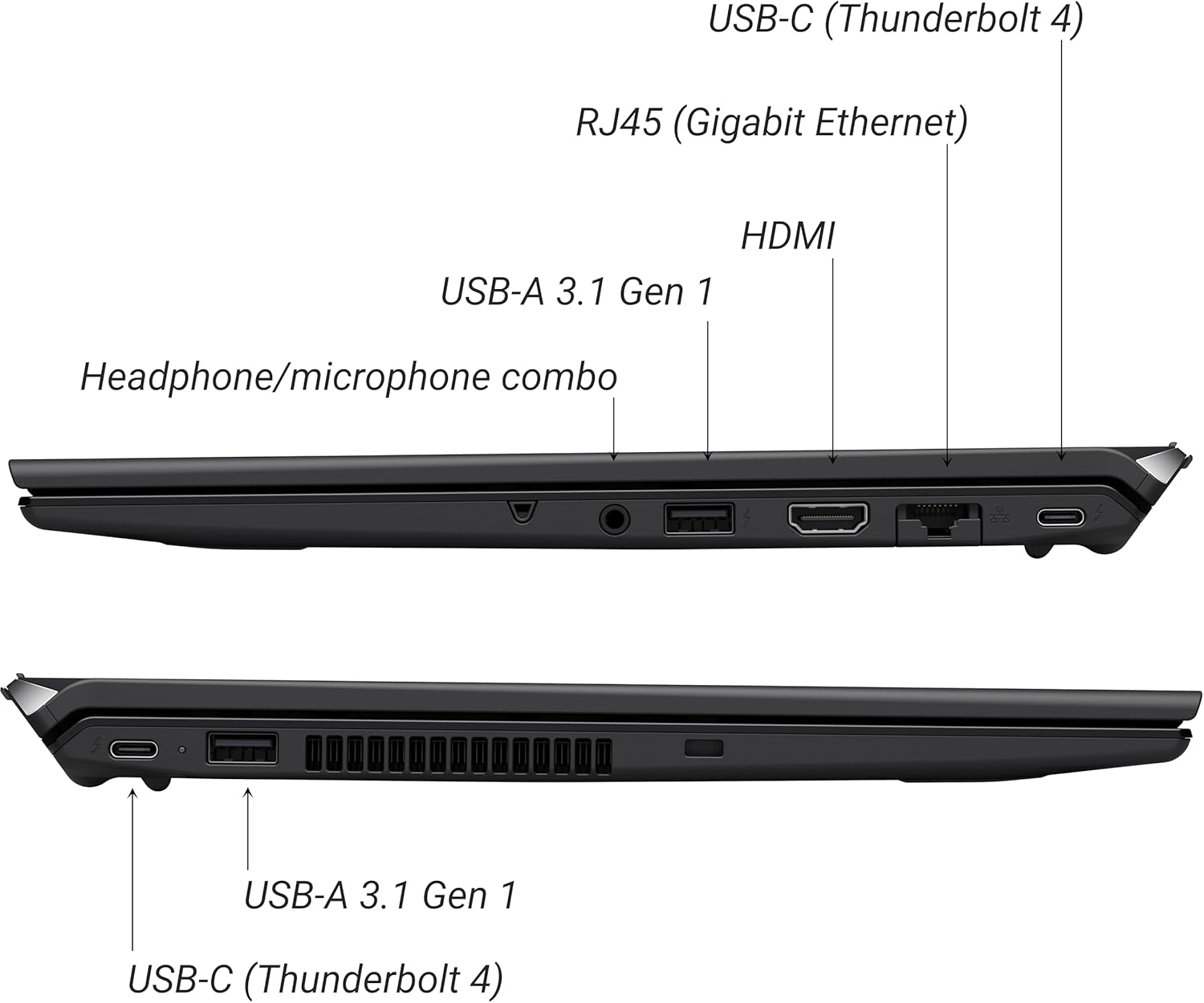
Figure 2: Port layout of the VAIO SX-R Laptop. The left side includes a headphone/microphone combo jack, USB-A 3.1 Gen 1, HDMI, RJ45 (Gigabit Ethernet), and USB-C (Thunderbolt 4). The right side features another USB-C (Thunderbolt 4) and USB-A 3.1 Gen 1 port.
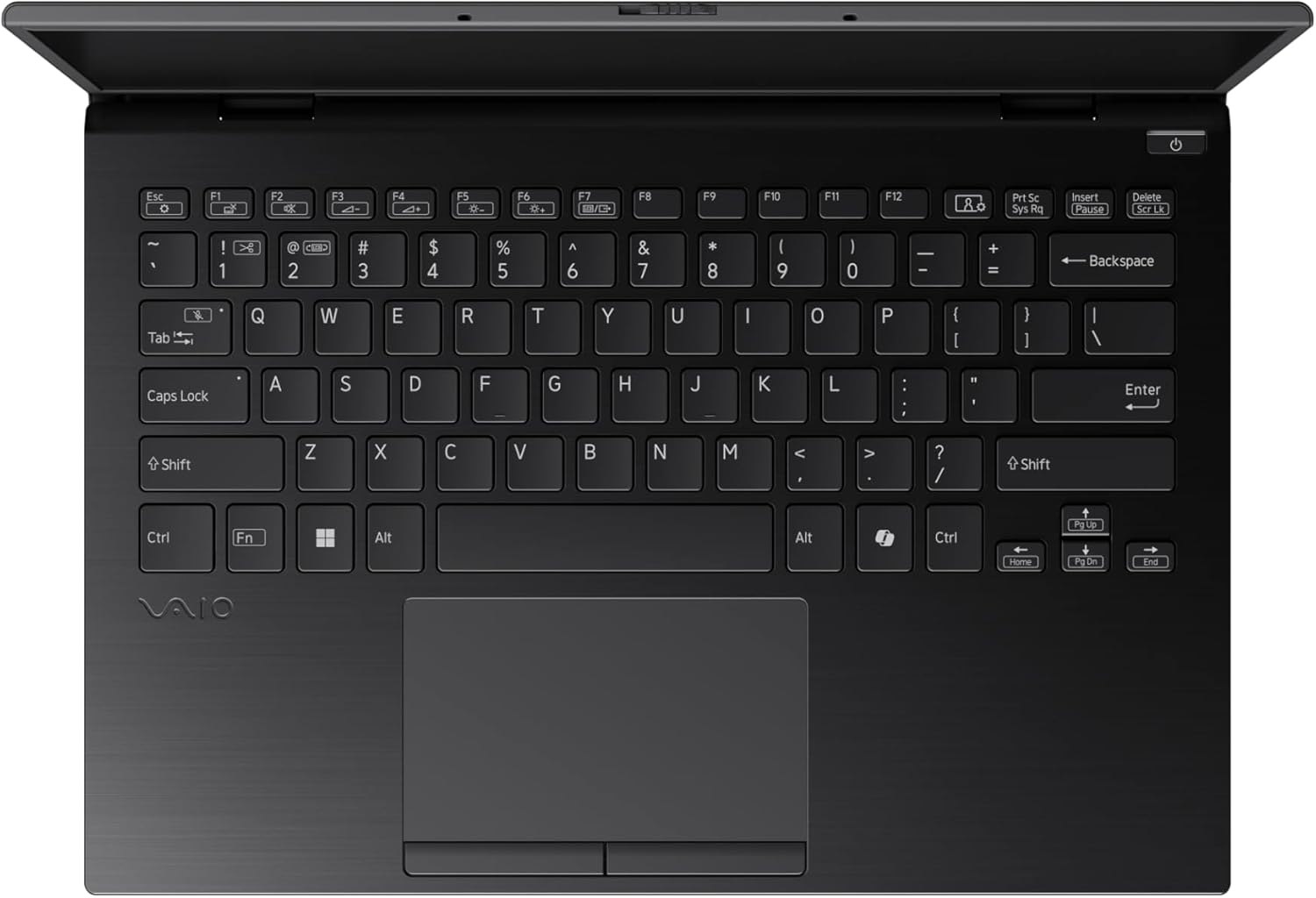
Figure 3: The VAIO SX-R Laptop keyboard and touchpad, featuring a backlit keyboard and integrated fingerprint sensor.
സജ്ജമാക്കുക
1. പ്രാരംഭ പവർ ഓൺ
- പവർ ബന്ധിപ്പിക്കുക: എസി അഡാപ്റ്റർ ലാപ്ടോപ്പിന്റെ പവർ പോർട്ടിലേക്കും പിന്നീട് ഒരു വാൾ ഔട്ട്ലെറ്റിലേക്കും പ്ലഗ് ചെയ്യുക.
- ലാപ്ടോപ്പ് തുറക്കുക: ലാപ്ടോപ്പ് ലിഡ് ശ്രദ്ധാപൂർവ്വം തുറക്കുക.
- പവർ ഓൺ: Press the power button, typically located on the top right of the keyboard deck. The power indicator light will illuminate.
2. Windows 11 Pro Setup
Follow the on-screen instructions to complete the initial Windows 11 Pro setup. This includes:
- നിങ്ങളുടെ പ്രദേശവും കീബോർഡ് ലേഔട്ടും തിരഞ്ഞെടുക്കുന്നു.
- ഒരു Wi-Fi നെറ്റ്വർക്കിലേക്ക് കണക്റ്റുചെയ്യുന്നു.
- ലൈസൻസ് കരാർ അംഗീകരിക്കുന്നു.
- Creating or logging in with a Microsoft account.
- Setting up your PIN, fingerprint, or facial recognition (IR Camera).
3. പെരിഫറലുകൾ ബന്ധിപ്പിക്കുന്നു
You can connect external devices such as mice, keyboards, external monitors, and USB drives to the available ports as shown in Figure 2.
പ്രവർത്തിക്കുന്നു
1. അടിസ്ഥാന ഉപയോഗം
- കീബോർഡ്: Use the integrated backlit keyboard for typing. Function keys (F1-F12) often have secondary functions accessible via the 'Fn' key.
- ടച്ച്പാഡ്: നാവിഗേഷനായി മൾട്ടി-ടച്ച് ജെസ്റ്ററുകളെ പ്രിസിഷൻ ടച്ച്പാഡ് പിന്തുണയ്ക്കുന്നു.
- ടച്ച് സ്ക്രീൻ: Interact directly with the 14-inch WQXGA display using touch gestures.
2. സുരക്ഷാ സവിശേഷതകൾ
- ഫിംഗർപ്രിന്റ് റീഡർ: Enroll your fingerprints through Windows Settings > Accounts > Sign-in options for quick and secure login.
- ഐആർ ക്യാമറ: Utilize Windows Hello facial recognition for convenient and secure access. Set this up in Windows Settings > Accounts > Sign-in options.
3. പവർ മാനേജ്മെന്റ്
- സ്ലീപ്പ് മോഡ്: Close the lid or press the power button briefly to put the laptop to sleep.
- ഷട്ട് ഡൗൺ: Go to Start > Power > Shut down to turn off the laptop completely.
- പുനരാരംഭിക്കുക: Go to Start > Power > Restart to reboot the system.
മെയിൻ്റനൻസ്
1. വൃത്തിയാക്കൽ
- സ്ക്രീൻ: മൃദുവായ, ലിൻ്റ് രഹിത തുണി ഉപയോഗിക്കുകampവെള്ളമോ സ്ക്രീൻ ക്ലീനറോ ഉപയോഗിച്ച് നനയ്ക്കുക. കഠിനമായ രാസവസ്തുക്കൾ ഒഴിവാക്കുക.
- കീബോർഡും ചേസിസും: മൃദുവായ തുണി ഉപയോഗിക്കുക. കഠിനമായ അഴുക്കിന്, അല്പം ഡി.amp ദ്രാവകം സുഷിരങ്ങളിൽ പ്രവേശിക്കുന്നില്ലെന്ന് ഉറപ്പാക്കാൻ വീര്യം കുറഞ്ഞ സോപ്പ് ഉള്ള തുണി ഉപയോഗിക്കാം.
- തുറമുഖങ്ങൾ: പോർട്ടുകളിൽ നിന്ന് പൊടി സൌമ്യമായി നീക്കം ചെയ്യാൻ കംപ്രസ് ചെയ്ത വായു ഉപയോഗിക്കുക.

Figure 4: The VAIO SX-R features a water-resistant keyboard, designed to withstand minor spills.
2. സോഫ്റ്റ്വെയർ അപ്ഡേറ്റുകൾ
Regularly update your Windows operating system and device drivers to ensure optimal performance, security, and compatibility. Access updates via Windows Settings > Windows Update.
3. ബാറ്ററി പരിചരണം
- തീവ്രമായ താപനില ഒഴിവാക്കുക.
- ബാറ്ററി ഇടയ്ക്കിടെ പൂർണ്ണമായും ഡിസ്ചാർജ് ചെയ്യരുത്.
- ദീർഘകാല സംഭരണത്തിനായി, ബാറ്ററി ഏകദേശം 50-60% വരെ ചാർജ് ചെയ്യുക.
ട്രബിൾഷൂട്ടിംഗ്
നിങ്ങൾ നേരിട്ടേക്കാവുന്ന പൊതുവായ പ്രശ്നങ്ങളെ ഈ വിഭാഗം അഭിസംബോധന ചെയ്യുന്നു.
1. ലാപ്ടോപ്പ് ഓണാകുന്നില്ല
- ലാപ്ടോപ്പിലേക്കും പ്രവർത്തിക്കുന്ന പവർ ഔട്ട്ലെറ്റിലേക്കും എസി അഡാപ്റ്റർ സുരക്ഷിതമായി ബന്ധിപ്പിച്ചിട്ടുണ്ടെന്ന് ഉറപ്പാക്കുക.
- മറ്റൊരു ഉപകരണം പ്ലഗ് ഇൻ ചെയ്ത് പവർ ഔട്ട്ലെറ്റ് പ്രവർത്തനക്ഷമമാണോ എന്ന് പരിശോധിക്കുക.
- ബാറ്ററി പൂർണ്ണമായും തീർന്നാൽ, പവർ ഓൺ ചെയ്യാൻ ശ്രമിക്കുന്നതിന് മുമ്പ് കുറഞ്ഞത് 30 മിനിറ്റെങ്കിലും ചാർജ് ചെയ്യാൻ അനുവദിക്കുക.
2. ഡിസ്പ്ലേ പ്രശ്നങ്ങൾ
- ഡിസ്പ്ലേ ഇല്ല: ലാപ്ടോപ്പിന്റെ ഇന്റേണൽ ഡിസ്പ്ലേയിലാണോ പ്രശ്നം എന്ന് പരിശോധിക്കാൻ ഒരു എക്സ്റ്റേണൽ മോണിറ്റർ HDMI പോർട്ടുമായി ബന്ധിപ്പിക്കുക.
- മിന്നിമറയുന്ന/വികലമായ ഡിസ്പ്ലേ: Update your graphics drivers. Adjust display resolution and refresh rate in Windows Settings > System > Display.
3. വൈ-ഫൈ കണക്റ്റിവിറ്റി പ്രശ്നങ്ങൾ
- Ensure Wi-Fi is enabled in Windows Settings > Network & internet > Wi-Fi.
- നിങ്ങളുടെ റൂട്ടറും മോഡവും പുനരാരംഭിക്കുക.
- വിൻഡോസ് നെറ്റ്വർക്ക് ട്രബിൾഷൂട്ടർ പ്രവർത്തിപ്പിക്കുക.
4. മന്ദഗതിയിലുള്ള പ്രകടനം
- പശ്ചാത്തലത്തിൽ പ്രവർത്തിക്കുന്ന അനാവശ്യ ആപ്ലിക്കേഷനുകൾ അടയ്ക്കുക.
- Check Task Manager (Ctrl+Shift+Esc) for resource-intensive processes.
- Ensure your system is up to date and free from malware.
സ്പെസിഫിക്കേഷനുകൾ
Below are the detailed specifications for the VAIO SX-R Laptop (Model: VJS4R1X0511B).
| ഫീച്ചർ | സ്പെസിഫിക്കേഷൻ |
|---|---|
| ബ്രാൻഡ് | വയോ |
| മോഡലിൻ്റെ പേര് | VAIO SX-R |
| ഇനം മോഡൽ നമ്പർ | VJS4R1X0511B |
| ഓപ്പറേറ്റിംഗ് സിസ്റ്റം | വിൻഡോസ് 11 പ്രോ |
| പ്രോസസ്സർ | ഇന്റൽ കോർ അൾട്രാ 7 (1.4 GHz) |
| റാം മെമ്മറി | 32 GB LPDDR5 |
| ഹാർഡ് ഡ്രൈവ് | 1 ടിബി പിസിഐഇ എൻവിഎംഇ എസ്എസ്ഡി |
| സ്ക്രീൻ വലിപ്പം | 14 ഇഞ്ച് |
| സ്ക്രീൻ റെസല്യൂഷൻ | 2560 x 1600 pixels (WQXGA) |
| ഗ്രാഫിക്സ് കാർഡ് | ഇന്റഗ്രേറ്റഡ് ഇന്റൽ ഗ്രാഫിക്സ് |
| വയർലെസ് തരം | 802.11 ബിജിഎൻ |
| USB 3.0 പോർട്ടുകൾ | 3 |
| ശരാശരി ബാറ്ററി ലൈഫ് | 10 മണിക്കൂർ |
| ഇനത്തിൻ്റെ ഭാരം | 3.1 പൗണ്ട് |
| ഉൽപ്പന്ന അളവുകൾ | 14.2 x 15 x 3.3 ഇഞ്ച് |
| പ്രത്യേക സവിശേഷതകൾ | Backlit Keyboard, Fingerprint Reader, HD Audio, Memory Card Slot, Webക്യാമറ |
വാറൻ്റിയും പിന്തുണയും
1. വാറൻ്റി വിവരങ്ങൾ
Your VAIO SX-R Laptop is covered by a manufacturer's warranty. Please refer to the warranty card included with your product packaging for specific terms, conditions, and duration. Keep your proof of purchase for warranty claims.
2. സാങ്കേതിക പിന്തുണ
For technical assistance, troubleshooting beyond this manual, or service inquiries, please contact VAIO customer support. You can typically find contact information on the official VAIO website or in the documentation provided with your laptop.
- ഓൺലൈൻ പിന്തുണ: Visit the official VAIO support website for FAQs, driver downloads, and contact options.
- ഫോൺ പിന്തുണ: Refer to your product documentation for regional support phone numbers.