
AZDOME PG17 Max
AZDOME PG17 Max Mirror Dash Cam User Manual
Model: PG17 Max
ബ്രാൻഡ്: AZDOME
1. ആമുഖം
Welcome to the user manual for your AZDOME PG17 Max Mirror Dash Cam. This manual provides detailed instructions on the installation, operation, and maintenance of your device. Please read this manual thoroughly before using the product to ensure proper functionality and safety.

ചിത്രം 1.1: AZDOME PG17 Max Mirror Dash Cam and its components, including the main mirror unit, rear camera, GPS module, and memory card.
2. പാക്കേജ് ഉള്ളടക്കം
താഴെ കൊടുത്തിരിക്കുന്ന എല്ലാ ഇനങ്ങളും നിങ്ങളുടെ പാക്കേജിൽ ഉണ്ടെന്ന് ദയവായി ഉറപ്പാക്കുക:
- AZDOME PG17 Max Mirror Dash Cam Unit
- പിൻ ക്യാമറ
- ജിപിഎസ് മൊഡ്യൂൾ
- പവർ കേബിൾ
- 20ft 4 Pin Extension Cable for Rear Camera
- ഉപയോക്തൃ മാനുവൽ (ഈ പ്രമാണം)
- മൗണ്ടിംഗ് സ്ട്രാപ്പുകൾ/ആക്സസറികൾ
- WiFi Module (integrated or separate, as per specifications)

ചിത്രം 2.1: The included 20ft 4 Pin Extension Cable, essential for connecting the rear camera to the main mirror unit.
3. ഉൽപ്പന്നം കഴിഞ്ഞുview
The AZDOME PG17 Max is a high-performance mirror dash cam designed to enhance driving safety and record road events. It features dual cameras for front and rear recording, advanced driver assistance systems, and smart connectivity options.
പ്രധാന സവിശേഷതകൾ:
- Front 4K (3840x2160) and Rear 2.5K (2560x1440) Recording: Captures high-resolution video from both front and rear perspectives at 30fps.
- Advanced ADAS Technology: Provides alerts for forward collision, pedestrian collision, lane departure, front vehicle start, and distance monitoring.
- Enhanced BSD & LCA: Blind Spot Detection and Lane Change Assist monitor blind spots and alert for potential rear-end collision risks during lane changes.
- 5.8GHz വൈഫൈ കണക്റ്റിവിറ്റി: Enables seamless connection to the AZDOME app for video downloads and sharing.
- സ്മാർട്ട് വോയ്സ് നിയന്ത്രണം: Supports 10 convenient voice commands for hands-free operation.
- Built-in GPS & Route Tracking: Accurately records driving routes, locations, and speed data.
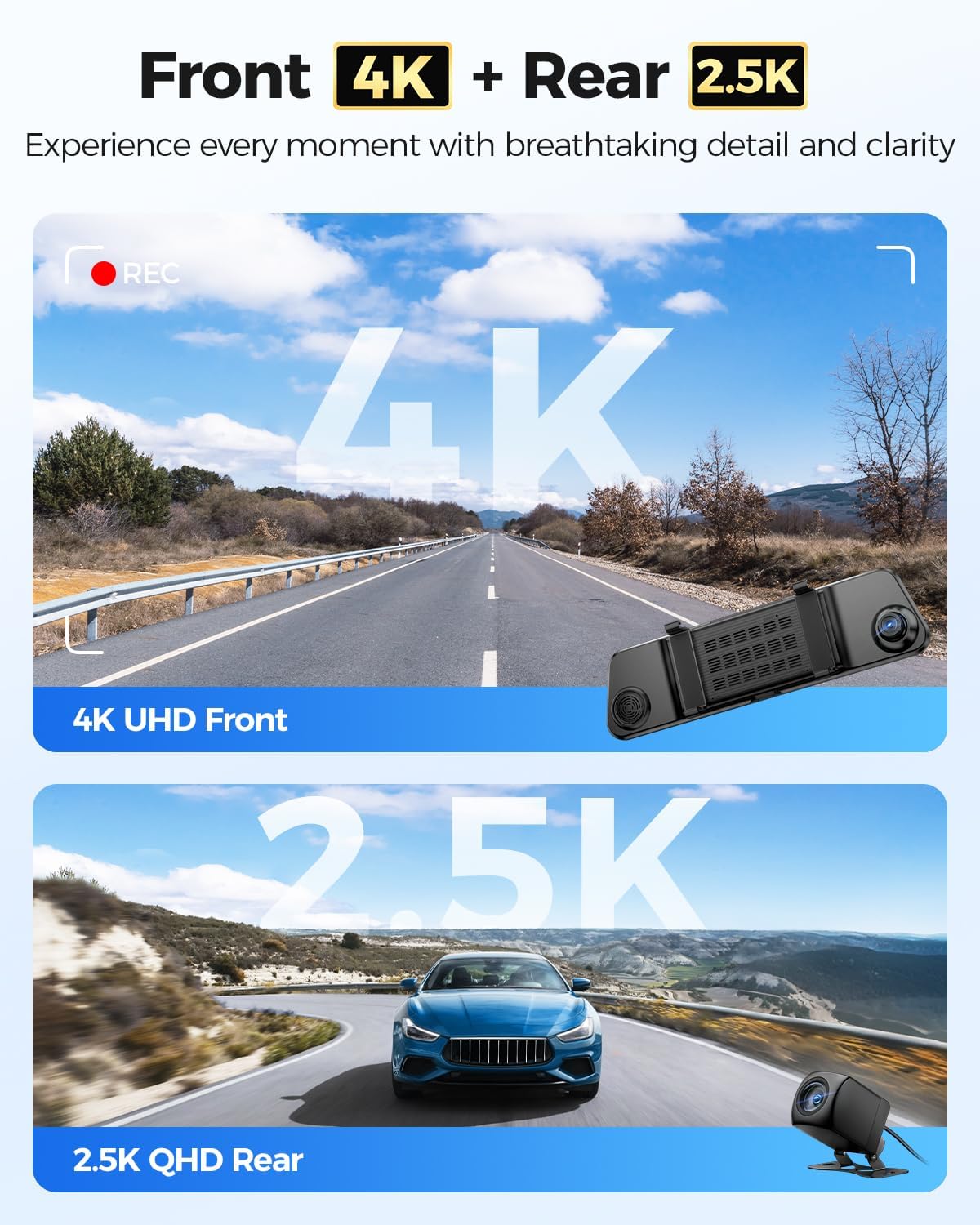
ചിത്രം 3.1: Visual representation of the dash cam's dual recording capabilities, highlighting 4K resolution for the front camera and 2.5K for the rear camera.
4. ഇൻസ്റ്റലേഷൻ
Proper installation is crucial for the optimal performance of your dash cam. Follow these steps carefully:
4.1 Mounting the Mirror Dash Cam
- Secure the AZDOME PG17 Max unit over your existing rearview mirror using the provided rubber straps. Ensure it is firmly attached and does not obstruct your view.
- Adjust the angle of the front camera lens to capture the road ahead clearly.
4.2 പിൻ ക്യാമറ ഇൻസ്റ്റാൾ ചെയ്യുന്നു
- Choose a suitable location for the rear camera, typically above the license plate or inside the rear window. Ensure it has a clear view പിന്നിലെ റോഡിന്റെ.
- Clean the mounting surface thoroughly before attaching the camera.
- Route the 20ft 4 Pin extension cable from the rear camera to the main mirror unit. Conceal the cable along the vehicle's trim for a neat installation.
- Connect the 4 Pin connector of the extension cable to the corresponding port on the main mirror unit.
4.3 പവർ കണക്ഷൻ
- Connect the power cable to the main mirror unit.
- പവർ കേബിളിന്റെ മറ്റേ അറ്റം നിങ്ങളുടെ വാഹനത്തിന്റെ 12V പവർ ഔട്ട്ലെറ്റിലേക്ക് (സിഗരറ്റ് ലൈറ്റർ സോക്കറ്റ്) പ്ലഗ് ചെയ്യുക.
- For continuous parking monitoring, consider hardwiring the dash cam (professional installation recommended).
4.4 GPS Module Installation
- Connect the GPS module to the designated port on the main mirror unit.
- Mount the GPS module on your dashboard or windshield in a location with a clear view of the sky to ensure optimal satellite reception.
5. ഓപ്പറേഷൻ
5.1 അടിസ്ഥാന പ്രവർത്തനങ്ങൾ
- പവർ ഓൺ/ഓഫ്: The dash cam will automatically power on and begin recording when the vehicle's ignition is turned on. It will power off automatically when the ignition is turned off. You can also manually power it on/off using the power button.
- റെക്കോർഡിംഗ്: Loop recording is enabled by default. Videos are saved in segments (e.g., 1, 3, or 5 minutes) and older files are overwritten when the memory card is full, unless they are locked.
- അടിയന്തര റെക്കോർഡിംഗ്: The G-sensor detects sudden impacts or collisions and automatically locks the current video file to prevent it from being overwritten. You can also manually lock a video by pressing the designated button.
- ഡിസ്പ്ലേ മോഡുകൾ: Switch between front camera view, പിൻ ക്യാമറ view, അല്ലെങ്കിൽ സ്പ്ലിറ്റ്-സ്ക്രീൻ view (front and rear) by swiping on the screen or using the display mode button.
5.2 അഡ്വാൻസ്ഡ് ഡ്രൈവർ അസിസ്റ്റൻസ് സിസ്റ്റം (ADAS)
The ADAS feature provides real-time alerts to enhance driving safety. These include:
- ഫോർവേഡ് കൊളിഷൻ മുന്നറിയിപ്പ് (FCW): Alerts you if you are approaching a vehicle too quickly.
- Pedestrian Collision Warning (PCW): Warns of potential collisions with pedestrians.
- ലെയ്ൻ പുറപ്പെടൽ മുന്നറിയിപ്പ് (LDW): Alerts if your vehicle drifts out of its lane without signaling.
- Front Vehicle Start Warning (FVSW): Notifies you when the vehicle in front starts moving from a stop.
- Distance Monitoring: Helps maintain a safe following distance.

ചിത്രം 5.1: Visual explanation of the Advanced Driver Assistance System (ADAS) features, showing how the dash cam detects and alerts for potential road hazards.
5.3 Blind Spot Detection (BSD) & Lane Change Assist (LCA)
These features actively monitor your vehicle's blind spots to prevent accidents during lane changes or when vehicles are in your blind zone.
- Rear Collision Warning: Alerts if a vehicle is rapidly approaching from behind in your blind spot.
- Lane Change Assist: Provides warnings when changing lanes if a vehicle is detected in the blind spot.

ചിത്രം 5.2: Depiction of the Blind Spot Detection (BSD) and Lane Change Assist (LCA) functionalities, showing how the system identifies and warns of vehicles in blind spots.
5.4 5.8GHz WiFi Connectivity & App Control
Connect your dash cam to the AZDOME app on your smartphone for easy access to recordings and settings.
- Download the AZDOME app from the Google Play Store or Apple App Store.
- Enable WiFi on your dash cam (if not already active).
- On your smartphone, connect to the dash cam's WiFi network (SSID and password usually displayed on the dash cam screen or in settings).
- Open the AZDOME app to view തത്സമയംtage, download recorded videos, change settings, and share content. The 5.8GHz WiFi offers faster transfer speeds compared to 2.4GHz.

ചിത്രം 5.3: The AZDOME mobile application interface, demonstrating how users can connect via 5.8GHz WiFi to manage dash cam settings and review footage.
5.5 സ്മാർട്ട് വോയ്സ് കൺട്രോൾ
Operate your dash cam hands-free using voice commands. The device supports 10 specific commands for common actions.
- "Turn off recording"
- "ഡിസ്പ്ലേ ഓഫാക്കുക"
- "വീഡിയോ ലോക്ക് ചെയ്യുക"
- "ചിത്രമെടുക്കുക"
- "മുൻ ക്യാമറ കാണിക്കുക"
- "Open recording"
- "Turn on WiFi"
- "പിൻ ക്യാമറ കാണിക്കുക"
- "Open screen"
- (Additional command, refer to on-screen prompts or specific product documentation if available)

ചിത്രം 5.4: A visual guide to the smart voice control feature, showing various commands that can be used to operate the dash cam hands-free.
5.6 Built-in GPS & Route Tracking
The integrated GPS module records your driving data, which can be reviewed പിന്നീട്.
- Route Tracking: Records your vehicle's path on a map.
- Location Data: Stores precise coordinates.
- Speed Data: Records vehicle speed.
- This data is embedded directly into the video fileകളും ആകാം viewed using the dedicated AZDOME GPS Player software on a computer or via the mobile app.

ചിത്രം 5.5: ഒരു മുൻample of the built-in GPS and route tracking functionality, displaying altitude, speed, and a map of the recorded driving route.
6. ക്രമീകരണ മെനു
Access the settings menu on the dash cam screen to customize various parameters. Use the touch screen or physical buttons (if available) to navigate.
പൊതുവായ ക്രമീകരണങ്ങൾ:
- വീഡിയോ മിഴിവ്: Adjust front and rear camera resolutions (e.g., 4K/2.5K, 1080P).
- ലൂപ്പ് റെക്കോർഡിംഗ്: Set video segment length (e.g., 1, 3, 5 minutes).
- ജി-സെൻസർ സെൻസിറ്റിവിറ്റി: Adjust sensitivity for emergency recording trigger.
- പാർക്കിംഗ് മോണിറ്റർ: Enable/disable and configure parking surveillance modes (requires hardwire kit).
- ADAS/BSD/LCA: Turn these safety features on or off.
- സമ്പർക്കം: തെളിച്ച നില ക്രമീകരിക്കുക.
- സമയ മേഖല: Set the correct time zone for accurate timestamps.
- ഭാഷ: നിങ്ങൾ ഇഷ്ടപ്പെടുന്ന ഭാഷ തിരഞ്ഞെടുക്കുക.
- SD കാർഡ് ഫോർമാറ്റ് ചെയ്യുക: Format the memory card to ensure optimal performance and clear old data.
7. പരിപാലനം
Regular maintenance ensures the longevity and optimal performance of your AZDOME PG17 Max dash cam.
7.1 ഉപകരണം വൃത്തിയാക്കുന്നു
- Use a soft, dry cloth to clean the dash cam unit and lenses.
- Do not use abrasive cleaners or solvents, as they may damage the surface or lens coatings.
- Ensure lenses are free of dust and smudges for clear recordings.
7.2 മെമ്മറി കാർഡ് മാനേജ്മെന്റ്
- Regularly format the memory card (e.g., once a month) to prevent data corruption and ensure smooth recording.
- Use a high-quality, high-speed (Class 10 or U3 recommended) microSD card.
- പതിവായി പിശകുകളോ റെക്കോർഡിംഗ് പ്രശ്നങ്ങളോ അനുഭവപ്പെടുകയാണെങ്കിൽ മെമ്മറി കാർഡ് മാറ്റിസ്ഥാപിക്കുക.
7.3 ഫേംവെയർ അപ്ഡേറ്റുകൾ
- Check the official AZDOME website for available firmware updates.
- Firmware updates can improve performance, add new features, or fix bugs. Follow the instructions provided with the firmware update carefully.
8. പ്രശ്നപരിഹാരം
നിങ്ങളുടെ ഡാഷ് ക്യാമിൽ പ്രശ്നങ്ങൾ നേരിടുകയാണെങ്കിൽ, ഇനിപ്പറയുന്ന പൊതുവായ പ്രശ്നങ്ങളും പരിഹാരങ്ങളും പരിശോധിക്കുക:
| പ്രശ്നം | സാധ്യമായ കാരണം / പരിഹാരം |
|---|---|
| ഡാഷ് ക്യാം പവർ ഓൺ ചെയ്യുന്നില്ല. |
|
| റെക്കോർഡിംഗ് അപ്രതീക്ഷിതമായി നിലയ്ക്കുന്നു. |
|
| വീഡിയോ footage മങ്ങിയതോ അവ്യക്തമോ ആണ്. |
|
| GPS signal is weak or not found. |
|
| വൈഫൈ കണക്ഷൻ പ്രശ്നങ്ങൾ. |
|
9 സ്പെസിഫിക്കേഷനുകൾ
| ഫീച്ചർ | വിശദാംശങ്ങൾ |
|---|---|
| മോഡലിൻ്റെ പേര് | PG17 Max |
| ബ്രാൻഡ് | അസ്ഡോം |
| മുൻവശത്തെ വീഡിയോ റെസല്യൂഷൻ | 4K (3840 x 2160) @ 30fps |
| പിൻ വീഡിയോ റെസല്യൂഷൻ | 2.5K (2560 x 1440) @ 30fps |
| കണക്റ്റിവിറ്റി ടെക്നോളജി | 5.8GHz വൈ-ഫൈ |
| ഉൾപ്പെടുത്തിയ ഘടകങ്ങൾ | Mirror Dash Cam Unit, Rear Camera, GPS Module, Power Cable, 20ft 4 Pin Extension Cable |
| മൗണ്ടിംഗ് തരം | പിൻഭാഗംview കണ്ണാടി മൗണ്ട് |
| പ്രത്യേക സവിശേഷതകൾ | ADAS (Forward Collision, Pedestrian Collision, Lane Departure, Front Vehicle Start, Distance Monitoring), BSD (Blind Spot Detection), LCA (Lane Change Assist), Smart Voice Control, Built-in GPS, Loop Recording, G-Sensor, Parking Monitor (with optional hardwire kit) |
| നിറം | കറുപ്പ് |
| വാഹന സേവന തരം | കാർ |
10. വാറൻ്റിയും പിന്തുണയും
AZDOME products are designed and manufactured to the highest quality standards. For warranty information, technical support, or customer service inquiries, please visit the official AZDOME webസൈറ്റിൽ ബന്ധപ്പെടുകയോ അവരുടെ ഉപഭോക്തൃ പിന്തുണാ ടീമിനെ നേരിട്ട് ബന്ധപ്പെടുകയോ ചെയ്യുക.
Official AZDOME Webസൈറ്റ്: www.azdome.com
Please have your product model (PG17 Max) and purchase details ready when contacting support.
Ask a question about this manual
Ask about setup, troubleshooting, compatibility, parts, safety, or missing instructions. Manuals+ will review the question and use this page’s manual context to help answer it.