
1. ആമുഖം
Thank you for choosing the VENTION 15-in-1 Laptop Docking Station. This device is designed to expand the connectivity of your laptop, providing a comprehensive solution for multiple peripherals, external displays, network access, and power delivery through a single USB-C connection. Please read this manual carefully to ensure proper installation and operation.
2. ഉൽപ്പന്നം കഴിഞ്ഞുview
The VENTION 15-in-1 Docking Station offers a wide array of ports to enhance your workstation. Its rotatable design allows for flexible placement on your desk.
2.1. Docking Station Features
- 15-ഇൻ-1 കണക്റ്റിവിറ്റി: Comprehensive port selection for various devices.
- Dual/Triple Display Output: Supports up to three external monitors via 2 HDMI and 1 DisplayPort.
- Power Delivery (PD 100W): Charges your laptop while connected.
- ഹൈ-സ്പീഡ് ഡാറ്റ ട്രാൻസ്ഫർ: USB 3.2 Gen 2 ports offer up to 10Gbps.
- ഗിഗാബൈറ്റ് ഇഥർനെറ്റ്: Provides stable and fast wired network connection.
- കാർഡ് റീഡർ: Integrated SD/TF card slots for quick data access.
- ഓഡിയോ ജാക്ക്: 3.5mm TRRS port for headphones or microphones.
- തിരിയാവുന്ന ഡിസൈൻ: Allows for optimal positioning and cable management.
- നീണ്ടുനിൽക്കുന്ന നിർമ്മാണം: Aluminum alloy shell for optimal heat dissipation.
2.2. പോർട്ട് ലേഔട്ട്
Familiarize yourself with the ports on the docking station:

ചിത്രം: മുന്നിലും പിന്നിലും view of the VENTION 15-in-1 Docking Station, showcasing its compact design and port arrangement.

Image: A detailed diagram illustrating all 15 ports on the docking station, including their types and functions.
- ഫ്രണ്ട് പോർട്ടുകൾ: SD/TF Card Slot, USB 3.0 (5Gbps), 2x USB 3.2 Gen 2 Type-A (10Gbps), USB 3.2 Gen 2 Type-C (10Gbps), USB 3.2 Gen 1 Type-C (5Gbps), 3.5mm TRRS Audio Jack.
- പിൻ തുറമുഖങ്ങൾ: PD (Power Delivery 100W Max Input), PC HOST (USB-C connection to laptop), 2x USB 2.0 Type-A (480Mbps), 2x HDMI (4K@60Hz), 1x DisplayPort (4K@60Hz), RJ45 Gigabit Ethernet.
3. സജ്ജീകരണ ഗൈഡ്
നിങ്ങളുടെ ഡോക്കിംഗ് സ്റ്റേഷൻ സജ്ജീകരിക്കാൻ ഈ ഘട്ടങ്ങൾ പാലിക്കുക:
- ഉപകരണം അൺപാക്ക് ചെയ്യുക: Carefully remove the docking station and included accessories from the packaging.
- സ്റ്റാൻഡ് സ്ഥാപിക്കുക: The docking station features a detachable and rotatable U-shaped stand. Attach the stand to the base of the docking station for vertical placement, ensuring stability. The anti-slip pads on the stand provide protection and grip.
- പവർ കണക്റ്റ് ചെയ്യുക (ഓപ്ഷണൽ പക്ഷേ ശുപാർശ ചെയ്യുന്നു): For optimal performance and laptop charging, connect a USB-C power adapter (not included) to the PD (Power Delivery) port on the rear of the docking station. The docking station supports up to 100W power input.
- ലാപ്ടോപ്പിലേക്ക് കണക്റ്റുചെയ്യുക: Use the provided USB-C to USB-C cable to connect your laptop to the PC HOST port on the rear of the docking station. Ensure your laptop's USB-C port is a full-featured port or Thunderbolt 3/4 compatible for full functionality.

Image: Visual guide to identify compatible Thunderbolt or full-featured USB-C ports on your laptop, essential for the docking station's functionality.
Once connected, your laptop should automatically detect the docking station and its connected peripherals. Drivers are typically installed automatically by your operating system.
4. പ്രവർത്തന നിർദ്ദേശങ്ങൾ
4.1. ഡിസ്പ്ലേ കണക്ഷൻ
The docking station supports single, dual, or triple external displays. Connect your monitors to the HDMI and DisplayPort outputs on the rear of the docking station.

Image: A laptop connected to a single external 4K monitor through the docking station, demonstrating high-resolution display capabilities.
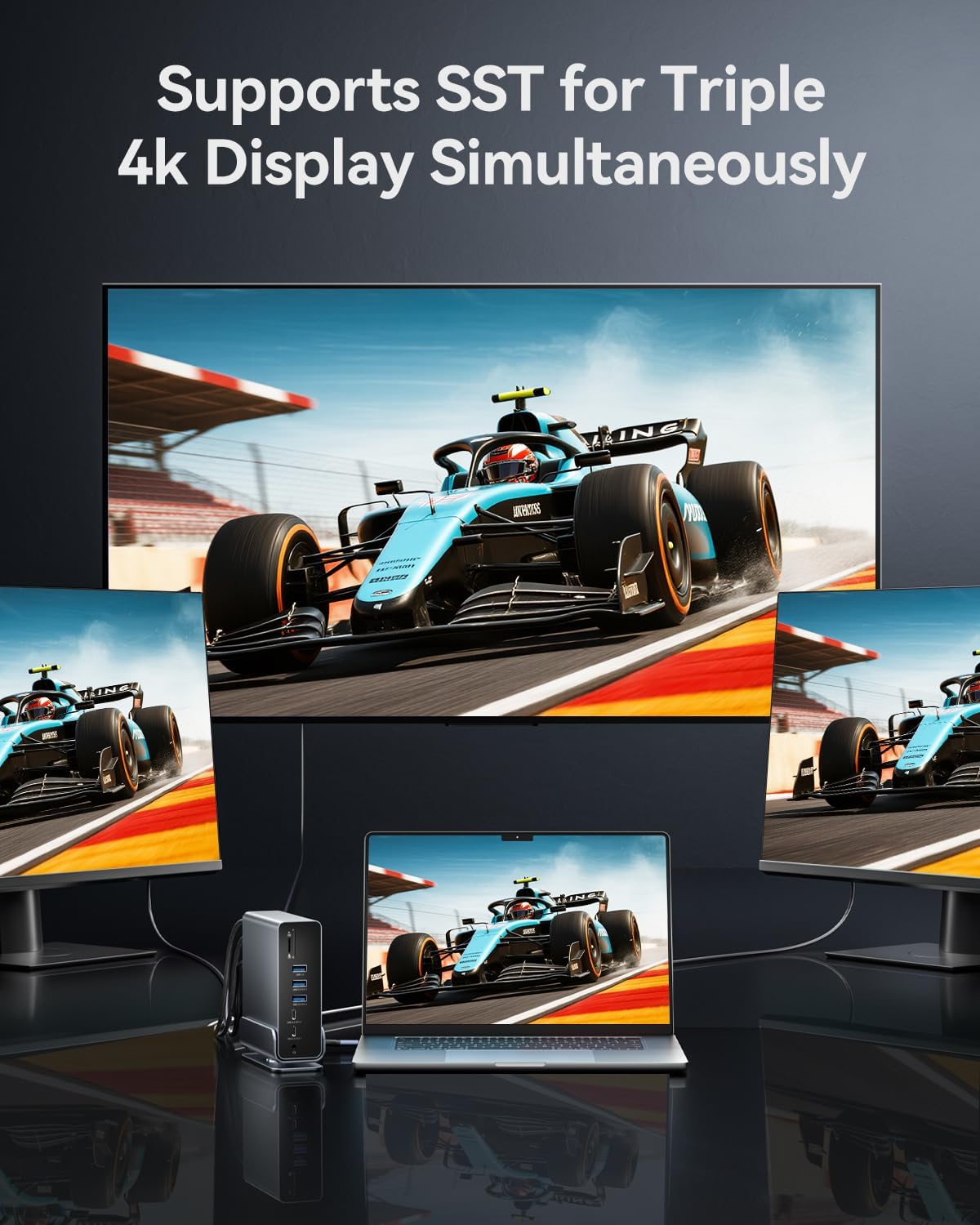
Image: A laptop connected to three external 4K monitors simultaneously, showcasing the triple display support of the docking station.
ഡിസ്പ്ലേ മോഡുകൾ:
- മിറർ മോഡ്: Duplicates your laptop's screen on external monitors.
- വിപുലീകരണ മോഡ്: Extends your desktop across multiple screens, allowing for increased workspace.
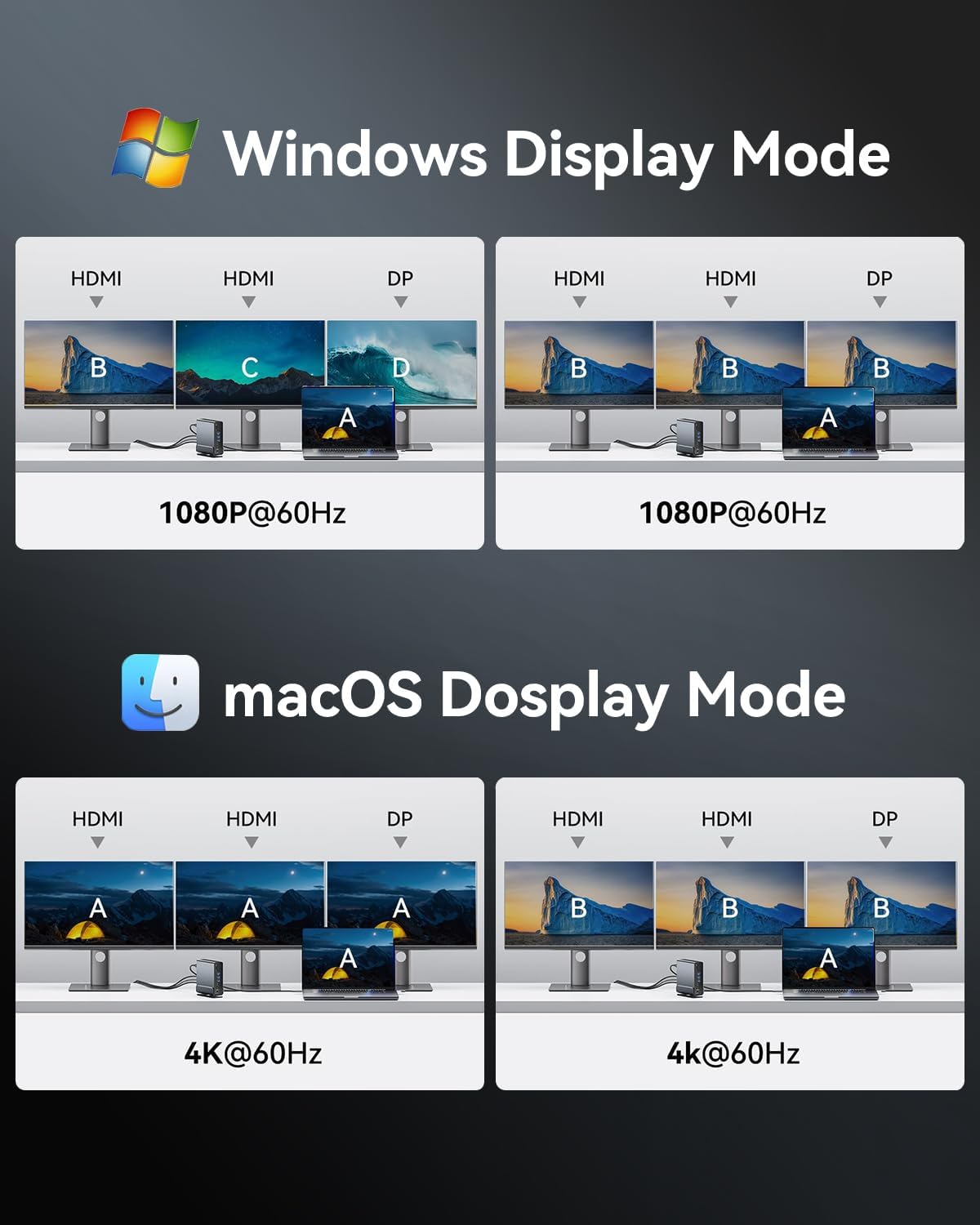
Image: Visual representations of various display configurations for Windows and macOS, including mirror and extend modes across multiple screens.

Image: A table detailing the highest supported resolutions and display modes for single, dual, and triple monitor setups on both Windows and macOS.
4.2. പവർ ഡെലിവറി
Connect your laptop's power adapter to the PD port on the docking station to charge your laptop while using the dock. The docking station supports up to 100W power input, delivering up to 85W to your laptop.

Image: A laptop receiving power through the docking station's 100W Power Delivery port, illustrating the charging function.
4.3. ഡാറ്റ കൈമാറ്റം
Connect your USB devices (external hard drives, flash drives, keyboards, mice, etc.) to the available USB ports. The docking station features a mix of USB 3.2 Gen 2 (10Gbps), USB 3.0 (5Gbps), and USB 2.0 (480Mbps) ports.

Image: An illustration detailing the data transfer speeds of different USB ports (Type-A and Type-C) and SD/TF card slots on the docking station.
Insert SD or TF cards into the dedicated slots on the front of the docking station for quick access to photos and files. രണ്ട് സ്ലോട്ടുകളും ഒരേസമയം ഉപയോഗിക്കാൻ കഴിയും.

Image: A laptop connected to the docking station, demonstrating easy access to SD and TF memory cards for data transfer and backup.
4.4. നെറ്റ്വർക്ക് കണക്ഷൻ
For a stable and fast internet connection, connect an Ethernet cable from your router or modem to the RJ45 Gigabit Ethernet port on the rear of the docking station.

Image: A laptop connected to the docking station, which is then connected to a network via the Gigabit Ethernet port, ensuring a fast and stable internet connection.
4.5. ഓഡിയോ കണക്ഷൻ
Connect your headphones, speakers, or microphone to the 3.5mm TRRS audio jack on the front of the docking station.

Image: A laptop connected to the docking station, with headphones plugged into the 3.5mm audio and microphone jack, facilitating audio input and output.
5 അനുയോജ്യത
The VENTION 15-in-1 Docking Station is compatible with a wide range of devices and operating systems, provided your laptop has a full-featured USB-C port or Thunderbolt 3/4 interface.
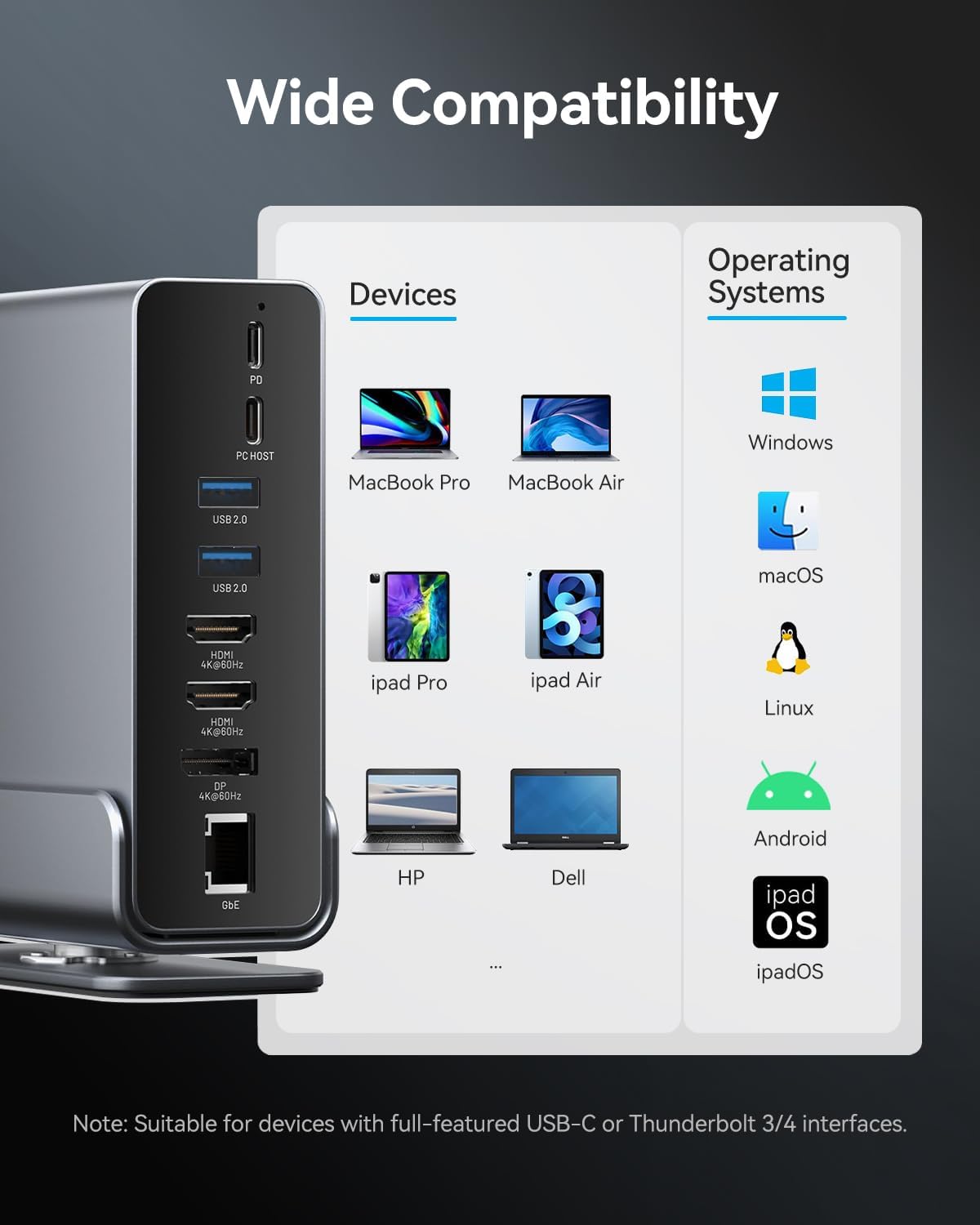
Image: A chart illustrating the wide compatibility of the docking station with various devices such as MacBook Pro/Air, iPad Pro/Air, HP, Dell, Surface, and operating systems including Windows, macOS, Linux, Android, and iPadOS.
പിന്തുണയ്ക്കുന്ന ഓപ്പറേറ്റിംഗ് സിസ്റ്റങ്ങൾ:
- വിൻഡോസ്
- macOS
- ലിനക്സ്
- ആൻഡ്രോയിഡ്
- iPadOS
കുറിപ്പ്: Full functionality, especially for multiple displays and power delivery, requires a USB-C port that supports DisplayPort Alternate Mode (Alt Mode) and Power Delivery. Thunderbolt 3/4 ports are fully compatible.
6. പരിപാലനം
നിങ്ങളുടെ ഡോക്കിംഗ് സ്റ്റേഷന്റെ ദീർഘായുസ്സും ഒപ്റ്റിമൽ പ്രകടനവും ഉറപ്പാക്കാൻ, ഈ അറ്റകുറ്റപ്പണി മാർഗ്ഗനിർദ്ദേശങ്ങൾ പാലിക്കുക:
- വൃത്തിയാക്കൽ: Use a soft, dry cloth to wipe the exterior of the docking station. Avoid using liquid cleaners or abrasive materials.
- സംഭരണം: നേരിട്ടുള്ള സൂര്യപ്രകാശത്തിൽ നിന്നും കടുത്ത താപനിലയിൽ നിന്നും അകന്ന് തണുത്തതും വരണ്ടതുമായ സ്ഥലത്ത് ഡോക്കിംഗ് സ്റ്റേഷൻ സൂക്ഷിക്കുക.
- കൈകാര്യം ചെയ്യൽ: ശക്തമായ ആഘാതങ്ങൾക്ക് ഉപകരണം ഇടുകയോ ഇടുകയോ ചെയ്യുന്നത് ഒഴിവാക്കുക.
- വെൻ്റിലേഷൻ: Ensure the docking station has adequate ventilation to prevent overheating. The aluminum alloy shell is designed for optimal heat dissipation.
7. പ്രശ്നപരിഹാരം
നിങ്ങളുടെ ഡോക്കിംഗ് സ്റ്റേഷനിൽ പ്രശ്നങ്ങൾ നേരിടുകയാണെങ്കിൽ, ഇനിപ്പറയുന്ന പൊതുവായ പരിഹാരങ്ങൾ പരിശോധിക്കുക:
- ഡിസ്പ്ലേ ഔട്ട്പുട്ട് ഇല്ല:
- നിങ്ങളുടെ ലാപ്ടോപ്പിന്റെ USB-C പോർട്ട് DisplayPort Alt മോഡിനെ പിന്തുണയ്ക്കുന്നുണ്ടെന്ന് ഉറപ്പാക്കുക.
- എല്ലാ കേബിൾ കണക്ഷനുകളും പരിശോധിക്കുക (ലാപ്ടോപ്പിലേക്ക് USB-C, മോണിറ്ററുകളിലേക്ക് HDMI/DP).
- മോണിറ്റർ ഇൻപുട്ട് ക്രമീകരണങ്ങൾ ശരിയാണെന്ന് ഉറപ്പാക്കുക.
- Try updating your laptop's graphics drivers.
- നിങ്ങളുടെ ലാപ്ടോപ്പ് പുനരാരംഭിച്ച് ഡോക്കിംഗ് സ്റ്റേഷൻ വീണ്ടും ബന്ധിപ്പിക്കുക.
- ലാപ്ടോപ്പ് ചാർജ് ചെയ്യുന്നില്ല:
- Ensure a compatible USB-C power adapter is connected to the PD port.
- Verify the power adapter provides sufficient wattage (100W വരെ ശുപാർശ ചെയ്യുന്നു).
- Check the connection between the power adapter and the docking station.
- തിരിച്ചറിയാത്ത USB ഉപകരണങ്ങൾ:
- Ensure the USB device is properly inserted into the port.
- Try connecting the device to a different USB port on the docking station or directly to your laptop.
- നിങ്ങളുടെ ലാപ്ടോപ്പ് പുനരാരംഭിക്കുക.
- ഇടവിട്ടുള്ള കണക്ഷനുകൾ:
- എല്ലാ കേബിളുകളും സുരക്ഷിതമായി ബന്ധിപ്പിച്ചിട്ടുണ്ടെന്ന് ഉറപ്പാക്കുക.
- Avoid excessive bending or strain on the USB-C cable connecting to your laptop.
- Ensure the docking station is placed on a stable surface and not subject to movement.
- ഇതർനെറ്റ് പ്രവർത്തിക്കുന്നില്ല:
- ഡോക്കിംഗ് സ്റ്റേഷനിലേക്കും നിങ്ങളുടെ റൂട്ടറിലേക്കും/മോഡത്തിലേക്കുമുള്ള ഇതർനെറ്റ് കേബിൾ കണക്ഷൻ പരിശോധിക്കുക.
- Verify network settings on your laptop.
- നിങ്ങളുടെ റൂട്ടർ/മോഡം പുനരാരംഭിക്കുക.
If the issue persists, please contact VENTION customer support for further assistance.
8 സ്പെസിഫിക്കേഷനുകൾ
| ഫീച്ചർ | സ്പെസിഫിക്കേഷൻ |
|---|---|
| മോഡൽ | B0F5PTZTCP |
| തുറമുഖങ്ങൾ | 15 (2x HDMI, 1x DP, 1x RJ45, 1x PD, 1x PC Host, 2x USB 3.2 Gen 2 Type-A, 1x USB 3.0 Type-A, 2x USB 2.0 Type-A, 1x USB 3.2 Gen 2 Type-C, 1x USB 3.2 Gen 1 Type-C, 1x SD, 1x TF, 1x 3.5mm Audio) |
| വീഡിയോ ഔട്ട്പുട്ട് | 2x HDMI (4K@60Hz), 1x DisplayPort (4K@60Hz) |
| പവർ ഡെലിവറി | PD 100W Input (Max), 85W Output to Host (Max) |
| USB ഡാറ്റ കൈമാറ്റം | USB 3.2 Gen 2: 10Gbps, USB 3.0: 5Gbps, USB 2.0: 480Mbps |
| ഇഥർനെറ്റ് | ഗിഗാബിറ്റ് ഇഥർനെറ്റ് (10/100/1000Mbps) |
| കാർഡ് റീഡർ | SD/TF (Read & Write 2 cards simultaneously) |
| ഓഡിയോ | 3.5mm TRRS Audio/Microphone Jack |
| മെറ്റീരിയൽ | അലുമിനിയം അലോയ് |
| അളവുകൾ | 7.9 x 6.7 x 2.34 ഇഞ്ച് |
| ഭാരം | 1.76 പൗണ്ട് (0.8 കി.ഗ്രാം) |
9. ബോക്സിൽ എന്താണുള്ളത്?
പാക്കേജിൽ ഇനിപ്പറയുന്ന ഇനങ്ങൾ ഉൾപ്പെടുന്നു:
- VENTION 15-in-1 Laptop Docking Station
- 1.5ft USB-C to USB-C Cable
- ഉപയോക്തൃ മാനുവൽ (ഈ പ്രമാണം)

Image: An illustration showing the contents included in the product package: the docking station, a USB-C cable, and the user manual.
10. വാറൻ്റിയും പിന്തുണയും
VENTION products are designed for reliability and performance. For warranty information or technical support, please refer to the contact details provided on the product packaging or visit the official VENTION webവാറന്റി ക്ലെയിമുകൾക്കുള്ള വാങ്ങലിന്റെ തെളിവായി നിങ്ങളുടെ വാങ്ങൽ രസീത് സൂക്ഷിക്കുക.