
ആമുഖം
The Grandstream GWN7062E is a high-performance Wi-Fi 6 dual-band router designed for small offices, home offices, and remote work environments. It delivers wireless speeds up to 3Gbps and supports up to 128 concurrent client devices. Key features include secure VPN access, MU-MIMO technology, beamforming, and mesh network support for expanded coverage and reliable performance. Powered by a 1.3GHz dual-core processor, the GWN7062E integrates enterprise-grade security features and can be managed via Grandstream’s cloud and on-premise platforms.
പാക്കേജ് ഉള്ളടക്കം
നിങ്ങളുടെ പാക്കേജിൽ എല്ലാ ഇനങ്ങളും ഉണ്ടെന്ന് ഉറപ്പാക്കുക:
- GWN7062E റൂട്ടർ
- പവർ അഡാപ്റ്റർ
- ഇഥർനെറ്റ് കേബിൾ
- ദ്രുത ഇൻസ്റ്റലേഷൻ ഗൈഡ്
ഉൽപ്പന്നം കഴിഞ്ഞുview
ഫ്രണ്ട് പാനൽ
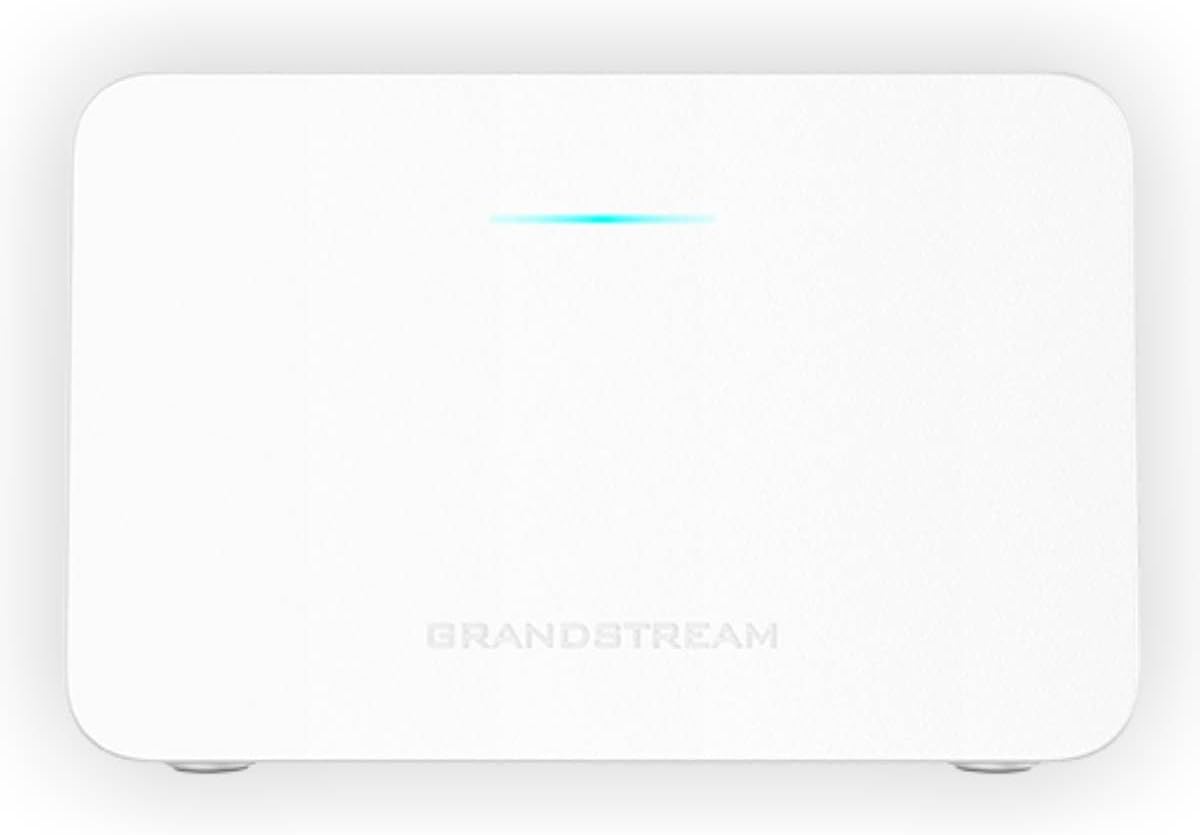
ചിത്രം 1: മുൻഭാഗം view of the GWN7062E router with a single LED indicator.
The front panel of the GWN7062E features a single LED indicator. This LED provides status information about the device's operation, including power status, internet connectivity, and Wi-Fi activity. Refer to the Quick Installation Guide for specific LED behavior interpretations.
പിൻ പാനൽ
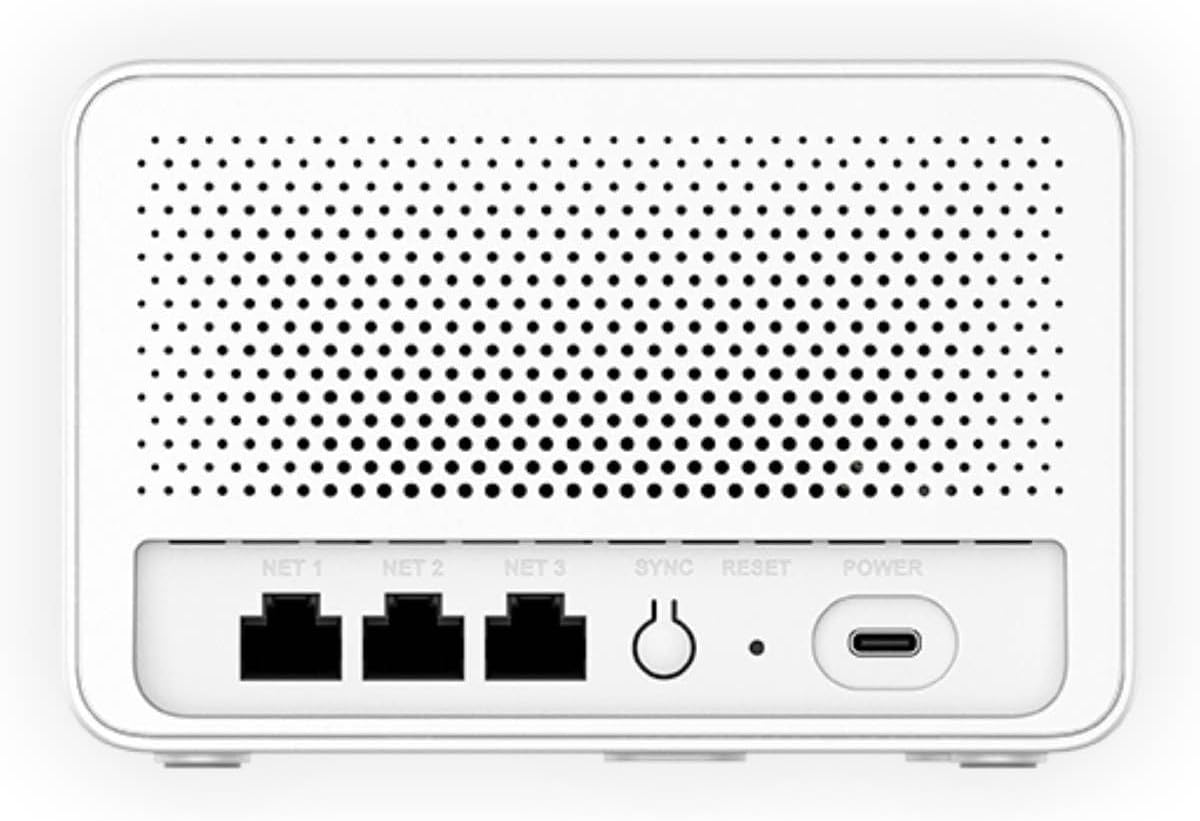
ചിത്രം 2: പിൻഭാഗം view of the GWN7062E router showing Ethernet ports, SYNC, RESET, and POWER ports.
The rear panel provides all necessary connection points and control buttons:
- NET 1, NET 2, NET 3: Gigabit Ethernet ports for WAN and LAN connections. Typically, NET 1 is used for the WAN (Internet) connection, while NET 2 and NET 3 serve as LAN ports for wired devices.
- സമന്വയം: Button used for mesh networking synchronization with other Grandstream routers.
- പുന SE സജ്ജമാക്കുക: Button to restore the router to factory default settings. Press and hold for approximately 10 seconds while the device is powered on.
- പവർ: USB-C port for connecting the included power adapter.
സജ്ജമാക്കുക
ഹാർഡ്വെയർ ഇൻസ്റ്റാളേഷൻ
- പവർ ബന്ധിപ്പിക്കുക: Connect the included power adapter to the POWER port on the rear of the GWN7062E and then plug the adapter into a power outlet. The LED indicator on the front panel will illuminate.
- ഇന്റർനെറ്റിലേക്ക് കണക്റ്റുചെയ്യുക: Connect one end of the provided Ethernet cable to the WAN port (typically NET 1) on the GWN7062E and the other end to your modem or internet service provider's device.
- ഉപകരണങ്ങൾ ബന്ധിപ്പിക്കുക (ഓപ്ഷണൽ): For wired connections, connect Ethernet cables from your computers or other network devices to the LAN ports (NET 2 or NET 3) on the GWN7062E.
പ്രാരംഭ കോൺഫിഗറേഷൻ
After hardware installation, configure your router using the web ഇൻ്റർഫേസ്:
- റൂട്ടറുമായി ബന്ധിപ്പിക്കുക:
- വയർലെസ്: Connect your computer or mobile device to the default Wi-Fi network (SSID) broadcast by the GWN7062E. The default SSID and password are usually printed on a label on the bottom of the router.
- വയർ: Ensure your computer is connected to a LAN port (NET 2 or NET 3) of the GWN7062E.
- പ്രവേശനം Web UI: എ തുറക്കുക web ബ്രൗസർ ചെയ്ത് സ്ഥിരസ്ഥിതി IP വിലാസം നൽകുക (ഉദാ. http://192.168.1.1) or the router's domain name (if applicable, check the label) in the address bar.
- ലോഗിൻ: Enter the default username and password. These credentials are typically found on the router's label.
- പ്രാരംഭ സജ്ജീകരണ വിസാർഡ്: Follow the on-screen instructions of the setup wizard to change the default administrator password, configure your internet connection settings, and set up your Wi-Fi network name (SSID) and password. It is highly recommended to change all default credentials for security.
പ്രവർത്തന നിർദ്ദേശങ്ങൾ
വൈഫൈ നെറ്റ്വർക്ക് സജ്ജീകരണം
To customize your wireless network settings:
- Log in to the GWN7062E web ഇൻ്റർഫേസ്.
- Navigate to the 'Wi-Fi' or 'Wireless Settings' section.
- You can configure the 2.4GHz and 5GHz bands separately. Change the SSID (network name) and set a strong WPA2/WPA3 password for each.
- Save your changes. Your devices will need to reconnect using the new SSID and password.
വിപുലമായ സവിശേഷതകൾ
- VPN പിന്തുണ: The GWN7062E includes built-in VPN support, allowing remote employees to securely access corporate networks. Configuration options are available in the 'VPN' section of the web ഇൻ്റർഫേസ്.
- മെഷ് നെറ്റ്വർക്കിംഗ്: Expand your Wi-Fi coverage by integrating the GWN7062E with other Grandstream routers to form a mesh network. Use the SYNC button or the web interface to establish mesh connections.
- Firewall Features: Utilize the router's rich firewall capabilities, including Denial of Service (DoS) protection, network blocklists, and URL content filtering, to enhance network security. These settings are typically found under 'Security' or 'Firewall' in the web ഇൻ്റർഫേസ്.
- അതിഥി നെറ്റ്വർക്ക്: Create separate guest Wi-Fi networks to provide internet access to visitors without compromising your main network's security.
മെയിൻ്റനൻസ്
- ഫേംവെയർ അപ്ഡേറ്റുകൾ: Regularly check for and install firmware updates from the Grandstream webസൈറ്റ് അല്ലെങ്കിൽ റൂട്ടർ വഴി web ഇന്റർഫേസ്. ഫേംവെയർ അപ്ഡേറ്റുകൾ പുതിയ സവിശേഷതകൾ, പ്രകടന മെച്ചപ്പെടുത്തലുകൾ, സുരക്ഷാ പാച്ചുകൾ എന്നിവ നൽകുന്നു.
- ഫാക്ടറി പുന et സജ്ജമാക്കുക: If you encounter persistent issues or forget your administrator password, you can perform a factory reset. With the router powered on, press and hold the RESET button on the rear panel for approximately 10 seconds. This will erase all custom configurations and restore the device to its original factory settings.
- വൃത്തിയാക്കൽ: Keep the router in a clean, dust-free environment. Use a soft, dry cloth to clean the exterior. Do not use liquid cleaners or aerosols. Ensure ventilation openings are not obstructed.
ട്രബിൾഷൂട്ടിംഗ്
| ഇഷ്യൂ | സാധ്യമായ പരിഹാരം |
|---|---|
| ഇൻ്റർനെറ്റ് കണക്ഷനില്ല |
|
| ആക്സസ് ചെയ്യാൻ കഴിയില്ല Web ഇൻ്റർഫേസ് |
|
| Wi-Fi Network Not Visible |
|
| കുറഞ്ഞ വൈ-ഫൈ വേഗത |
|
സ്പെസിഫിക്കേഷനുകൾ
| ഫീച്ചർ | വിശദാംശങ്ങൾ |
|---|---|
| ബ്രാൻഡ് | ഗ്രാൻഡ് സ്ട്രീം |
| മോഡലിൻ്റെ പേര് | GWN7062E |
| വയർലെസ് സ്റ്റാൻഡേർഡ് | Wi-Fi 6 (802.11ax) |
| വയർലെസ് ത്രൂപുട്ട് | 3Gbps വരെ |
| ഫ്രീക്വൻസി ബാൻഡ് ക്ലാസ് | ഡ്യുവൽ-ബാൻഡ് (2.4 GHz & 5 GHz) |
| MIMO ടെക്നോളജി | 2.4G 2x2:2 and 5G 3x3:2 MU-MIMO |
| സമാന്തര ഉപകരണങ്ങൾ | Up to 128 wireless client devices |
| പ്രോസസ്സർ | 1.3GHz ഡ്യുവൽ-കോർ |
| തുറമുഖങ്ങൾ | 3 Gigabit Ethernet ports (NET 1, NET 2, NET 3), 1 USB-C Power port |
| പ്രത്യേക സവിശേഷതകൾ | VPN Support, Mesh Networking, Enterprise-Grade Security, Firewall Features |
| സുരക്ഷാ പ്രോട്ടോക്കോൾ | WPA2-PSK, WPA3, WPA2-Enterprise, WPA-Enterprise |
| ഇനത്തിൻ്റെ ഭാരം | 16 ഔൺസ് |
| ഉൾപ്പെടുത്തിയ ഘടകങ്ങൾ | GWN7062E router, Power Adapter, Ethernet Cable, Quick Installation Guide |
വാറൻ്റിയും പിന്തുണയും
For warranty information and technical support, please contact Grandstream directly. Details regarding product warranty periods and support channels are typically available on the official Grandstream website or within the product's packaging.
നിർമ്മാതാവ്: ഗ്രാൻഡ് സ്ട്രീം
നിർമ്മാതാവിനെ ബന്ധപ്പെടാനുള്ള വിവരങ്ങൾ: Refer to the official Grandstream webഏറ്റവും പുതിയ കോൺടാക്റ്റ് വിശദാംശങ്ങൾക്കും പിന്തുണാ ഉറവിടങ്ങൾക്കുമുള്ള സൈറ്റ്.