
DOMO SLP9
DOMO Slate SLP9 OS12 T310 Tablet PC User Manual
Model: SLP9
ആമുഖം
This manual provides essential information for the proper use and maintenance of your DOMO Slate SLP9 OS12 T310 Tablet PC. Please read it thoroughly before operating the device to ensure optimal performance and longevity.
ബോക്സിൽ എന്താണുള്ളത്
- 1 Pc DOMO Slate SLP9 OS12 T310 Tablet PC
- 1 Pc Charging Power Adapter
- 1 Pc Type-C USB Cable
- 1 Pc Type-C OTG Cable
- 1 Sim Card Tray Eject Pin
- ഉപയോക്തൃ മാനുവൽ (ഈ പ്രമാണം)
ഉൽപ്പന്നം കഴിഞ്ഞുview
Familiarize yourself with the physical components of your DOMO Slate SLP9 OS12 T310 Tablet PC.
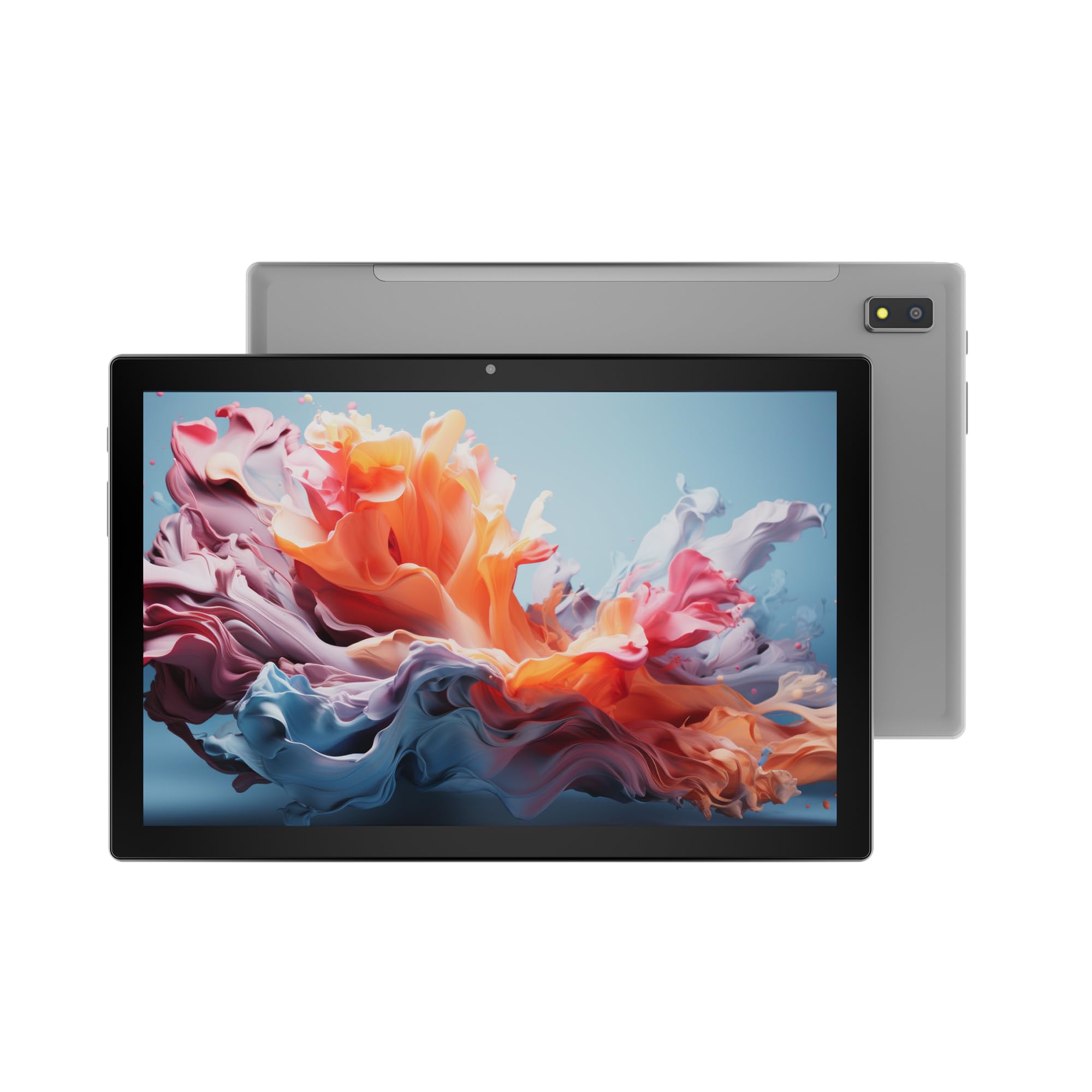
ചിത്രം 1: ഫ്രണ്ട് view of the DOMO Slate SLP9 OS12 T310 Tablet PC, showcasing the 10.1-inch IPS LCD display.

ചിത്രം 2: കോണാകൃതിയിലുള്ളത് view of the tablet, highlighting its slim profile സ്ക്രീനും.

ചിത്രം 3: വശം view of the tablet, showing the placement of buttons and ports.

ചിത്രം 4: പിൻഭാഗം view of the tablet, displaying the camera module and branding.
പ്രധാന ഘടകങ്ങൾ
- 10.1-inch IPS HD LCD Display: വ്യക്തമായ ദൃശ്യങ്ങൾക്കായി ഉയർന്ന റെസല്യൂഷനുള്ള സ്ക്രീൻ.
- മുൻ ക്യാമറ: Located above the screen for video calls and selfies.
- Rear Camera with LED Flash: ഫോട്ടോകളും വീഡിയോകളും എടുക്കുന്നതിന്.
- പവർ ബട്ടൺ: ഉപകരണം ഓൺ/ഓഫ് ആക്കാനോ നിദ്രയിലാക്കാനോ.
- വോളിയം ബട്ടണുകൾ: ഓഡിയോ ലെവലുകൾ ക്രമീകരിക്കാൻ.
- ടൈപ്പ്-സി യുഎസ്ബി പോർട്ട്: ചാർജിംഗിനും ഡാറ്റ കൈമാറ്റത്തിനും.
- ഡ്യുവൽ സിം സ്ലോട്ട്: Supports 4G, 3G, and 2G SIM cards for cellular connectivity and voice calling.
- മൈക്രോ എസ്ഡി കാർഡ് സ്ലോട്ട്: 1TB വരെ വികസിപ്പിക്കാവുന്ന സംഭരണത്തിനായി.
- Dual Box Type Speakers: ഓഡിയോ ഔട്ട്പുട്ടിനായി.
സജ്ജമാക്കുക
1. ടാബ്ലെറ്റ് ചാർജ് ചെയ്യുന്നു
Before first use, fully charge your tablet. Connect the provided Type-C USB cable to the tablet's Type-C port and the other end to the charging power adapter. Plug the adapter into a wall outlet. The battery indicator on the screen will show charging status.
2. സിം, മൈക്രോ എസ്ഡി കാർഡുകൾ ചേർക്കൽ
- ടാബ്ലെറ്റിന്റെ വശത്ത് സിം/മൈക്രോ എസ്ഡി കാർഡ് ട്രേ കണ്ടെത്തുക.
- Insert the provided SIM eject pin into the small hole next to the tray to open it.
- Carefully place your 4G/3G/2G SIM card(s) and/or MicroSD card into the designated slots on the tray. Ensure correct orientation as indicated on the tray.
- ട്രേ അതിന്റെ സ്ഥാനത്ത് ക്ലിക്കു ചെയ്യുന്നത് വരെ ടാബ്ലെറ്റിലേക്ക് പതുക്കെ തിരികെ തള്ളുക.
3. പ്രാരംഭ പവർ ഓണും സജ്ജീകരണവും
- അമർത്തിപ്പിടിക്കുക പവർ ബട്ടൺ until the DOMO logo appears on the screen.
- നിങ്ങളുടെ ഭാഷ തിരഞ്ഞെടുക്കുന്നതിനും, ഒരു Wi-Fi നെറ്റ്വർക്കിലേക്ക് കണക്റ്റുചെയ്യുന്നതിനും, നിങ്ങളുടെ Google അക്കൗണ്ട് സജ്ജീകരിക്കുന്നതിനും, മറ്റ് പ്രാരംഭ ക്രമീകരണങ്ങൾ കോൺഫിഗർ ചെയ്യുന്നതിനും ഓൺ-സ്ക്രീൻ നിർദ്ദേശങ്ങൾ പാലിക്കുക.
- Once setup is complete, your tablet is ready for use.
പ്രവർത്തന നിർദ്ദേശങ്ങൾ
അടിസ്ഥാന നാവിഗേഷൻ
- സ്പർശിക്കുക: ഒരു ആപ്പ് തുറക്കാൻ ഒരു ഐറ്റം തിരഞ്ഞെടുക്കാനോ ഐക്കണിൽ ടാപ്പ് ചെയ്യാനോ.
- സ്പർശിച്ച് പിടിക്കുക: സന്ദർഭോചിത മെനുകൾ ആക്സസ് ചെയ്യുന്നതിനോ ഐക്കണുകൾ നീക്കുന്നതിനോ ഒരു ഇനം അമർത്തിപ്പിടിക്കുക.
- സ്വൈപ്പ്: പേജുകളിലൂടെയോ ലിസ്റ്റുകളിലൂടെയോ സ്ക്രോൾ ചെയ്യാൻ സ്ക്രീനിലുടനീളം നിങ്ങളുടെ വിരൽ വലിച്ചിടുക.
- പിഞ്ച്: ഫോട്ടോകളിൽ സൂം ഇൻ അല്ലെങ്കിൽ ഔട്ട് ചെയ്യാൻ രണ്ട് വിരലുകൾ ഉപയോഗിക്കുക, web പേജുകൾ.
നെറ്റ്വർക്കുകളിലേക്ക് കണക്റ്റുചെയ്യുന്നു
Wi-Fi കണക്ഷൻ
- പോകുക ക്രമീകരണങ്ങൾ > നെറ്റ്വർക്കും ഇൻ്റർനെറ്റും > വൈഫൈ.
- വൈഫൈ ടോഗിൾ ചെയ്യുക On.
- ലിസ്റ്റിൽ നിന്ന് നിങ്ങൾക്ക് ആവശ്യമുള്ള നെറ്റ്വർക്ക് തിരഞ്ഞെടുത്ത് ആവശ്യപ്പെടുകയാണെങ്കിൽ പാസ്വേഡ് നൽകുക.
ബ്ലൂടൂത്ത് ജോടിയാക്കൽ
- പോകുക ക്രമീകരണങ്ങൾ > ബന്ധിപ്പിച്ച ഉപകരണങ്ങൾ > ബ്ലൂടൂത്ത്.
- ബ്ലൂടൂത്ത് ടോഗിൾ ചെയ്യുക On.
- Select the device you wish to pair with from the list of available devices. Confirm the pairing code if prompted.
Cellular Data and Voice Calling (4G)
With a valid SIM card inserted, your tablet supports 4G cellular data and voice calling (VoLTE). Ensure your SIM card is activated for these services.
- To enable/disable mobile data, go to ക്രമീകരണങ്ങൾ > നെറ്റ്വർക്കും ഇൻ്റർനെറ്റും > മൊബൈൽ നെറ്റ്വർക്ക്.
- ഒരു കോൾ ചെയ്യാൻ, തുറക്കുക ഫോൺ app and dial the number.
ക്യാമറ ഓപ്പറേഷൻ
തുറക്കുക ക്യാമറ നിങ്ങളുടെ ഹോം സ്ക്രീനിൽ നിന്നോ ആപ്പ് ഡ്രോയറിൽ നിന്നോ ആപ്പ്.
- ടാപ്പ് ചെയ്യുക ഷട്ടർ ഒരു ഫോട്ടോ എടുക്കാനുള്ള ബട്ടൺ.
- ടാപ്പ് ചെയ്യുക വീഡിയോ icon to switch to video recording mode.
- ഉപയോഗിക്കുക ക്യാമറ മാറുക icon to toggle between the front and rear cameras.
ജിപിഎസ് പ്രവർത്തനം
The tablet has an inbuilt GPS chip and antenna. To use location services, ensure GPS is enabled in ക്രമീകരണങ്ങൾ > സ്ഥാനം. You can then use navigation apps or other location-based services.
മെയിൻ്റനൻസ്
ഉപകരണം വൃത്തിയാക്കുന്നു
- ടാബ്ലെറ്റിന്റെ സ്ക്രീനും ബോഡിയും വൃത്തിയാക്കാൻ മൃദുവായ, ലിന്റ് രഹിത തുണി ഉപയോഗിക്കുക.
- കഠിനമായ രാസവസ്തുക്കൾ, അബ്രസീവ് ക്ലീനറുകൾ, അല്ലെങ്കിൽ എയറോസോൾ സ്പ്രേകൾ എന്നിവ ഉപയോഗിക്കുന്നത് ഒഴിവാക്കുക.
- ഈർപ്പം തുറസ്സുകളിൽ പ്രവേശിക്കാൻ അനുവദിക്കരുത്.
ബാറ്ററി കെയർ
- ബാറ്ററിയുടെ ആയുസ്സ് കുറയ്ക്കുമെന്നതിനാൽ തീവ്രമായ താപനില ഒഴിവാക്കുക.
- നൽകിയിരിക്കുന്ന ചാർജറും കേബിളും മാത്രം ഉപയോഗിക്കുക.
- ടാബ്ലെറ്റ് പൂർണ്ണമായി ചാർജ് ചെയ്തതിനുശേഷം കൂടുതൽ നേരം ചാർജ് ചെയ്യാൻ വയ്ക്കരുത്.
സോഫ്റ്റ്വെയർ അപ്ഡേറ്റുകൾ
Periodically check for system updates to ensure your tablet has the latest features and security enhancements. Go to ക്രമീകരണങ്ങൾ > സിസ്റ്റം > സിസ്റ്റം അപ്ഡേറ്റ്.
ട്രബിൾഷൂട്ടിംഗ്
| പ്രശ്നം | സാധ്യമായ പരിഹാരം |
|---|---|
| ടാബ്ലെറ്റ് ഓണാക്കുന്നില്ല. | Ensure the battery is charged. Connect the charger and try again. If unresponsive, press and hold the power button for 10-15 seconds to force a restart. |
| Wi-Fi-ലേക്ക് കണക്റ്റ് ചെയ്യാൻ കഴിയില്ല. | Check if Wi-Fi is enabled in settings. Ensure the Wi-Fi password is correct. Restart your router and the tablet. |
| സിം കാർഡ് കണ്ടെത്തിയില്ല. | Ensure the SIM card is correctly inserted into the tray. Restart the tablet. Check if the SIM card is active with your service provider. |
| മന്ദഗതിയിലുള്ള പ്രകടനം. | Close unused applications. Clear cache. Consider uninstalling unnecessary apps. Perform a factory reset as a last resort (backup data first). |
| ക്യാമറ പ്രവർത്തിക്കുന്നില്ല. | Ensure the camera app has necessary permissions. Restart the tablet. |
സ്പെസിഫിക്കേഷനുകൾ
| ഫീച്ചർ | വിശദാംശങ്ങൾ |
|---|---|
| ബ്രാൻഡ് | DOMO |
| മോഡലിൻ്റെ പേര് | Slate SLP9 OS12 T310 |
| പ്രദർശിപ്പിക്കുക | 10.1-inch IPS HD LCD, 1920 x 1200 Pixels, 400 NITS Brightness, 2.5D Corning Glass Touch Screen |
| പ്രോസസ്സർ | UNISOC Tiger T310 - 64-bit Quadcore @ 3.8Ghz |
| റാം | 4GB LPDDR4 |
| ആന്തരിക സംഭരണം | 64 ജിബി |
| വികസിപ്പിക്കാവുന്ന സംഭരണം | മൈക്രോഎസ്ഡി കാർഡ് വഴി 1TB വരെ |
| ഓപ്പറേറ്റിംഗ് സിസ്റ്റം | ആൻഡ്രോയിഡ് 12 |
| പിൻ ക്യാമറ | 13MP with LED Flash |
| മുൻ ക്യാമറ | 5എംപി |
| ബാറ്ററി | 5020 mAh rechargeable polymer battery |
| കണക്റ്റിവിറ്റി | Dual SIM (4G VoLTE, 3G, 2G), DualBand Wi-Fi (2.4GHz & 5GHz), Bluetooth 5.0, GPS, FM Radio |
| തുറമുഖങ്ങൾ | Type-C USB Port, POGO Connector |
| Dimensions (L x W x Thickness) | 24.4L x 16.2W x 1-ാം സെന്റീമീറ്റർ |
| ഭാരം | 505 ഗ്രാം |
| പാർപ്പിടം | ലോഹം |
| മാതൃരാജ്യം | ഇന്ത്യ |
വാറൻ്റിയും പിന്തുണയും
വാറൻ്റി വിവരങ്ങൾ
The DOMO Slate SLP9 OS12 T310 Tablet PC comes with a 1 വർഷത്തെ വാറൻ്റി ഉപകരണത്തിനും 3 മാസത്തെ വാറൻ്റി for accessories. The warranty type is Onsite, which includes free pickups and deliveries for service.
വാറൻ്റി ഒഴിവാക്കലുകൾ: Physical damages, water damages, moisture damages, seal tampering, and burnout cases are not covered under warranty.
ഉപഭോക്തൃ പിന്തുണ
For technical assistance, troubleshooting, or warranty claims, please contact DOMO customer support. Support options include an online knowledge base, support tickets, and phone support. Post-warranty services are available as paid onsite services.
കൂടുതൽ വിവരങ്ങൾക്ക്, ഉദ്യോഗസ്ഥനെ സന്ദർശിക്കുക DOMO Store on Amazon.
Ask a question about this manual
Ask about setup, troubleshooting, compatibility, parts, safety, or missing instructions. Manuals+ will review the question and use this page’s manual context to help answer it.