
1. ഉൽപ്പന്നം കഴിഞ്ഞുview
The Acer PM161QJbmiuux is a lightweight and ultra-thin 15.6-inch portable monitor designed to extend your display capabilities wherever you go. Featuring a Full HD (1920x1080) IPS anti-glare panel, it delivers clear visuals with a 60Hz refresh rate and 6ms response time. Its versatile connectivity options and ergonomic design make it suitable for various applications, from professional use to entertainment.
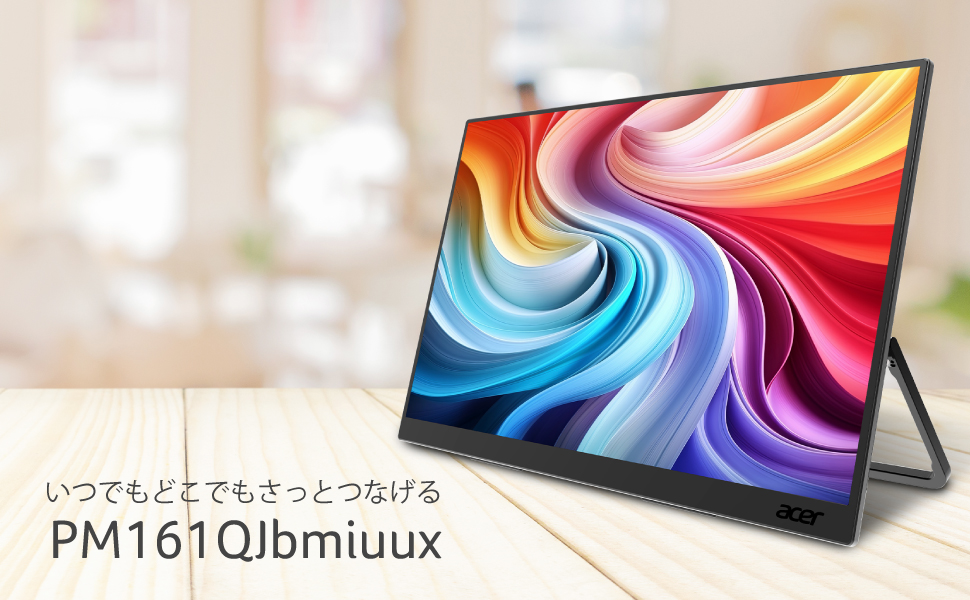
Image: The Acer PM161QJbmiuux portable monitor showcasing its 15.6-inch IPS display, 60Hz refresh rate, and USB-C/mini HDMI connectivity.
പ്രധാന സവിശേഷതകൾ:
- ഡിസ്പ്ലേ: 15.6-inch Full HD (1920x1080) IPS Anti-Glare Panel
- പോർട്ടബിലിറ്റി: Approximately 700g weight, 13mm ultra-thin profile
- പ്രകടനം: 60Hz Refresh Rate, 6ms (GTG) Response Time
- കണക്റ്റിവിറ്റി: 1x mini HDMI 2.0, 2x USB 3.2 Type-C (Gen1, Max 5Gbps, PD compatible)
- വിഷ്വൽ മെച്ചപ്പെടുത്തലുകൾ: Adaptive-Sync, HDR10 support, NTSC 45% color reproduction
- നേത്ര പരിചരണം: Blue Light Shield, Flicker-less technology
- ഓഡിയോ: ഇന്റഗ്രേറ്റഡ് ഡ്യുവൽ സ്പീക്കറുകൾ
- എർണോണോമിക്സ്: Stepless tilt adjustment from 0 to 90 degrees
2. സജ്ജീകരണ നിർദ്ദേശങ്ങൾ
2.1 പാക്കേജ് ഉള്ളടക്കം
Before proceeding with the setup, ensure all items are present in the package:
- Acer PM161QJbmiuux Portable Monitor
- mini HDMI to HDMI Cable (1m)
- യുഎസ്ബി ടൈപ്പ്-സി കേബിൾ (1 മീ)
- സജ്ജീകരണ ഗൈഡ്
- സുരക്ഷാ മുൻകരുതൽ രേഖ
- വാറൻ്റി കാർഡ്
- നന്നാക്കൽ അഭ്യർത്ഥന ഫോം
2.2 മോണിറ്റർ ബന്ധിപ്പിക്കുന്നു
The monitor supports connectivity via USB Type-C and mini HDMI. Choose the appropriate cable based on your source device.
- USB ടൈപ്പ്-സി കണക്ഷൻ: Connect one end of the provided USB Type-C cable to a USB Type-C port on your laptop, smartphone, or other compatible device. Connect the other end to one of the USB 3.2 Type-C ports on the monitor. This connection can transmit video, data, and power simultaneously. If your device does not supply sufficient power, an external USB AC adapter may be required (not included).
- mini HDMI Connection: Connect one end of the provided mini HDMI to HDMI cable to the mini HDMI 2.0 port on the monitor. Connect the other end (standard HDMI) to the HDMI port on your laptop, game console, or other compatible device. For power, connect a USB Type-C cable from a power source (e.g., a USB AC adapter or a device with Power Delivery) to one of the monitor's USB Type-C ports.

ചിത്രം: വിശദമായത് view of the monitor's connectivity ports, including mini HDMI and two USB Type-C ports.
3. പ്രവർത്തന നിർദ്ദേശങ്ങൾ
3.1 പവർ ഓൺ/ഓഫ്
Once connected to a power source and a video input, the monitor should power on automatically. If not, locate the power button (usually on the side or back) and press it to turn on the display. To power off, press and hold the power button.
3.2 സ്റ്റാൻഡ് ക്രമീകരിക്കൽ
The integrated kickstand allows for stepless tilt adjustment from 0 to 90 degrees. Gently adjust the stand to achieve your desired viewing angle for optimal comfort and productivity.

Image: The monitor's kickstand allows for flexible tilt adjustments.
3.3 ഓൺ-സ്ക്രീൻ ഡിസ്പ്ലേ (OSD) മെനു
The OSD menu provides access to various display settings. Use the control buttons (typically located on the side or back of the monitor) to navigate and adjust settings such as brightness, contrast, color modes, and input source selection.
3.4 പ്രത്യേക സവിശേഷതകൾ
- അഡാപ്റ്റീവ്-സമന്വയം: This technology synchronizes the monitor's refresh rate with the graphics card's frame rate to eliminate screen tearing and stuttering, providing a smoother visual experience. Ensure your source device supports Adaptive-Sync and it is enabled in your system settings.
- HDR10: High Dynamic Range 10 offers enhanced contrast and color accuracy for compatible content. Activate HDR settings through your connected device's display options.
- Blue Light Shield & Flicker-less: These features are designed to reduce eye strain during prolonged use. Blue Light Shield filters out harmful blue light, while Flicker-less technology eliminates screen flickering. These are typically enabled by default or can be adjusted via the OSD menu.

Image: The Acer VisionCare™ technology, including Blue Light Shield, helps reduce eye fatigue.
4. പരിപാലനം
4.1 മോണിറ്റർ വൃത്തിയാക്കുന്നു
മോണിറ്റർ സ്ക്രീൻ വൃത്തിയാക്കാൻ, മൃദുവായ, ലിന്റ് രഹിത തുണി ഉപയോഗിച്ച് സൌമ്യമായി തുടയ്ക്കുക. കഠിനമായ പാടുകൾക്ക്, ചെറുതായി dampen the cloth with water or a mild, non-abrasive screen cleaner. Avoid using harsh chemicals, alcohol, or abrasive materials, as these can damage the screen surface.
4.2 പൊതു പരിചരണം
- ഭാരമുള്ള വസ്തുക്കൾ മോണിറ്ററിൽ വയ്ക്കുന്നത് ഒഴിവാക്കുക.
- മോണിറ്ററിനെ തീവ്രമായ താപനിലകൾ, ഈർപ്പം അല്ലെങ്കിൽ നേരിട്ടുള്ള സൂര്യപ്രകാശം എന്നിവയിൽ തുറന്നുകാട്ടരുത്.
- Keep the monitor away from liquids and dust.
- When transporting the monitor, use appropriate protective packaging.
5. പ്രശ്നപരിഹാരം
If you encounter issues with your Acer PM161QJbmiuux monitor, refer to the following common troubleshooting steps:
- ഡിസ്പ്ലേ/കറുത്ത സ്ക്രീൻ ഇല്ല:
- Ensure the monitor is properly connected to a power source and the video input cable is securely attached to both the monitor and the source device.
- Verify that the source device is powered on and outputting a video signal.
- ലഭ്യമാണെങ്കിൽ മറ്റൊരു വീഡിയോ കേബിളോ പോർട്ടോ പരീക്ഷിച്ചുനോക്കൂ.
- If using USB-C, ensure the port on your device supports video output (DisplayPort Alternate Mode) and Power Delivery.
- ശക്തിയില്ല:
- Check if the USB-C power source is functioning correctly.
- Ensure the USB-C cable is capable of power delivery.
- ചിത്രത്തിന്റെ ഗുണനിലവാര പ്രശ്നങ്ങൾ (മങ്ങൽ, വികലമായത്, തെറ്റായ നിറങ്ങൾ):
- Adjust the resolution and refresh rate settings on your source device to match the monitor's native resolution (1920x1080) and refresh rate (60Hz).
- മോണിറ്ററിന്റെ OSD ക്രമീകരണങ്ങൾ ഫാക്ടറി ഡിഫോൾട്ടുകളിലേക്ക് പുനഃസജ്ജമാക്കുക.
- വീഡിയോ കേബിളിന് കേടുപാടുകൾ സംഭവിച്ചിട്ടില്ലെന്ന് ഉറപ്പാക്കുക.
- സ്പീക്കറുകളിൽ നിന്ന് ശബ്ദമില്ല:
- Check the volume settings on both the monitor (via OSD) and your source device.
- Ensure the audio output is directed to the monitor in your source device's sound settings.
If these steps do not resolve the issue, please contact Acer customer support.
6 സ്പെസിഫിക്കേഷനുകൾ
Detailed technical specifications for the Acer PM161QJbmiuux portable monitor:
| ഫീച്ചർ | സ്പെസിഫിക്കേഷൻ |
|---|---|
| മോഡൽ നമ്പർ | PM161QJbmiuux |
| സ്ക്രീൻ വലിപ്പം | 15.6 ഇഞ്ച് |
| പാനൽ തരം | ഐ.പി.എസ് |
| റെസലൂഷൻ | ഫുൾ HD (1920 x 1080 പിക്സലുകൾ) |
| വീക്ഷണാനുപാതം | 16:9 |
| സ്ക്രീൻ ഉപരിതലം | ആൻ്റി-ഗ്ലെയർ |
| പുതുക്കിയ നിരക്ക് | 60 Hz |
| പ്രതികരണ സമയം | 6 മി (ജിടിജി) |
| തെളിച്ചം | 250 cd/㎡ |
| കോൺട്രാസ്റ്റ് അനുപാതം (സാധാരണ) | 800:1 |
| ദൃശ്യതീവ്രതാ അനുപാതം (പരമാവധി) | 100,000,000:1 |
| വർണ്ണ പുനർനിർമ്മാണം | NTSC 45%, Approx. 16.77 million colors |
| വീഡിയോ ഇൻപുട്ട് | 1x mini HDMI 2.0 |
| USB പോർട്ടുകൾ | 2x USB 3.2 Type-C (Gen1, Max 5Gbps, PD compatible) |
| സ്പീക്കറുകൾ | Dual Speakers (1W + 1W Stereo) |
| അളവുകൾ (D x W x H) | 1.3 സെ.മീ x 35.5 സെ.മീ x 21.1 സെ.മീ |
| ഭാരം | 0.7 കി.ഗ്രാം |
| പ്രത്യേക സവിശേഷതകൾ | HDR10, Blue Light Shield, Flicker-less, Adaptive-Sync |

Image: Physical dimensions and port layout of the monitor.
7. വാറൻ്റിയും പിന്തുണയും
7.1 വാറൻ്റി വിവരങ്ങൾ
The Acer PM161QJbmiuux portable monitor comes with a 3 വർഷത്തെ നിർമ്മാതാവിൻ്റെ വാറൻ്റി. Please note that the display panel itself is covered by a 1-year warranty. Retain your purchase receipt and warranty card for service claims.
7.2 ഉപഭോക്തൃ പിന്തുണ
For technical assistance, troubleshooting, or warranty inquiries, please contact Acer customer support:
- Support Information Page: https://www.acer.com/jp-ja/support/
- ബിസിനസ്സ് സമയം: 10:00 - 19:00 JST, 365 days a year (excluding company-specified holidays)