
1. ആമുഖം
This manual provides essential information for the proper setup, operation, and maintenance of your CRUA 24.5-inch White Gaming Monitor (Model CR245D). Please read this manual thoroughly before using the product to ensure optimal performance and safety. Keep this manual for future reference.

ചിത്രം 1.1: മുൻഭാഗം view of the CRUA 24.5-inch White Gaming Monitor.
2 സുരക്ഷാ വിവരങ്ങൾ
- തീപിടുത്തമോ വൈദ്യുതാഘാതമോ ഒഴിവാക്കാൻ മോണിറ്ററിനെ മഴയിലോ ഈർപ്പത്തിലോ തുറന്നുവെക്കരുത്.
- മോണിറ്റർ തുറക്കരുത് casing. ഉള്ളിൽ ഉപയോക്തൃ-സേവനയോഗ്യമായ ഭാഗങ്ങളൊന്നുമില്ല. എല്ലാ സേവനങ്ങളും യോഗ്യതയുള്ള ഉദ്യോഗസ്ഥർക്ക് റഫർ ചെയ്യുക.
- വീഴാതിരിക്കാൻ മോണിറ്റർ ഒരു സ്ഥിരതയുള്ളതും പരന്നതുമായ പ്രതലത്തിൽ വയ്ക്കുക.
- മോണിറ്ററിന് ചുറ്റും ശരിയായ വായുസഞ്ചാരം ഉറപ്പാക്കുക. വായുസഞ്ചാര ദ്വാരങ്ങൾ അടയ്ക്കരുത്.
- Use only the power adapter and cables provided or recommended by the manufacturer.
- ഇടിമിന്നൽ ഉണ്ടാകുമ്പോഴോ ദീർഘനേരം ഉപയോഗിക്കാതിരിക്കുമ്പോഴോ പവർ ഔട്ട്ലെറ്റിൽ നിന്ന് മോണിറ്റർ ഊരിമാറ്റുക.
- Avoid placing heavy objects on the power cord or monitor cables.
3. പാക്കേജ് ഉള്ളടക്കം
നിങ്ങളുടെ പാക്കേജിൽ എല്ലാ ഇനങ്ങളും ഉണ്ടെന്ന് ഉറപ്പാക്കുക:
- CRUA 24.5-inch White Gaming Monitor
- മോണിറ്റർ സ്റ്റാൻഡ് (ബേസും കഴുത്തും)
- പവർ അഡാപ്റ്ററും പവർ കേബിളും
- HDMI കേബിൾ
- ഡിസ്പ്ലേപോർട്ട് (DP) കേബിൾ
- ഉപയോക്തൃ മാനുവൽ (ഈ പ്രമാണം)
- സ്റ്റാൻഡ് അസംബ്ലിക്കുള്ള സ്ക്രൂകൾ
4. സജ്ജീകരണം
4.1 സ്റ്റാൻഡ് കൂട്ടിച്ചേർക്കൽ
- മോണിറ്റർ അതിന്റെ പാക്കേജിംഗിൽ നിന്ന് ശ്രദ്ധാപൂർവ്വം നീക്കം ചെയ്യുക, മൃദുവായ പ്രതലത്തിൽ അതിനെ സംരക്ഷിച്ചു നിർത്തുക.
- Attach the stand neck to the monitor's rear panel using the provided screws.
- Attach the stand base to the stand neck and secure it with the designated screw, usually hand-tightened.
- Place the assembled monitor on a stable desk or table.
4.2 ബന്ധിപ്പിക്കുന്ന കേബിളുകൾ
Refer to the back panel image below for port locations.
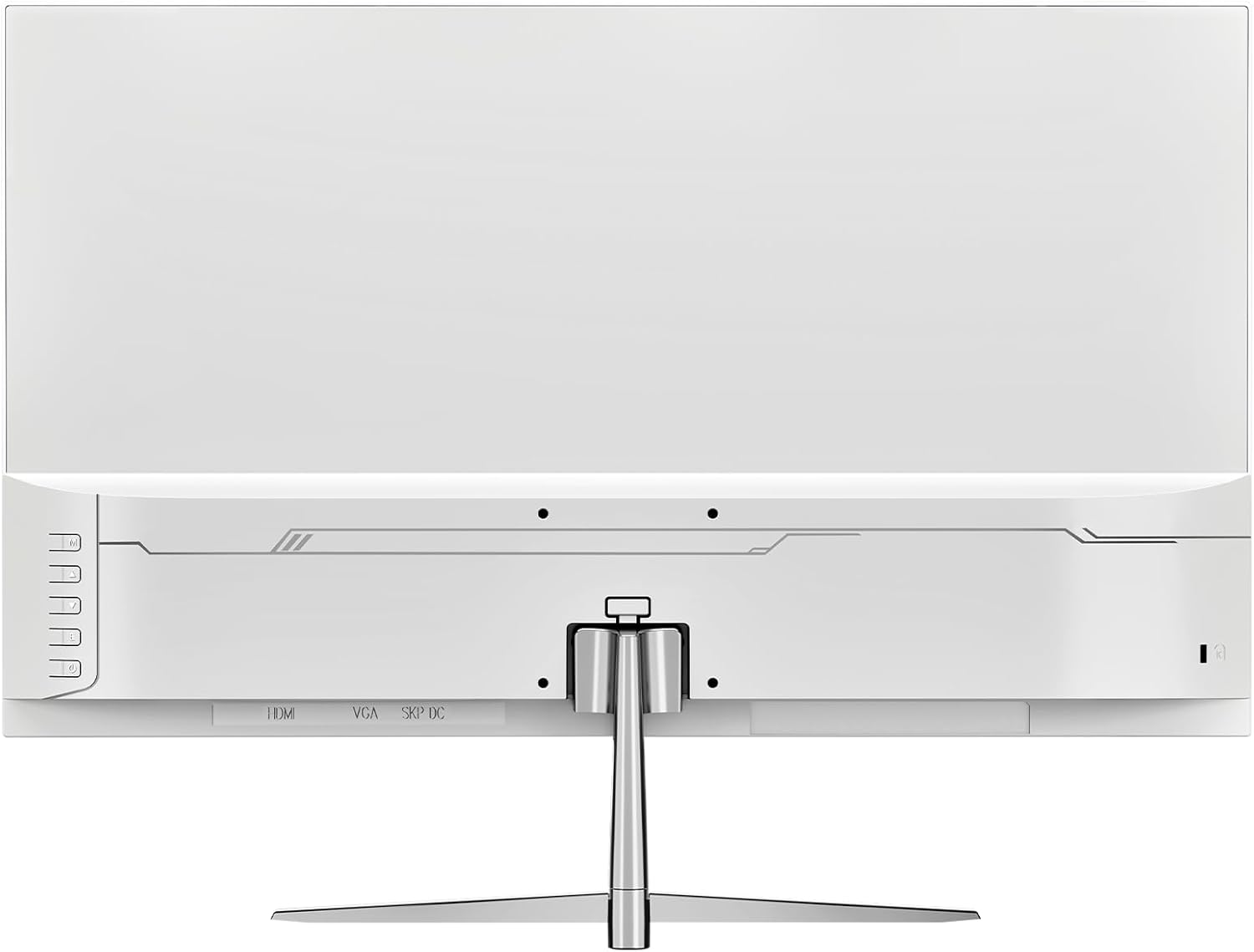
ചിത്രം 4.1: പിൻഭാഗം view ഇൻപുട്ട് പോർട്ടുകളുള്ള മോണിറ്ററിന്റെ.
- പവർ കണക്ഷൻ: Connect the power adapter to the monitor's DC input port, then plug the power cable into a wall outlet.
- വീഡിയോ കണക്ഷൻ: Connect one end of the HDMI or DisplayPort (DP) cable to the corresponding port on your computer's graphics card and the other end to the HDMI 1.4 or DP 1.2 port on the monitor.
- ഓഡിയോ ഔട്ട്പുട്ട്: If using external speakers or headphones, connect them to the monitor's audio out port. The monitor also has built-in speakers.
4.3 വാൾ മൗണ്ടിംഗ് (ഓപ്ഷണൽ)
The monitor supports VESA wall mounts with a 75mm x 75mm pattern. Ensure you use appropriate screws and a compatible VESA bracket (not included) for secure installation. Follow the instructions provided with your wall mount kit.
5. പ്രവർത്തന നിർദ്ദേശങ്ങൾ
5.1 പവർ ഓൺ/ഓഫ്
Press the power button, typically located on the back or bottom right of the monitor, to turn the monitor on or off. The power indicator light will illuminate when the monitor is on.
5.2 ഓൺ-സ്ക്രീൻ ഡിസ്പ്ലേ (OSD) മെനു
The OSD menu allows you to adjust various monitor settings. Use the buttons on the back or bottom of the monitor to navigate the menu:
- മെനു ബട്ടൺ: OSD മെനു തുറക്കുന്നു.
- അപ്പ്/ഡൗൺ ബട്ടണുകൾ: മെനു ഓപ്ഷനുകളിലൂടെ നാവിഗേറ്റ് ചെയ്യുക.
- നൽകുക/തിരഞ്ഞെടുക്കുക ബട്ടൺ: ഒരു തിരഞ്ഞെടുപ്പ് സ്ഥിരീകരിക്കുന്നു അല്ലെങ്കിൽ ഒരു ഉപമെനുവിൽ പ്രവേശിക്കുന്നു.
- പുറത്തുകടക്കുക ബട്ടൺ: നിലവിലെ മെനുവിൽ നിന്നോ OSD-യിൽ നിന്നോ പുറത്തുകടക്കുന്നു.
5.3 ഡിസ്പ്ലേ ക്രമീകരണങ്ങൾ
Adjust image quality and performance settings via the OSD menu:
- തെളിച്ചം/തീവ്രത: മൊത്തത്തിലുള്ള പ്രകാശവും ദൃശ്യതീവ്രതാ അനുപാതവും ക്രമീകരിക്കുക.
- വർണ്ണ ക്രമീകരണങ്ങൾ: Modify color temperature, gamma, and individual RGB levels. The monitor supports 120% sRGB color gamut, 16.7 million colors, and 8-bit depth for accurate color reproduction.

Figure 5.1: Monitor's color and brightness capabilities.
- ഇൻപുട്ട് ഉറവിടം: Manually select between HDMI and DisplayPort inputs if auto-detection fails.
- പുതുക്കൽ നിരക്ക്: The monitor supports up to a 200Hz refresh rate for smooth motion. Ensure your graphics card and cable support this rate.
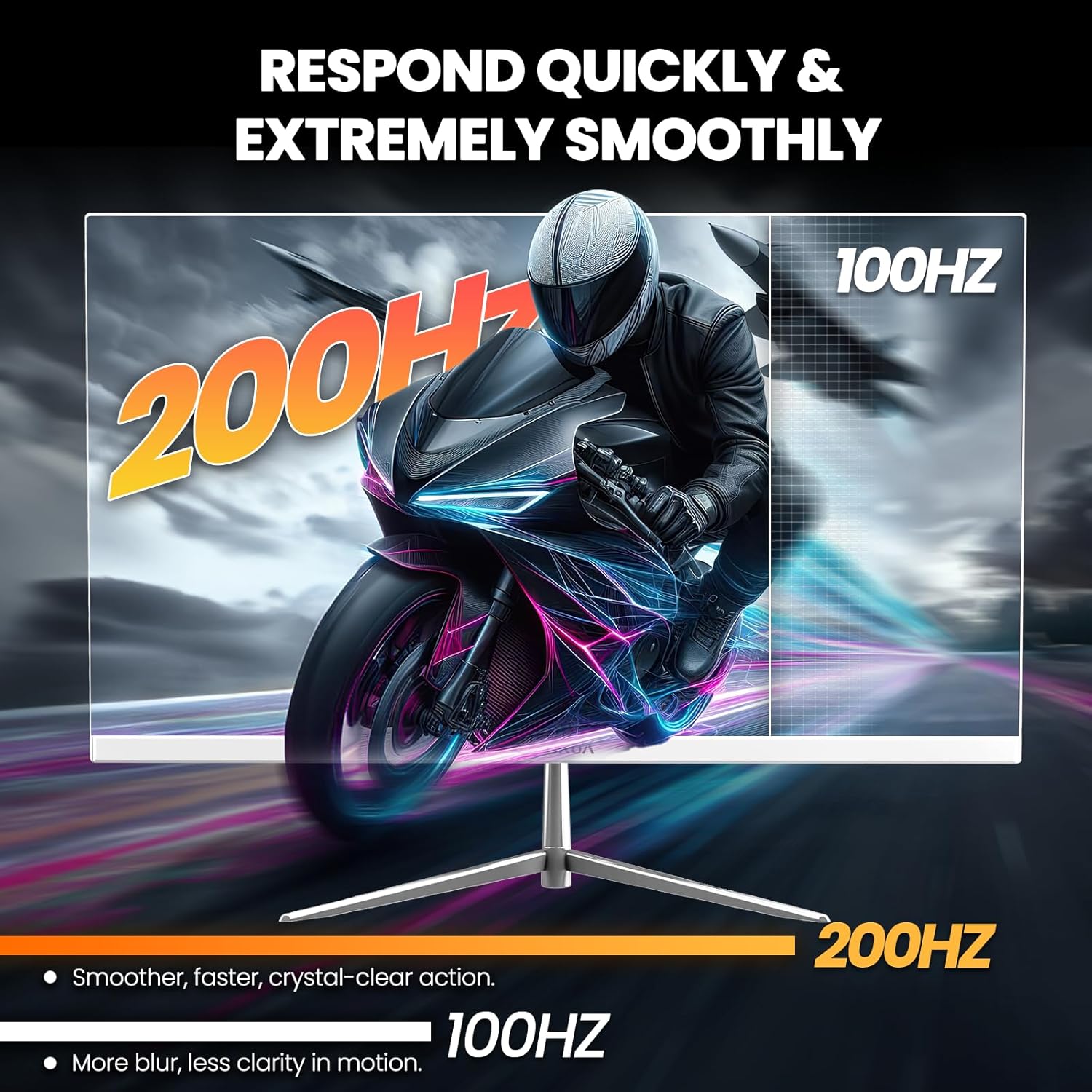
Figure 5.2: Visual representation of 200Hz refresh rate performance.
- അഡാപ്റ്റീവ് സമന്വയം (ഫ്രീസിങ്ക്): This technology synchronizes the monitor's refresh rate with your graphics card's frame rate to eliminate screen tearing and stuttering. Enable it in the OSD menu and ensure it's activated in your graphics card settings.

Figure 5.3: Effect of Adaptive Sync on image quality.
- ബ്ലൂ ലൈറ്റ് ഫിൽട്ടർ: Reduces blue light emission to minimize eye strain during prolonged use. Activate this feature in the OSD menu.
- ബിൽറ്റ്-ഇൻ സ്പീക്കറുകൾ: The monitor includes integrated speakers for basic audio needs. Volume can be adjusted via the OSD or your computer's audio settings.
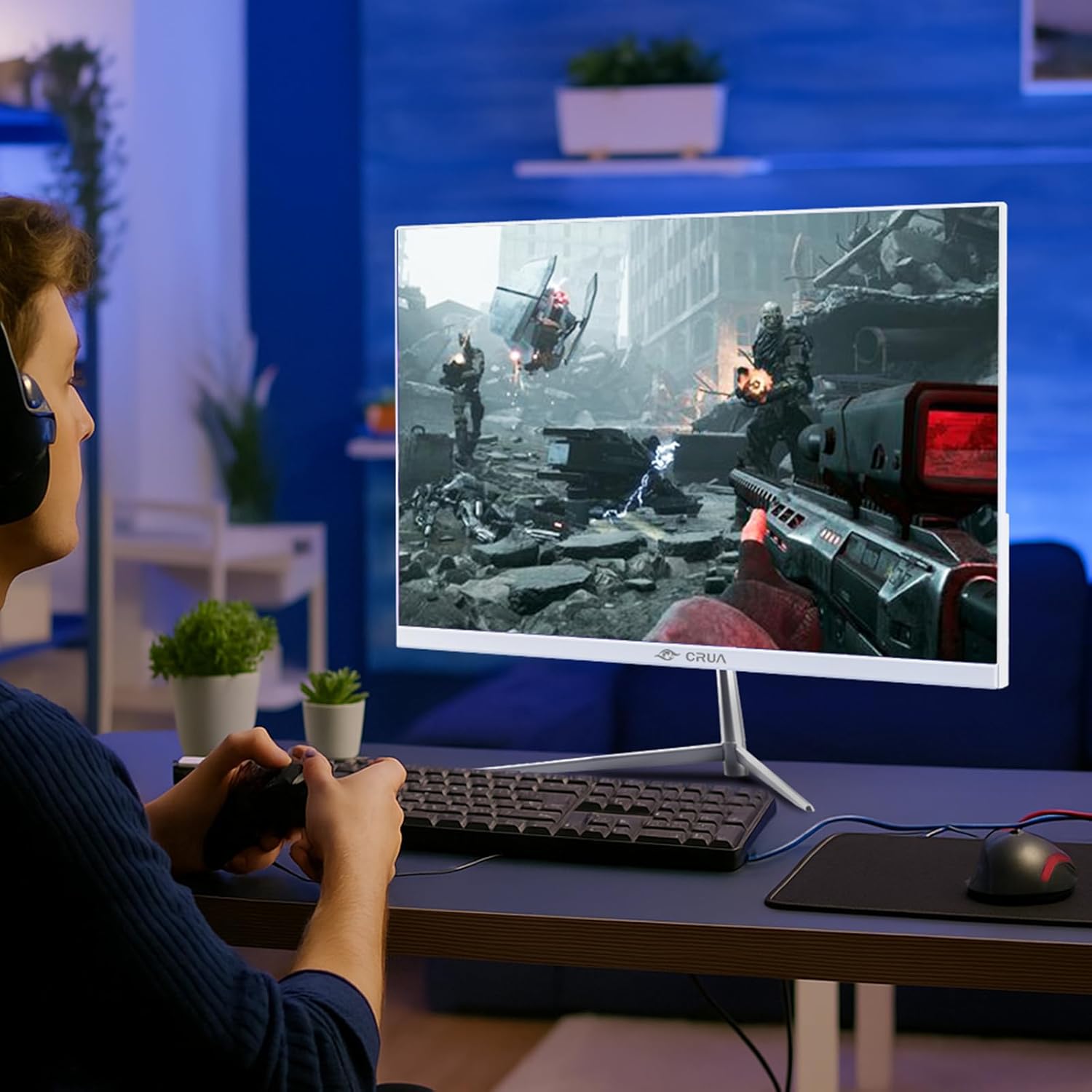
Figure 5.4: Monitor in use during a gaming session.
6. പരിപാലനം
- സ്ക്രീൻ വൃത്തിയാക്കൽ: മൃദുവായ, ലിന്റ് രഹിത തുണി ഉപയോഗിച്ച് സ്ക്രീൻ സൌമ്യമായി തുടയ്ക്കുക. കഠിനമായ പാടുകൾക്ക്, dampen the cloth with a small amount of screen cleaner specifically designed for monitors. Do not spray cleaner directly onto the screen.
- സി വൃത്തിയാക്കൽasing: Use a soft, dry cloth to wipe the monitor's exterior. Avoid using abrasive cleaners or solvents.
- സംഭരണം: മോണിറ്റർ ദീർഘനേരം സൂക്ഷിക്കുകയാണെങ്കിൽ, പൊടിയിൽ നിന്ന് സംരക്ഷിക്കാൻ അത് പ്ലഗ് അൺപ്ലഗ് ചെയ്ത് മൂടുക.
7. പ്രശ്നപരിഹാരം
| പ്രശ്നം | സാധ്യമായ കാരണം | പരിഹാരം |
|---|---|---|
| ശക്തിയില്ല | പവർ കേബിൾ ബന്ധിപ്പിച്ചിട്ടില്ല; പവർ ഔട്ട്ലെറ്റ് പ്രവർത്തിക്കുന്നില്ല. | പവർ കേബിൾ സുരക്ഷിതമായി ബന്ധിപ്പിച്ചിട്ടുണ്ടെന്ന് ഉറപ്പാക്കുക. മറ്റൊരു ഉപകരണം ഉപയോഗിച്ച് ഔട്ട്ലെറ്റ് പരിശോധിക്കുക. |
| സിഗ്നൽ ഇല്ല | വീഡിയോ കേബിൾ ബന്ധിപ്പിച്ചിട്ടില്ല; തെറ്റായ ഇൻപുട്ട് ഉറവിടം തിരഞ്ഞെടുത്തു. | Check video cable connections. Select the correct input source in the OSD menu. |
| മിന്നുന്ന സ്ക്രീൻ | Loose cable connection; Graphics card issue; Refresh rate mismatch | Secure cable connections. Update graphics drivers. Ensure refresh rate is compatible with your system. Enable Adaptive Sync. |
| മോശം ചിത്ര നിലവാരം | Incorrect resolution; OSD settings incorrect | Set display resolution to 1920x1080. Adjust brightness, contrast, and color settings in the OSD. |
| സ്പീക്കറുകളിൽ നിന്ന് ശബ്ദമില്ല | Volume too low; Audio output not selected | Increase volume in OSD and computer settings. Ensure monitor is selected as audio output device on your computer. |
8 സ്പെസിഫിക്കേഷനുകൾ
| മോഡൽ നമ്പർ | CR245D |
| സ്ക്രീൻ വലിപ്പം | 24.5 ഇഞ്ച് |
| പാനൽ തരം | VA |
| റെസലൂഷൻ | 1920 x 1080 (FHD 1080p) |
| പുതുക്കിയ നിരക്ക് | 200Hz |
| വീക്ഷണാനുപാതം | 16:9 |
| ചിത്രത്തിന്റെ തെളിച്ചം | 290 കാൻഡെല (cd/m²) |
| വർണ്ണ ഗാമറ്റ് | 120% sRGB |
| വർണ്ണ ആഴം | 16.7 ദശലക്ഷം (8-ബിറ്റ്) |
| ഡൈനാമിക് കോൺട്രാസ്റ്റ് റേഷ്യോ | 3500:1 |
| അഡാപ്റ്റീവ് സമന്വയം | Supported (AMD FreeSync) |
| കണക്റ്റിവിറ്റി | HDMI 1.4, ഡിസ്പ്ലേ പോർട്ട് 1.2 |
| ബിൽറ്റ്-ഇൻ സ്പീക്കറുകൾ | അതെ |
| മതിൽ മൗണ്ടബിൾ | Yes (75mm x 75mm VESA) |
| ഉൽപ്പന്ന അളവുകൾ | 1.4 x 21 x 12 ഇഞ്ച് |
| ഇനത്തിൻ്റെ ഭാരം | 7.54 പൗണ്ട് |
9. വാറൻ്റിയും പിന്തുണയും
CRUA is committed to providing high-quality computer monitors and premium services. For any questions or assistance regarding your monitor, please contact CRUA customer support. Refer to your purchase documentation for specific warranty terms and contact details.