
1. ആമുഖവും അവസാനവുംview
The Lexar ARES Gen2 RGB DDR5 RAM 32GB Kit (2x16GB) is designed to enhance your desktop computer's performance, particularly for PC gaming and demanding applications. This high-speed memory kit operates at 6000MHz with a CL30 latency, leveraging the latest DDR5 technology. It features vibrant RGB lighting customizable via Lexar RGB Sync and supports Intel XMP 3.0 and AMD EXPO for optimized overclocking. The modules are built with a premium aluminum heat spreader for efficient thermal management and include on-die ECC for improved stability.
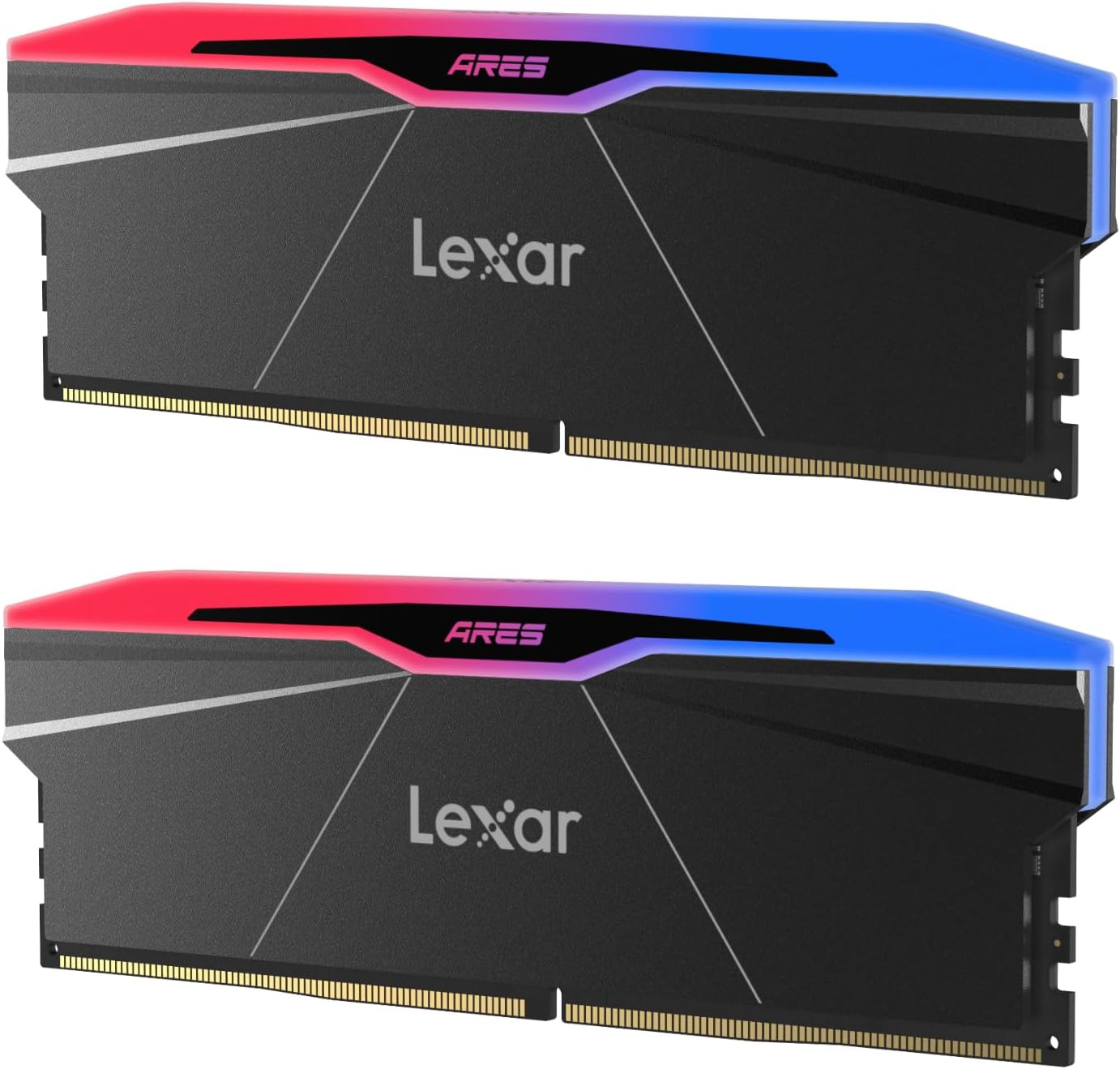
Image 1.1: Lexar ARES Gen2 RGB DDR5 RAM module, showcasing its design and RGB lighting capabilities.
2. സജ്ജീകരണവും ഇൻസ്റ്റാളേഷനും
Installing the Lexar ARES Gen2 RGB DDR5 RAM requires careful handling and adherence to your motherboard's manual for proper slot placement. Ensure your system is powered off and unplugged before beginning installation.
2.1 ഫിസിക്കൽ ഇൻസ്റ്റലേഷൻ
- നിങ്ങളുടെ സിസ്റ്റം തയ്യാറാക്കുക: Power down your computer and unplug all cables. Open your computer case to access the motherboard.
- DIMM സ്ലോട്ടുകൾ കണ്ടെത്തുക: Identify the DDR5 DIMM slots on your motherboard. Consult your motherboard manual for the recommended slots for dual-channel configuration (typically slots 2 and 4).
- ഓപ്പൺ റിറ്റൻഷൻ ക്ലിപ്പുകൾ: DIMM സ്ലോട്ടുകളുടെ രണ്ടറ്റത്തുമുള്ള റിട്ടൻഷൻ ക്ലിപ്പുകൾ സൌമ്യമായി തള്ളി തുറക്കുക.
- Align and Insert RAM: Align the RAM module with the slot, ensuring the notch on the module matches the key in the DIMM slot. Apply even pressure to both ends of the module until it clicks into place and the retention clips close automatically.
- സുരക്ഷിതമാക്കി അടയ്ക്കുക: Once both modules are securely installed, close your computer case and reconnect all cables.
2.2 BIOS Configuration (XMP/EXPO)
To achieve the advertised 6000MHz speed, you must enable the Intel XMP 3.0 or AMD EXPO profile in your motherboard's BIOS/UEFI settings. This process varies slightly by motherboard manufacturer, but generally involves:
- Enter BIOS/UEFI: Restart your computer and repeatedly press the designated key (e.g., Del, F2, F10) during startup to enter the BIOS/UEFI.
- Locate Memory Settings: Navigate to the memory or overclocking section. Look for options like 'XMP', 'EXPO', 'DOCP', or 'A-XMP'.
- പ്രോ പ്രാപ്തമാക്കുകfile: Select the appropriate XMP 3.0 or AMD EXPO profile.
- സംരക്ഷിച്ച് പുറത്തുകടക്കുക: Save your changes and exit the BIOS/UEFI. Your system will restart with the optimized memory settings.

Image 2.1: The Lexar ARES Gen2 RGB DDR5 RAM module highlighting its RGB lighting and 10-layer Overclocking PCB, designed for stability and performance.
3. പ്രവർത്തന നിർദ്ദേശങ്ങൾ
Once installed and configured, your Lexar ARES Gen2 RGB DDR5 RAM will operate at its optimized speed, providing enhanced performance for various tasks.
3.1 Performance Benefits
- ഗെയിമിംഗ്: Experience smoother frame rates and faster load times in games due to the 6000MT/s speed and CL30 latency.
- ഉള്ളടക്ക സൃഷ്ടി: Accelerate tasks such as video editing, 3D rendering, and graphic design with increased memory bandwidth.
- മൾട്ടിടാസ്കിംഗ്: Seamlessly switch between multiple applications without slowdowns.
3.2 RGB ലൈറ്റിംഗ് കസ്റ്റമൈസേഷൻ
The Lexar ARES Gen2 RGB DDR5 RAM features customizable RGB lighting. To personalize the lighting effects:
- Install Lexar RGB Sync Software: Download and install the Lexar RGB Sync software from the official Lexar website. This software allows for detailed control over lighting patterns, colors, and synchronization with other compatible components.
- Motherboard Software Compatibility: The RAM is compatible with major motherboard RGB software (e.g., ASUS Aura Sync, GIGABYTE RGB Fusion, MSI Mystic Light, ASRock Polychrome Sync), allowing you to synchronize lighting across your entire system.

Image 3.1: Lexar ARES Gen2 RGB DDR5 RAM installed in a PC case, demonstrating personalized RGB lighting effects.
Video 3.1: Official Lexar video showcasing the Lexar ARES Gen2 RGB DDR5 RAM, highlighting its design and RGB features.
4. പരിപാലനം
Proper maintenance ensures the longevity and optimal performance of your Lexar ARES Gen2 RGB DDR5 RAM.
- സിസ്റ്റം വൃത്തിയായി സൂക്ഷിക്കുക: Regularly clean the interior of your computer case to prevent dust buildup, which can impede airflow and lead to overheating. Use compressed air to gently remove dust from RAM modules and surrounding components.
- ശരിയായ വായുപ്രവാഹം ഉറപ്പാക്കുക: Verify that your case fans are functioning correctly and that there is adequate airflow to dissipate heat generated by components, including the RAM. The Lexar ARES Gen2 modules feature a premium aluminum heat spreader designed to maximize heat dissipation.
- ശാരീരിക നാശം ഒഴിവാക്കുക: Handle RAM modules by their edges to avoid touching the gold contacts or integrated circuits. Do not apply excessive force when installing or removing.

ചിത്രം 4.1: പൊട്ടിത്തെറിച്ച ഒരു view illustrating the multi-layered design of the Lexar ARES Gen2 RGB DDR5 RAM, emphasizing its heat dissipation features.
5. പ്രശ്നപരിഹാരം
If you encounter issues with your Lexar ARES Gen2 RGB DDR5 RAM, consider the following troubleshooting steps:
- സിസ്റ്റം ബൂട്ട് ചെയ്യുന്നില്ല/ഡിസ്പ്ലേ ഇല്ല:
- Ensure RAM modules are fully seated in their DIMM slots. Re-seat them firmly.
- Try booting with only one RAM module installed to identify a potentially faulty stick.
- Check your motherboard manual for correct DIMM slot population order.
- Incorrect Speed Detected (e.g., 4800MHz instead of 6000MHz):
- Access your BIOS/UEFI settings and verify that the Intel XMP 3.0 or AMD EXPO profile പ്രവർത്തനക്ഷമമാക്കിയിരിക്കുന്നു.
- Ensure your motherboard and CPU support DDR5 6000MHz speeds.
- RGB Lighting Not Working/Synchronizing:
- Confirm that Lexar RGB Sync software or your motherboard's RGB control software is installed and up to date.
- Check software settings to ensure RGB is enabled and configured correctly.
- Verify that the RAM modules are properly detected by the software.
- സിസ്റ്റം അസ്ഥിരത/ക്രാഷുകൾ:
- While the RAM includes on-die ECC for improved stability, ensure your system's power supply is adequate for all components.
- If overclocking manually, revert to XMP/EXPO profiles or default settings to check for stability.
6 സ്പെസിഫിക്കേഷനുകൾ
| ഫീച്ചർ | സ്പെസിഫിക്കേഷൻ |
|---|---|
| ബ്രാൻഡ് | ലെക്സർ |
| മോഡലിൻ്റെ പേര് | LD5U16G60C30BR-RGD |
| കമ്പ്യൂട്ടർ മെമ്മറി വലുപ്പം | 32 GB (2x16GB Kit) |
| റാം മെമ്മറി ടെക്നോളജി | DDR5 |
| മെമ്മറി സ്പീഡ് | 6000 MHz |
| CAS ലേറ്റൻസി | CL30 (30-38-38-76) |
| വാല്യംtage | 1.4 വോൾട്ട് |
| ഫോം ഫാക്ടർ | 288-Pin UDIMM |
| അനുയോജ്യമായ ഉപകരണങ്ങൾ | ഡെസ്ക്ടോപ്പ് |
| അധിക സവിശേഷതകൾ | High Performance, RGB LED Lights, Intel XMP 3.0 Support, AMD EXPO Support, On-die ECC, Premium Aluminum Heat Spreader |
| ഡാറ്റ കൈമാറ്റ നിരക്ക് | സെക്കൻഡിൽ 6144 മെഗാബൈറ്റ് |
7. വാറൻ്റിയും പിന്തുണയും
Lexar provides a lifetime limited warranty for the ARES Gen2 RGB DDR5 RAM, ensuring peace of mind regarding product defects and performance issues under normal use.
For detailed warranty terms, technical support, driver downloads (e.g., Lexar RGB Sync software), or further assistance, please visit the official Lexar website or contact Lexar customer service directly. Keep your proof of purchase for warranty claims.

Image 7.1: Lexar's brand statement, emphasizing their commitment to memory solutions and customer trust.