
1. ആമുഖം
This manual provides detailed instructions for the installation, operation, and maintenance of your Surakey Android 14 Car Stereo. This unit is designed for seamless integration into Jeep Grand Cherokee models manufactured between 2004 and 2007. It features a 10-inch touch screen, 4GB RAM, 64GB ROM, and supports advanced functionalities such as wireless CarPlay, Android Auto, GPS navigation, Bluetooth, and WiFi connectivity.
Please read this manual thoroughly before installation and use to ensure proper functionality and to prevent damage to the unit or your vehicle.

Image 1.1: Surakey Android 14 Car Stereo main unit.
2. വാഹന അനുയോജ്യത
This car stereo is specifically designed for:
- Jeep Grand Cherokee: 2004, 2005, 2006, 2007 models.
Please ensure your vehicle's dashboard configuration matches the installation requirements. Note: Model A will fit. Model B will not fit.
3. പാക്കേജ് ഉള്ളടക്കം
പാക്കേജിൽ ഇനിപ്പറയുന്ന ഇനങ്ങൾ ഉൾപ്പെടുന്നു:
- 1 x Car Stereo Radio Unit
- Necessary wiring harnesses
- ജിപിഎസ് മൊഡ്യൂൾ
- USB കേബിളുകൾ
- ഇൻസ്റ്റലേഷൻ ആക്സസറികൾ
4 സാങ്കേതിക സവിശേഷതകൾ
| ഫീച്ചർ | സ്പെസിഫിക്കേഷൻ |
|---|---|
| ഓപ്പറേറ്റിംഗ് സിസ്റ്റം | ആൻഡ്രോയിഡ് 14 |
| സ്ക്രീൻ വലിപ്പം | 10 ഇഞ്ച് |
| സ്ക്രീൻ റെസല്യൂഷൻ | 1280x720 (HD IPS) |
| മെമ്മറി (റാം) | 4 ജിബി |
| സംഭരണം (ROM) | 64 ജിബി |
| പവർ ഔട്ട്പുട്ട് | 4x45W |
| ജോലിയുടെ താപനില | -20℃ മുതൽ 75℃ വരെ |
| കണക്റ്റിവിറ്റി | Bluetooth, USB (Double interface), Wi-Fi |
| നാവിഗേഷൻ | Built-in offline maps (requires internet to download data), supports online navigation apps |
| റേഡിയോ ബാൻഡ് | Frequency Modulation (FM) / RDS |
| വീഡിയോ ഔട്ട്പുട്ട് | പിന്തുണച്ചു |
| റിവേഴ്സിംഗ് ഇൻപുട്ട് | CVBS (for backup camera) |
| ബാഹ്യ മൈക്രോഫോൺ | പിന്തുണച്ചു |
| സ്പ്ലിറ്റ് സ്ക്രീൻ | പിന്തുണച്ചു |
| സ്റ്റിയറിംഗ് വീൽ നിയന്ത്രണം | പിന്തുണച്ചു |
| ഓഡിയോ ഫോർമാറ്റുകൾ | APE/FLAC/WAV/MP3/WMA and more |
| വീഡിയോ ഫോർമാറ്റുകൾ | MKV/RMVB/AVI/MP4/MDV and more |
| ചിത്ര ഫോർമാറ്റ് | PNG/JPEG/JPG/GIF/WBMP/BNP and more |
| ഭാഷകൾ | Chinese, English, French, Italian, Korean, Japanese, Arabic, Spanish, Portuguese, Russian, Turkish, Vietnamese, Hebrew, Polish, German |

Image 4.1: High-definition 10.1-inch IPS screen with 1280x720 resolution.
5. ഇൻസ്റ്റാളേഷൻ ഗൈഡ്
പ്രൊഫഷണൽ ഇൻസ്റ്റാളേഷൻ ശുപാർശ ചെയ്യുന്നു. ഇൻസ്റ്റാളേഷൻ ആരംഭിക്കുന്നതിന് മുമ്പ് വാഹനത്തിന്റെ പവർ വിച്ഛേദിച്ചിട്ടുണ്ടെന്ന് ഉറപ്പാക്കുക.
5.1. പ്രീ-ഇൻസ്റ്റലേഷൻ പരിശോധന
- എല്ലാ പാക്കേജ് ഉള്ളടക്കങ്ങളും നിലവിലുണ്ടെന്ന് ഉറപ്പാക്കുക.
- Confirm compatibility with your Jeep Grand Cherokee (2004-2007).
- Familiarize yourself with your vehicle's dashboard layout and existing stereo removal process.
5.2. Removing the Old Stereo
Carefully remove the trim panels and screws securing the factory radio. Disconnect all wiring harnesses and the antenna cable from the old unit.
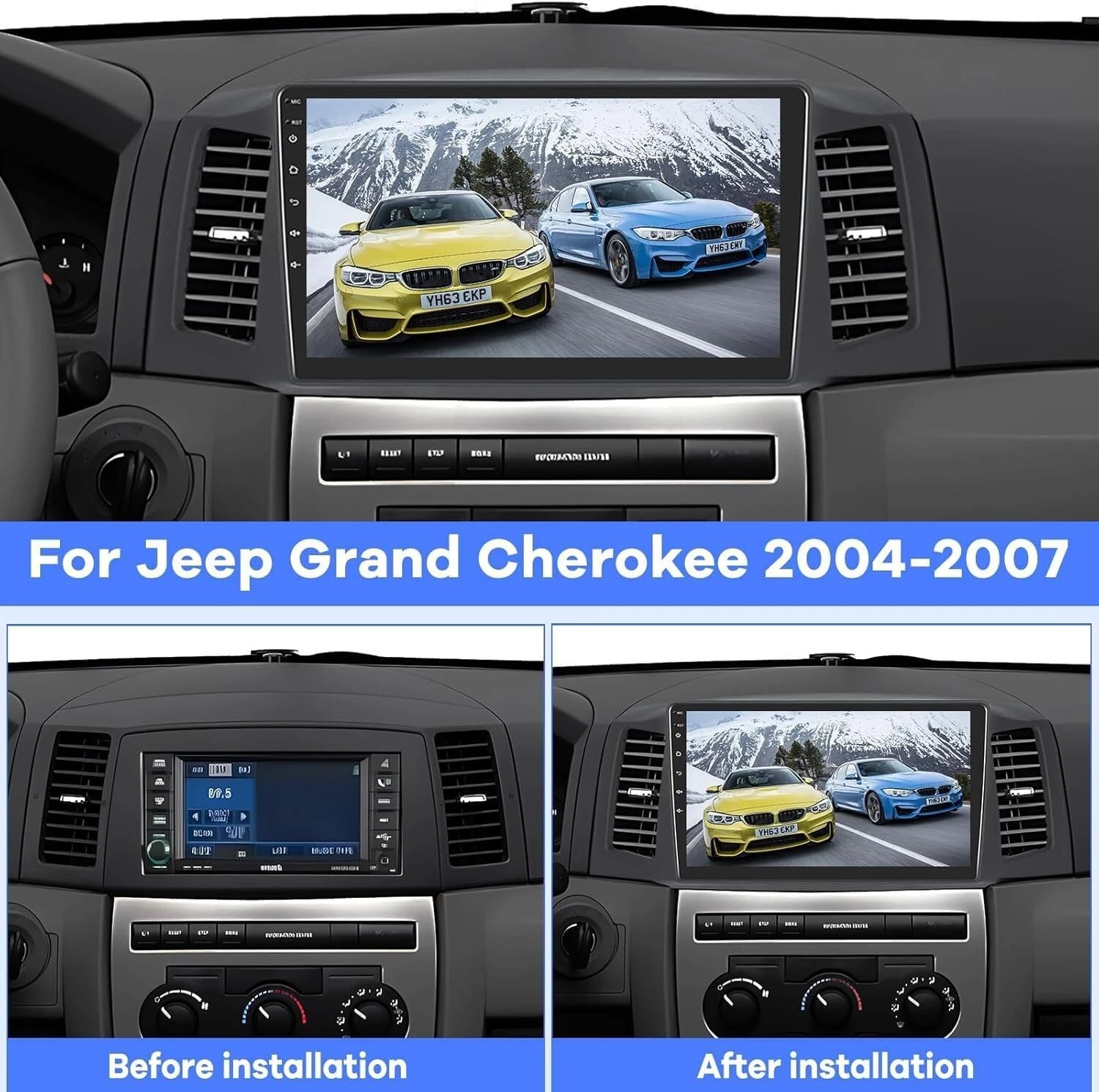
Image 5.1: Comparison of dashboard before and after installing the new car stereo.
5.3. വയറിംഗ് കണക്ഷനുകൾ
- Connect the provided wiring harness to the new car stereo and then to the vehicle's factory harness.
- Connect the GPS module to the designated port on the stereo and position the antenna for optimal signal reception.
- If installing a backup camera, connect its video input (CVBS) to the stereo's reversing input.
- Connect any external USB devices or microphones as needed.
5.4. Mounting the New Stereo
Secure the new car stereo into the dashboard opening using the appropriate mounting brackets and screws. Reattach all trim panels.

Image 5.2: The car stereo unit seamlessly integrated into the vehicle's dashboard.
5.5. Initial Power-Up and Testing
Reconnect the vehicle's power. Turn on the stereo and perform initial tests:
- Check display functionality and touch response.
- Test audio output from all speakers.
- Verify radio reception.
- Test GPS signal acquisition.
- Test Bluetooth connectivity with a mobile device.
- If installed, test the backup camera functionality by engaging reverse gear.
6. പ്രവർത്തന നിർദ്ദേശങ്ങൾ
6.1. അടിസ്ഥാന നാവിഗേഷൻ
- ടച്ച് സ്ക്രീൻ: The 10-inch touch screen allows for intuitive control of all functions.
- ഹോം സ്ക്രീൻ: ഇഷ്ടാനുസൃതമാക്കാവുന്ന ഹോം സ്ക്രീനിൽ നിന്ന് വിവിധ ആപ്ലിക്കേഷനുകളും ക്രമീകരണങ്ങളും ആക്സസ് ചെയ്യുക.
- വോളിയം നിയന്ത്രണം: Adjust volume using the on-screen controls or steering wheel buttons (if configured).
6.2. കാർപ്ലേയും ആൻഡ്രോയിഡ് ഓട്ടോയും
The unit supports both wireless and wired CarPlay and Android Auto. This allows integration with your iOS or Android smartphone for navigation, music, calls, and messaging.
- വയർലെസ് കണക്ഷൻ: Enable Bluetooth and Wi-Fi on your smartphone and connect to the car stereo. Follow the on-screen prompts to initiate CarPlay or Android Auto.
- വയർഡ് കണക്ഷൻ: Connect your smartphone to the stereo using a USB cable. The system will automatically detect and launch CarPlay or Android Auto.

Image 6.1: Display showing Wireless Apple CarPlay, Android Auto, and Mirror Link options.
6.3. ജിപിഎസ് നാവിഗേഷൻ
The stereo comes with built-in offline maps. For online navigation, connect to Wi-Fi and download your preferred navigation applications.
- ഓഫ്ലൈൻ മാപ്പുകൾ: Use the pre-installed maps for navigation without an internet connection. Initial data download may require internet.
- ഓൺലൈൻ മാപ്പുകൾ: Connect to Wi-Fi and download apps like Waze, Google Maps, Sygic, or HereWeGo from the app store.

Image 6.2: The unit's built-in GPS and WiFi capabilities, demonstrating online map usage and music streaming.
6.4. ബ്ലൂടൂത്ത് കണക്റ്റിവിറ്റി
ഹാൻഡ്സ് ഫ്രീ കോളിംഗിനും ഓഡിയോ സ്ട്രീമിംഗിനും ബ്ലൂടൂത്ത് വഴി നിങ്ങളുടെ സ്മാർട്ട്ഫോൺ ജോടിയാക്കുക.
- Go to the Bluetooth settings on the stereo and enable Bluetooth.
- ഇതിനായി തിരയുക the stereo on your smartphone and pair the devices.
- കണക്റ്റ് ചെയ്തുകഴിഞ്ഞാൽ, നിങ്ങൾക്ക് വയർലെസ് ആയി കോളുകൾ വിളിക്കാനും സ്വീകരിക്കാനും സംഗീതം പ്ലേ ചെയ്യാനും കഴിയും.
6.5. സ്പ്ലിറ്റ് സ്ക്രീൻ പ്രവർത്തനം
സ്പ്ലിറ്റ്-സ്ക്രീൻ സവിശേഷത നാവിഗേഷൻ, മ്യൂസിക് പ്ലേബാക്ക് പോലുള്ള രണ്ട് ആപ്ലിക്കേഷനുകൾ ഒരേസമയം പ്രവർത്തിപ്പിക്കാൻ നിങ്ങളെ അനുവദിക്കുന്നു.
- To activate, open an application, then long-press the recent apps button or follow the specific gesture/button combination for split-screen mode on Android 14.
- Select a second application to display alongside the first.
6.6. മിറർ ലിങ്ക്
Mirror Link allows you to display your smartphone's screen directly onto the car stereo's display via Wi-Fi.
- Access the Mirror Link application on the stereo.
- Follow the instructions to connect your iOS or Android smartphone.
6.7. സ്റ്റിയറിംഗ് വീൽ നിയന്ത്രണം (SWC)
The unit supports steering wheel control, allowing you to manage audio and calls without taking your hands off the wheel.
- Access the Steering Wheel Control settings in the stereo's menu.
- Follow the on-screen instructions to program each button on your steering wheel to the desired function (e.g., volume up/down, track skip, answer call).
6.8. Backup Camera Support
If a compatible backup camera is connected, the display will automatically switch to the camera view വാഹനം റിവേഴ്സ് ഗിയറിൽ ഇടുമ്പോൾ.

Image 6.3: Visual representation of backup camera, Bluetooth, GPS navigation, and steering wheel control functionalities.
6.9. Feature Demonstration Video
Video 6.1: A detailed demonstration of various features of the 4GB+64GB car stereo, including split-screen settings, speed unit switch, and memory clearing. This video is provided by the seller, Hodozzy Direct.
7. പരിപാലനം
- സ്ക്രീൻ വൃത്തിയാക്കൽ: Use a soft, lint-free cloth to gently wipe the touch screen. Avoid abrasive cleaners or solvents.
- സോഫ്റ്റ്വെയർ അപ്ഡേറ്റുകൾ: ഒപ്റ്റിമൽ പ്രകടനവും പുതിയ സവിശേഷതകളിലേക്കുള്ള ആക്സസും ഉറപ്പാക്കാൻ ഇടയ്ക്കിടെ സോഫ്റ്റ്വെയർ അപ്ഡേറ്റുകൾക്കായി പരിശോധിക്കുക. അപ്ഡേറ്റുകൾ സാധാരണയായി വൈഫൈ വഴിയാണ് നടപ്പിലാക്കാൻ കഴിയുക.
- താപനില: Operate the unit within the specified working temperature range (-20℃ to 75℃) to prevent damage.
8. പ്രശ്നപരിഹാരം
8.1. പവർ ഇല്ല
- എല്ലാ പവർ കണക്ഷനുകളും ഫ്യൂസുകളും പരിശോധിക്കുക.
- വാഹനത്തിന്റെ ഇഗ്നിഷൻ ഓണാണെന്ന് ഉറപ്പാക്കുക.
8.2. ശബ്ദമില്ല
- വോളിയം മ്യൂട്ട് ചെയ്തിട്ടില്ല അല്ലെങ്കിൽ വളരെ കുറച്ച് സജ്ജീകരിച്ചിട്ടില്ലെന്ന് ഉറപ്പാക്കുക.
- സ്പീക്കർ കണക്ഷനുകൾ പരിശോധിക്കുക.
- ശരിയായ ഓഡിയോ ഉറവിടം തിരഞ്ഞെടുത്തിട്ടുണ്ടെന്ന് ഉറപ്പാക്കുക.
8.3. ജിപിഎസ് സിഗ്നൽ പ്രശ്നങ്ങൾ
- ജിപിഎസ് ആന്റിന ശരിയായി ബന്ധിപ്പിച്ചിട്ടുണ്ടെന്നും വ്യക്തമായ ഒരു ലൈൻ ഉണ്ടെന്നും ഉറപ്പാക്കുക. view ആകാശത്തിൻ്റെ.
- ഉയരമുള്ള കെട്ടിടങ്ങളിൽ നിന്നോ ഇടതൂർന്ന സസ്യജാലങ്ങളിൽ നിന്നോ മാറി തുറസ്സായ സ്ഥലത്തേക്ക് വാഹനം മാറ്റുക.
8.4. Bluetooth Connectivity Problems
- സ്റ്റീരിയോയിലും സ്മാർട്ട്ഫോണിലും ബ്ലൂടൂത്ത് പ്രവർത്തനക്ഷമമാക്കിയിട്ടുണ്ടെന്ന് ഉറപ്പാക്കുക.
- മുമ്പത്തെ ജോടിയാക്കലുകൾ ഇല്ലാതാക്കി ഉപകരണങ്ങൾ വീണ്ടും ജോടിയാക്കാൻ ശ്രമിക്കുക.
- സ്റ്റീരിയോയും സ്മാർട്ട്ഫോണും പുനരാരംഭിക്കുക.
8.5. ടച്ച് സ്ക്രീൻ പ്രതികരിക്കുന്നില്ല
- Perform a soft reset of the unit (refer to the device settings for reset options).
- സ്ക്രീൻ വൃത്തിയുള്ളതും അവശിഷ്ടങ്ങൾ ഇല്ലാത്തതുമാണെന്ന് ഉറപ്പാക്കുക.
9 സുരക്ഷാ വിവരങ്ങൾ
- ഡ്രൈവിംഗിൽ നിന്ന് ശ്രദ്ധ തിരിക്കുന്ന രീതിയിൽ യൂണിറ്റ് പ്രവർത്തിപ്പിക്കരുത്. റോഡ് സുരക്ഷയ്ക്ക് എപ്പോഴും മുൻഗണന നൽകുക.
- യൂണിറ്റിന് തീവ്രമായ താപനില, ദീർഘനേരം നേരിട്ടുള്ള സൂര്യപ്രകാശം, അല്ലെങ്കിൽ അമിതമായ ഈർപ്പം എന്നിവ ഏൽക്കുന്നത് ഒഴിവാക്കുക.
- യൂണിറ്റ് വേർപെടുത്താനോ പരിഷ്ക്കരിക്കാനോ ശ്രമിക്കരുത്. ഇത് വാറന്റി അസാധുവാക്കുകയും കേടുപാടുകൾ വരുത്തുകയും ചെയ്തേക്കാം.
- Ensure all wiring is properly insulated and secured to prevent short circuits or electrical hazards.