
ARCCTV P2
ARCCTV 2K Security Camera Outdoor P2 User Manual
മോഡൽ: P2
1. ആമുഖം
This manual provides detailed instructions for the installation, operation, and maintenance of your ARCCTV 2K Security Camera Outdoor P2. Please read this manual thoroughly before using the product to ensure correct usage and optimal performance. Keep this manual for future reference.

ചിത്രം 1.1: മുൻഭാഗം view of the ARCCTV 2K Security Camera Outdoor P2.
2. ബോക്സിൽ എന്താണുള്ളത്?
പാക്കേജിൽ എല്ലാ ഘടകങ്ങളും ഉണ്ടെന്ന് ഉറപ്പാക്കുക:
- ക്യാമറ ബോഡി
- 5V1A പവർ അഡാപ്റ്റർ
- Mounting Screws (set)
- Screw Positioning Sticker
- മുന്നറിയിപ്പ് സ്റ്റിക്കർ
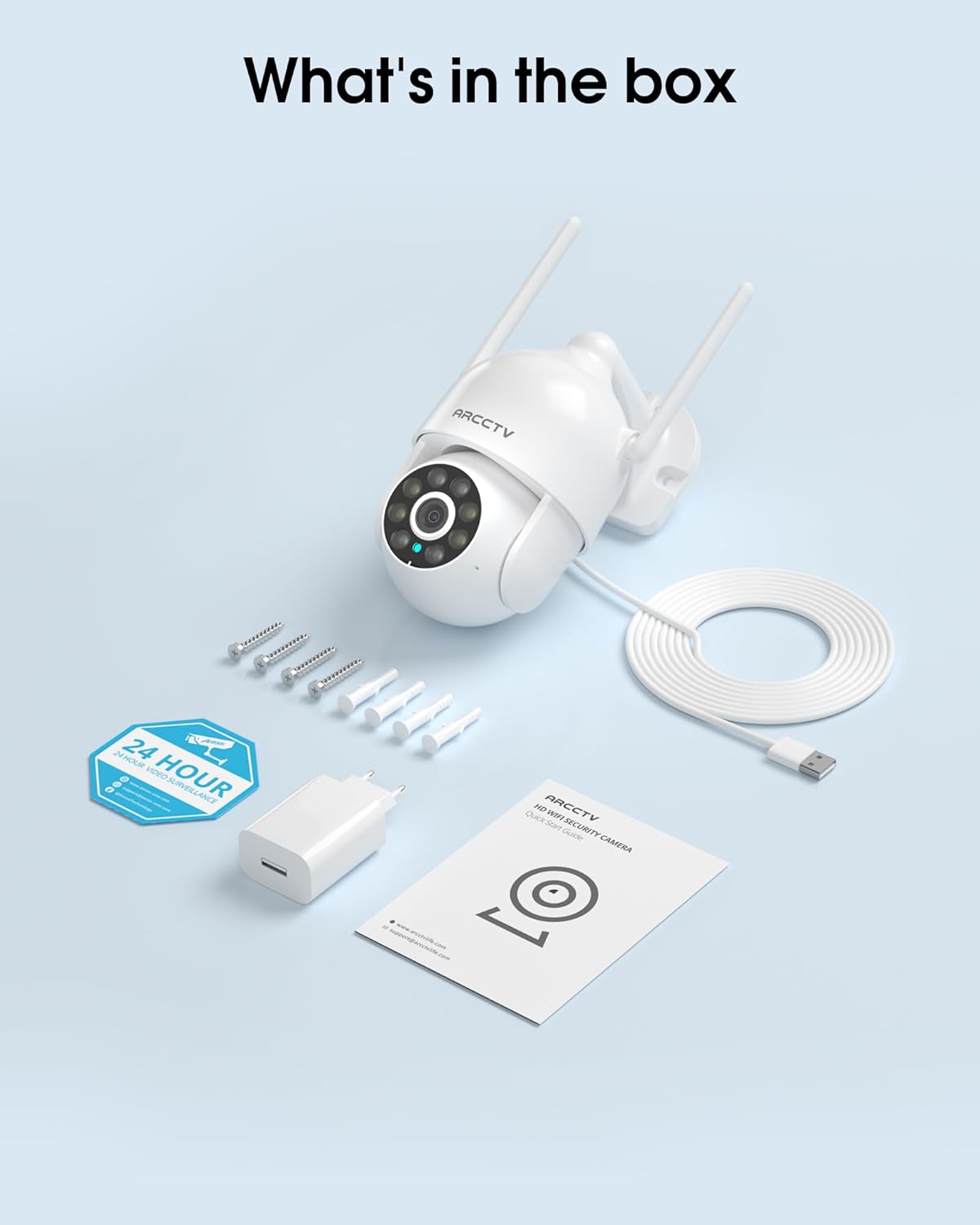
Image 2.1: All items included in the ARCCTV 2K Security Camera package.
3. ഉൽപ്പന്ന സവിശേഷതകൾ
- 2K അൾട്രാ HD റെസല്യൂഷൻ: Provides clear 2304x1296p video.
- പൂർണ്ണ വർണ്ണ രാത്രി ദർശനം: Built-in spotlight enables vivid color monitoring in low light.
- 360° Pan-Tilt-Zoom (PTZ): Remotely control 355° horizontal and 90° vertical rotation.
- Auto Motion Tracking: Smart AI automatically follows and records detected movement.
- ഡ്യുവൽ-ബാൻഡ് വൈഫൈ: Supports both 2.4G and 5G WiFi for stable connectivity.
- ടു-വേ ഓഡിയോ: ആശയവിനിമയത്തിനായി ബിൽറ്റ്-ഇൻ മൈക്രോഫോണും സ്പീക്കറും.
- IP66 കാലാവസ്ഥാ പ്രതിരോധം: Durable design for outdoor use in various weather conditions (-4°F ~ 122°F).
- ഫ്ലെക്സിബിൾ സ്റ്റോറേജ്: Supports local microSD card storage (up to 128GB, not included) and optional cloud storage.
- 24/7 റെക്കോർഡിംഗ്: Continuous recording capability with stable power supply.
4. സജ്ജീകരണം
4.1 ഇൻസ്റ്റലേഷൻ
- ഒരു ലൊക്കേഷൻ തിരഞ്ഞെടുക്കുക: തെളിഞ്ഞ കാലാവസ്ഥയുള്ള ഒരു പുറം സ്ഥലം തിരഞ്ഞെടുക്കുക. view of the area you wish to monitor. Ensure it is within range of your Wi-Fi network and a power outlet.
- ക്യാമറ ഘടിപ്പിക്കുക: Use the provided screw positioning sticker to mark drill holes. Drill holes, insert wall anchors, and secure the camera body to the wall using the mounting screws.
- പവർ ബന്ധിപ്പിക്കുക: Plug the 5V1A power adapter into the camera and then into a power outlet. The camera will power on and begin its startup sequence.
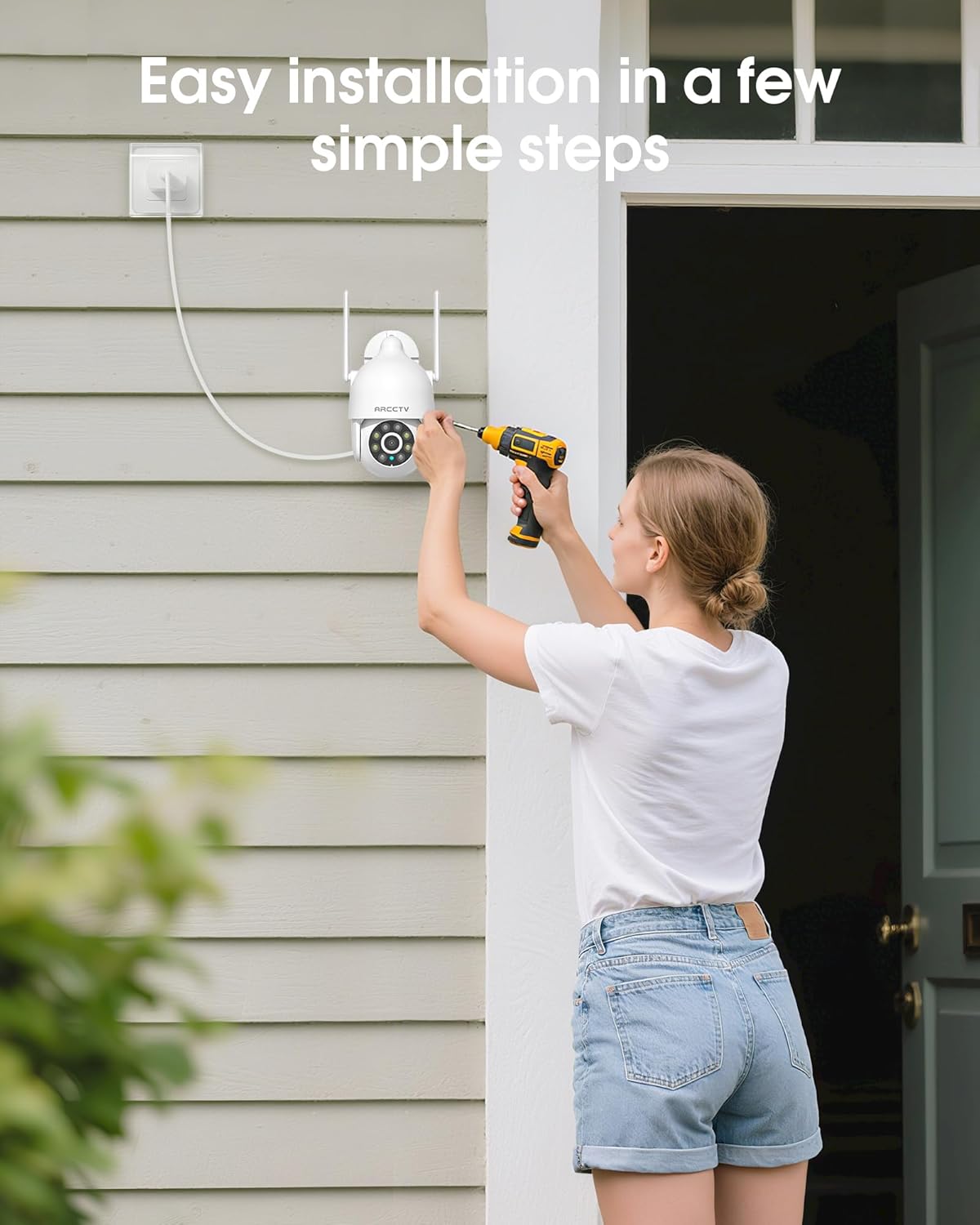
Image 4.1: Illustration of easy camera installation steps.
4.2 ആപ്പ് ഡൗൺലോഡും അക്കൗണ്ട് സൃഷ്ടിക്കലും
- Download the official ARCCTV app from your smartphone's app store (iOS or Android).
- ആപ്പ് തുറന്ന് സ്ക്രീനിലെ നിർദ്ദേശങ്ങൾ പാലിച്ച് പുതിയൊരു അക്കൗണ്ട് സൃഷ്ടിക്കുക അല്ലെങ്കിൽ നിങ്ങൾക്ക് ഇതിനകം അക്കൗണ്ട് ഉണ്ടെങ്കിൽ ലോഗിൻ ചെയ്യുക.
4.3 വൈഫൈ കണക്ഷൻ
- In the app, tap the "Add Device" or "+" icon.
- Select your camera model and follow the prompts to connect it to your Wi-Fi network. The camera supports both 2.4GHz and 5GHz bands for stable connectivity.
- സജ്ജീകരണ പ്രക്രിയയിൽ നിങ്ങളുടെ സ്മാർട്ട്ഫോൺ അതേ വൈ-ഫൈ നെറ്റ്വർക്കിലേക്ക് കണക്റ്റുചെയ്തിട്ടുണ്ടെന്ന് ഉറപ്പാക്കുക.
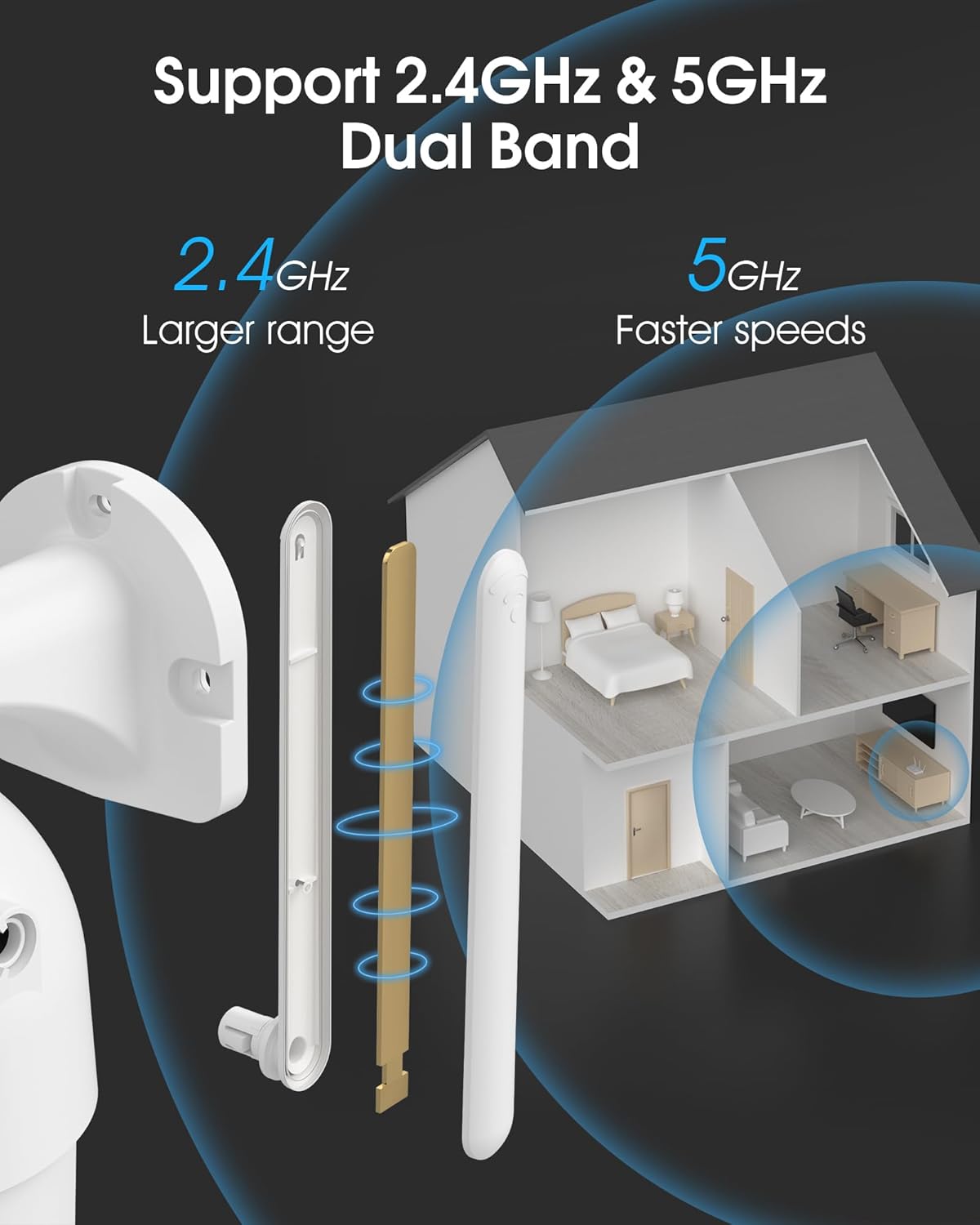
Image 4.2: The camera supports both 2.4GHz (larger range) and 5GHz (faster speeds) Wi-Fi bands.
4.4 മൈക്രോ എസ്ഡി കാർഡ് ഇൻസ്റ്റാളേഷൻ (ഓപ്ഷണൽ)
For local storage, install a microSD card (up to 128GB, not included) into the designated slot on the camera. Ensure the camera is powered off before inserting or removing the card.
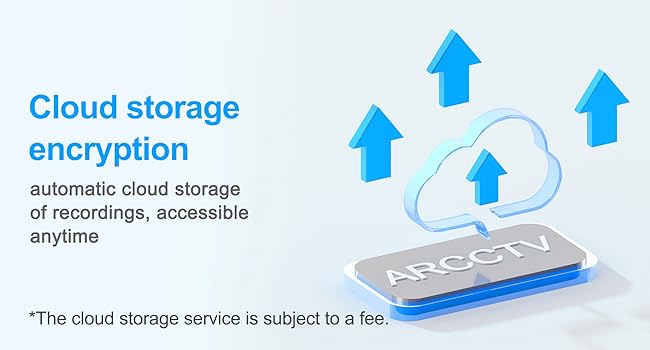
Image 4.3: Location of the microSD card slot on the camera.
5. ക്യാമറ പ്രവർത്തിപ്പിക്കുക
5.1 തത്സമയം View
Open the ARCCTV app and select your camera to view the live feed. You can monitor your property in real-time.
5.2 പാൻ-ടിൽറ്റ്-സൂം (PTZ) നിയന്ത്രണം
തത്സമയം view screen, use the directional controls to rotate the camera horizontally (Pan: 355°) and vertically (Tilt: 90°) to adjust the viewing angle. You can also set preset points for quick navigation.
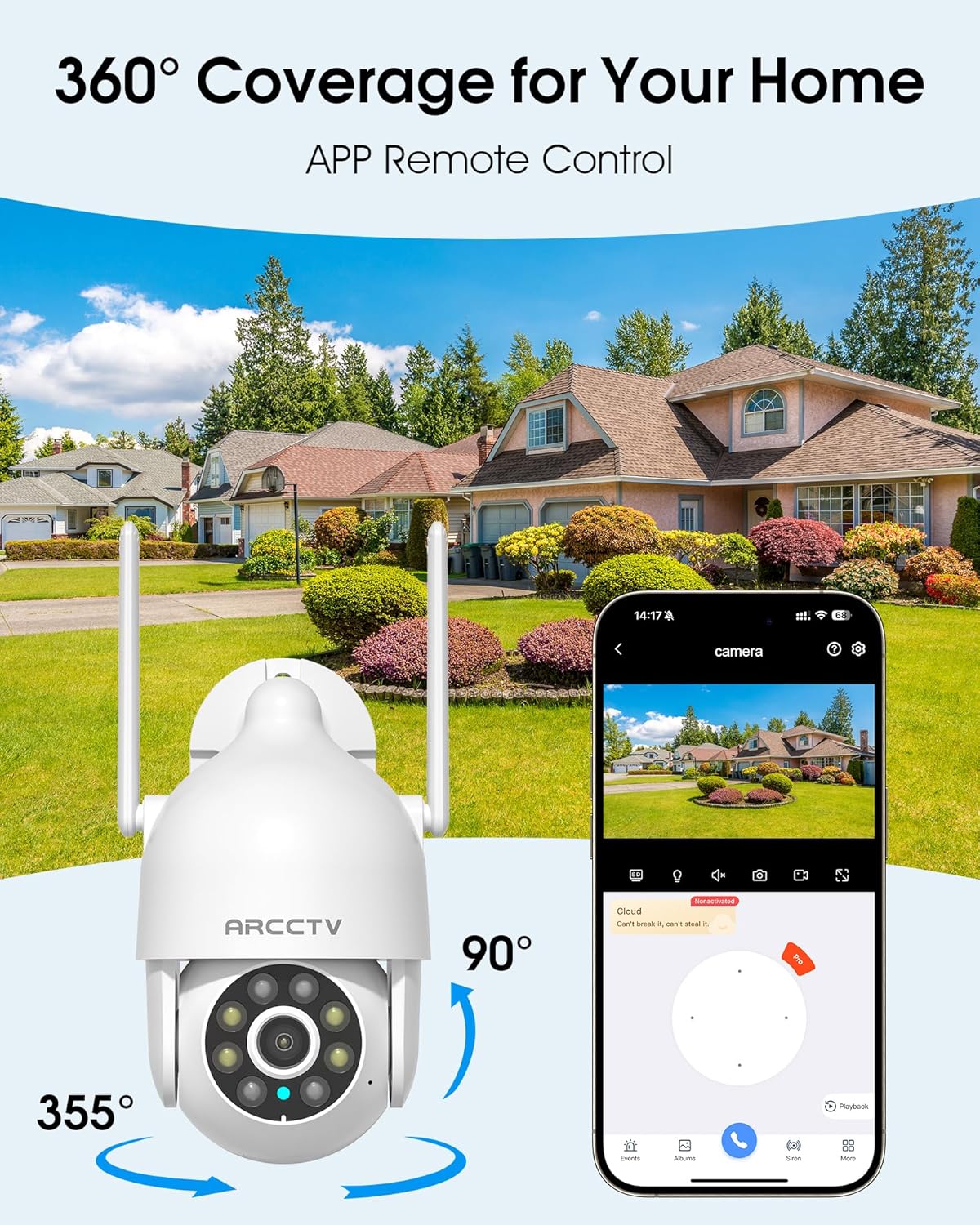
Image 5.1: The camera offers 360° coverage through remote pan and tilt controls.
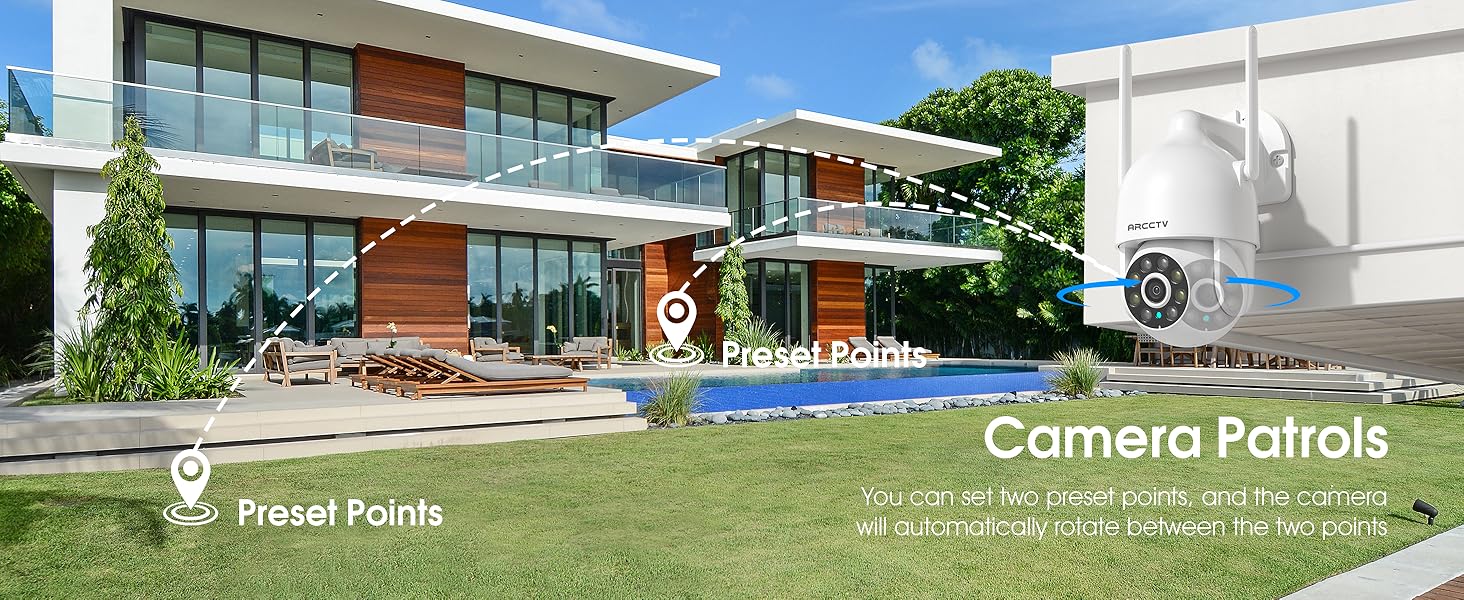
Image 5.2: Setting up camera patrol routes between preset points.
5.3 Motion Tracking and Alerts
The camera features smart AI motion tracking that automatically follows detected movement. You can customize alert zones and receive instant notifications on your smartphone when motion is detected.

Image 5.3: The camera's smart motion tracking feature in action.

Image 5.4: Instant alerts with customizable settings, including spotlight, siren, and two-way audio.
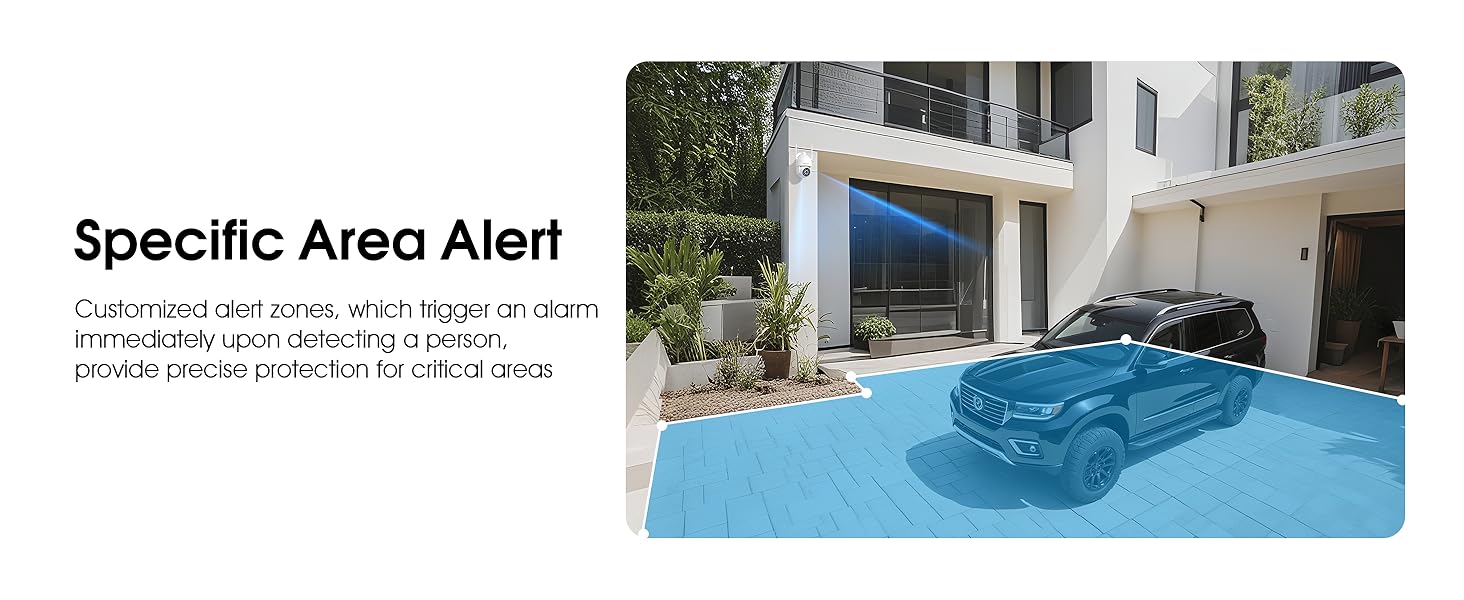
Image 5.5: Setting up specific area alerts for precise protection.
5.4 നൈറ്റ് വിഷൻ മോഡുകൾ
The camera offers both full-color night vision (activated by the built-in spotlight) and infrared night vision for clear monitoring in various low-light conditions.

Image 5.6: Comparison of Color Night Vision and Infrared Night Vision.
5.5 ടു-വേ ഓഡിയോ
Use the two-way audio feature to communicate with visitors or deter unwanted guests directly through the camera's built-in microphone and speaker.
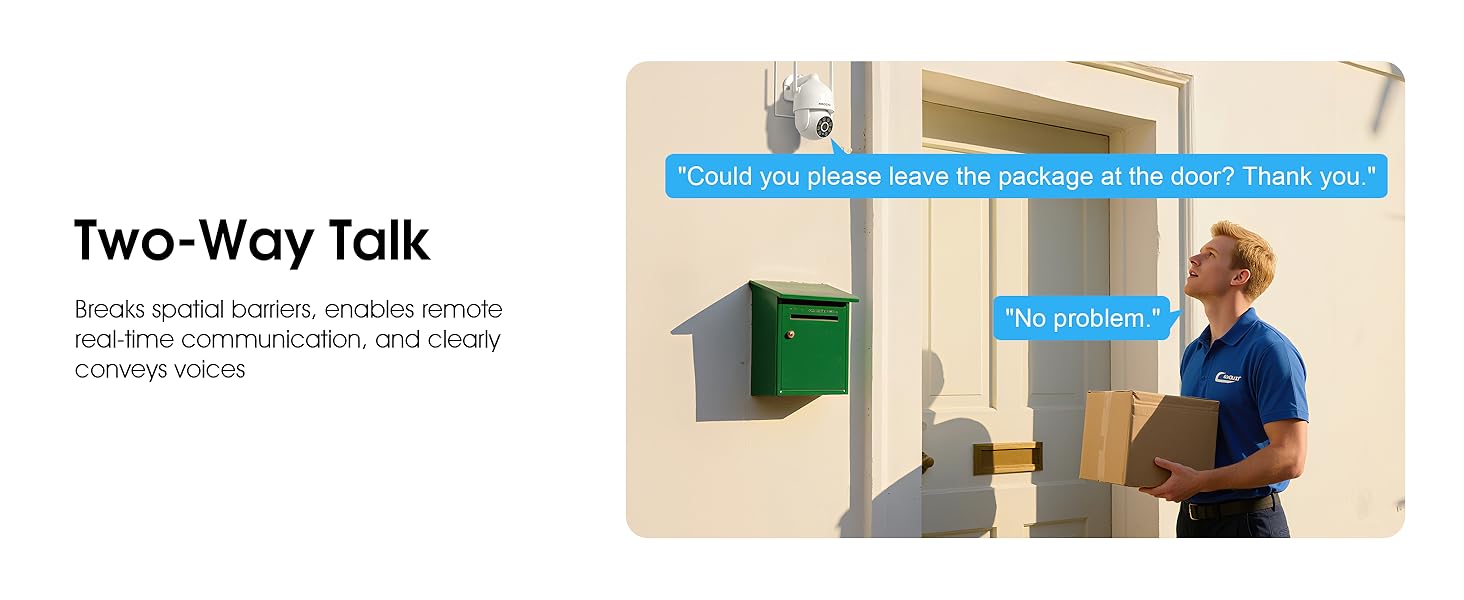
Image 5.7: Utilizing two-way talk for remote communication.
5.6 റെക്കോർഡിംഗും പ്ലേബാക്കും
ക്യാമറ 24/7 തുടർച്ചയായ റെക്കോർഡിംഗ് പിന്തുണയ്ക്കുന്നു. ഫൂtage can be saved to a local microSD card (up to 128GB) or to optional cloud storage. Access recorded videos through the app's playback function.

Image 5.8: The camera provides 24/7 recording capabilities.
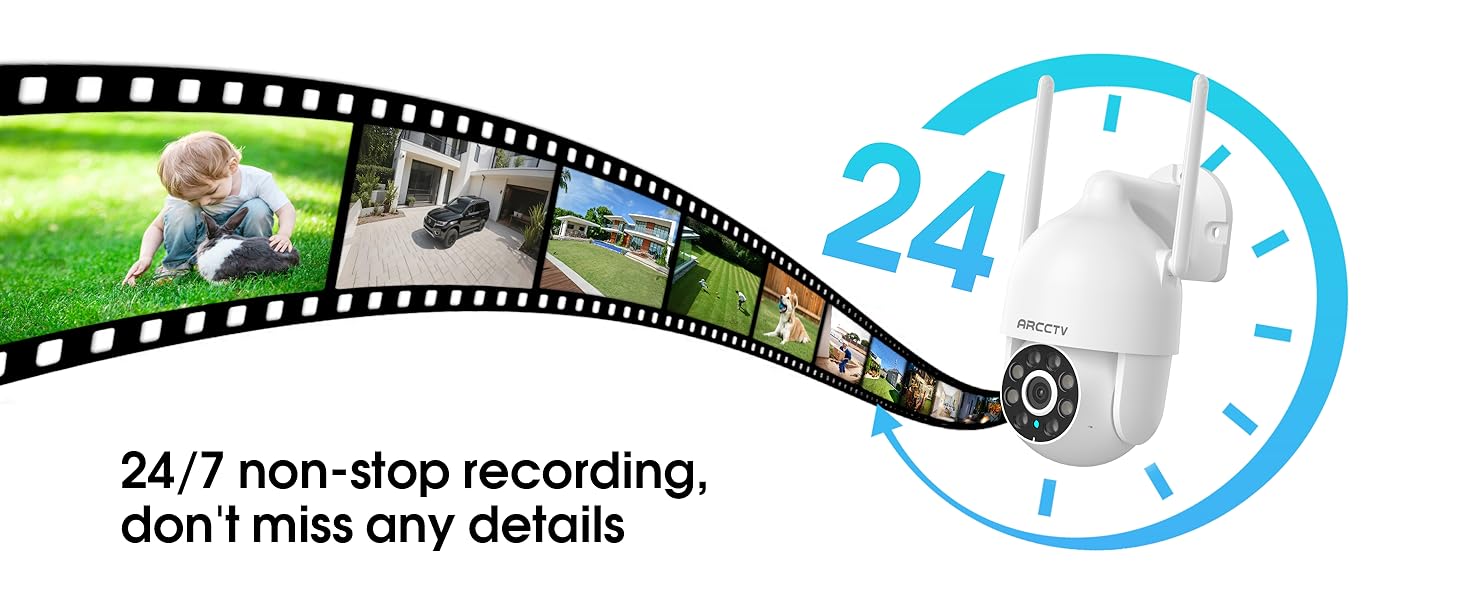
Image 5.9: Continuous 24/7 recording ensures no details are missed.
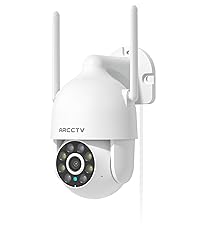
Image 5.10: Cloud storage encryption for secure and accessible recordings (subscription may apply).
5.7 കുടുംബ പങ്കിടൽ
The app supports multi-member sharing, allowing family members to view the camera feed and collaborate on security monitoring.
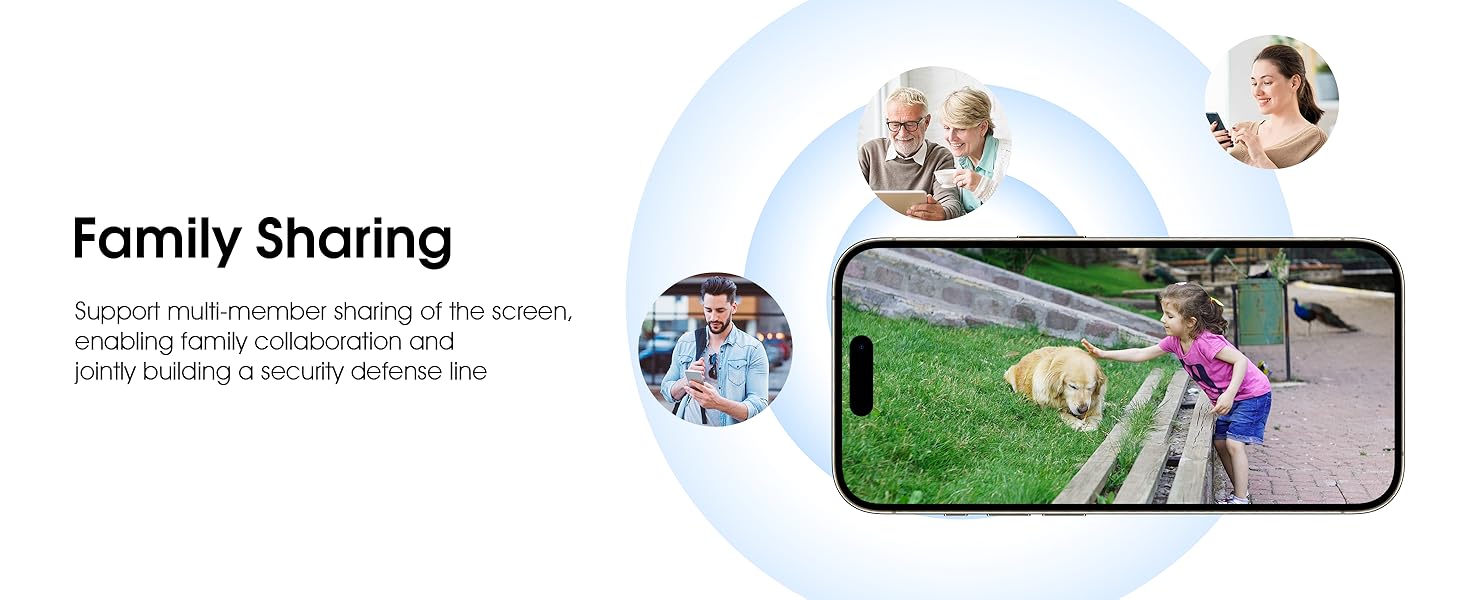
Image 5.11: The family sharing feature allows multiple users to access the camera feed.
5.8 അലക്സാ അനുയോജ്യത
The camera is compatible with Alexa, allowing you to check the monitoring screen using voice commands.
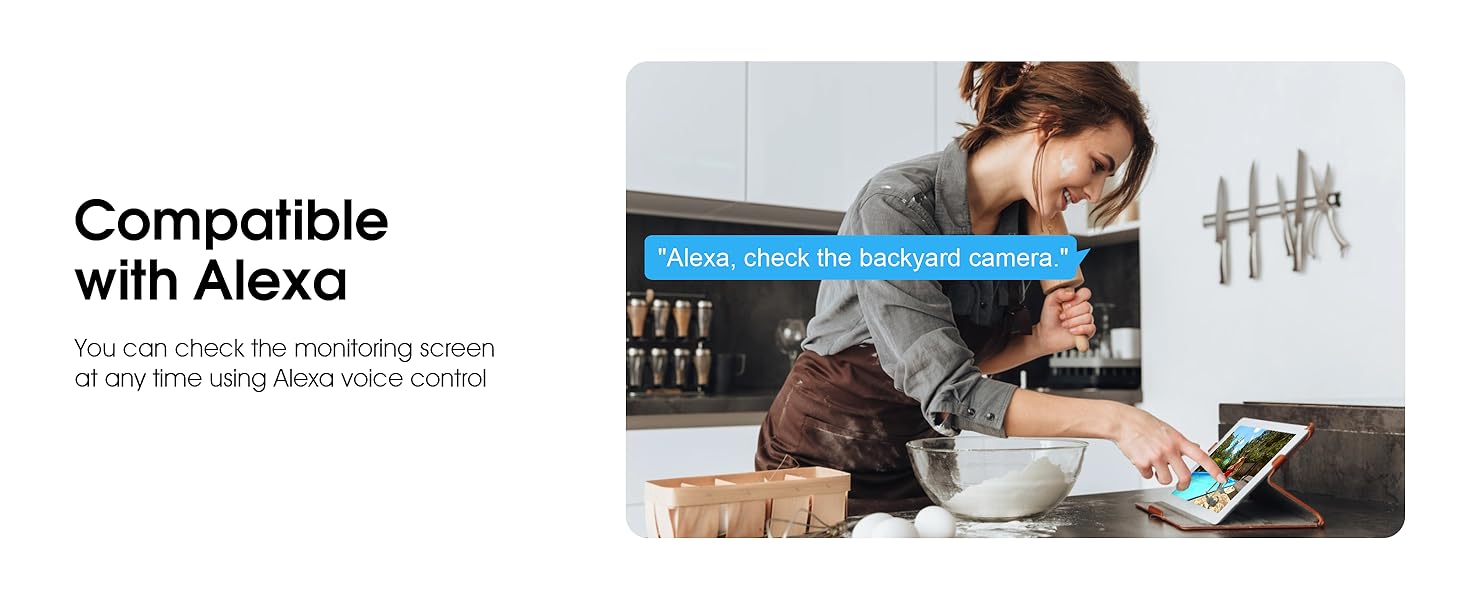
Image 5.12: Voice control via Alexa for convenient monitoring.
6. പരിപാലനം
6.1 ക്യാമറ വൃത്തിയാക്കൽ
ക്യാമറ ലെൻസും ഹൗസിംഗും ഇടയ്ക്കിടെ സോഫ്റ്റ്, ഡി-ക്യാമറ ഉപയോഗിച്ച് വൃത്തിയാക്കുക.amp പൊടിയും അവശിഷ്ടങ്ങളും നീക്കം ചെയ്യാൻ തുണി ഉപയോഗിക്കുക. കഠിനമായ രാസവസ്തുക്കളോ ഉരച്ചിലുകളുള്ള ക്ലീനറുകളോ ഉപയോഗിക്കരുത്.
6.2 ഫേംവെയർ അപ്ഡേറ്റുകൾ
Ensure your camera's firmware is up to date for optimal performance and security. Check for updates within the ARCCTV app and follow the instructions to install them.
6.3 സ്റ്റോറേജ് മാനേജ്മെൻ്റ്
If using a microSD card, regularly check its status in the app. Format the card periodically to maintain performance. For cloud storage, manage your subscription and storage space through the app.
7. പ്രശ്നപരിഹാരം
- ക്യാമറ വൈഫൈയിലേക്ക് കണക്റ്റ് ചെയ്യുന്നില്ല:
- Ensure your Wi-Fi network is 2.4GHz or 5GHz and has a strong signal at the camera's location.
- വൈഫൈ പാസ്വേഡ് ശരിയായി നൽകിയിട്ടുണ്ടെന്ന് ഉറപ്പാക്കുക.
- നിങ്ങളുടെ റൂട്ടറും ക്യാമറയും പുനരാരംഭിക്കുക.
- മോശം ചിത്രത്തിന്റെ ഗുണനിലവാരം:
- ക്യാമറ ലെൻസ് വൃത്തിയാക്കുക.
- രാത്രി കാഴ്ചയുടെ മികച്ച പ്രകടനത്തിന് മതിയായ വെളിച്ചം ഉറപ്പാക്കുക.
- നിങ്ങളുടെ ഇന്റർനെറ്റ് കണക്ഷൻ വേഗത പരിശോധിക്കുക.
- മോഷൻ ഡിറ്റക്ഷൻ പ്രവർത്തിക്കുന്നില്ല:
- ആപ്പ് ക്രമീകരണങ്ങളിൽ മോഷൻ ഡിറ്റക്ഷൻ പ്രവർത്തനക്ഷമമാക്കിയിട്ടുണ്ടോയെന്ന് പരിശോധിക്കുക.
- സെൻസിറ്റിവിറ്റി ക്രമീകരണങ്ങൾ ക്രമീകരിക്കുക.
- ക്യാമറയുടെ ഫീൽഡിൽ തടസ്സങ്ങളൊന്നുമില്ലെന്ന് ഉറപ്പാക്കുക. view.
- No Recording to MicroSD Card:
- Ensure a microSD card is properly inserted and formatted in the app.
- Check if the card is full; consider formatting or replacing it.
- Verify recording settings in the app.
8 സ്പെസിഫിക്കേഷനുകൾ
| ഫീച്ചർ | സ്പെസിഫിക്കേഷൻ |
|---|---|
| മോഡലിൻ്റെ പേര് | P2 |
| ഇൻഡോർ/ഔട്ട്ഡോർ ഉപയോഗം | ഔട്ട്ഡോർ |
| വീഡിയോ ക്യാപ്ചർ റെസല്യൂഷൻ | 2K (2304x1296p) |
| കണക്റ്റിവിറ്റി ടെക്നോളജി | വയർലെസ് (വൈ-ഫൈ) |
| വയർലെസ് കമ്മ്യൂണിക്കേഷൻ ടെക്നോളജി | Wi-Fi (2.4G/5G Dual-Band) |
| Viewing ആംഗിൾ | 360 ഡിഗ്രി (355° പാൻ, 90° ചരിവ്) |
| നൈറ്റ് വിഷൻ റേഞ്ച് | 50 അടി |
| ജല പ്രതിരോധ നില | IP66 വാട്ടർപ്രൂഫ് |
| പവർ ഉറവിടം | 5V1A പവർ അഡാപ്റ്റർ |
| ഫ്ലാഷ് മെമ്മറി പിന്തുണയ്ക്കുന്ന പരമാവധി വലുപ്പം | 128 GB (MicroSD) |
| ഓഡിയോ വിഷ്വൽ റെക്കോർഡിംഗ് ശേഷികൾ | വീഡിയോ & ഓഡിയോ |
| പ്രത്യേക ഫീച്ചർ | 2-Way Audio, Motion Tracking, Full Color Night Vision |
| ഇനത്തിൻ്റെ അളവുകൾ L x W x H | 7.8 x 6.6 x 5.3 ഇഞ്ച് |
| ഇനത്തിൻ്റെ ഭാരം | 1.39 പൗണ്ട് |
9. വാറൻ്റിയും പിന്തുണയും
For warranty information and technical support, please refer to the official ARCCTV website or contact their customer service directly. Contact details are typically provided on the product packaging or within the mobile application.
അനുബന്ധ രേഖകൾ - P2
 |
INSEETECH WiFi Security Camera Indoor User Manual Comprehensive user manual for the INSEETECH WiFi Security Camera Indoor, covering setup, app instructions, features, and troubleshooting. |
 |
ZUMIMALL BF-BK05 PTZ സുരക്ഷാ ക്യാമറ ക്വിക്ക് സ്റ്റാർട്ട് ഗൈഡ് ZUMIMALL BF-BK05 PTZ സുരക്ഷാ ക്യാമറ സജ്ജീകരിക്കുന്നതിനും ഉപയോഗിക്കുന്നതിനുമുള്ള അവശ്യ വിവരങ്ങൾ ഈ ക്വിക്ക് സ്റ്റാർട്ട് ഗൈഡ് നൽകുന്നു. ഉൽപ്പന്ന ഉള്ളടക്കങ്ങൾ, ഡയഗ്രം വിശദീകരണം, ആപ്പ് ഇൻസ്റ്റാളേഷൻ, അക്കൗണ്ട് രജിസ്ട്രേഷൻ, കണക്ഷൻ ഘട്ടങ്ങൾ, വാറന്റി വിശദാംശങ്ങൾ എന്നിവ ഇതിൽ ഉൾപ്പെടുന്നു. |
 |
പ്രൈവസ് AI ഓട്ടോ ട്രാക്കിംഗ് ഫംഗ്ഷൻ നിർദ്ദേശങ്ങൾ പ്രൈസൽ ക്യാമറയുടെ അവതാരക/വ്യക്തി ട്രാക്കിംഗ്, സോൺ ട്രാക്കിംഗ് എന്നിവയുൾപ്പെടെയുള്ള നൂതന AI ഓട്ടോ ട്രാക്കിംഗ് സവിശേഷതകൾ കോൺഫിഗർ ചെയ്യുന്നതിനും ഉപയോഗിക്കുന്നതിനുമുള്ള സമഗ്രമായ ഗൈഡ്, രണ്ടിലൂടെയും. web ഇന്റർഫേസും റിമോട്ട് കൺട്രോളും. |
 |
ANRAN Q4-J40W WiFi Battery Camera User Manual Comprehensive user manual for the ANRAN Q4-J40W WiFi Battery Camera, covering setup, installation, app pairing, features, and troubleshooting. Learn how to install, connect, and manage your ANRAN security camera using the ARCCTV app. |
 |
HD AI Auto Tracking PTZ Camera User Manual User manual for the HD AI Auto Tracking PTZ Camera, covering product description, packing list, performance characteristics, remote control functions, AI tracking settings via WebUI, common operation instructions, network functions, installation, and troubleshooting. |
 |
HD AI Auto Tracking Conference Camera User Manual - Tongveo This user manual provides comprehensive instructions for the Tongveo HD AI Auto Tracking Conference Camera, covering setup, features, performance specifications, menu navigation, and operation. Learn about AI tracking, PTZ controls, exposure, color settings, network configuration, and system maintenance. |
Ask a question about this manual
Ask about setup, troubleshooting, compatibility, parts, safety, or missing instructions. Manuals+ will review the question and use this page’s manual context to help answer it.