
1. ആമുഖം
The Cudy AX1500 WiFi 6 Mesh Wi-Fi System (M1500) is designed to provide seamless, high-speed wireless internet coverage throughout your home or office. This system utilizes Wi-Fi 6 technology to deliver fast and reliable connections, effectively eliminating Wi-Fi dead zones. The M1500 system replaces traditional routers and extenders, creating a unified network under a single name for optimal performance and convenience.
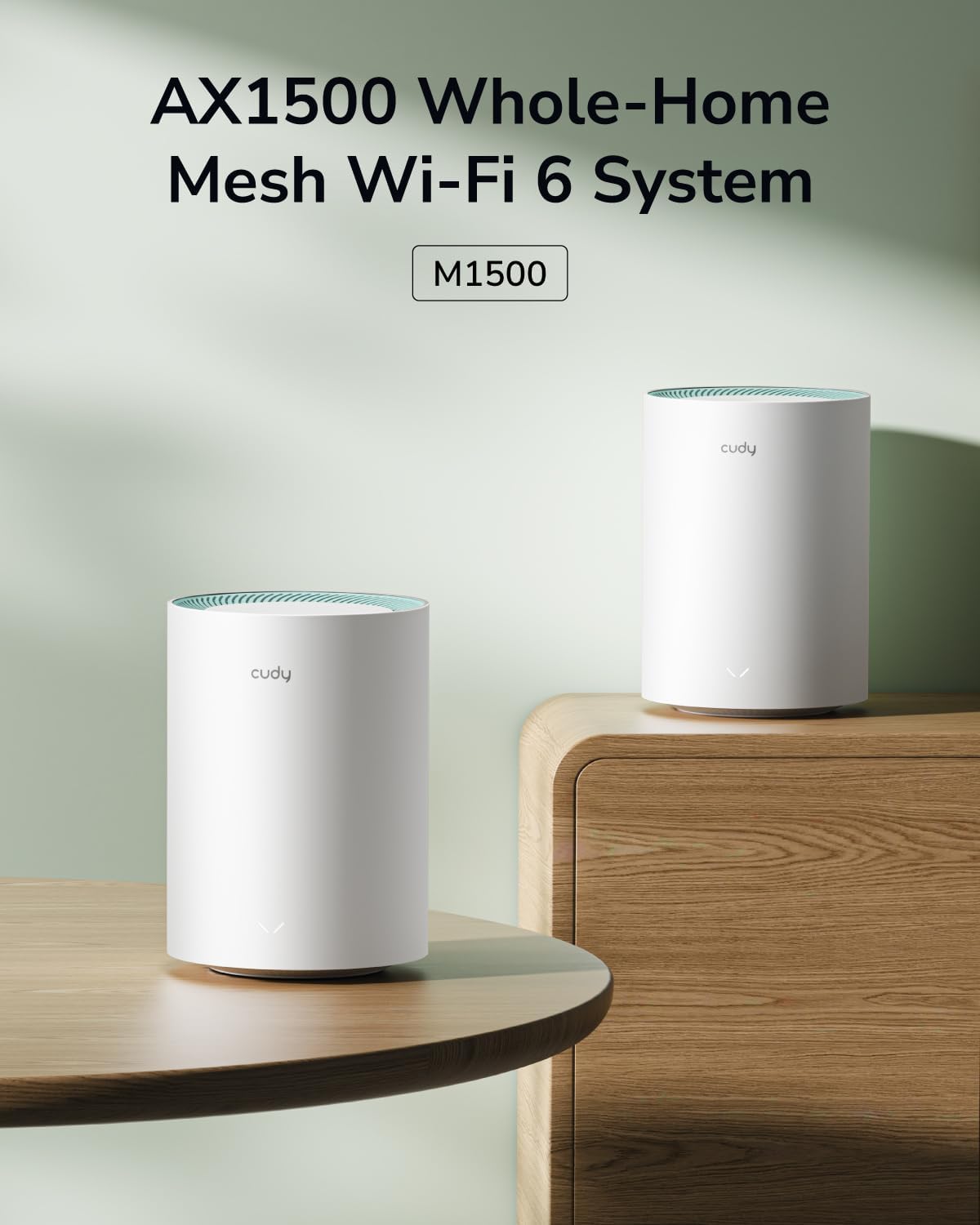
Figure 1: Cudy AX1500 WiFi 6 Mesh System M1500 Units
2. പാക്കേജ് ഉള്ളടക്കം
നിങ്ങളുടെ പാക്കേജിൽ ഇനിപ്പറയുന്ന ഇനങ്ങൾ അടങ്ങിയിട്ടുണ്ടെന്ന് പരിശോധിക്കുക:
- Cudy M1500 Mesh Wi-Fi Units (2-Pack)
- Power Adapters (one for each unit)
- ഇഥർനെറ്റ് കേബിൾ
- ദ്രുത ഇൻസ്റ്റലേഷൻ ഗൈഡ്
If any item is missing or damaged, please contact Cudy support.
3. സജ്ജീകരണ നിർദ്ദേശങ്ങൾ
Follow these steps to set up your Cudy AX1500 Mesh Wi-Fi System:
3.1 Initial Unit Placement
Place the first M1500 unit (main unit) near your modem or internet service provider's connection point. For optimal coverage, Cudy recommends placing the main unit at a central location in your home, minimizing obstructions like thick walls between units.
3.2 Connect the Main Unit
- പവർ ഓഫ്: നിങ്ങളുടെ മോഡത്തിൽ നിന്ന് വൈദ്യുതി വിച്ഛേദിക്കുക.
- ഇതർനെറ്റ് ബന്ധിപ്പിക്കുക: Use the provided Ethernet cable to connect one of the Gigabit ports on the M1500 unit to your modem's LAN port. Any of the three Gigabit ports on the M1500 can function as a WAN port during initial setup.
- മോഡം പവർ ഓൺ ചെയ്യുക: Reconnect power to your modem and wait for it to fully boot up.
- Power On M1500: Connect the power adapter to the M1500 unit and plug it into a power outlet. The LED indicator on the unit will light up.

Figure 2: M1500 Unit Ports (LAN/WAN, Power)
3.3 Configure via Cudy App
The Cudy App provides a guided setup process:
- അപ്ലിക്കേഷൻ ഡൗൺലോഡുചെയ്യുക: Download the Cudy App from your mobile device's app store (iOS or Android).
- വൈഫൈയിലേക്ക് കണക്റ്റുചെയ്യുക: Connect your mobile device to the default Wi-Fi network broadcast by the main M1500 unit. The default Wi-Fi name (SSID) and password are typically found on a label on the bottom of the unit.
- ആപ്പ് സമാരംഭിക്കുക: Open the Cudy App and follow the on-screen instructions to configure your mesh network, including setting a new Wi-Fi name and password.
3.4 Add Satellite Units
After setting up the main unit, you can add the second M1500 unit to expand your Wi-Fi coverage:
- പ്ലേസ്മെൻ്റ്: Place the satellite unit in an area that requires extended Wi-Fi coverage, ensuring it is within range of the main unit or another satellite unit. Avoid placing it behind large metal objects or in enclosed spaces.
- പവർ ഓൺ: Connect the power adapter to the satellite M1500 unit and plug it into a power outlet. Wait for the LED indicator to stabilize.
- ജോടിയാക്കൽ: The units should automatically connect and form a mesh network. If automatic pairing does not occur, use the Cudy App to add the new unit, or press the "Pair (WPS)" button on both the main unit and the satellite unit within two minutes.
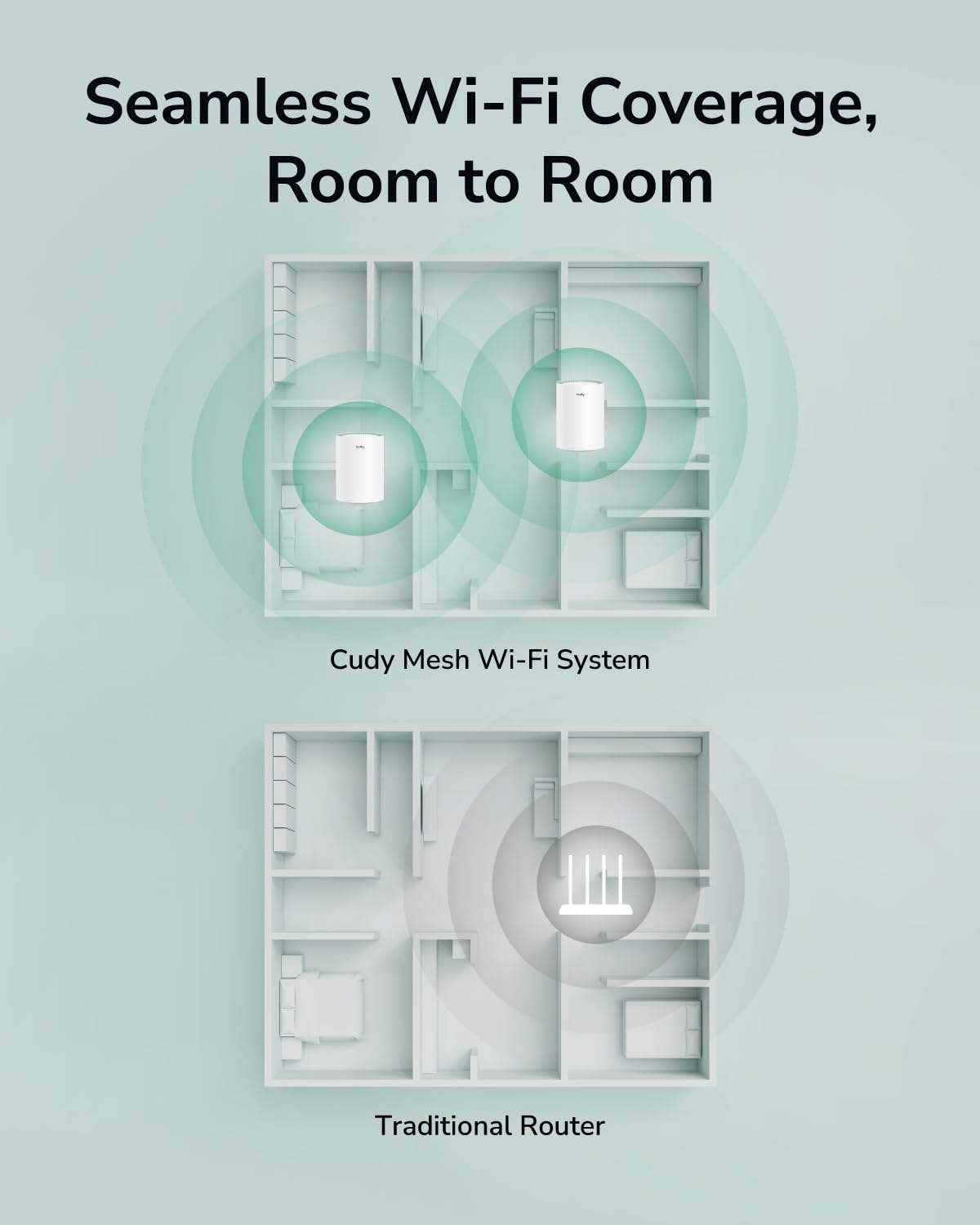
Figure 3: Seamless Wi-Fi Coverage with Cudy Mesh System
4. പ്രവർത്തന നിർദ്ദേശങ്ങൾ
Once your Cudy M1500 Mesh Wi-Fi System is set up, it provides a unified and high-performance wireless network.
4.1 വൈ-ഫൈ കണക്റ്റിവിറ്റി
- Single Network Name: All M1500 units operate under a single Wi-Fi network name (SSID), allowing your devices to seamlessly roam and connect to the strongest signal as you move around your home.
- Dual-Band AX1500: The system supports Wi-Fi 6 (802.11ax) with dual-band capabilities, offering speeds up to 1201 Mbps on the 5 GHz band and 300 Mbps on the 2.4 GHz band.
- ഉപകരണ ശേഷി: Designed to connect over 90 devices simultaneously, ensuring stable performance for all your smart home devices, streaming, and gaming needs.

Figure 4: AX1500 Wi-Fi 6 Speed Capabilities
4.2 വയർഡ് കണക്ഷനുകൾ
Each M1500 unit is equipped with three Gigabit Ethernet ports. These ports can be used for:
- ഇതർനെറ്റ് ബാക്ക്ഹോൾ: Connect mesh units to each other via Ethernet for a more stable and faster backhaul connection, improving overall network performance.
- വയർഡ് ഉപകരണങ്ങൾ: Connect devices such as smart TVs, gaming consoles, or desktop computers directly to any M1500 unit for a stable wired connection.
4.3 Cudy App Control
The Cudy App allows for comprehensive management of your mesh network:
- നെറ്റ്വർക്ക് നിരീക്ഷണം: View connected devices, network status, and internet speed.
- രക്ഷാകർതൃ നിയന്ത്രണങ്ങൾ: Manage internet access for specific devices, set time limits, and block webസൈറ്റുകൾ.
- അതിഥി നെറ്റ്വർക്ക്: Create a separate Wi-Fi network for guests to enhance security.
- ഫേംവെയർ അപ്ഡേറ്റുകൾ: Easily update your M1500 units to the latest firmware for improved performance and security.

Figure 5: Cudy App Interface for Network Management
4.4 VPN Client Support
The M1500 supports multiple VPN client protocols, including PPTP, L2TP, and WireGuard. This feature allows for secure remote access and encrypted data transmission across your network.

Figure 6: VPN Client for Secure Remote Access
5. പരിപാലനം
Regular maintenance ensures optimal performance and longevity of your Cudy M1500 Mesh Wi-Fi System:
- ഫേംവെയർ അപ്ഡേറ്റുകൾ: Periodically check for and install firmware updates via the Cudy App or web ഇന്റർഫേസ്. അപ്ഡേറ്റുകളിൽ പലപ്പോഴും പ്രകടന മെച്ചപ്പെടുത്തലുകൾ, സുരക്ഷാ പാച്ചുകൾ, പുതിയ സവിശേഷതകൾ എന്നിവ ഉൾപ്പെടുന്നു.
- ഒപ്റ്റിമൽ പ്ലേസ്മെൻ്റ്: Ensure units are placed in central locations, away from large metal objects, thick walls (more than two wooden/brick or one concrete wall), and interference sources like microwaves or cordless phones.
- ആനുകാലിക റീബൂട്ട്: Rebooting your mesh units every few weeks can help clear temporary issues and maintain network stability. Simply unplug the power adapter for 10 seconds and then plug it back in.
- വൃത്തിയാക്കൽ: Keep the units clean and free from dust accumulation, especially around ventilation areas, to prevent overheating. Use a soft, dry cloth.
6. പ്രശ്നപരിഹാരം
If you encounter issues with your Cudy M1500 Mesh Wi-Fi System, refer to the following common solutions:
6.1 ഇന്റർനെറ്റ് കണക്ഷൻ ഇല്ല
- മോഡം പരിശോധിക്കുക: Ensure your modem is powered on and has an active internet connection.
- കേബിൾ കണക്ഷനുകൾ: Verify that the Ethernet cable connecting the main M1500 unit to your modem is securely plugged in.
- റീബൂട്ട് സിസ്റ്റം: Power cycle both your modem and the main M1500 unit. Wait for each device to fully boot before checking the connection.
- ISP സ്റ്റാറ്റസ്: സേവനമില്ലെന്ന് സ്ഥിരീകരിക്കാൻ നിങ്ങളുടെ ഇന്റർനെറ്റ് സേവന ദാതാവിനെ (ISP) ബന്ധപ്പെടുക അല്ലെങ്കിൽtagനിങ്ങളുടെ പ്രദേശത്താണ്.
6.2 Weak or Intermittent Wi-Fi Signal
- യൂണിറ്റ് പ്ലേസ്മെൻ്റ്: Adjust the placement of your satellite M1500 units to ensure they are within optimal range of each other and the main unit. Avoid excessive physical obstructions.
- ഇടപെടൽ: Move units away from potential sources of interference such as microwaves, cordless phones, or large electronic appliances.
- ഫേംവെയർ: Ensure all M1500 units are running the latest firmware version.
6.3 Difficulty Adding Satellite Unit
Some users may experience difficulty pairing additional units. If a satellite unit does not connect automatically:
- സാമീപ്യം: Temporarily move the satellite unit closer to the main unit during the pairing process.
- ജോടി ബട്ടൺ: Press the "Pair (WPS)" button on both the main unit and the satellite unit within two minutes.
- ഫാക്ടറി പുന et സജ്ജമാക്കുക: If pairing repeatedly fails, perform a factory reset on the satellite unit. This typically involves pressing and holding a reset button (often recessed) for several seconds until the LED behavior changes. Refer to the Quick Installation Guide for specific reset instructions. After resetting, attempt the pairing process again.
- Cudy App: Utilize the Cudy App's guided process for adding new mesh units, which can often simplify the procedure.
6.4 Device Cannot Connect to Wi-Fi
- ശരിയായ പാസ്വേഡ്: നിങ്ങൾ ശരിയായ വൈഫൈ പാസ്വേഡ് നൽകുന്നുണ്ടോ എന്ന് പരിശോധിക്കുക.
- Network Visibility: Ensure the Wi-Fi network (SSID) is visible. If you have hidden the SSID, manually connect your device.
- ഉപകരണ അനുയോജ്യത: Confirm your device supports Wi-Fi 6 (802.11ax) or earlier standards (802.11ac/n/g/b/a).
- ഉപകരണം റീബൂട്ട് ചെയ്യുക: Reboot the device attempting to connect.
7 സ്പെസിഫിക്കേഷനുകൾ
| ബ്രാൻഡ് | കുഡി |
| മോഡലിൻ്റെ പേര് | M1500 2-പായ്ക്ക് |
| Wi-Fi ജനറേഷൻ | Wi-Fi 6 (802.11ax) |
| ഫ്രീക്വൻസി ബാൻഡ് ക്ലാസ് | ഡ്യുവൽ-ബാൻഡ് (2.4 GHz & 5 GHz) |
| ഡാറ്റ കൈമാറ്റ നിരക്ക് | 1500 Mbps വരെ (5 GHz-ൽ 1201 Mbps, 2.4 GHz-ൽ 300 Mbps) |
| കവറേജ് | Up to 1800 sq.ft. (for 2-Pack) |
| Number of Gigabit Ports | യൂണിറ്റിന് 3 |
| സുരക്ഷാ പ്രോട്ടോക്കോൾ | WPA3 |
| റാം മെമ്മറി ഇൻസ്റ്റാൾ ചെയ്തു | 128 MB |
| നിയന്ത്രണ രീതി | Cudy App, Web ഇൻ്റർഫേസ് |
| പ്രത്യേക സവിശേഷതകൾ | Access Point Mode, LED Indicator, Parental Control, QoS, Remote Access, Multi-VPN Support (PPTP/L2TP/WireGuard) |
| അളവുകൾ (L x W x H) | 4.33"L x 4.33"W x 6.08"H |
| ഇനത്തിൻ്റെ ഭാരം | 400 ഗ്രാം |
8. വാറൻ്റിയും പിന്തുണയും
8.1 ഉൽപ്പന്ന വാറന്റി
The Cudy AX1500 WiFi 6 Mesh System M1500 comes with a 2 വർഷത്തെ വാറൻ്റി from the date of purchase. This warranty covers manufacturing defects and malfunctions under normal use. For warranty claims, please retain your proof of purchase.
8.2 സാങ്കേതിക പിന്തുണ
For technical assistance, troubleshooting, or further inquiries, please visit the official Cudy website or contact their customer support. You can often find FAQs, updated manuals, and support contact information on their webസൈറ്റ്.
കുഡി Webസൈറ്റ്: www.cudy.com