
1. ആമുഖം
This manual provides essential instructions for setting up, operating, and maintaining your LEFFOT H618 Plus 4K Ultra HD Streaming Device. Please read this guide thoroughly before use to ensure proper functionality and to maximize your entertainment experience.
2 സുരക്ഷാ വിവരങ്ങൾ
- ആകസ്മികമായ വീഴ്ചകൾ തടയാൻ ഉപകരണം സ്ഥിരതയുള്ളതും പരന്നതുമായ ഒരു പ്രതലത്തിൽ സ്ഥാപിച്ചിട്ടുണ്ടെന്ന് ഉറപ്പാക്കുക.
- ഉപകരണം വെള്ളം, ഈർപ്പം അല്ലെങ്കിൽ തീവ്രമായ താപനില എന്നിവയിൽ തുറന്നുകാട്ടരുത്.
- അമിതമായി ചൂടാക്കുന്നത് തടയാൻ വെൻ്റിലേഷൻ ഓപ്പണിംഗുകൾ തടയുന്നത് ഒഴിവാക്കുക.
- കേടുപാടുകൾ തടയാൻ നൽകിയിരിക്കുന്ന പവർ അഡാപ്റ്റർ മാത്രം ഉപയോഗിക്കുക.
- ഉപകരണവും അനുബന്ധ ഉപകരണങ്ങളും കുട്ടികൾക്ക് ലഭ്യമാകാതെ സൂക്ഷിക്കുക.
- ഉപകരണം സ്വയം വേർപെടുത്താനോ നന്നാക്കാനോ ശ്രമിക്കരുത്. സഹായത്തിനായി യോഗ്യതയുള്ള സേവന ഉദ്യോഗസ്ഥരെ ബന്ധപ്പെടുക.
3. പാക്കേജ് ഉള്ളടക്കം
പാക്കേജിൽ എല്ലാ ഇനങ്ങളും ഉണ്ടെന്ന് ഉറപ്പാക്കുക:
- LEFFOT H618 Plus Streaming Device
- വോയ്സ് റിമോട്ട് കൺട്രോൾ
- പവർ അഡാപ്റ്റർ
- HDMI കേബിൾ
- ഉപയോക്തൃ മാനുവൽ

ചിത്രം 3.1: പാക്കേജ് ഉള്ളടക്കം
4. സജ്ജീകരണ നിർദ്ദേശങ്ങൾ
4.1 ഉപകരണം ബന്ധിപ്പിക്കുന്നു
- ടിവിയിലേക്ക് കണക്റ്റ് ചെയ്യുക: Plug one end of the HDMI cable into the HDMI port on the LEFFOT H618 Plus device and the other end into an available HDMI input on your television.
- പവർ ബന്ധിപ്പിക്കുക: Connect the power adapter to the DC port on the device and then plug the adapter into a wall outlet.
- പവർ ഓൺ: ഉപകരണം യാന്ത്രികമായി ഓണാകണം. അല്ലെങ്കിൽ, റിമോട്ട് കൺട്രോളിലെ പവർ ബട്ടൺ അമർത്തുക.

Figure 4.1: Connection Overview
4.2 വിദൂര നിയന്ത്രണ സജ്ജീകരണം
- ബാറ്ററികൾ ചേർക്കുക: Open the battery compartment on the back of the voice remote control and insert two AAA batteries (included), ensuring correct polarity.
- ജോടിയാക്കൽ: The remote control should automatically pair with the device upon first use. If not, follow the on-screen instructions or press and hold the pairing button (usually located inside the battery compartment or on the side of the remote) until the indicator light flashes.
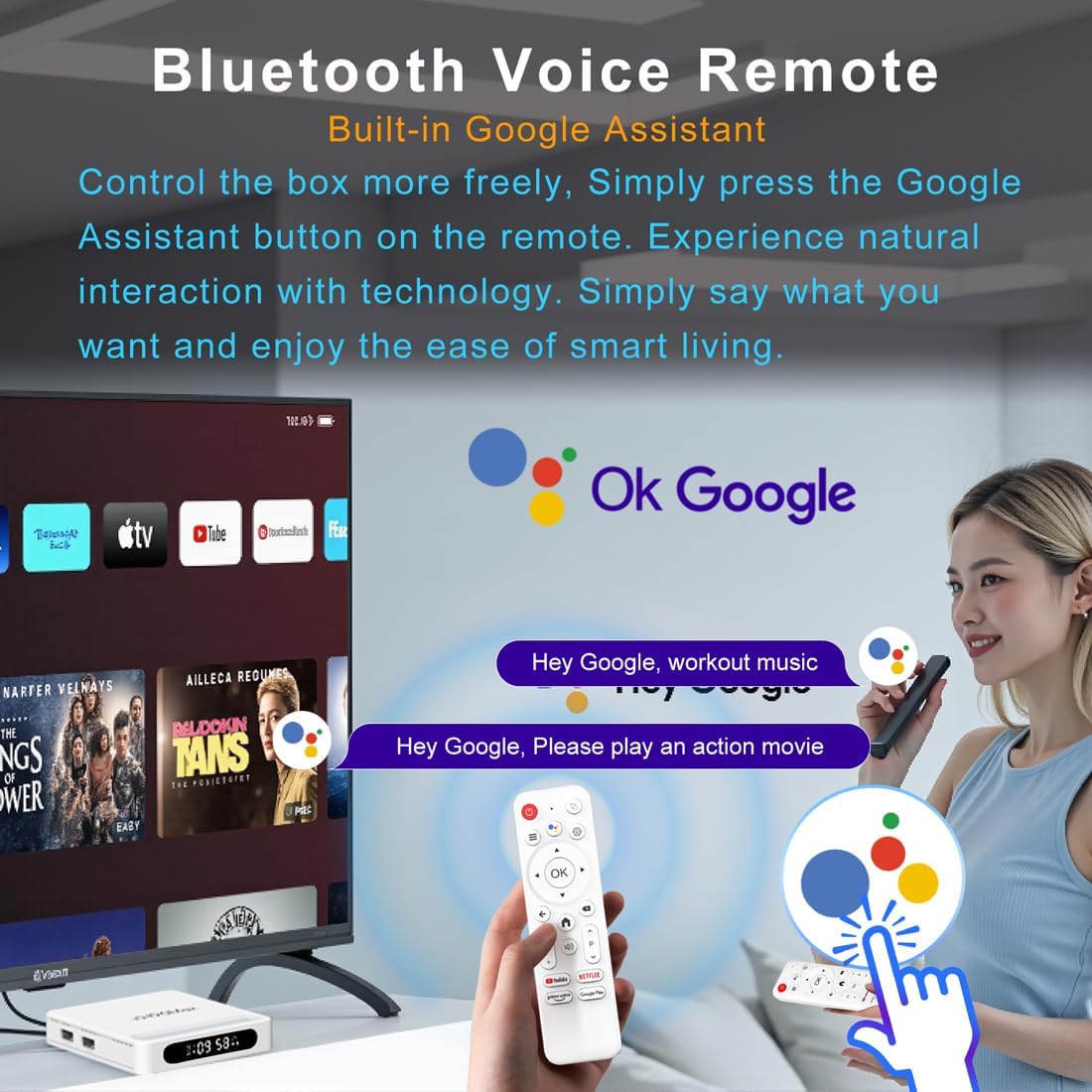
ചിത്രം 4.2: വോയ്സ് റിമോട്ട് കൺട്രോൾ
4.3 പ്രാരംഭ ഉപകരണ കോൺഫിഗറേഷൻ
Follow the on-screen prompts to complete the initial setup, which typically includes:
- ഭാഷ തിരഞ്ഞെടുക്കൽ.
- Connecting to a Wi-Fi network or Ethernet.
- നിങ്ങളുടെ Google അക്കൗണ്ട് ഉപയോഗിച്ച് സൈൻ ഇൻ ചെയ്യുന്നു.
- Installing essential applications.
5. പ്രവർത്തന നിർദ്ദേശങ്ങൾ
5.1 നാവിഗേഷനും ഇന്റർഫേസും
Use the directional pad (D-pad) on your remote to navigate through the Android TV interface. The 'OK' button confirms selections, 'Back' returns to the previous screen, and 'Home' takes you to the main screen.
5.2 Voice Remote with Google Assistant
Press the Google Assistant button on your remote and speak your commands. You can search for content, open apps, control playback, and more using your voice.
5.3 ആപ്ലിക്കേഷനുകൾ ആക്സസ് ചെയ്യൽ
The device comes pre-loaded with Google Play, allowing access to over 5000+ applications. Navigate to the 'Apps' section on the home screen to browse, download, and manage your applications.

Figure 5.1: Accessing Apps via Google Play
5.4 4K UHD Playback and HDR10
The LEFFOT H618 Plus supports 8K@22fps decoding and 4K@60fps playback with HDR10. Ensure your television is 4K HDR compatible and that you are streaming 4K HDR content for the best visual experience.
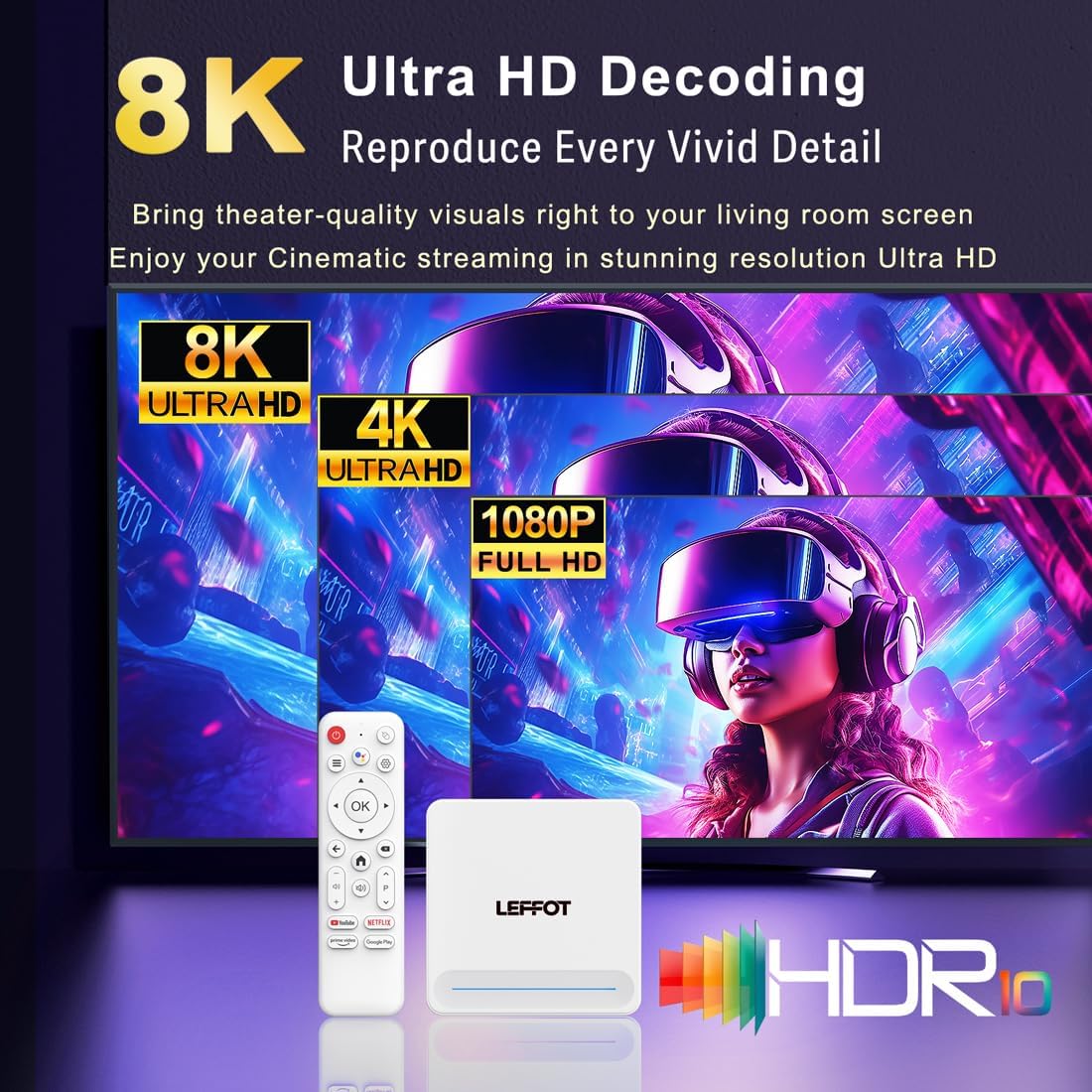
Figure 5.2: 4K UHD and HDR10 Visuals
5.5 Screen Casting
Utilize the built-in Airplay and Miracast features to cast content from your smartphone or tablet directly to your TV screen.
6 സ്പെസിഫിക്കേഷനുകൾ
| ഫീച്ചർ | വിവരണം |
|---|---|
| ബ്രാൻഡ് | ലെഫോട്ട് |
| മോഡലിൻ്റെ പേര് | H618 പ്ലസ് |
| ഓപ്പറേറ്റിംഗ് സിസ്റ്റം | ആൻഡ്രോയിഡ് 14 |
| സിപിയു | Allwinner H618 Quad-Core ARM Cortex A53 |
| ജിപിയു | മാലി-G31 MP2 |
| റാം | 2 ജിബി |
| ROM | 16 ജിബി |
| വീഡിയോ ഡീകോഡിംഗ് | 8K@22fps, 4K@60fps with HDR10 |
| കണക്റ്റിവിറ്റി | Dual-band WiFi 6 (2.4G/5G), 100M Ethernet, Bluetooth 5.4 |
| തുറമുഖങ്ങൾ | HDMI 2.0a, USB 2.0 (x2), AV, DC |
| പ്രത്യേക സവിശേഷതകൾ | Voice Remote with Google Assistant, Airplay, Miracast |
| അളവുകൾ | 3.2 x 3.2 x 0.67 ഇഞ്ച് |
| ഭാരം | 4.1 ഔൺസ് |

ചിത്രം 6.1: പ്രധാന സവിശേഷതകൾ കഴിഞ്ഞുview
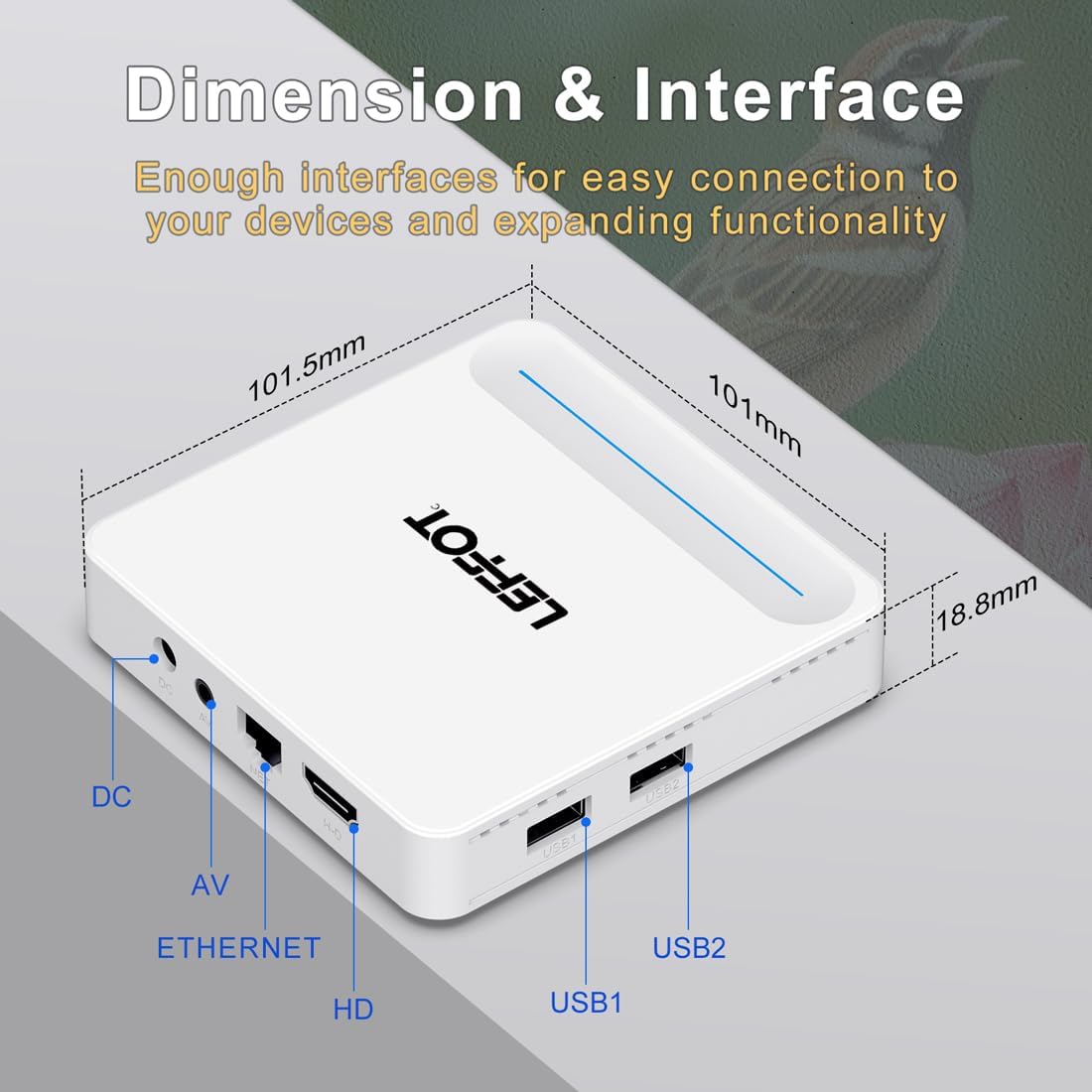
Figure 6.2: Device Dimensions and Interface
7. പ്രശ്നപരിഹാരം
7.1 വൈദ്യുതിയില്ല / ഉപകരണം ഓണാകുന്നില്ല
- Check if the power adapter is securely connected to the device and the power outlet.
- Ensure the power outlet is functional. Try plugging another device into the same outlet.
- Press the power button on the remote control or the device itself.
7.2 No Signal on TV Screen
- Verify that the HDMI cable is securely connected to both the device and the TV.
- നിങ്ങളുടെ ടിവി ശരിയായ HDMI ഇൻപുട്ട് ഉറവിടത്തിലേക്ക് സജ്ജീകരിച്ചിട്ടുണ്ടെന്ന് ഉറപ്പാക്കുക.
- Try using a different HDMI cable or a different HDMI port on your TV.
- Restart the streaming device and your TV.
7.3 റിമോട്ട് കൺട്രോൾ പ്രതികരിക്കുന്നില്ല
- റിമോട്ട് കൺട്രോളിലെ ബാറ്ററികൾ പരിശോധിച്ച് മാറ്റിസ്ഥാപിക്കുക.
- റിമോട്ടിനും ഉപകരണത്തിനും ഇടയിൽ തടസ്സങ്ങളൊന്നുമില്ലെന്ന് ഉറപ്പാക്കുക.
- Re-pair the remote control with the device by following the instructions in Section 4.2.
7.4 Buffering or Slow Performance
- Check your internet connection speed. A stable and fast connection is crucial for streaming 4K content.
- If using Wi-Fi, try moving the device closer to your router or connecting via an Ethernet cable for a more stable connection.
- Close any unused applications running in the background on the device.
- Clear the cache of streaming applications.
- Restart your router, modem, and the streaming device.
8. പരിപാലനം
- മൃദുവായതും ഉണങ്ങിയതുമായ തുണി ഉപയോഗിച്ച് ഉപകരണം പതിവായി വൃത്തിയാക്കുക. ലിക്വിഡ് ക്ലീനറുകളോ എയറോസോളുകളോ ഉപയോഗിക്കരുത്.
- Keep the device free from dust and debris, especially around ventilation areas.
- ദീർഘനേരം ഉപയോഗിക്കാത്തപ്പോൾ ഉപകരണം തണുത്തതും വരണ്ടതുമായ സ്ഥലത്ത് സൂക്ഷിക്കുക.
9. വാറൻ്റിയും പിന്തുണയും
For warranty information and technical support, please refer to the documentation included with your purchase or visit the official LEFFOT webസൈറ്റ്. വാറന്റി ക്ലെയിമുകൾക്കായി നിങ്ങളുടെ വാങ്ങലിന്റെ തെളിവ് സൂക്ഷിക്കുക.