
1. ആമുഖവും അവസാനവുംview
This manual provides comprehensive instructions for the Auusda 16-inch Laptop, model T160R-8+512-3250U. Designed for efficient performance and versatile use, this laptop is equipped with a Ryzen 3 3250U processor, 8GB DDR4 RAM, and a 512GB SSD, ensuring smooth multitasking and quick data access. It comes pre-installed with Windows 11 Pro, offering a modern and secure operating environment.
The laptop features a vibrant 16-inch FHD IPS display with a 1920x1200 resolution and a 178° wide viewing angle, providing clear and detailed visuals for both work and entertainment. Enhanced security is provided by a fingerprint recognition key for convenient login and a physical privacy switch for the 1MP HD webcam. The backlit keyboard ensures visibility in various lighting conditions, adding to user comfort.
Connectivity options include a full-function Type-C port, standard HDMI 4K video output, and three USB ports, allowing for seamless connection to multiple peripherals and external displays. Dual-band WiFi 5 (802.11ac) and Bluetooth 4.2 technology ensure stable and high-speed wireless connections for all your networking and device pairing needs.

Figure 1.1: The Auusda 16-inch Laptop, showcasing its sleek design and key specifications on the screen.
2. സജ്ജീകരണ ഗൈഡ്
2.1 അൺബോക്സിംഗും പ്രാരംഭ പരിശോധനയും
പാക്കേജിംഗിൽ നിന്ന് എല്ലാ ഘടകങ്ങളും ശ്രദ്ധാപൂർവ്വം നീക്കം ചെയ്യുക. ഇനിപ്പറയുന്ന ഇനങ്ങൾ ഉൾപ്പെടുത്തിയിട്ടുണ്ടെന്ന് ഉറപ്പാക്കുക:
- Auusda 16-inch Laptop
- പവർ അഡാപ്റ്റർ
- ഉപയോക്തൃ മാനുവൽ
- Keyboard membranes (Transparent and Spanish, as gifts)
തുടരുന്നതിന് മുമ്പ് ലാപ്ടോപ്പിന് എന്തെങ്കിലും ഭൗതിക കേടുപാടുകൾ സംഭവിച്ചിട്ടുണ്ടോ എന്ന് പരിശോധിക്കുക.

ചിത്രം 2.1: ഉൽപ്പന്ന പാക്കേജിൽ ഉൾപ്പെടുത്തിയിരിക്കുന്ന ഇനങ്ങൾ.
2.2 പവർ അഡാപ്റ്റർ ബന്ധിപ്പിക്കുന്നു
Connect the power adapter to the charging port on the side of the laptop. Plug the other end into a wall outlet. The battery indicator light will illuminate, indicating that the laptop is charging.
2.3 പ്രാരംഭ ബൂട്ടും വിൻഡോസ് 11 പ്രോ സജ്ജീകരണവും
Press the power button to turn on the laptop. Follow the on-screen prompts to complete the initial setup of Windows 11 Pro. This includes selecting your region, language, connecting to a Wi-Fi network, and creating a user account.
2.4 ഫിംഗർപ്രിന്റ് സെൻസർ സജ്ജീകരണം
During the Windows 11 setup or later via Windows Settings (Accounts > Sign-in options > Fingerprint Recognition), you can set up the fingerprint sensor for quick and secure login. Follow the instructions to register your fingerprints.
3. പ്രവർത്തന നിർദ്ദേശങ്ങൾ
3.1 പവർ മാനേജ്മെൻ്റ്
- പവർ ഓൺ: കീബോർഡിന്റെ മുകളിൽ വലതുവശത്തുള്ള പവർ ബട്ടൺ അമർത്തുക.
- സ്ലീപ്പ് മോഡ്: ലിഡ് അടയ്ക്കുക അല്ലെങ്കിൽ അമർത്തുക Fn + F1 (or the sleep key if available) to put the laptop into sleep mode.
- ഷട്ട് ഡൗൺ: ആരംഭ ബട്ടൺ ക്ലിക്കുചെയ്യുക, തുടർന്ന് പവർ ബട്ടൺ ക്ലിക്കുചെയ്യുക, തുടർന്ന് "ഷട്ട് ഡൗൺ" തിരഞ്ഞെടുക്കുക.
- പുനരാരംഭിക്കുക: ആരംഭ ബട്ടൺ ക്ലിക്കുചെയ്യുക, തുടർന്ന് പവർ ബട്ടൺ ക്ലിക്കുചെയ്യുക, തുടർന്ന് "പുനരാരംഭിക്കുക" തിരഞ്ഞെടുക്കുക.
3.2 കീബോർഡും ടച്ച്പാഡും
The laptop features a full-size keyboard with a numeric keypad and a backlit function. To toggle the keyboard backlight, press എഫ്എൻ + സ്പെയ്സ്ബാർ (or the dedicated backlight key if present). The touchpad supports multi-touch gestures for navigation.
3.3 Webcam and Privacy Switch
The integrated 1MP HD webcam is located at the top center of the display. For privacy, a physical switch is provided next to the webcam. Slide the switch to cover or uncover the camera lens.

Figure 3.1: The physical webcam privacy switch and various ports.
3.4 ബാഹ്യ ഉപകരണങ്ങൾ ബന്ധിപ്പിക്കുന്നു
ബാഹ്യ ഉപകരണങ്ങൾ ബന്ധിപ്പിക്കുന്നതിന് ലാപ്ടോപ്പ് വിവിധ പോർട്ടുകൾ വാഗ്ദാനം ചെയ്യുന്നു:
- USB 3.0 പോർട്ടുകൾ (x3): ബാഹ്യ ഹാർഡ് ഡ്രൈവുകൾ, മൗസുകൾ, കീബോർഡുകൾ തുടങ്ങിയ യുഎസ്ബി ഉപകരണങ്ങൾ ബന്ധിപ്പിക്കുന്നതിന്.
- Full-Function Type-C Port (x1): Supports data transfer, video output (DisplayPort Alternate Mode), and power delivery.
- HDMI Port (x1): For connecting to external monitors or TVs, supporting up to 4K resolution.
- ഹെഡ്ഫോൺ ജാക്ക് (x1): ഹെഡ്ഫോണുകളോ ബാഹ്യ സ്പീക്കറുകളോ ബന്ധിപ്പിക്കുന്നതിന്.
- TF Card Slot (x1): ട്രാൻസ്ഫ്ലാഷ് (മൈക്രോ എസ്ഡി) മെമ്മറി കാർഡുകൾ വായിക്കാൻ.
Video 3.1: A detailed view of the laptop's physical appearance, including its ports, webcam privacy switch, and fingerprint sensor.
4. പരിപാലനവും പരിചരണവും
4.1 ലാപ്ടോപ്പ് വൃത്തിയാക്കൽ
- മൃദുവായ, ലിൻ്റ് രഹിത തുണി ഉപയോഗിക്കുകampഡിസ്പ്ലേ വൃത്തിയാക്കാൻ വെള്ളമോ സ്ക്രീൻ ക്ലീനറോ ഉപയോഗിച്ച് നനയ്ക്കുക.
- കീബോർഡിനും ഷാസിക്കും മൃദുവായ തുണി ഉപയോഗിക്കുക. കഠിനമായ രാസവസ്തുക്കളോ ഉരച്ചിലുകളോ ഉള്ള വസ്തുക്കൾ ഒഴിവാക്കുക.
- ശരിയായ വായുസഞ്ചാരം ഉറപ്പാക്കാനും അമിതമായി ചൂടാകുന്നത് തടയാനും വെന്റുകളിലെ പൊടി പതിവായി വൃത്തിയാക്കുക.
4.2 ബാറ്ററി കെയർ
ലാപ്ടോപ്പിൽ 5000mAh ബാറ്ററിയാണ് സജ്ജീകരിച്ചിരിക്കുന്നത്. ബാറ്ററി ആയുസ്സ് വർദ്ധിപ്പിക്കുന്നതിന്:
- ബാറ്ററി ഇടയ്ക്കിടെ പൂർണ്ണമായും ഡിസ്ചാർജ് ചെയ്യുന്നത് ഒഴിവാക്കുക.
- ലാപ്ടോപ്പ് അമിതമായ താപനിലയിൽ തുറന്നുകാട്ടരുത്.
- ലാപ്ടോപ്പ് ദീർഘനേരം സൂക്ഷിക്കുകയാണെങ്കിൽ, ബാറ്ററി ഏകദേശം 50% വരെ ചാർജ്ജ് ചെയ്തിട്ടുണ്ടെന്ന് ഉറപ്പാക്കുക.
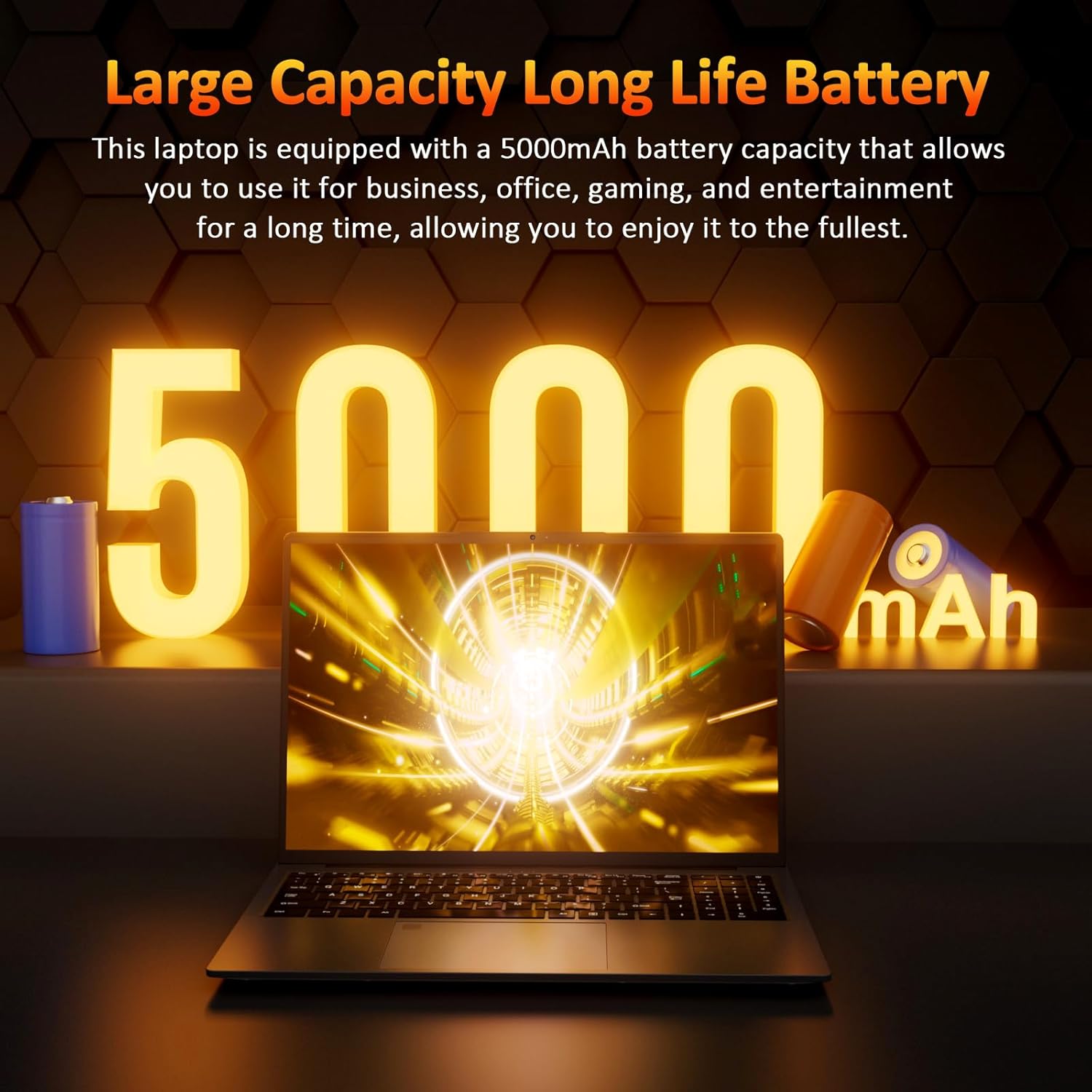
Figure 4.1: The laptop's high-capacity battery provides extended usage.
4.3 സോഫ്റ്റ്വെയർ അപ്ഡേറ്റുകൾ
Regularly update your Windows 11 operating system and device drivers to ensure optimal performance, security, and compatibility. You can check for updates via Windows Settings > Windows Update.
5. പ്രശ്നപരിഹാരം
This section addresses common issues you might encounter with your Auusda laptop.
5.1 ലാപ്ടോപ്പ് ഓണാകുന്നില്ല
- പവർ അഡാപ്റ്റർ ലാപ്ടോപ്പിലേക്കും പ്രവർത്തിക്കുന്ന ഒരു പവർ ഔട്ട്ലെറ്റിലേക്കും സുരക്ഷിതമായി ബന്ധിപ്പിച്ചിട്ടുണ്ടെന്ന് ഉറപ്പാക്കുക.
- മറ്റൊരു ഉപകരണം പ്ലഗ് ഇൻ ചെയ്ത് പവർ ഔട്ട്ലെറ്റ് പ്രവർത്തനക്ഷമമാണോ എന്ന് പരിശോധിക്കുക.
- ബാറ്ററി പൂർണ്ണമായും തീർന്നാൽ, പവർ ഓൺ ചെയ്യാൻ ശ്രമിക്കുന്നതിന് മുമ്പ് കുറഞ്ഞത് 30 മിനിറ്റെങ്കിലും ചാർജ് ചെയ്യാൻ അനുവദിക്കുക.
5.2 വൈഫൈ കണക്ഷൻ പ്രശ്നങ്ങൾ
- Verify that Wi-Fi is enabled on your laptop (check the Wi-Fi icon in the taskbar).
- നിങ്ങളുടെ വൈഫൈ റൂട്ടറും മോഡവും പുനരാരംഭിക്കുക.
- Forget the network in Windows Wi-Fi settings and reconnect.
- Ensure your laptop is within range of the Wi-Fi signal.
5.3 ഡിസ്പ്ലേ പ്രശ്നങ്ങൾ
- സ്ക്രീൻ ശൂന്യമാണെങ്കിൽ, അമർത്താൻ ശ്രമിക്കുക Fn + F7 (അല്ലെങ്കിൽ ഡിസ്പ്ലേ ടോഗിൾ കീ) ഉപയോഗിച്ച് ഡിസ്പ്ലേ മോഡുകളിലൂടെ കടന്നുപോകുക.
- ഡിസ്പ്ലേ ഡ്രൈവറുകൾ കാലികമാണെന്ന് ഉറപ്പാക്കുക.
- ഒരു ബാഹ്യ മോണിറ്റർ ഉപയോഗിക്കുകയാണെങ്കിൽ, കേബിൾ കണക്ഷൻ പരിശോധിച്ച് മോണിറ്റർ ഓണാക്കിയിട്ടുണ്ടെന്ന് ഉറപ്പാക്കുക.
5.4 മന്ദഗതിയിലുള്ള പ്രകടനം
- പശ്ചാത്തലത്തിൽ പ്രവർത്തിക്കുന്ന അനാവശ്യ ആപ്ലിക്കേഷനുകൾ അടയ്ക്കുക.
- Check Task Manager (Ctrl+Shift+Esc) for processes consuming high CPU or RAM.
- Ensure your SSD has sufficient free space.
- ഒരു വൈറസ് സ്കാൻ പ്രവർത്തിപ്പിക്കുക.
6 സ്പെസിഫിക്കേഷനുകൾ
| ഫീച്ചർ | സ്പെസിഫിക്കേഷൻ |
|---|---|
| സ്ക്രീൻ ഡിസ്പ്ലേ വലുപ്പം | 16 ഇഞ്ച് |
| സ്ക്രീൻ റെസല്യൂഷൻ | 1920 x 1200 പിക്സലുകൾ |
| പരമാവധി സ്ക്രീൻ റെസല്യൂഷൻ | 1920 പിക്സലുകൾ |
| പ്രോസസ്സർ | 2.6 GHz Ryzen 3 3250U |
| റാം | 8GB DDR4 |
| ഹാർഡ് ഡ്രൈവ് | 512 ജിബി എസ്എസ്ഡി (പിസിഐഇ x 2) |
| ഗ്രാഫിക്സ് കോപ്രൊസസർ | എഎംഡി റേഡിയൻ ഗ്രാഫിക്സ് (ഇന്റഗ്രേറ്റഡ്) |
| വയർലെസ് തരം | 802.11a/b/g/n/ac (വൈഫൈ 5) |
| ബ്ലൂടൂത്ത് | 4.2 |
| USB 2.0 പോർട്ടുകൾ | 2 |
| USB 3.0 പോർട്ടുകൾ | 1 |
| Full-Function Type-C | 1 |
| HDMI | Yes (4K output) |
| ഓപ്പറേറ്റിംഗ് സിസ്റ്റം | വിൻഡോസ് 11 പ്രോ |
| ഇനത്തിൻ്റെ ഭാരം | 3.7 പൗണ്ട് |
| ഉൽപ്പന്ന അളവുകൾ | 14 x 11 x 0.7 ഇഞ്ച് |
| നിറം | ചാരനിറം |
| ശരാശരി ബാറ്ററി ലൈഫ് | 3 മണിക്കൂർ |
| പ്രത്യേക സവിശേഷതകൾ | Backlit Keyboard, Fingerprint Reader, Memory Card Slot, Numeric Keypad, Portable |
7. വാറൻ്റിയും പിന്തുണയും
Auusda provides comprehensive support for your laptop. For any inquiries or assistance, please refer to the following:
- വാറൻ്റി കാലയളവ്: A 12-month warranty is provided, covering free repair, return, or exchange services for the computer.
- ഓൺലൈൻ പിന്തുണ: For assistance with your order, log in to your Amazon account, navigate to "Your Account," then "Your order," and select "Ask questions."
- ഇമെയിൽ പിന്തുണ: You can also reach our support team directly via email at supportus@auusdalaptop.com. We aim to provide a 24-hour response to all questions.

Figure 7.1: Auusda's commitment to quality and customer service.