
BOAVISION QM1
BOAVISION QM1 Dual Lens WiFi Outdoor Security Camera User Manual
Model: QM1
1. ആമുഖം
This manual provides detailed instructions for the installation, operation, and maintenance of your BOAVISION QM1 Dual Lens WiFi Outdoor Security Camera. Please read this manual thoroughly before using the product to ensure proper function and safety.
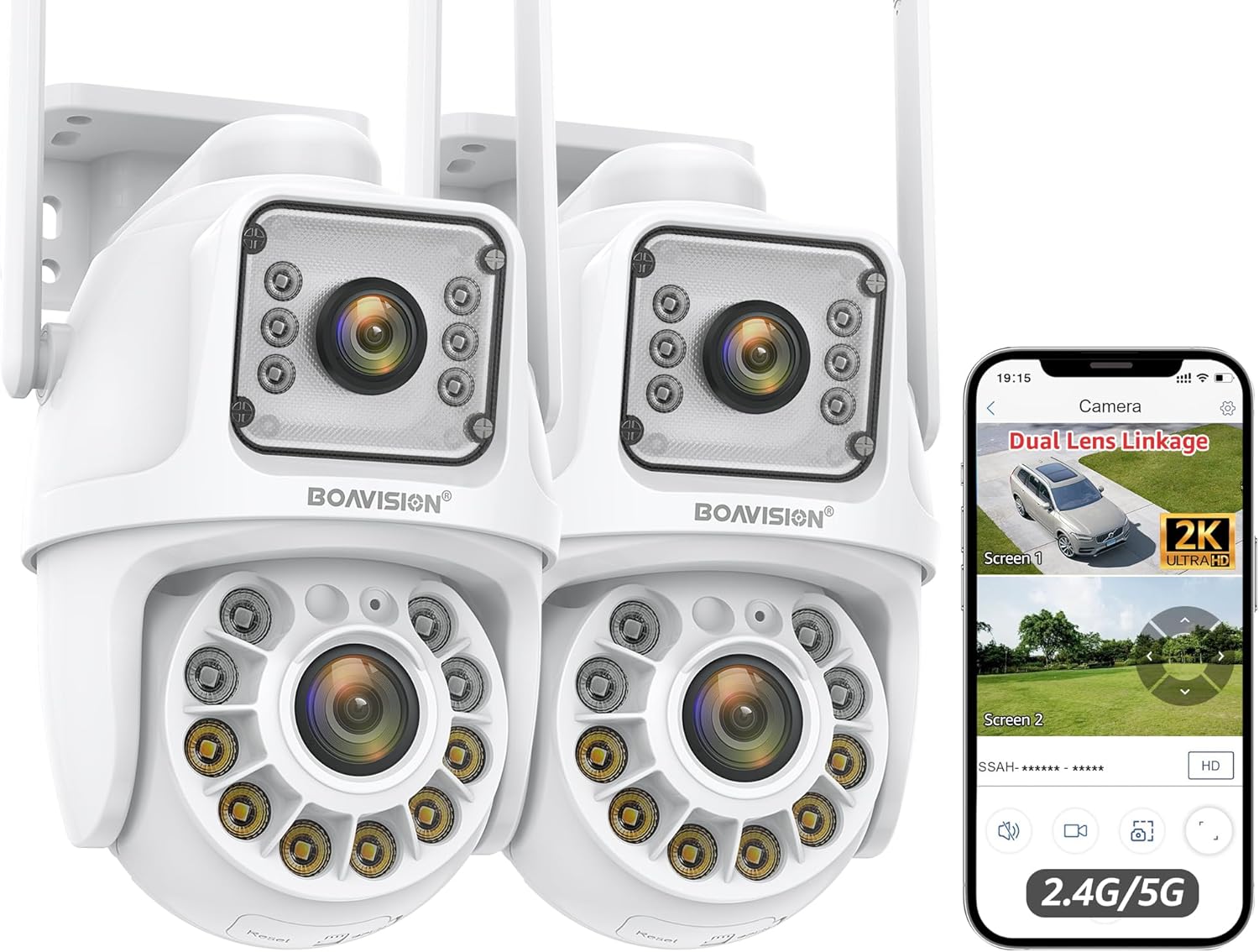
Image 1.1: BOAVISION QM1 Dual Lens WiFi Outdoor Security Camera (2-pack shown).
2. ബോക്സിൽ എന്താണുള്ളത്?
അൺബോക്സിംഗ് ചെയ്യുമ്പോൾ എല്ലാ ഘടകങ്ങളും ഉണ്ടെന്ന് ഉറപ്പാക്കുക:
- BOAVISION QM1 Dual Lens Security Camera(s)
- പവർ അഡാപ്റ്റർ(കൾ)
- മൗണ്ടിംഗ് ബ്രാക്കറ്റ്(കൾ)
- മൗണ്ടിംഗ് ഹാർഡ്വെയർ (സ്ക്രൂകൾ, വാൾ ആങ്കറുകൾ)
- Waterproof Cap for Ethernet Cable
- ദ്രുത ആരംഭ ഗൈഡ്
- ചെറിയ സ്ക്രൂഡ്രൈവർ
- Ethernet Cable (short)
- Power Extension Cable (optional, for longer reach)

ചിത്രം 2.1: കഴിഞ്ഞുview of included accessories, including power adapter, mounting bracket, and cables.
3. സജ്ജീകരണ ഗൈഡ്
3.1 ഫിസിക്കൽ ഇൻസ്റ്റലേഷൻ
The camera supports both wall and ceiling mounting. Choose a location that provides optimal coverage and a stable surface for installation.
- Use the provided mounting template to mark drill holes on the desired surface.
- ഡ്രൈവ്വാളിലോ മേസൺറിയിലോ ഘടിപ്പിക്കുകയാണെങ്കിൽ ദ്വാരങ്ങൾ തുരന്ന് വാൾ ആങ്കറുകൾ ഇടുക.
- നൽകിയിരിക്കുന്ന സ്ക്രൂകൾ ഉപയോഗിച്ച് മൗണ്ടിംഗ് ബ്രാക്കറ്റ് ഉപരിതലത്തിൽ ഉറപ്പിക്കുക.
- Attach the camera to the mounting bracket, ensuring it is firmly seated.

ചിത്രം 3.1: ഉദാamples of wall-mounted and ceiling-mounted camera installations.
3.2 പവർ കണക്ഷൻ
Connect the camera to the power adapter. If needed, use the power extension cable for longer distances. Ensure the connection is secure and, if using Ethernet, apply the waterproof cap.
Video 3.2: Demonstrates connecting the power and Ethernet cables, including the waterproof cap, and initial setup steps for the BOAVISION Dual Lens Security Camera.
3.3 നെറ്റ്വർക്ക് കണക്ഷൻ (വൈ-ഫൈ / ഇതർനെറ്റ്)
The camera supports both 2.4GHz and 5GHz Wi-Fi bands for flexible network integration. For a wired connection, use an Ethernet cable.
- വൈഫൈ: During app setup, select your Wi-Fi network and enter the password. Ensure the camera is within range of your router or Wi-Fi booster.
- ഇഥർനെറ്റ്: Connect an Ethernet cable from your router or network switch to the camera's Ethernet port. Use the provided waterproof cap for outdoor installations.

Image 3.3: Illustration of 2.4GHz and 5GHz dual-band Wi-Fi connectivity for stronger and faster network signals.
3.4 ആപ്പ് ഇൻസ്റ്റാളേഷനും ജോടിയാക്കലും
Download the "CamHipro" app from your device's app store (iOS/Android). Follow the in-app instructions to add and pair your camera. This typically involves scanning a QR code on the camera or manually entering its ID.
4. പ്രവർത്തന നിർദ്ദേശങ്ങൾ
4.1 Dual Lens Linkage and PTZ Control
The camera features two lenses: a fixed "bullet" lens (Screen 1) for key areas and a rotating "dome" lens (Screen 2) with 355° pan and 90° tilt. In the app, you can view both screens simultaneously. Clicking on the fixed bullet screen will automatically direct the dome camera to that area.

Image 4.1: The camera's dual lens system with pan and tilt capabilities, controlled via the mobile application.

Image 4.2: Demonstrates the dual lens linkage feature, where clicking on one screen automatically adjusts the other camera's view.
4.2 AI Human Detection & Auto Tracking
The built-in AI algorithm can distinguish human movement from other objects, reducing false alarms. When a human is detected, the camera will automatically track the subject and send notifications to your mobile phone. After the subject leaves the area, the camera returns to its preset guard position.

Image 4.3: Visual representation of AI human detection and automatic tracking functionality.

Image 4.4: The camera's human detection feature triggering a light and sound alarm, with a mobile notification example.
4.3 നൈറ്റ് വിഷൻ മോഡുകൾ
The camera offers three night vision modes for clear monitoring up to 60 feet in low-light conditions:
- പൂർണ്ണ വർണ്ണ രാത്രി ദർശനം: Utilizes built-in lights to provide full-color images.
- ഇൻഫ്രാറെഡ് (IR) രാത്രി കാഴ്ച: സ്റ്റാൻഡേർഡ് കറുപ്പും വെളുപ്പും രാത്രി ദർശനം.
- ഇരട്ട ലൈറ്റ് അലേർട്ട്: Combines IR with white light activation upon motion detection.

Image 4.5: Comparison of daytime view, full-color night vision, and infrared night vision capabilities.
4.4 ടു-വേ ഓഡിയോ
The integrated speaker and microphone allow for real-time two-way communication. You can speak to visitors or deter intruders directly through the app.
Image 4.6: The camera's two-way audio function allowing communication with individuals near the camera.
4.5 റെക്കോർഡിംഗും സംഭരണവും
The camera supports 24/7 recording. Video footage can be stored locally or via cloud services:
- മൈക്രോ എസ്ഡി കാർഡ്: ലോക്കൽ സ്റ്റോറേജിനായി നിയുക്ത സ്ലോട്ടിൽ ഒരു മൈക്രോ എസ്ഡി കാർഡ് (128GB വരെ, ഉൾപ്പെടുത്തിയിട്ടില്ല) ചേർക്കുക.
- ക്ലൗഡ് സംഭരണം: Optional cloud storage services may be available through the CamHipro app (subscription may be required).
4.6 Multi-Device Access
The CamHipro app allows simultaneous viewing on multiple devices (Android, iOS, Windows, Mac). You can share camera access with family members.
5. പരിപാലനം
- വൃത്തിയാക്കൽ: ക്യാമറ ലെൻസും ബോഡിയും പതിവായി മൃദുവായ, d തുണി ഉപയോഗിച്ച് തുടയ്ക്കുക.amp പൊടിയും അവശിഷ്ടങ്ങളും നീക്കം ചെയ്യാൻ തുണി ഉപയോഗിക്കുക. കഠിനമായ രാസവസ്തുക്കൾ ഉപയോഗിക്കരുത്.
- ഫേംവെയർ അപ്ഡേറ്റുകൾ: Check the CamHipro app periodically for firmware updates to ensure optimal performance and security.
- സ്റ്റോറേജ് മാനേജ്മെന്റ്: If using an SD card, regularly review പ്രധാനപ്പെട്ട ഫൂവിന്റെ ബാക്കപ്പ് എടുക്കുക.tage. Consider formatting the SD card periodically to maintain performance.
- കാലാവസ്ഥ സംരക്ഷണം: While IP66 waterproof, ensure all cable connections are properly sealed, especially the Ethernet port with its waterproof cap, to prevent water ingress.
6. പ്രശ്നപരിഹാരം
| ഇഷ്യൂ | സാധ്യമായ പരിഹാരം |
|---|---|
| ക്യാമറ വൈഫൈയിലേക്ക് കണക്റ്റ് ചെയ്യുന്നില്ല | Ensure the camera is within Wi-Fi range. Verify Wi-Fi password. Try restarting the camera and router. Confirm your router supports 2.4GHz or 5GHz. |
| മോശം ചിത്ര നിലവാരം | Clean the camera lens. Check network stability. Ensure sufficient lighting for optimal night vision. |
| ചലനം കണ്ടെത്തൽ അലേർട്ടുകളൊന്നുമില്ല | Check motion detection settings in the app. Ensure notifications are enabled on your phone. Verify AI human detection is active. |
| ടു-വേ ഓഡിയോ പ്രവർത്തിക്കുന്നില്ല | ആപ്പിൽ മൈക്രോഫോൺ, സ്പീക്കർ ക്രമീകരണങ്ങൾ പരിശോധിക്കുക. നിങ്ങളുടെ ഫോണിന്റെ വോളിയം കൂട്ടിയിട്ടുണ്ടെന്ന് ഉറപ്പാക്കുക. |
| SD കാർഡ് റെക്കോർഡ് ചെയ്യുന്നില്ല | Ensure the SD card is inserted correctly and formatted within the app. Check if the SD card is full or corrupted. Replace if necessary. |
7 സ്പെസിഫിക്കേഷനുകൾ
- മോഡൽ: QM1
- ബ്രാൻഡ്: ബോവിഷൻ
- ഇൻഡോർ/ഔട്ട്ഡോർ ഉപയോഗം: ഔട്ട്ഡോർ
- കണക്റ്റിവിറ്റി: Wi-Fi (2.4G/5G), Wired Ethernet
- പാൻ/ടിൽറ്റ്: 355° Pan, 90° Tilt (Dome Lens)
- വീഡിയോ ക്യാപ്ചർ റെസല്യൂഷൻ: 1080p (പൂർണ്ണ HD)
- രാത്രി കാഴ്ച: Color Night Vision, IR Night Vision, Double Light Alert (up to 60 feet)
- പ്രത്യേക സവിശേഷതകൾ: Dual Lens Linkage, AI Human Detection, Auto Tracking, Two-Way Audio, Motion Sensor
- വാട്ടർപ്രൂഫ് റേറ്റിംഗ്: IP66
- സംഭരണം: മൈക്രോ എസ്ഡി കാർഡ് (128GB വരെ, ഉൾപ്പെടുത്തിയിട്ടില്ല), ക്ലൗഡ് സ്റ്റോറേജ് (ഓപ്ഷണൽ)
- ആപ്പ് നിയന്ത്രണം: CamHipro (iOS, Android, Windows, Mac)
- ഊർജ്ജ സ്രോതസ്സ്: Corded Electric (DC12V)
- ഉൽപ്പന്ന അളവുകൾ: 6.4 x 4.1 x 3.9 ഇഞ്ച്
- ഇനത്തിൻ്റെ ഭാരം: 2.75 പൗണ്ട്
8. വാറൻ്റിയും പിന്തുണയും
For warranty information, please refer to the documentation included with your purchase or contact BOAVISION customer support directly. Technical support is available through the contact information provided in the CamHipro app or on the official BOAVISION webസൈറ്റ്.
Additional protection plans may be available for purchase separately. Please check with your retailer for details.
Ask a question about this manual
Ask about setup, troubleshooting, compatibility, parts, safety, or missing instructions. Manuals+ will review the question and use this page’s manual context to help answer it.