
1. ആമുഖം
This manual provides detailed instructions for the setup, operation, and maintenance of your ATTACK SHARK X8 Ultra Wireless Gaming Mouse. Designed for high-performance gaming, the X8 Ultra features a lightweight design, multiple connectivity options, and advanced sensor technology.

ചിത്രം 1.1: മുകളിൽ view of the ATTACK SHARK X8 Ultra Wireless Gaming Mouse.
2. പാക്കേജ് ഉള്ളടക്കം
നിങ്ങളുടെ പാക്കേജിൽ എല്ലാ ഇനങ്ങളും ഉണ്ടെന്ന് ഉറപ്പാക്കുക:
- ATTACK SHARK X8 Ultra Wireless Gaming Mouse
- 8K USB-C Receiver
- USB-A to USB-C Charging Cable (Paracord)
- Replacement Mouse Feet Skates
- ഗ്രിപ്പ് ടേപ്പ്
- ഉപയോക്തൃ മാനുവൽ (ഈ പ്രമാണം)
3. മൗസ് ലേഔട്ടും സവിശേഷതകളും
Familiarize yourself with the key components and features of your X8 Ultra mouse.

ചിത്രം 3.1: കഴിഞ്ഞുview of the X8 Ultra's internal components and external features.
- ഇടത്/വലത് ക്ലിക്ക് ബട്ടണുകൾ: Equipped with Omron micro switches for tactile feedback and durability.
- സ്ക്രോൾ വീൽ: Provides smooth scrolling with subtle tactile bumps.
- സൈഡ് ബട്ടണുകൾ: Programmable buttons located on the left side for additional functions.
- DPI ബട്ടൺ: Located on the underside of the mouse, allows cycling through preset DPI levels.
- കണക്റ്റിവിറ്റി സ്വിച്ച്: Located on the underside, allows switching between 2.4GHz wireless, Bluetooth, and wired modes.
- PAW3950MAX സെൻസർ: High-precision optical sensor for accurate tracking.
- Nordic 52840 MCU: Advanced microcontroller for efficient performance and low latency.
- Nano-Ice Coating: Surface treatment designed to keep grip cool during extended use.
4. സജ്ജീകരണ ഗൈഡ്
4.1 മൗസ് ചാർജ് ചെയ്യുന്നു
- ചാർജിംഗ് കേബിളിന്റെ USB-C അറ്റം മൗസുമായി ബന്ധിപ്പിക്കുക.
- Connect the USB-A end of the charging cable to an available USB port on your computer or a USB wall adapter.
- The mouse LED indicator will show charging status. A full charge provides up to 300 hours of intermittent use.
4.2 മൗസ് ബന്ധിപ്പിക്കൽ
The X8 Ultra supports three connection modes: 2.4GHz Wireless, Bluetooth, and Wired USB.
2.4GHz വയർലെസ് മോഡ്:
- Locate the 8K USB-C receiver.
- നിങ്ങളുടെ കമ്പ്യൂട്ടറിൽ ലഭ്യമായ USB പോർട്ടിലേക്ക് റിസീവർ പ്ലഗ് ചെയ്യുക.
- Set the connectivity switch on the underside of the mouse to the "2.4G" position.
- മൗസ് യാന്ത്രികമായി കണക്ട് ചെയ്യണം.

Image 4.1: The 8K USB-C receiver for 2.4GHz wireless connection.
ബ്ലൂടൂത്ത് മോഡ്:
- Set the connectivity switch on the underside of the mouse to the "BT" position.
- നിങ്ങളുടെ കമ്പ്യൂട്ടറിൽ, ബ്ലൂടൂത്ത് ക്രമീകരണങ്ങൾ തുറന്ന് പുതിയ ഉപകരണങ്ങൾക്കായി തിരയുക.
- Select "ATTACK SHARK X8 Ultra" from the list of available devices to pair.
വയർഡ് യുഎസ്ബി മോഡ്:
- ചാർജിംഗ് കേബിളിന്റെ USB-C അറ്റം മൗസുമായി ബന്ധിപ്പിക്കുക.
- Connect the USB-A end of the charging cable to an available USB port on your computer.
- Set the connectivity switch on the underside of the mouse to the "Wired" position.
- The mouse will function as a wired device and charge simultaneously.
5. പ്രവർത്തന നിർദ്ദേശങ്ങൾ
5.1 ഡിപിഐ അഡ്ജസ്റ്റ്മെന്റ്
The X8 Ultra features a PixArt PAW3950MAX sensor with adjustable DPI from 50 to 42,000. To change DPI settings:
- Press the DPI button on the underside of the mouse to cycle through preset DPI levels.
- The LED indicator on the mouse will change color to indicate the current DPI setting.
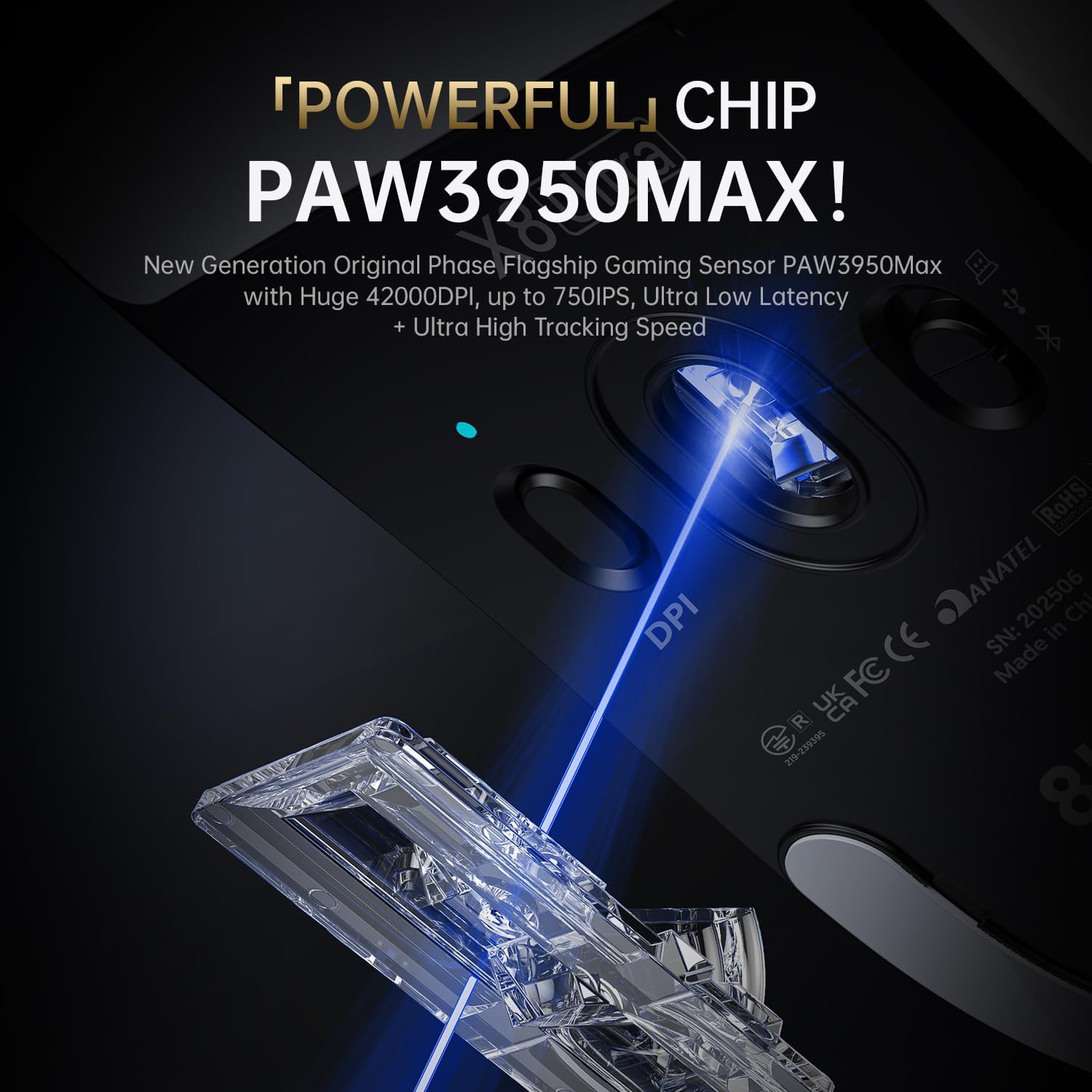
Image 5.1: The PixArt PAW3950MAX sensor for precise tracking.
5.2 Cloud Driver Software
For advanced customization, including DPI adjustment, polling rate, button remapping, macro recording, and competitive mode settings, use the web-based Cloud Driver software.
- Ensure your mouse is connected to your computer (preferably via 2.4GHz wireless or wired mode for full functionality).
- നിങ്ങളുടെ തുറക്കുക web browser and navigate to the official ATTACK SHARK webസൈറ്റ് (ഉദാ. www.attackshark.pro).
- Locate the Cloud Driver section for the X8 Ultra model.
- Follow the on-screen instructions to customize your mouse settings. Settings are saved directly to the mouse's memory.

Image 5.2: The Cloud Driver interface for advanced mouse configuration.
5.3 പോളിംഗ് നിരക്ക്
The X8 Ultra supports an 8KHz wireless polling rate for ultra-low latency and faster response. In wired mode, it operates at 1KHz. The polling rate can be adjusted via the Cloud Driver software.

Image 5.3: Explanation of 8K Polling Rate technology.
6. പരിപാലനം
6.1 വൃത്തിയാക്കൽ
- മൗസിന്റെ ഉപരിതലം തുടയ്ക്കാൻ മൃദുവായതും ഉണങ്ങിയതുമായ ഒരു തുണി ഉപയോഗിക്കുക.
- കഠിനമായ അഴുക്കിന്, ചെറുതായി dampതുണിയിൽ വെള്ളമോ മൃദുവായ ക്ലീനിംഗ് ലായനിയോ ഇടുക.
- Avoid using harsh chemicals or abrasive materials that could damage the mouse's finish or sensor.
- Regularly clean the optical sensor area on the underside of the mouse with a cotton swab to ensure optimal tracking performance.
6.2 ബാറ്ററി കെയർ
- ബാറ്ററി ലൈഫ് വർദ്ധിപ്പിക്കാൻ, മൗസ് ഇടയ്ക്കിടെ പൂർണ്ണമായും ഡിസ്ചാർജ് ചെയ്യുന്നത് ഒഴിവാക്കുക.
- ദീർഘനേരം ഉപയോഗിക്കാത്തപ്പോൾ തണുത്തതും വരണ്ടതുമായ സ്ഥലത്ത് മൗസ് സൂക്ഷിക്കുക.
- If the mouse will not be used for a long time, charge it to about 50% before storage.
6.3 Replacing Mouse Feet Skates
The package includes replacement PTFE mouse feet skates for maintaining smooth glide. When the existing skates show significant wear:
- Carefully peel off the old mouse feet using a thin tool.
- Clean the surface where the skates were attached to remove any adhesive residue.
- Peel the backing from the new skates and carefully apply them to the corresponding areas on the mouse's underside.
- ശരിയായ അഡീഷൻ ഉറപ്പാക്കാൻ ദൃഢമായി അമർത്തുക.

Image 6.1: PTFE anti-slip footpads for smooth mouse movement.
7. പ്രശ്നപരിഹാരം
| പ്രശ്നം | സാധ്യമായ പരിഹാരം |
|---|---|
| വയർലെസ് മോഡിൽ മൗസ് പ്രതികരിക്കുന്നില്ല. |
|
| കാലതാമസം അല്ലെങ്കിൽ ഇടവിട്ടുള്ള കണക്ഷൻ. |
|
| Inaccurate tracking. |
|
| Cloud Driver software not detecting mouse. |
|
8 സ്പെസിഫിക്കേഷനുകൾ
Key technical specifications for the ATTACK SHARK X8 Ultra Wireless Gaming Mouse:

Image 8.1: Detailed technical specifications for the X8 Ultra and other X8 series models.
| ഫീച്ചർ | വിശദാംശങ്ങൾ |
|---|---|
| മോഡൽ | X8 അൾട്രാ |
| സെൻസർ | PixArt PAW3950MAX |
| ഡിപിഐ ശ്രേണി | 50 - 42,000 ഡിപിഐ |
| ചലന വേഗത | 750 ഐ.പി.എസ് |
| ത്വരണം | 60G |
| ബട്ടൺ ആയുസ്സ് | 100 ദശലക്ഷം ക്ലിക്കുകൾ |
| മൈക്രോ സ്വിച്ച് | ഓംറോൺ സ്വിച്ച് |
| പോളിംഗ് നിരക്ക് | Wireless 8000Hz / Wired 1000Hz |
| എം.സി.യു | നോർഡിക് 52840 |
| കണക്റ്റിവിറ്റി | Wired / 2.4GHz Wireless / Bluetooth |
| ഭാരം | 55 ഗ്രാം |
| ബാറ്ററി ശേഷി | 500 mAh |
| അളവുകൾ | ഏകദേശം 125.5 x 63 x 40 mm (4.96 x 2.5 x 1.6 ഇഞ്ച്) |
9. വാറൻ്റിയും പിന്തുണയും
ATTACK SHARK products are designed for reliability and performance. For warranty information, technical support, or service inquiries, please refer to the official ATTACK SHARK webസൈറ്റ് അല്ലെങ്കിൽ അവരുടെ ഉപഭോക്തൃ സേവനവുമായി നേരിട്ട് ബന്ധപ്പെടുക.
ഉദ്യോഗസ്ഥൻ Webസൈറ്റ്: www.attackshark.pro
ബ്രാൻഡ് സ്റ്റോർ: അറ്റാക്ക് ഷാർക്ക് ആമസോൺ സ്റ്റോറിൽ
വാറൻ്റി ക്ലെയിമുകൾക്കായി നിങ്ങളുടെ വാങ്ങിയതിൻ്റെ തെളിവ് സൂക്ഷിക്കുക.