
1. ഉൽപ്പന്നം കഴിഞ്ഞുview
The RGBlink Mini V3 is a compact 4K video switcher designed for live streaming and multi-camera productions. It features 4 HDMI inputs, 2 1080P HDMI outputs, a 2.1" touch screen, and professional T-bar control. The device supports flexible TAO Cloud activation to unlock premium functions like PTZ control, recording, and logo overlay.
Key features include dual HDMI output, UVC webcam mode for direct connection to streaming platforms, HD recording to USB drives, and creative effects such as PIP layouts, chroma key, and 15 transition effects.

Image: The RGBlink Mini V3 Video Switcher, a compact black device with multiple HDMI ports, a T-bar, and a small touch screen display, shown with various cables connected.
2. സജ്ജീകരണവും സജീവമാക്കലും
2.1 പ്രാരംഭ സജ്ജീകരണം
- Unpack the Mini V3 hardware and included accessories.
- Upgrade your Mini V3 to the latest firmware before use.
- Connect the device to the internet using an Ethernet network cable.
- ഉപകരണം ഓണാക്കുക.
2.2 TAO Cloud Activation
The Mini V3 offers flexible activation options for premium functions via TAO Cloud (www.tao1live.com). You can choose monthly, yearly, or lifetime plans for features like PTZ control, recording, and logo overlay.
- On the Mini V3 menu, navigate to ക്രമീകരണങ്ങൾ → IP ക്രമീകരണം.
- Enable DHCP and wait for the device to receive an IP address.
- പോകുക ക്രമീകരണങ്ങൾ → TAO ക്ലൗഡ്.
- Follow the on-screen instructions to obtain a verification code.
- Log in to your TAO Cloud account on a computer or smart device.
- നാവിഗേറ്റ് ചെയ്യുക എൻ്റെ ശേഖരം → ഉപകരണങ്ങൾ → Binding Devices.
- Enter your chosen device name and the verification code, then click ബന്ധിക്കുക to register your Mini V3.
- After successful binding, select your premium plan (monthly, yearly, or lifetime) and complete payment via PayPal.
- Once activated, the device supports full functionality according to your plan.

Image: A diagram illustrating the steps for TAO Cloud activation, including firmware upgrade, network connection, obtaining a verification code, and binding the device to a TAO Cloud account.
3. പ്രവർത്തന നിർദ്ദേശങ്ങൾ
3.1 ഉപകരണങ്ങൾ ബന്ധിപ്പിക്കുന്നു
The Mini V3 supports multiple input and output options:
- HDMI ഇൻപുട്ടുകൾ: 4x HDMI inputs for cameras, laptops, game consoles, etc.
- HDMI ഔട്ട്പുട്ടുകൾ: 2x 1080P HDMI outputs for program and preview നിരീക്ഷണം.
- USB ഔട്ട്പുട്ട്: യു.വി.സി webcam mode for direct connection to computers for streaming.
- ഓഡിയോ: Line In and Audio Out ports for external audio sources and monitoring.
- USB റെക്കോർഡിംഗ്: USB 3.0 port for recording directly to USB drives.
- നെറ്റ്വർക്ക്: Ethernet port for TAO Cloud features and software control.
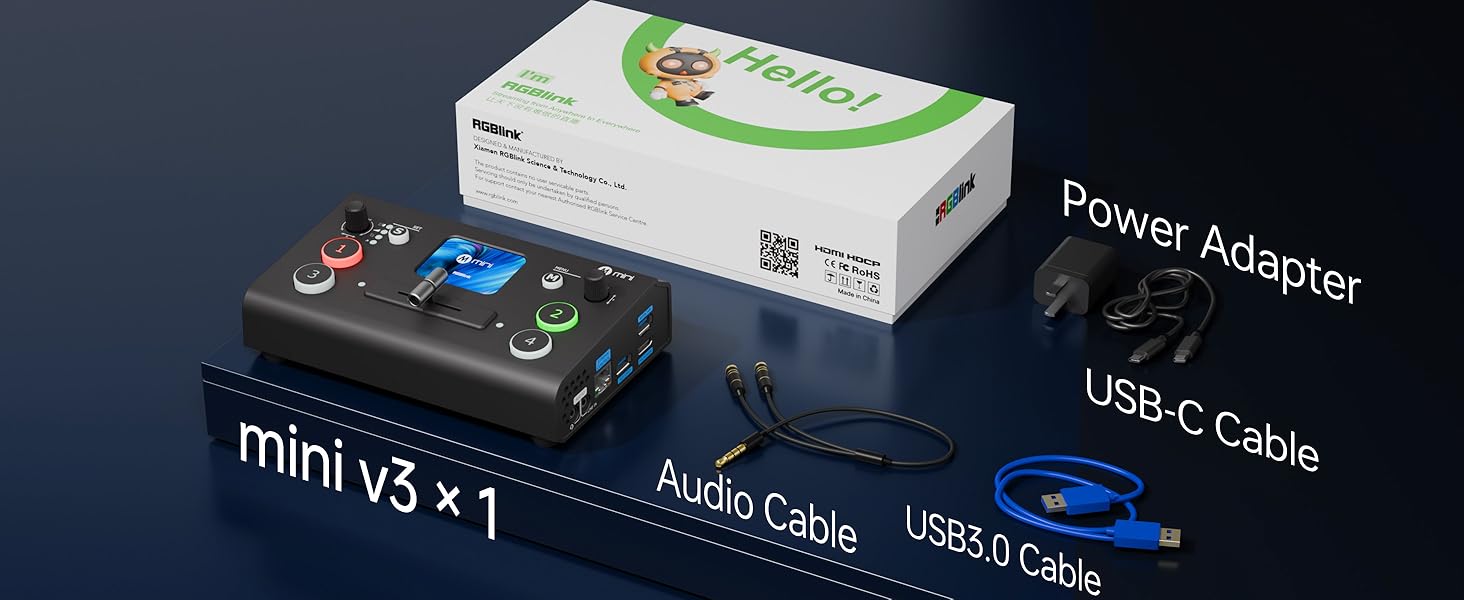
Image: A diagram showing the various input and output connections of the RGBlink Mini V3, including HDMI inputs, USB, audio, and network ports.
3.2 Switching Between Video Inputs
Use the numbered buttons (1-4) to select your desired input. The red button indicates the live program output, while the flashing button indicates the preview input. Use the T-bar for smooth transitions between inputs.
Video: An official RGBlink video demonstrating how to switch between 4 HDMI video inputs using the T-bar and numbered buttons on the Mini V3, showing the preview and program outputs on an external monitor.
3.3 Picture-in-Picture (PIP) and Chroma Key
Access the menu via the touch screen to enable and configure Picture-in-Picture (PIP) layouts or Chroma Key effects. The touch screen allows for intuitive control over these features.

Image: A visual representation of the Picture-in-Picture (PIP) function on the RGBlink Mini V3, showing a smaller video feed overlaid on a larger one.

Image: A demonstration of the Chroma Key function on the RGBlink Mini V3, showing how to remove a green screen background and replace it with another image.
3.4 സംക്രമണ ഇഫക്റ്റുകൾ
The Mini V3 includes 15 built-in transition effects to enhance your video production. Select your desired effect from the menu before transitioning between inputs.

Image: A display of the 15 built-in transition effects available on the RGBlink Mini V3, offering various visual transitions between video sources.
3.5 PTZ ക്യാമറ നിയന്ത്രണം
If you have a compatible PTZ camera and the feature is activated via TAO Cloud, you can control its pan, tilt, and zoom functions directly from the Mini V3's joystick and touch screen interface. You can also save and recall PTZ presets for quick camera movements.

Image: The Mini V3's touch screen showing "Views Saving" and "Fast Call" options, indicating built-in storage for PTZ presets for instant recall.
4. റെക്കോർഡിംഗ്
The Mini V3 supports HD recording directly to USB drives up to 2TB. Ensure your USB drive is formatted in exFAT or Fat32 for compatibility.
- Insert a compatible USB drive into the USB 3.0 port.
- Navigate to the recording settings on the touch screen.
- Select your desired recording quality (Low, Medium, High). Note: High quality records at 1920x1080 @ 60Hz.
- Press the record button to start and stop recording.
5. പരിപാലനം
- ഉപകരണം വൃത്തിയായും പൊടിയില്ലാതെയും സൂക്ഷിക്കുക. വൃത്തിയാക്കാൻ മൃദുവായതും ഉണങ്ങിയതുമായ തുണി ഉപയോഗിക്കുക.
- അമിതമായി ചൂടാക്കുന്നത് തടയാൻ ശരിയായ വായുസഞ്ചാരം ഉറപ്പാക്കുക. എയർ വെൻ്റുകളെ തടയുന്നത് ഒഴിവാക്കുക.
- Regularly check for firmware updates on the RGBlink webമികച്ച പ്രകടനവും പുതിയ സവിശേഷതകളിലേക്കുള്ള ആക്സസും ഉറപ്പാക്കാൻ സൈറ്റ്.
6. പ്രശ്നപരിഹാരം
6.1 വീഡിയോ ഔട്ട്പുട്ട് ഇല്ല
- എല്ലാ HDMI കേബിൾ കണക്ഷനുകളും പരിശോധിക്കുക.
- Ensure input sources are powered on and outputting a signal.
- Verify the correct input is selected on the Mini V3.
- Confirm the output resolution is supported by your display.
6.2 ഓഡിയോ ഇല്ല
- Check audio cable connections (Line In/Out).
- Verify audio levels on the Mini V3's audio menu.
- Ensure audio is enabled for the selected HDMI input if using embedded audio.
6.3 ഫാൻ ശബ്ദം
The device has an internal fan for cooling. While generally not obtrusive, it may be audible. You can adjust fan speed settings in the device menu, but be mindful of potential overheating if set too low.
7 സ്പെസിഫിക്കേഷനുകൾ
| ഫീച്ചർ | വിശദാംശങ്ങൾ |
|---|---|
| മോഡൽ നമ്പർ | 230-0010-01-0 |
| നിറം | മിനി വി 3 |
| കണക്റ്റർ തരം | HDMI, USB Type-A |
| അനുയോജ്യമായ ഉപകരണങ്ങൾ | Camcorder, Camera, Laptop, Monitor, Smartphone |
| തുറമുഖങ്ങളുടെ എണ്ണം | 12 |
| ഇനത്തിൻ്റെ ഭാരം | 0.49 കിലോഗ്രാം |
| Max Video Output | 1920x1080 @ 60Hz (Full HD) |
| HDMI ഇൻപുട്ട് റെസല്യൂഷൻ | 4K @ 60Hz വരെ |
8. വാറൻ്റിയും പിന്തുണയും
The RGBlink Mini V3 comes with a 1-year manufacturer's warranty.
For further support, product information, or to explore other RGBlink products, please visit the official RGBlink store or webസൈറ്റ്: