
ആമുഖം
This manual provides detailed instructions for the Hexgears X2 TKL Wireless Mechanical Gaming Keyboard. Please read this manual thoroughly to ensure proper setup, operation, and maintenance of your device. This keyboard features dual-mode connectivity, durable Kailh BOX linear switches, PBT keycaps, and a magnetic wrist rest for enhanced comfort.

ചിത്രം: കഴിഞ്ഞുview of the Hexgears X2 TKL Mechanical Gaming Keyboard highlighting its key features such as PBT Double-Shot Keycaps, 2.4GHz/USB-C connectivity, Magnetic Wrist Rest, Ergonomic Design, Kailh Box Switches, White Backlighting, Full N-key Rollover, and Multimedia Keys.
പാക്കേജ് ഉള്ളടക്കം
നിങ്ങളുടെ പാക്കേജിൽ എല്ലാ ഇനങ്ങളും ഉണ്ടെന്ന് ഉറപ്പാക്കുക:
- 1 x Hexgears X2 TKL Mechanical Keyboard
- 1 x Magnetic Wrist Rest
- 1 x യുഎസ്ബി ടൈപ്പ്-സി കേബിൾ
- 1 x 2.4 GHz Wireless Dongle
- 1 x കീക്യാപ്പ് പുള്ളർ
- 1 x സ്വിച്ച് പുള്ളർ
- 1 x ഉപയോക്തൃ മാനുവൽ (ഈ പ്രമാണം)

Image: The Hexgears X2 TKL keyboard displayed alongside its included accessories: a magnetic wrist rest, USB-C cable, 2.4 GHz dongle, keycap puller, and user manual.
സജ്ജമാക്കുക
1. കീബോർഡ് ബന്ധിപ്പിക്കുന്നു
The Hexgears X2 TKL supports two connection modes: 2.4GHz wireless and USB-C wired.
- 2.4GHz വയർലെസ് മോഡ്:
- Locate the 2.4 GHz wireless dongle in the package.
- നിങ്ങളുടെ കമ്പ്യൂട്ടറിൽ ലഭ്യമായ USB പോർട്ടിലേക്ക് ഡോംഗിൾ പ്ലഗ് ചെയ്യുക.
- Ensure the keyboard's power switch (usually on the side or back) is set to wireless mode. The keyboard should automatically connect.
- USB-C വയേർഡ് മോഡ്:
- Connect one end of the provided USB Type-C cable to the keyboard's USB-C port.
- നിങ്ങളുടെ കമ്പ്യൂട്ടറിൽ ലഭ്യമായ USB പോർട്ടിലേക്ക് കേബിളിന്റെ മറ്റേ അറ്റം ബന്ധിപ്പിക്കുക.
- കീബോർഡ് വയേർഡ് മോഡിൽ പ്രവർത്തിക്കുകയും ഒരേസമയം ചാർജ് ചെയ്യുകയും ചെയ്യും.
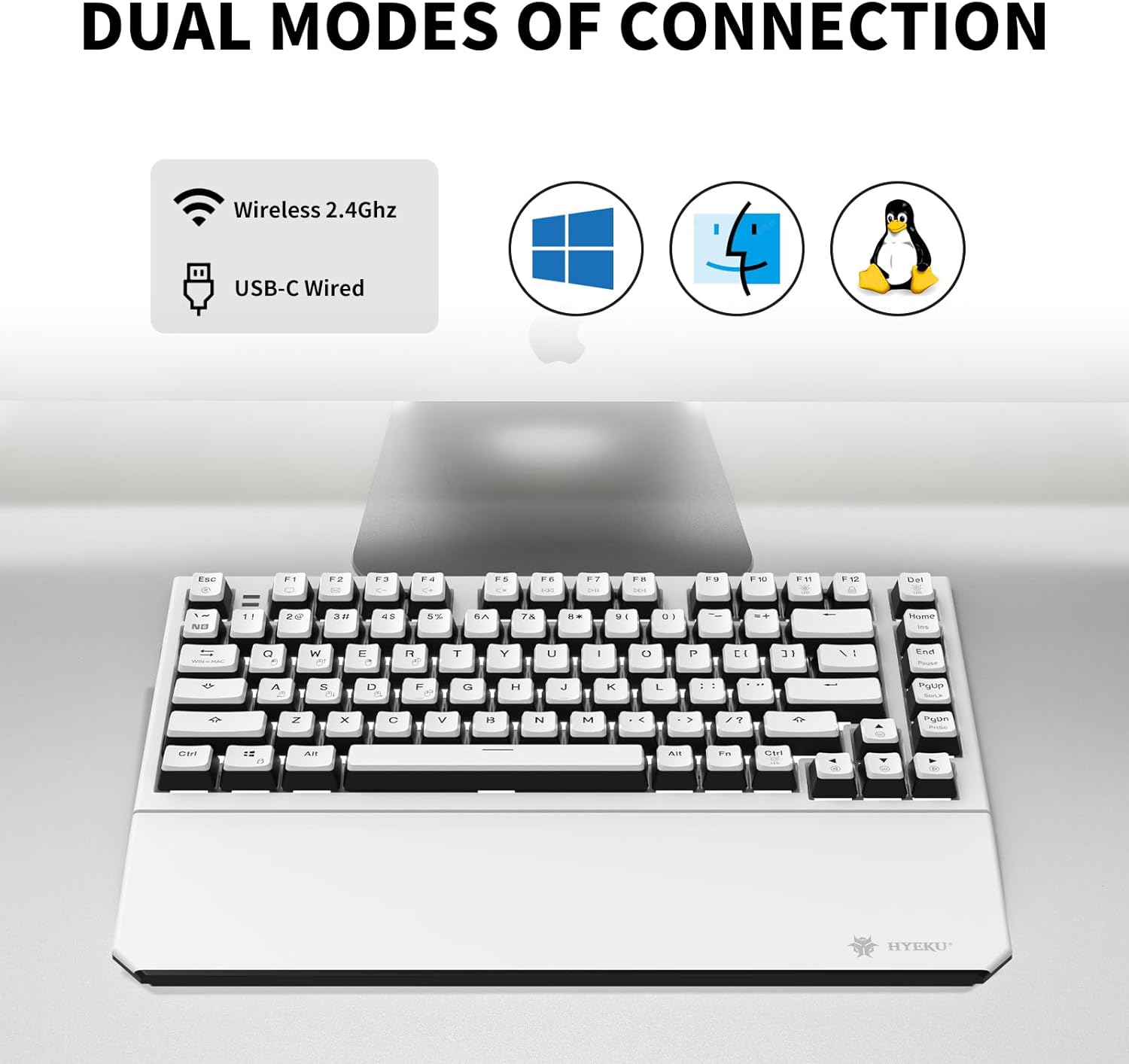
Image: The Hexgears X2 TKL keyboard illustrating its dual connection capabilities: Wireless 2.4GHz and USB-C Wired, compatible with Windows, Mac, and Linux operating systems.
2. Attaching the Magnetic Wrist Rest
The included wrist rest attaches magnetically to the front edge of the keyboard. Simply align the wrist rest with the front of the keyboard; the magnets will secure it in place. This provides ergonomic support during extended use.

Image: The Hexgears X2 TKL keyboard with its detachable magnetic wrist rest, demonstrating the magnetic attachment points for ergonomic comfort.
3. Adjusting Keyboard Tilt
The keyboard features two-level adjustable feet on the underside. Flip out the feet to achieve your preferred typing angle and prevent fatigue during long sessions.

ചിത്രം: ഒരു വശം view of the Hexgears X2 TKL keyboard, highlighting its foldable kickstands and two-level adjustable feet for customizing the tilt angle (e.g., 6 degrees) for a comfortable typing experience.
പ്രവർത്തന നിർദ്ദേശങ്ങൾ
1. ബാക്ക്ലൈറ്റ് നിയന്ത്രണം
The Hexgears X2 TKL keyboard features a white LED backlight with 16 different lighting modes. Use the function keys to cycle through modes and adjust brightness:
- എഫ്എൻ + [കീ]: Specific key combinations will control backlight effects. Refer to the keyboard's key legends for exact functions (e.g., Fn + Ins, Home, PgUp, PgDn for mode changes; Fn + Arrow keys for brightness/speed).
2. എൻ-കീ റോൾഓവർ (NKRO)
The keyboard supports N-Key Rollover (NKRO), allowing all keys to be registered simultaneously without ghosting. This is particularly beneficial for fast typing and gaming. In wired mode, full NKRO is active. Some wireless modes may default to 6-Key Rollover (6KRO) for power efficiency.
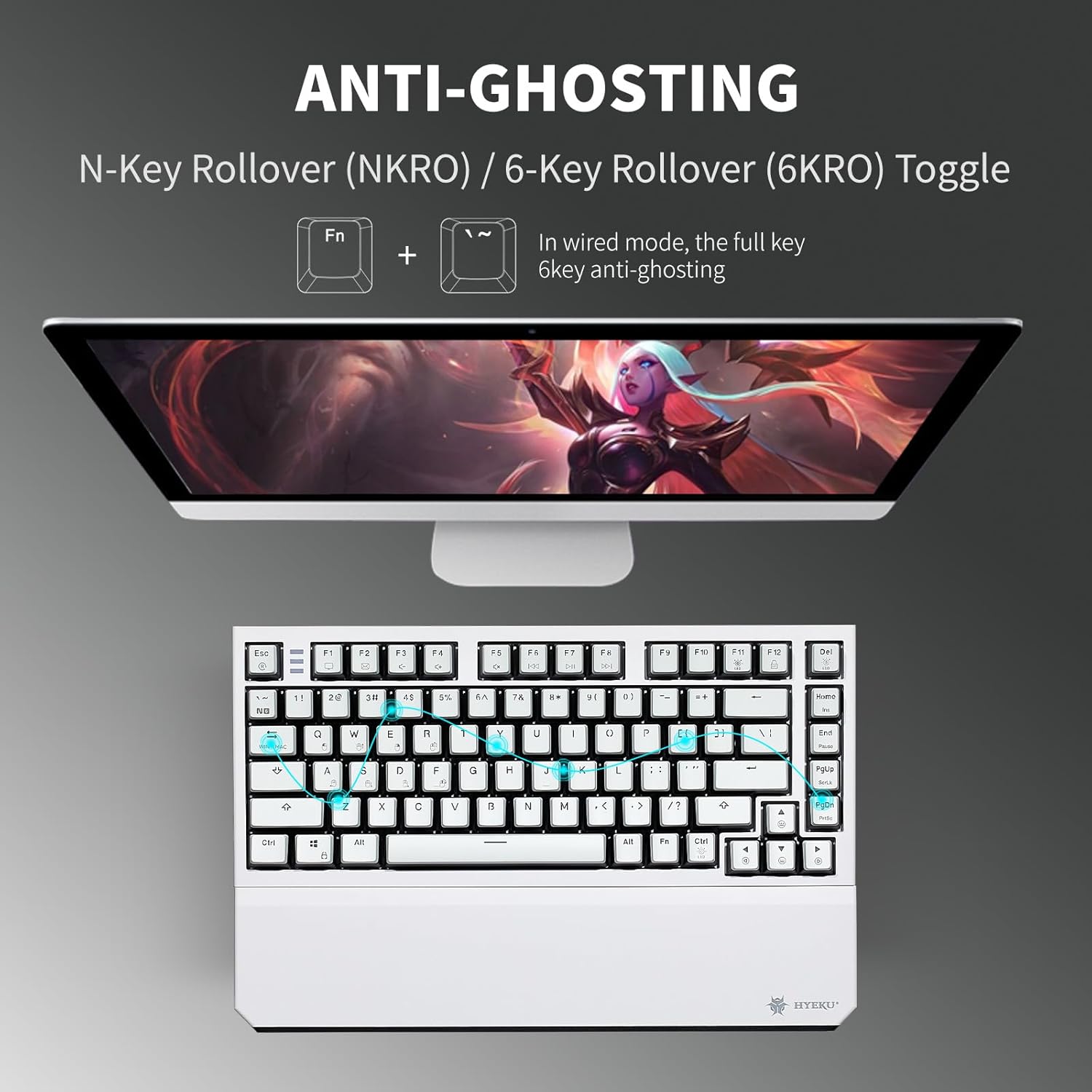
Image: The Hexgears X2 TKL keyboard illustrating the Anti-Ghosting feature with N-Key Rollover (NKRO) and 6-Key Rollover (6KRO) toggle. It shows that in wired mode, full key anti-ghosting is active.
3. മൾട്ടിമീഡിയ കീകൾ
Access multimedia functions by pressing the 'Fn' key in combination with the designated F-keys (F1-F12). These functions are typically indicated by icons on the keycaps.
മെയിൻ്റനൻസ്
1. കീബോർഡ് വൃത്തിയാക്കൽ
നിങ്ങളുടെ കീബോർഡ് വൃത്തിയാക്കാൻ, കമ്പ്യൂട്ടറിൽ നിന്ന് അത് വിച്ഛേദിക്കുക. മൃദുവായ, ലിന്റ് രഹിത തുണി ഉപയോഗിച്ച് ചെറുതായി വൃത്തിയാക്കുക.ampened with water or a mild cleaning solution. For keycaps, a small brush or compressed air can remove dust and debris between keys. Avoid excessive moisture.
2. കീക്യാപ്പും സ്വിച്ചും മാറ്റിസ്ഥാപിക്കൽ
The Hexgears X2 TKL features a hot-swappable PCB, allowing for easy replacement of 3-pin mechanical switches without soldering. The PBT keycaps are also removable.
- കീക്യാപ്പുകൾ നീക്കംചെയ്യുന്നു: Use the included keycap puller. Gently hook the puller onto the keycap and pull upwards.
- സ്വിച്ചുകൾ നീക്കംചെയ്യുന്നു: After removing the keycap, use the included switch puller. Squeeze the tabs on the top and bottom of the switch and pull it straight up.
- സ്വിച്ചുകൾ ഇൻസ്റ്റാൾ ചെയ്യുന്നു: Align the pins of the new 3-pin switch with the holes on the PCB. Press down firmly until the switch clicks into place. Ensure pins are not bent.
- കീക്യാപ്പുകൾ ഇൻസ്റ്റാൾ ചെയ്യുന്നു: Align the keycap with the switch stem and press down gently until it is secure.

ചിത്രം: വിശദമായ ഒരു ചിത്രം view of the Hexgears X2 TKL keyboard's hot-swappable PCB, showing how switches can be removed and replaced. It highlights the Rose Red Linear switch specifications and the hot-swap sockets.

Image: Close-up of the Hexgears X2 TKL keyboard demonstrating its double-shot PBT keycaps, emphasizing their durability and fade-resistant finish.
ട്രബിൾഷൂട്ടിംഗ്
- കീബോർഡ് പ്രതികരിക്കുന്നില്ല:
- കീബോർഡ് ചാർജ് ചെയ്തിട്ടുണ്ടോ അല്ലെങ്കിൽ USB-C വഴി ബന്ധിപ്പിച്ചിട്ടുണ്ടോ എന്ന് ഉറപ്പാക്കുക.
- For wireless mode, check that the 2.4GHz dongle is securely plugged in and the keyboard is switched to wireless mode.
- നിങ്ങളുടെ കമ്പ്യൂട്ടർ പുനരാരംഭിക്കാൻ ശ്രമിക്കുക.
- രജിസ്റ്റർ ചെയ്യാത്തതോ ഇരട്ട ടൈപ്പ് ചെയ്യാത്തതോ ആയ കീകൾ:
- Clean under the affected keycap.
- If using hot-swappable switches, try reseating the switch or replacing it with a spare.
- ബാക്ക്ലൈറ്റ് പ്രവർത്തിക്കുന്നില്ല:
- Ensure the keyboard has sufficient power.
- Use the Fn key combinations to adjust brightness or cycle through modes.
- വയർലെസ് കണക്ഷൻ പ്രശ്നങ്ങൾ:
- Move the keyboard closer to the 2.4GHz dongle.
- മറ്റ് വയർലെസ് ഉപകരണങ്ങളിൽ നിന്നുള്ള ഇടപെടൽ ഒഴിവാക്കുക.
- ഡോംഗിൾ മറ്റൊരു യുഎസ്ബി പോർട്ടിലേക്ക് പ്ലഗ് ചെയ്യാൻ ശ്രമിക്കുക.
സ്പെസിഫിക്കേഷനുകൾ
| മോഡൽ | Hexgears X2 TKL |
| കണക്റ്റിവിറ്റി | 2.4GHz Wireless, USB-C Wired |
| സ്വിച്ചുകൾ | Kailh BOX Linear Switches (Pre-lubed) |
| കീകാപ്പുകൾ | Frosted-finish PBT Double-Shot |
| ബാക്ക്ലൈറ്റ് | White LED Backlit (16 modes) |
| ലേഔട്ട് | TKL (Tenkeyless) / 82 Keys |
| എൻ-കീ റോൾഓവർ | Full NKRO (Wired Mode) |
| റിസ്റ്റ് റെസ്റ്റ് | Magnetic, Detachable |
| ക്രമീകരിക്കാവുന്ന പാദങ്ങൾ | 2-നില |
| അനുയോജ്യമായ ഉപകരണങ്ങൾ | Laptop, MAC, PC, Tablet, Xbox |
| ഇനത്തിൻ്റെ ഭാരം | 2.07 പൗണ്ട് |
| ബാറ്ററികൾ | 2 ലിഥിയം അയോൺ ബാറ്ററികൾ (ഉൾപ്പെട്ടിരിക്കുന്നു) |
വാറൻ്റിയും പിന്തുണയും
For warranty information and customer support, please refer to the official Hexgears website or contact your retailer. If you require assistance with your Hexgears X2 TKL keyboard, you can reach out to customer support through the following methods:
- ഓൺലൈൻ പിന്തുണ: Visit the Hexgears official webപതിവുചോദ്യങ്ങൾക്കും പിന്തുണാ ഉറവിടങ്ങൾക്കുമുള്ള സൈറ്റ്.
- റീട്ടെയിലർ പിന്തുണ: If purchased through Amazon, you can contact the seller directly via your order history.

Image: A visual guide detailing steps to contact customer support through Amazon, including navigating to the Hexgears product page, selecting the seller, and sending a message before or after placing an order.