
ആമുഖം
The Dpofirs WiFi 6 Gaming Router is a versatile 4G LTE router designed to provide high-speed wireless internet access. It features a 4-antenna design for enhanced signal coverage and supports connectivity for up to 32 devices simultaneously. With easy setup and robust performance, this router is suitable for various applications, including home, business, and gaming environments.
പ്രധാന സവിശേഷതകളിൽ ഇവ ഉൾപ്പെടുന്നു:
- 4G LTE Support: Compatible with multiple 4G LTE bands (FDD B1 3 5 7 8 20, TDD B38 40 41, WCDMA B1 5 8) for seamless connectivity.
- മെച്ചപ്പെടുത്തിയ കവറേജ്: Four antennas provide improved signal strength and network stability.
- ഉയർന്ന വേഗത: Up to 150 Mbps download, 50 Mbps upload, and 300 Mbps wireless transfer rates.
- മൾട്ടി-ഡിവൈസ് കണക്റ്റിവിറ്റി: Supports up to 32 devices within a 300 ㎡ coverage area.

Image: Dpofirs WiFi 6 Wireless Router, highlighting its SIM card slot and ease of use.
സജ്ജമാക്കുക
Follow these steps to set up your Dpofirs WiFi 6 Gaming Router:
- റൂട്ടർ അൺപാക്ക് ചെയ്യുക: Carefully remove the router and all accessories from the packaging. Ensure you have the router, power adapter, USB cable, and Ethernet cable.
- സിം കാർഡ് ചേർക്കുക: Locate the standard SIM card slot on the router. Insert your activated standard SIM card into the slot until it clicks into place. Ensure the SIM card is inserted correctly according to the diagram on the device.
- പവർ ബന്ധിപ്പിക്കുക: Connect the power adapter to the router's power input and then plug it into a wall outlet. The router will power on automatically.
- സ്ഥാനം ആന്റിനകൾ: Adjust the four external antennas for optimal signal reception. For best results, position them vertically.
- പ്രാരംഭ കണക്ഷൻ: Wait for the router's indicator lights to stabilize, indicating a successful connection to the 4G LTE network and Wi-Fi broadcast.

Image: The Dpofirs WiFi 6 Router displayed with its power adapter, USB cable, and Ethernet cable.
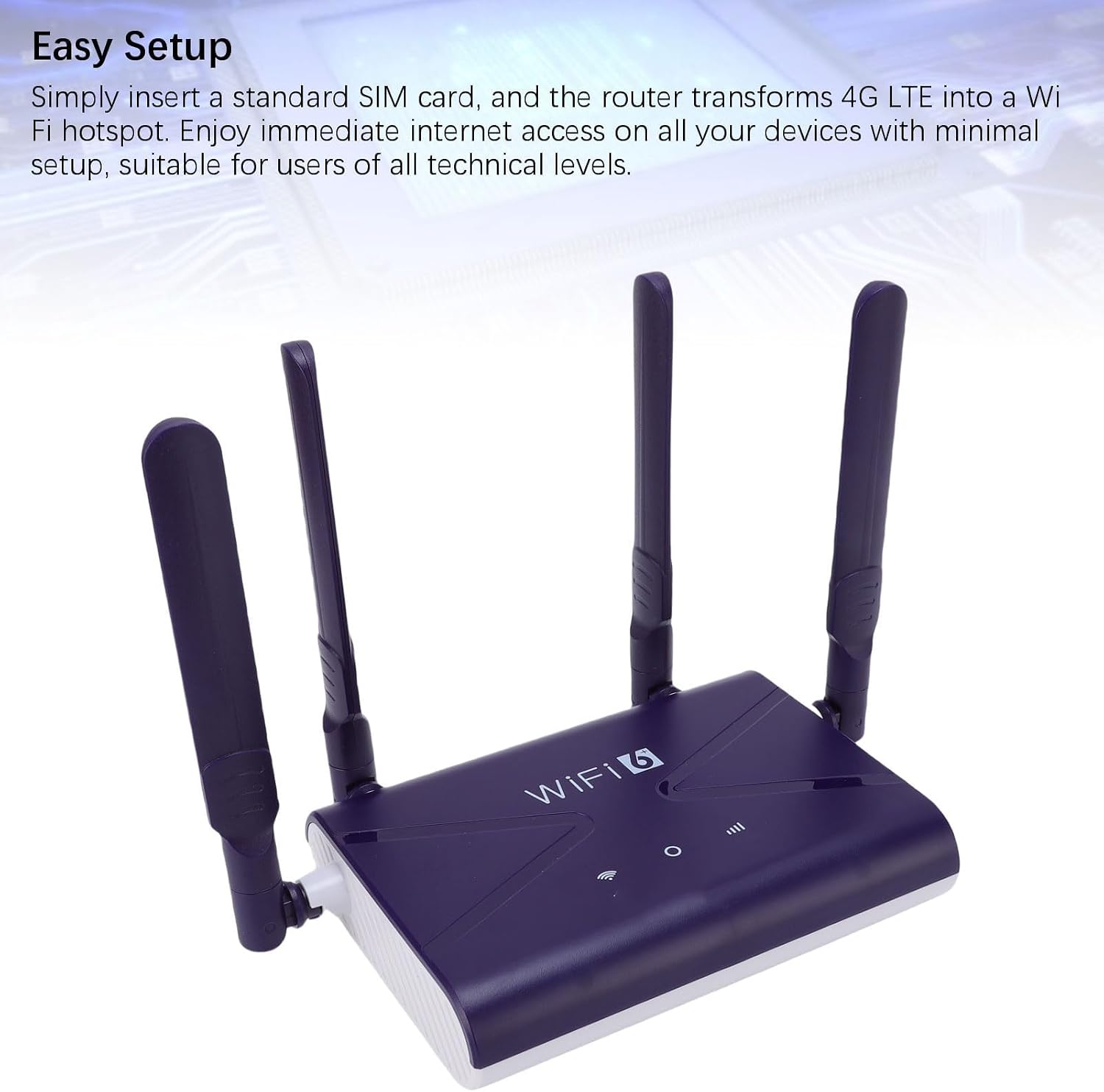
Image: Dpofirs WiFi 6 Router, illustrating the simple setup process with SIM card insertion.
പ്രവർത്തന നിർദ്ദേശങ്ങൾ
Once the router is set up, you can connect your devices and manage your network:
- വൈഫൈയിലേക്ക് കണക്റ്റുചെയ്യുക: On your smartphone, tablet, or PC, search for available Wi-Fi networks. Select the network name (SSID) displayed on the router's label (usually on the bottom). Enter the default Wi-Fi password (Key) found on the same label.
- വയർഡ് കണക്ഷൻ: For devices requiring a wired connection, use an Ethernet cable to connect the device to the LAN/WAN port on the router.
- റൂട്ടർ ക്രമീകരണങ്ങൾ ആക്സസ് ചെയ്യുക: To customize network settings (e.g., change Wi-Fi name/password, configure firewall), open a web browser and enter the router's default IP address (e.g., 192.168.100.1) found on the label. Log in using the default username and password (also on the label).
- Enjoy High-Speed Internet: The router provides download speeds up to 150 Mbps and upload speeds up to 50 Mbps, with a wireless transfer rate of 300 Mbps, supporting up to 32 devices simultaneously.

Image: A visual representation of the Dpofirs WiFi 6 Router providing wireless and wired internet access to various devices.
മെയിൻ്റനൻസ്
To ensure optimal performance and longevity of your Dpofirs WiFi 6 Gaming Router, consider the following maintenance tips:
- പ്ലേസ്മെൻ്റ്: Place the router in a central location, away from obstructions, large metal objects, and other electronic devices that may cause interference. Ensure adequate ventilation to prevent overheating.
- വൃത്തിയാക്കൽ: Periodically clean the router's exterior with a soft, dry cloth. Avoid using liquid cleaners or abrasive materials.
- ഫേംവെയർ അപ്ഡേറ്റുകൾ: നിർമ്മാതാവ് പരിശോധിക്കുക website periodically for firmware updates. Keeping the firmware updated can improve performance, security, and add new features.
- സുരക്ഷ: Regularly change your Wi-Fi password to a strong, unique combination of characters. Utilize the router's built-in firewall for network protection.
ട്രബിൾഷൂട്ടിംഗ്
If you encounter issues with your router, try these common troubleshooting steps:
- ഇൻ്റർനെറ്റ് കണക്ഷൻ ഇല്ല:
- സിം കാർഡ് ശരിയായി ഇട്ടിട്ടുണ്ടെന്നും സജീവമാക്കിയിട്ടുണ്ടെന്നും ഉറപ്പാക്കുക.
- Check the router's indicator lights; if the 4G/LTE light is off or red, there might be a network issue or SIM card problem.
- Restart the router by unplugging it from the power source for 10 seconds and then plugging it back in.
- Verify that your device is connected to the correct Wi-Fi network and the password is correct.
- കുറഞ്ഞ വൈ-ഫൈ വേഗത:
- സിഗ്നൽ ശക്തി മെച്ചപ്പെടുത്താൻ റൂട്ടറിന് അടുത്തേക്ക് നീങ്ങുക.
- കണക്റ്റുചെയ്ത ഉപകരണങ്ങളുടെ എണ്ണം കുറയ്ക്കുക അല്ലെങ്കിൽ ബാൻഡ്വിഡ്ത്ത്-ഇന്റൻസീവ് പ്രവർത്തനങ്ങൾ കുറയ്ക്കുക.
- മറ്റ് ഇലക്ട്രോണിക് ഉപകരണങ്ങളിൽ നിന്നുള്ള ഇടപെടൽ പരിശോധിക്കുക.
- റൂട്ടർ പുനരാരംഭിക്കുക.
- റൂട്ടർ ക്രമീകരണങ്ങൾ ആക്സസ് ചെയ്യാൻ കഴിയില്ല:
- Ensure you are using the correct IP address, username, and password from the router's label.
- മറ്റൊന്ന് പരീക്ഷിക്കുക web ബ്രൗസർ.
- If you have forgotten your login credentials, you may need to perform a factory reset (refer to the full manual for instructions, as this will erase all custom settings).
സ്പെസിഫിക്കേഷനുകൾ
Detailed technical specifications for the Dpofirs WiFi 6 Gaming Router:
| ഫീച്ചർ | സ്പെസിഫിക്കേഷൻ |
|---|---|
| ബ്രാൻഡ് | Dpofirs |
| മോഡലിൻ്റെ പേര് | Dpofirsg8zhfb1o9t |
| വയർലെസ് കമ്മ്യൂണിക്കേഷൻ സ്റ്റാൻഡേർഡ് | 802.11ax (Wi-Fi 6) |
| ഫ്രീക്വൻസി ബാൻഡ് ക്ലാസ് | സിംഗിൾ-ബാൻഡ് (2.4 GHz) |
| 4G LTE പിന്തുണ | FDD B1 3 5 7 8 20, TDD B38 40 41, WCDMA B1 5 8 |
| ഡാറ്റ കൈമാറ്റ നിരക്ക് | 300 Megabits per second (Wireless) |
| Max Downstream Data Transfer Rate | 150 Megabits per second (4G LTE) |
| Max Upstream Data Transfer Rate | 50 Megabits per second (4G LTE) |
| ലാൻ പോർട്ട് ബാൻഡ്വിഡ്ത്ത് | 1000 Mbps |
| തുറമുഖങ്ങളുടെ എണ്ണം | 1 (LAN/WAN) |
| കവറേജ് | 300 ㎡ |
| പിന്തുണയ്ക്കുന്ന ഉപകരണങ്ങൾ | Up to 32 (Smartphones, tablets, PC) |
| സുരക്ഷാ പ്രോട്ടോക്കോളുകൾ | WPA2, WPA3 |
| പ്രത്യേക സവിശേഷതകൾ | Built-in firewall, 4 antennas, high speeds |
| ഓപ്പറേറ്റിംഗ് സിസ്റ്റം | റൂട്ടർഒഎസ് |

Image: Dpofirs WiFi 6 Router, emphasizing its support for various 4G LTE frequency bands and high speeds.
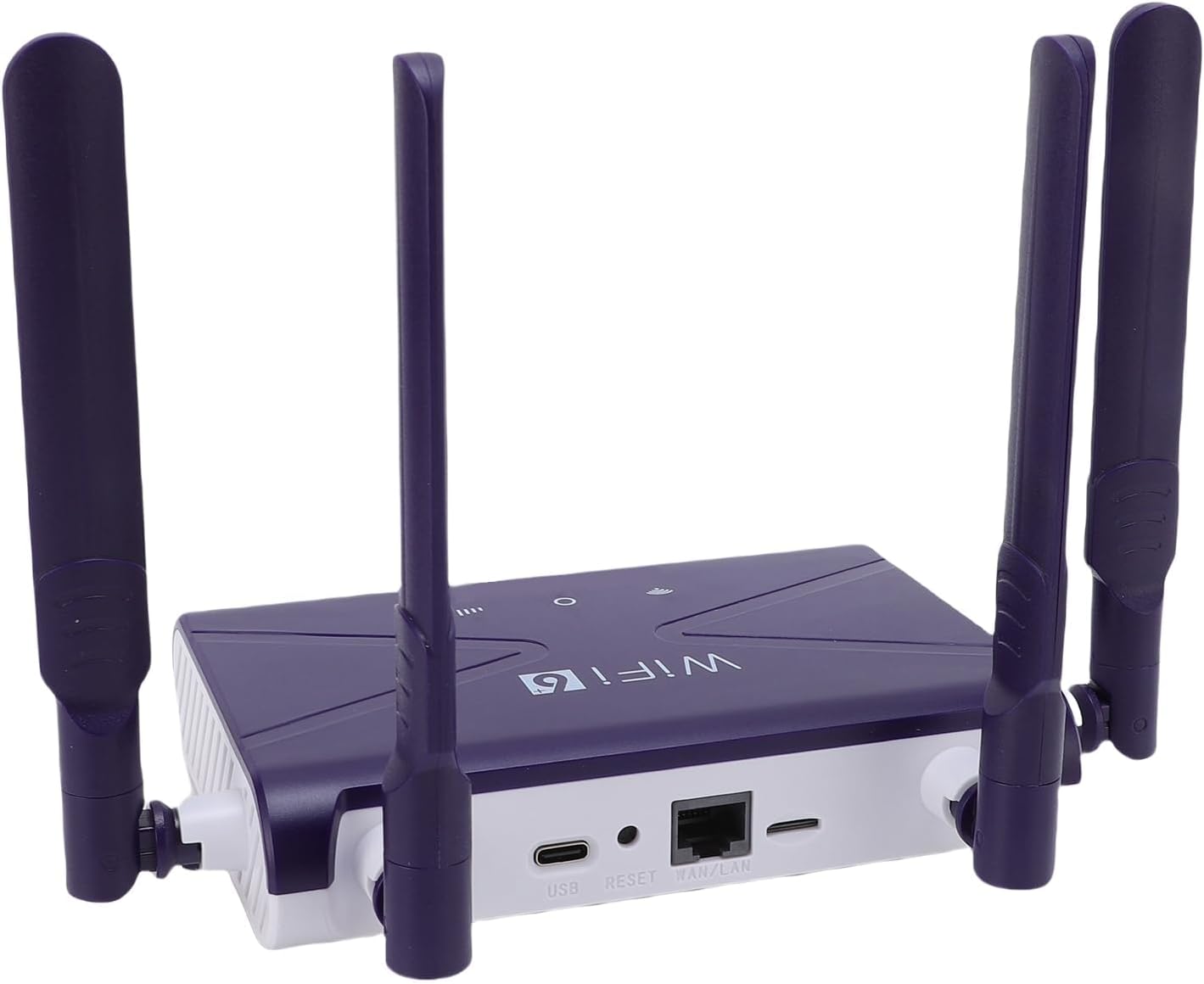
ചിത്രം: വശം view of the Dpofirs WiFi 6 Router, detailing the USB, Reset, and LAN/WAN ports.
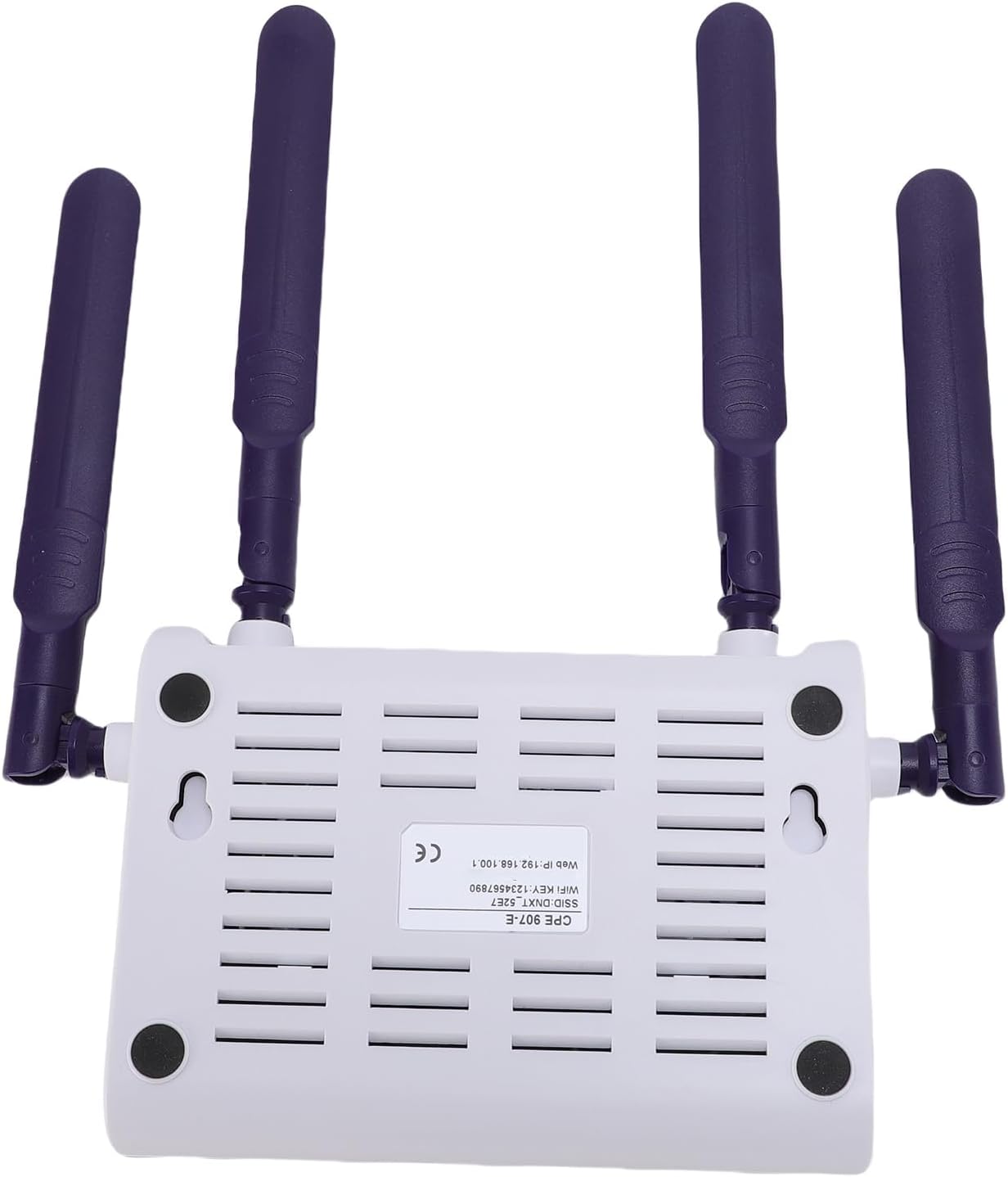
ചിത്രം: താഴെ view of the Dpofirs WiFi 6 Router, showing the product label with default network information.
വാറൻ്റിയും പിന്തുണയും
This Dpofirs WiFi 6 Gaming Router comes with a manufacturer's warranty of 90 days from the date of purchase. For warranty claims or technical support, please refer to the contact information provided with your product packaging or visit the official Dpofirs webസൈറ്റ്.