
1. ആമുഖം
This manual provides essential information for the proper setup, operation, and maintenance of your Goiaey C26 Smart Projector. Please read this manual thoroughly before using the product to ensure optimal performance and user safety. Keep this manual for future reference.

Figure 1: Goiaey C26 Smart Projector with Google Store and streaming app logos.
2. ബോക്സിൽ എന്താണുള്ളത്?
അൺപാക്ക് ചെയ്യുമ്പോൾ, ഇനിപ്പറയുന്ന എല്ലാ ഇനങ്ങളും ഉൾപ്പെടുത്തിയിട്ടുണ്ടെന്ന് ദയവായി ഉറപ്പാക്കുക:
- 1x Goiaey C26 Smart Projector
- 1x Bluetooth and Infrared Remote Control
- 1x പവർ കോർഡ്
- 1x HDMI കേബിൾ
- 1x ഉപയോക്തൃ മാനുവൽ
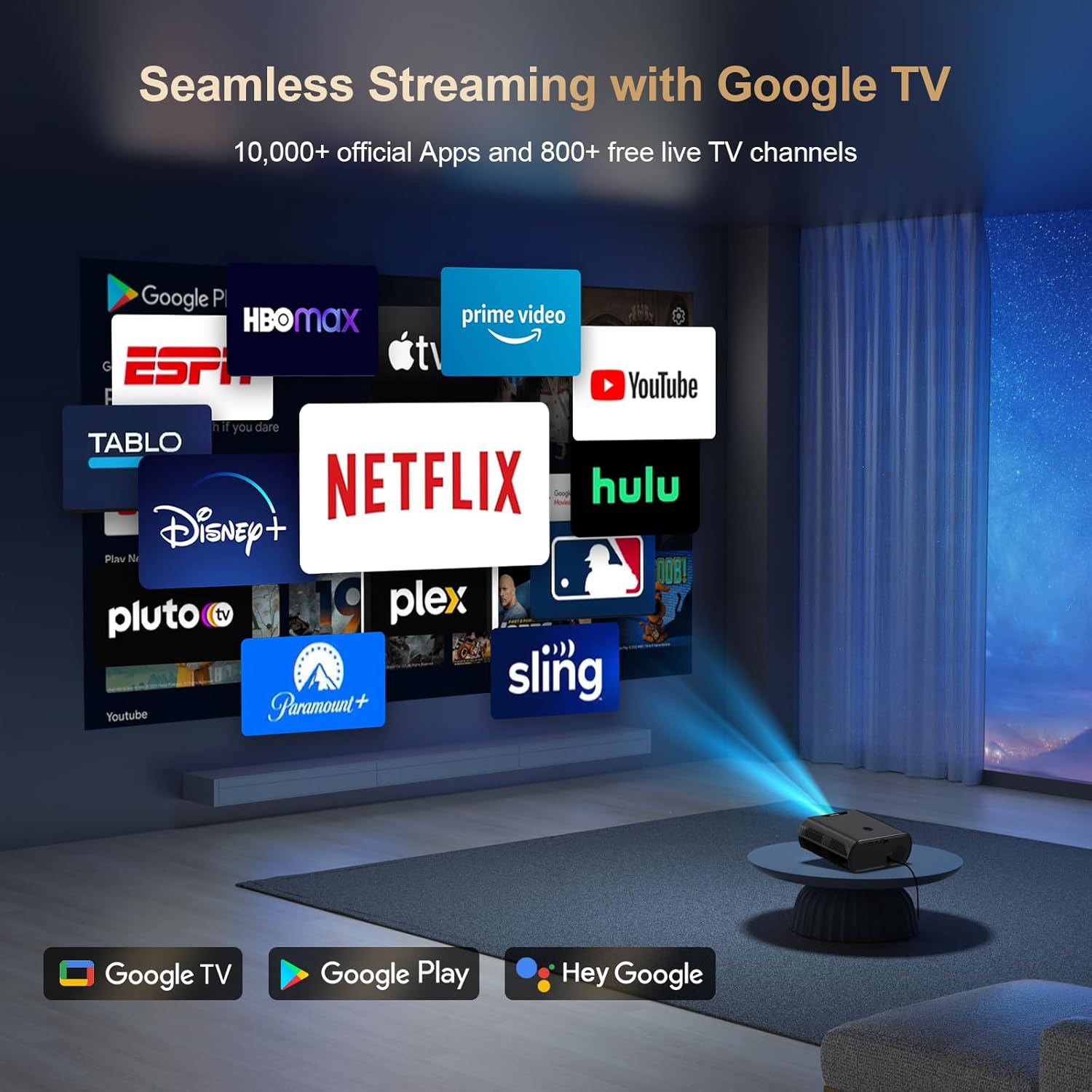
Figure 2: Contents of the Goiaey C26 Smart Projector packaging.
3. ഉൽപ്പന്ന സവിശേഷതകൾ
- Official Google TV System: Directly access over 10,000 apps including Netflix, YouTube, and Prime Video.
- ഗൂഗിൾ വോയ്സ് അസിസ്റ്റന്റ്: Control the projector with voice commands via the Bluetooth remote.
- ബ്ലൂടൂത്ത് 5.2: മെച്ചപ്പെടുത്തിയ ഓഡിയോ ഔട്ട്പുട്ടിനായി ബാഹ്യ സ്പീക്കറുകൾ ബന്ധിപ്പിക്കുക.
- 180° Stand: Adjust projection angle for versatile viewing on walls or ceilings.
- 1500 ANSI ല്യൂമെൻസ്: Provides bright and vivid images, best used in dark environments.
- Native 1080P Resolution (4K Supported): Delivers full HD visuals with deep contrast and smooth motion.
- Electric Focus & Auto Vertical Keystone: Ensures a clear image with one click and automatic vertical correction up to 15°.
- 4P കീസ്റ്റോൺ തിരുത്തൽ: Manual correction for larger range vertical and horizontal adjustments.
- വൈഫൈ 6 സാങ്കേതികവിദ്യ: Faster and stronger screen mirroring from smartphones and tablets.
- HDMI ARC & CEC Function: Connect external speakers via HDMI and control multiple devices with one remote.
- Google Cast: Seamlessly cast content from your phone/tablet to the projector.
- പോർട്ടബിലിറ്റി: Compact (7.4 x 6.3 x 2.9 inches) and lightweight (2.2lb) for easy transport.

Figure 3: Electric Focus and Auto Vertical Keystone features.
4. സജ്ജീകരണ നിർദ്ദേശങ്ങൾ
4.1 പ്രാരംഭ പവർ-ഓണും നെറ്റ്വർക്ക് കണക്ഷനും
- പ്രൊജക്ടറിലേക്കും പവർ ഔട്ട്ലെറ്റിലേക്കും പവർ കോർഡ് ബന്ധിപ്പിക്കുക.
- പ്രൊജക്ടറിലോ റിമോട്ട് കൺട്രോളിലോ ഉള്ള പവർ ബട്ടൺ അമർത്തി അത് ഓണാക്കുക.
- Follow the on-screen prompts to select your language and connect to your Wi-Fi network.
- Sign in to your Google account to access Google TV features and download apps from the Google Play Store.
4.2 ഇമേജ് അഡ്ജസ്റ്റ്മെന്റ്
The projector features Electric Focus and Auto Vertical Keystone for quick image optimization.
- ഇലക്ട്രിക് ഫോക്കസ്: Use the 'F+' or 'F-' buttons on the remote to manually adjust focus until the image is clear.
- ഓട്ടോ ലംബ കീസ്റ്റോൺ: The image automatically corrects itself when the projector is moved vertically within 15°.
- 4P കീസ്റ്റോൺ തിരുത്തൽ: For larger adjustments, navigate to the settings menu to manually correct the image in both vertical and horizontal directions.
Video 1: Quick Look Google TV Smart Projector - Demonstrates initial setup and features.
Video 2: Easy Setup Guide - Provides a visual walkthrough of the setup process.
5. പ്രവർത്തന നിർദ്ദേശങ്ങൾ
5.1 Navigation and App Usage
- Use the remote control's directional buttons and 'OK' button to navigate the Google TV interface.
- Download additional apps from the Google Play Store as needed.
- Use the dedicated Netflix, YouTube, and Prime Video buttons on the remote for quick access.
5.2 കണക്റ്റിവിറ്റി
- എച്ച്ഡിഎംഐ: Connect external devices like laptops, gaming consoles, or Blu-ray players using the provided HDMI cable.
- USB: മീഡിയ പ്ലേ ചെയ്യാൻ ഒരു USB ഡ്രൈവ് ഇടുക fileപ്രൊജക്ടറിൽ നിന്ന് നേരിട്ട്.
- ബ്ലൂടൂത്ത്: Pair Bluetooth speakers or headphones for a personalized audio experience. Bluetooth is available after signing into your Google account.
- Google Cast: Use the Google Cast function to mirror content from your smartphone or tablet.

Figure 4: Multiple projection angles supported by the 180° stand.
6. പരിപാലനം
- അമിതമായി ചൂടാകുന്നത് തടയാൻ പ്രൊജക്ടറിന് ചുറ്റും ശരിയായ വായുസഞ്ചാരം ഉറപ്പാക്കുക.
- Regularly clean the lens with a soft, lint-free cloth.
- ഉപയോഗത്തിലില്ലാത്തപ്പോൾ പ്രൊജക്ടർ തണുത്തതും വരണ്ടതുമായ സ്ഥലത്ത് സൂക്ഷിക്കുക.
- Always shut down the projector correctly to extend its lifespan.
7. പ്രശ്നപരിഹാരം
If you encounter any issues, please refer to the following general troubleshooting tips:
- ശക്തിയില്ല: പവർ കോർഡ് സുരക്ഷിതമായി ബന്ധിപ്പിച്ചിട്ടുണ്ടോ എന്നും പവർ ഔട്ട്ലെറ്റ് പ്രവർത്തിക്കുന്നുണ്ടെന്നും പരിശോധിക്കുക.
- ചിത്രമില്ല: Ensure the lens cap is removed and the correct input source is selected.
- മങ്ങിയ ചിത്രം: Adjust the electric focus using the remote control.
- വികലമായ ചിത്രം: Use auto vertical keystone or 4P keystone correction to adjust the image shape.
- ശബ്ദമില്ല: Check the volume settings on the projector and any connected external audio devices. Ensure Bluetooth is connected if using external speakers.
- Wi-Fi കണക്ഷൻ പ്രശ്നങ്ങൾ: Verify your Wi-Fi network is active and re-enter the password if necessary.
കൂടുതൽ സഹായത്തിന്, വാറന്റി, പിന്തുണ വിഭാഗത്തിൽ വിശദമാക്കിയിരിക്കുന്നതുപോലെ ഉപഭോക്തൃ പിന്തുണയുമായി ബന്ധപ്പെടുക.
8 സ്പെസിഫിക്കേഷനുകൾ
- ബ്രാൻഡ്: ഗോയിയേ
- മോഡൽ: C26
- ഇനത്തിൻ്റെ ഭാരം: 1.76 പൗണ്ട്
- ഉൽപ്പന്ന അളവുകൾ: 6.3 x 2.91 x 7.4 ഇഞ്ച്
- ഡിസ്പ്ലേ റെസല്യൂഷൻ: 1920 x 1080 (നേറ്റീവ് 1080P, 4K പിന്തുണയ്ക്കുന്നു)
- തെളിച്ചം: 1500 ആൻസി ലുമെൻസ്
- കണക്റ്റിവിറ്റി ടെക്നോളജി: WiFi 6, Bluetooth 5.2, HDMI ARC, USB, Audio
- പ്രത്യേക സവിശേഷതകൾ: Built-in Google TV System, Google Voice Assistant, Google Cast, Electric Focus, 4P Keystone, 180° Stand, Portability.
9. വാറൻ്റിയും പിന്തുണയും
Goiaey offers a comprehensive warranty for your C26 Smart Projector:
- 1 Year Free Replacement: In case of product defects or malfunctions.
- 2 Years Free Repair: For any repair needs beyond the replacement period.
For any questions or support inquiries, please refer to the official contact information provided in your user manual. Our customer support team will reply within 24 business hours.
Video 5: EGJSG Projector with WiFi and Bluetooth - Demonstrates product features and usage.