
1. ഉൽപ്പന്നം കഴിഞ്ഞുview
The LexonElec HXSJ T700 is an ultra-lightweight wireless gaming mouse designed for right-handed users, offering versatile connectivity and high-performance features. It supports three connection modes: 2.4GHz wireless, Bluetooth, and USB wired, making it suitable for various devices and usage scenarios.

Image: The HXSJ T700 Wireless Gaming Mouse, showcasing അതിന്റെ മിനുസമാർന്ന ഡിസൈൻ.
പ്രധാന സവിശേഷതകൾ:
- എർഗണോമിക് ഡിസൈൻ: Specifically shaped for right-handed comfort during extended use.
- വളരെ ഭാരം കുറഞ്ഞ: Weighs only 56g, reducing wrist strain.
- ട്രിപ്പിൾ മോഡ് കണക്റ്റിവിറ്റി: Seamlessly switch between 2.4GHz, Bluetooth, and USB wired connections.
- ഉയർന്ന കൃത്യതയുള്ള ഒപ്റ്റിക്കൽ സെൻസർ: Up to 10,000 DPI with a 1000Hz polling rate for accurate tracking.
- നീണ്ട ബാറ്ററി ലൈഫ്: Integrated 500mAh battery provides up to 200 hours of use on a single charge.
- പ്രോഗ്രാം ചെയ്യാവുന്ന ബട്ടണുകൾ: 6 customizable buttons for enhanced control.
- ഈടുനിൽക്കുന്ന സ്വിച്ചുകൾ: HUANO silent micro switches rated for 20 million clicks.
2. സജ്ജീകരണ നിർദ്ദേശങ്ങൾ
പാക്കേജ് ഉള്ളടക്കം:
- HXSJ T700 Wireless Gaming Mouse
- യുഎസ്ബി നാനോ റിസീവർ (മൗസിൽ സൂക്ഷിച്ചിരിക്കുന്നു)
- USB-C ചാർജിംഗ് കേബിൾ
ആമുഖം:
- മൗസ് ചാർജ് ചെയ്യുക: Connect the USB-C charging cable to the mouse and a power source. The mouse can be used while charging in wired mode.
- കണക്ഷൻ മോഡ് തിരഞ്ഞെടുക്കുക: Locate the switch on the bottom of the mouse. It has three positions: OFF, 2.4G, and BT (Bluetooth).

Image: The HXSJ T700 mouse illustrating its three connection modes: 2.4GHz, Bluetooth, and USB wired.
2.1. 2.4GHz വയർലെസ് കണക്ഷൻ:
- Remove the USB Nano Receiver from its storage slot on the bottom of the mouse.
- നിങ്ങളുടെ കമ്പ്യൂട്ടറിൽ ലഭ്യമായ ഒരു USB പോർട്ടിലേക്ക് USB നാനോ റിസീവർ പ്ലഗ് ചെയ്യുക.
- മൗസിന്റെ താഴെയുള്ള മോഡ് സ്വിച്ച് "2.4G" സ്ഥാനത്തേക്ക് സ്ലൈഡ് ചെയ്യുക.
- മൗസ് യാന്ത്രികമായി കണക്ട് ചെയ്യണം.
2.2 ബ്ലൂടൂത്ത് കണക്ഷൻ:
- മൗസിന്റെ താഴെയുള്ള മോഡ് സ്വിച്ച് "BT" സ്ഥാനത്തേക്ക് സ്ലൈഡ് ചെയ്യുക.
- Press and hold the "Mode" button (located near the switch) for 3-5 seconds until the indicator light flashes, indicating pairing mode.
- On your device (PC, Mac, PS4, Xbox), go to Bluetooth settings and search for new devices.
- Select "HXSJ T700" from the list of available devices to pair.
2.3. യുഎസ്ബി വയർഡ് കണക്ഷൻ:
- Connect the USB-C charging cable to the mouse and the other end to a USB port on your computer.
- The mouse will function as a wired mouse and charge simultaneously. The mode switch can be in any position for wired operation.
3. പ്രവർത്തന നിർദ്ദേശങ്ങൾ
The HXSJ T700 mouse features 6 programmable buttons and a DPI adjustment button for customized control.
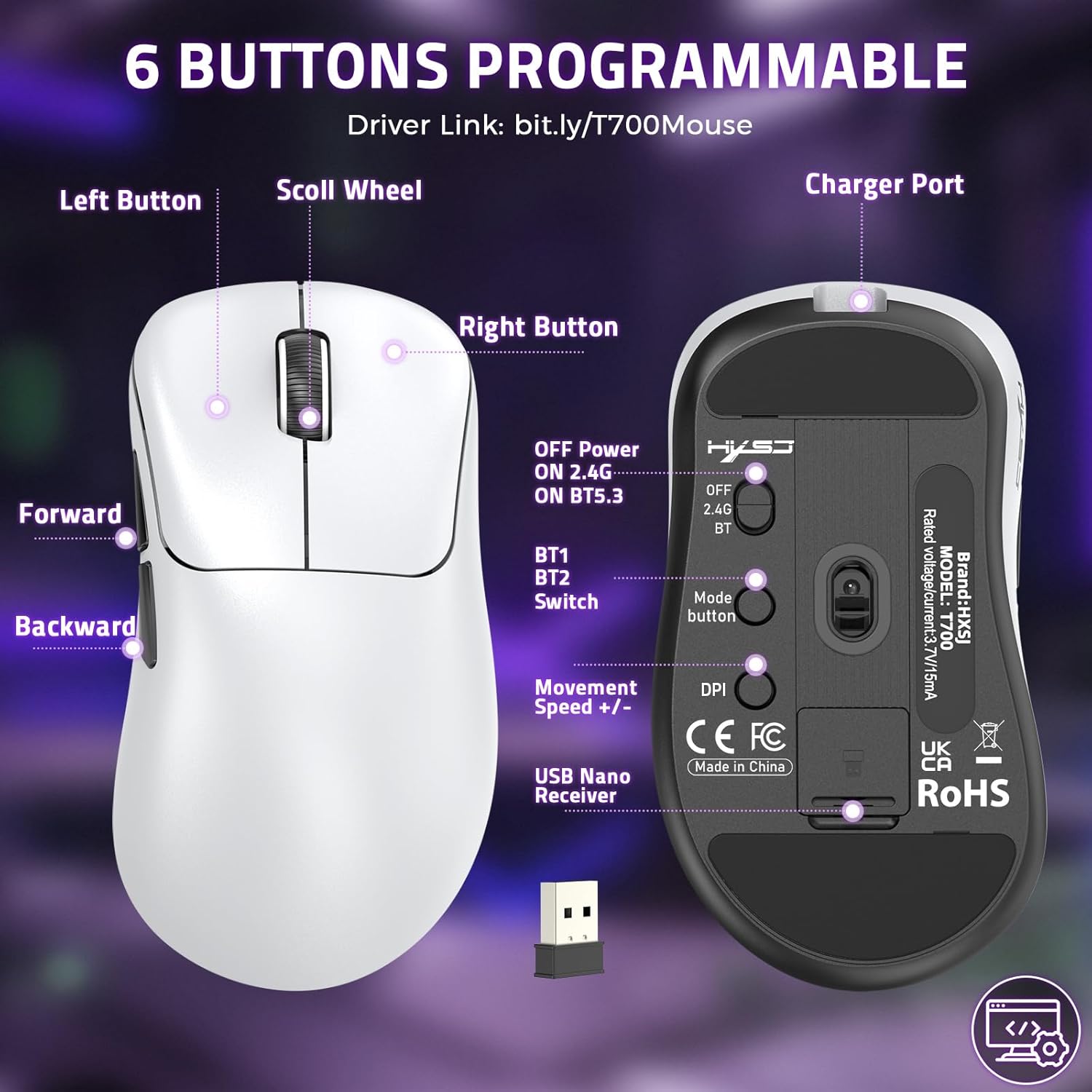
Image: Diagram showing the layout of the 6 programmable buttons (Left, Right, Scroll Wheel, Forward, Backward, DPI) and other controls on the HXSJ T700 mouse.
3.1. ബട്ടൺ പ്രവർത്തനങ്ങൾ:
- ഇടത് ബട്ടൺ: പ്രാഥമിക ക്ലിക്ക് പ്രവർത്തനം.
- വലത് ബട്ടൺ: സെക്കൻഡറി ക്ലിക്ക് ഫംഗ്ഷൻ (സന്ദർഭ മെനു).
- സ്ക്രോൾ വീൽ: മുകളിലേക്കും/താഴേക്കും സ്ക്രോൾ ചെയ്യുക, മധ്യത്തിൽ ക്ലിക്ക് ചെയ്യുക.
- ഫോർവേഡ് ബട്ടൺ: മുന്നോട്ട് നാവിഗേറ്റ് ചെയ്യുന്നു web ബ്രൗസറുകൾ അല്ലെങ്കിൽ file പര്യവേക്ഷകർ.
- ബാക്ക്വേർഡ് ബട്ടൺ: പിന്നിലേക്ക് നാവിഗേറ്റ് ചെയ്യുന്നു web ബ്രൗസറുകൾ അല്ലെങ്കിൽ file പര്യവേക്ഷകർ.
- DPI ബട്ടൺ: DPI ക്രമീകരണങ്ങളിലൂടെ കടന്നുപോകുന്നു.
3.2. DPI ക്രമീകരണം:
Press the DPI button (located on the top of the mouse, behind the scroll wheel) to cycle through the preset DPI levels. The available DPI settings are 1200, 2000, 3200, 6400, and 10000. Each press will change the sensitivity, allowing you to adjust cursor speed to your preference.
3.3. Programmable Buttons (Software Support):
To customize the 6 programmable buttons and adjust advanced settings like polling rate, visit the official driver download link:
Download and install the driver software to access full customization options for your mouse.

Image: Screenshot of the HXSJ T700 mouse software interface, showing options for button customization and DPI settings.
4. പരിപാലനം
4.1. ബാറ്ററി ചാർജ് ചെയ്യുന്നു:
The mouse is equipped with a 500mAh rechargeable battery. When the battery is low, an indicator light on the mouse will signal. Connect the provided USB-C cable to the mouse and a USB power source (e.g., computer, wall adapter) to charge. A full charge provides up to 200 hours of usage.
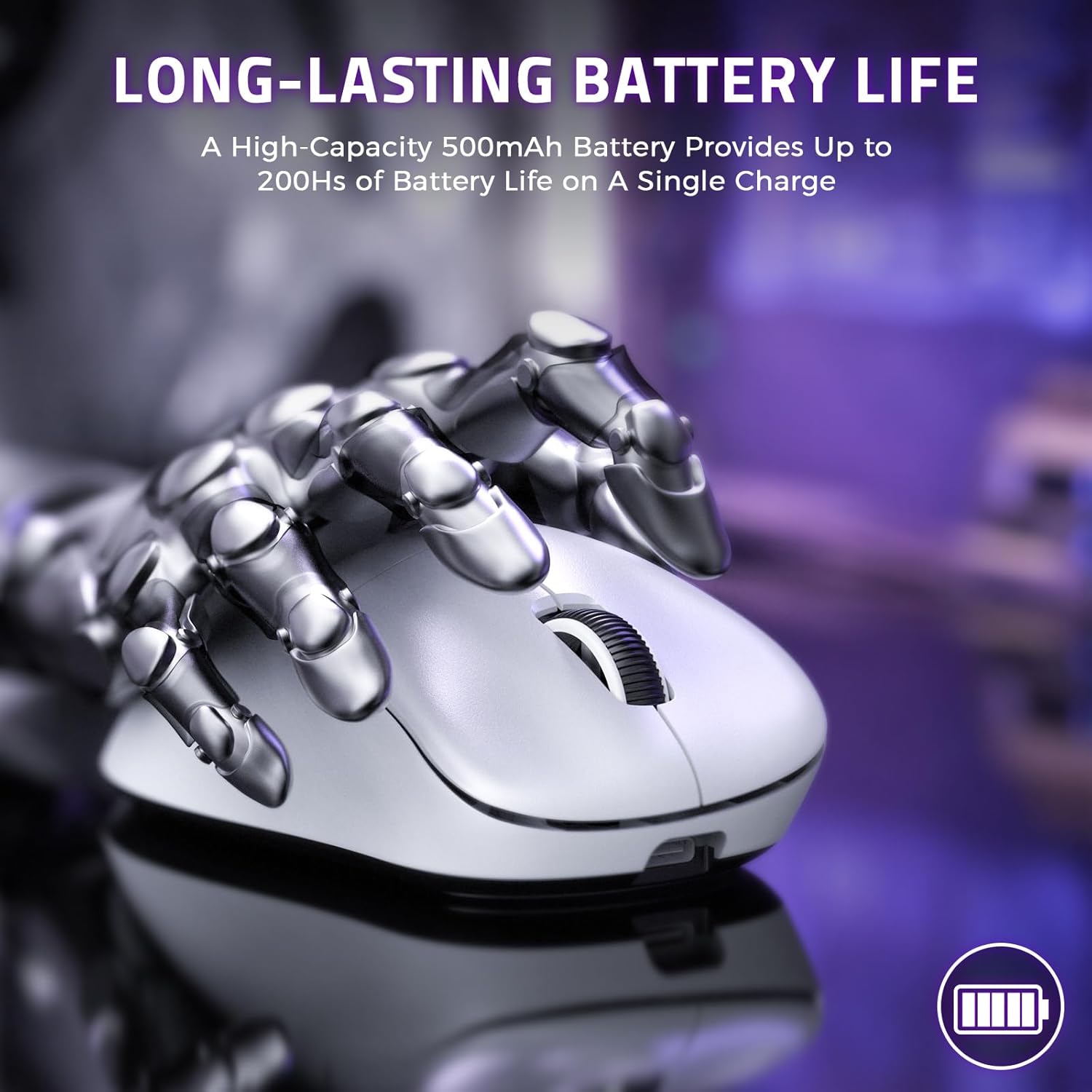
Image: The HXSJ T700 mouse highlighting its long-lasting 500mAh battery, capable of up to 200 hours of use.
4.2. വൃത്തിയാക്കൽ:
- മൗസിന്റെ ഉപരിതലം വൃത്തിയാക്കാൻ മൃദുവായതും ഉണങ്ങിയതുമായ തുണി ഉപയോഗിക്കുക.
- ഒപ്റ്റിക്കൽ സെൻസറിന്, ഒരു കോട്ടൺ സ്വാബ് ചെറുതായി ഉപയോഗിക്കുക dampസെൻസർ ഏരിയ സൌമ്യമായി വൃത്തിയാക്കാൻ ഐസോപ്രോപൈൽ ആൽക്കഹോൾ ഉപയോഗിച്ച് നിറച്ചിരിക്കുന്നു.
- Avoid using harsh chemicals or abrasive materials that could damage the mouse.
4.3. സംഭരണം:
When not in use for extended periods, turn off the mouse using the switch on the bottom to conserve battery life. Store in a cool, dry place away from direct sunlight and extreme temperatures.
5. പ്രശ്നപരിഹാരം
5.1. Mouse Not Responding:
- ബാറ്ററി പരിശോധിക്കുക: Ensure the mouse is charged. Connect it via USB-C cable to check if it works in wired mode.
- കണക്ഷൻ മോഡ് പരിശോധിക്കുക: Verify the mode switch on the bottom of the mouse is set correctly (2.4G for receiver, BT for Bluetooth, or wired for USB cable).
- 2.4GHz കണക്ഷൻ: USB നാനോ റിസീവർ പ്രവർത്തിക്കുന്ന ഒരു USB പോർട്ടിലേക്ക് സുരക്ഷിതമായി പ്ലഗ് ചെയ്തിട്ടുണ്ടെന്ന് ഉറപ്പാക്കുക. മറ്റൊരു USB പോർട്ട് പരീക്ഷിക്കുക.
- ബ്ലൂടൂത്ത് കണക്ഷൻ: Re-pair the mouse with your device. Go to your device's Bluetooth settings, remove the mouse, and then re-initiate pairing mode on the mouse.
- വയർഡ് കണക്ഷൻ: USB-C കേബിൾ മൗസിലേക്കും കമ്പ്യൂട്ടറിലേക്കും ശരിയായി ബന്ധിപ്പിച്ചിട്ടുണ്ടെന്ന് ഉറപ്പാക്കുക.
5.2. Cursor Movement is Erratic or Inaccurate:
- ക്ലീൻ സെൻസർ: Gently clean the optical sensor on the bottom of the mouse with a soft cloth or cotton swab.
- ഉപരിതലം പരിശോധിക്കുക: Ensure you are using the mouse on a clean, non-reflective, and uniform surface. A mouse pad is recommended.
- Adjust DPI: Try changing the DPI setting using the DPI button to see if a different sensitivity improves performance.
5.3. Buttons Not Functioning Correctly:
- സോഫ്റ്റ്വെയർ ഇടപെടൽ: If you have installed custom software, try resetting the mouse settings to default via the driver software.
- Physical Issue: If a button feels loose or unresponsive, it might indicate a hardware issue.
6 സ്പെസിഫിക്കേഷനുകൾ
| ബ്രാൻഡ് | ലെക്സോൺ ഇലക് |
| മോഡൽ | T700 |
| കണക്റ്റിവിറ്റി ടെക്നോളജി | 2.4GHz വയർലെസ്, ബ്ലൂടൂത്ത്, യുഎസ്ബി വയർഡ് |
| പ്രത്യേക സവിശേഷതകൾ | Programmable Buttons, Ergonomic Design, Lightweight, Rechargeable, Wireless |
| ബട്ടണുകളുടെ എണ്ണം | 6 (പ്രോഗ്രാം ചെയ്യാവുന്നത്) |
| കൈ ഓറിയൻ്റേഷൻ | ശരിയാണ് |
| ശുപാർശ ചെയ്യുന്ന ഉപയോഗം | ഓഫീസ്, ഗെയിമിംഗ് |
| അനുയോജ്യമായ ഉപകരണങ്ങൾ | Mac, Personal Computer, PS4, Win, Xbox |
| ഓപ്പറേറ്റിംഗ് സിസ്റ്റം | വിൻഡോസ്, മാകോസ് |
| ബാറ്ററി ലൈഫ് | 200 മണിക്കൂർ വരെ |
| ബാറ്ററി ശേഷി | 500 mAh |
| പവർ ഉറവിടം | റീചാർജ് ചെയ്യാവുന്നത് |
| Max Sensitivity (DPI) | 10000 |
| പോളിംഗ് നിരക്ക് | 1000 Hz വരെ |
| സ്വിച്ച് തരം | HUANO Silent Micro Switches (20 Million Clicks) |
| എൻകോഡർ തരം | OYTO Silver Encoder (3 Million Cycles) |
| ഭാരം | 56 ഗ്രാം |
| മാതൃരാജ്യം | ചൈന |
7. വാറൻ്റി വിവരങ്ങൾ
This LexonElec HXSJ T700 Wireless Gaming Mouse comes with a 6 മാസ വാറൻ്റി വാങ്ങിയ തീയതി മുതൽ. സാധാരണ ഉപയോഗത്തിലുള്ള നിർമ്മാണ വൈകല്യങ്ങളും തകരാറുകളും ഈ വാറന്റി ഉൾക്കൊള്ളുന്നു. ദുരുപയോഗം, അപകടങ്ങൾ, അനധികൃത പരിഷ്കാരങ്ങൾ, അല്ലെങ്കിൽ സാധാരണ തേയ്മാനം എന്നിവ മൂലമുണ്ടാകുന്ന നാശനഷ്ടങ്ങൾക്ക് ഇത് പരിരക്ഷ നൽകുന്നില്ല.
വാറൻ്റി ക്ലെയിമുകൾക്കായി നിങ്ങളുടെ വാങ്ങിയതിൻ്റെ തെളിവ് സൂക്ഷിക്കുക.
8. പിന്തുണ
For further assistance, driver downloads, or troubleshooting not covered in this manual, please refer to the official support resources.
ഡ്രൈവറും സോഫ്റ്റ്വെയറും:
The latest driver and customization software for the HXSJ T700 mouse can be downloaded from:
This software allows you to configure button assignments, DPI settings, polling rate, and other advanced features.