
ആമുഖം
Welcome to the user manual for your new DOOGEE Tab A9 Wi-Fi Tablet. This guide provides essential information to help you set up, operate, maintain, and troubleshoot your device. Please read this manual thoroughly to ensure optimal performance and longevity of your tablet.
പാക്കേജ് ഉള്ളടക്കം
നിങ്ങളുടെ പാക്കേജിൽ എല്ലാ ഇനങ്ങളും ഉണ്ടെന്ന് ഉറപ്പാക്കുക:
- DOOGEE Tab A9 Tablet
- യുഎസ്ബി ടൈപ്പ്-സി കേബിൾ
- ചാർജർ
- ഉപയോക്തൃ മാനുവൽ
- (Optional accessories, depending on package edition: Stylus Pen, Reinforced Case, Bluetooth Mouse, Leather Protective Cover, Bluetooth Keyboard)
സജ്ജമാക്കുക
1. പ്രാരംഭ ചാർജിംഗ്
Before first use, fully charge your tablet. Connect the USB Type-C cable to the tablet's charging port and the other end to the provided charger. Plug the charger into a power outlet. The charging indicator will show the charging status.
2. പവർ ഓൺ/ഓഫ്
- പവർ ഓണാക്കാൻ: Press and hold the Power button until the DOOGEE logo appears on the screen.
- പവർ ഓഫ് ചെയ്യാൻ: Press and hold the Power button until a power-off menu appears. Select "Power off" to shut down the device.
- പുനരാരംഭിക്കാൻ: പവർ-ഓഫ് മെനുവിൽ നിന്ന്, ഉപകരണം റീബൂട്ട് ചെയ്യുന്നതിന് "പുനരാരംഭിക്കുക" തിരഞ്ഞെടുക്കുക.
3. പ്രാരംഭ സജ്ജീകരണ വിസാർഡ്
ആദ്യമായി പവർ-ഓൺ ചെയ്യുമ്പോൾ, ടാബ്ലെറ്റ് ഒരു പ്രാരംഭ സജ്ജീകരണ പ്രക്രിയയിലൂടെ നിങ്ങളെ നയിക്കും. ഓൺ-സ്ക്രീൻ നിർദ്ദേശങ്ങൾ പാലിക്കുക:
- നിങ്ങളുടെ ഭാഷ തിരഞ്ഞെടുക്കുക.
- ഒരു Wi-Fi നെറ്റ്വർക്കിലേക്ക് കണക്റ്റുചെയ്യുക.
- നിബന്ധനകളും വ്യവസ്ഥകളും അംഗീകരിക്കുക.
- നിങ്ങളുടെ Google അക്കൗണ്ട് ഉപയോഗിച്ച് സൈൻ ഇൻ ചെയ്യുക അല്ലെങ്കിൽ പുതിയൊരെണ്ണം സൃഷ്ടിക്കുക.
- സ്ക്രീൻ ലോക്ക് (പിൻ, പാറ്റേൺ, പാസ്വേഡ്) സജ്ജീകരിക്കുക.

ചിത്രം: മുന്നിലും പിന്നിലും view of the DOOGEE Tab A9 tablet, illustrating its design and camera placement.
പ്രവർത്തന നിർദ്ദേശങ്ങൾ
1. അടിസ്ഥാന നാവിഗേഷൻ
- സ്പർശിക്കുക: ഒരു ഐക്കൺ അല്ലെങ്കിൽ ഓപ്ഷൻ തിരഞ്ഞെടുക്കാൻ അതിൽ ടാപ്പ് ചെയ്യുക.
- സ്വൈപ്പ്: Drag your finger across the screen to scroll through pages or content.
- പിഞ്ച്-ടു-സൂം: Place two fingers on the screen and spread them apart to zoom in, or pinch them together to zoom out.
- ഹോം സ്ക്രീൻ: Tap the Home button (usually a circle or house icon) to return to the main screen.
- തിരികെ: Tap the Back button (usually a left arrow) to return to the previous screen.
- സമീപകാല ആപ്പുകൾ: Tap the Recent Apps button (usually a square or three vertical lines) to view കൂടാതെ അടുത്തിടെ ഉപയോഗിച്ച ആപ്ലിക്കേഷനുകൾക്കിടയിൽ മാറുക.
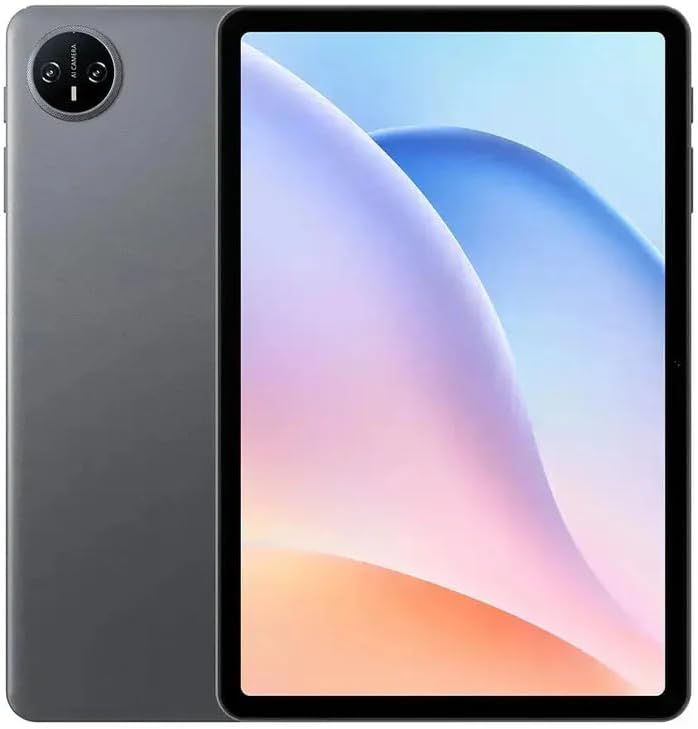
ചിത്രം: മുൻഭാഗം view of the DOOGEE Tab A9 tablet with its display active, showing the user interface.
2. Wi-Fi കണക്റ്റിവിറ്റി
ഒരു Wi-Fi നെറ്റ്വർക്കിലേക്ക് കണക്റ്റുചെയ്യാൻ:
- പോകുക ക്രമീകരണങ്ങൾ > നെറ്റ്വർക്കും ഇൻ്റർനെറ്റും > വൈഫൈ.
- വൈഫൈ ടോഗിൾ ചെയ്യുക On.
- ലിസ്റ്റിൽ നിന്ന് നിങ്ങൾക്ക് ആവശ്യമുള്ള നെറ്റ്വർക്ക് തിരഞ്ഞെടുക്കുക.
- ആവശ്യപ്പെടുകയാണെങ്കിൽ പാസ്വേഡ് നൽകി ടാപ്പ് ചെയ്യുക ബന്ധിപ്പിക്കുക.
3. ബ്ലൂടൂത്ത് ജോടിയാക്കൽ
ഒരു ബ്ലൂടൂത്ത് ഉപകരണവുമായി ജോടിയാക്കാൻ:
- പോകുക ക്രമീകരണങ്ങൾ > ബന്ധിപ്പിച്ച ഉപകരണങ്ങൾ > ബ്ലൂടൂത്ത്.
- ബ്ലൂടൂത്ത് ടോഗിൾ ചെയ്യുക On.
- Ensure the other Bluetooth device is in pairing mode.
- ലഭ്യമായ ഉപകരണങ്ങളുടെ പട്ടികയിൽ നിന്ന് ഉപകരണം തിരഞ്ഞെടുത്ത് ജോടിയാക്കൽ പൂർത്തിയാക്കാൻ ഓൺ-സ്ക്രീൻ നിർദ്ദേശങ്ങൾ പാലിക്കുക.
4. ക്യാമറ ഉപയോഗം
The tablet features a 5MP front camera and an 8MP rear camera.
- തുറക്കുക ക്യാമറ അപേക്ഷ.
- ഒരു ഫോട്ടോ എടുക്കാൻ ഷട്ടർ ബട്ടൺ ടാപ്പ് ചെയ്യുക.
- ക്യാമറ സ്വിച്ച് ഐക്കൺ ഉപയോഗിച്ച് മുൻ ക്യാമറയും പിൻ ക്യാമറയും തമ്മിൽ മാറുക.
- വീഡിയോകൾ റെക്കോർഡ് ചെയ്യാൻ വീഡിയോ മോഡ് തിരഞ്ഞെടുക്കുക.
5. ഡിസ്പ്ലേ സവിശേഷതകൾ

Image: Visual representation of the DOOGEE Tab A9's 10.1-inch IPS HD display, highlighting its 1280x800 resolution, 80.2% screen-to-body ratio, and 16.7 million screen colors.
The DOOGEE Tab A9 features a 10.1-inch IPS HD display with a resolution of 1280x800 pixels, offering a wide field of view and vibrant colors. The screen-to-body ratio is approximately 80.2%, providing an immersive viewഅനുഭവം.
6. ബാറ്ററി മാനേജ്മെന്റ്

Image: Infographic detailing the DOOGEE Tab A9's 6580mAh battery capacity and its estimated usage times for Wi-Fi standby, music playback, video watching, and web ബ്രൗസിംഗ്.
ടാബ്ലെറ്റിൽ 6580mAh ബാറ്ററിയാണ് സജ്ജീകരിച്ചിരിക്കുന്നത്. ബാറ്ററി ലൈഫ് ഒപ്റ്റിമൈസ് ചെയ്യുന്നതിന്:
- സ്ക്രീൻ തെളിച്ചം ക്രമീകരിക്കുക.
- ഉപയോഗിക്കാത്ത ആപ്ലിക്കേഷനുകൾ അടയ്ക്കുക.
- ഉപയോഗത്തിലില്ലാത്തപ്പോൾ വൈഫൈ അല്ലെങ്കിൽ ബ്ലൂടൂത്ത് ഓഫാക്കുക.
- Use power-saving modes available in Android settings.
മെയിൻ്റനൻസ്
1. വൃത്തിയാക്കൽ
- ടാബ്ലെറ്റിന്റെ സ്ക്രീനും ബോഡിയും വൃത്തിയാക്കാൻ മൃദുവായ, ലിന്റ് രഹിത തുണി ഉപയോഗിക്കുക.
- കഠിനമായ രാസവസ്തുക്കൾ, അബ്രസീവ് ക്ലീനറുകൾ, അല്ലെങ്കിൽ എയറോസോൾ സ്പ്രേകൾ എന്നിവ ഉപയോഗിക്കുന്നത് ഒഴിവാക്കുക.
- കഠിനമായ പാടുകൾക്ക്, ചെറുതായി dampതുണിയിൽ വെള്ളം അല്ലെങ്കിൽ സ്ക്രീൻ-നിർദ്ദിഷ്ട ക്ലീനിംഗ് ലായനി എന്നിവ ഉപയോഗിച്ച് തുടയ്ക്കുക.
2. സംഭരണം
- നേരിട്ടുള്ള സൂര്യപ്രകാശവും കടുത്ത താപനിലയും ഏൽക്കാത്ത തണുത്തതും വരണ്ടതുമായ സ്ഥലത്ത് ടാബ്ലെറ്റ് സൂക്ഷിക്കുക.
- If storing for an extended period, ensure the battery is charged to about 50% to prevent deep discharge.
3. സോഫ്റ്റ്വെയർ അപ്ഡേറ്റുകൾ
നിങ്ങളുടെ ടാബ്ലെറ്റിൽ ഏറ്റവും പുതിയ സവിശേഷതകൾ, സുരക്ഷാ പാച്ചുകൾ, പ്രകടന മെച്ചപ്പെടുത്തലുകൾ എന്നിവ ഉറപ്പാക്കാൻ സോഫ്റ്റ്വെയർ അപ്ഡേറ്റുകൾ പതിവായി പരിശോധിച്ച് ഇൻസ്റ്റാൾ ചെയ്യുക. പോകുക ക്രമീകരണങ്ങൾ > സിസ്റ്റം > സിസ്റ്റം അപ്ഡേറ്റ്.
ട്രബിൾഷൂട്ടിംഗ്
| ഇഷ്യൂ | സാധ്യമായ പരിഹാരം |
|---|---|
| ടാബ്ലെറ്റ് ഓണാക്കുന്നില്ല | Ensure the battery is charged. Connect the charger and try again. If unresponsive, press and hold the Power button for 10-15 seconds to force a restart. |
| Wi-Fi-യിലേക്ക് കണക്റ്റുചെയ്യാൻ കഴിയില്ല | Check if Wi-Fi is enabled in settings. Restart your router and tablet. Verify the Wi-Fi password. |
| Applications are crashing or freezing | Close and reopen the application. Clear the app's cache (Settings > Apps > [App Name] > Storage & cache). Restart the tablet. |
| മന്ദഗതിയിലുള്ള പ്രകടനം | ഉപയോഗിക്കാത്ത ആപ്പുകൾ അടയ്ക്കുക. കാഷെ മായ്ക്കുക, താൽക്കാലികമായി ഉപയോഗിക്കുക files. Check for system updates. Consider a factory reset if issues persist (backup data first). |
| ടച്ച്സ്ക്രീൻ പ്രതികരിക്കുന്നില്ല | Restart the tablet. Ensure the screen is clean and free of debris. If a screen protector is installed, ensure it is properly applied. |
സ്പെസിഫിക്കേഷനുകൾ
| ഫീച്ചർ | വിശദാംശങ്ങൾ |
|---|---|
| മോഡലിൻ്റെ പേര് | DOOGEE Tab A9 |
| ഓപ്പറേറ്റിംഗ് സിസ്റ്റം | ആൻഡ്രോയിഡ് 15 |
| പ്രോസസ്സർ | Unisoc T310 Octa-Core (1x Cortex-A75 @2.0GHz, 3x Cortex-A55 @1.8GHz) |
| ജിപിയു | Arm Mali G52 |
| റാം | 3GB LPDDR3 |
| ആന്തരിക സംഭരണം (ROM) | 64GB eMMC |
| വികസിപ്പിക്കാവുന്ന സംഭരണം | 2TB വരെയുള്ള TF കാർഡുകളെ പിന്തുണയ്ക്കുന്നു |
| ഡിസ്പ്ലേ വലിപ്പം | 10.1 ഇഞ്ച് |
| ഡിസ്പ്ലേ തരം | ഐപിഎസ് എച്ച്ഡി എൽസിഡി |
| ഡിസ്പ്ലേ റെസല്യൂഷൻ | 1280 x 800 പിക്സലുകൾ |
| സ്ക്രീൻ-ടു-ബോഡി അനുപാതം | 80.2% |
| മുൻ ക്യാമറ | 5എംപി |
| പിൻ ക്യാമറ | ഫ്ലാഷോടുകൂടി 8MP |
| വീഡിയോ റെക്കോർഡിംഗ് | FHD 1080p @ 30fps |
| വൈഫൈ | 802.11 a/b/g/n/ac (2.4GHz/5GHz) |
| ബ്ലൂടൂത്ത് | ബ്ലൂടൂത്ത് 5.0 |
| സെല്ലുലാർ നെറ്റ്വർക്ക് | Not supported (Wi-Fi only model) |
| ബാറ്ററി ശേഷി | 6580 mAh (38.38 Wh) |
| ചാർജിംഗ് | 10W Max Charging Current, USB Type-C |
| ഓഡിയോ ജാക്ക് | 3.5 എംഎം ഹെഡ്ഫോൺ ജാക്ക് |
| സെൻസറുകൾ | ആക്സിലറോമീറ്റർ |
| അളവുകൾ | 242.5 × 160.9 × 9.7 mm (approx. 25L x 18W x 1.5T cm) |
| ഭാരം | 512 grams (approx. 500 grams) |
| നിറം | ചാരനിറം |
വാറൻ്റിയും പിന്തുണയും
വാറൻ്റി വിവരങ്ങൾ
Your DOOGEE Tab A9 tablet comes with a limited one-year manufacturer's warranty from the date of purchase. This warranty covers defects in materials and workmanship under normal use. It does not cover damage caused by accidents, misuse, unauthorized repairs, or normal wear and tear. Please retain your proof of purchase for warranty claims.
ഉപഭോക്തൃ പിന്തുണ
For technical assistance, warranty claims, or further inquiries, please contact DOOGEE customer support through their official website or the retailer where you purchased the device. Have your model number (Tab A9) and proof of purchase ready when contacting support.