
1. ആമുഖം
Welcome to the user manual for your Veidoo S10 Android 15 Tablet. This guide provides essential information on setting up, operating, maintaining, and troubleshooting your device. Please read this manual thoroughly to ensure optimal performance and longevity of your tablet.
2. പാക്കേജ് ഉള്ളടക്കം
നിങ്ങളുടെ പാക്കേജിൽ എല്ലാ ഇനങ്ങളും ഉണ്ടെന്ന് ഉറപ്പാക്കുക:
- Veidoo 10-inch Tablet (S10)
- ഉപയോക്തൃ മാനുവൽ
- ടൈപ്പ്-സി കേബിൾ
- OTG അഡാപ്റ്റർ
- പവർ അഡാപ്റ്റർ

Figure 2.1: Veidoo S10 Tablet Package Contents
3. ഉപകരണ ലേഔട്ട്
Familiarize yourself with the physical features and ports of your Veidoo S10 tablet.

Figure 3.1: Veidoo S10 Tablet Physical Features
- ഹെഡ്ഫോൺ ജാക്ക്: Connect 3.5mm audio devices.
- പിൻ ക്യാമറ: ഫോട്ടോകളും വീഡിയോകളും എടുക്കുന്നതിന്.
- SD കാർഡ് സ്ലോട്ട്: Insert a Micro SD card for expanded storage (up to 512GB).
- ടൈപ്പ്-സി പോർട്ട്: ചാർജിംഗിനും ഡാറ്റ കൈമാറ്റത്തിനും.
- സ്പീക്കറുകൾ: ഓഡിയോ ഔട്ട്പുട്ട്.
- മുൻ ക്യാമറ: വീഡിയോ കോളുകൾക്കും സെൽഫികൾക്കും.
- പവർ ഓൺ/ഓഫ് ബട്ടൺ: Press and hold to power on/off or restart. Press briefly to sleep/wake.
- വോളിയം +/- ബട്ടണുകൾ: ഉപകരണത്തിന്റെ അളവ് ക്രമീകരിക്കുക.
4. പ്രാരംഭ സജ്ജീകരണം
4.1. ടാബ്ലെറ്റ് ചാർജ് ചെയ്യുന്നു
Before first use, fully charge your tablet. Connect the Type-C cable to the tablet's Type-C port and the power adapter to a wall outlet.
- സ്ക്രീനിലെ ബാറ്ററി ഇൻഡിക്കേറ്റർ ചാർജിംഗ് സ്റ്റാറ്റസ് കാണിക്കും.
- ഒരു പൂർണ്ണ ചാർജ് സാധാരണയായി നിരവധി മണിക്കൂറുകൾ എടുക്കും.
4.2. പവർ ഓൺ/ഓഫ്
- പവർ ഓണാക്കാൻ: Press and hold the Power ON/OFF button until the Veidoo logo appears.
- പവർ ഓഫ് ചെയ്യാൻ: Press and hold the Power ON/OFF button, then select "Power off" from the options on the screen.
- പുനരാരംഭിക്കാൻ: Press and hold the Power ON/OFF button, then select "Restart" from the options.
- ഉറക്കം/ഉണർവ്: Briefly press the Power ON/OFF button to put the tablet to sleep or wake it up.
4.3. പ്രാരംഭ കോൺഫിഗറേഷൻ
Upon first power-on, follow the on-screen prompts to set up your Android 15 tablet:
- നിങ്ങളുടെ ഭാഷ തിരഞ്ഞെടുക്കുക.
- ഒരു Wi-Fi നെറ്റ്വർക്കിലേക്ക് കണക്റ്റുചെയ്യുക.
- നിങ്ങളുടെ Google അക്കൗണ്ട് ഉപയോഗിച്ച് സൈൻ ഇൻ ചെയ്യുക അല്ലെങ്കിൽ പുതിയൊരെണ്ണം സൃഷ്ടിക്കുക.
- Set up screen lock (PIN, pattern, password, or Face Recognition).
- Review നിബന്ധനകളും വ്യവസ്ഥകളും അംഗീകരിക്കുക.
5. നിങ്ങളുടെ ടാബ്ലെറ്റ് പ്രവർത്തിപ്പിക്കൽ
5.1. അടിസ്ഥാന നാവിഗേഷൻ
- സ്പർശിക്കുക: ഒരു ആപ്പ് തുറക്കാൻ ഒരു ഐറ്റം തിരഞ്ഞെടുക്കാനോ ഐക്കണിൽ ടാപ്പ് ചെയ്യാനോ.
- സ്വൈപ്പ്: Drag your finger across the screen to scroll through pages or content.
- പിഞ്ച്-ടു-സൂം: സ്ക്രീനിൽ രണ്ട് വിരലുകൾ വയ്ക്കുക, സൂം ഇൻ ചെയ്യുകയോ സൂം ഔട്ട് ചെയ്യുകയോ ചെയ്യുന്നതിന് അവയെ അകറ്റി നിർത്തുകയോ ഒരുമിച്ച് നീക്കുകയോ ചെയ്യുക.
- ഹോം സ്ക്രീൻ: Tap the Home button (usually a circle or house icon) to return to the main screen.
- സമീപകാല ആപ്പുകൾ: സമീപകാല ആപ്പുകൾ ബട്ടൺ (സാധാരണയായി ഒരു ചതുര ഐക്കൺ) ടാപ്പ് ചെയ്യുക, view കൂടാതെ അടുത്തിടെ ഉപയോഗിച്ച ആപ്ലിക്കേഷനുകൾക്കിടയിൽ മാറുക.
5.2. വൈഫൈ കണക്ഷൻ
ഒരു Wi-Fi നെറ്റ്വർക്കിലേക്ക് കണക്റ്റുചെയ്യാൻ:
- പോകുക ക്രമീകരണങ്ങൾ > നെറ്റ്വർക്കും ഇൻ്റർനെറ്റും > വൈഫൈ.
- വൈഫൈ ടോഗിൾ ചെയ്യുക On.
- ലിസ്റ്റിൽ നിന്ന് നിങ്ങൾക്ക് ആവശ്യമുള്ള നെറ്റ്വർക്ക് തിരഞ്ഞെടുക്കുക.
- ആവശ്യപ്പെടുകയാണെങ്കിൽ പാസ്വേഡ് നൽകുക, തുടർന്ന് ടാപ്പുചെയ്യുക ബന്ധിപ്പിക്കുക.
5.3. മുഖം തിരിച്ചറിയൽ
The tablet supports face recognition for unlocking. To set it up:
- പോകുക ക്രമീകരണങ്ങൾ > സുരക്ഷയും സ്വകാര്യതയും > ഫെയ്സ് അൺലോക്ക്.
- നിങ്ങളുടെ മുഖം രജിസ്റ്റർ ചെയ്യുന്നതിന് ഓൺ-സ്ക്രീൻ നിർദ്ദേശങ്ങൾ പാലിക്കുക.
- Ensure good lighting and hold the tablet at eye level during registration.
Note: Face recognition provides convenience but may not be as secure as a strong PIN or password for sensitive data.
5.4. സ്റ്റോറേജ് മാനേജ്മെൻ്റ്
Your tablet comes with 64GB of internal storage and supports up to 512GB Micro SD card expansion.
- To insert a Micro SD card: Locate the SD card slot (refer to Figure 3.1) and gently insert the card until it clicks into place.
- To manage storage: പോകുക ക്രമീകരണങ്ങൾ > സംഭരണം വരെ view ഉപയോഗവും സ്ഥലം ശൂന്യമാക്കലും.

Figure 5.1: Storage and RAM Configuration
5.5. ക്യാമറ ഉപയോഗം
ടാബ്ലെറ്റിൽ 2MP മുൻ ക്യാമറയും 5MP പിൻ ക്യാമറയും ഉണ്ട്.
- തുറക്കുക ക്യാമറ അപ്ലിക്കേഷൻ.
- മുൻ ക്യാമറയും പിൻ ക്യാമറയും തമ്മിൽ മാറാൻ ക്യാമറ ഐക്കണിൽ ടാപ്പ് ചെയ്യുക.
- ഒരു ഫോട്ടോ എടുക്കാൻ ഷട്ടർ ബട്ടൺ ടാപ്പ് ചെയ്യുക അല്ലെങ്കിൽ വീഡിയോ റെക്കോർഡിംഗ് ആരംഭിക്കുക/നിർത്തുക.
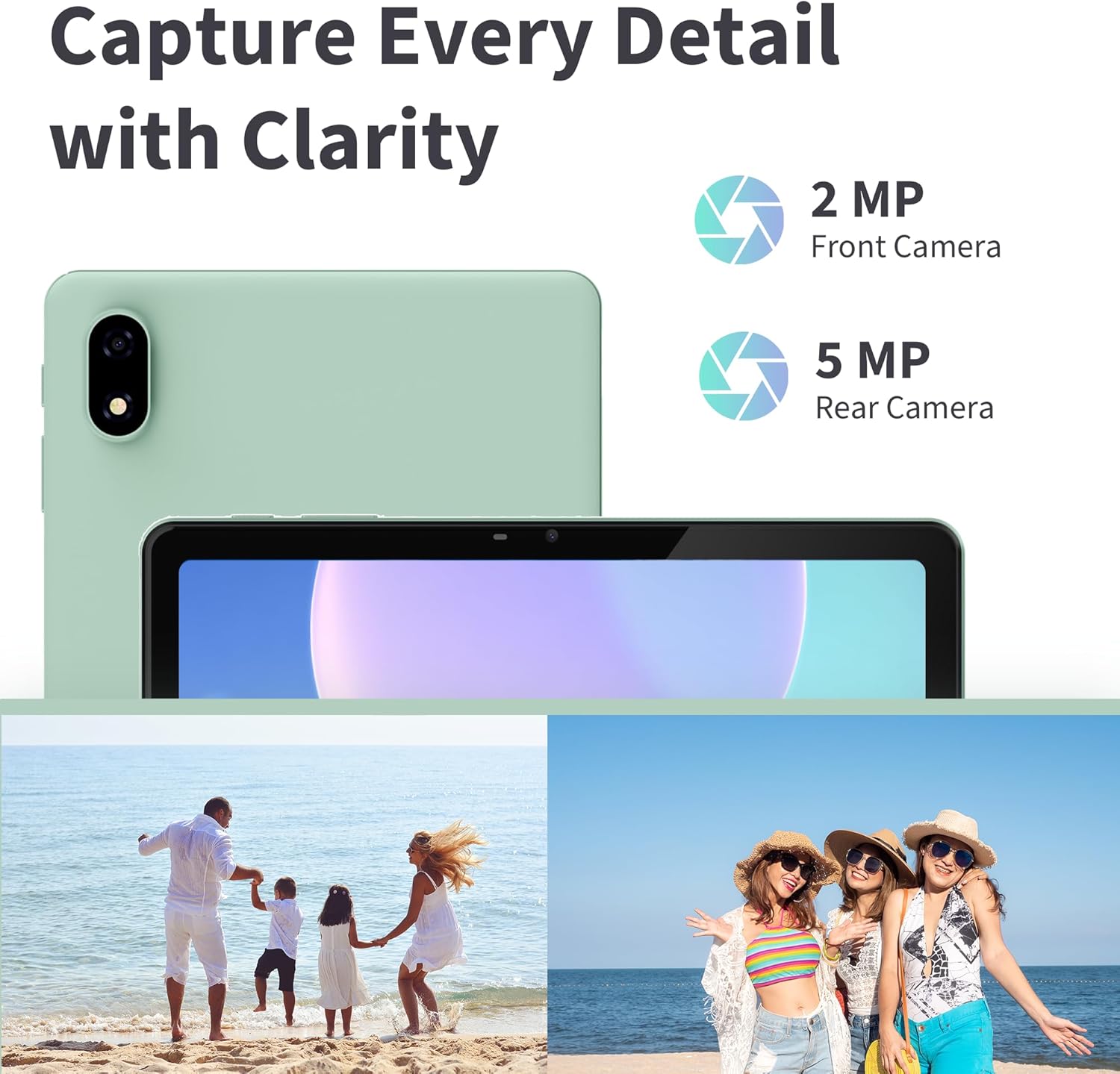
Figure 5.2: Camera Features and Exampലെസ്
5.6. Eye Protection Mode
To reduce eye strain, especially during prolonged use, activate Eye Protection Mode:
- ക്വിക്ക് സെറ്റിംഗ്സ് പാനൽ തുറക്കാൻ സ്ക്രീനിന്റെ മുകളിൽ നിന്ന് താഴേക്ക് സ്വൈപ്പ് ചെയ്യുക.
- Look for an icon resembling an eye or "Eye Protection" and tap it to toggle the mode on/off.
- അല്ലെങ്കിൽ, ഇതിലേക്ക് നാവിഗേറ്റ് ചെയ്യുക ക്രമീകരണങ്ങൾ > പ്രദർശിപ്പിക്കുക > Eye Comfort Shield (or similar) to configure settings.

Figure 5.3: Display Features with Eye Protection Mode
6. പരിപാലനം
6.1. ടാബ്ലെറ്റ് വൃത്തിയാക്കൽ
- സ്ക്രീനും ബോഡിയും വൃത്തിയാക്കാൻ മൃദുവായ, ലിന്റ് രഹിത തുണി ഉപയോഗിക്കുക.
- കഠിനമായ പാടുകൾക്ക്, ചെറുതായി dampen വെള്ളമുള്ള തുണി അല്ലെങ്കിൽ ഒരു സ്ക്രീൻ ക്ലീനർ.
- കഠിനമായ രാസവസ്തുക്കൾ, ഉരച്ചിലുകൾ ഉള്ള വസ്തുക്കൾ, അല്ലെങ്കിൽ അമിതമായ ഈർപ്പം എന്നിവ ഉപയോഗിക്കുന്നത് ഒഴിവാക്കുക.
6.2. സോഫ്റ്റ്വെയർ അപ്ഡേറ്റുകൾ
നിങ്ങളുടെ ടാബ്ലെറ്റിൽ ഏറ്റവും പുതിയ സവിശേഷതകൾ, സുരക്ഷാ പാച്ചുകൾ, പ്രകടന മെച്ചപ്പെടുത്തലുകൾ എന്നിവ ഉണ്ടെന്ന് ഉറപ്പാക്കാൻ പതിവായി സോഫ്റ്റ്വെയർ അപ്ഡേറ്റുകൾ പരിശോധിച്ച് ഇൻസ്റ്റാൾ ചെയ്യുക.
- പോകുക ക്രമീകരണങ്ങൾ > സിസ്റ്റം > സിസ്റ്റം അപ്ഡേറ്റ്.
- Follow the on-screen instructions to check for and install available updates.
- Ensure your tablet is sufficiently charged or connected to a power source during updates.
7. പ്രശ്നപരിഹാരം
നിങ്ങളുടെ ടാബ്ലെറ്റിൽ പ്രശ്നങ്ങൾ നേരിടുകയാണെങ്കിൽ, ഇനിപ്പറയുന്ന പൊതുവായ പരിഹാരങ്ങൾ പരിശോധിക്കുക:
| പ്രശ്നം | പരിഹാരം |
|---|---|
| ടാബ്ലെറ്റ് ഓണാക്കുന്നില്ല. | ബാറ്ററി ചാർജ്ജ് ചെയ്തിട്ടുണ്ടെന്ന് ഉറപ്പാക്കുക. ചാർജർ കണക്റ്റ് ചെയ്ത് വീണ്ടും പവർ ചെയ്യാൻ ശ്രമിക്കുന്നതിന് മുമ്പ് കുറച്ച് മിനിറ്റ് കാത്തിരിക്കുക. പ്രതികരിക്കുന്നില്ലെങ്കിൽ, റീസ്റ്റാർട്ട് ചെയ്യാൻ നിർബന്ധിതമാക്കാൻ പവർ ബട്ടൺ 10-15 സെക്കൻഡ് അമർത്തിപ്പിടിക്കുക. |
| സ്ക്രീൻ പ്രതികരിക്കുന്നില്ല. | ടാബ്ലെറ്റ് പുനരാരംഭിക്കുക. പ്രശ്നം നിലനിൽക്കുകയാണെങ്കിൽ, സ്ക്രീൻ വൃത്തിയുള്ളതും അവശിഷ്ടങ്ങളില്ലാത്തതുമാണെന്ന് ഉറപ്പാക്കുക. |
| വൈഫൈ കണക്ഷൻ പ്രശ്നങ്ങൾ. | Restart your Wi-Fi router and the tablet. Go to Settings > Network & internet > Wi-Fi and try reconnecting. Forget the network and re-add it if necessary. |
| ആപ്പുകൾ ക്രാഷ് ചെയ്യുകയോ പതുക്കെ പ്രവർത്തിക്കുകയോ ചെയ്യുന്നു. | Close unnecessary background apps. Clear app cache (Settings > Apps > [App Name] > Storage & cache > Clear cache). Ensure sufficient free storage space. Restart the tablet. |
| ബാറ്ററി പെട്ടെന്ന് തീരുന്നു. | സ്ക്രീൻ തെളിച്ചം കുറയ്ക്കുക. ഉപയോഗിക്കാത്ത ആപ്പുകൾ അടയ്ക്കുക. ഉപയോഗിക്കാത്തപ്പോൾ വൈഫൈ/ബ്ലൂടൂത്ത് പ്രവർത്തനരഹിതമാക്കുക. പവർ കൂടുതലുള്ള ആപ്പുകൾ തിരിച്ചറിയാൻ ക്രമീകരണങ്ങളിൽ ബാറ്ററി ഉപയോഗം പരിശോധിക്കുക. |
8 സ്പെസിഫിക്കേഷനുകൾ
Key technical specifications for the Veidoo S10 Android 15 Tablet:
| ഫീച്ചർ | വിശദാംശങ്ങൾ |
|---|---|
| മോഡലിൻ്റെ പേര് | എസ് 10 |
| ഓപ്പറേറ്റിംഗ് സിസ്റ്റം | ആൻഡ്രോയിഡ് 15 |
| പ്രോസസ്സർ | Five-Core Processor (A333) |
| റാം | 3GB (with 8GB Expansion for 11GB total) |
| ആന്തരിക സംഭരണം | 64 ജിബി റോം |
| വികസിപ്പിക്കാവുന്ന സംഭരണം | 512 ജിബി വരെ മൈക്രോ എസ്ഡി |
| സ്ക്രീൻ വലിപ്പം | 10.1 ഇഞ്ച് |
| ഡിസ്പ്ലേ റെസല്യൂഷൻ | 1280x800 Pixels (IPS) |
| മുൻ ക്യാമറ | 2എംപി |
| പിൻ ക്യാമറ | 5എംപി |
| വൈഫൈ | WiFi 6 (802.11ax), 2.4G+5G |
| ബ്ലൂടൂത്ത് | അതെ |
| ബാറ്ററി ശേഷി | 4000mAh (22.2 Watt Hours) |
| Dimensions (L x W x Thickness) | 9.6"L x 6"W x 0.4"Th |
| ഭാരം | 1050 ഗ്രാം |
| മനുഷ്യ-ഇൻ്റർഫേസ് ഇൻപുട്ട് | ടച്ച് സ്ക്രീൻ |
9. വാറൻ്റിയും പിന്തുണയും
Your Veidoo S10 Tablet comes with a 1-year warranty from the date of purchase. This warranty covers manufacturing defects under normal use.
For technical support, warranty claims, or further assistance, please contact Veidoo customer service through the retailer where you purchased the product or visit the official Veidoo webസൈറ്റ്.
വാറന്റി സാധൂകരണത്തിനായി നിങ്ങളുടെ വാങ്ങിയതിന്റെ തെളിവ് സൂക്ഷിക്കുക.