
ആമുഖം
The Rapoo M308 is a versatile multi-mode wireless mouse designed for efficiency and comfort. It features an ambidextrous design, allowing comfortable use for both right-handed and left-handed individuals. With its dual connectivity options, Bluetooth 5.0 and 2.4 GHz wireless, you can seamlessly connect to up to three devices and switch between them with ease. The mouse is engineered for long-lasting performance, offering a battery life of up to 12 months.
പാക്കേജ് ഉള്ളടക്കം
- Rapoo M308 Multi-mode Wireless Mouse
- USB റിസീവർ (മൗസിനുള്ളിൽ സൂക്ഷിച്ചിരിക്കുന്നു)
- 2 AA ബാറ്ററികൾ
- ദ്രുത ആരംഭ ഗൈഡ് (ഈ മാനുവൽ)
ഉൽപ്പന്നം കഴിഞ്ഞുview
Familiarize yourself with the components of your Rapoo M308 mouse.
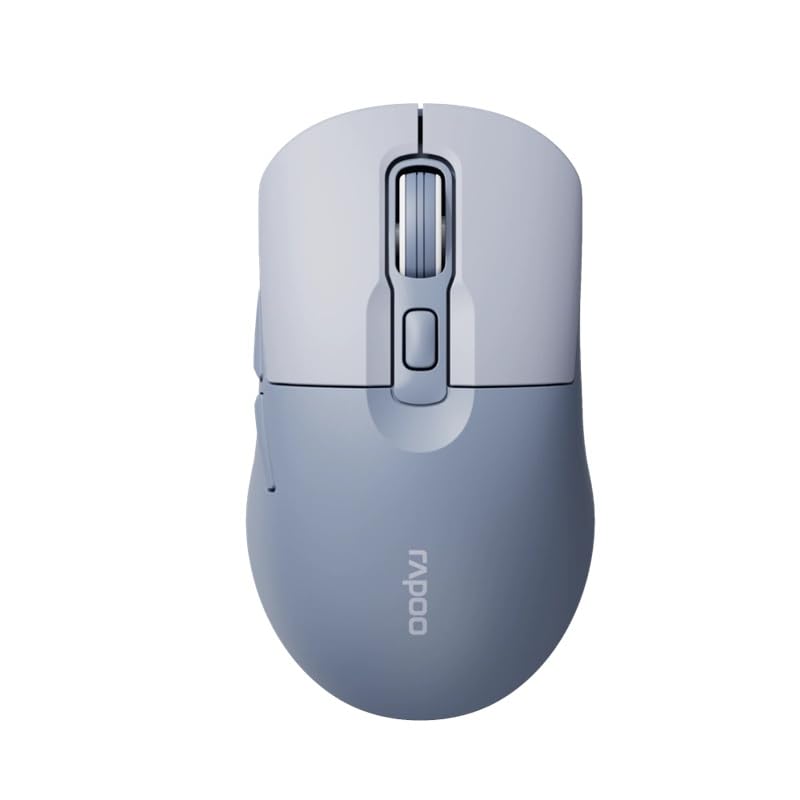
Image: The Rapoo M308 Multi-mode Wireless Mouse in blue, showcasing its ergonomic, ambidextrous design with a scroll wheel and multiple buttons.
- ഇടത് ബട്ടൺ: സ്റ്റാൻഡേർഡ് ഇടത്-ക്ലിക്ക് പ്രവർത്തനം.
- വലത് ബട്ടൺ: സ്റ്റാൻഡേർഡ് റൈറ്റ്-ക്ലിക്ക് ഫംഗ്ഷൻ.
- സ്ക്രോൾ വീൽ: സ്ക്രോളിംഗിനും മിഡിൽ-ക്ലിക്ക് ഫംഗ്ഷനും.
- DPI ബട്ടൺ: കഴ്സർ സെൻസിറ്റിവിറ്റി (DPI) ക്രമീകരിക്കുന്നു.
- Mode Switch Button/Indicator: Switches between connected devices (2.4G, Bluetooth 1, Bluetooth 2) and indicates current mode.
- സൈഡ് ബട്ടണുകൾ: Forward/Backward navigation (programmable).
- ബാറ്ററി കമ്പാർട്ട്മെൻ്റ്: Located on the underside, holds 2 AA batteries.
- USB Receiver Slot: Located inside the battery compartment for storage.
സജ്ജമാക്കുക
1. ബാറ്ററി ഇൻസ്റ്റാളേഷൻ
- മൗസിന്റെ അടിവശത്തുള്ള ബാറ്ററി കമ്പാർട്ട്മെന്റ് കവർ തുറക്കുക.
- രണ്ട് AA ബാറ്ററികൾ ഇടുക, ശരിയായ പോളാരിറ്റി (+/-) ഉറപ്പാക്കുക.
- ബാറ്ററി കമ്പാർട്ട്മെൻ്റ് കവർ അടയ്ക്കുക.
2. Connecting via 2.4 GHz Wireless
- Remove the USB receiver from its storage slot inside the battery compartment.
- നിങ്ങളുടെ കമ്പ്യൂട്ടറിൽ ലഭ്യമായ USB പോർട്ടിലേക്ക് USB റിസീവർ പ്ലഗ് ചെയ്യുക.
- Turn on the mouse. The mouse should automatically connect to your computer. The mode indicator light will show a steady green light for a few seconds.
3. ബ്ലൂടൂത്ത് വഴി ബന്ധിപ്പിക്കുന്നു
The M308 mouse supports two Bluetooth connections (BT1 and BT2).
- മൗസ് ഓണാക്കുക.
- Press the mode switch button to select either Bluetooth 1 (blue light flashes slowly) or Bluetooth 2 (blue light flashes slowly).
- Press and hold the mode switch button for 3 seconds until the blue light starts flashing rapidly. This indicates the mouse is in pairing mode.
- നിങ്ങളുടെ കമ്പ്യൂട്ടറിലോ ഉപകരണത്തിലോ, Bluetooth ക്രമീകരണങ്ങളിലേക്ക് പോയി പുതിയ ഉപകരണങ്ങൾക്കായി തിരയുക.
- Select "Rapoo M308" from the list of available devices to pair.
- Once paired, the blue light will become steady for a few seconds and then turn off.
പ്രവർത്തന നിർദ്ദേശങ്ങൾ
ഉപകരണങ്ങൾക്കിടയിൽ മാറുന്നു
The Rapoo M308 allows you to connect to up to three devices (one 2.4G wireless and two Bluetooth devices) and switch between them.
- Briefly press the mode switch button to cycle through the connected devices: 2.4G (green light), Bluetooth 1 (blue light), Bluetooth 2 (blue light).
- The indicator light will briefly illuminate in the corresponding color to confirm the selected mode.
DPI ക്രമീകരണം
Press the DPI button (usually located behind the scroll wheel) to cycle through different DPI settings. This changes the cursor speed and sensitivity. The indicator light may flash to show the current DPI level (e.g., one flash for low DPI, two for medium, etc.).
മെയിൻ്റനൻസ്
- വൃത്തിയാക്കൽ: മൗസ് വൃത്തിയാക്കാൻ മൃദുവായതും ഉണങ്ങിയതുമായ ഒരു തുണി ഉപയോഗിക്കുക. കഠിനമായ അഴുക്കിന്, അല്പം ഡി.amp തുണി ഉപയോഗിക്കാം, പക്ഷേ ഉപകരണത്തിനുള്ളിൽ ഈർപ്പം കയറുന്നില്ലെന്ന് ഉറപ്പാക്കുക.
- ബാറ്ററി മാറ്റിസ്ഥാപിക്കൽ: When the mouse performance degrades or the indicator light signals low battery, replace the two AA batteries following the installation steps.
- സംഭരണം: When not in use for extended periods, turn off the mouse to conserve battery life. Store the USB receiver inside the mouse to prevent loss.
ട്രബിൾഷൂട്ടിംഗ്
- മൗസ് പ്രതികരിക്കുന്നില്ല:
- Check if the mouse is turned on.
- ബാറ്ററികൾ ശരിയായി ഇൻസ്റ്റാൾ ചെയ്തിട്ടുണ്ടെന്നും തീർന്നിട്ടില്ലെന്നും ഉറപ്പാക്കുക. ആവശ്യമെങ്കിൽ മാറ്റിസ്ഥാപിക്കുക.
- For 2.4G connection, ensure the USB receiver is securely plugged into a working USB port. Try a different USB port.
- For Bluetooth connection, ensure the mouse is in the correct Bluetooth mode (BT1 or BT2) and successfully paired with your device. Re-pair if needed.
- കഴ്സർ ചലനം ക്രമരഹിതമോ മന്ദഗതിയിലുള്ളതോ ആണ്:
- മൗസിന്റെ അടിവശത്തുള്ള ഒപ്റ്റിക്കൽ സെൻസർ വൃത്തിയാക്കുക.
- അനുയോജ്യമായ ഒരു പ്രതലത്തിലാണ് (പ്രതിഫലിപ്പിക്കാത്തതും സുതാര്യമല്ലാത്തതും) മൗസ് ഉപയോഗിക്കുന്നതെന്ന് ഉറപ്പാക്കുക.
- DPI ബട്ടൺ ഉപയോഗിച്ച് DPI ക്രമീകരണം ക്രമീകരിക്കുക.
- ഉപകരണങ്ങൾക്കിടയിൽ മാറാൻ കഴിയില്ല:
- Ensure all devices are properly connected (2.4G receiver plugged in, Bluetooth devices paired).
- Briefly press the mode switch button to cycle through modes. A long press will initiate Bluetooth pairing mode.
സ്പെസിഫിക്കേഷനുകൾ
| ബ്രാൻഡ് നാമം | റാപൂ |
| മോഡൽ | M308 |
| കണക്റ്റിവിറ്റി ടെക്നോളജി | Bluetooth 5.0, 2.4 GHz Radio Frequency |
| പ്രത്യേക സവിശേഷതകൾ | ഭാരം കുറഞ്ഞ |
| മോഷൻ ഡിറ്റക്ഷൻ | ഒപ്റ്റിക്കൽ |
| ബട്ടൺ അളവ് | 4 |
| കൈ ഓറിയൻ്റേഷൻ | ഉഭയകക്ഷി |
| ശുപാർശ ചെയ്യുന്ന ഉപയോഗങ്ങൾ | ഓഫീസ് |
| അനുയോജ്യമായ ഉപകരണങ്ങൾ | പേഴ്സണൽ കമ്പ്യൂട്ടർ, ലാപ്ടോപ്പ് |
| ഇനത്തിൻ്റെ ഭാരം | 50 ഗ്രാം |
| ഓപ്പറേറ്റിംഗ് സിസ്റ്റം | ലിനക്സ്, മാക്, വിൻഡോസ് |
| ബാറ്ററി ലൈഫ് | 12 മാസം |
| ബാറ്ററികളുടെ എണ്ണം | 2 AA (ഉൾപ്പെട്ടിരിക്കുന്നു) |
| പവർ ഉറവിടം | ബാറ്ററി പവർ |
| ഏറ്റവും കുറഞ്ഞ OS ആവശ്യമാണ് | Mac OS 14 Sonoma, Windows 11 |
| മെറ്റീരിയൽ | പ്ലാസ്റ്റിക് |
| മാതൃരാജ്യം | ചൈന |
| ഉൾപ്പെടുത്തിയ ഘടകങ്ങൾ | മൗസ് |
വാറൻ്റിയും പിന്തുണയും
The Rapoo M308 Multi-mode Wireless Mouse comes with a 2 വർഷത്തെ വാറൻ്റി വാങ്ങിയ തീയതി മുതൽ. സാധാരണ ഉപയോഗത്തിലുള്ള നിർമ്മാണ വൈകല്യങ്ങളും തകരാറുകളും ഈ വാറന്റി ഉൾക്കൊള്ളുന്നു.
For technical support, warranty claims, or further assistance, please refer to the contact information provided on the Rapoo official website or your local distributor's support channels. Please retain your proof of purchase for warranty validation.