
ആമുഖം
This manual provides detailed instructions for the installation, operation, and maintenance of your GIGABYTE X870E AORUS Master X3D ICE Motherboard. This high-performance ATX motherboard is designed to support AMD Ryzen 9000, 8000, and 7000 Series Processors on the AM5 LGA 1718 socket. It features an enhanced power solution with a Digital Twin 18+2+2 Power Phase, advanced thermal armor, DDR5 memory support, multiple PCIe 5.0 and M.2 slots, WIFI7, and 10GbE connectivity.
സജ്ജമാക്കുക
നിങ്ങളുടെ മദർബോർഡും അതിന്റെ ഘടകങ്ങളും ശരിയായി ഇൻസ്റ്റാൾ ചെയ്യുന്നതിന് ഈ ഘട്ടങ്ങൾ പാലിക്കുക.
1. സിപിയു ഇൻസ്റ്റലേഷൻ
Carefully open the CPU socket lever. Align the triangular mark on your AMD Ryzen processor with the corresponding mark on the LGA 1718 socket. Gently place the CPU into the socket without forcing it. Close the lever to secure the CPU.
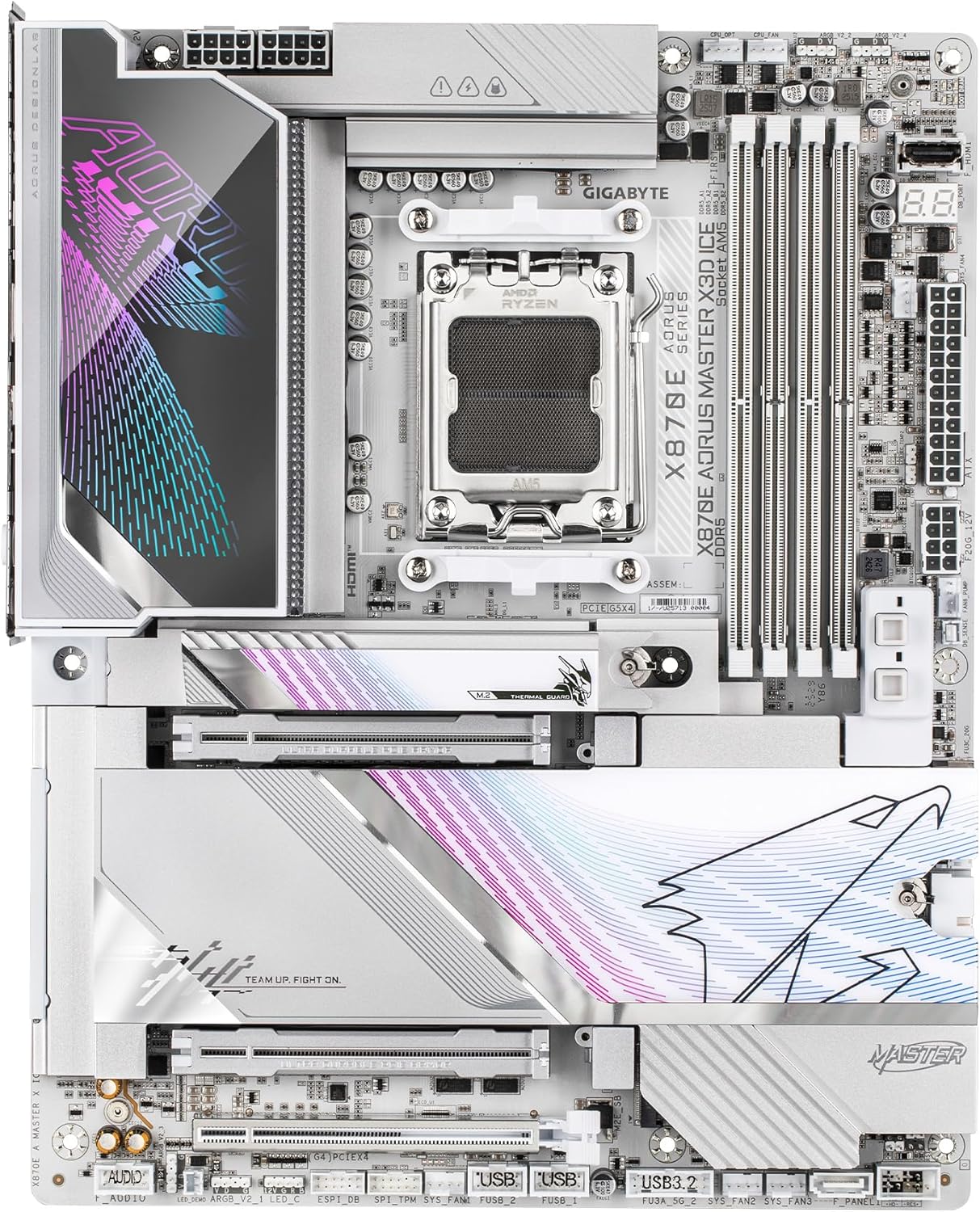
Image: AMD AM5 LGA 1718 CPU Socket
2. RAM (DDR5 Memory) Installation
Locate the four DDR5 DIMM slots. Open the clips on both ends of the memory slot. Align the notch on the DDR5 memory module with the key in the DIMM slot. Insert the memory module firmly until the clips snap into place. Ensure both clips are fully closed.

Image: DDR5 Memory Installation
3. M.2 SSD ഇൻസ്റ്റലേഷൻ
The motherboard features 2x PCIe 5.0 M.2 slots and 3x PCIe 4.0 M.2 slots. Remove the M.2 heatsink cover. Insert the M.2 SSD into the slot at an angle, then gently push it down and secure it with the M.2 EZ-Latch mechanism. Reattach the heatsink for optimal thermal performance.

Image: M.2 and PCIe Slots
4. പിസിഐഇ കാർഡ് ഇൻസ്റ്റാളേഷൻ
This motherboard includes 2x PCIe Gen 5 x16 slots with reinforced PCIe UD armor. Open the retention clip on the PCIe slot. Align your graphics card or expansion card with the slot and press firmly until it clicks into place. Ensure the card is fully seated and secure the retention clip.

Image: PCIe and M.2 Slot Layout
5. പവർ കണക്ഷനുകൾ
Connect the 24-pin ATX main power connector and the 8-pin (or 8+4-pin) CPU power connectors from your power supply to the corresponding ports on the motherboard.
6. ഫ്രണ്ട് പാനലും I/O കണക്ഷനുകളും
Connect your case's front panel headers (power button, reset button, USB ports, audio jacks) to the appropriate pins on the motherboard. The motherboard features an integrated I/O Shield for simplified installation of external devices.

Image: Rear I/O Panel
ഒരു വിഷ്വൽ ഓവറിനായിview of the motherboard's features and design, please refer to the official trailer below:
Video: GIGABYTE X870E X3D - Official Trailer. This video provides a general overview of the motherboard's design and key features.
പ്രവർത്തിക്കുന്നു
1. ബയോസ്/യുഇഎഫ്ഐ സജ്ജീകരണം
Upon first boot, press the designated key (usually DEL or F2) to enter the BIOS/UEFI setup. Here you can configure boot order, system time, and advanced settings. Refer to the on-screen instructions within the BIOS for navigation and specific options.
2. ഡ്രൈവർ ഇൻസ്റ്റാളേഷൻ
After installing your operating system, install the latest drivers for the chipset, graphics, audio, LAN, and WIFI7 from the GIGABYTE official webസൈറ്റ്. ഇത് ഒപ്റ്റിമൽ പ്രകടനവും സ്ഥിരതയും ഉറപ്പാക്കുന്നു.
3. AI Overclocking (AORUS AI Snatch)
The motherboard supports AORUS AI Snatch for intelligent overclocking. Consult the GIGABYTE software utility manual for detailed instructions on how to utilize this feature to optimize your system's performance.
മെയിൻ്റനൻസ്
1. ബയോസ് അപ്ഡേറ്റുകൾ
GIGABYTE പതിവായി പരിശോധിക്കുക website for BIOS updates. BIOS updates can improve system stability, compatibility, and performance. Follow the instructions provided by GIGABYTE carefully when performing a BIOS update to avoid system damage.
2. വൃത്തിയാക്കൽ
Periodically clean your computer's interior to prevent dust buildup, which can lead to overheating. Use compressed air to remove dust from heatsinks, fans, and other components. Ensure the system is powered off and unplugged before cleaning.
3. ഘടക പരിശോധനകൾ
Occasionally inspect all cable connections (power, SATA, USB) to ensure they are secure. Verify that all expansion cards and memory modules are properly seated in their slots.
ട്രബിൾഷൂട്ടിംഗ്
1. പവർ ഇല്ല/ബൂട്ട് ഇല്ല
- Ensure all power cables (24-pin ATX, CPU power) are securely connected to the motherboard and power supply.
- Verify that the power supply is switched on and functioning correctly.
- Check front panel connections for the power button.
2. ഡിസ്പ്ലേ പ്രശ്നങ്ങൾ
- Confirm that your monitor is connected to the correct graphics output (either dedicated GPU or motherboard's integrated graphics if supported by CPU).
- നിങ്ങളുടെ ഗ്രാഫിക്സ് കാർഡ് അതിന്റെ PCIe സ്ലോട്ടിൽ വീണ്ടും സ്ഥാപിക്കുക.
- Check monitor cables for secure connections.
3. ഘടകം കണ്ടെത്തിയില്ല.
- For RAM: Reseat memory modules. Try booting with one module at a time.
- For M.2 SSDs: Ensure they are properly seated and secured. Check BIOS settings to confirm M.2 slot detection.
- For PCIe cards: Reseat the card. Ensure necessary drivers are installed.
4. Error Code LED
The motherboard may feature a functional error code LED display. Consult the GIGABYTE user manual (available on their website) for a list of error codes and their corresponding troubleshooting steps.
സ്പെസിഫിക്കേഷനുകൾ
| ഫീച്ചർ | വിശദാംശങ്ങൾ |
|---|---|
| ബ്രാൻഡ് | ജിഗാബൈറ്റ് |
| മോഡലിൻ്റെ പേര് | X870E AORUS MASTER X3D ICE |
| സിപിയു സോക്കറ്റ് | LGA 1718 |
| അനുയോജ്യമായ പ്രോസസ്സറുകൾ | എഎംഡി റൈസൺ 7000, 8000, 9000 സീരീസ് |
| ചിപ്സെറ്റ് തരം | AMD X870E |
| റാം മെമ്മറി ടെക്നോളജി | DDR5 |
| മെമ്മറി ക്ലോക്ക് സ്പീഡ് | 5200 MHz (Supports higher via EXPO) |
| മെമ്മറി സ്ലോട്ടുകൾ ലഭ്യമാണ് | 4 |
| Ram Memory Maximum Size | 256 ജിബി |
| ഗ്രാഫിക്സ് കാർഡ് ഇൻ്റർഫേസ് | PCI Express (2x PCIe Gen 5 x16 slots) |
| M.2 സ്ലോട്ടുകൾ | 2x പിസിഐഇ 5.0 എം.2, 3x പിസിഐഇ 4.0 എം.2 |
| Total SATA Ports | 2 |
| മൊത്തം USB പോർട്ടുകൾ | 11 (including USB4 Type-C, USB 3.2 Gen 2x2 Type-C) |
| ഇഥർനെറ്റ് പോർട്ടുകൾ | 2 (10GbE) |
| വയർലെസ് കണക്റ്റിവിറ്റി | വൈഫൈ7 |
| അളവുകൾ (L x W x H) | 12.01"L x 9.61"W x 1.75"H |
| പ്ലാറ്റ്ഫോം | വിൻഡോസ് 11 |
വാറൻ്റി വിവരങ്ങൾ
The GIGABYTE X870E AORUS Master X3D ICE Motherboard comes with a 5 വർഷത്തെ നിർമ്മാതാവിൻ്റെ വാറൻ്റി. Please retain your proof of purchase for warranty claims. For detailed terms and conditions, refer to the official GIGABYTE warranty policy on their webസൈറ്റ്.
പിന്തുണ
For further assistance, technical support, driver downloads, or updated manuals, please visit the official GIGABYTE support webസൈറ്റ്:
You can also find additional resources and community forums on the GIGABYTE AORUS brand store: