
1. ഉൽപ്പന്നം കഴിഞ്ഞുview
The TECKNET TK-MS072 is a versatile 3-device dual-mode wireless mouse designed for enhanced productivity and comfort. It offers seamless connectivity via a USB-A receiver or Bluetooth 5.0/3.0, allowing users to switch between up to three devices with ease. Key features include a silent click design, ergonomic shape for all-day comfort, and adjustable DPI settings up to 4800 for precise control. The mouse is rechargeable via USB-C and boasts a long-lasting battery life.
2. ബോക്സിൽ എന്താണുള്ളത്?
- TECKNET TK-MS072 Rechargeable Mouse
- USB-A to C Charging Cable
- USB-A Receiver (typically stored inside the mouse)
3 പ്രധാന സവിശേഷതകൾ
- ഡ്യുവൽ-മോഡ് കണക്റ്റിവിറ്റി: Connects to up to 3 devices via 2.4G USB-A receiver or Bluetooth 5.0/3.0.
- എർഗണോമിക് ഡിസൈൻ: Contoured shape with supportive thumb rest for comfortable, all-day use.
- റീചാർജ് ചെയ്യാവുന്ന ബാറ്ററി: Built-in 800mAh battery provides weeks of power on a single charge, with USB-C charging.
- നിശബ്ദ ക്ലിക്ക്: Noise-reducing buttons for quiet operation in any environment.
- ക്രമീകരിക്കാവുന്ന DPI: 6 customizable DPI levels (800/1200/1600/2400/3200/4800) for precise cursor control.
- വിശാലമായ അനുയോജ്യത: Supports Windows, macOS, Linux, Chrome OS, and Android. Note: Side buttons are not supported on macOS.
- ഓട്ടോ-സ്ലീപ്പ് ഫംഗ്ഷൻ: Automatically enters sleep mode to conserve power when not in use.
4. സജ്ജീകരണ ഗൈഡ്
4.1 മൗസ് ഘടകങ്ങൾ
Familiarize yourself with the mouse components before setup.

ചിത്രം: Diagram illustrating the various buttons and ports on the TECKNET TK-MS072 mouse, including the left/right buttons, scroll wheel, mode indicator, forward/backward buttons, DPI switch, Type-C charging port, mode switch/BT pairing button, On/Off switch, and USB-A receiver slot.
4.2 പവർ ഓണും ഓഫും
Locate the On/Off switch on the bottom of the mouse. Slide it to the "ON" position to power on the mouse. Slide it to "OFF" to power off.
4.3 Connecting via USB-A Receiver (2.4G Mode)
- Remove the USB-A receiver from its storage slot on the bottom of the mouse.
- Plug the USB-A receiver into an available USB-A port on your computer.
- മൗസ് ഓണാക്കുക.
- Press the Mode Switch/BT Pairing Button on the bottom of the mouse until the red light (Mode 1) is active. The mouse should connect automatically.

ചിത്രം: A visual guide demonstrating how to connect the mouse using the USB-A receiver. The image shows the receiver inserted into a laptop and the mouse indicating 2.4G mode (red light).
4.4 Connecting via Bluetooth (BT 5.0/3.0 Mode)
The mouse supports two Bluetooth channels (BT1 and BT2) for connecting to different devices.
- മൗസ് ഓണാക്കുക.
- Press the Mode Switch/BT Pairing Button on the bottom of the mouse to select either BT1 (green light) or BT2 (blue light).
- ജോടിയാക്കുന്നതിന്: Long-press the Mode Switch/BT Pairing Button for 3-5 seconds until the selected Bluetooth indicator light (green or blue) starts blinking rapidly. This indicates the mouse is in pairing mode.
- On your device (laptop, tablet, smartphone), go to Bluetooth settings and search for new devices.
- Select "TK-MS072" or a similar name from the list of available devices to pair. Once connected, the blinking light will become solid.

ചിത്രം: A visual representation of the mouse connecting to a tablet and a laptop via Bluetooth, highlighting the multi-device connection capability.

ചിത്രം: A visual guide demonstrating the quick connection process for the mouse, showing the mode indicator, USB mode connection, and Bluetooth pairing for BT1 and BT2.
വീഡിയോ: This video demonstrates the TECKNET 3-Device Silent Wireless Rechargeable Mouse, showcasing its features and connectivity options.
5. പ്രവർത്തന നിർദ്ദേശങ്ങൾ
5.1 ഉപകരണങ്ങൾക്കിടയിൽ മാറൽ
To switch between connected devices, simply press the Mode Switch/BT Pairing Button on the bottom of the mouse. The corresponding indicator light (red for 2.4G, green for BT1, blue for BT2) will illuminate to show the active connection.
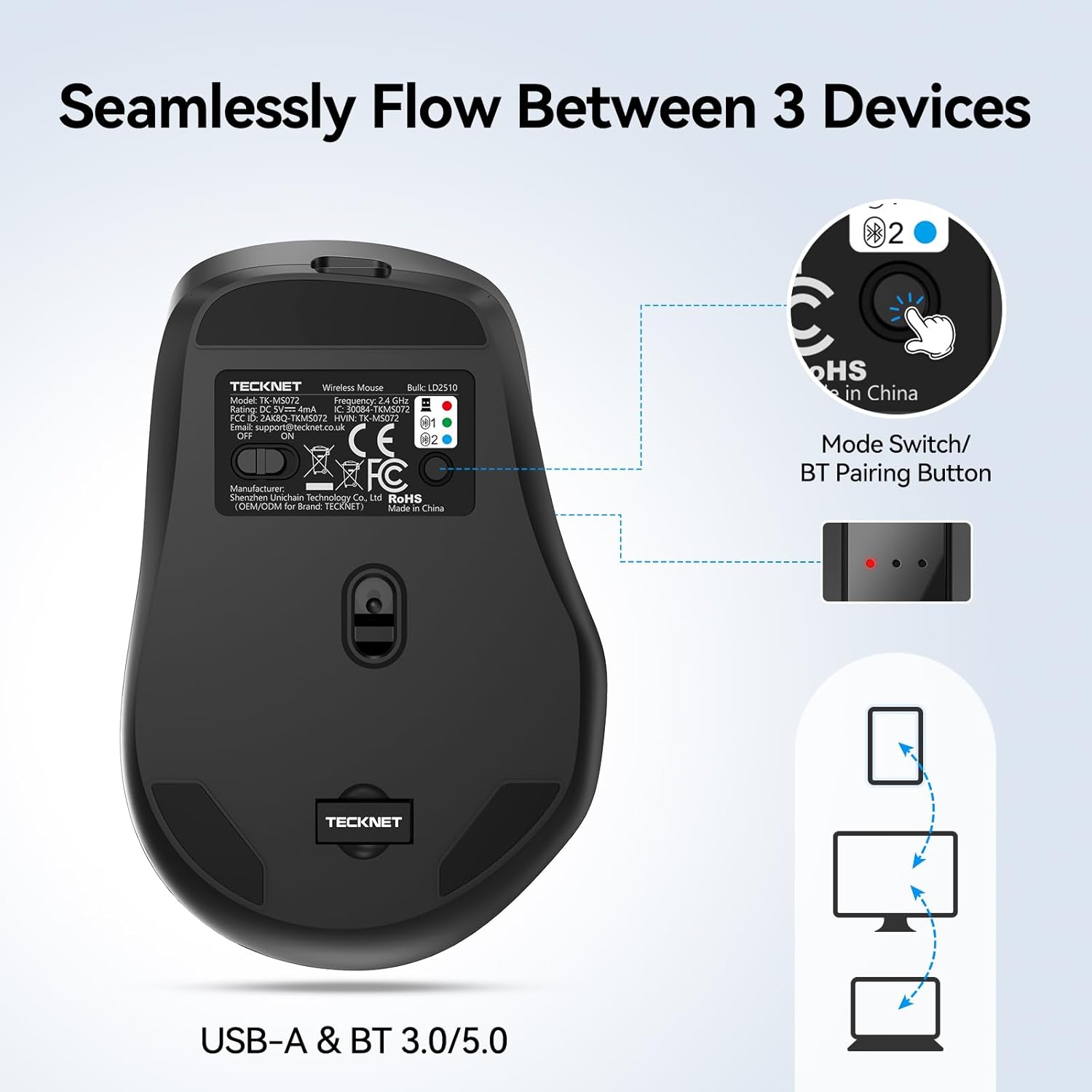
ചിത്രം: The underside of the TECKNET mouse, highlighting the mode switch button and LED indicators for 2.4G (red), BT1 (green), and BT2 (blue) connections.
5.2 ഡിപിഐ സെൻസിറ്റിവിറ്റി ക്രമീകരിക്കൽ
The mouse features 6 adjustable DPI levels: 800, 1200, 1600, 2400, 3200, and 4800. Press the DPI Switch Button (located near the scroll wheel) to cycle through these settings. Each press will change the cursor speed, allowing you to find the optimal sensitivity for your tasks.

ചിത്രം: The TECKNET mouse with an overlay indicating the 6 adjustable DPI levels (800-4800) and the button to switch between them, demonstrating precision control.
5.3 സൈലന്റ് ക്ലിക്ക് പ്രവർത്തനം
The mouse is designed with noise-reducing buttons to provide a silent clicking experience. This feature is ideal for quiet environments such as offices, libraries, or late-night use, ensuring minimal disturbance.

ചിത്രം: A woman using the TECKNET mouse on a laptop in a quiet setting, with a sleeping child in the background, illustrating the silent click feature.
5.4 Ergonomic Comfort
The contoured arc and supportive thumb rest are engineered to fit naturally in your palm, reducing strain and providing comfort during extended periods of use. This design promotes a relaxed hand position.

ചിത്രം: A hand comfortably gripping the ergonomic TECKNET mouse, demonstrating its design for all-day comfort and reduced strain.
5.5 ഉപരിതല അനുയോജ്യത
The optical sensor of the mouse is designed to work effectively on various surfaces, including leather, fabric, wood, paper, and resin, without requiring a mouse pad.

ചിത്രം: The TECKNET mouse positioned on a desk, with icons indicating its compatibility with various surfaces like leather, fabric, wood, paper, and resin.
6. പരിപാലനം
6.1 മൗസ് ചാർജ് ചെയ്യുന്നു
The mouse is equipped with an 800mAh rechargeable battery. Use the provided USB-A to C charging cable to charge the mouse. Connect the USB-C end to the mouse's charging port and the USB-A end to a power source (e.g., computer USB port, USB wall adapter). A full charge typically takes 2-3 hours and can provide power for weeks of typical use (approximately 120 days based on 2 hours/day usage).

ചിത്രം: The TECKNET mouse connected to a USB-C charging cable, illustrating its rechargeable nature and 800mAh battery capacity.
6.2 വൃത്തിയാക്കൽ
മൗസ് വൃത്തിയാക്കാൻ, മൃദുവായ, ഡി-ടച്ച് ഉപയോഗിച്ച് അതിന്റെ പ്രതലം സൌമ്യമായി തുടയ്ക്കുക.amp cloth. Avoid using harsh chemicals or abrasive materials, as these can damage the finish. Ensure no liquid enters the internal components.
6.3 സംഭരണം
When not in use for extended periods, turn off the mouse to conserve battery life. Store the USB-A receiver in its designated slot on the bottom of the mouse to prevent loss.
7. പ്രശ്നപരിഹാരം
| പ്രശ്നം | പരിഹാരം |
|---|---|
| Mouse not responding (2.4G mode) |
|
| ബ്ലൂടൂത്ത് വഴി മൗസ് കണക്റ്റ് ചെയ്യുന്നില്ല |
|
| കഴ്സർ ചലനം ക്രമരഹിതമോ മന്ദഗതിയിലുള്ളതോ ആണ്. |
|
| MacOS-ൽ സൈഡ് ബട്ടണുകൾ പ്രവർത്തിക്കുന്നില്ല. | This is a known compatibility limitation. Side buttons are not supported on macOS. |
8. ഉൽപ്പന്ന സവിശേഷതകൾ
| ഫീച്ചർ | വിശദാംശങ്ങൾ |
|---|---|
| ബ്രാൻഡ് | ടെക്നെറ്റ് |
| മോഡൽ നമ്പർ | TK-MS072 |
| നിറം | കറുപ്പ് |
| കണക്റ്റിവിറ്റി ടെക്നോളജി | Bluetooth (5.0/3.0), 2.4G USB-A |
| പ്രത്യേക സവിശേഷതകൾ | Ergonomic Design, Rechargeable, Silent Click, Wireless |
| മൂവ്മെന്റ് ഡിറ്റക്ഷൻ ടെക്നോളജി | ഒപ്റ്റിക്കൽ |
| ബട്ടൺ അളവ് | 6 |
| കൈ ഓറിയൻ്റേഷൻ | ശരിയാണ് |
| അനുയോജ്യമായ ഉപകരണങ്ങൾ | പേഴ്സണൽ കമ്പ്യൂട്ടർ, സ്മാർട്ട്ഫോൺ, ടാബ്ലെറ്റ് |
| ഓപ്പറേറ്റിംഗ് സിസ്റ്റം | Windows, macOS, Linux, Chrome OS, Android |
| ബാറ്ററി ശരാശരി ആയുസ്സ് | 4 weeks (approx. 120 days at 2 hours/day) |
| പവർ ഉറവിടം | റീചാർജ് ചെയ്യാവുന്നത് |
| Mouse Maximum Sensitivity | 4800 Dots per Inch (DPI) |
| ഡിപിഐ ലെവലുകൾ | 800/1200/1600/2400/3200/4800 |
| Minimum Required OS Version | ChromeOS 137, Mac OS 14 Sonoma, Windows 11 |
9. വാറൻ്റിയും പിന്തുണയും
ടെക്നെറ്റ് ഒരു 36 മാസ വാറൻ്റി for this product (registration may be required). If you encounter any problems during product use, please contact TECKNET's professional customer service team for assistance.
For support, please refer to the contact information provided with your product packaging or visit the official TECKNET webസൈറ്റ്.