
1. ഉൽപ്പന്നം കഴിഞ്ഞുview
The Hodozzy 9-inch Android Car Radio is a sophisticated in-car entertainment and navigation system designed specifically for Volvo XC60 models from 2008 to 2013. This unit features an InCell touchscreen display, 4GB RAM, and 64GB ROM, providing a fast and fluid user experience. It integrates essential functions such as wireless CarPlay, Android Auto, GPS navigation, Bluetooth connectivity, FM/RDS radio, and supports a rear view camera. The system is engineered to enhance your driving experience with modern technology and seamless smartphone integration.
2. വാഹന അനുയോജ്യത
This Hodozzy car radio is compatible with Volvo XC60 models manufactured between 2008 and 2013. It is crucial to verify your vehicle's central control panel matches the compatible configuration (Option A) shown below before installation.

This image illustrates the two types of central control panels for the Volvo XC60. The Hodozzy car radio is compatible only with Option A, which features a specific dashboard layout. Please verify your vehicle's dashboard matches Option A before installation.
3. പാക്കേജ് ഉള്ളടക്കം
എല്ലാ ഇനങ്ങളും ഉണ്ടെന്ന് ഉറപ്പാക്കാൻ പാക്കേജ് ശ്രദ്ധാപൂർവ്വം പരിശോധിക്കുക:
- Hodozzy Car Radio Unit (Main Player)
- Radio Housing / Dash Kit
- പവർ കേബിൾ
- RCA Cables (x2)
- 3.5 എംഎം ഓഡിയോ കേബിൾ
- CAN ബസ് ഡീകോഡർ
- ഇൻസ്റ്റലേഷൻ ടൂൾ
- ജിപിഎസ് ആൻ്റിന
- പിൻഭാഗം View ക്യാമറ കേബിൾ
- യുഎസ്ബി കേബിളുകൾ (x2)
- മൗണ്ടിംഗ് ബ്രാക്കറ്റുകൾ (x2)
- സ്ക്രൂകൾ (x4)
- ഉപയോക്തൃ മാനുവൽ
- പിൻഭാഗം View ക്യാമറ
- മൈക്രോഫോൺ

This image provides a visual representation of the Hodozzy car radio's dimensions and a comprehensive list of all components included in the package. It shows the main unit, various cables (power, audio, RCA, USB), the GPS antenna, rear camera, microphone, CAN bus, installation tool, and the user manual.
4. സജ്ജീകരണവും ഇൻസ്റ്റാളേഷനും
Installation of a car radio can be complex. It is recommended to have this unit installed by a qualified professional to ensure proper functionality and to avoid damage to your vehicle or the product. Always disconnect the vehicle's battery before beginning any electrical work.
പൊതു ഇൻസ്റ്റാളേഷൻ ഘട്ടങ്ങൾ:
- ഡാഷ്ബോർഡ് തയ്യാറാക്കുക: Carefully remove the original car radio and dashboard trim. Refer to your vehicle's service manual for specific instructions.
- വയറിംഗ് ഹാർനെസ് ബന്ധിപ്പിക്കുക: Connect the provided power cable and CAN bus decoder to the car radio and your vehicle's wiring harness. Ensure all connections are secure.
- ജിപിഎസ് ആന്റിന ഇൻസ്റ്റാൾ ചെയ്യുക: വ്യക്തമായ വെളിച്ചമുള്ള ഒരു സ്ഥലത്ത് GPS ആന്റിന സ്ഥാപിക്കുക. view of the sky, typically on the dashboard or under the windshield, ensuring it does not obstruct your view.
- പിൻഭാഗം ബന്ധിപ്പിക്കുക View ക്യാമറ: Route the rear view camera cable from the back of the vehicle to the car radio. Connect the camera to its designated input.
- Connect USB and RCA Cables: Connect the USB cables for external devices and any additional RCA cables for audio/video output or input as needed.
- യൂണിറ്റ് മൌണ്ട് ചെയ്യുക: Secure the car radio unit into the dashboard using the provided brackets and screws.
- ടെസ്റ്റ് പ്രവർത്തനം: Before fully reassembling the dashboard, reconnect the vehicle's battery and test all functions of the car radio, including power, audio, touchscreen, GPS, Bluetooth, and camera.
- ഡാഷ്ബോർഡ് വീണ്ടും കൂട്ടിച്ചേർക്കുക: എല്ലാ പ്രവർത്തനങ്ങളും പരിശോധിച്ചുറപ്പിച്ചുകഴിഞ്ഞാൽ, ഡാഷ്ബോർഡ് ട്രിം ശ്രദ്ധാപൂർവ്വം വീണ്ടും കൂട്ടിച്ചേർക്കുക.
5. പ്രവർത്തന നിർദ്ദേശങ്ങൾ
This section provides guidance on using the various features of your Hodozzy car radio.
5.1. അടിസ്ഥാന പ്രവർത്തനം
To power on the unit, start your vehicle. The 9-inch InCell touchscreen display is your primary interface. Tap icons to open applications, swipe to navigate menus, and use pinch-to-zoom gestures where applicable.
5.2. വയർലെസ് കാർപ്ലേ & ആൻഡ്രോയിഡ് ഓട്ടോ / മിറർ ലിങ്ക്
The unit supports both wireless and wired CarPlay and Android Auto via Zlink. It also features Mirror Link for iOS (wireless) and Android (wireless or USB cable).
- For CarPlay/Android Auto: Connect your smartphone via Bluetooth for wireless connection or a USB cable for wired connection. Follow the on-screen prompts to enable the feature.
- For Mirror Link: Enable screen mirroring on your smartphone and connect via Wi-Fi or USB.
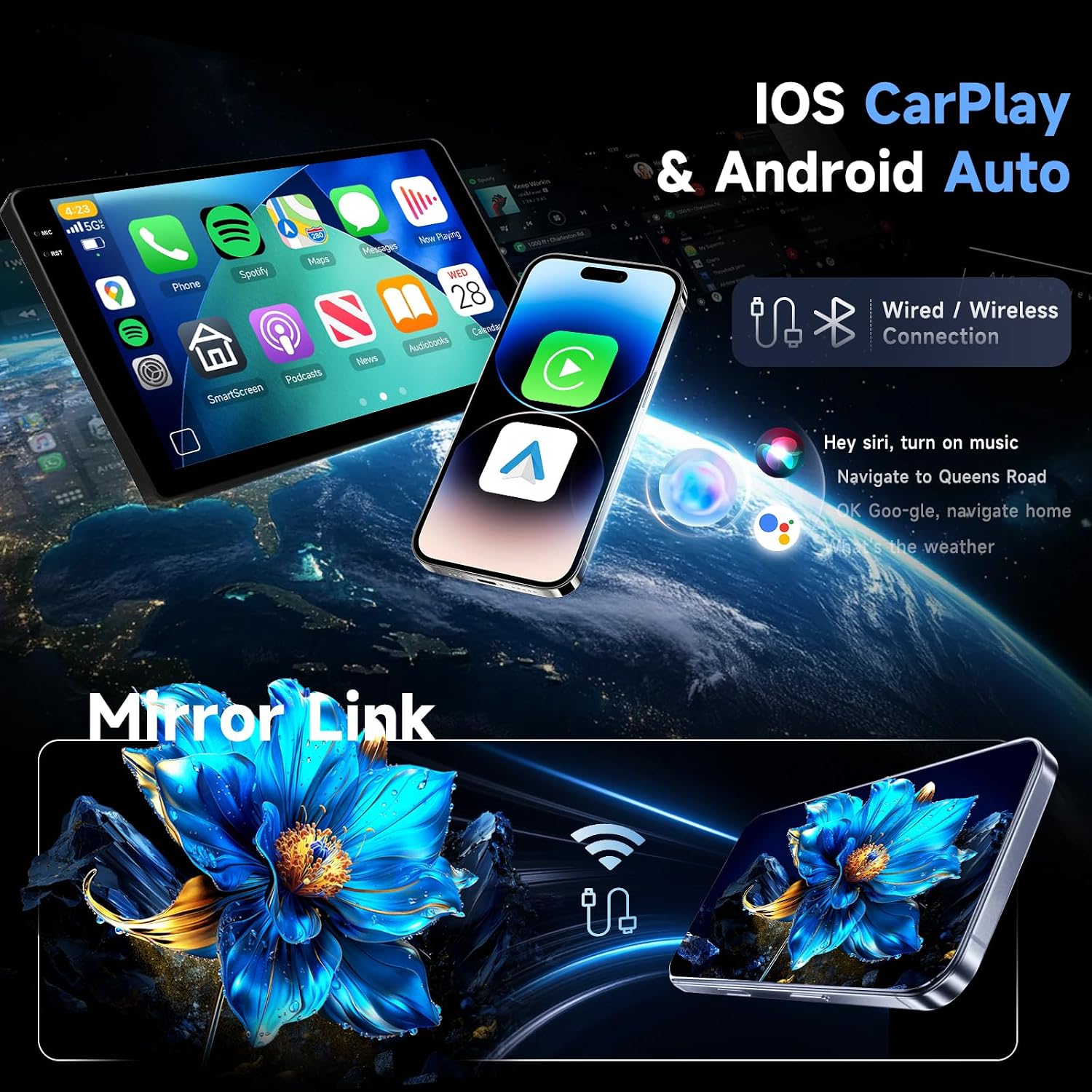
This image illustrates the seamless integration of Wireless CarPlay and Android Auto, as well as Mirror Link for both iOS and Android devices. Users can access smartphone features like navigation, calls, messages, and music directly on the car radio's 9-inch display via wired or wireless connections.
5.3. ജിപിഎസ് നാവിഗേഷൻ
The car radio comes with pre-installed offline maps. For online navigation and map updates, connect the unit to a Wi-Fi network or use your smartphone's hotspot. You can download additional map data as needed.

This graphic highlights the integrated WiFi and GPS navigation capabilities. It shows how the system supports online and offline maps, allowing for precise navigation. The image also indicates the Android system with 4GB RAM and 64GB ROM, enabling various applications.
5.4. ബ്ലൂടൂത്ത് പ്രവർത്തനങ്ങൾ
Pair your smartphone via Bluetooth for hands-free calling and audio streaming (A2DP). Access your phonebook and call history directly from the car radio display.
5.5. Radio (FM/RDS)
നിങ്ങളുടെ പ്രിയപ്പെട്ട എഫ്എം റേഡിയോ സ്റ്റേഷനുകളിലേക്ക് ട്യൂൺ ചെയ്യുക. ആർഡിഎസ് (റേഡിയോ ഡാറ്റ സിസ്റ്റം) സവിശേഷത സ്റ്റേഷൻ വിവരങ്ങൾ, ഗാന ശീർഷകങ്ങൾ, മറ്റ് പ്രസക്തമായ ഡാറ്റ എന്നിവ ലഭ്യമാകുന്നിടത്തെല്ലാം പ്രദർശിപ്പിക്കുന്നു.
5.6. Digital Sound Processor (DSP)
Utilize the integrated DSP with a 36-band equalizer to customize your audio experience. Choose from various preset sound styles (Rock, Pop, Jazz, Classical) or create your own custom settings.
5.7. സ്റ്റിയറിംഗ് വീൽ നിയന്ത്രണം (SWC)
The unit supports your vehicle's original steering wheel controls, allowing you to manage volume, tracks, and calls without taking your hands off the wheel. Configuration may be required in the system settings.
5.8. പിൻഭാഗം View ക്യാമറ
When the vehicle is shifted into reverse, the display will automatically switch to the rear view ക്യാമറ ഫീഡ്, വ്യക്തമായ view of the area behind your car for safer parking and maneuvering.

This image showcases several key operational features: Bluetooth for hands-free calling and music streaming, a clear display for the rear view camera, the FM/RDS radio interface, the Digital Sound Processor (DSP) for audio customization, and compatibility with Steering Wheel Controls (SWC) for convenient operation.
5.9. Display Features (In-Cell, Split Screen, Multiple UI)
The In-Cell touchscreen offers enhanced clarity and responsiveness. The system supports a split-screen function, allowing you to run two applications simultaneously (e.g., navigation and music). You can also choose from multiple user interface designs to personalize your home screen.
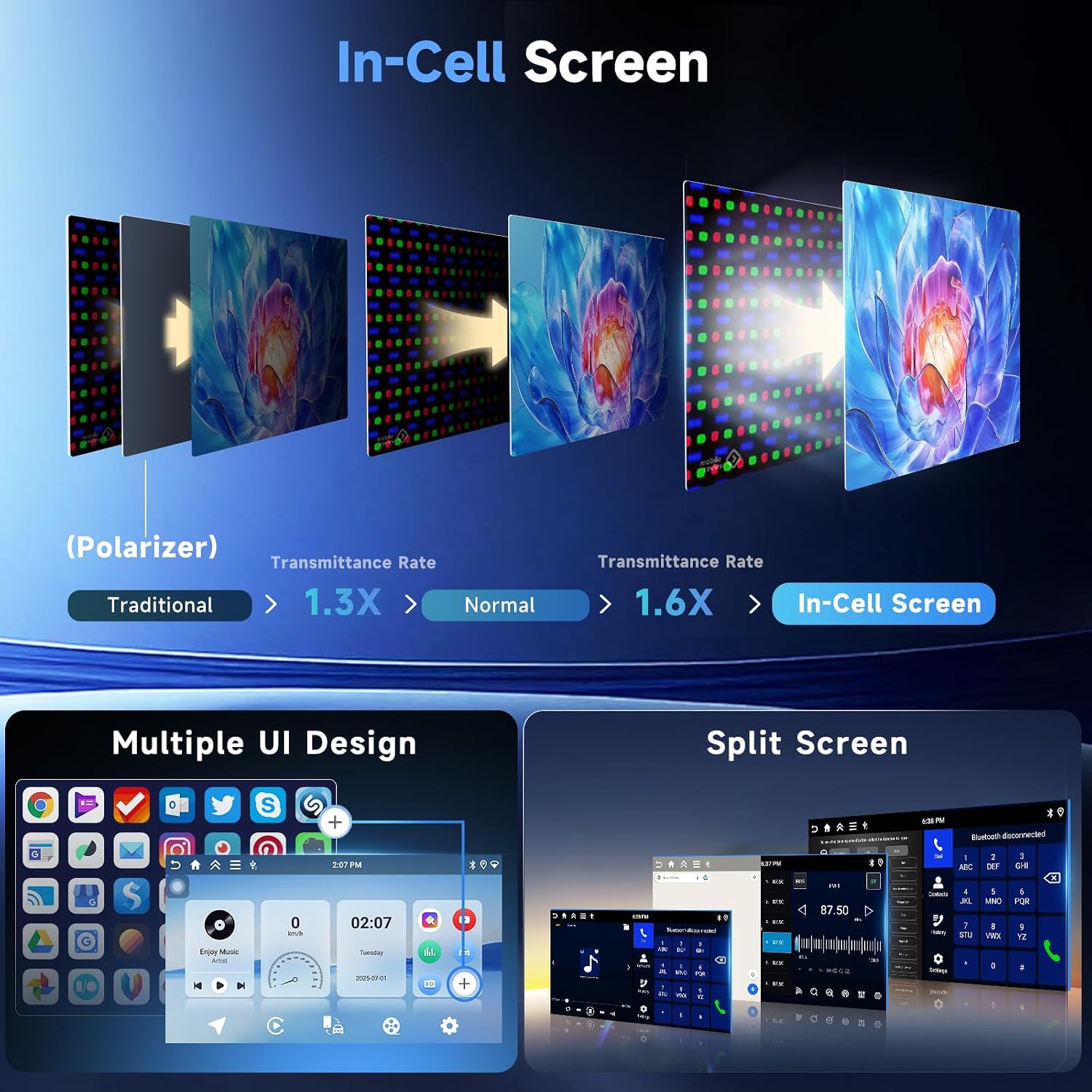
This graphic explains the benefits of the In-Cell screen technology, highlighting its superior transmittance rate for a clearer and brighter display. It also demonstrates the flexibility of the system with multiple user interface designs and the convenient split-screen function, allowing two applications to run simultaneously.
6. പരിചരണവും പരിപാലനവും
- വൃത്തിയാക്കൽ: Use a soft, dry cloth to clean the screen and unit. For stubborn smudges, lightly dampതുണിയിൽ വെള്ളം അല്ലെങ്കിൽ സ്ക്രീൻ-സേഫ് ക്ലീനർ ഉപയോഗിക്കുക. കഠിനമായ രാസവസ്തുക്കളോ ഉരച്ചിലുകളോ ഉള്ള വസ്തുക്കൾ ഒഴിവാക്കുക.
- സോഫ്റ്റ്വെയർ അപ്ഡേറ്റുകൾ: സിസ്റ്റം ക്രമീകരണങ്ങളിലൂടെയോ നിർമ്മാതാവിന്റെയോ വഴി സോഫ്റ്റ്വെയർ അപ്ഡേറ്റുകൾക്കായി ഇടയ്ക്കിടെ പരിശോധിക്കുക. webമികച്ച പ്രകടനവും പുതിയ സവിശേഷതകളിലേക്കുള്ള ആക്സസും ഉറപ്പാക്കാൻ സൈറ്റ്.
- താപനില: യൂണിറ്റ് ദീർഘനേരം തീവ്രമായ താപനിലയിൽ തുറന്നുകാട്ടുന്നത് ഒഴിവാക്കുക.
- ശക്തി: വാഹനത്തിന്റെ വൈദ്യുത സംവിധാനം സ്ഥിരതയുള്ളതാണെന്ന് ഉറപ്പാക്കുക. ഇടയ്ക്കിടെയുള്ള വൈദ്യുതി വ്യതിയാനങ്ങൾ ഒഴിവാക്കുക.
7. പ്രശ്നപരിഹാരം
നിങ്ങളുടെ കാർ റേഡിയോയിൽ പ്രശ്നങ്ങൾ നേരിടുകയാണെങ്കിൽ, ഇനിപ്പറയുന്ന പൊതുവായ പ്രശ്നങ്ങളും പരിഹാരങ്ങളും പരിശോധിക്കുക:
| പ്രശ്നം | സാധ്യമായ കാരണം | പരിഹാരം |
|---|---|---|
| യൂണിറ്റ് പവർ ഓണാക്കുന്നില്ല | Loose power connection, blown fuse, vehicle battery issue | പവർ കേബിളുകളും കണക്ഷനുകളും പരിശോധിക്കുക. വാഹന ഫ്യൂസുകൾ പരിശോധിക്കുക. വാഹന ബാറ്ററി ചാർജ്ജ് ചെയ്തിട്ടുണ്ടെന്ന് ഉറപ്പാക്കുക. |
| ശബ്ദമില്ല | Volume too low, incorrect audio source, loose speaker wires | Increase volume. Select correct audio source. Check speaker wire connections. |
| GPS സിഗ്നൽ നഷ്ടപ്പെട്ടു അല്ലെങ്കിൽ കൃത്യമല്ല. | GPS antenna obstructed, antenna faulty, outdated maps | ജിപിഎസ് ആന്റിനയ്ക്ക് വ്യക്തമായ ഒരു രേഖ ഉണ്ടെന്ന് ഉറപ്പാക്കുക view of the sky. Check antenna connection. Update map data. |
| ബ്ലൂടൂത്ത് കണക്ഷൻ പ്രശ്നങ്ങൾ | ഉപകരണം ജോടിയാക്കിയിട്ടില്ല, ബ്ലൂടൂത്ത് ഓഫാണ്, തടസ്സം | Ensure Bluetooth is enabled on both devices. Re-pair the device. Move closer to the unit. |
| ടച്ച്സ്ക്രീൻ പ്രതികരിക്കുന്നില്ല | System freeze, software glitch | Restart the unit (turn vehicle off and on). If issue persists, perform a factory reset (Factory Password: 1234). |
| പിൻഭാഗം view ക്യാമറ പ്രദർശിപ്പിക്കുന്നില്ല | Loose camera connection, camera faulty, incorrect settings | Check camera cable connections. Verify camera settings in the unit. |
If these solutions do not resolve the issue, please contact Hodozzy customer support for further assistance.
8 സാങ്കേതിക സവിശേഷതകൾ
| ഫീച്ചർ | സ്പെസിഫിക്കേഷൻ |
|---|---|
| ബ്രാൻഡ് | ഹോഡോസി |
| മോഡൽ | A7542 |
| സ്ക്രീൻ വലിപ്പം | 9 ഇഞ്ച് |
| സ്ക്രീൻ തരം | InCell Touchscreen |
| ഡിസ്പ്ലേ റെസല്യൂഷൻ | 1280 x 720 |
| ഓപ്പറേറ്റിംഗ് സിസ്റ്റം | ആൻഡ്രോയിഡ് ഒഎസ് |
| റാം | 4 ജിബി |
| റോം (ആന്തരിക സംഭരണം) | 64 ജിബി |
| കണക്റ്റിവിറ്റി ടെക്നോളജി | Bluetooth, USB, WiFi |
| പ്രത്യേക സവിശേഷതകൾ | Wireless CarPlay, Android Auto, GPS Navigation, DSP, FM/RDS Radio, Split Screen, Steering Wheel Control, Rear View ക്യാമറ പിന്തുണ |
| ഔട്ട്പുട്ട് പവർ | 4 x 45 W |
| വർക്കിംഗ് വോളിയംtage | 9V-16V |
| പ്രവർത്തന താപനില | -20°C മുതൽ 70°C വരെ |
| പിന്തുണയ്ക്കുന്ന ഓഡിയോ ഫോർമാറ്റുകൾ | APE/FLAC/WAV/MP3/WMA, etc. |
| പിന്തുണയ്ക്കുന്ന വീഡിയോ ഫോർമാറ്റുകൾ | MKV/RMVB/AVI/MP4/MDV, etc. |
| പിന്തുണയ്ക്കുന്ന ഇമേജ് ഫോർമാറ്റുകൾ | PNG/JPEG/JPG/GIF/WBMP/BNP, etc. |
| നിയന്ത്രണ രീതി | സ്പർശിക്കുക |
| ഇനത്തിൻ്റെ ഭാരം | 450 ഗ്രാം |
9. വാറന്റി വിവരങ്ങളും ഉപഭോക്തൃ പിന്തുണയും
For warranty details and specific terms, please refer to the warranty card included with your product or contact Hodozzy customer support directly. If you have any questions, require technical assistance, or need to report an issue, please reach out to Hodozzy customer service through the contact information provided on their official webസൈറ്റ് അല്ലെങ്കിൽ നിങ്ങളുടെ വാങ്ങൽ പ്ലാറ്റ്ഫോം.