
1. ഉൽപ്പന്നം കഴിഞ്ഞുview
This manual provides essential information for setting up, operating, and maintaining your CRUA 34-inch UWQHD 3440x1440P IPS Ultrawide Gaming Monitor. Please read it thoroughly before use.
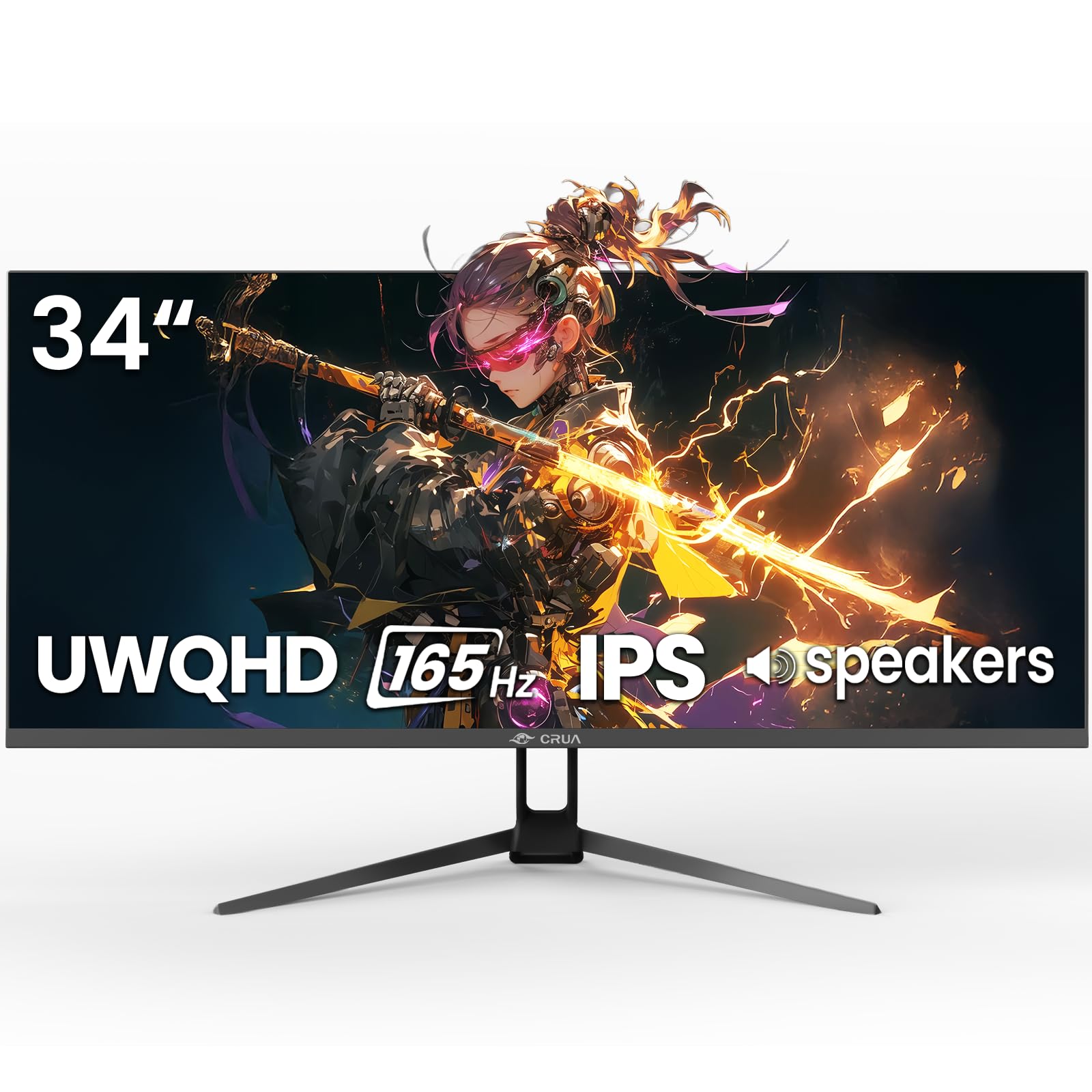
ചിത്രം 1: മുൻഭാഗം view of the CRUA 34-inch Ultrawide Gaming Monitor.
2. പാക്കേജ് ഉള്ളടക്കം
പാക്കേജിൽ എല്ലാ ഇനങ്ങളും ഉണ്ടെന്ന് ഉറപ്പാക്കുക:
- 34-inch Ultrawide Monitor
- അടിത്തറയും സ്റ്റാൻഡും
- ഉപയോക്തൃ മാനുവൽ
- DP Cable x1 (4.92 ft)
- Power Adapter x1 (4.92 ft)
3. സജ്ജീകരണ നിർദ്ദേശങ്ങൾ
3.1 സ്റ്റാൻഡ് അസംബ്ലി
- മോണിറ്റർ അതിന്റെ പാക്കേജിംഗിൽ നിന്ന് ശ്രദ്ധാപൂർവ്വം നീക്കം ചെയ്യുക, പോറലുകൾ ഉണ്ടാകാതിരിക്കാൻ മൃദുവായതും വൃത്തിയുള്ളതുമായ ഒരു പ്രതലത്തിൽ മുഖം താഴേക്ക് വയ്ക്കുക.
- നൽകിയിരിക്കുന്ന സ്ക്രൂകൾ ഉപയോഗിച്ച് സ്റ്റാൻഡ് ബേസ് സ്റ്റാൻഡ് നെക്കിൽ ഘടിപ്പിക്കുക.
- Align the assembled stand with the mounting points on the back of the monitor and secure it firmly.
3.2 വാൾ മൗണ്ടിംഗ് (ഓപ്ഷണൽ)
The monitor supports VESA wall mounting (75x75mm). Use appropriate wall mount hardware (not included) and follow the wall mount manufacturer's instructions. Ensure the stand is removed before mounting.
3.3 ഒരു ഉപകരണത്തിലേക്ക് ബന്ധിപ്പിക്കുന്നു
ഉചിതമായ കേബിളുകൾ ഉപയോഗിച്ച് നിങ്ങളുടെ കമ്പ്യൂട്ടറിലേക്കോ മറ്റ് ഉപകരണങ്ങളിലേക്കോ മോണിറ്റർ ബന്ധിപ്പിക്കുക.
- ഡിസ്പ്ലേ പോർട്ട് (ഡിപി 1.4): For optimal performance, including 165Hz refresh rate and FreeSync, use the supplied DP cable.
- എച്ച്ഡിഎംഐ (എച്ച്ഡിഎംഐ 2.0): Supports up to 100Hz refresh rate.
- ഓഡിയോ ഔട്ട്പുട്ട് (3.5 മിമി): ബാഹ്യ സ്പീക്കറുകളോ ഹെഡ്ഫോണുകളോ ബന്ധിപ്പിക്കുക.

ചിത്രം 2: പിൻഭാഗം view of the monitor displaying available ports and wall mount area.
3.4 പവർ കണക്ഷൻ
Connect the power adapter to the monitor's DC input port, then plug the power adapter into a power outlet.
4. പ്രവർത്തന നിർദ്ദേശങ്ങൾ
4.1 പവർ ഓൺ/ഓഫ്
Press the power button located on the monitor to turn it on or off. The monitor will typically detect an active input signal automatically.
4.2 ഓൺ-സ്ക്രീൻ ഡിസ്പ്ലേ (OSD) മെനു
Use the control buttons (often a joystick or set of buttons) on the monitor to navigate the OSD menu. This menu allows you to adjust various display settings.
പ്രധാന ക്രമീകരണങ്ങൾ:
- തെളിച്ചം/തീവ്രത: Adjust image luminance and distinction.
- വർണ്ണ ക്രമീകരണങ്ങൾ: Fine-tune color temperature, gamma, and saturation. The monitor features 120% sRGB, 8-bit color depth, and 16.7 million colors for vivid visuals.
- ഇൻപുട്ട് ഉറവിടം: Manually select between HDMI and DisplayPort inputs.
- പുതുക്കൽ നിരക്ക്: Ensure your device is configured to output at 165Hz (via DP) or 100Hz (via HDMI) for the smoothest experience.
- FreeSync: Enable AMD FreeSync for tear-free gaming. This feature synchronizes the monitor's refresh rate with your GPU's frame rate.

Figure 3: Visual representation of 165Hz refresh rate and FreeSync in action.
4.3 PIP/PBP Functions
The monitor supports Picture-in-Picture (PIP) and Picture-by-Picture (PBP) modes, allowing you to display content from multiple input sources simultaneously.
- PIP മോഡ്: Displays a smaller window from a second source over the main display.
- പിബിപി മോഡ്: Divides the screen into multiple sections, each displaying a different input source side-by-side.

Figure 4: Illustration of PIP and PBP modes for multitasking.
4.4 Built-in Speakers
The monitor includes built-in speakers for audio output. You can also connect external speakers or headphones via the 3.5mm audio port for enhanced sound.
5. പരിപാലനം
5.1 മോണിറ്റർ വൃത്തിയാക്കുന്നു
- വൃത്തിയാക്കുന്നതിന് മുമ്പ് എപ്പോഴും മോണിറ്റർ അൺപ്ലഗ് ചെയ്യുക.
- നനവില്ലാത്തതും ലിനില്ലാത്തതുമായ തുണി ചെറുതായി ഉപയോഗിക്കുകampവെള്ളം അല്ലെങ്കിൽ നേരിയതും, ഉരച്ചിലുകളില്ലാത്തതുമായ സ്ക്രീൻ ക്ലീനർ ഉപയോഗിച്ച് തുടയ്ക്കുക.
- ക്ലീനർ നേരിട്ട് സ്ക്രീനിൽ സ്പ്രേ ചെയ്യരുത്.
- ആൽക്കഹോൾ, അമോണിയ, അല്ലെങ്കിൽ അബ്രാസീവ് ക്ലീനറുകൾ എന്നിവ ഉപയോഗിക്കുന്നത് ഒഴിവാക്കുക, കാരണം അവ സ്ക്രീൻ പ്രതലത്തിന് കേടുവരുത്തും.
5.2 പൊതു പരിചരണം
- നേരിട്ടുള്ള സൂര്യപ്രകാശം, താപ സ്രോതസ്സുകൾ, അമിതമായ പൊടി എന്നിവയിൽ നിന്ന് മോണിറ്ററിനെ അകറ്റി നിർത്തുക.
- മോണിറ്ററിന് ചുറ്റും മതിയായ വായുസഞ്ചാരം ഉറപ്പാക്കുക.
- മോണിറ്ററിലോ അതിന്റെ കേബിളുകളിലോ ഭാരമുള്ള വസ്തുക്കൾ വയ്ക്കുന്നത് ഒഴിവാക്കുക.
6. പ്രശ്നപരിഹാരം
നിങ്ങളുടെ മോണിറ്ററിൽ പ്രശ്നങ്ങൾ നേരിടുകയാണെങ്കിൽ, ഇനിപ്പറയുന്ന പൊതുവായ പരിഹാരങ്ങൾ പരിശോധിക്കുക:
- ശക്തിയില്ല: Ensure the power cable is securely connected to both the monitor and the power outlet. Verify the power adapter is functioning.
- സിഗ്നലില്ല: Check that the video cable (DP or HDMI) is firmly connected to both the monitor and your computer. Select the correct input source in the OSD menu. If using HDMI, ensure your device's display settings are compatible with the monitor's capabilities (e.g., set to 60Hz if experiencing issues at higher refresh rates).
- Image Flickering/Distortion: Check cable connections. Ensure your graphics card drivers are up to date. Try a different video cable. If FreeSync is enabled, try disabling it to see if the issue persists.
- മോശം ചിത്രത്തിന്റെ ഗുണനിലവാരം: Adjust brightness, contrast, and color settings in the OSD menu. Ensure the display resolution is set to 3440x1440P on your connected device.
- ഓഡിയോ ഇല്ല: Verify that the audio cable (if using external speakers) is connected correctly. Check the volume settings on both the monitor and your computer. Ensure the correct audio output device is selected in your computer's sound settings.
ഈ ഘട്ടങ്ങൾ പരീക്ഷിച്ചതിനുശേഷവും പ്രശ്നം നിലനിൽക്കുകയാണെങ്കിൽ, ദയവായി ഉപഭോക്തൃ പിന്തുണയുമായി ബന്ധപ്പെടുക.
7 സ്പെസിഫിക്കേഷനുകൾ
| ഫീച്ചർ | സ്പെസിഫിക്കേഷൻ |
|---|---|
| ബ്രാൻഡ് | CRUA |
| മോഡൽ നമ്പർ | CR340G |
| സ്ക്രീൻ വലിപ്പം | 34 ഇഞ്ച് |
| റെസലൂഷൻ | UWQHD 3440 x 1440 Pixels |
| വീക്ഷണാനുപാതം | 21:9 |
| ഡിസ്പ്ലേ ടെക്നോളജി | ഐ.പി.എസ് |
| പുതുക്കിയ നിരക്ക് | 165 Hz |
| പ്രതികരണ സമയം | 1 മില്ലിസെക്കൻഡ് |
| തെളിച്ചം | 380 cd/m² |
| കോൺട്രാസ്റ്റ് റേഷ്യോ | 1000:1 |
| വർണ്ണ ഗാമറ്റ് | 120% sRGB |
| Viewing ആംഗിൾ | 178 ഡിഗ്രി |
| കണക്റ്റിവിറ്റി | 2x HDMI 2.0, 1x DisplayPort 1.4, 1x 3.5mm Audio |
| അഡാപ്റ്റീവ് സമന്വയം | എഎംഡി ഫ്രീസിങ്ക് |
| അധിക സവിശേഷതകൾ | Built-In Speakers, PIP & PBP function, Tilt Adjustment |
| മൗണ്ടിംഗ് തരം | Desk Mount/Wall Mount (75x75mm VESA) |
| ഇനത്തിൻ്റെ അളവുകൾ (D x W x H) | 9"D x 32"W x 17"H |
8. വാറൻ്റിയും പിന്തുണയും
8.1 വാറൻ്റി വിവരങ്ങൾ
This CRUA monitor comes with a 1 വർഷത്തെ വാറൻ്റി. Additionally, a 30-day free return and exchange policy is provided from the date of purchase. Please retain your proof of purchase for warranty claims.
8.2 ഉപഭോക്തൃ പിന്തുണ
For technical assistance, warranty claims, or any questions regarding your CRUA monitor, please contact CRUA customer support through the retailer where the product was purchased or visit the official CRUA webബന്ധപ്പെടാനുള്ള വിശദാംശങ്ങൾക്കുള്ള സൈറ്റ്.