
1. ആമുഖം
This manual provides essential information for setting up, operating, maintaining, and troubleshooting your Auusda 16-inch FHD Laptop T161N. Please read this manual thoroughly before using your device to ensure proper function and longevity.
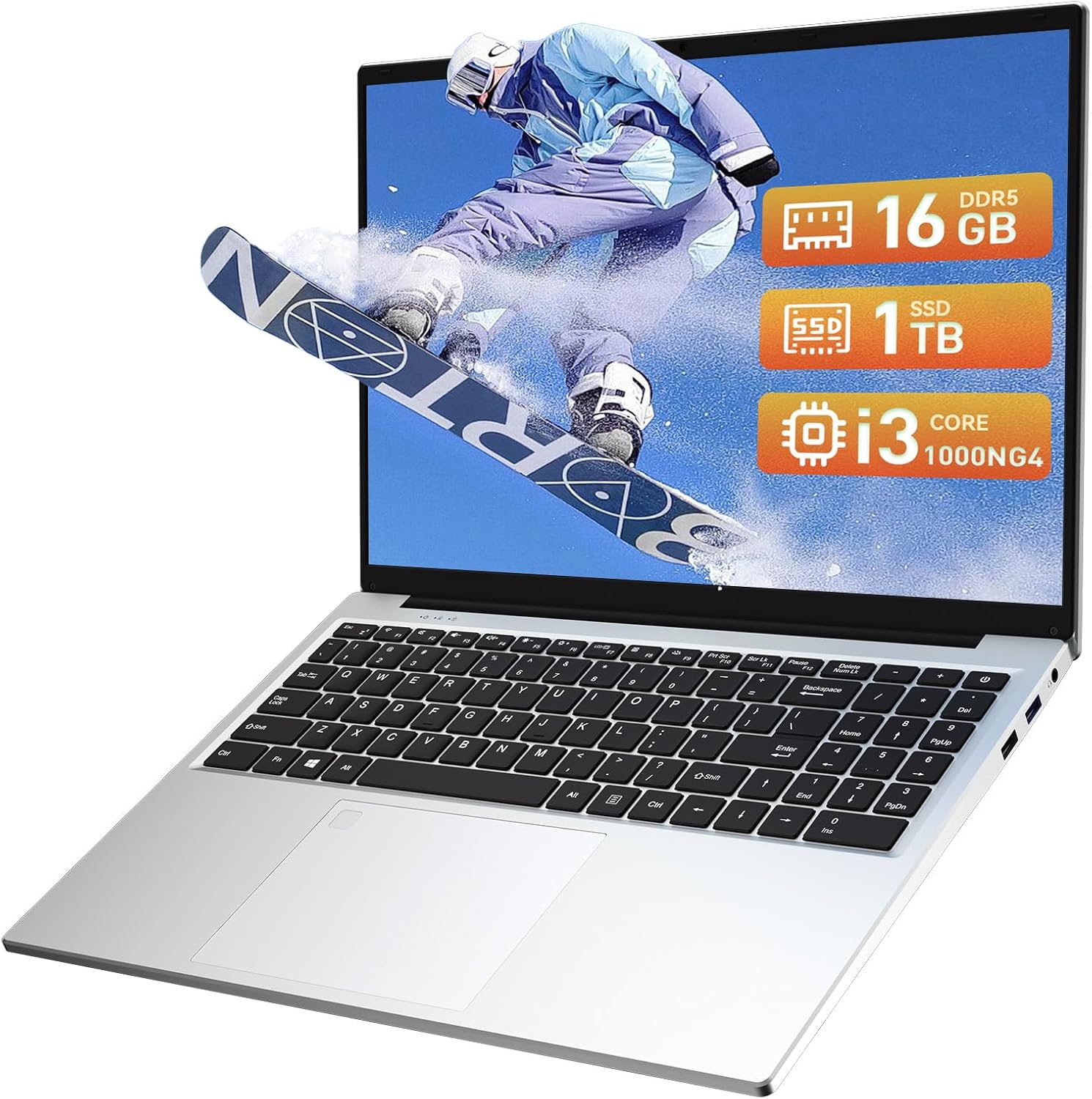
Image: The Auusda 16-inch FHD Laptop T161N, showcasing അതിന്റെ മിനുസമാർന്ന രൂപകൽപ്പനയും സ്ക്രീനും.
2. ബോക്സിൽ എന്താണുള്ളത്?
Upon opening your Auusda T161N laptop package, verify that all the following items are included:
- Auusda 16-inch FHD Laptop T161N
- പവർ അഡാപ്റ്റർ/ചാർജർ
- നിർദ്ദേശ മാനുവൽ (ഈ പ്രമാണം)
- കീബോർഡ് കവർ

Image: A visual representation of the items included in the Auusda T161N laptop packaging.
3. ഉൽപ്പന്നം കഴിഞ്ഞുview
3.1 പ്രധാന സവിശേഷതകൾ
- ഡിസ്പ്ലേ: 16-inch Full HD (1920x1080) IPS screen with 180° viewing ആംഗിൾ.
- പ്രോസസ്സർ: Intel Core i3-1000NG4 (up to 3.2GHz).
- മെമ്മറി: 16 ജിബി ഡിഡിആർ4 റാം.
- സംഭരണം: 1TB PCIe SSD.
- കണക്റ്റിവിറ്റി: Wi-Fi 6, Bluetooth 5.3.
- സുരക്ഷ: Fingerprint Reader.
- ഇൻപുട്ട്: Backlit Keyboard.
- ഓപ്പറേറ്റിംഗ് സിസ്റ്റം: വിൻഡോസ് 11 പ്രോ.
3.2 പോർട്ടുകളും കണക്ടറുകളും
The Auusda T161N laptop is equipped with various ports for versatile connectivity:
- USB 3.0 പോർട്ടുകൾ (x2)
- Full-Function Type-C Port (x1) - Supports data transfer, screen mirroring, and charging.
- USB 2.0 പോർട്ട് (x1)
- Mini HDMI Port (x1)
- 3.5mm Standard Headphone Jack (x1)
- Microphone Input (shared with headphone jack)
- ചാർജിംഗ് പോർട്ട്

Image: A detailed diagram illustrating the location and type of ports on the Auusda T161N laptop.
3.3 വിഷ്വൽ ഓവർview
വീഡിയോ: ഒരു ഓവർview of the Auusda 16-inch FHD Laptop T161N, demonstrating its design and key features.
4. സജ്ജീകരണം
4.1 പ്രാരംഭ ചാർജിംഗ്
- ലാപ്ടോപ്പിലെ ചാർജിംഗ് പോർട്ടിലേക്ക് പവർ അഡാപ്റ്റർ ബന്ധിപ്പിക്കുക.
- ഒരു മതിൽ ഔട്ട്ലെറ്റിലേക്ക് പവർ അഡാപ്റ്റർ പ്ലഗ് ചെയ്യുക.
- പ്രാരംഭ ഉപയോഗത്തിന് മുമ്പ് കുറഞ്ഞത് 30 മിനിറ്റെങ്കിലും ലാപ്ടോപ്പ് ചാർജ് ചെയ്യാൻ അനുവദിക്കുക, അല്ലെങ്കിൽ ബാറ്ററി ഇൻഡിക്കേറ്റർ മതിയായ ചാർജ് കാണിക്കുന്നത് വരെ.
4.2 പവർ ഓണും പ്രാരംഭ വിൻഡോസ് സജ്ജീകരണവും
- ലാപ്ടോപ്പ് ഓണാക്കാൻ കീബോർഡിലെ പവർ ബട്ടൺ അമർത്തുക.
- Windows 11 Pro സജ്ജീകരണ പ്രക്രിയ പൂർത്തിയാക്കാൻ ഓൺ-സ്ക്രീൻ നിർദ്ദേശങ്ങൾ പാലിക്കുക. ഇതിൽ നിങ്ങളുടെ പ്രദേശം, ഭാഷ, ഒരു Wi-Fi നെറ്റ്വർക്കിലേക്ക് കണക്റ്റുചെയ്യൽ, ഒരു ഉപയോക്തൃ അക്കൗണ്ട് സൃഷ്ടിക്കൽ എന്നിവ ഉൾപ്പെടുന്നു.
- Ensure you have an active internet connection for Windows updates and driver installations during the setup.
5. പ്രവർത്തന നിർദ്ദേശങ്ങൾ
5.1 Keyboard Functions (Fn + Function Keys)
The laptop features a full-size keyboard with dedicated function keys that can be accessed by pressing the Fn അനുബന്ധ ഫംഗ്ഷൻ കീ (F1-F12) യുമായി സംയോജിപ്പിച്ച കീ.
- ബാക്ക്ലൈറ്റ് കീബോർഡ്: അമർത്തുക Fn + F9 to cycle through 2 brightness levels. Pressing it a third time turns the backlight off.
- നമ്പർ ലോക്ക്: അമർത്തുക Fn + Num Lk to toggle the numeric keypad on or off.
- വോളിയം നിയന്ത്രണം: ഉപയോഗിക്കുക Fn + Speaker keys (F1-F3) to mute, decrease, or increase volume.
- തെളിച്ച നിയന്ത്രണം: ഉപയോഗിക്കുക Fn + Sun keys (F4-F5) to decrease or increase screen brightness.

Image: A visual guide to using the Fn (Function) keys on the Auusda T161N keyboard for various controls.
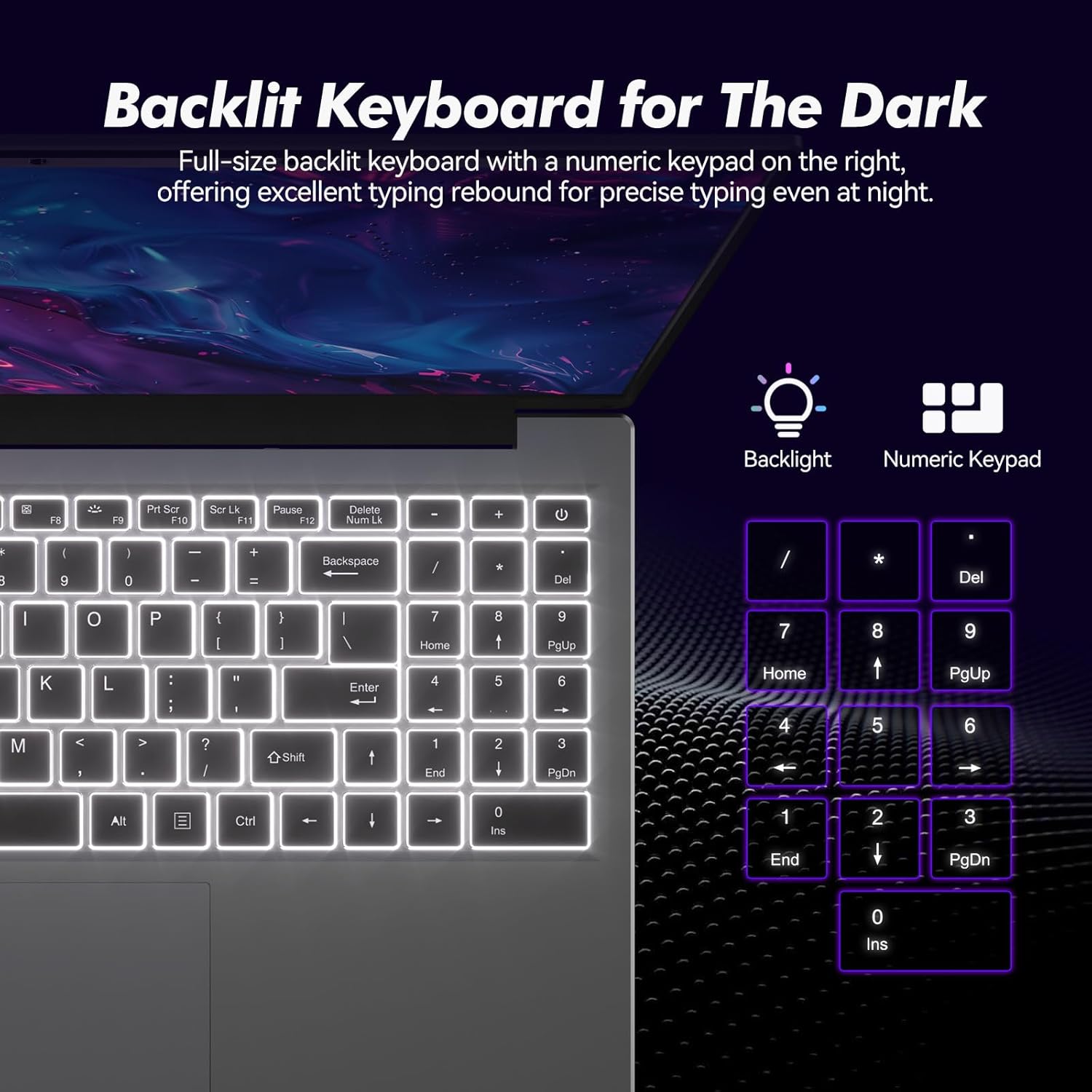
ചിത്രം: ക്ലോസ്-അപ്പ് view of the backlit keyboard and numeric keypad, highlighting their functionality.
5.2 ഫിംഗർപ്രിന്റ് റീഡർ
The integrated fingerprint reader provides a secure and fast way to unlock your laptop. To set up fingerprint recognition:
- വിൻഡോസ് സെറ്റിംഗ്സ് > അക്കൗണ്ടുകൾ > സൈൻ-ഇൻ ഓപ്ഷനുകൾ എന്നതിലേക്ക് നാവിഗേറ്റ് ചെയ്യുക.
- Under 'Windows Hello Fingerprint', click 'Set up'.
- നിങ്ങളുടെ വിരലടയാളം രജിസ്റ്റർ ചെയ്യാൻ സ്ക്രീനിലെ നിർദ്ദേശങ്ങൾ പാലിക്കുക.
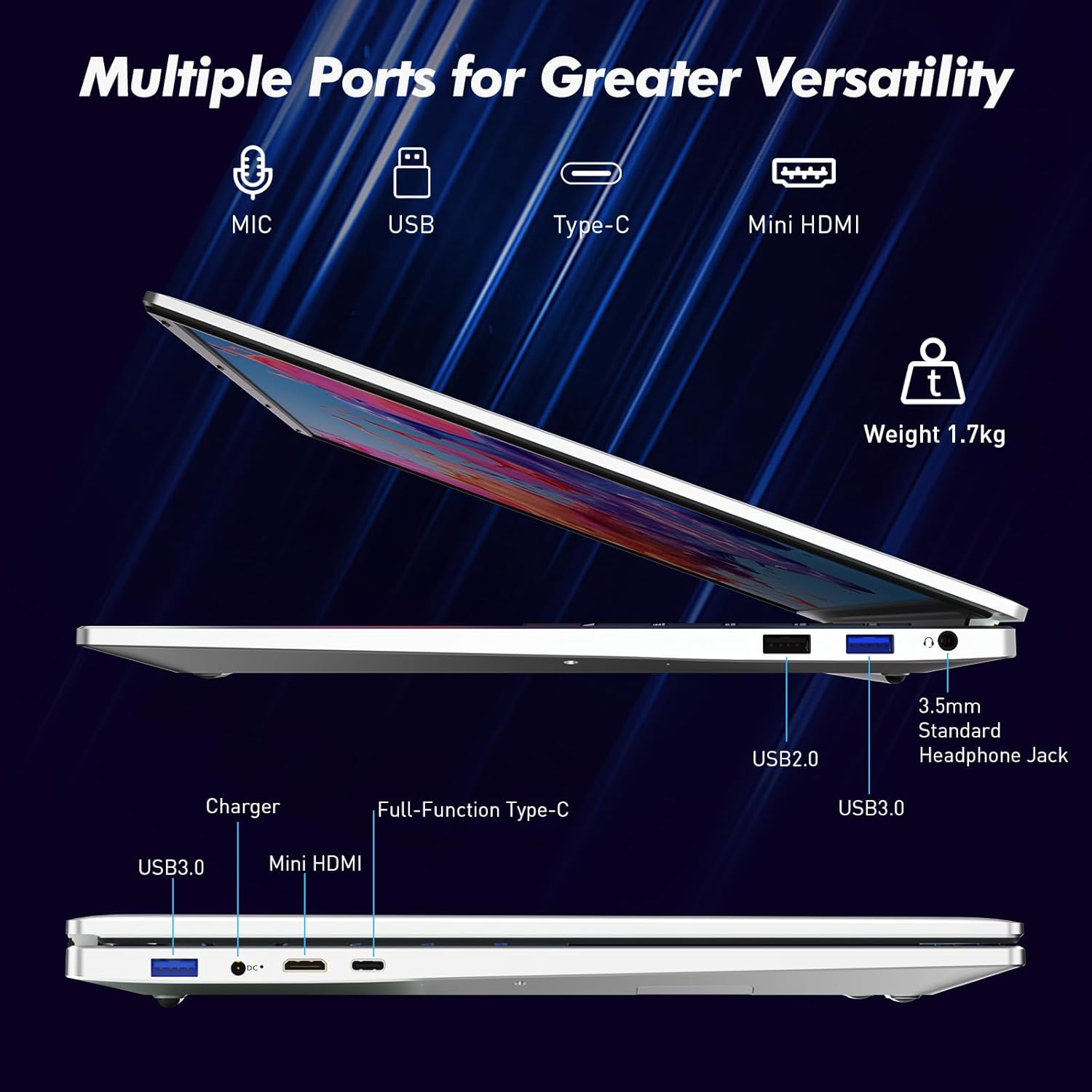
Image: A visual representation of the fingerprint reader location and its quick unlock capability.
5.3 Type-C Connectivity
The full-function Type-C port offers versatile connectivity options:
- ഡാറ്റ കൈമാറ്റം: Connect compatible devices for high-speed data exchange.
- സ്ക്രീൻ മിററിംഗ്: Output video to an external display using a compatible Type-C to HDMI/DisplayPort adapter (sold separately).
- ചാർജിംഗ്: Charge the laptop using a compatible Type-C power delivery charger.
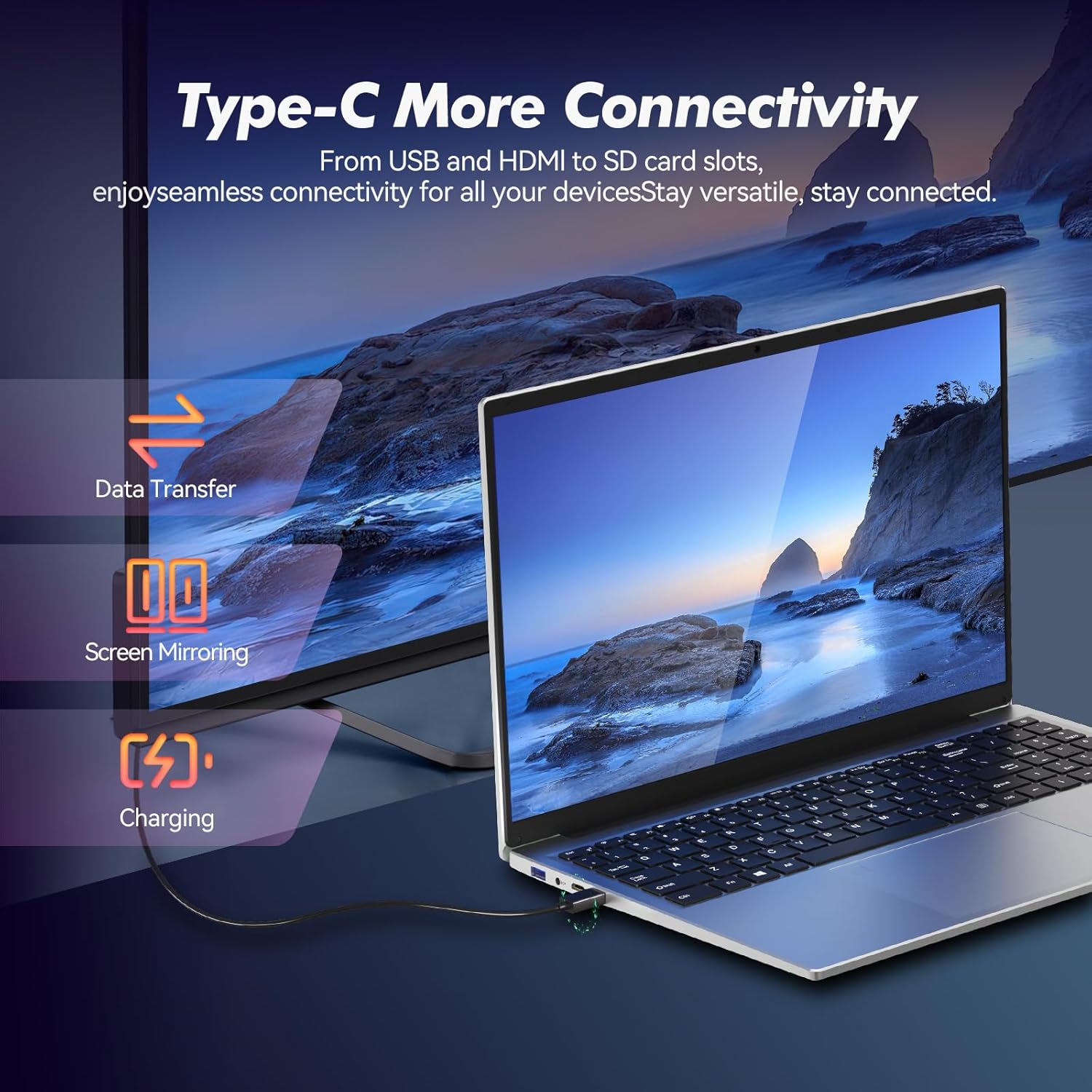
Image: Illustrates the multi-functional capabilities of the Type-C port, including data transfer, screen mirroring, and charging.
5.4 Wi-Fi 6 and Bluetooth 5.3
The laptop supports Wi-Fi 6 for faster and more stable wireless internet connections and Bluetooth 5.3 for connecting wireless peripherals.
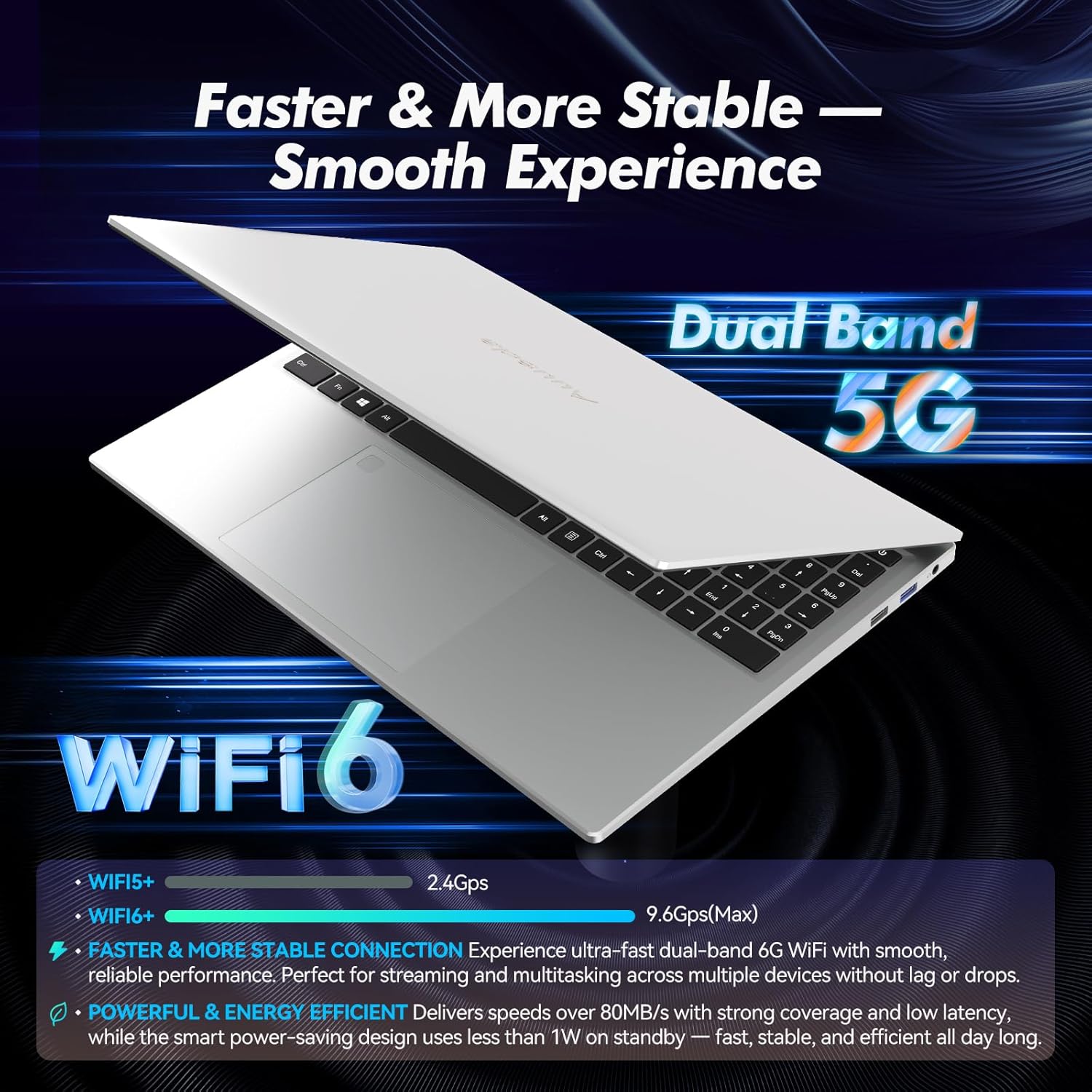
Image: Highlights the advanced wireless connectivity of the laptop, including Wi-Fi 6 and Dual Band 5G support.
6 സ്പെസിഫിക്കേഷനുകൾ
Below are the detailed technical specifications for the Auusda 16-inch FHD Laptop T161N:
| ഫീച്ചർ | സ്പെസിഫിക്കേഷൻ |
|---|---|
| മോഡൽ നമ്പർ | T161N |
| സ്ക്രീൻ വലിപ്പം | 16 ഇഞ്ച് |
| സ്ക്രീൻ റെസല്യൂഷൻ | 1920 x 1080 പിക്സലുകൾ (FHD) |
| പ്രോസസ്സർ | Intel Core i3-1000NG4 (1.09 GHz, up to 3.2 GHz) |
| റാം | 16 ജിബി ഡിഡിആർ4 എസ്ഡിആർഎഎം |
| ഹാർഡ് ഡ്രൈവ് | 1 TB SSD (PCIe) |
| ഗ്രാഫിക്സ് കോപ്രൊസസർ | Iris Plus Graphics G4 48EUs (Integrated) |
| ഓപ്പറേറ്റിംഗ് സിസ്റ്റം | വിൻഡോസ് 11 പ്രോ |
| വയർലെസ് തരം | 802.11ax (വൈ-ഫൈ 6), ബ്ലൂടൂത്ത് 5.3 |
| USB 3.0 പോർട്ടുകൾ | 2 |
| USB 2.0 പോർട്ടുകൾ | 1 |
| ഇനത്തിൻ്റെ ഭാരം | 5.21 പൗണ്ട് |
| ഉൽപ്പന്ന അളവുകൾ | 14.17 x 10.83 x 0.71 ഇഞ്ച് |
| നിറം | വെള്ളി |
| ബാറ്ററികൾ | 1 12V ബാറ്ററി (ഉൾപ്പെടുത്തിയിരിക്കുന്നു) |
7. പരിപാലനം
Regular maintenance helps ensure the optimal performance and longevity of your laptop.
7.1 വൃത്തിയാക്കൽ
- Use a soft, lint-free cloth to clean the screen and exterior surfaces. For stubborn marks, slightly dampവെള്ളം അല്ലെങ്കിൽ സ്ക്രീൻ-സേഫ് ക്ലീനർ ഉപയോഗിച്ച് തുണിയിൽ ഒട്ടിക്കുക.
- Avoid spraying liquids directly onto the laptop.
- കീബോർഡ് കീകളിൽ നിന്നും വെന്റിലേഷൻ ഗ്രില്ലുകളിൽ നിന്നും പൊടി നീക്കം ചെയ്യാൻ കംപ്രസ് ചെയ്ത വായു ഉപയോഗിക്കുക.
7.2 സോഫ്റ്റ്വെയർ അപ്ഡേറ്റുകൾ
- Regularly check for and install Windows updates to ensure system stability and security. Go to Settings > Windows Update.
- Keep your drivers updated. Windows Update typically handles this, but you may occasionally need to check the Auusda support webനിർദ്ദിഷ്ട ഡ്രൈവർ അപ്ഡേറ്റുകൾക്കായുള്ള സൈറ്റ്.
7.3 ബാറ്ററി കെയർ
- ബാറ്ററി ഇടയ്ക്കിടെ പൂർണ്ണമായും ഡിസ്ചാർജ് ചെയ്യുന്നത് ഒഴിവാക്കുക.
- ലാപ്ടോപ്പ് ദീർഘനേരം ഉപയോഗിച്ചിട്ടില്ലെങ്കിൽ തണുത്തതും വരണ്ടതുമായ സ്ഥലത്ത് സൂക്ഷിക്കുക.
8. പ്രശ്നപരിഹാരം
നിങ്ങളുടെ ലാപ്ടോപ്പിൽ നിങ്ങൾ നേരിട്ടേക്കാവുന്ന സാധാരണ പ്രശ്നങ്ങൾ ഈ വിഭാഗം അഭിസംബോധന ചെയ്യുന്നു.
8.1 ലാപ്ടോപ്പ് ഓണാകുന്നില്ല
- പവർ അഡാപ്റ്റർ ലാപ്ടോപ്പിലേക്കും പ്രവർത്തിക്കുന്ന ഒരു പവർ ഔട്ട്ലെറ്റിലേക്കും സുരക്ഷിതമായി ബന്ധിപ്പിച്ചിട്ടുണ്ടെന്ന് ഉറപ്പാക്കുക.
- മറ്റൊരു ഉപകരണം പ്ലഗ് ഇൻ ചെയ്ത് പവർ ഔട്ട്ലെറ്റ് പ്രവർത്തനക്ഷമമാണെന്ന് ഉറപ്പാക്കുക.
- ബാറ്ററി പൂർണ്ണമായും തീർന്നാൽ, വീണ്ടും പവർ ചെയ്യാൻ ശ്രമിക്കുന്നതിന് മുമ്പ് കുറഞ്ഞത് 15-30 മിനിറ്റെങ്കിലും ചാർജ് ചെയ്യാൻ അനുവദിക്കുക.
8.2 വൈ-ഫൈ കണക്റ്റിവിറ്റി പ്രശ്നങ്ങൾ
- Check if Wi-Fi is enabled in Windows settings (Settings > Network & internet > Wi-Fi).
- നിങ്ങളുടെ റൂട്ടറും മോഡവും പുനരാരംഭിക്കുക.
- നിങ്ങളുടെ വൈഫൈ നെറ്റ്വർക്കിന്റെ പരിധിയിലാണെന്ന് ഉറപ്പാക്കുക.
- Update your Wi-Fi drivers if necessary.
8.3 Keyboard or Touchpad Not Responding
- ലാപ്ടോപ്പ് പുനരാരംഭിക്കുക.
- Check for any physical obstructions or debris under the keys or on the touchpad.
- Ensure the touchpad has not been accidentally disabled (some laptops have a function key or a setting to toggle the touchpad).
For further assistance, refer to the support section below.
9. വാറൻ്റിയും പിന്തുണയും
Auusda provides customer support and warranty services for its products.
9.1 വാറൻ്റി വിവരങ്ങൾ
Auusda laptops typically come with a two-year after-sales service period. Please retain your proof of purchase for warranty claims.
9.2 ഉപഭോക്തൃ പിന്തുണ
If you encounter issues or require technical assistance, please contact Auusda customer support:
- ഇമെയിൽ പിന്തുണ: Send your order number and a video demonstrating the problem to Auusda.ltd@gmail.com.
- ആമസോൺ വാങ്ങുന്നയാളുടെ അക്കൗണ്ട്: Log in to your Amazon buyer account, find your order, and click "Get Help" or "Ask questions" for direct support.