
1. ആമുഖം
The ATTACK SHARK G800 is a versatile wireless RGB gaming headset designed for an immersive audio experience across multiple platforms. It features tri-mode connectivity (2.4Ghz wireless, Bluetooth, and wired), 7.1 virtual surround sound, 50mm drivers, and a detachable AI noise-canceling microphone. This manual provides instructions for setup, operation, and maintenance to ensure optimal performance.
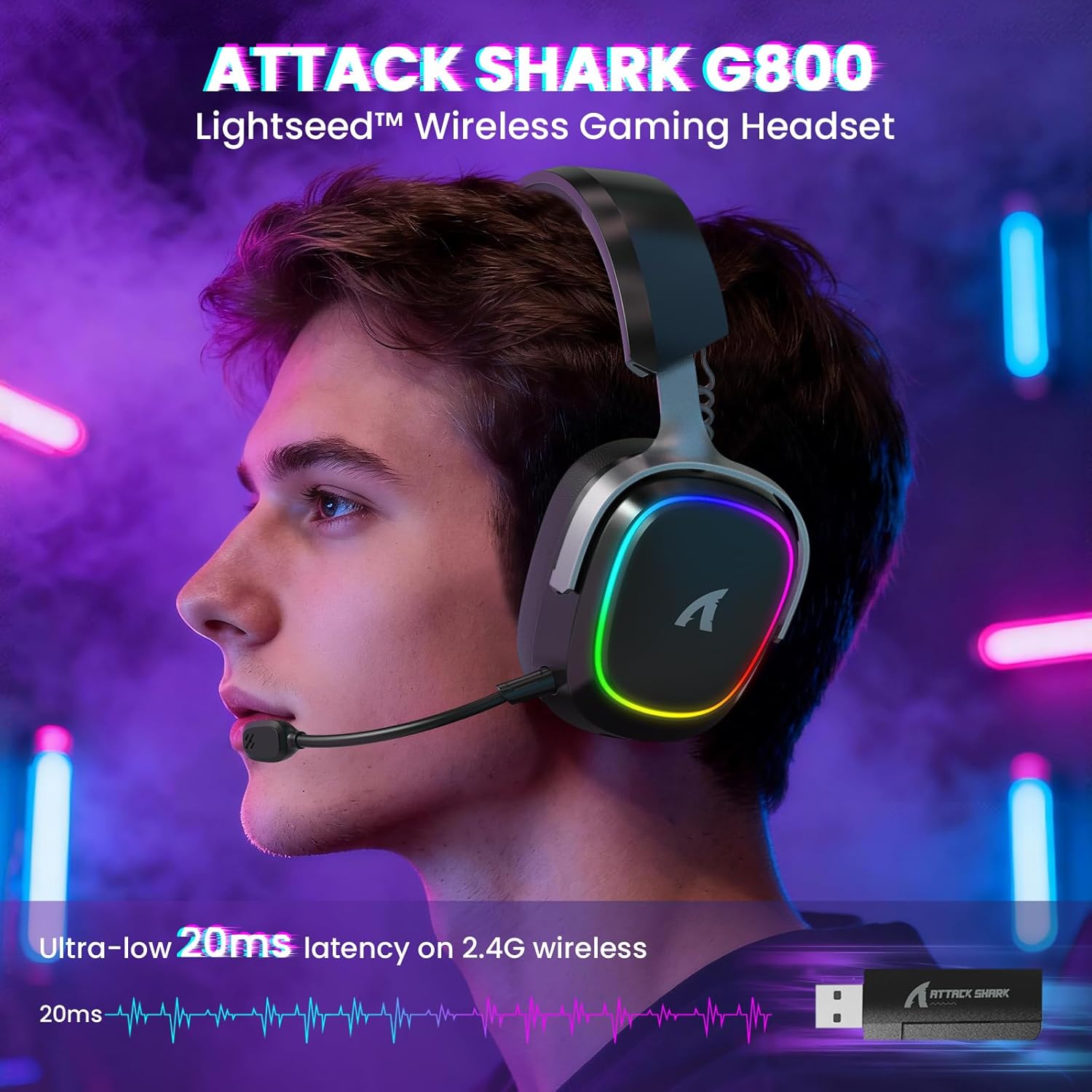
Image: The G800 headset in use, highlighting its RGB lighting and comfortable fit.
2. ബോക്സിൽ എന്താണുള്ളത്?
- ATTACK SHARK G800 Wireless RGB Gaming Headset
- Detachable AI Noise-Canceling Microphone
- 2.4Ghz Wireless USB-A + Type-C Dual-Head Receiver
- USB-A മുതൽ USB-C വരെ ചാർജിംഗ് കേബിൾ
- USB-C to USB-C Audio Cable
- ഉപയോക്തൃ മാനുവൽ (ഈ പ്രമാണം)
3. ഉൽപ്പന്നം കഴിഞ്ഞുview: നിയന്ത്രണങ്ങളും പോർട്ടുകളും
Familiarize yourself with the various controls and ports on your G800 headset for seamless operation.
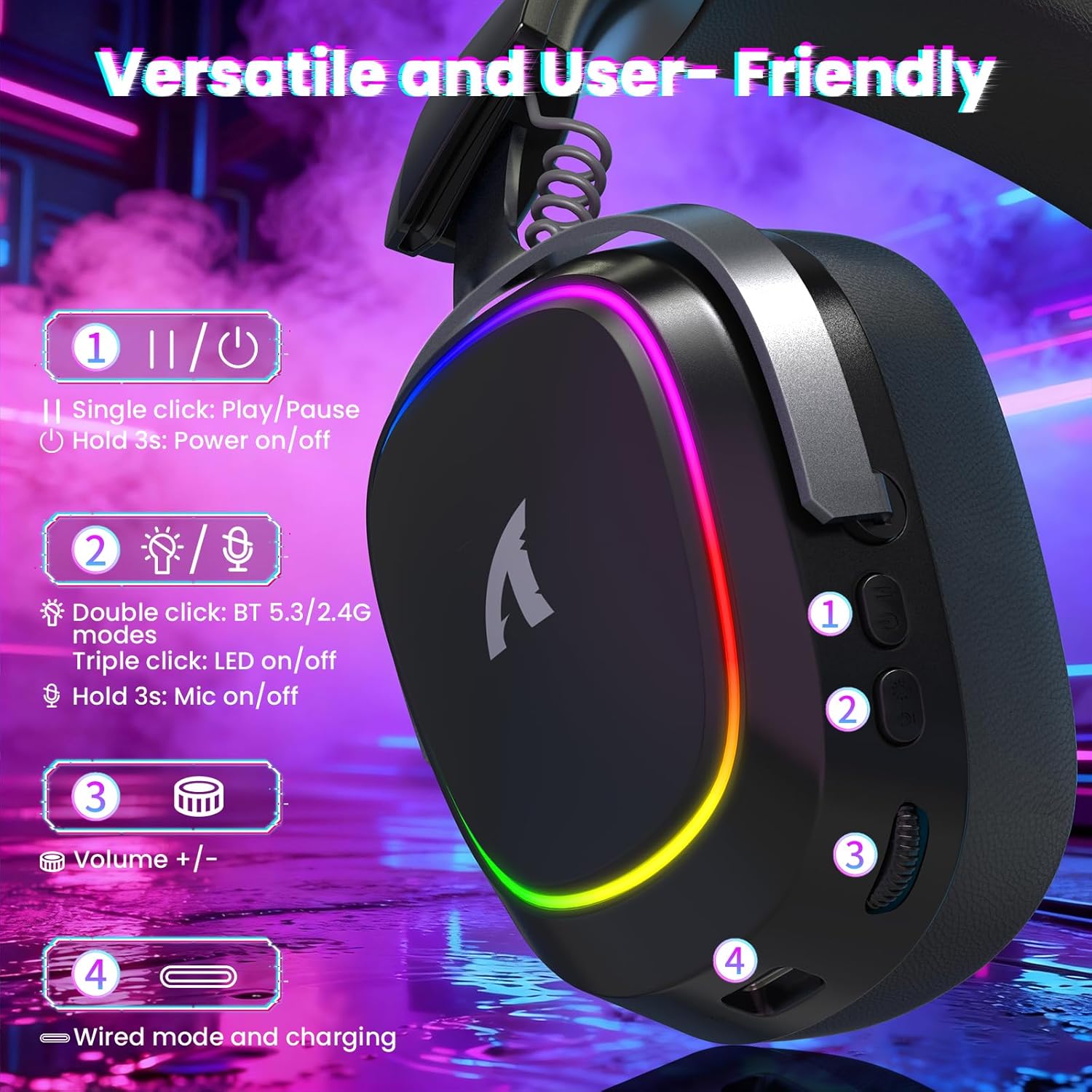
ചിത്രം: വിശദമായത് view of the headset's left earcup with numbered controls and their functions.
- Play/Pause & Power Button: Single click for play/pause. Hold for 3 seconds to power on/off.
- Mode Switch & LED/Mic Control: Double click to switch between Bluetooth (BT 5.3) and 2.4Ghz wireless modes. Triple click to toggle RGB LED on/off. Hold for 3 seconds to toggle microphone on/off.
- വോളിയം വീൽ: Rotate to adjust audio volume up or down.
- Wired Mode & Charging Port: USB-C port for wired connection and charging.
- മൈക്രോഫോൺ ജാക്ക്: Port for connecting the detachable microphone.
4. സജ്ജീകരണവും കണക്ഷനും
The G800 headset offers three connection methods: 2.4Ghz wireless, Bluetooth, and wired.
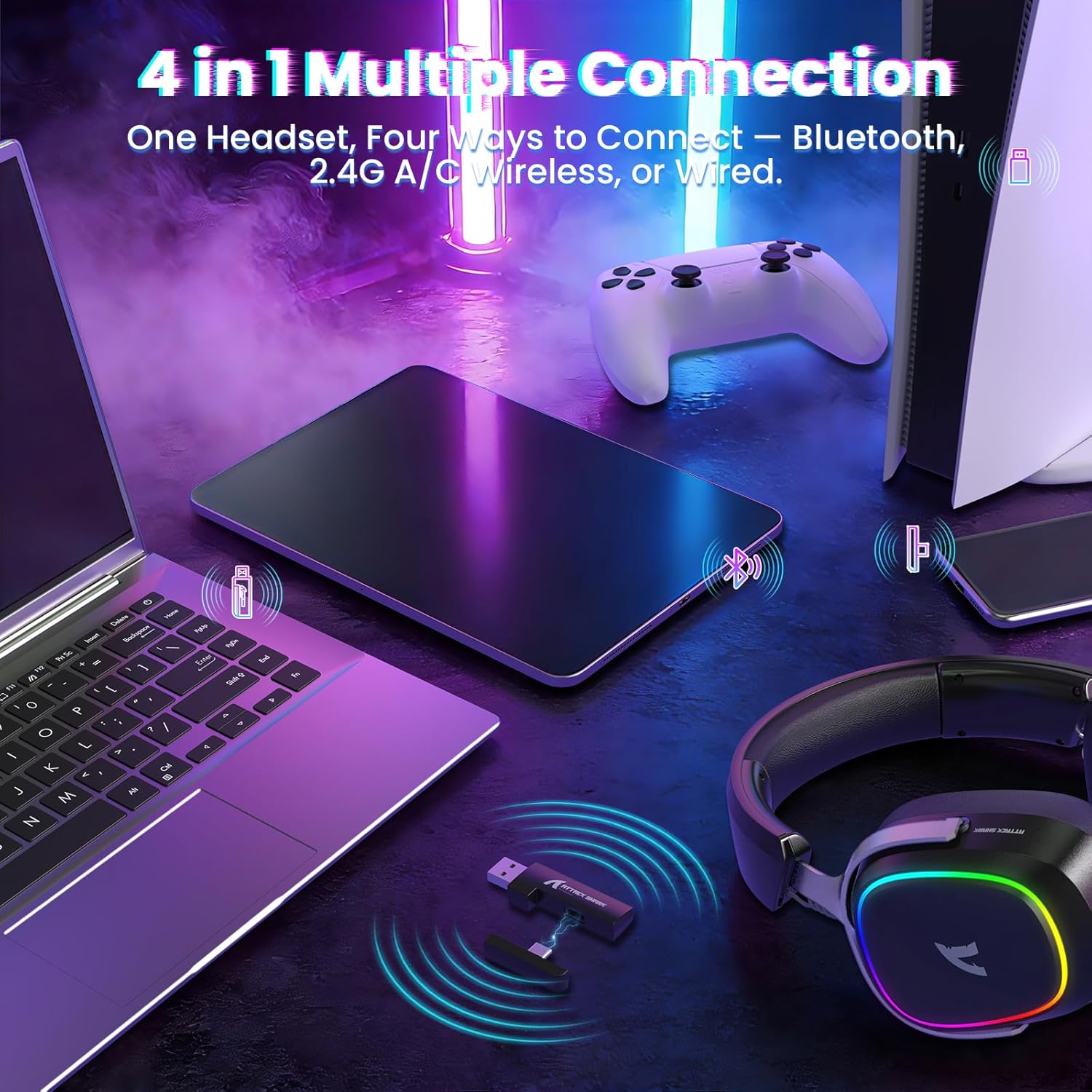
Image: The headset demonstrating its multi-platform connectivity options.
4.1. 2.4Ghz വയർലെസ് കണക്ഷൻ
- Insert the 2.4Ghz USB-A or Type-C dual-head receiver into an available USB port on your PC, laptop, or PS5.
- Power on the G800 headset by holding the Power Button (1) for 3 seconds.
- Double click the Mode Switch (2) until the headset indicates 2.4Ghz mode (usually via an LED indicator or voice prompt).
- The headset should automatically connect to the receiver. If not, ensure the receiver is properly inserted and the headset is in 2.4Ghz mode.
4.2. ബ്ലൂടൂത്ത് കണക്ഷൻ
- Power on the G800 headset by holding the Power Button (1) for 3 seconds.
- Double click the Mode Switch (2) until the headset indicates Bluetooth mode (usually via an LED indicator or voice prompt). The headset will enter pairing mode.
- On your device (e.g., mobile phone, tablet, PC), go to Bluetooth settings and search for available devices.
- Select "ATTACK SHARK G800" from the list to pair.
4.3. വയർഡ് കണക്ഷൻ
- Connect one end of the USB-C audio cable to the Wired Mode & Charging Port (4) on the headset.
- Connect the other end of the USB-C audio cable to your device's compatible port.
- ഹെഡ്സെറ്റ് സ്വയമേവ വയേർഡ് മോഡിലേക്ക് മാറും.
4.4. ഹെഡ്സെറ്റ് ചാർജ് ചെയ്യുന്നു
The G800 headset is equipped with a 1000mAh battery for extended use.

Image: Visual representation of the headset's 1000mAh battery capacity.
- Connect the USB-A to USB-C charging cable to the Wired Mode & Charging Port (4) on the headset and to a USB power source (e.g., computer USB port, wall adapter).
- ഹെഡ്സെറ്റിലെ എൽഇഡി ഇൻഡിക്കേറ്റർ ചാർജിംഗ് സ്റ്റാറ്റസ് കാണിക്കും.
- The headset includes charging over-voltage protection for safety.
- An auto-shutdown function activates after 5 minutes of inactivity to conserve power.
5. പ്രവർത്തന നിർദ്ദേശങ്ങൾ
5.1. ഓഡിയോ അനുഭവം
The G800 features 50mm large-aperture biological diaphragm drivers and virtual 7.1 surround sound for an immersive audio experience.

Image: The 50mm audio drivers, responsible for high-fidelity sound.

Image: Demonstrating the 7.1 surround sound capability for precise audio positioning.
5.2. മൈക്രോഫോൺ ഉപയോഗം
The detachable 360° AI Noise-Canceling Microphone ensures clear voice communication by filtering out background noise.
- Insert the detachable microphone into the dedicated microphone jack on the headset.
- Hold the Mode Switch (2) for 3 seconds to toggle the microphone on or off.
5.3. RGB ലൈറ്റിംഗ് നിയന്ത്രണം
The headset features customizable RGB lighting.
- Triple click the Mode Switch (2) to toggle the RGB LED lighting on or off.
5.4. സോഫ്റ്റ്വെയർ ഇഷ്ടാനുസൃതമാക്കൽ
Enhance your audio experience with the dedicated driver software.
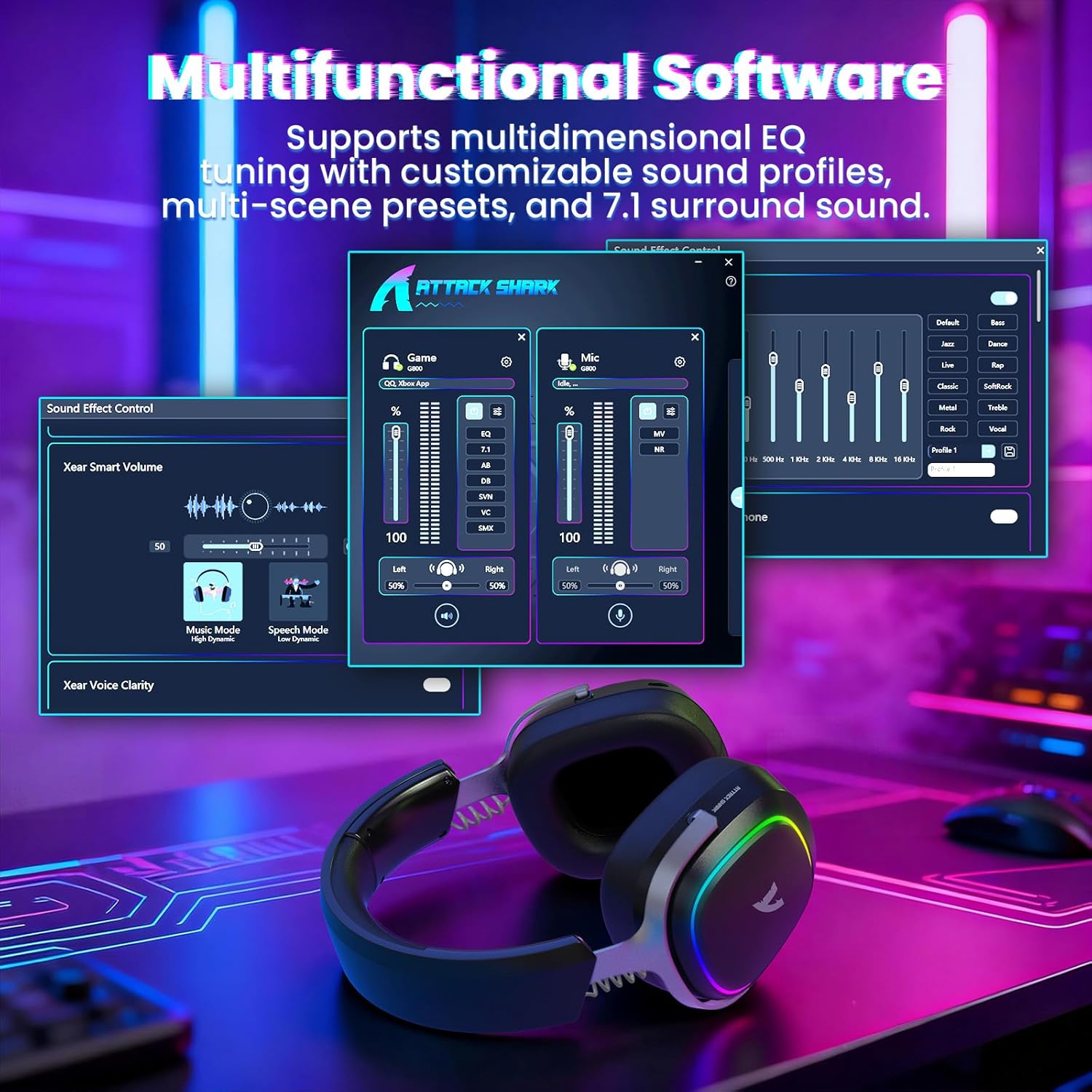
Image: The software interface for customizing audio settings.
- Download the official ATTACK SHARK G800 driver software from the manufacturer's webസൈറ്റ്.
- The software allows you to create custom EQ sound profiles and fine-tune 7.1 surround sound settings to match your preferences and game types.
6. പരിപാലനം
Proper maintenance ensures the longevity and performance of your G800 headset.
- വൃത്തിയാക്കൽ: Use a soft, dry cloth to clean the headset. Avoid liquid cleaners or abrasive materials.
- സംഭരണം: ഹെഡ്സെറ്റ് നേരിട്ട് സൂര്യപ്രകാശം ഏൽക്കാത്തതും ഉയർന്ന താപനില ഏൽക്കാത്തതുമായ ഒരു തണുത്ത വരണ്ട സ്ഥലത്ത് സൂക്ഷിക്കുക.
- ഇയർ പാഡുകൾ: The ear cushions are replaceable. Refer to the manufacturer's webമാറ്റിസ്ഥാപിക്കാനുള്ള ഭാഗങ്ങളും നിർദ്ദേശങ്ങളും ഉള്ള സൈറ്റ്.

Image: Components of the headset, including replaceable ear cushions.
7. പ്രശ്നപരിഹാരം
- ശബ്ദമില്ല:
- Check volume levels on both the headset and your connected device.
- Ensure the correct audio output device is selected in your device's sound settings.
- Verify the headset is properly connected (2.4Ghz receiver, Bluetooth paired, or wired cable).
- ഹെഡ്സെറ്റും നിങ്ങളുടെ ഉപകരണവും റീബൂട്ട് ചെയ്യുക.
- മൈക്രോഫോൺ പ്രവർത്തിക്കുന്നില്ല:
- ഹെഡ്സെറ്റിൽ മൈക്രോഫോൺ സുരക്ഷിതമായി ഘടിപ്പിച്ചിട്ടുണ്ടെന്ന് ഉറപ്പാക്കുക.
- Check if the microphone is muted (hold Mode Switch (2) for 3 seconds to toggle).
- Verify the correct microphone input device is selected in your device's sound settings.
- സാധ്യമെങ്കിൽ മറ്റൊരു ഉപകരണത്തിൽ മൈക്രോഫോൺ പരിശോധിക്കുക.
- കണക്ഷൻ പ്രശ്നങ്ങൾ:
- For 2.4Ghz, ensure the receiver is fully inserted and the headset is in 2.4Ghz mode.
- For Bluetooth, ensure the headset is in pairing mode and within range of your device. Try unpairing and re-pairing.
- For wired, ensure the cable is securely connected to both the headset and your device.
- Avoid sources of interference (e.g., other wireless devices, microwaves).
- RGB ലൈറ്റുകൾ പ്രവർത്തിക്കുന്നില്ല:
- Triple click the Mode Switch (2) to toggle the RGB LED on/off.
- ഹെഡ്സെറ്റിന് ആവശ്യത്തിന് ബാറ്ററി ചാർജ് ഉണ്ടെന്ന് ഉറപ്പാക്കുക.
8 സ്പെസിഫിക്കേഷനുകൾ
| ഫീച്ചർ | സ്പെസിഫിക്കേഷൻ |
|---|---|
| മോഡലിൻ്റെ പേര് | G800 |
| കണക്റ്റിവിറ്റി ടെക്നോളജി | Wired, Bluetooth (BT 5.3), 2.4Ghz Wireless |
| ഓഡിയോ ഡ്രൈവർ തരം | ഡൈനാമിക് ഡ്രൈവർ (50mm) |
| സറൗണ്ട് സൗണ്ട് | Virtual 7.1 Spatial Audio |
| മൈക്രോഫോൺ | Detachable 360° AI Noise-Canceling |
| Wireless Latency (2.4Ghz) | 20ms (Lightseed Wireless Technology) |
| Wireless Range (2.4Ghz) | 10 മീറ്റർ / 32.8 അടി വരെ |
| ബ്ലൂടൂത്ത് ശ്രേണി | 30 മീറ്റർ / 98.4 അടി വരെ |
| ബാറ്ററി ശേഷി | 1000mAh |
| ചെവി പ്ലേസ്മെൻ്റ് | ചെവിക്ക് മുകളിൽ |
| മെറ്റീരിയൽ | Aluminum Alloy, Protein Leather, Memory Foam |
| ഭാരം | 1.1 പൗണ്ട് (ഏകദേശം) |
| അനുയോജ്യമായ ഉപകരണങ്ങൾ | PC, Laptops, PS5, Mobile Devices |
9 സുരക്ഷാ വിവരങ്ങൾ
- കേൾവിക്ക് കേടുപാടുകൾ സംഭവിക്കാതിരിക്കാൻ ഉയർന്ന ശബ്ദത്തിൽ ദീർഘനേരം കേൾക്കുന്നത് ഒഴിവാക്കുക.
- ഹെഡ്സെറ്റ് തീവ്രമായ താപനിലയിലോ, ഈർപ്പത്തിലോ, ദ്രാവകങ്ങളിലോ ഏൽക്കരുത്.
- കുട്ടികൾക്ക് ലഭ്യമാകാതെ സൂക്ഷിക്കുക.
- ഹെഡ്സെറ്റ് ഡിസ്അസംബ്ലിംഗ് ചെയ്യാനോ പരിഷ്ക്കരിക്കാനോ ശ്രമിക്കരുത്. ഇത് വാറന്റി അസാധുവാക്കും.
- പ്രാദേശിക ചട്ടങ്ങൾക്കനുസൃതമായി ഉൽപ്പന്നം ഉത്തരവാദിത്തത്തോടെ വിനിയോഗിക്കുക.
10. ഔദ്യോഗിക ഉൽപ്പന്ന വീഡിയോ
വീഡിയോ: ഒരു ഔദ്യോഗിക ഉൽപ്പന്ന വീഡിയോ പ്രദർശനംasing the ATTACK SHARK G800 Wireless Tri Mode RGB Gaming Headset's features and design. This video is provided by the seller, UrWorthLtd US.
11. വാറൻ്റിയും പിന്തുണയും
For warranty information, technical support, or customer service, please refer to the documentation included with your purchase or visit the official ATTACK SHARK webസൈറ്റ്. വാറന്റി ക്ലെയിമുകൾക്കായി നിങ്ങളുടെ വാങ്ങലിന്റെ തെളിവ് സൂക്ഷിക്കുക.