
1. ആമുഖം
Thank you for choosing the UXD A5 Android Tablet. This manual provides essential information for setting up, operating, and maintaining your new device. Please read it thoroughly to ensure optimal performance and longevity of your tablet.
The UXD A5 is a versatile 10-inch Android 15 tablet featuring an Octa-Core CPU, 12GB RAM, and 512GB internal storage, designed for productivity and entertainment. It supports WiFi 6 and 4G LTE connectivity.
2. പാക്കേജ് ഉള്ളടക്കം
നിങ്ങളുടെ പാക്കേജിൽ എല്ലാ ഇനങ്ങളും ഉണ്ടെന്ന് ദയവായി പരിശോധിക്കുക:
- UXD A5 Android Tablet
- സ്റ്റൈലസ്
- വേർപെടുത്താവുന്ന കീബോർഡ്
- പ്രിസിഷൻ മൗസ്
- സ്ക്രീൻ പ്രൊട്ടക്ടർ (മുമ്പ് പ്രയോഗിച്ചതോ വേറിട്ടതോ)
- OTG അഡാപ്റ്റർ
- മടക്കാവുന്ന കേസ്
- ചാർജർ
- USB കേബിൾ
3. ഉൽപ്പന്നം കഴിഞ്ഞുview
The UXD A5 tablet features a 10-inch HD IPS display. Key components include:
- മുൻ ക്യാമറ: Typically located at the top center when held vertically, used for video calls and selfies. (5MP)
- പിൻ ക്യാമറ: Located on the back of the tablet, used for high-resolution photography. (15MP)
- പവർ ബട്ടൺ: Usually on the side, used to turn the tablet on/off or put it to sleep.
- വോളിയം ബട്ടണുകൾ: Adjacent to the power button, used to adjust audio levels.
- യുഎസ്ബി-സി പോർട്ട്: ചാർജിംഗിനും ഡാറ്റ കൈമാറ്റത്തിനും.
- സിം/മൈക്രോഎസ്ഡി കാർഡ് സ്ലോട്ട്: For inserting a 4G SIM card and expanding storage with a microSD card (up to 1TB).
- സ്പീക്കറുകൾ: ഓഡിയോ ഔട്ട്പുട്ടിനായി.
- മൈക്രോഫോൺ: വോയിസ് ഇൻപുട്ടിനായി.
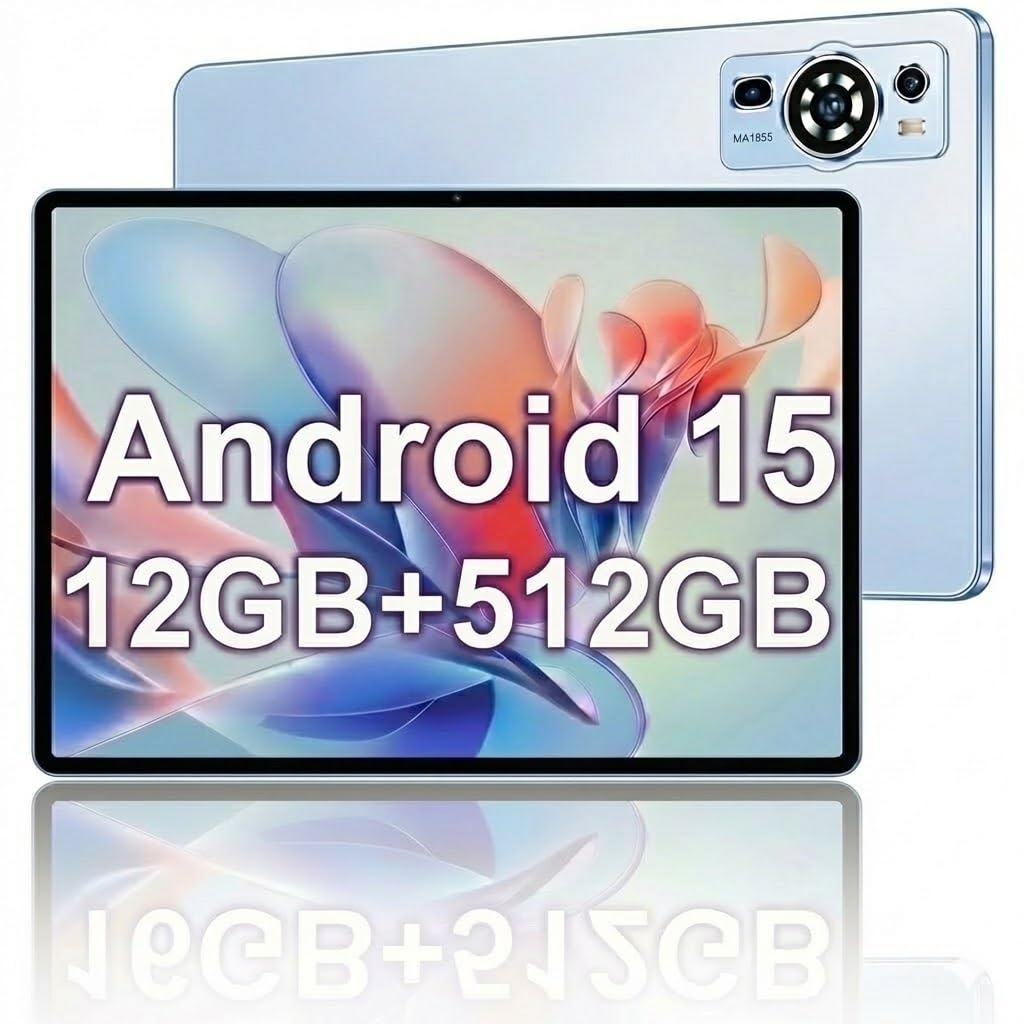
Image: The UXD A5 Android Tablet shown with its included accessories, such as the detachable keyboard, mouse, and stylus, highlighting its comprehensive package.
4. സജ്ജീകരണം
4.1 പ്രാരംഭ ചാർജിംഗ്
Before first use, fully charge the tablet using the provided charger and USB cable. Connect the USB cable to the tablet's USB-C port and the charger to a power outlet. The battery indicator on the screen will show charging status.
4.2 പവർ ഓൺ/ഓഫ്
- പവർ ഓണാക്കാൻ: Press and hold the Power button until the UXD logo appears.
- പവർ ഓഫ് ചെയ്യാൻ: പവർ ഓപ്ഷനുകൾ ദൃശ്യമാകുന്നതുവരെ പവർ ബട്ടൺ അമർത്തിപ്പിടിക്കുക, തുടർന്ന് 'പവർ ഓഫ്' തിരഞ്ഞെടുക്കുക.
- ഉറങ്ങാൻ/ഉണരാൻ: പവർ ബട്ടൺ ഹ്രസ്വമായി അമർത്തുക.
4.3 Wi-Fi-ലേക്ക് ബന്ധിപ്പിക്കുന്നു
- പോകുക ക്രമീകരണങ്ങൾ > നെറ്റ്വർക്കും ഇൻ്റർനെറ്റും > വൈഫൈ.
- വൈഫൈ ടോഗിൾ ചെയ്യുക On.
- ലിസ്റ്റിൽ നിന്ന് നിങ്ങൾക്ക് ആവശ്യമുള്ള വൈഫൈ നെറ്റ്വർക്ക് തിരഞ്ഞെടുക്കുക.
- ആവശ്യപ്പെടുകയാണെങ്കിൽ പാസ്വേഡ് നൽകുക, തുടർന്ന് ടാപ്പുചെയ്യുക ബന്ധിപ്പിക്കുക.
4.4 Inserting SIM Card (4G LTE)
If your model supports 4G LTE, locate the SIM card slot on the side of the tablet. Use the provided SIM ejector tool (if applicable) to open the tray. Insert a nano-SIM card into the designated slot with the gold contacts facing down, then reinsert the tray. Ensure the tablet is powered off before inserting or removing a SIM card.
4.5 മൈക്രോ എസ്ഡി കാർഡ് ഉപയോഗിച്ച് സംഭരണം വികസിപ്പിക്കൽ
The tablet supports microSD cards up to 1TB. Locate the SIM/MicroSD card slot. Insert the microSD card into the appropriate slot with the gold contacts facing down. The tablet will detect the card and prompt you for formatting options if necessary.
4.6 കണക്റ്റിംഗ് ആക്സസറികൾ
- കീബോർഡ്/മൗസ്: These typically connect via Bluetooth. Go to ക്രമീകരണങ്ങൾ > ബന്ധിപ്പിച്ച ഉപകരണങ്ങൾ > ബ്ലൂടൂത്ത്. Turn Bluetooth on, put the accessory in pairing mode, and select it from the list of available devices.
- സ്റ്റൈലസ്: The stylus is generally passive or connects automatically via Bluetooth. Refer to the stylus's specific instructions for pairing if required.
- OTG Adapter: Connect the OTG adapter to the tablet's USB-C port to connect USB devices like flash drives.
5. പ്രവർത്തന നിർദ്ദേശങ്ങൾ
5.1 അടിസ്ഥാന നാവിഗേഷൻ
The UXD A5 tablet uses a capacitive touchscreen. Use gestures such as tap, swipe, pinch-to-zoom, and long-press to navigate the interface, open apps, and interact with content.
5.2 ആൻഡ്രോയിഡ് 15 ഓപ്പറേറ്റിംഗ് സിസ്റ്റം
Your tablet runs on Android 15, offering enhanced privacy features, improved notifications, and a refined user interface. Explore the ക്രമീകരണങ്ങൾ menu to customize your tablet's behavior, appearance, and security options.
5.3 സ്റ്റോറേജ് മാനേജ്മെൻ്റ്
The tablet comes with 512GB of internal storage. To manage your storage, go to ക്രമീകരണങ്ങൾ > സംഭരണം. ഇവിടെ നിങ്ങൾക്ക് കഴിയും view used space, free up space, and manage files on your internal storage and microSD card.
5.4 ക്യാമറ ഉപയോഗം
Open the Camera app to take photos and videos. The tablet features a 5MP front camera and a 15MP rear camera. Tap the screen to focus, and use the on-screen shutter button to capture images. Switch between front and rear cameras using the icon on the screen.
5.5 ബാറ്ററി ഒപ്റ്റിമൈസേഷൻ
6000mAh ബാറ്ററി ദീർഘനേരം ഉപയോഗിക്കാനുള്ള അവസരം നൽകുന്നു. ബാറ്ററി ആയുസ്സ് വർദ്ധിപ്പിക്കുന്നതിന്:
- സ്ക്രീൻ തെളിച്ചം ക്രമീകരിക്കുക.
- ഉപയോഗത്തിലില്ലാത്തപ്പോൾ Wi-Fi, Bluetooth, GPS എന്നിവ ഓഫാക്കുക.
- പശ്ചാത്തലത്തിൽ പ്രവർത്തിക്കുന്ന ഉപയോഗിക്കാത്ത ആപ്ലിക്കേഷനുകൾ അടയ്ക്കുക.
- ബാറ്ററി സേവർ മോഡ് പ്രവർത്തനക്ഷമമാക്കുക ക്രമീകരണങ്ങൾ > ബാറ്ററി.
6. പരിപാലനം
6.1 ടാബ്ലെറ്റ് വൃത്തിയാക്കൽ
ടാബ്ലെറ്റിന്റെ സ്ക്രീനും ബോഡിയും വൃത്തിയാക്കാൻ മൃദുവായ, ലിന്റ് രഹിത തുണി ഉപയോഗിക്കുക. കഠിനമായ പാടുകൾക്ക്, ചെറുതായി ഡി.ampതുണിയിൽ വെള്ളം അല്ലെങ്കിൽ സ്ക്രീൻ-ക്ലീനിംഗ് ലായനി ഉപയോഗിക്കുക. കഠിനമായ രാസവസ്തുക്കളോ ഉരച്ചിലുകളോ ഉള്ള വസ്തുക്കൾ ഉപയോഗിക്കുന്നത് ഒഴിവാക്കുക.
6.2 സോഫ്റ്റ്വെയർ അപ്ഡേറ്റുകൾ
നിങ്ങളുടെ ടാബ്ലെറ്റിൽ ഏറ്റവും പുതിയ സവിശേഷതകളും സുരക്ഷാ പാച്ചുകളും ഉണ്ടെന്ന് ഉറപ്പാക്കാൻ സോഫ്റ്റ്വെയർ അപ്ഡേറ്റുകൾക്കായി പതിവായി പരിശോധിക്കുക. പോകുക ക്രമീകരണങ്ങൾ > സിസ്റ്റം > സിസ്റ്റം അപ്ഡേറ്റ് ലഭ്യമായ അപ്ഡേറ്റുകൾ പരിശോധിച്ച് ഇൻസ്റ്റാൾ ചെയ്യാൻ.
6.3 ബാറ്ററി കെയർ
To prolong battery lifespan, avoid extreme temperatures and do not let the battery completely drain frequently. It is recommended to keep the battery charge between 20% and 80% for optimal long-term health.
7. പ്രശ്നപരിഹാരം
- ടാബ്ലെറ്റ് ഓണാക്കുന്നില്ല: ടാബ്ലെറ്റ് ചാർജ് ചെയ്തിട്ടുണ്ടെന്ന് ഉറപ്പാക്കുക. ചാർജർ കണക്റ്റ് ചെയ്ത് കുറച്ച് മിനിറ്റ് കാത്തിരുന്ന് വീണ്ടും പവർ ഓൺ ചെയ്യാൻ ശ്രമിക്കുക.
- വൈഫൈ കണക്റ്റിവിറ്റി പ്രശ്നങ്ങൾ: Restart your tablet and your Wi-Fi router. Ensure you are within range of the Wi-Fi signal and have entered the correct password.
- മന്ദഗതിയിലുള്ള പ്രകടനം: Close unused apps, clear cache, or restart the tablet. Consider uninstalling rarely used applications to free up resources.
- ടച്ച്സ്ക്രീൻ പ്രതികരിക്കുന്നില്ല: ടാബ്ലെറ്റ് പുനരാരംഭിക്കുക. പ്രശ്നം നിലനിൽക്കുകയാണെങ്കിൽ, സ്ക്രീൻ വൃത്തിയുള്ളതും അവശിഷ്ടങ്ങളില്ലാത്തതുമാണെന്ന് ഉറപ്പാക്കുക.
- Accessories not connecting: Ensure Bluetooth is enabled on the tablet and the accessory is in pairing mode. Check the accessory's battery level.
8 സ്പെസിഫിക്കേഷനുകൾ
| ബ്രാൻഡ് | UXD |
| മോഡലിൻ്റെ പേര് | A5 |
| ഓപ്പറേറ്റിംഗ് സിസ്റ്റം | ആൻഡ്രോയിഡ് 15 |
| സ്ക്രീൻ വലിപ്പം | 10.1 ഇഞ്ച് |
| ഡിസ്പ്ലേ റെസല്യൂഷൻ | 1280x800 Pixels (HD IPS) |
| പ്രോസസ്സർ | ഒക്ട-കോർ സിപിയു |
| റാം മെമ്മറി | 12 ജിബി |
| ആന്തരിക സംഭരണം | 512 ജിബി |
| വികസിപ്പിക്കാവുന്ന സംഭരണം | 1 TB വരെ (മൈക്രോഎസ്ഡി) |
| വയർലെസ് ടെക്നോളജി | വൈ-ഫൈ 6, ബ്ലൂടൂത്ത് 5.0 |
| സെല്ലുലാർ ടെക്നോളജി | 4G LTE |
| മുൻ ക്യാമറ | 5 എം.പി |
| പിൻ ക്യാമറ | 15 എം.പി |
| ബാറ്ററി ശേഷി | 6000 mAh (ലിഥിയം പോളിമർ) |
| ബാറ്ററി ശരാശരി ആയുസ്സ് | Up to 72 Hours (standby) |
| അളവുകൾ (L x W x Th) | 9.4"L x 6.3"W x 2.7"Th |
| നിറം | നീല |
9. വാറൻ്റിയും പിന്തുണയും
The UXD A5 Android Tablet comes with a 1-year limited warranty. For warranty claims or technical support, please refer to the contact information provided with your purchase or visit the official UXD support webസൈറ്റ്.
വാറന്റി ആവശ്യങ്ങൾക്കായി നിങ്ങളുടെ വാങ്ങിയതിന്റെ തെളിവ് സൂക്ഷിക്കുക.