
1. ഉൽപ്പന്നം കഴിഞ്ഞുview
The Kensington VeriMark Desktop 2.0 USB Fingerprint Reader (Model K64741WW) provides secure, password-free authentication for Windows PCs. This device is designed for enhanced security and convenience, supporting Windows Hello with Enhanced Sign-in Security (ESS) and FIDO U2F/FIDO2 standards. It offers a reliable wired connection with both USB-C and USB-A compatibility, making it suitable for various desktop environments.

Figure 1: Kensington VeriMark Desktop 2.0 Fingerprint Key. This image shows the compact design of the fingerprint reader with its attached USB cable, highlighting its desktop security purpose.
2 പ്രധാന സവിശേഷതകൾ
- Advanced Security Certification: Certified to Microsoft’s highest fingerprint security standards (ESS & SDCP) for robust, hardware-isolated authentication. Supports next-generation Windows features, including Copilot Recall and Windows Hello with ESS.
- Windows Hello Integration: Enables fast, password-free fingerprint login to Windows and Microsoft 365 accounts.
- On-Device Biometric Storage: Securely stores biometric data within the device, supporting privacy regulations such as GDPR, BIPA, and CCPA through on-device biometric processing. TAA compliant.
- യൂണിവേഴ്സൽ കണക്റ്റിവിറ്റി: Features a reliable wired USB connection with both USB-C and USB-A compatibility for desktop PCs.
- 360° Fingerprint Recognition: Provides consistent and reliable fingerprint recognition from any angle.

Figure 2: Device built for next-gen Windows security. This image illustrates the fingerprint reader's compatibility with Windows Hello and its readiness for advanced Windows features like Copilot Recall.

Figure 3: Certified enterprise security features. This image highlights the device's compliance with Secure Device Connection Protocol (SDCP) and Windows Hello Enhanced Sign-in Security (ESS), shown alongside a keyboard and mouse.

Figure 4: Match-in-Sensor Technology. This image details the on-device biometric data security and the 360° fingerprint sensor, including False Rejection Rate (FRR) and False Acceptance Rate (FAR) metrics.
3. സജ്ജീകരണ നിർദ്ദേശങ്ങൾ
Follow these steps to set up your Kensington VeriMark Desktop 2.0 USB Fingerprint Reader:
- ഉപകരണം ബന്ധിപ്പിക്കുക: Plug the USB cable of the VeriMark Desktop 2.0 into an available USB port on your computer. The device supports both USB-A and USB-C connections using the provided adapter. Ensure the connection is secure.
- ഡ്രൈവർ ഇൻസ്റ്റാളേഷൻ: Your Windows operating system (Windows 10 or 11) should automatically detect the device and install the necessary drivers. No additional software installation is typically required.
- വിൻഡോസ് ഹലോ കോൺഫിഗർ ചെയ്യുക:
- പോകുക ക്രമീകരണങ്ങൾ > അക്കൗണ്ടുകൾ > സൈൻ ഇൻ ഓപ്ഷനുകൾ.
- Under "Ways to sign in," locate ഫിംഗർപ്രിൻ്റ് തിരിച്ചറിയൽ (വിൻഡോസ് ഹലോ).
- ക്ലിക്ക് ചെയ്യുക സജ്ജമാക്കുക and follow the on-screen prompts to register your fingerprints. You will be asked to scan your finger multiple times from different angles to ensure accurate recognition.
- It is recommended to register multiple fingers for convenience and redundancy.
- പ്ലേസ്മെൻ്റ്: Position the fingerprint reader on your desk in a convenient location that allows for easy and consistent access. The rubberized underside helps keep it stationary.

Figure 5: Desktop-ready wired design. This image shows the 3.9 ft (1.2 m) cable and the included USB-A to USB-C adapter, illustrating the flexible connectivity options.
4. പ്രവർത്തന നിർദ്ദേശങ്ങൾ
Once configured, the VeriMark Desktop 2.0 provides seamless authentication:
- Windows Login: At the Windows login screen, simply place your registered finger on the fingerprint reader. The device will authenticate your identity, and you will be logged into your account.
- Microsoft 365 and Other Services: For services that support Windows Hello or FIDO U2F/FIDO2, you can use your fingerprint for authentication instead of typing passwords. Follow the prompts provided by the specific application or service.
- Password Managers: Many modern password managers integrate with Windows Hello. When prompted for your master password, you may have the option to use your fingerprint for quick access.
- ഒപ്റ്റിമൽ ഉപയോഗം: For best results, ensure your finger is clean and dry. Place your entire fingerprint pad firmly on the sensor. The 360° recognition allows for flexibility in finger placement, but a consistent approach improves reliability.
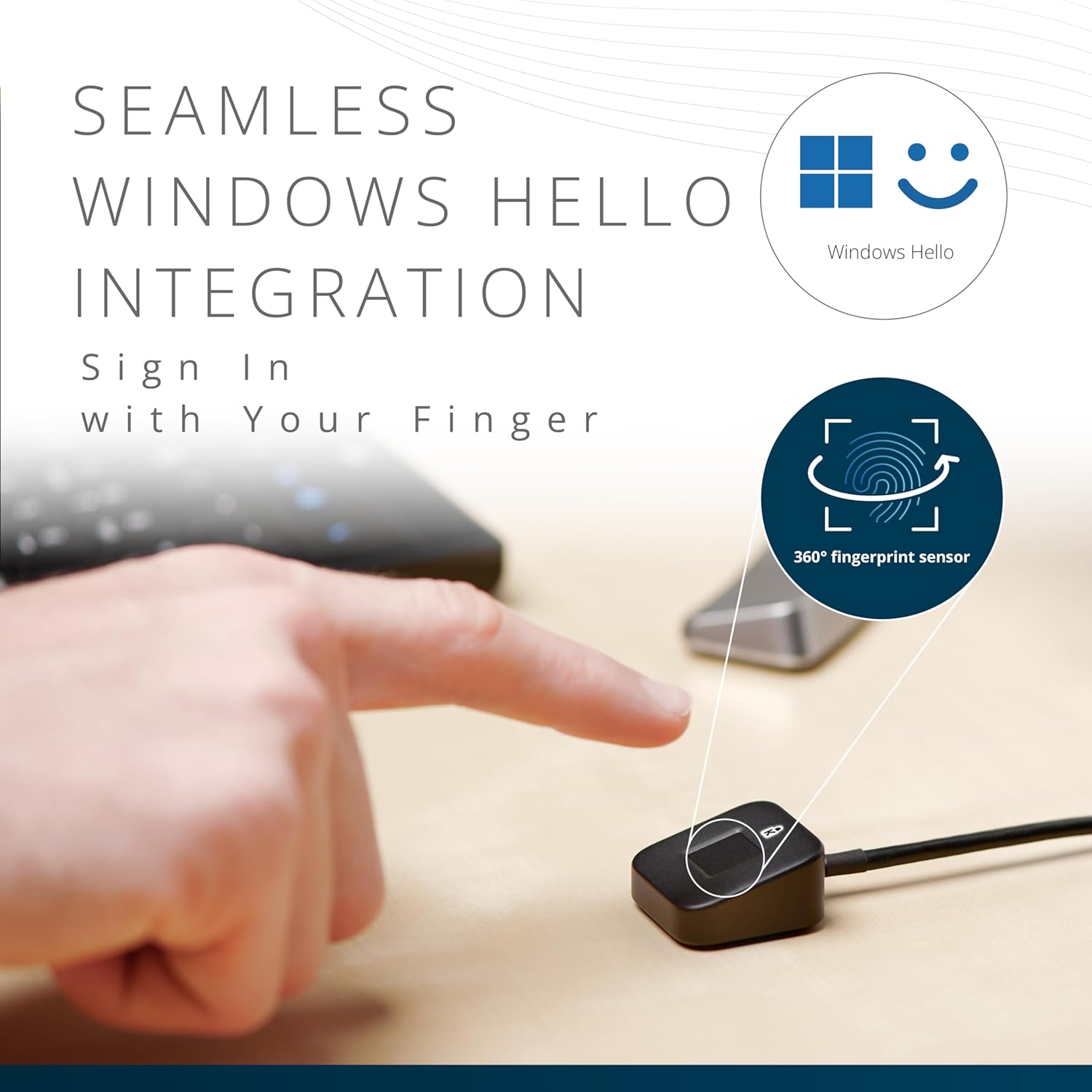
Figure 6: Seamless Windows Hello integration. This image shows a finger being placed on the sensor, demonstrating the ease of signing in with a fingerprint and highlighting the 360° fingerprint sensor capability.
5. പരിപാലനം
To ensure optimal performance and longevity of your fingerprint reader:
- വൃത്തിയാക്കൽ: Gently wipe the sensor surface with a soft, dry, lint-free cloth. Avoid using abrasive cleaners, solvents, or excessive moisture, as these can damage the sensor.
- കൈകാര്യം ചെയ്യൽ: ഉപകരണം താഴെയിടുകയോ ശക്തമായ ആഘാതങ്ങൾക്ക് വിധേയമാക്കുകയോ ചെയ്യരുത്. യൂണിറ്റ് ഡിസ്അസംബ്ലിംഗ് ചെയ്യാൻ ശ്രമിക്കരുത്.
- പരിസ്ഥിതി: ഉപകരണത്തെ തീവ്രമായ താപനില, നേരിട്ടുള്ള സൂര്യപ്രകാശം, ഉയർന്ന ഈർപ്പം എന്നിവയിൽ നിന്ന് അകറ്റി നിർത്തുക.
6. പ്രശ്നപരിഹാരം
| പ്രശ്നം | സാധ്യമായ പരിഹാരം |
|---|---|
| വിരലടയാളം തിരിച്ചറിഞ്ഞില്ല. |
|
| Device not detected by Windows. |
|
| Windows Hello setup fails. |
|
7 സാങ്കേതിക സവിശേഷതകൾ
| ഫീച്ചർ | വിശദാംശങ്ങൾ |
|---|---|
| മോഡൽ നമ്പർ | K64741WW |
| ബ്രാൻഡ് | കെൻസിംഗ്ടൺ |
| കണക്റ്റിവിറ്റി | Wired USB (USB-A and USB-C compatible) |
| അളവുകൾ (L x W x H) | 1.5 x 2.9 x 2.9 സെ.മീ |
| ഭാരം | 60 ഗ്രാം |
| സുരക്ഷാ മാനദണ്ഡങ്ങൾ | Microsoft ESS & SDCP, FIDO U2F, FIDO2, TAA Compliant |
| ഓപ്പറേറ്റിംഗ് സിസ്റ്റം അനുയോജ്യത | വിൻഡോസ് 10, വിൻഡോസ് 11 |
8. വാറൻ്റിയും പിന്തുണയും
വാറന്റി വിവരങ്ങൾക്കും സാങ്കേതിക പിന്തുണയ്ക്കും, ദയവായി ഔദ്യോഗിക കെൻസിംഗ്ടൺ കാണുക. webസൈറ്റിൽ പ്രവേശിക്കുകയോ അവരുടെ ഉപഭോക്തൃ സേവനവുമായി ബന്ധപ്പെടുകയോ ചെയ്യുക. പ്രത്യേക വാറന്റി നിബന്ധനകൾ പ്രദേശത്തെയും റീട്ടെയിലറെയും ആശ്രയിച്ച് വ്യത്യാസപ്പെടാം.
ഓൺലൈൻ പിന്തുണ: www.kensington.com/support/ എന്ന വിലാസത്തിൽ ബന്ധപ്പെടുക.