1. ആമുഖം
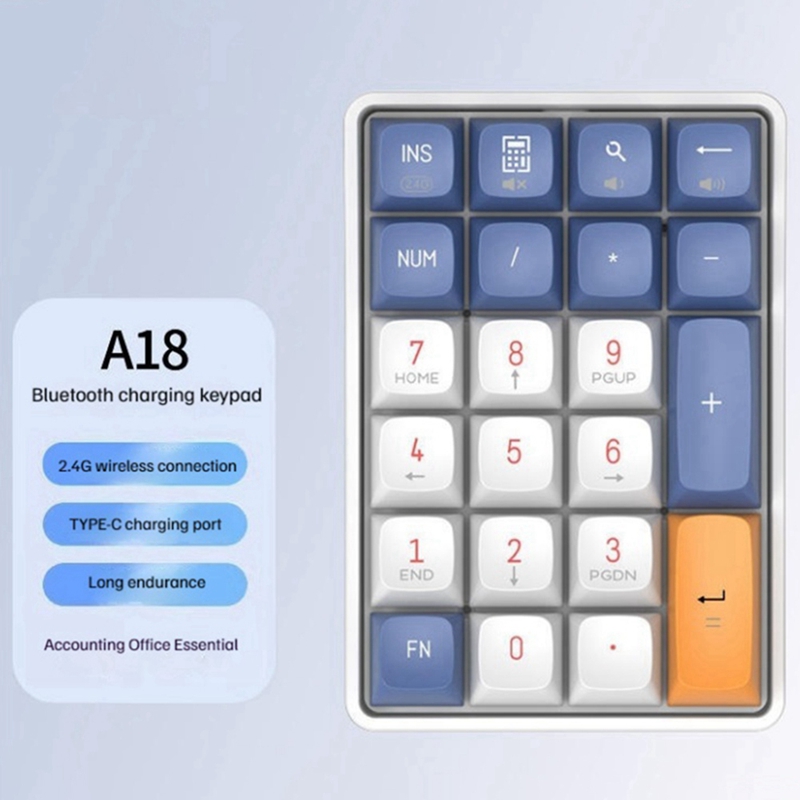
This manual provides detailed instructions for the Aigo A18 Wireless Mechanical Numeric Keypad. Designed for efficiency and portability, the A18 offers dual-mode wireless connectivity (2.4G and Bluetooth) and a responsive mechanical typing experience, making it an ideal companion for laptops and computers, especially for tasks requiring frequent numerical input.

2. പാക്കേജ് ഉള്ളടക്കം
പാക്കേജ് തുറക്കുമ്പോൾ, താഴെ പറയുന്ന എല്ലാ ഇനങ്ങളും ഉണ്ടെന്ന് ഉറപ്പാക്കുക:
- 1 x Aigo A18 Numeric Keypad
- 1 x USB Type-C Data Cable (approx. 150cm)
- 1 x ഉപയോക്തൃ നിർദ്ദേശ മാനുവൽ
- 1 set of accessories (e.g., keycap puller, switch puller)
3 സ്പെസിഫിക്കേഷനുകൾ
| ഫീച്ചർ | വിശദാംശങ്ങൾ |
|---|---|
| മോഡൽ നമ്പർ | A18 Mechanical Numeric Keypad |
| ഇൻ്റർഫേസ് തരം | യുഎസ്ബി ടൈപ്പ്-സി |
| കീകളുടെ എണ്ണം | 22 കീകൾ |
| കണക്റ്റിവിറ്റി | Wired, 2.4G Wireless, Bluetooth Dual-mode |
| Keyboard Technology | Mechanical, Full-key Hot-swappable |
| Mechanical Switch Lifespan | 50 ദശലക്ഷം കീസ്ട്രോക്കുകൾ |
| കീകാപ്പുകൾ | PBT two-color keycaps |
| ബാറ്ററി | 600mAh ലിഥിയം ബാറ്ററി |
| ചാർജിംഗ് സമയം | ഏകദേശം 2 മണിക്കൂർ |
| Estimated Use Time | ഏകദേശം. 45 ദിവസം |
| ഉൽപ്പന്ന ഭാരം | ഏകദേശം 213 ഗ്രാം |
| കേബിൾ നീളം | ഏകദേശം 150 സെ.മീ |
| ഉത്ഭവം | മെയിൻലാൻഡ് ചൈന |

4. സജ്ജീകരണം
4.1. കീപാഡ് ചാർജ് ചെയ്യുന്നു
Before initial use, it is recommended to fully charge the keypad. Connect the provided USB Type-C data cable to the keypad's Type-C port and the other end to a USB power source (e.g., computer USB port, wall adapter). The 600mAh lithium battery takes approximately 2 hours to fully charge and provides an estimated 45 days of use.

4.2. 2.4G വയർലെസ് വഴി ബന്ധിപ്പിക്കുന്നു
- Locate the 2.4G USB receiver (dongle), typically found in the keypad's packaging or a dedicated slot on the keypad itself.
- നിങ്ങളുടെ കമ്പ്യൂട്ടറിൽ ലഭ്യമായ ഒരു USB പോർട്ടിലേക്ക് 2.4G USB റിസീവർ പ്ലഗ് ചെയ്യുക.
- Turn on the Aigo A18 keypad using the power switch (usually located on the side or back).
- അമർത്തുക INS (2.4G) key or a combination like FN + INS to ensure the keypad is in 2.4G wireless mode. The keypad should automatically connect to your computer.
4.3. ബ്ലൂടൂത്ത് വഴി ബന്ധിപ്പിക്കുന്നു
- Turn on the Aigo A18 keypad using the power switch.
- Activate Bluetooth pairing mode on the keypad. This typically involves pressing a combination like FN + (a specific key, e.g., 1, 2, or 3 for different Bluetooth profiles) or a dedicated Bluetooth button. Refer to the specific pairing instructions in the included manual for your model if not explicitly stated here.
- നിങ്ങളുടെ കമ്പ്യൂട്ടറിലോ ഉപകരണത്തിലോ, Bluetooth ക്രമീകരണങ്ങൾ തുറന്ന് പുതിയ ഉപകരണങ്ങൾക്കായി തിരയുക.
- Select "Aigo A18" (or similar name) from the list of available devices to pair.
- ജോടിയാക്കൽ പ്രക്രിയ പൂർത്തിയാക്കാൻ ഏതെങ്കിലും ഓൺ-സ്ക്രീൻ നിർദ്ദേശങ്ങൾ പാലിക്കുക.
5. കീപാഡ് പ്രവർത്തിപ്പിക്കൽ
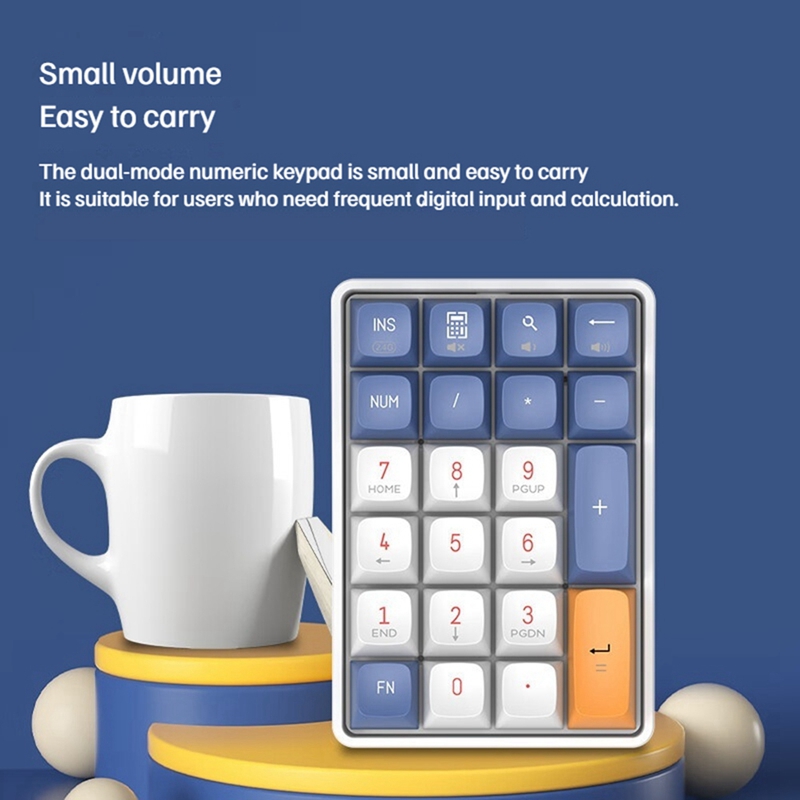
The Aigo A18 keypad provides a full set of numeric and function keys to enhance your data entry and calculation tasks.
5.1. Basic Numeric Input
Use the number keys (0-9) and arithmetic operators (+, -, *, /) for standard numerical input and calculations. Ensure the NUM lock is active if you intend to use the numeric pad for numbers rather than navigation.
5.2. പ്രത്യേക ഫംഗ്ഷൻ കീകൾ
- INS (2.4G): This key is used to switch between 2.4G wireless mode and other available connection modes (e.g., Bluetooth or wired, if applicable).
- NUM: Toggles the numeric lock function. When active, the number keys function as digits; when inactive, they may activate secondary functions like navigation.
- FN: The Function key. Press and hold FN and then press another key to activate its secondary function. For example, keys with arrows or text like HOME/END printed on them will perform those actions when FN നടക്കുന്നു.
- വീട്, അവസാനിക്കുന്നു, പി.ജി.യു.പി, പിജിഡിഎൻ: These navigation keys are typically accessed via the FN key or when NUM lock is off, depending on the specific key mapping.
- Arrow Keys: Integrated into some numeric keys (e.g., 4, 8, 6, 2), these are usually activated by holding the FN key or when NUM ലോക്ക് ഓഫ് ആണ്.
The Aigo A18 features "Full Key No Impact" (N-key rollover), ensuring that all key presses are registered accurately, even during rapid input.
6. പരിപാലനം
6.1. കീപാഡ് വൃത്തിയാക്കൽ
To keep your keypad in optimal condition, regularly clean it with a soft, dry cloth. For more stubborn dirt, a slightly damp cloth with a mild cleaning solution can be used. Ensure no liquid enters the key switches or internal components. Avoid using harsh chemicals or abrasive materials.
6.2. ഹോട്ട്-സ്വാപ്പബിൾ സ്വിച്ചുകൾ
The Aigo A18 features a hot-swappable design, allowing you to easily replace individual mechanical switches without soldering. This design supports both 3-pin and 5-pin mechanical switches, offering flexibility for customization and repair.
- കീക്യാപ്പ് നീക്കം ചെയ്യുക: Gently pull the keycap of the desired switch using a keycap puller.
- സ്വിച്ച് നീക്കം ചെയ്യുക: Use a switch puller to carefully grip the top and bottom clips of the switch and pull it straight out from the PCB.
- പുതിയ സ്വിച്ച് ചേർക്കുക: Align the pins of the new mechanical switch with the corresponding sockets on the PCB. Ensure the pins are straight and gently press the switch firmly until it clicks into place. Do not force the switch if it doesn't go in easily, as this may bend the pins.
- കീക്യാപ്പ് വീണ്ടും ഘടിപ്പിക്കുക: കീക്യാപ്പ് പുതിയ സ്വിച്ച് സ്റ്റെമിലേക്ക് തിരികെ വയ്ക്കുക.

7. പ്രശ്നപരിഹാരം
7.1. കീപാഡ് പ്രതികരിക്കുന്നില്ല
- Ensure the keypad is turned on using its power switch.
- Check the battery level. If low, connect the keypad to a power source using the Type-C cable to charge it.
- For 2.4G wireless mode, ensure the USB receiver is securely plugged into a working USB port on your computer. Try a different USB port.
- For Bluetooth mode, verify that the keypad is correctly paired and selected as the active input device in your computer's Bluetooth settings.
- നിങ്ങളുടെ കമ്പ്യൂട്ടർ പുനരാരംഭിക്കാൻ ശ്രമിക്കുക.
7.2. Keys Not Registering Correctly
- എങ്കിൽ പരിശോധിക്കുക NUM lock is enabled or disabled as intended. Some keys have dual functions depending on the NUM ലോക്ക് നില.
- Ensure no debris or foreign objects are lodged under the keycaps or switches.
- If a specific key is consistently faulty, consider replacing its hot-swappable switch following the instructions in the Maintenance section.
7.3. Intermittent Connectivity Issues
- Ensure the keypad is within the effective range of your computer's 2.4G receiver or Bluetooth adapter.
- Minimize potential interference from other wireless devices (e.g., Wi-Fi routers, cordless phones) by moving them further away.
- For Bluetooth, try unpairing and re-pairing the keypad with your device. For 2.4G, try unplugging and re-plugging the USB receiver.
8 ഉപയോക്തൃ നുറുങ്ങുകൾ
- Customize Your Typing Experience: ഫുൾ അഡ്വാൻ എടുക്കുകtage of the hot-swappable switch design. Experiment with different mechanical switch types (linear, tactile, clicky) to find the feel that best suits your typing style and preferences.
- ബാറ്ററി മാനേജ്മെൻ്റ്: To maximize the keypad's battery life, remember to turn off the keypad using its power switch when it's not in use, especially during extended periods or when transporting it.
- Leverage Dual-Mode Connectivity: Utilize the 2.4G wireless mode for a stable, low-latency connection ideal for desktop use, and switch to Bluetooth for connecting to multiple devices or when USB ports are limited on your laptop.
9. വാറണ്ടിയും പിന്തുണയും
This Aigo A18 Wireless Mechanical Numeric Keypad comes with a standard manufacturer's warranty. For warranty claims, technical support, or service inquiries, please contact the retailer or manufacturer directly. Keep your proof of purchase for any warranty-related requests.


